Publish Files Online as a Website | Revdoku
Table of Contents
- Publish files online without building a website
- Choose the right file-to-website publishing path
- Turn a PDF into a website or publish a presentation online
- Use ZIP website hosting, HTML file hosting, and folder publishing
- Use portfolio website hosting, ebook hosting, and course file hosting
- How to publish files online with Revdoku
- Choose public, password, or verified-email access
- Use visitor analytics, feedback, and one stable link
- Compare file websites with common alternatives
- Final thoughts
- Publish files online without building a website
- Choose the right file-to-website publishing path
- Turn a PDF into a website or publish a presentation online
- Use ZIP website hosting, HTML file hosting, and folder publishing
- Use portfolio website hosting, ebook hosting, and course file hosting
- How to publish files online with Revdoku
- Choose public, password, or verified-email access
- Use visitor analytics, feedback, and one stable link
- Compare file websites with common alternatives
- Final thoughts
Publish files online without building a website
You need to deliver finished work without a messy chain of attachments, cloud-drive permissions, and revised links.
Revdoku lets you publish files online by dropping a PDF, HTML export, ZIP, presentation, or folder into a private bucket and publishing it as a browser link. The site can be public, password-protected, or restricted through verified email access.
TL;DR: Publish files as a stable, controlled website where clients can browse, send feedback, and download permitted files while you track page views, clicks, and downloads. When the work changes, update the same link instead of sending another email.
This guide shows the simplest file-to-website route.
- One file can become a focused client page.
- A mixed folder can become a navigable file website.
- An HTML export can run as a static website.
- A protected deliverable can identify visitors and record activity.
Choose the right file-to-website publishing path
The best setup depends on your files and what recipients need to do with them.
| Starting file | Best publishing approach | Typical use |
|---|---|---|
| Open it in a built-in browser viewer | Proposal, report, ebook, or brochure | |
| Presentation | Publish the deck with related downloads | Sales deck, workshop, or client presentation |
| ZIP archive | Extract it, review its contents, and publish the resulting folder | Website export or packaged deliverable |
| HTML, CSS, and JavaScript | Serve the files as a static website | Demo, report, prototype, or interactive chart |
| Image and document folder | Generate browsable navigation and previews | Portfolio, research packet, or handoff |
| Ebook files | Add a cover, description, preview, and download | Lead magnet or paid companion material |
| Course files | Organize modules into folders or HTML pages | Training portal or client education pack |
A raw ZIP requires the client to download, extract, and understand a folder; a folder-to-website workflow removes those steps. A PDF attachment may be enough for a colleague, but a PDF to website conversion is better when presentation, access control, feedback, or visitor activity matters.
Email also has limits. Personal Gmail accounts allow 25 MB of total attachments; larger files become Google Drive links, according to Google’s attachment documentation. A stable website link avoids that size boundary and gives every recipient the current version.
Turn a PDF into a website or publish a presentation online
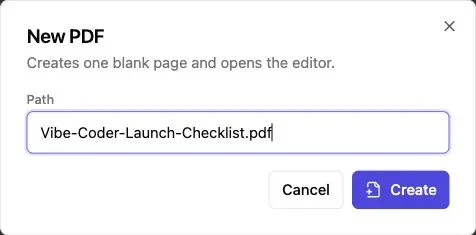
Note: Revdoku can create a blank PDF directly in a bucket.
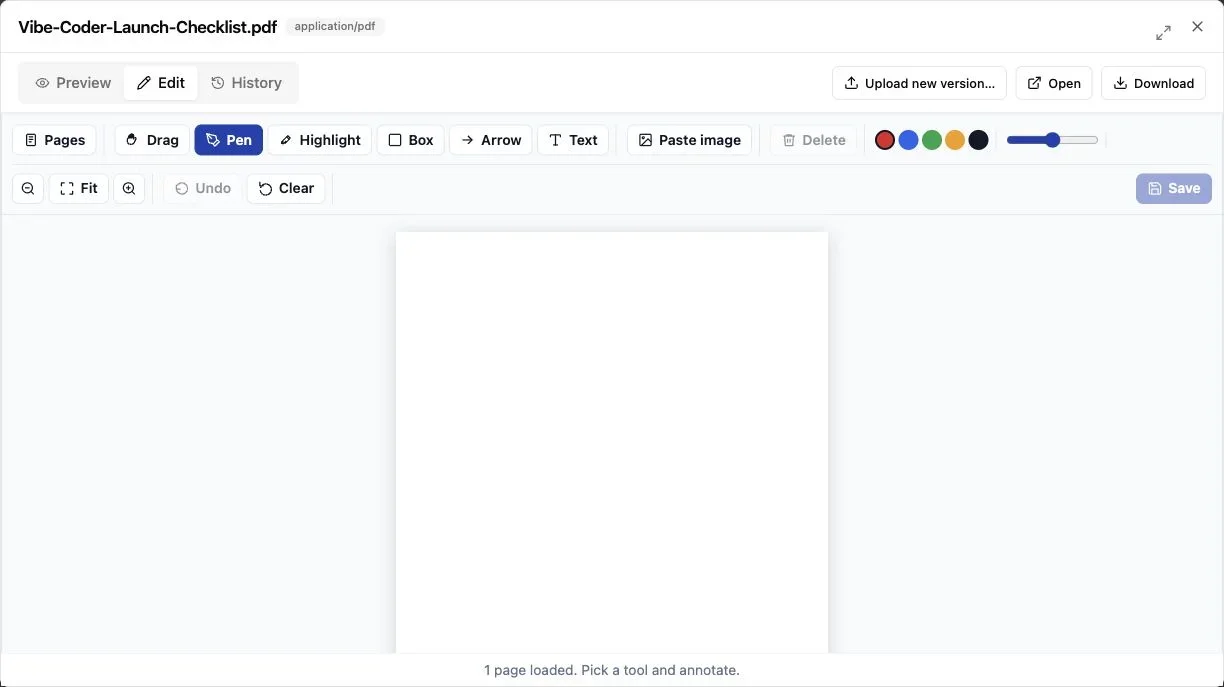
Note: The built-in PDF editor supports pages, pen, highlight, shapes, text, and pasted images.
Although portable, a PDF can be awkward to deliver: recipients may read it on a phone, lose it, or forward an outdated copy. A PDF-to-website workflow gives the document a stable home while preserving the original download.
A strong PDF-to-website page should contain:
- A clear document title and one-sentence description
- An in-browser preview
- A visible download action when downloads are allowed
- Your name, company, and contact route
- A feedback or approval form when a response is expected
A consultant sending a 34-page strategy report can publish it behind verified-email access instead of attaching strategy-final-v7.pdf. When the client opens the pricing and setup pages, the consultant can follow up about those subjects rather than asking, “Did you see my report?”
Online presentations benefit from the same treatment: a sales deck can include pricing notes, research, and a contact form, while a workshop deck can include worksheets and a recording link. The surrounding website gives the presentation context.
Design for mobile reading. Use legible text, descriptive link labels, and sufficient contrast in any custom landing page. The W3C recommends a contrast ratio of at least 4.5:1 for normal text under WCAG guidance.
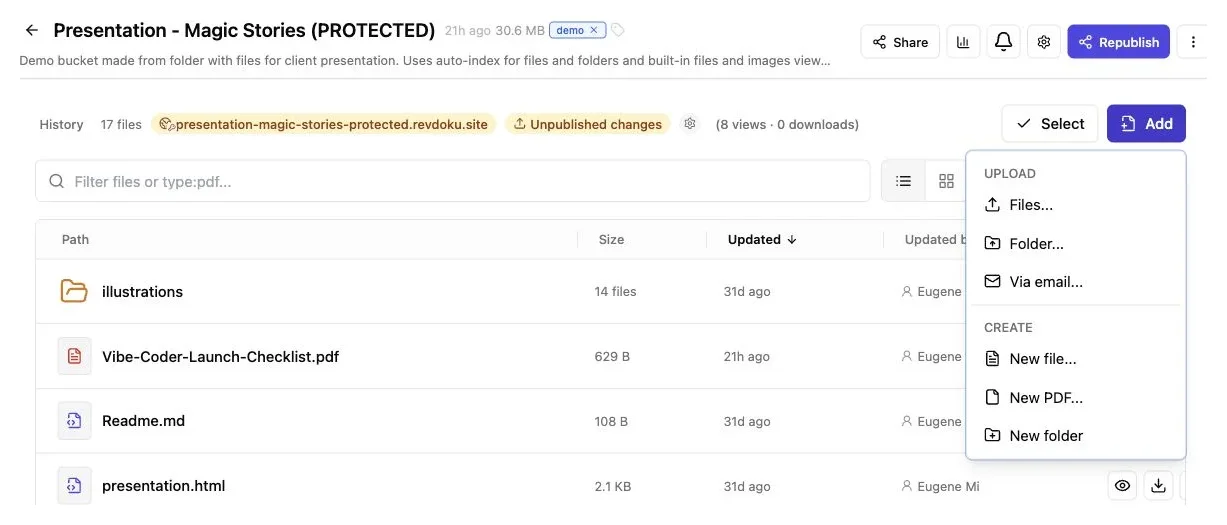
Use the Add menu for files, folders, email uploads, new text files, or a new PDF.
Use ZIP website hosting, HTML file hosting, and folder publishing
ZIP website hosting usually starts with an exported site or packaged files. Extract and inspect the folder before publishing. This catches forgotten drafts, private notes, source maps, and configuration files before they reach a client.
For HTML file hosting, the website root commonly looks like this:
client-demo/
  index.html
  styles.css
  app.js
  assets/
  documents/
With index.html, Revdoku can serve HTML, CSS, JavaScript, images, fonts, and other static assets as a site. Keep asset links relative so they continue to work after publishing. Then test navigation, images, downloads, and interactive elements in the live version.
Without index.html, Revdoku can generate a browsable index with common-file viewers and navigable subfolders. This makes a folder to website conversion useful for research packets, design handoffs, exported reports, and mixed client deliverables. The document publishing example shows how folders become navigable websites without a custom entry page.
A small agency might publish creative files, a PDF report, approved copy, and CSV results as an organized campaign-handoff website rather than an unexplained ZIP. For a single PDF or simple folder, follow the shorter live-link workflow.
Before publishing HTML file hosting projects, inspect these items:
| Item | What to inspect | Why it matters |
|---|---|---|
| Entry page | index.html is at the published root |
The homepage needs a predictable starting point |
| Asset paths | Links use the correct relative locations | Broken paths cause missing images and styles |
| Private files | Secrets, drafts, and internal notes are absent | Published folders may be accessible to visitors |
| Downloads | Linked filenames match uploaded files | Case-sensitive paths can fail |
| Mobile layout | Pages work at narrow widths | Many clients open links from email on a phone |
Use portfolio website hosting, ebook hosting, and course file hosting
Portfolios, ebooks, and courses need framing unless a plain storage-directory structure is intentional.
For effective portfolio hosting, lead with selected work and make projects easy to open. A freelance designer could publish five case studies, protect unreleased projects with a password, and collect inquiries through a contact form. When a project changes, the designer replaces its files while keeping the portfolio URL.
For ebook hosting, add a short PDF landing page explaining its audience, contents, and any email requirement for reading or downloading. Email capture should be a fair exchange, not a surprise barrier.
For course file hosting, organize material in the order students should use it:
- Create one folder or page for each module.
- Give lessons clear names such as
01-getting-startedand02-client-research. - Put worksheets and templates beside the lesson that uses them.
- Add a feedback form for questions or corrections.
- Replace outdated lessons at the same link.
A consultant might password-protect paid-workshop materials, a founder might put a public mini-course behind verified email access to record leads, and an agency might create private client onboarding sites. The pattern is the same: organize, control access, then learn from visitor behavior.
How to publish files online with Revdoku
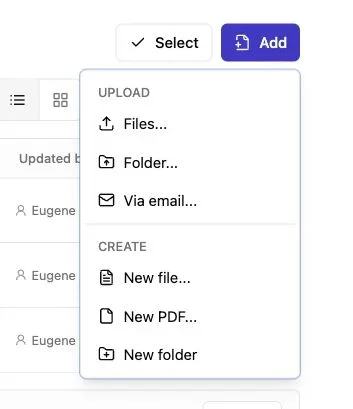
Note: Use the Add menu to upload files or a complete folder.
Start in the dashboard; you do not need an API, command line, or AI agent.
-
Create a bucket. A bucket is private storage for the files and settings behind one published site. Use a specific name such as
Acme Q3 Proposalrather thanNew Folder. -
Add your material. Drag in one file or an entire folder. Preserve the folder structure if HTML pages or documents link to other assets.
-
Review the published root. Choose the folder that should become the website. Other working files can remain stored without being served.
-
Choose an access mode. Use public access for open material, a password for a controlled audience, or verified email when identity and per-visitor activity matter.
-
Publish and open the link yourself. Test it in a private browser window. This exposes missing permissions, broken paths, forgotten gates, and mobile layout problems.
-
Share the stable URL. Put it in email, a proposal, a message, or a QR code. Explain what the recipient will find and whether access requires a password or email code.
-
Review activity and responses. Check opens, pages viewed, links clicked, downloads, and submitted feedback before deciding how to follow up.
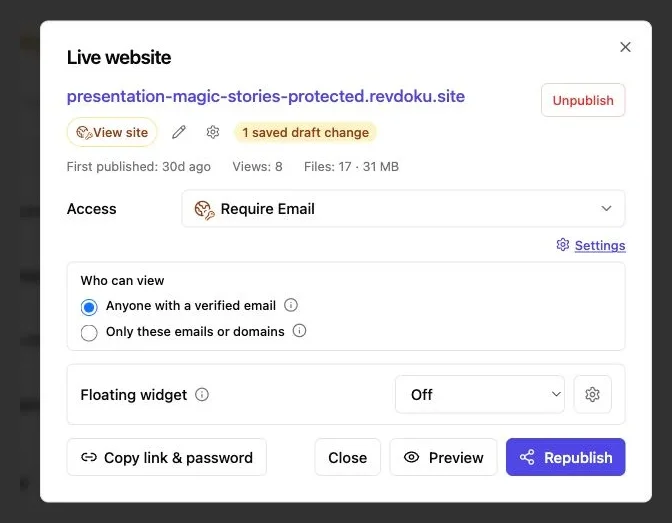
Choose the least restrictive mode that fits the material. This example has Require Email selected.
The process can take less time than cleaning up an attachment email, but always review the final folder; a neat name does not make it safe to publish.
Choose public, password, or verified-email access
Match access settings to the work’s sensitivity; more friction is not always safer. If a public brochure asks every visitor to verify an email, many will leave. If a confidential proposal is fully public, convenience has gone too far.
| Access mode | Visitor experience | Best for | Main tradeoff |
|---|---|---|---|
| Public | Opens immediately through the link | Portfolios, brochures, public ebooks, and open demos | Anyone with the URL may enter |
| Password-protected | Visitor enters a shared password | Client drafts, workshops, and limited previews | Shared passwords do not prove visitor identity |
| Verified email | Visitor confirms access through email, with optional allowlists | Proposals, investor material, premium content, and named client groups | Extra step for the visitor |
Verified-email access can allow selected addresses or a company domain and connect activity to an identified visitor. That is more useful than guessing whether an anonymous page view came from the decision-maker, an assistant, or your own test.
An agency sends four stakeholders a protected redesign demo. One opens pricing twice and downloads the scope; another views only the homepage. This does not prove intent, but gives the account lead a better conversation starter.
Revdoku’s free option is limited. It provides one branded, noindexed public site, requires account activity every 30 days, and needs no payment card. New accounts also receive a no-card trial. Password protection, verified visitor identity, and richer publishing limits are available through affordable paid plans. Check the current plan screen before promising a client a particular capacity.
Use visitor analytics, feedback, and one stable link
Client delivery also means knowing what happened after you sent the link.
Revdoku can record useful events such as:
- The protected site being opened
- Specific pages or file paths being viewed
- Links being clicked
- Files being downloaded
- Feedback, contact, or waitlist forms being submitted
Interpret these signals cautiously: a download is not approval, and five views do not guarantee a deal. Use analytics as context for human follow-up, not mind reading.
A freelancer sends a proposal Monday; the client opens it Tuesday, reviews the timeline, and downloads the statement of work. A Tuesday scheduling follow-up is more relevant than an automated “just checking in” three days later.
Built-in feedback keeps responses with the deliverable, letting clients report corrections without starting another email thread. Revdoku can notify the owner when a protected link opens or a form arrives. The backend-free form guide explains how to add feedback, contact, question, or waitlist forms.
A stable URL lets you replace a PDF, repair an HTML page, or add a worksheet and republish at the same address. You avoid final, final-2, and final-approved copies drifting through inboxes.
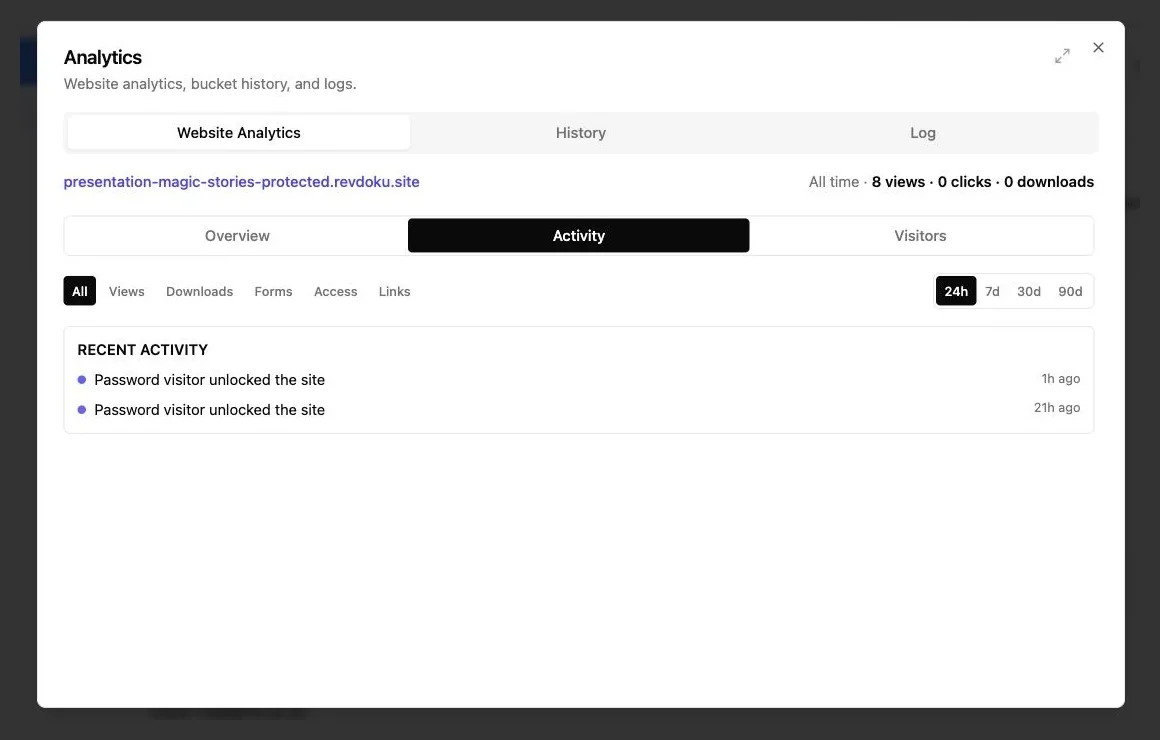
Activity can be filtered by views, downloads, forms, access, and links. The demo shown here contains password unlock events and no invented visitor details.
Compare file websites with common alternatives
Revdoku supports controlled delivery but does not suit every hosting job.
| Approach | Fast file publishing | Access control | Visitor-level activity | Easy same-link updates | Best fit |
|---|---|---|---|---|---|
| Email attachments | Yes | Limited to the message | No | No | Small, final files |
| Cloud-drive folder | Yes | Yes | Usually limited | Yes | Collaboration and storage |
| Static web host | Moderate | Varies | Often separate setup | Yes | Production sites and developer workflows |
| Self-managed server | No | Fully configurable | Requires setup | Yes | Custom infrastructure needs |
| Revdoku | Yes | Public, password, or verified email | Yes | Yes | Client files, demos, presentations, and mixed folders |
Use a traditional host when you need server code, databases, deployment pipelines, or advanced application infrastructure. Netlify, Vercel, and a VPS with Caddy each suit different technical workflows.
Use Revdoku to publish files when sharing, protection, feedback, and follow-up matter. Optional AI tools, the API, and the CLI can later automate repeated publishing through the same buckets, but none is required initially.
Common mistakes include:
- Publishing the wrong folder level
- Leaving private notes or source files in the public root
- Breaking HTML asset paths
- Gating material that should be easy to find
- Publishing confidential work without protection
- Treating visitor activity as proof of intent
- Sending a new URL after every revision
Open the finished site as a visitor before sharing and after each material update. Five minutes can prevent an awkward client email.
Final thoughts
To publish files online well, start with the file. A PDF needs a clean viewer. A ZIP should become a reviewed folder-to-website project. HTML needs correct asset paths. Portfolios, ebooks, presentations, and courses need enough context to help visitors understand what they are seeing.
Revdoku turns them into stable public, password-protected, or verified-email websites. It adds visitor analytics, downloads, open notifications, lead capture, and feedback without requiring you to build a backend.
In the dashboard, create a bucket, add files, choose access, test, and share. Update the same site when the work changes so delivery stays current and clients know which version is real.
Frequently asked questions
Which file types can I publish as a website?
You can publish PDFs, presentations, ZIP archives, HTML exports, ebooks, course materials, and mixed folders. PDFs can open in a browser viewer, while folders without an index page can become navigable file sites.
How should I prepare a ZIP or HTML project before publishing?
Extract the archive and remove drafts, private notes, secrets, source maps, and configuration files that visitors should not access. For a custom static site, place index.html at the published root, use relative asset paths, and test every page, image, script, and download.
Should I use public, password-protected, or verified-email access?
Use public access for openly shareable resources, password protection for material intended for a limited group, and verified email when you need to identify individual visitors or restrict specific addresses or domains. Choose the least restrictive option that still matches the material’s sensitivity.
Can I update published files without sending a new link?
Yes. Replace or add files and republish the site at the same stable URL, so recipients always have access to the current version. Retest the site after any material update to catch broken links or missing assets.
What should I test before sharing the published link?
Open the site in a private browser window and confirm that access controls, navigation, previews, downloads, forms, and mobile layouts work correctly. Also verify that you published the intended folder level and did not expose internal files.
What can visitor analytics tell me?
Analytics can show site opens, viewed pages, link clicks, downloads, and form submissions. These signals can make follow-up more relevant, but they should be treated as context rather than proof that a visitor approves the work or intends to buy.
When should I use a traditional web host instead?
Choose a traditional static host or self-managed server when the project needs server-side code, databases, deployment pipelines, or advanced application infrastructure. A file-publishing platform is a better fit when the main priorities are fast delivery, controlled access, feedback, analytics, and same-link updates.
Related Articles
Best Client Portal Software for Agencies
Compare client portal software for agency operations, collaboration, file sharing, creative proofing, and secure delivery.
One Link Client Portal for Deliverables | Revdoku
Create a secure one-link client portal for reports, files, demos, feedback, analytics, and updates without sending a new URL.
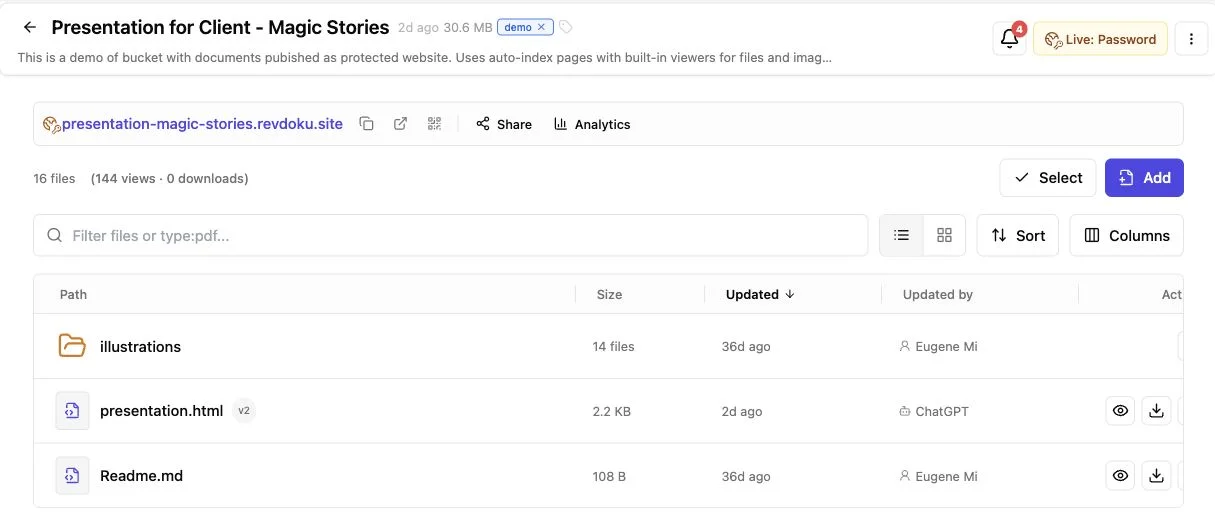
Folder to Website: Publish and Share Client Files
Turn a folder into a secure website with browser previews, stable links, access controls, analytics, forms, and easy updates.