Folder to Website: Publish and Share Client Files
Table of Contents
- Folder to website without rebuilding everything
- What happens when you turn a folder into a website
- Browser previews when you publish a folder online
- How to publish a folder online in six steps
- Choose access before you share a folder as a website
- Update one folder website and measure client interest
- Four real-world folder website examples for client file sharing
- Folder website alternatives for client file sharing
- Folder-to-Website Pitfalls
- Final thoughts
- Folder to website without rebuilding everything
- What happens when you turn a folder into a website
- Browser previews when you publish a folder online
- How to publish a folder online in six steps
- Choose access before you share a folder as a website
- Update one folder website and measure client interest
- Four real-world folder website examples for client file sharing
- Folder website alternatives for client file sharing
- Folder-to-Website Pitfalls
- Final thoughts
Folder to website without rebuilding everything
A folder to website workflow solves a common client file sharing problem. A proposal, deck, spreadsheet, demo, images, and notes become scattered email attachments. A cloud drive stores it but leaves clients staring at a file manager.
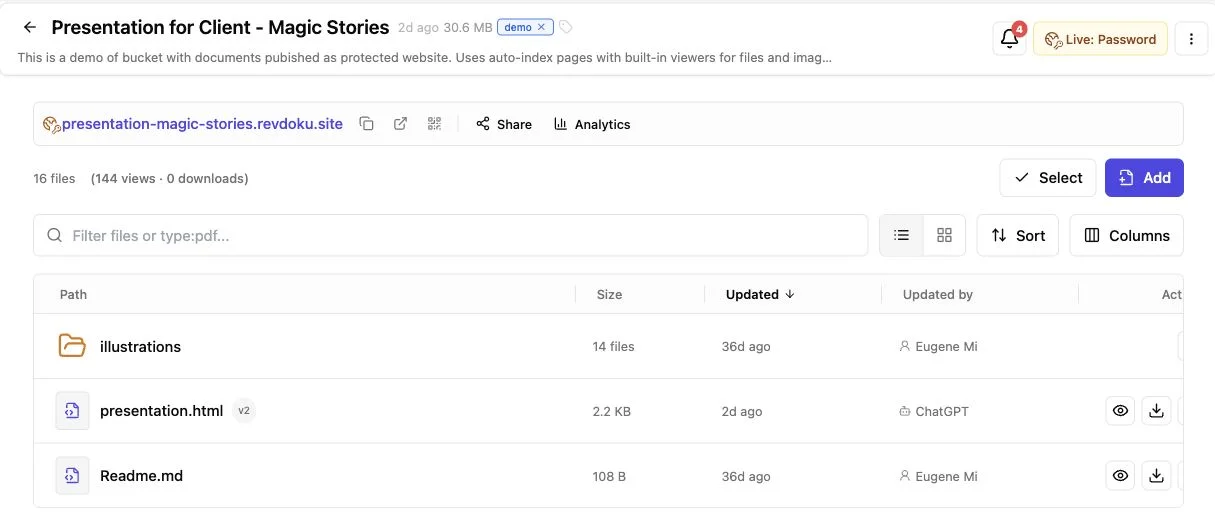
A folder website keeps files together on a browser-navigable page. With Revdoku, drag a folder into a private bucket, publish it, and control access. One stable link lets you publish files online, control access, update content, and see how visitors use it.
This guide explains:
- How automatic navigation and browser previews work
- When to add an optional
index.html - How to share a folder as a website with the right access mode
- How stable links, analytics, forms, and updates improve client delivery
What happens when you turn a folder into a website
A folder website publishes an organized collection while preserving its hierarchy. A research subfolder stays separate from images, but clients can reach both from one page.
Revdoku stores them in a bucket. Revdoku keeps bucket files private until publication.
Revdoku gives each published bucket a stable website URL that remains unchanged through updates. Version two does not create another client link.
Choose between two homepage methods. Revdoku’s current publishing documentation describes both:
| Homepage method | What the visitor sees | Best use |
|---|---|---|
| Auto-Index Page | A generated file listing with navigation and previews | Proposals, reports, research packets, image sets, and mixed documents |
index.html or index.htm |
Your own designed homepage | Demos, microsites, interactive reports, and branded presentations |
Without index.html, Revdoku creates the Auto-Index Page. It can place README.md, README.txt, or index.md below the listing like a repository overview while keeping nested folders accessible. You can publish a folder online without becoming a web designer.
An added index.html becomes the root page, so keep its CSS, JavaScript, images, and relative links in place rather than flattening the project. A path such as assets/chart.webp will break if the image is moved somewhere else.
Browser previews when you publish a folder online
Clients can inspect files in a navigable document website instead of downloading each one. Revdoku’s public documentation names built-in viewers for Markdown, HTML, CSV, PDF, images, and other common files. Its document publishing example also shows folders and subfolders becoming browser navigation.
| File type | Expected website role | Practical preparation |
|---|---|---|
| Markdown | Rendered document or Auto-Index introduction | Use headings, short sections, and descriptive links |
| HTML | Standalone page or custom homepage | Keep linked CSS, JavaScript, fonts, and images together |
| Browser-readable document | Check page size, links, and text clarity before publishing | |
| CSV | Data file with a built-in viewer | Use a clear header row and human-readable column names |
| Images | Visual preview or website asset | Compress large images and use descriptive filenames |
| Other formats | Static file whose preview support may vary | Test it or export a client-friendly PDF or HTML copy |
A PDF export is usually safer for browser viewing than an untested PowerPoint deck. If the client needs the editable source, keep it in the bucket beside the PDF for quick review.
2026-q3-research-summary.pdf is easier to understand than final_v7_NEW.pdf. The W3C recommends descriptive link text, because visitors should know what a link does even when they encounter it out of context. Clear filenames give an automatic index the same advantage.
How to publish a folder online in six steps
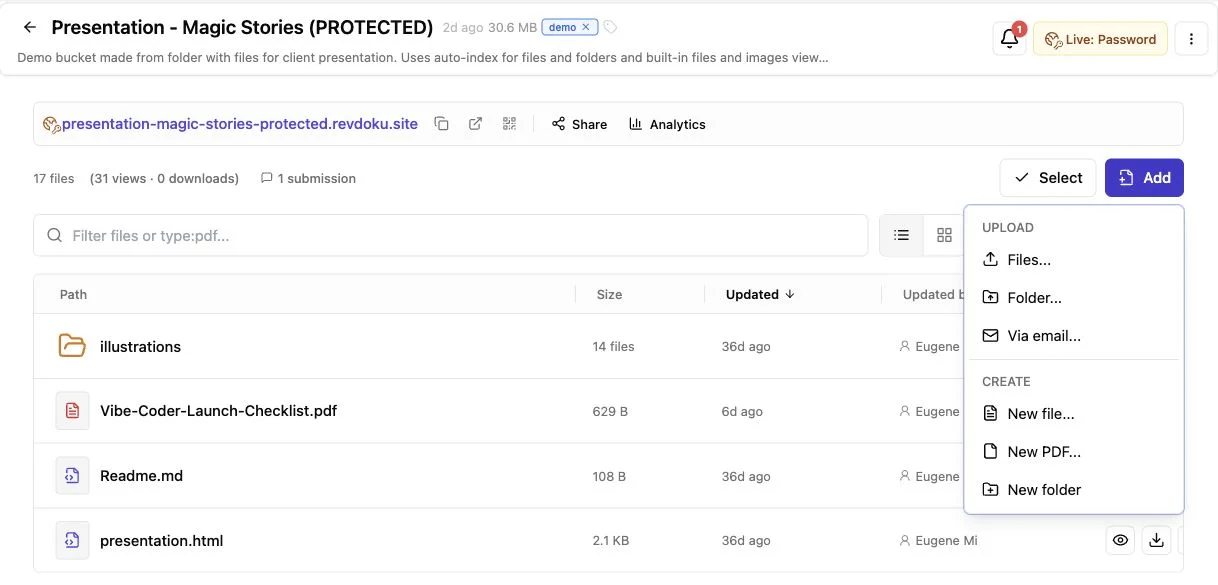
The dashboard makes publishing files straightforward. Publishing a folder as a website requires no AI agent, API key, build pipeline, or command line.
-
Prepare the folder. Remove drafts, secrets, duplicate exports, and files the client should not receive. Keep useful subfolders instead of flattening everything.
-
Choose the homepage approach. Omit
index.htmlfor automatic navigation; add it for a designed static site or custom landing page. -
Create a Revdoku bucket. Use a recognizable name like
Northwind Q3 Strategy, not a vague label likeUpload 12. -
Upload the folder. Drag the folder into the dashboard bucket; Revdoku preserves its navigable structure and publishes mixed files as one website.
-
Select an access mode and publish. Choose Public, Password, or Verified Email access, then open the link before sending it.
-
Test as a visitor. Check the homepage, nested folders, previews, downloads, links, forms, mobile layout, and every
index.htmlasset path.
Revdoku builds publications asynchronously to avoid timeouts for large buckets, including folders with around 4,000 files. That capacity is no invitation to publish clutter; clients still need a clear route through the work.
The CLI, API, or an AI agent can automate repeated updates to the same bucket. Start with drag-and-drop, then automate when repetition becomes annoying.
Choose access before you share a folder as a website
Choose access based on the folder’s contents and acceptable visitor friction. The three publication modes solve different problems.
| Access mode | Visitor experience | Good fit | Main concern |
|---|---|---|---|
| Public | Anyone with the URL can open the site | Portfolios, public resources, launch pages, and open reports | The link should not contain confidential work |
| Password | The visitor enters a shared password | Client demos, draft decks, proposals, and review folders | Shared passwords can be forwarded |
| Verified Email | The visitor verifies an email address before entering the protected site | Sales material, investor packets, controlled proposals, and lead capture | The extra step can reduce casual opens |
A public URL is convenient, but it does not verify identity.
For private client file sharing, use a protected mode. Revdoku can notify the owner when someone opens a protected link, while Verified Email ties permitted activity to an OTP-verified address. Treat that as evidence of inbox access, not proof that a named person reviewed every file.
Revdoku offers temporary API-created staging previews lasting 15 minutes by default, with a documented maximum of 43,200 minutes, or 30 days. These public, noindex previews are for staging, not secrecy. Google explains that noindex only removes a page from search results; people who have the URL may still access it. Use password protection when the content itself needs protection.
Send the password through a sensible channel, never inside the URL. If access is no longer appropriate, change the setting or rotate the password.
Update one folder website and measure client interest
To avoid link confusion, update and republish the same bucket when feedback arrives. Revdoku states that the public slug and URL remain stable across updates to that publication.
A clean update cycle looks like this:
- Replace files with their revised versions while preserving intentional paths.
- Remove obsolete copies instead of leaving
final,final-2, andreally-finaltogether. - Republish the existing bucket.
- Open the live URL in a private browser window.
- Confirm the changed pages and important downloads.
- Roll back to an earlier version if a bad update reaches the site.
The client keeps one bookmark as an agency replaces a demo after each review or a consultant adds the signed-off appendix. A founder can correct a forecast without sending a new investor link.
Analytics enrich that stable link. Revdoku records website traffic and browser-side events by default unless tracking is disabled. The documented reporting windows are 7, 30, and 90 days. Depending on publication and access settings, the owner can review:
- Opens and recent visitor activity
- Pages or paths viewed
- Clicks and file downloads
- Referrers, countries, and likely bot traffic
- Leads captured through Verified Email or a form
The API’s visitor total sums daily unique visitors rather than globally deduplicating the whole range. Use analytics to guide conversation, not invent certainty. An open shows access, not agreement.
Four real-world folder website examples for client file sharing
Shape the folder website around the recipient’s decision. These examples show teams publishing folders online without a full client portal.
| Scenario | Folder contents | Access choice | Useful signal or action |
|---|---|---|---|
| Freelancer proposal | Proposal PDF, scope page, pricing CSV, and work samples | Verified Email | Learn when the verified address opens the proposal and whether supporting files were viewed |
| Agency design review | HTML prototype, image exports, brand notes, and feedback form | Password | Collect comments without creating a separate form backend |
| Consulting research packet | Executive summary, source PDFs, charts, and data appendix | Password or Verified Email | Keep evidence navigable and identify which sections receive attention when using Verified Email |
| AI-generated demo | index.html, JavaScript, JSON data, screenshots, and release notes |
Password during review, public after approval | Update the same URL manually or through an optional agent workflow |
A proposal PDF may suffice for a small project, but adding research, references, examples, and several pricing options makes one attachment unwieldy. A folder website keeps the proposal short and evidence one click away.
Agency reviewers need to open a demo, compare images, read notes, and submit feedback in one place. Revdoku’s built-in feedback and contact forms handle submissions and notifications without a separate backend.
For AI builders, automation is optional. An agent can regenerate a report and republish the bucket, or a person can use the dashboard. The client sees one stable website either way.
Folder website alternatives for client file sharing
No client file-sharing method fits every file. Choose based on whether you need quick transfer, document collaboration, production deployment, or controlled client delivery.
| Approach | Strength | Limitation | Best when |
|---|---|---|---|
| Email attachments | Familiar and immediate | Size limits, duplicate versions, weak navigation, little activity data | Sending one or two final files |
| Cloud-drive link | Good storage and collaborative editing | Often feels like browsing internal storage; analytics and presentation vary | Working together on source documents |
| Static host | Strong control for a finished HTML site | Usually expects a deploy workflow; client access controls and document viewers may require other tools | Publishing a maintained public website |
| VPS | Full server, database, and configuration control | You own security, TLS, logs, updates, and uptime | Running custom backend software |
| Revdoku folder website | Automatic index, viewers, access gates, stable links, forms, and analytics | Intended for published file bundles and static sites rather than arbitrary server administration | Delivering proposals, reports, demos, and mixed client files |
Use email for a small final attachment, a drive for collaborative source editing, and an application host or VPS for custom server processes. Use a folder-to-website service for work ready to present, protect, measure, and update at one link.
Storage and presentation are different jobs. A drive can hold a perfect project folder yet give the client a poor reading experience.
A polished public site may be excessive for a confidential two-week review. Match delivery to the relationship, not whichever tool your team opens first.
Folder-to-Website Pitfalls
Most folder website failures are not technical. They are confusing, overexposed, or untested by a visitor.
Avoid publishing source secrets, API keys, private notes, executable installers, or unrelated internal folders. Although Revdoku excludes or rejects several dangerous and secret-looking file types, the owner must still review what is shared.
Do not preserve every draft. Make the current version obvious; if history matters, use behind-the-scenes versioning and rollback instead of listing five near-identical files.
Test outside your signed-in account. Open the shared URL in a private window, use the client’s password, follow every important path, and submit the form once. This short rehearsal catches more problems than another hour renaming the bucket.
Final thoughts
A folder to website workflow replaces attachment chains with one navigable place. Use an Auto-Index Page for mixed documents or index.html for a designed homepage. Prepare browser-friendly copies, match access to the work’s sensitivity, and test as a visitor.
The lasting benefits are straightforward:
- Clients receive one link instead of a pile of attachments.
- Protected access, notifications, and analytics improve follow-up.
- Updates reach the same URL, so old messages do not become dead ends.
Start manually: organize, upload, publish, and check the folder. If updates become repetitive, add the CLI, API, or an AI agent. Automation can change. The client-facing link does not have to.
Frequently asked questions
Do I need `index.html`?
No. Without index.html or index.htm, Revdoku generates a navigable Auto-Index Page. Add one only when you want a custom homepage.
Can I publish only one subfolder?
Yes. The API supports a publication root directory, so a website folder can be served while sibling work files remain stored but unpublished.
Will every specialized format preview?
Do not assume so. Test representative files and provide PDF or HTML versions of important proprietary documents.
Will updates change the link?
No, provided you update and republish the same bucket rather than creating a new publication.
Is a `noindex` preview private?
No. Use password protection for confidential content.
Do I need AI automation?
No. Drag-and-drop publishing is the primary path. The API, CLI, and agents are optional tools for repeated work.
Should I use an automatic file index or create an `index.html` homepage?
Use the automatic index when clients primarily need to browse documents, images, and subfolders. Create an index.html when you need a branded landing page, interactive demo, or custom navigation, and keep all linked assets in their expected relative paths.
How should I prepare a folder before publishing it?
Remove drafts, secrets, duplicates, and unrelated internal files, then organize the remaining content into clearly named folders. Use descriptive filenames and provide browser-friendly PDF or HTML versions of important files that may not preview reliably.
Which access mode should I choose for confidential client work?
Use Password for a straightforward private review, or choose Verified Email when you need to connect activity to a verified address or record leads. Verified Email uses an emailed one-time code and no shared site password. Do not treat a public or noindex link as confidential, because anyone who receives the URL may still open it.
Can I update the website without sending clients a new link?
Yes, if you replace the files and republish the same bucket, its website URL remains stable. After each update, check the live site in a private browser window and use version rollback if an incorrect release was published.
What should I do if an important file does not preview correctly?
Test representative files before sharing the site, especially proprietary or specialized formats. Keep the editable source when recipients need it, but add a PDF or HTML copy so they can review the content reliably in a browser.
What should I test before sending the website to a client?
Open the shared URL while signed out and verify access controls, navigation, nested folders, previews, downloads, links, forms, and mobile layout. For a custom homepage, also confirm that every stylesheet, script, image, and font loads from its intended path.
How should I interpret visitor analytics?
Use opens, page views, downloads, and form activity to prioritize follow-up and understand which materials attracted attention. These signals show interaction, not approval or buying intent, and visitor totals across reporting periods may count the same person on multiple days.
Related Articles
GitHub Pages Password Protection and Privacy
Learn why private repositories do not protect Pages sites and compare secure access options for internal teams and external clients.
How to Password Protect a Vercel Deployment
Learn how to secure Vercel deployments with password protection, authentication, trusted access, or protected Revdoku hosting.
How to Password Protect a Website Made with Claude
Learn how to export, secure, publish, and test a Claude-made website using password protection or verified-email access.