One Link Client Portal for Deliverables | Revdoku
Table of Contents
- One Link for Client Deliverables, Instead of a Trail of Files
- What a One Link Client Portal Is—and Is Not
- Organize a Client Deliverables Portal Around One Link
- How to Send a Client Deliverables Link with Revdoku
- Pick the Right Gate for Secure File Sharing
- Use Open Notifications Without Becoming Creepy
- Keep One Link for Client Deliverables Current
- Five Practical One-Link Package Examples
- Avoid Common One-Link Client Portal Mistakes
- Final Thoughts
- One Link for Client Deliverables, Instead of a Trail of Files
- What a One Link Client Portal Is—and Is Not
- Organize a Client Deliverables Portal Around One Link
- How to Send a Client Deliverables Link with Revdoku
- Pick the Right Gate for Secure File Sharing
- Use Open Notifications Without Becoming Creepy
- Keep One Link for Client Deliverables Current
- Five Practical One-Link Package Examples
- Avoid Common One-Link Client Portal Mistakes
- Final Thoughts
One Link for Client Deliverables, Instead of a Trail of Files
A one link client portal solves a common problem: clients cannot find the right version of finished work. Reports sit in email, notes in chat, and demos at another URL.
That friction is expensive. In Microsoft’s survey of 31,000 workers, 62% said they spent too much time searching for information, while Microsoft 365 data showed an average split of 57% of time communicating and 43% creating (Microsoft Work Trend Index).
One link for client deliverables gives clients a browser page for:
- The final report or presentation
- Source files and supporting data
- A live demo or walkthrough
- Delivery notes, feedback, and a contact form
TL;DR: This guide shows how to organize, protect, analyze, and update one link for client deliverables without sending a new URL.
What a One Link Client Portal Is—and Is Not
A useful one-link client portal gives clients one memorable place to open, review, and download finished work. It should feel like a tidy handoff desk, not software the client must learn.
McKinsey estimated that interaction workers spent 19% of working hours trying to find information. Five separate destinations make the client repeat that search.
| Approach | Client experience | Best use | Main drawback |
|---|---|---|---|
| Email attachments | Files are buried in a thread | One small, final file | Versions split across messages; personal Gmail caps attachments at 25 MB (Google Help) |
| Shared drive folder | Client browses a file tree | Ongoing co-editing | Permissions and folder depth can confuse occasional visitors |
| Full client suite | Client logs into a workspace | Projects with tasks, invoices, approvals, and support | More setup, cost, and training |
| One Revdoku link | Client opens a focused browser page | Reports, files, decks, demos, and feedback | It does not replace project management or billing |
Revdoku fits the last row: drop work into a private bucket and share the live page. Owners use the dashboard; clients use the link.
Organize a Client Deliverables Portal Around One Link
A useful client deliverables portal prioritizes sequence over software. Put decisions first, final outputs second, and supporting details last. A client should understand what arrived and what to do next within a minute.
Use this order:
-
Start here: Add a delivery note with project name, release date, outcome, and recommended next action.
-
Review first: Place the main report, proposal, or deck before background material. Use a clear title such as Q2 Retention Report, not final_v7b.pdf.
-
Use or download: Group production files, exports, data, and brand assets by purpose.
-
See it work: Place the demo, prototype, walkthrough, or presentation beside the files it explains.
-
Respond here: End with feedback and contact forms so comments do not scatter across inboxes.
| Area | Example contents | Naming rule |
|---|---|---|
| Overview | Read Me, delivery summary, release date | State the purpose |
| Primary work | Report PDF, proposal, slide deck | Lead with the client outcome |
| Supporting work | CSV, images, source archive, appendix | Group by use |
| Demo | Browser demo, walkthrough, prototype | Say what to test |
| Response | Feedback form, contact form, next step | Ask one clear question |
A research consultant might lead with an 18-page findings report, then add interview notes, a data workbook, and a feedback form. The client sees a story, not a storage bin.
How to Send a Client Deliverables Link with Revdoku
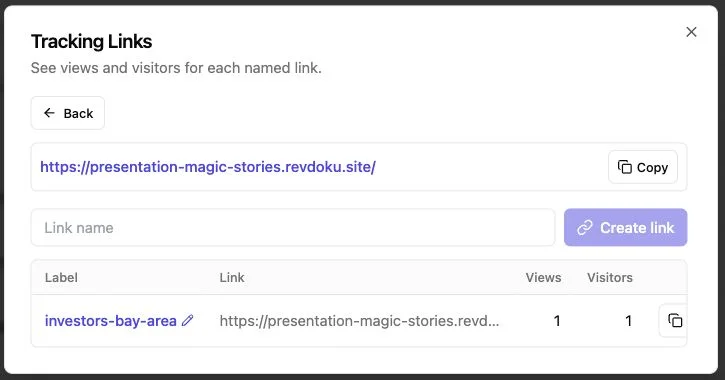
Default to the manual path: it is fast and easy to inspect. Building a one-link client portal requires no AI agent, API integration, or command line.
-
Create a private bucket. Name it for the client and delivery, such as Northstar Website Handoff, not just an internal job number.
-
Drop in the work. From the dashboard, drag in a PDF, presentation, individual files, or prepared folder.
-
Set the reading order. Put the overview first. Move appendices, raw exports, and optional downloads below the main deliverable.
-
Choose access. Use a public link for low-risk material, a password for shared confidential work, or an email gate when visitor identity matters.
-
Add a response route. A built-in feedback or contact form lets clients reply without a custom backend.
-
Test as the client. Open the link in a private browser window, check the mobile layout, try every demo, submit the form, and download one file.
-
Send client deliverables link details. Keep the email short: Your report, files, demo, and feedback form are together here. Please start with the summary at the top.
That test catches owner-only permissions, old exports, and demos requiring a signed-in session.
Pick the Right Gate for Secure File Sharing
Secure sharing matches access to the material. More friction is not always safer; less is not always better. The sound rule is least privilege: give people only the access they need for the task, as defined by NIST.
| Access mode | Use it when | Client friction | Practical example |
|---|---|---|---|
| Public | The material is meant to travel or contains no private data | Lowest | Public media kit or product demo |
| Password-protected | A known group needs a shared secret | Low | Agency handoff for a client team |
| Email-gated | You need to know who opens the link or record a lead | Moderate | Proposal, sales deck, or partner briefing |
Send a password in a separate message when the material is sensitive.
An email gate supports open notifications and per-visitor analytics, but explain why you need the address. A short note such as “Email is required so we can keep access limited and answer follow-up questions” is enough.
A gate is still not a compliance program. Do not share regulated health, payment, legal, or export-controlled data until contracts, internal policies, and legal duties permit it. For those files, confirm retention, deletion, residency, and access requirements first.
Use Open Notifications Without Becoming Creepy
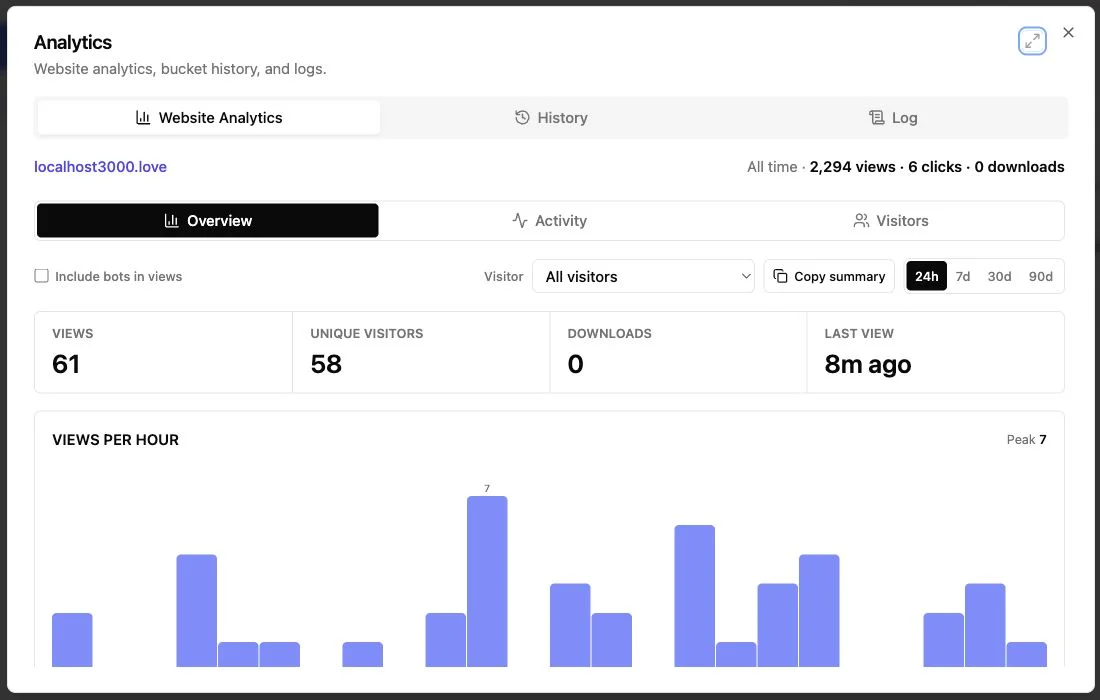
After sending a client deliverables link, silence becomes easier to read. Revdoku can notify the owner when someone opens a protected link and show per-visitor activity such as pages viewed, clicks, and downloads. Email gates can also record leads. These are signals for timing, not a verdict on the person.
Speed matters for decks in particular. In a December 2022 platform snapshot, DocSend reported that investors spent an average of only 2 minutes 18 seconds on startup fundraising decks (DocSend). That pattern does not apply to every client report, but the point stands: opening pages must work hard.
| Signal | Reasonable reading | Useful response |
|---|---|---|
| No open after two business days | The message may be buried or blocked | Confirm that the link reached the right person |
| Summary viewed, no download | The client may be scanning on mobile | Send one sentence naming the main finding |
| Several pages viewed and files downloaded | Review is active | Offer a short call tied to the material viewed |
| Repeat visit from a known recipient | A decision or internal discussion may be near | Follow up with context, not a generic nudge |
| Form submitted | The client chose a response channel | Reply there and preserve the thread |
Never write, “I saw you spent time on page nine.” Say, “Page nine covers the rollout cost if that would help your review.” The difference is small and human.
Keep One Link for Client Deliverables Current
The best reason to use one link appears after delivery. A typo surfaces, the client requests a new export, or a demo changes. A stable Revdoku link lets you update the bucket without making clients hunt through email for the latest URL.
Use a controlled release routine:
-
Keep working files separate. Keep design files, code repositories, or analysis notebooks as the source; the bucket holds the client-ready release.
-
Prepare the change. Export the revised report or build the new demo before touching the live package.
-
Replace or add with intent. Replace a corrected file when the old one has no continuing value. Add a dated version when the client may need both.
-
Write a short change note. State what changed, the date, and whether the client must act.
-
Preview the live link. Check the first page, file names, download behavior, forms, gates, and demo.
-
Notify only when useful. Skip email for a silent typo fix; send one for a changed recommendation, price, scope, or deadline.
| Change | Link action | Client message |
|---|---|---|
| Typo or formatting repair | Replace in place | Usually none |
| New export requested by client | Add beside the main file | Name the new file |
| Material revision | Replace or preserve both versions | Explain the effect |
| Access change | Update the gate and retest | Send new instructions securely |
This workflow preserves one trusted destination and a deliberate release.
Five Practical One-Link Package Examples
A one-link client portal changes with the job. Each example can be copied without a systems project.
| Work type | Package organization | Access and follow-up |
|---|---|---|
| Freelance brand handoff | Start Here, logo guide PDF, SVG and PNG folders, font links, social templates, feedback form | Password-protect it. If the guide is opened but assets are not downloaded, offer help choosing formats. |
| Consulting report | Executive summary, 24-page report, source workbook, interview appendix, decision form | Email-gate it. Follow up on the recommended decision, not on every page view. |
| Agency campaign delivery | Results deck, ad exports, approved copy, performance CSV, three-minute walkthrough | Give the client team one shared password. Add a dated release note when creative changes. |
| Founder proposal | Twelve-slide proposal, pricing PDF, browser demo, security note, contact form | Require email. An open notification can prompt a timely answer while the proposal is fresh. |
| AI agent pilot | Demo, prompt specification, evaluation results, known limits, sample outputs, change log | Use a password or email gate. When the evaluation set changes, publish the new results at the same link. |
An agent may generate reports or publish recurring releases, but clients still need a clear browser page, honest limits, and someone responsible for publication.
Avoid Common One-Link Client Portal Mistakes
A client deliverables portal can still be messy. The most common mistake is archiving everything the team produced. Delivery requires editing. Remove duplicates, internal comments, failed drafts, secrets, and unusable files.
| Mistake | What the client feels | Better choice |
|---|---|---|
| Uploading every draft | Uncertainty about what is approved | Show one current release, plus older versions only when needed |
| Vague file names | Fear of opening the wrong item | Use outcome, format, and date where useful |
| Gating everything | Friction before trust exists | Match the gate to risk and identity needs |
| Publishing without a private-window test | Broken access or demos | Run the same path the recipient will use |
| Treating analytics as certainty | Pushy or mistimed follow-up | Combine activity with the project context |
| Using delivery software for operations | Missing tasks, invoices, or approvals | Add a full client suite when the workflow requires one |
Revdoku is lightweight delivery, not a complete client-operations suite. Keep existing contract, task, source, billing, and approval systems.
For occasional projects, drag and drop is usually enough. Use the API or CLI when a release pattern repeats across clients. An AI agent can publish a report or refreshed demo, but a human should check the destination, access, client data, and release note before sharing.
Final Thoughts
A strong one-link client portal removes the scavenger hunt. Clients get one browser destination for the report, files, demo, notes, and response. You get a stable link, sensible access controls, open notifications, per-visitor analytics, and cleaner follow-up.
Follow four rules:
- Organize around the client’s next decision
- Use the lightest gate that fits the risk
- Keep the same link current through a tested release routine
- Automate only after the manual delivery pattern is clear
To send a client deliverables link today, start with one private Revdoku bucket and one finished project. Package it, test it as a visitor, and send one URL. That is usually enough.
Frequently asked questions
What should I include in a one-link client portal?
Start with a short delivery summary, followed by the main report, presentation, or other approved output. Add supporting files, demos, release notes, and a clear feedback or contact option below it. Exclude internal drafts, duplicate exports, secrets, and anything the client does not need.
Should I use a public link, password, or email gate?
Use a public link for material intended to circulate freely, a password for confidential work shared with a known group, and an email gate when visitor identity matters. Choose the least restrictive option that still protects the material. Sensitive passwords should be sent through a separate channel.
How can I make sure the portal works before sending it?
Open the link in a private browser window and follow the same path the client will take. Test the access gate, mobile layout, downloads, demos, and forms. This helps uncover owner-only permissions, outdated files, and tools that require an unexpected sign-in.
Can I update deliverables without sending a new link?
Yes, a stable portal link can remain the same while you replace corrected files or add new exports. Include a dated change note for meaningful revisions and retest the live page after every update. Notify the client when the change affects recommendations, scope, pricing, or deadlines.
When should I preserve an older version instead of replacing it?
Replace a file when the previous version was simply incorrect or has no continuing value. Keep both versions when the client may need an audit trail, comparison, or previously approved release. Use clear dates or version labels so there is no ambiguity about which file is current.
How should I use open and download analytics?
Treat activity as a timing signal rather than proof of a client’s intent. Use the project context to shape a helpful follow-up, such as pointing to a relevant finding or offering a short call. Avoid mentioning detailed viewing behavior in a way that could feel intrusive.
Does a one-link portal replace project management or billing software?
No, it is best used as a focused destination for finished work, supporting files, demos, and feedback. Keep contracts, tasks, invoices, approvals, source files, and internal collaboration in the systems designed for them. Consider a full client suite when the engagement requires ongoing operational workflows.
Related Articles
GitHub Pages Password Protection and Privacy
Learn why private repositories do not protect Pages sites and compare secure access options for internal teams and external clients.
How to Password Protect a Vercel Deployment
Learn how to secure Vercel deployments with password protection, authentication, trusted access, or protected Revdoku hosting.
How to Password Protect a Website Made with Claude
Learn how to export, secure, publish, and test a Claude-made website using password protection or verified-email access.