Tutorial
This tutorial shows how to publish website, report, web app prototype from Claude, ChatGpt or Codex using Revdoku.
[Placeholder]
Prompt Used
Paste this into Claude, ChatGPT, or Codex:
Create and publish a password-protected demo website with Revdoku.
Project: create a simple landing page for a coffeeshop in San-Francisco.
Bucket title:
Wlecome to Best San-Francisco Coffee!
Bucket description:
This is a sample password protected demo, password is 12345
Requirements:
- Do not ask questions. Make reasonable choices.
- Build a complete static landing page using HTML, CSS, and JavaScript.
- Create these files:
- index.html
- styles.css
- app.js
- Include a visible note in the website UI:
- Do not create fake client-side password protection.
Access control:
- Use native Revdoku protected publishing.
- Publish with access_mode: password.
- Set password exactly to 12345.
- Do not generate a random password.
- Do not put the password in the URL.
Publishing:
- Use the Revdoku as password protected website.
- Publish as password protected website with the password: 12345
[
Steps and Screenshot Placeholders
- Connect the AI tool to Revdoku.
- Screenshot placeholder: connected Revdoku tool or MCP screen.
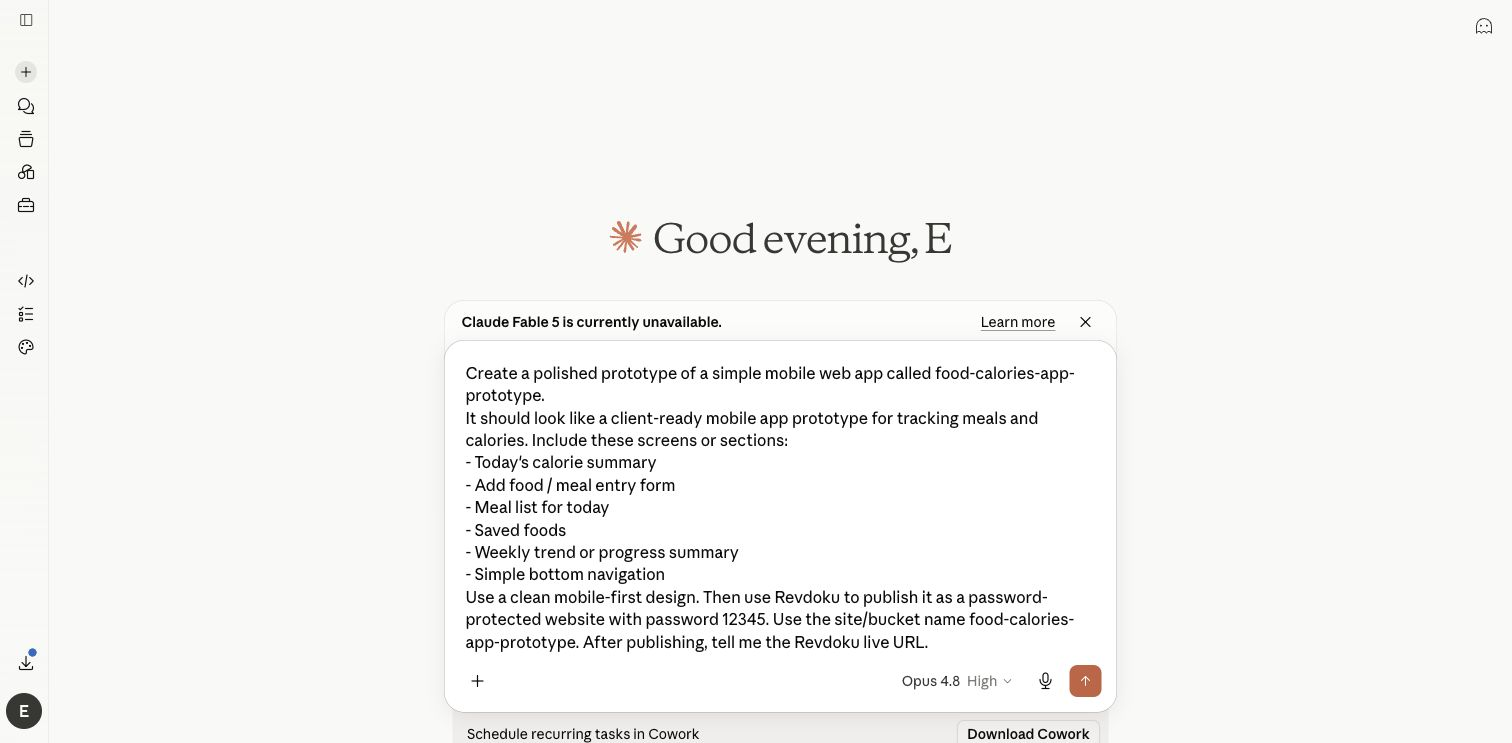
- Paste the prompt above.
- Screenshot placeholder: protected-demo prompt in ChatGPT, Claude, or Codex.
- Review the generated demo files.
- Screenshot placeholder: generated
index.html,styles.css, andapp.js.
- Screenshot placeholder: generated
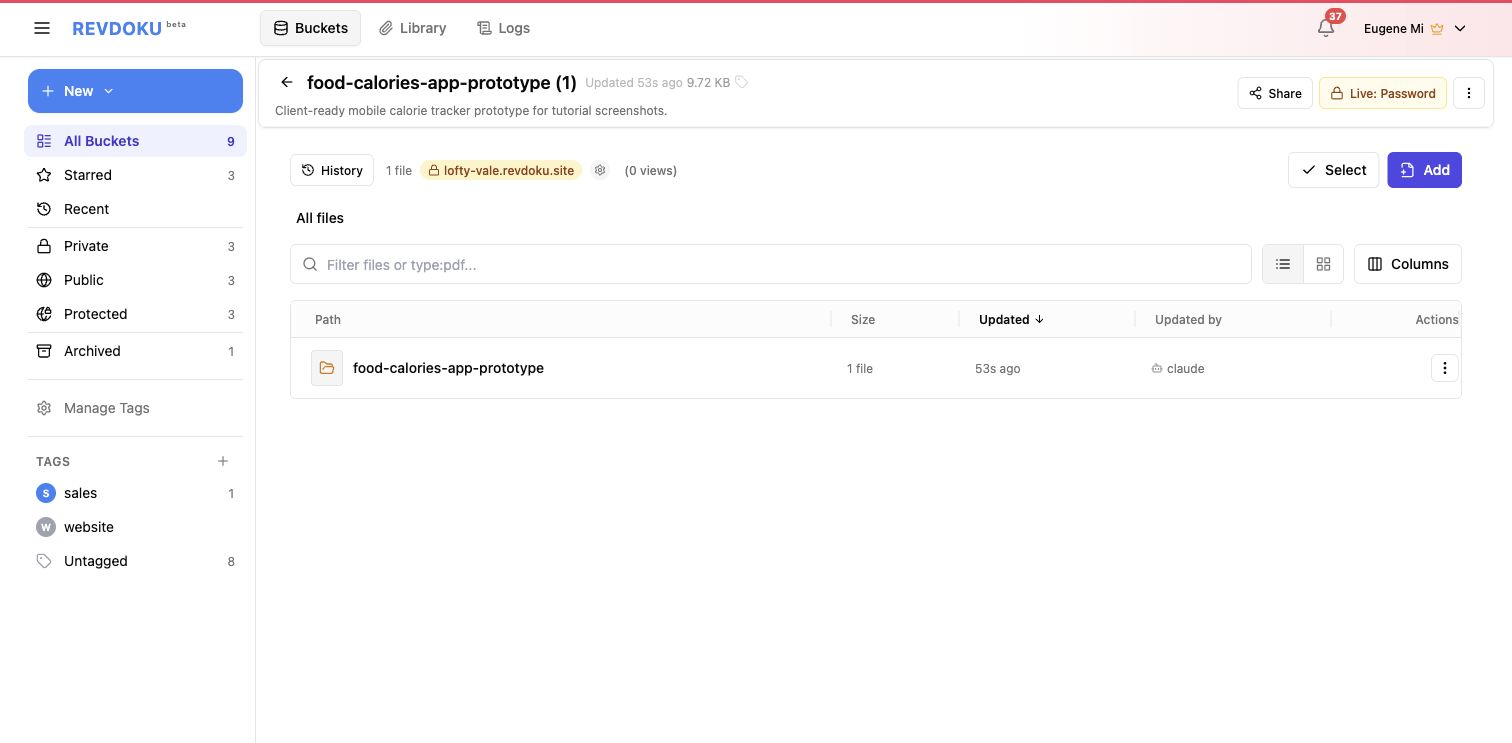
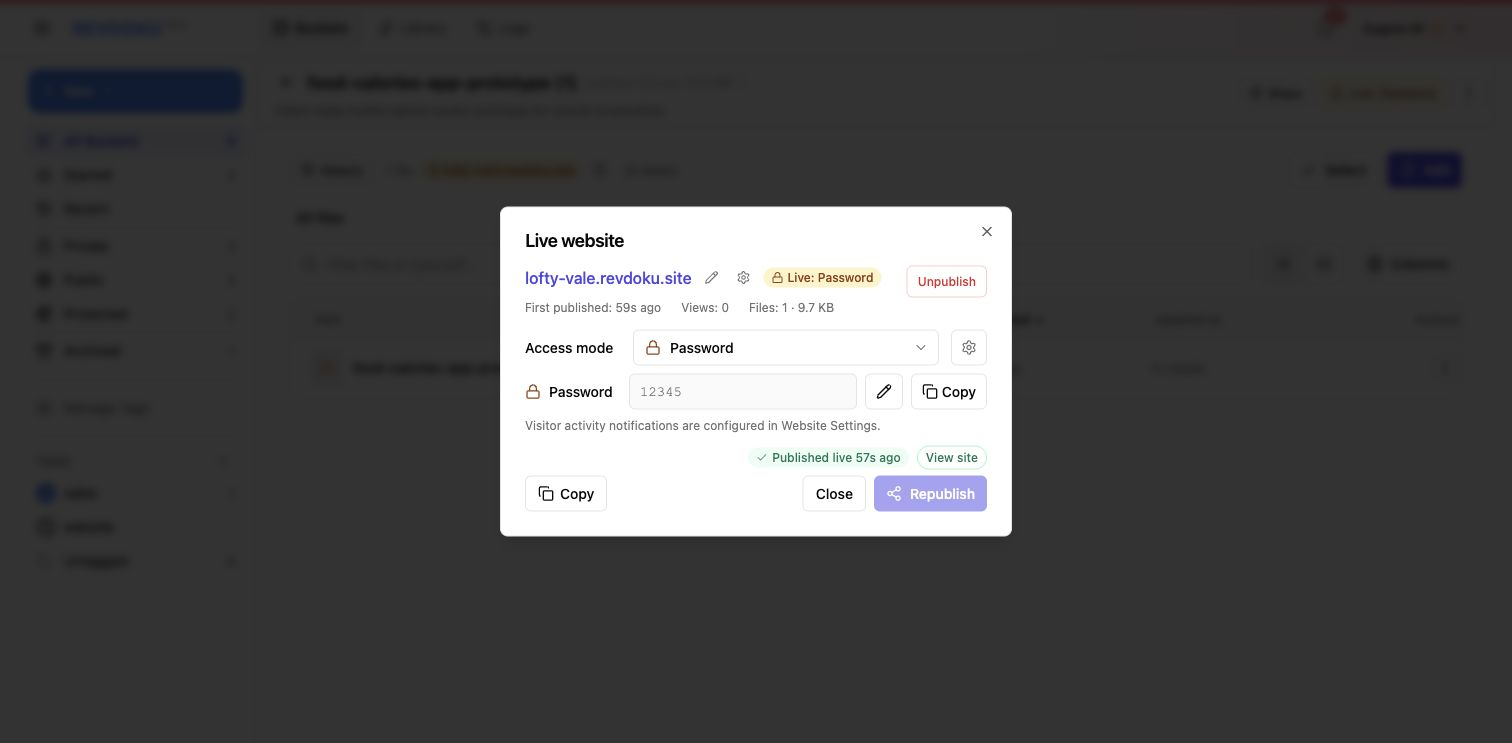
- Publish with native password protection.
- Screenshot placeholder: Revdoku protected publishing confirmation.
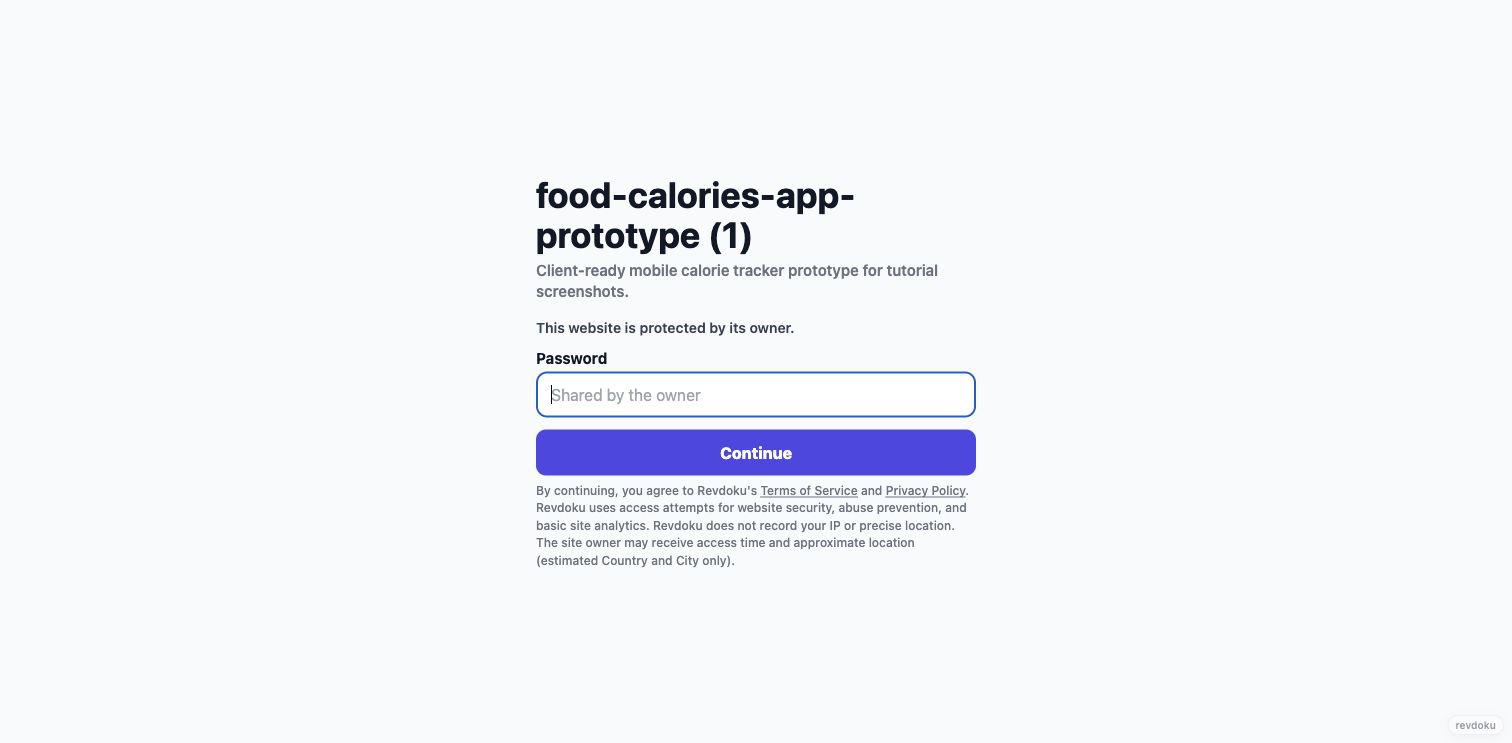
- Open the protected URL.
- Screenshot placeholder: Revdoku password gate.
- Enter the demo password and view the result.
- Screenshot placeholder: final protected demo website.
- Review analytics.
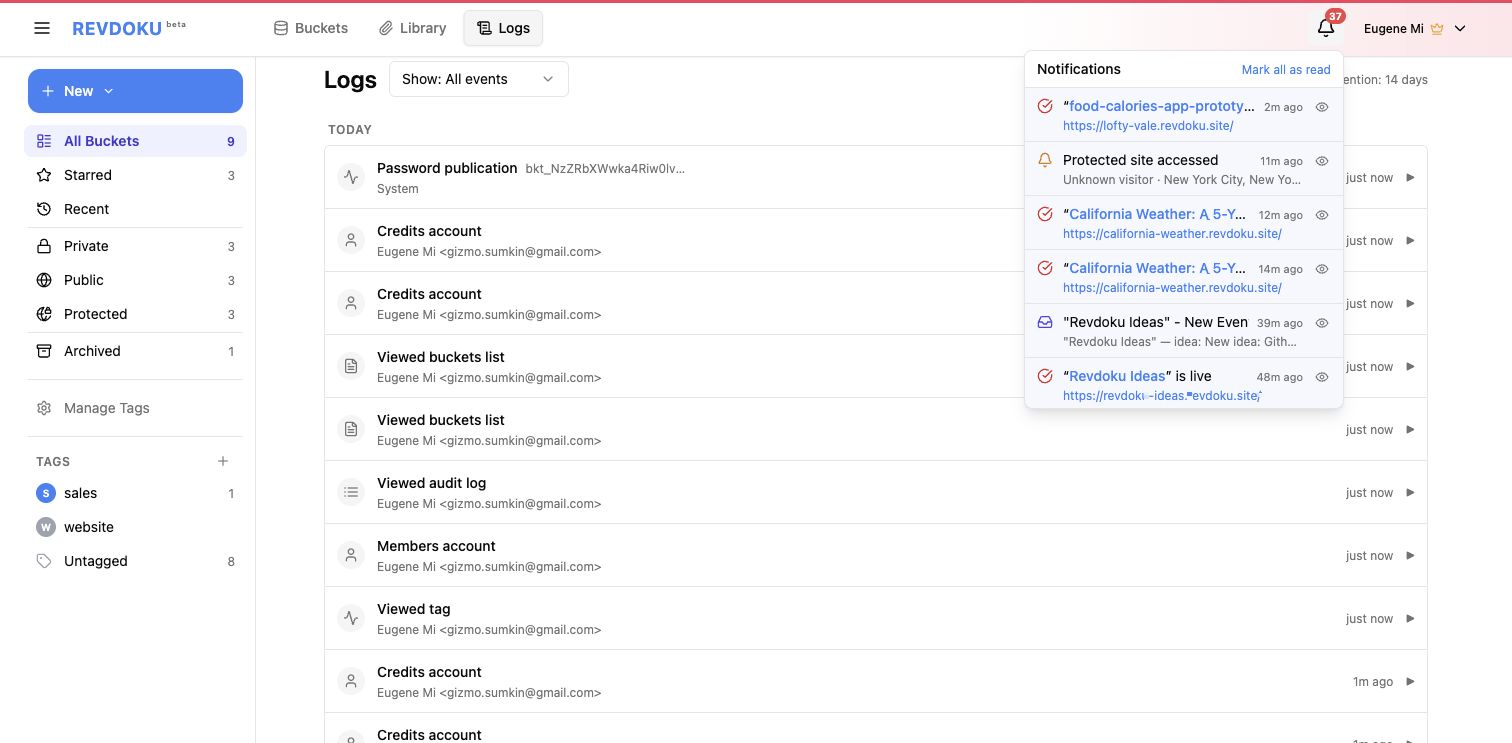
- Analytics screenshot placeholder: replace with the general views analytics screenshot.
- Review visitor access details if using ask-info mode.
- Per-visitor screenshot placeholder: replace with the per-visitor views analytics screenshot.
- Access screenshot placeholder: replace with the protected-site access entries screenshot.
Ask-Info Variant
Use access_mode: password_ask_info when the demo should ask visitors for email plus password and later show visitor-level access records.
For this protected demo, publish with access_mode: password_ask_info.
Ask visitors for email plus password before access.
Set password exactly to 12345.
After publishing, include screenshots for general views analytics, per-visitor views analytics, and protected-site access entries.
Good Fit
- Password-protected dashboards.
- Client previews and private-looking reports.
- Demo sites where the password can be public.
- Temporary review links before a site becomes public.