Use Cases
Real workflows for sharing documents, files, demos, and presentations with clients — gated, tracked, and always up to date.
14 items
Turn an AI-generated report folder into a live public website with a stable Revdoku URL.
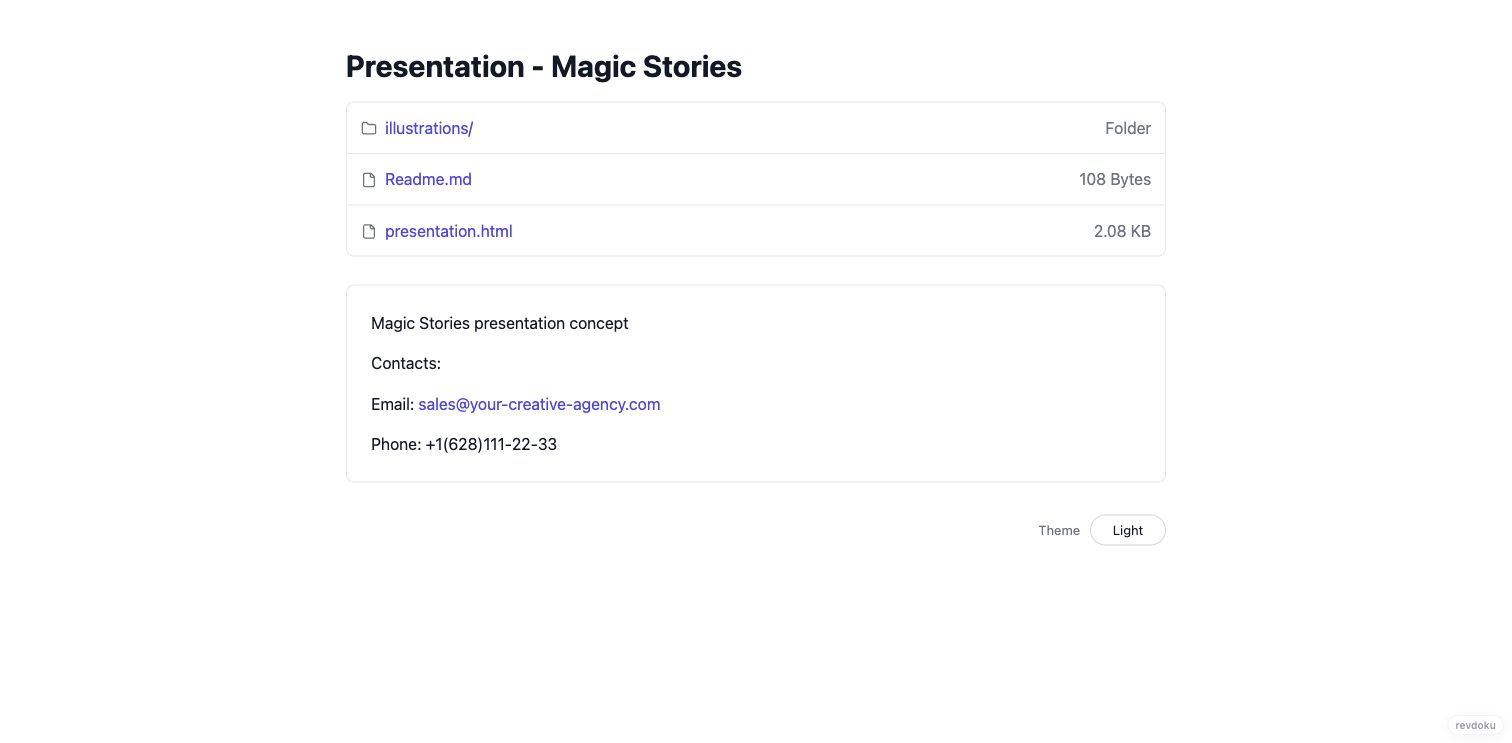
Send a deck or proposal as a protected link, get notified the moment the client opens it, and follow up while it's still on their screen.
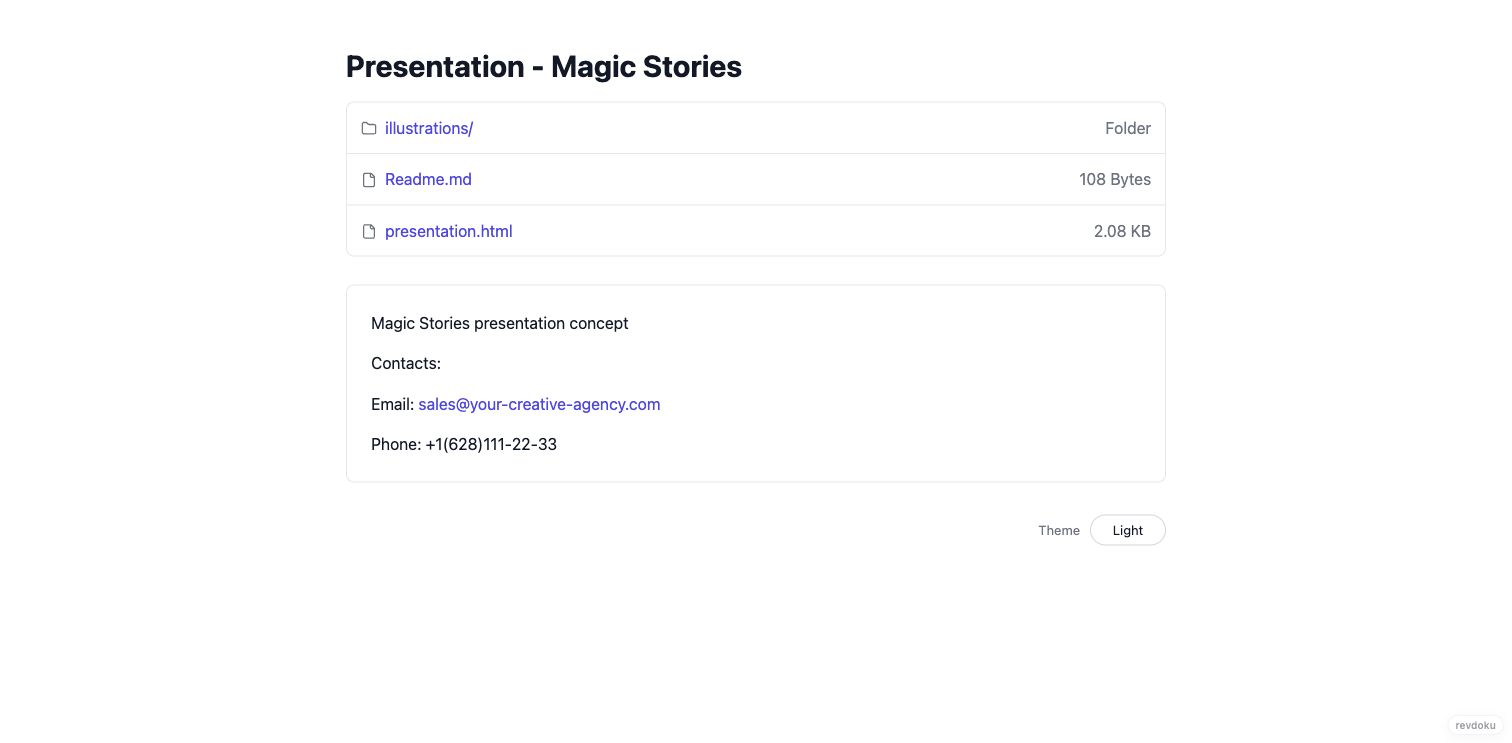
Turn a PDF or a folder of files into a clean shareable link in under a minute — no hosting to learn, no AI required.
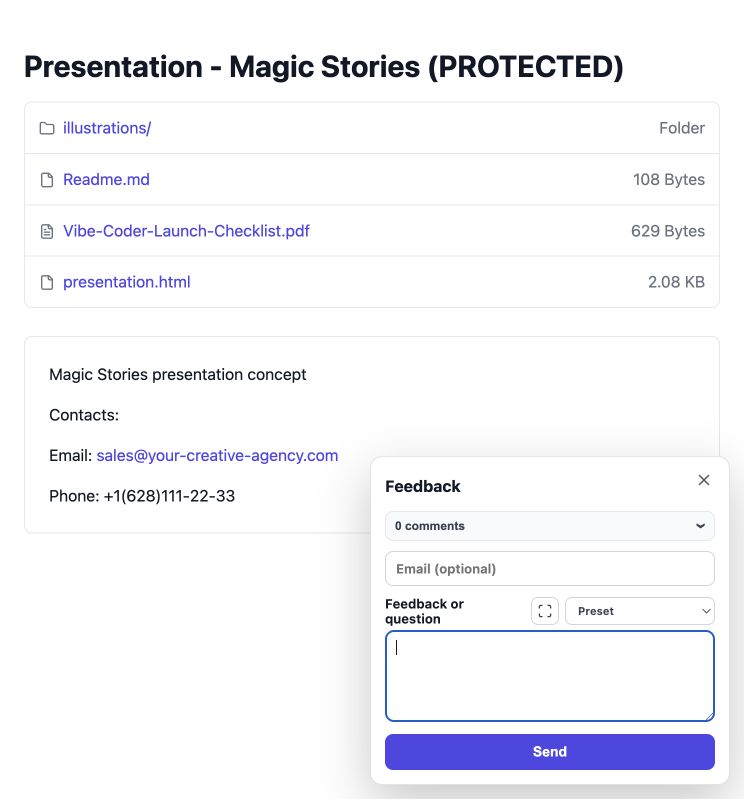
Put a feedback, contact, or waitlist form on any published Revdoku link and get submissions with notifications — no code, no server.
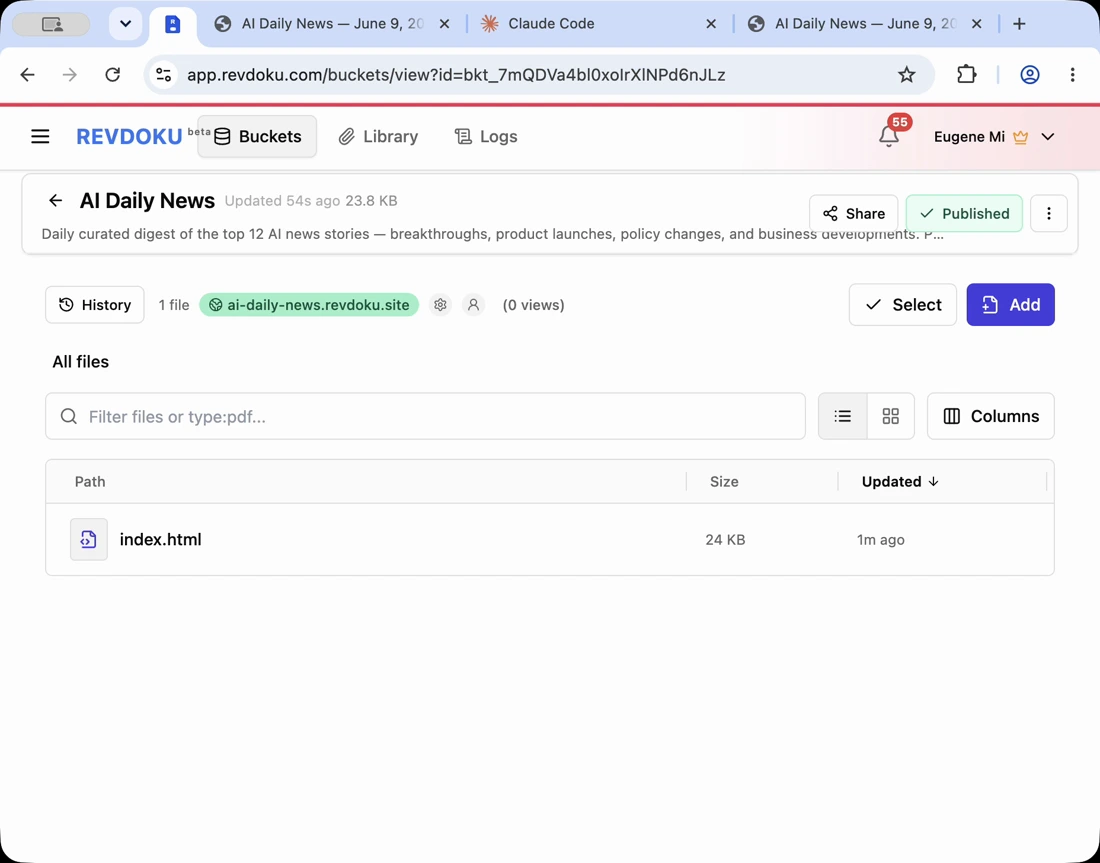
Share live chart dashboards and data visualizations with clients and stakeholders from one stable link.
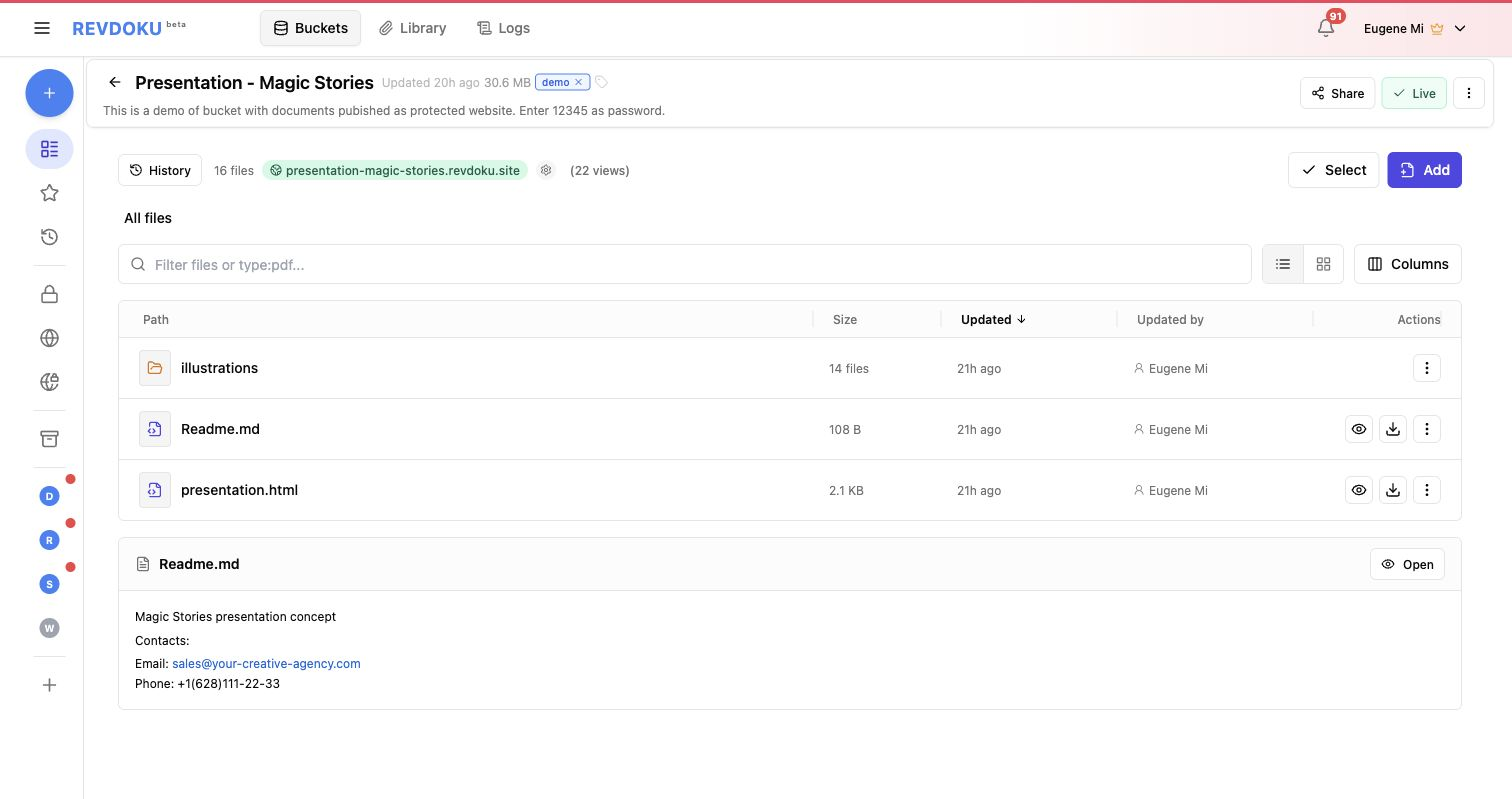
Share folders of Markdown, HTML, images, CSV, PDFs, and other files with clients as navigable Revdoku document websites.
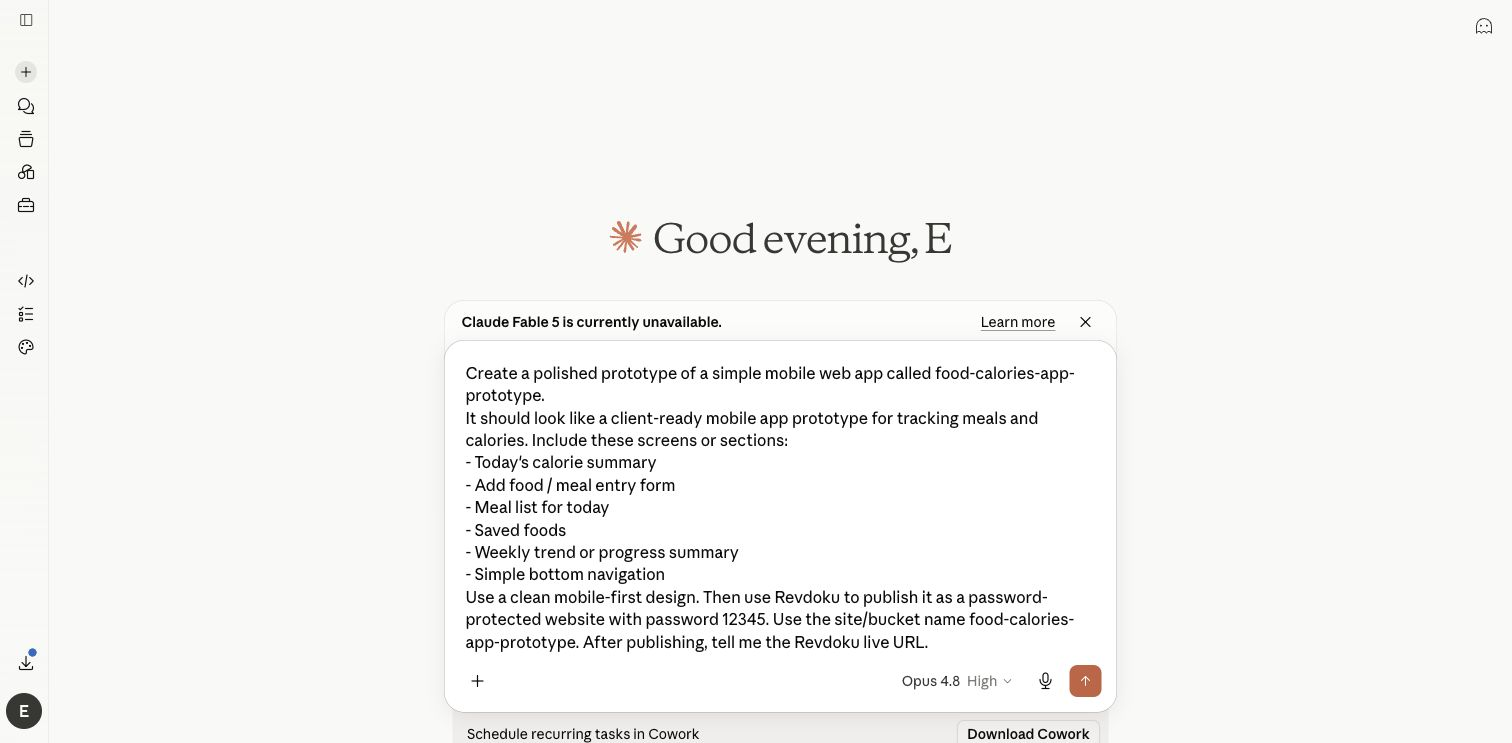
Share prototype apps and demo sites with clients using a real Revdoku password gate, then see access notifications.
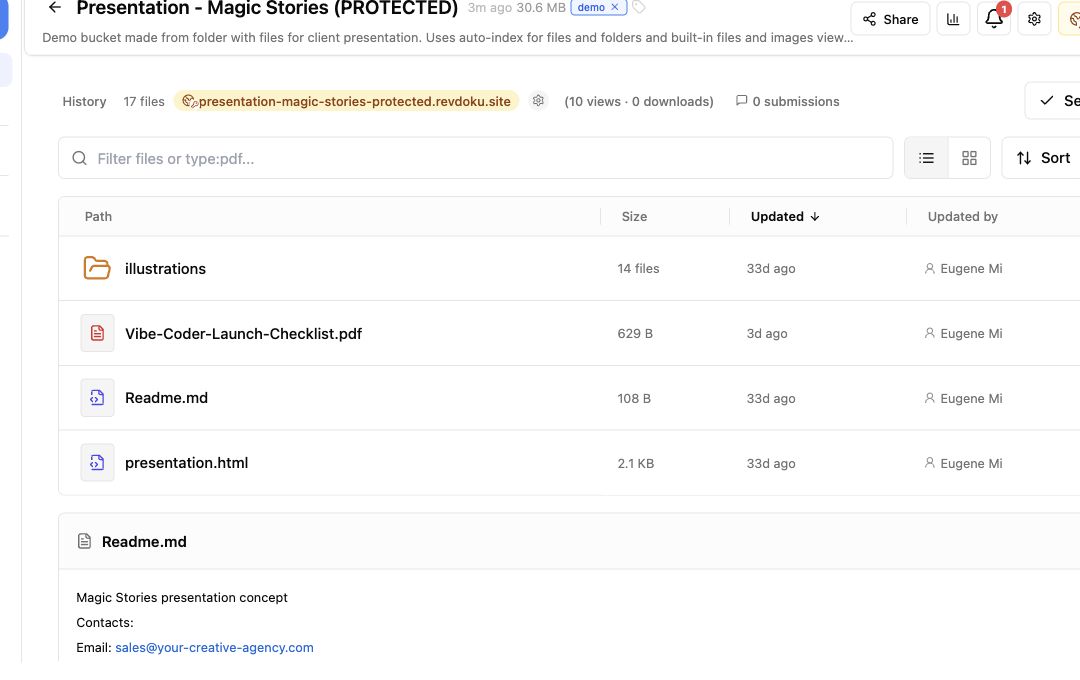
Deliver AI-prepared client files as a protected data room site with a password gate, an email requirement, and a record of who viewed what.
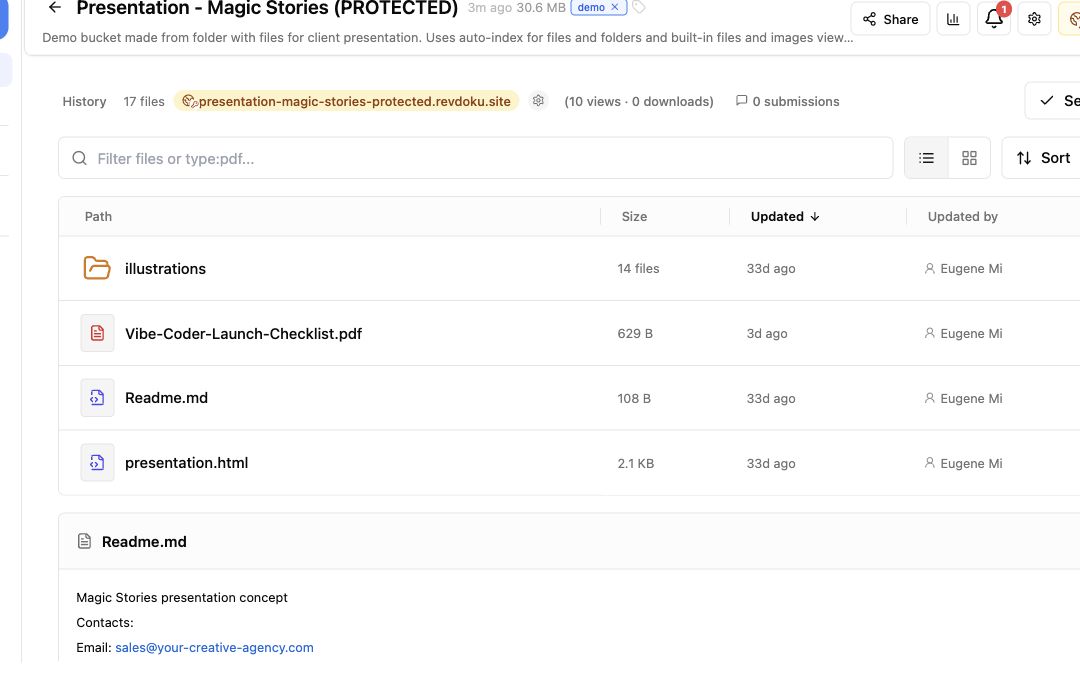
A working pattern for agencies and consultants: one bucket per client, protected deliverables, engagement analytics, and updates at stable URLs.
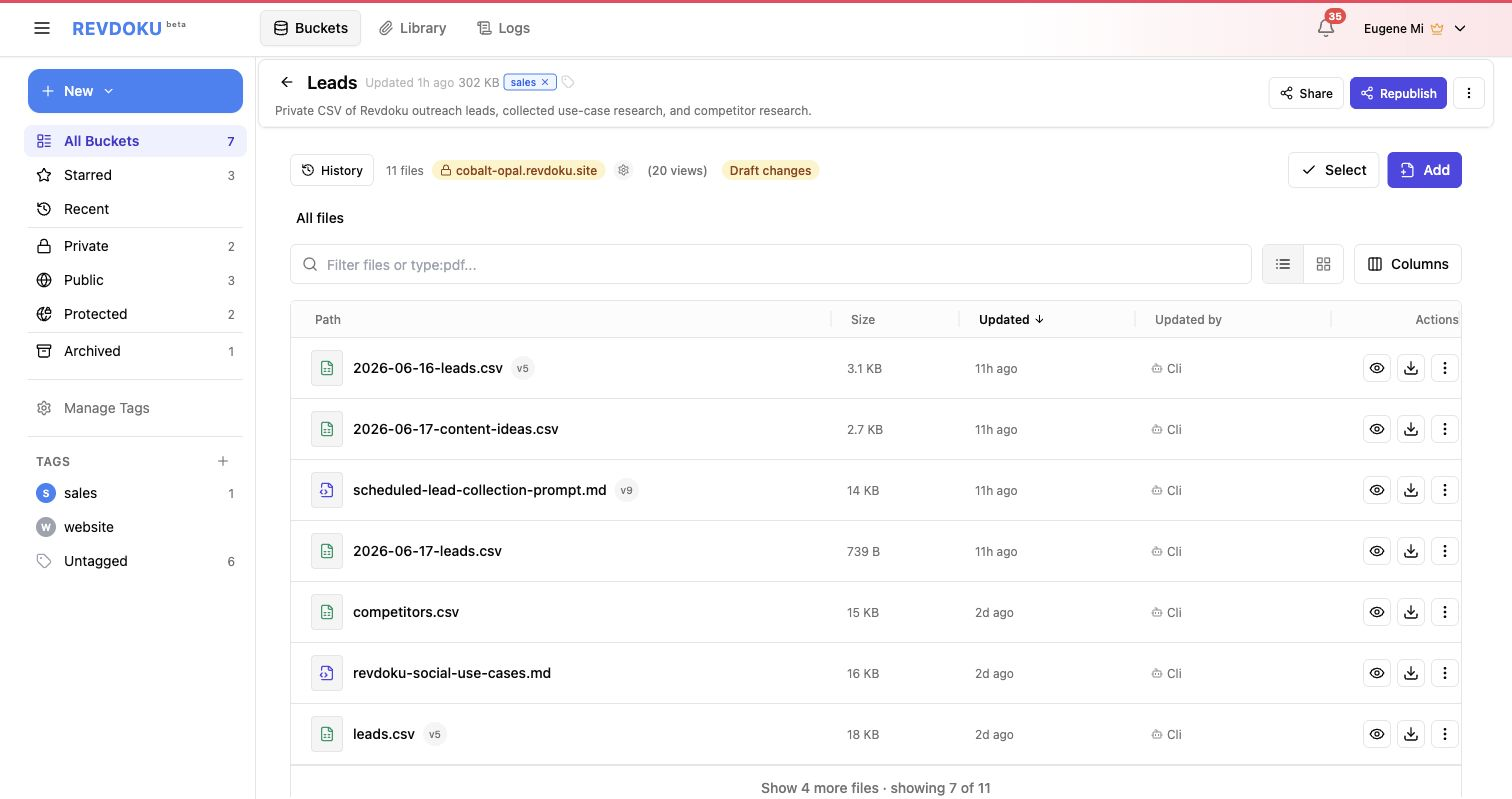
Share sensitive startup reports with password access, analytics, and owner notifications.
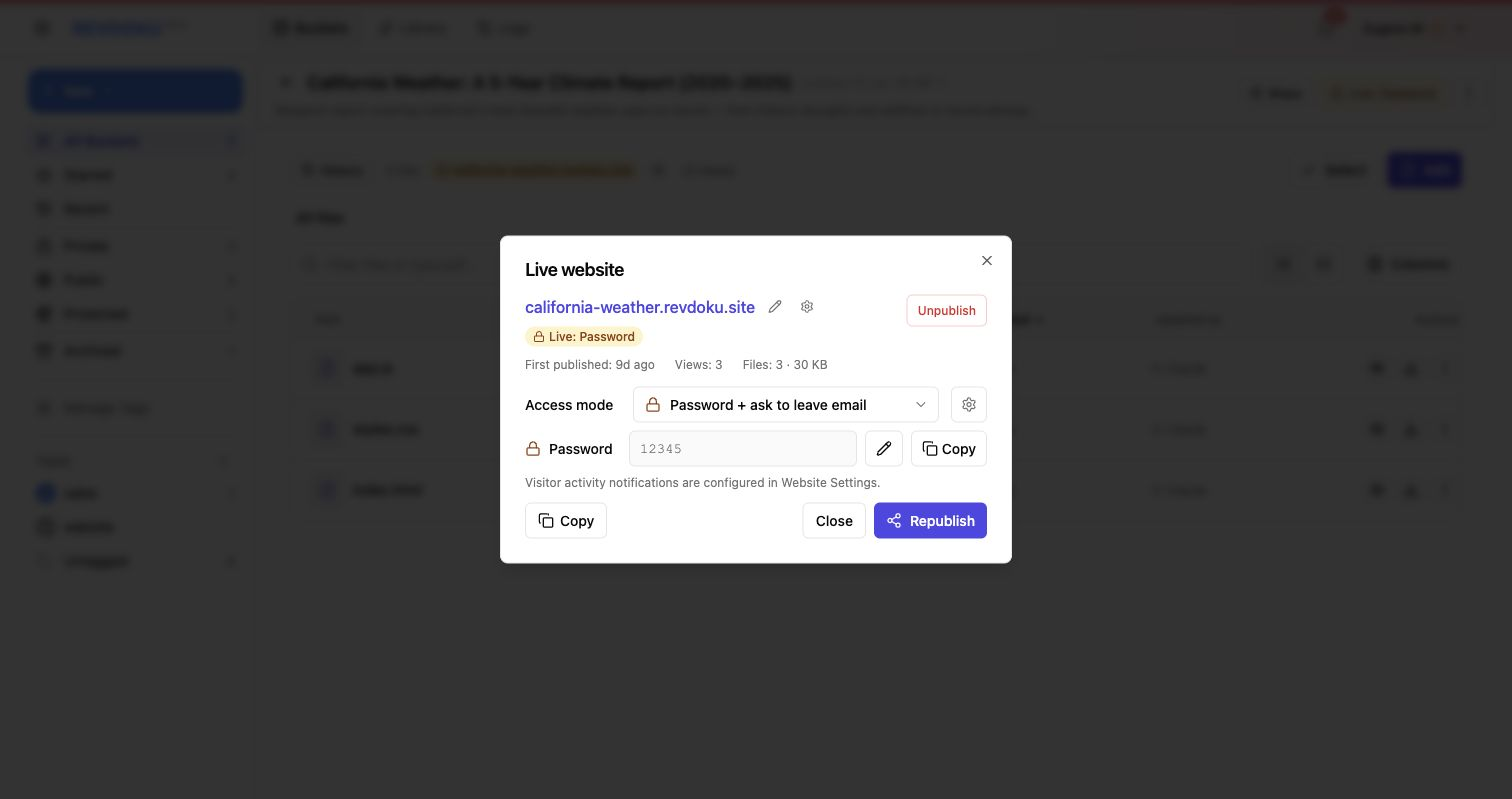
Use password-plus-email access to capture who opened a protected Revdoku website and what they viewed.
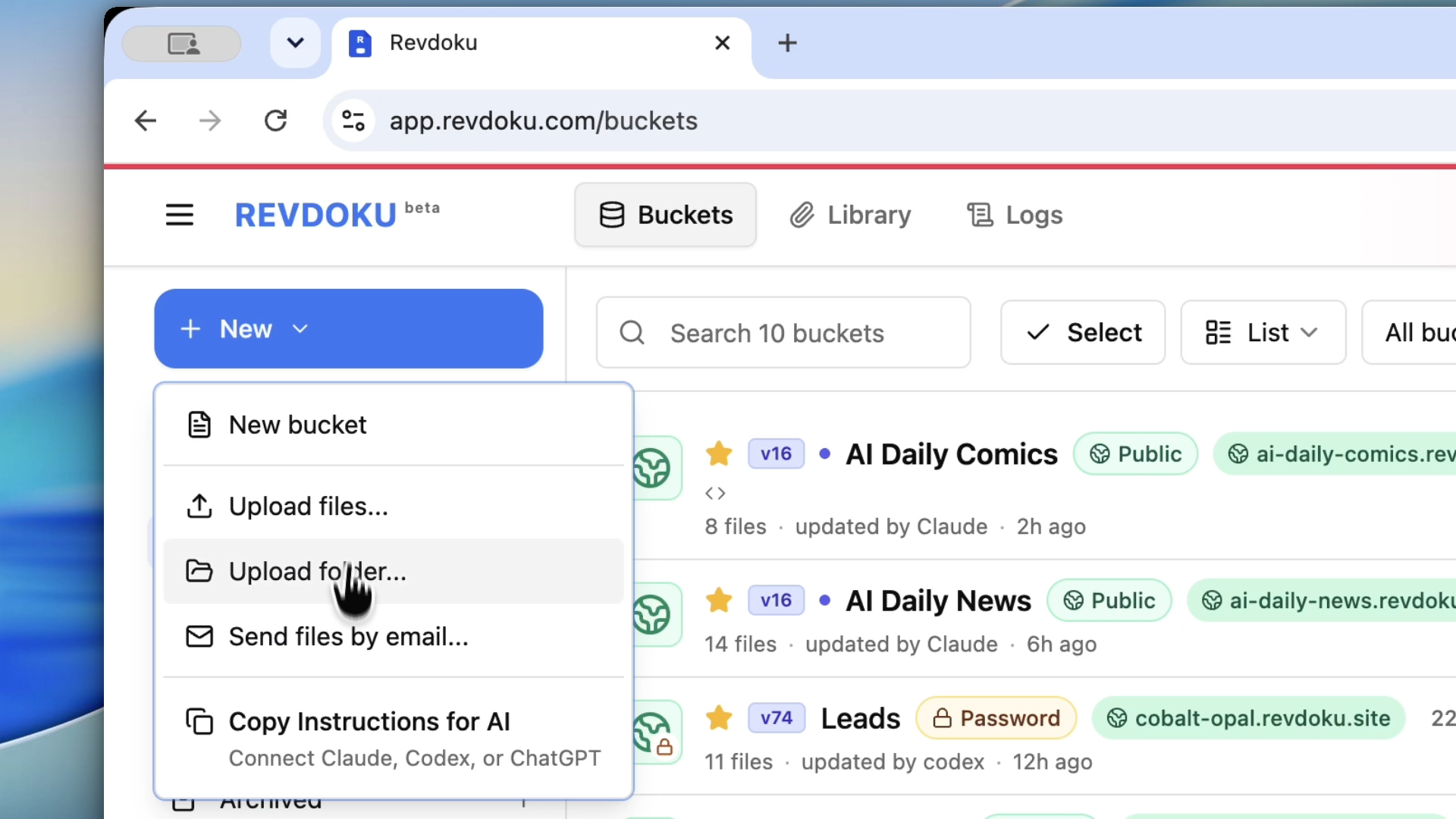
Publish a local dist/build folder from an AI-generated or hand-built static site to Revdoku.