Publish Reports as Websites icon

Publish Reports as Websites

Tutorial for asking ChatGPT, Claude, or Codex to create a report and publish it with Revdoku as a live website.

Publishing

Tutorial

Use this when an AI tool prepares a research brief, status update, market report, school project, or client deliverable that should be opened as a website.

Video Placeholder

  • YouTube video placeholder: replace with the walkthrough showing the report prompt, generated report website, Revdoku publishing step, analytics, and final result.

Prompt Used

Paste this into ChatGPT, Claude, or Codex:

Create and publish a polished research report website with Revdoku.

Topic:
[replace with topic]

Requirements:
- Do not ask questions. Make reasonable choices.
- Research public sources and cite them inside the report.
- Do not invent private metrics, customers, funding, or partnerships.
- If something is not public, write: "Not publicly available from reviewed sources."
- Build a complete static website with:
  - index.html
  - styles.css
  - app.js
- Include:
  1. Executive summary
  2. Key findings
  3. Timeline or market context
  4. Data or comparison cards
  5. Risks and open questions
  6. Source list
- Add a "Last researched" date near the top.

Publishing:
- Use the connected Revdoku tool/API/MCP.
- Create a new Revdoku bucket with a clear title and description.
- Upload every generated file into that bucket.
- Publish with entrypoint index.html.
- Use site_mode: static.
- Return the final Revdoku public URL and bucket id.

Sample Website

  • Sample website link placeholder: replace with the published Revdoku report URL.

Steps and Screenshot Placeholders

  1. Choose the report topic.
    • Screenshot placeholder: topic, source list, or research instruction.
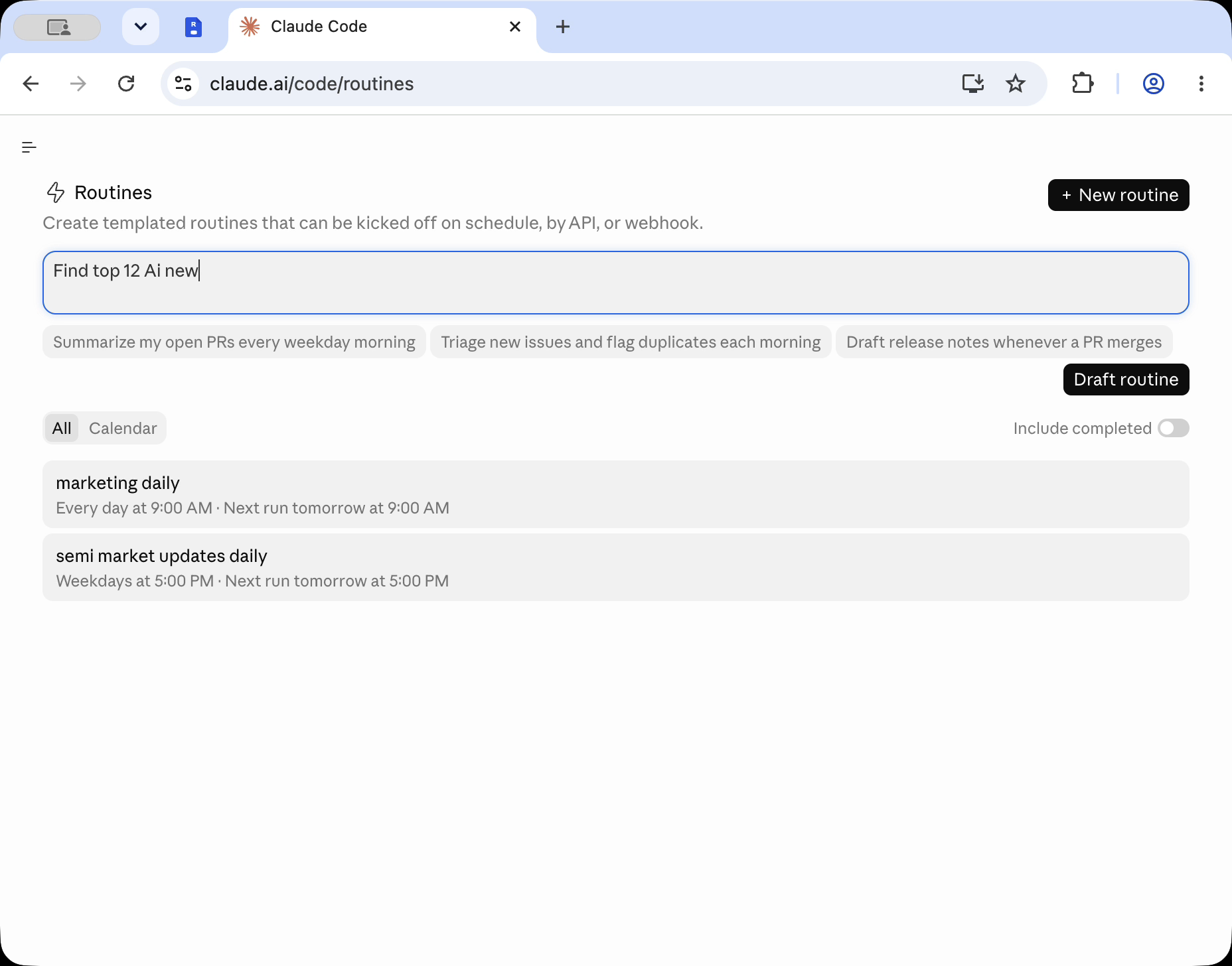
  2. Paste the prompt into the AI tool.
    • Screenshot placeholder: prompt screen in ChatGPT, Claude, or Codex.
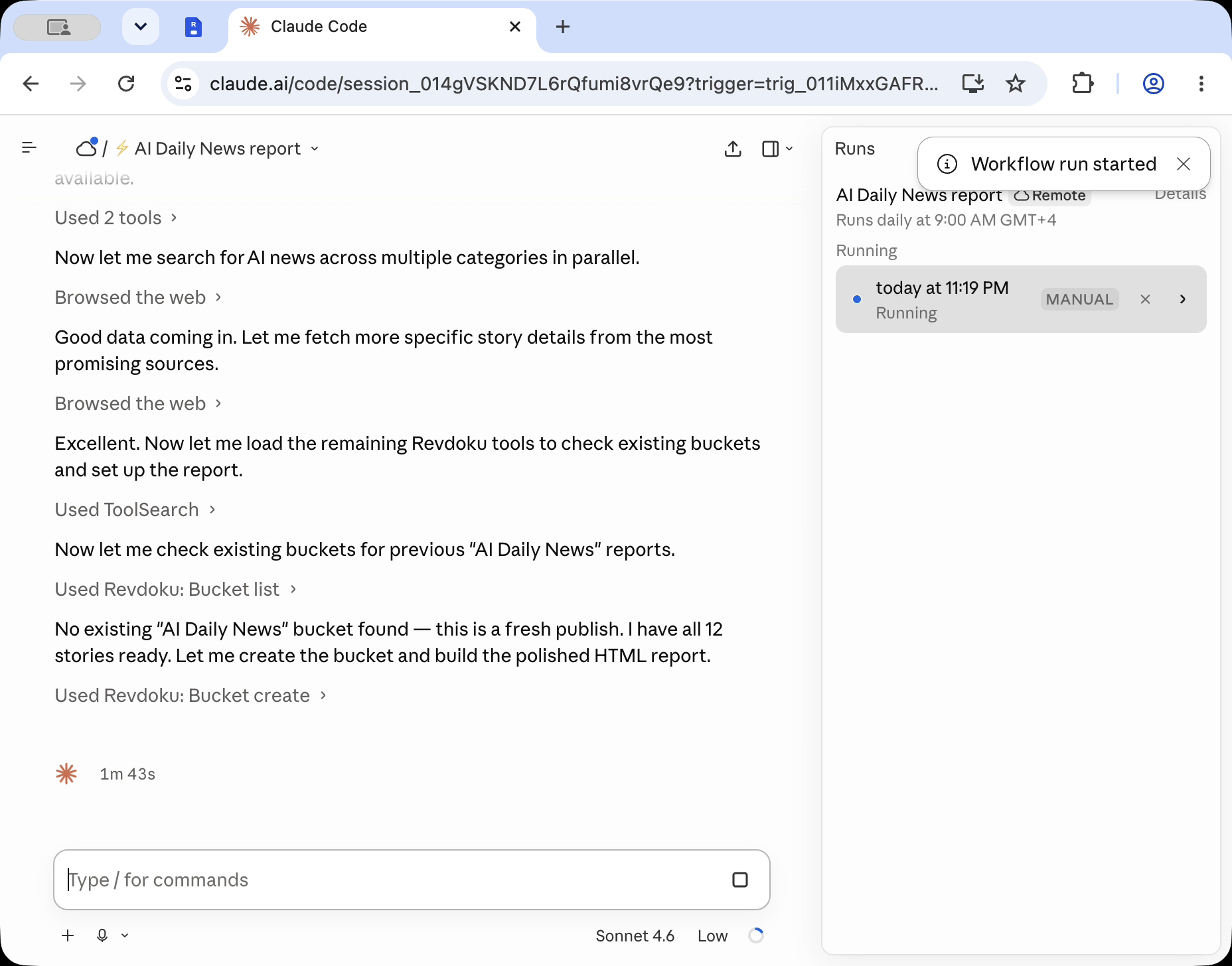
  3. Review the generated report website.
    • Screenshot placeholder: executive summary, charts, and source list.
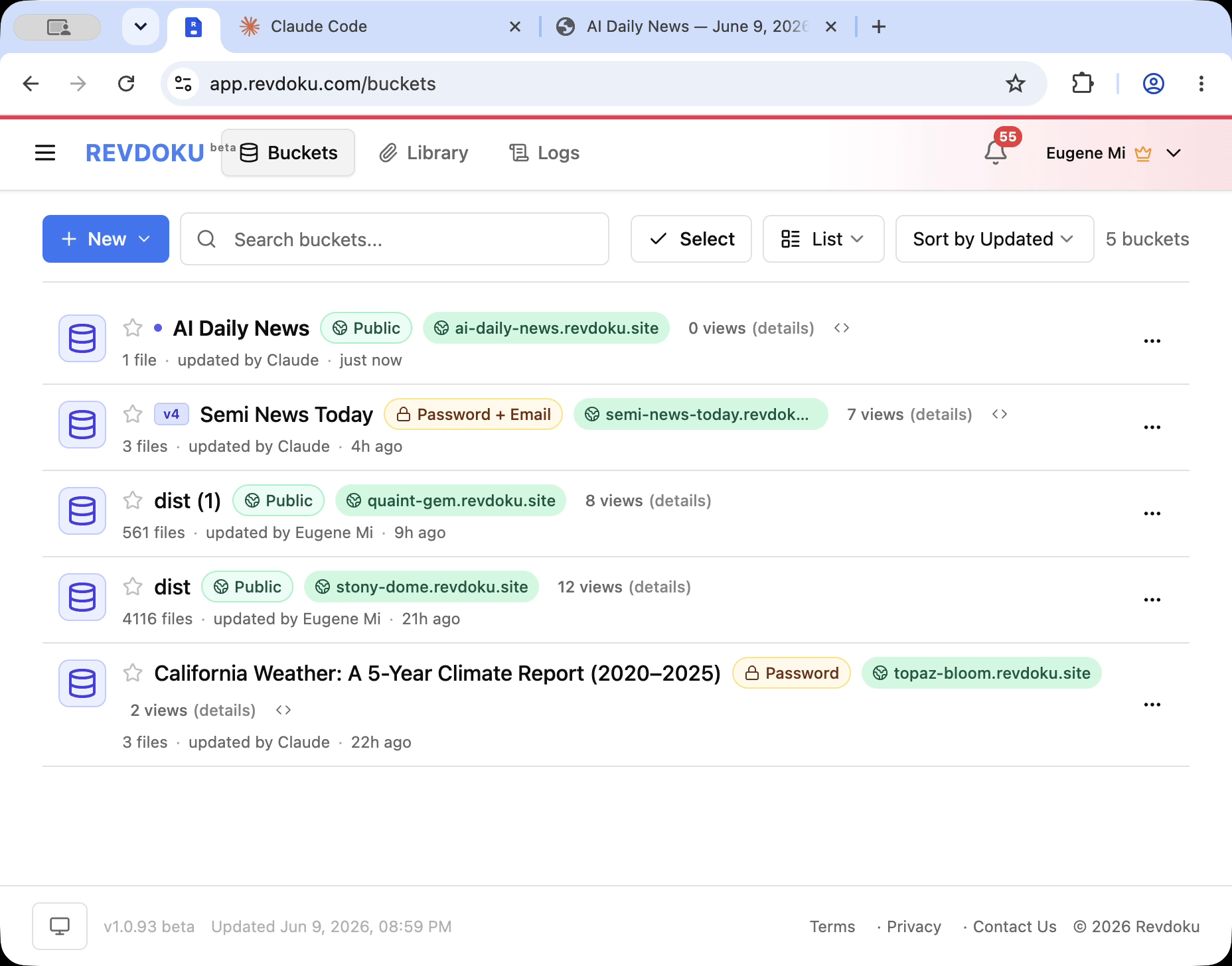
  4. Publish through Revdoku.
    • Screenshot placeholder: Revdoku bucket files and publish confirmation.
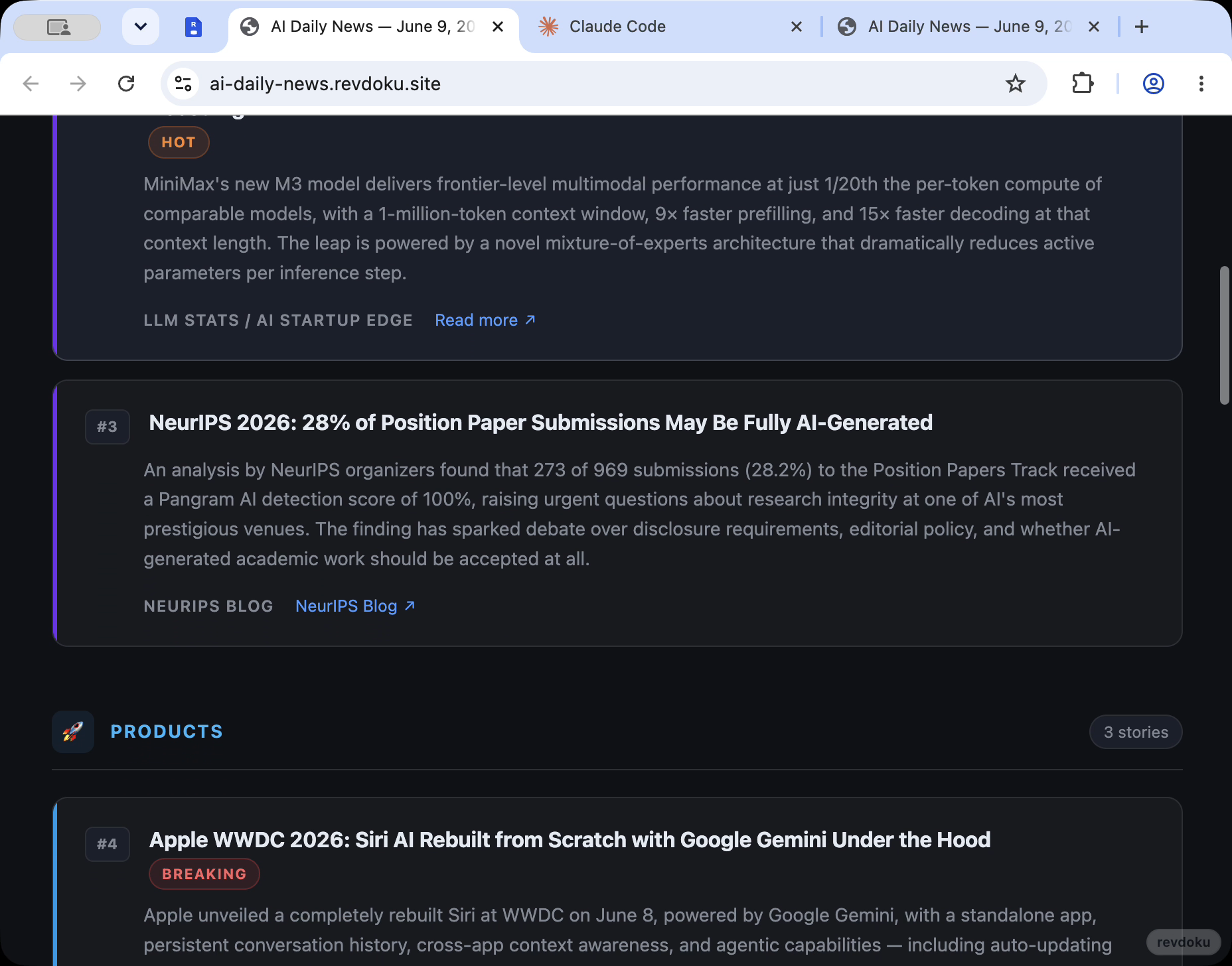
  5. Open the final report.
    • Screenshot placeholder: report running on the Revdoku URL.
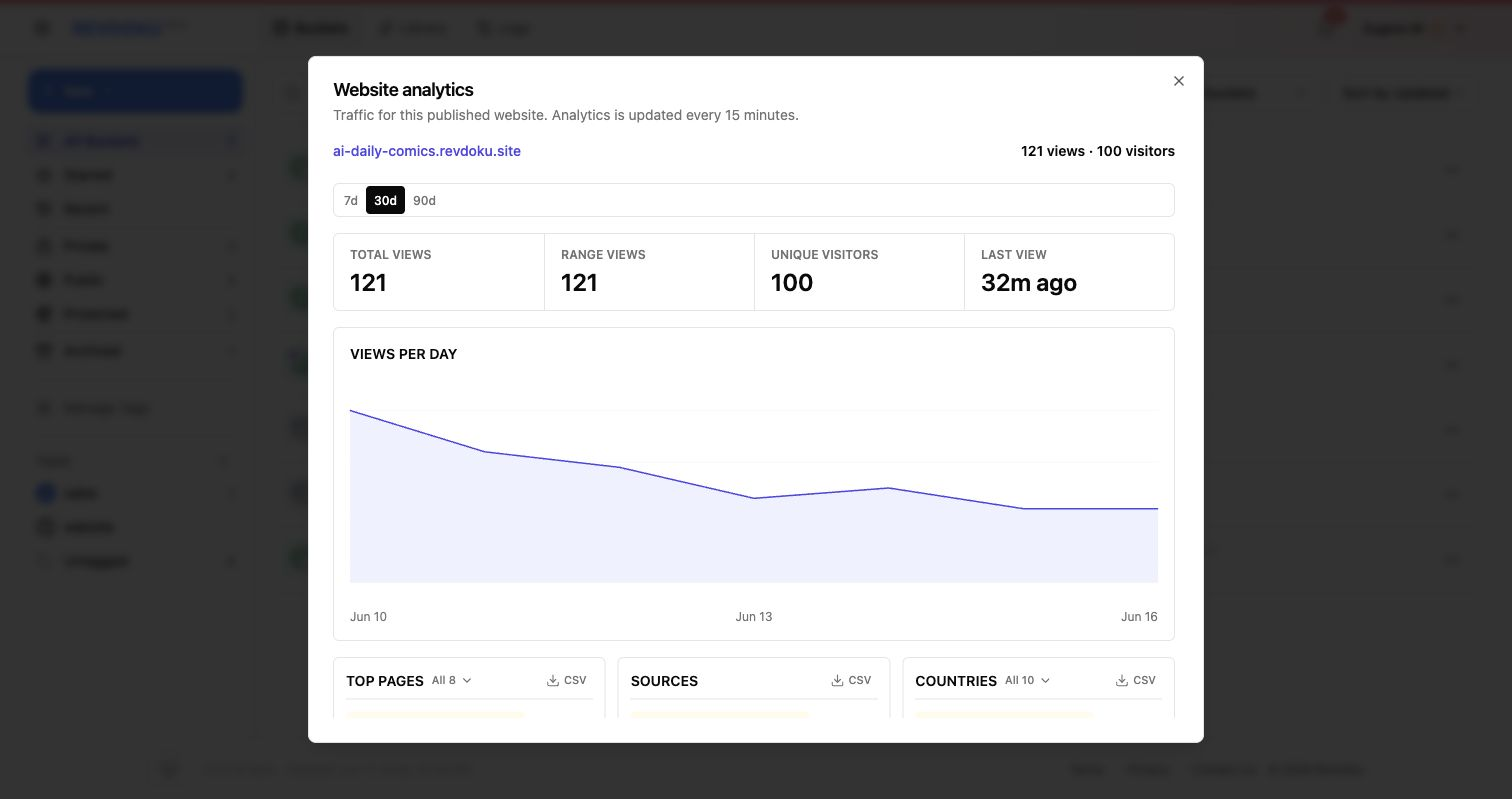
  6. Review analytics after sharing.
    • Screenshot placeholder: Revdoku views analytics for the report.

Good Fit

  • Research reports and market summaries.
  • Portfolio case studies and class projects.
  • Client-facing status pages.
  • Data reports that need charts, images, and supporting pages.

Tags

Browse all tags

Show 6 more tags