PDF to Link & Folder to Link for Client Files
Table of Contents
- PDF to Link or Folder to Link: Create One Client URL
- Why Use a PDF to Link Instead of Sending an Attachment?
- How to Share PDF Online or Publish a Folder to Link
- Folder to Link Navigation in a Client Document Portal
- Share Documents as Link Content Using Secure File Sharing
- Keep Client Deliverables Current at the Same Link
- Four Practical PDF to Link and Folder to Link Examples
- Secure File Sharing Best Practices When You Share Documents as Link Deliverables
- Final Thoughts
- PDF to Link or Folder to Link: Create One Client URL
- Why Use a PDF to Link Instead of Sending an Attachment?
- How to Share PDF Online or Publish a Folder to Link
- Folder to Link Navigation in a Client Document Portal
- Share Documents as Link Content Using Secure File Sharing
- Keep Client Deliverables Current at the Same Link
- Four Practical PDF to Link and Folder to Link Examples
- Secure File Sharing Best Practices When You Share Documents as Link Deliverables
- Final Thoughts
PDF to Link or Folder to Link: Create One Client URL
Sending client work should be easy. Yet attachments create size limits, buried messages, unclear filenames, and awkward follow-ups. Clients may open an old proposal instead of the corrected version three messages later.
A PDF to link workflow replaces that trail with one link. A folder to link workflow does the same for deliverables containing documents, images, reports, demos, and presentations. With Revdoku, drop files into a private bucket, control access, and send the live link.
That gives you a cleaner way to:
- Present several files in one organized place
- Know when protected material is opened
- Collect contact details or feedback
- Update the work without sending a new address
TL;DR: Use one controlled link to share, update, and track client files; see how to share link-based deliverables safely below.
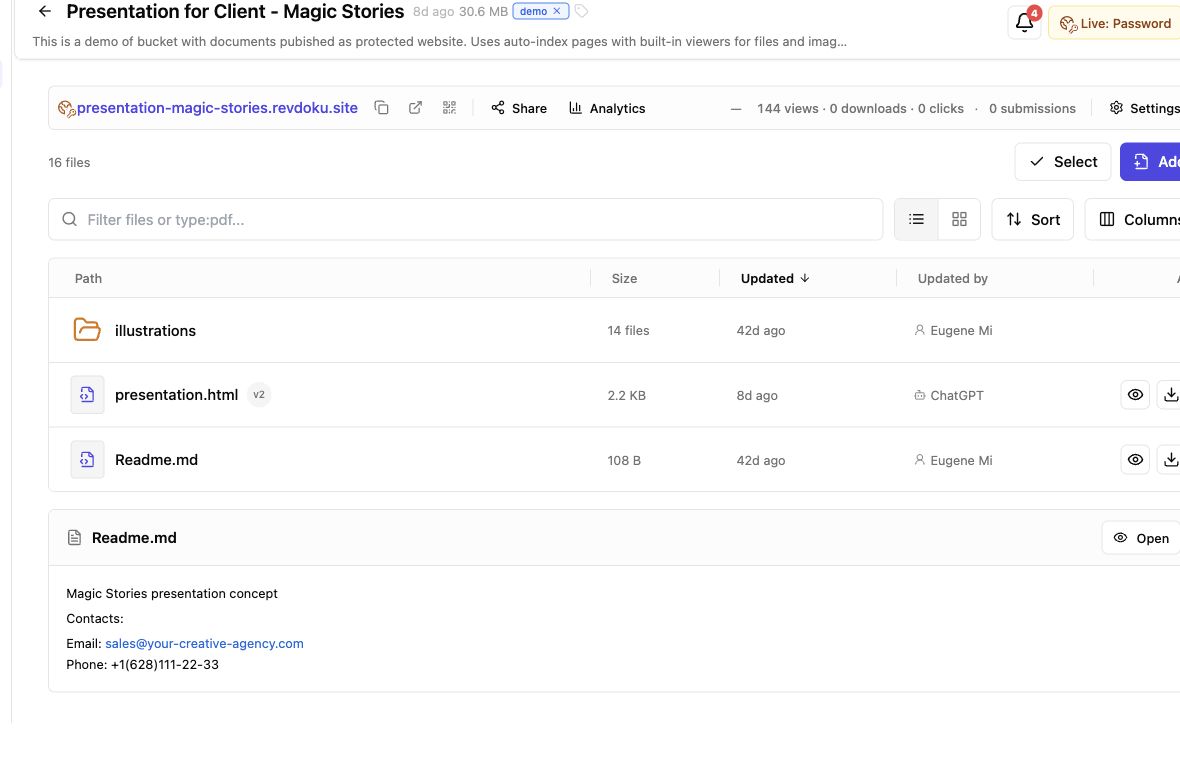
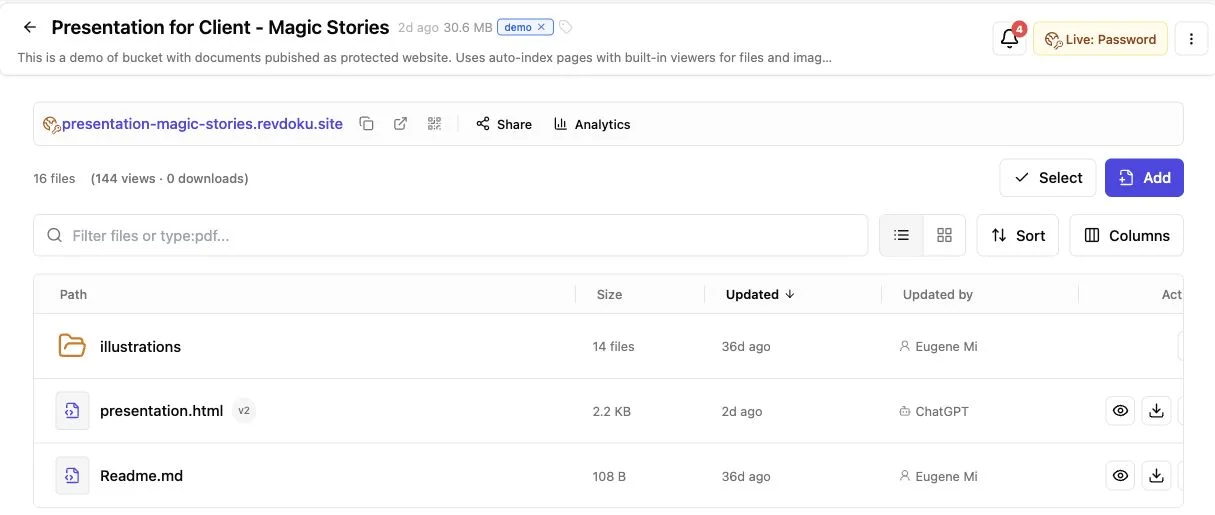
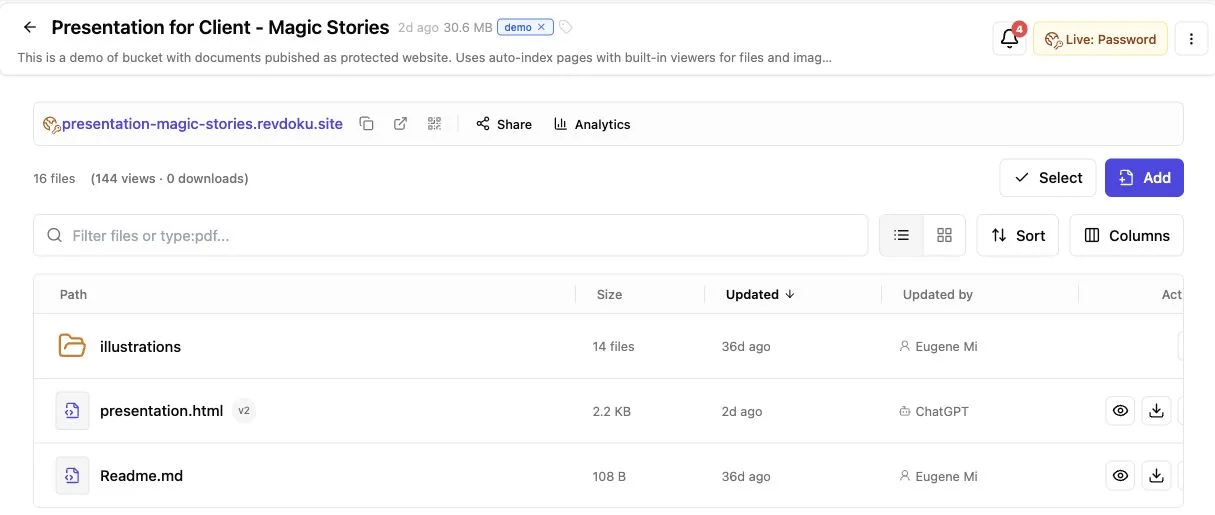
Screenshot of the Revdoku Magic Stories demo bucket in app.revdoku.com, made on July 31, 2026.
Why Use a PDF to Link Instead of Sending an Attachment?
A PDF attachment is a frozen copy you cannot correct after sending. A browser link points to a live destination you control. That matters when a price changes, a chart needs a correction, or a client asks for one more file.
Finding information already drains office work. In Microsoft’s Work Trend Index, 62% of surveyed workers said they spent too much of the workday searching for information. One stable destination cannot solve every search problem, but it eliminates hunting through email for the latest attachment. Microsoft Work Trend Index
| Sharing method | Client experience | Owner visibility | Later corrections |
|---|---|---|---|
| Email attachment | Download and find each file | Usually limited to email replies | Send another attachment |
| Consumer cloud folder | Open a generic storage view | Depends on the service and plan | Replace or add files |
| Revdoku live link | View a prepared client destination | Opens, pages, clicks, downloads, and leads | Update the same link |
A PDF to link process provides continuity. The address remains useful in the original email, proposal, chat, or invoice after the contents change.
PDF remains practical because it is standardized for exchange and viewing across environments. ISO 32000 defines that portability. A browser destination adds controlled sharing without requiring specialist software.
How to Share PDF Online or Publish a Folder to Link
Publishing with Revdoku requires no API, command line, or AI agent. Start in the dashboard:
-
Prepare the client material. Use plain filenames such as
Website-Audit.pdf,Traffic-Sources.xlsx, andNext-Steps.pdf. Remove drafts, internal comments, hidden spreadsheet tabs, and personal data the recipient should not see. -
Create a private bucket. Make the bucket the live home for one client deliverable, project, campaign, or report. A narrow purpose simplifies future updates.
-
Drop in a PDF or folder. Drag one document into the bucket for PDF to link delivery. Drop a folder when the client needs related files, demos, images, or presentations together.
-
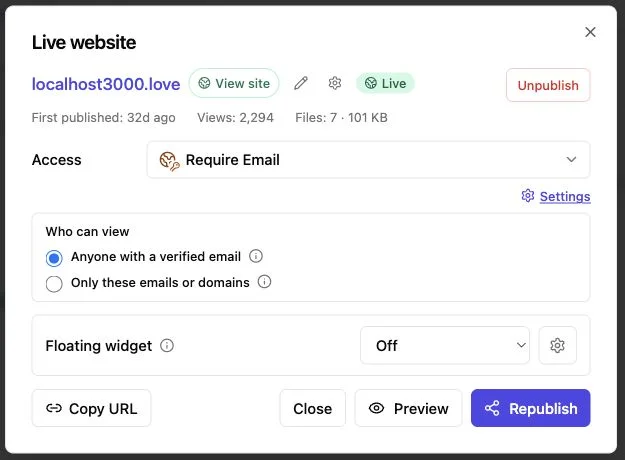
Choose an access rule. Make the destination public, password-protected, or email-gated. Choose based on the work’s sensitivity and how much visitor identification you need.
-
Preview before sending. Preview the recipient’s view. Check filenames, order, page rendering, navigation, buttons, forms, and mobile readability.
-
Send the browser address. Use it in an email, proposal, project tool, invoice, or client chat. Tell the recipient what’s inside and what to do next.
Keep the delivery message brief: Your final research report and source files are available at this link. Please review the recommendations and send feedback through the form by Friday. The link carries the material; the message supplies context.
Folder to Link Navigation in a Client Document Portal
A folder link should expose more than a directory. Clients should understand the package without deciphering your filing system.
Revdoku presents the bucket as a client portal for navigating published material. Clients can view PDFs and other supported documents in context while separate files stay grouped at one stable address.
A mixed deliverable feels like one handoff, not a pile of unrelated downloads.
Use the first screen and file order to answer four questions:
- What is this? Name the project or deliverable plainly.
- Where should I begin? Put the summary, cover note, or main report first.
- What needs a response? State whether the client should approve, comment, download, or contact you.
- What is supporting material? Keep appendices, source files, and exports after the primary work.
An agency might publish a campaign folder with a strategy PDF, presentation deck, approved image set, and performance spreadsheet. The client gets one folder link instead of four attachments and a long file-by-file explanation.
This structure also works on mobile. A client can open the link from a message, inspect the report, and return later on a laptop without finding another file. Before publishing, test the browser experience at common screen widths. Even a beautiful 70-page report frustrates if its charts require constant zooming.
Share Documents as Link Content Using Secure File Sharing
Match access settings to the material’s risk. A public brochure needs different access than an acquisition model, draft contract, or client revenue report.
| Access option | Good fit | Tradeoff |
|---|---|---|
| Public link | Portfolios, brochures, public demos, and general resources | Anyone with the address may open it |
| Password protection | Proposals, private drafts, and limited client work | The password must be shared through a sensible channel |
| Email gate | Lead magnets, reports, and work where visitor identity matters | Adds one step before viewing |
For sensitive contents, use a long, unique password and send it separately. NIST recommends passwords of at least 15 characters when a password must be used. NIST password guidance
Access control manages entry, not whether visible material can be copied, photographed, or recorded. Share only authorized material and remove confidential working files before publishing.
Revdoku can notify the owner when someone opens a protected document-sharing link. Per-visitor analytics can show:
- Documents and pages viewed
- Links or calls to action clicked
- Files downloaded
- Email addresses captured through a gate
This improves follow-up timing. A same-day message may help after a prospect reads a proposal’s pricing pages. If the link remains unopened, confirm the email arrived before requesting a decision.
Keep Client Deliverables Current at the Same Link
Version confusion is a strong reason to replace PDF attachments with a PDF-to-link workflow. Adobe surveyed more than 1,000 full-time U.S. workers and reported that 82% had made a workplace document or administrative mistake. Sending confidential information to the wrong person was a concern for 47% of respondents. Adobe workplace document research
A stable Revdoku link reduces one common mistake: opening or forwarding an obsolete attachment. When work changes, update the bucket instead of creating another destination.
| Situation | Attachment workflow | Stable-link workflow |
|---|---|---|
| Typo found after delivery | Email a corrected copy | Replace the file at the existing link |
| Monthly report arrives | Start another attachment thread | Add or update the report in the bucket |
| New presentation is approved | Ask the client to discard the draft | Publish the approved version in the same place |
| Supporting file is requested | Send a separate message | Add the file and notify the client |
Keep filenames predictable while the address stays stable. Names such as Q2-Performance-Report.pdf are clearer than report-final-v7-revised.pdf. If changes could affect a decision, tell the client what changed and when. A stable link should prevent confusion, not hide meaningful revisions.
For recurring work, set a rhythm. A consultant might update the report every Monday and send a short note after publishing. The client learns where current material lives, while old emails still point there.
Four Practical PDF to Link and Folder to Link Examples
The method works for one document but is more useful when a delivery has several parts or changes over time.
-
Freelance proposal. A designer publishes a proposal PDF behind an email gate. The prospect enters a work address and reads the scope, schedule, and pricing. The designer receives an open notification and follows up after the relevant pages are viewed. The conversation begins with context rather than Did you get my attachment?
-
Consulting report. A consultant publishes a 45-page assessment PDF behind a password. The destination includes the report, an executive summary, and a contact form. After the client requests clarification through the form, the consultant updates one chart without changing the address.
-
Agency deliverable folder. An agency publishes a folder with a campaign report, slide deck, creative files, and spreadsheet export as a link. Navigation gives the client a clear starting point. Download activity shows which working files were collected, while built-in feedback keeps comments with the delivery.
-
Founder’s product demo. A founder publishes a presentation, product notes, screenshots, and a browser-based demo in one gated bucket. Captured leads reveal who requested access. Click data shows whether visitors moved from the deck to the demo or contact call to action.
Built-in feedback and contact forms avoid building a backend, configuring storage, or connecting a survey tool. Forms should ask only for information used. A client approval request may need a name, decision, and comment; a public report may need only an email address.
Secure File Sharing Best Practices When You Share Documents as Link Deliverables
The technology is simple, but the handoff needs care. My rule: publish the smallest complete package. Clients rarely thank you for twelve unexplained source files.
| Item | What to check | Why it matters |
|---|---|---|
| Contents | Only approved client-facing files are present | Prevents accidental disclosure |
| Order | Summary and primary deliverable appear first | Gives the recipient an obvious path |
| Access | Public, password, or email gate fits the risk | Avoids needless friction or weak exposure |
| Presentation | Pages, links, downloads, and forms work | Stops preventable client frustration |
| Ownership | Someone is responsible for later updates | Keeps the destination trustworthy |
| Follow-up | Notifications lead to a relevant response | Prevents analytics from becoming noise |
Avoid three mistakes:
- Publishing internal notes, hidden data, or unrelated files
- Choosing a gate that asks for more information than the exchange needs
- Treating every open as buying intent without considering repeat visits, forwarded links, or accidental clicks
Use manual drag and drop for occasional client delivery. Reserve Revdoku’s API, CLI, and AI-agent workflows for repetitive publishing. A reporting agent could update a weekly bucket with approved output, or a deployment process could publish new demo files. Automation should use the same naming, access, and review rules as manual work. Require human approval when a bad upload could expose private data or misstate client results.
Final Thoughts
A PDF-to-link workflow gives a document a live, manageable destination. A folder-to-link workflow extends it to reports, presentations, demos, and complete client deliverables.
The recipient gets one browser address with clear navigation. The owner can set public, password, or email-gated access, receive protected-link open notifications, study per-visitor activity, record leads, and collect feedback without a separate backend.
Corrections and new files can appear at the existing link, reducing the chance that an old attachment guides a current decision.
Start in the dashboard: prepare files, create a private bucket, drag in the PDF or folder, select access, preview, and send the link with a clear request. Add API, CLI, or AI automation only when repetition warrants it.
Frequently asked questions
Can I update a PDF or folder after sharing its link?
Yes. Replace, remove, or add files in the bucket while keeping the same client-facing URL. If a revision could affect a decision, notify the recipient and briefly explain what changed.
Which access option should I choose for client files?
Use a public link for material intended for broad distribution, password protection for private deliverables, and an email gate when identifying visitors is useful. Always match the access setting to the sensitivity of the files and the amount of friction appropriate for the recipient.
What should I check before publishing a folder link?
Remove drafts, internal notes, hidden spreadsheet data, and unrelated files. Then preview the destination to verify file order, page rendering, navigation, downloads, forms, links, and mobile readability.
How should I organize a folder containing several deliverables?
Place the executive summary, cover note, or primary report first. Follow it with supporting presentations, spreadsheets, images, source files, and appendices using clear, predictable filenames.
Does password protection prevent recipients from copying a document?
No. Password protection controls who can enter the destination, but an authorized viewer may still download, photograph, or record visible material. Publish only files the recipient is permitted to access and share the password through a separate channel.
How can link analytics improve client follow-up?
Open, page-view, click, and download activity can help you follow up with better timing and context. Treat these signals carefully, since repeat visits, forwarded links, and accidental clicks do not necessarily indicate interest or approval.
When should I automate PDF or folder publishing?
Manual drag and drop is usually sufficient for occasional client deliveries. Consider an API, CLI, or AI-agent workflow for recurring reports or frequently updated demos, while retaining consistent naming, access controls, review steps, and human approval for sensitive material.
Related Articles
Best Client Portal Software for Agencies
Compare client portal software for agency operations, collaboration, file sharing, creative proofing, and secure delivery.
What Should Be in a Client Portal? Essential Guide
Learn the essential client portal contents, folder structure, access options, feedback workflows, and templates for a clear client experience.
One Link Client Portal for Deliverables | Revdoku
Create a secure one-link client portal for reports, files, demos, feedback, analytics, and updates without sending a new URL.