Client Deliverables Portal: Share Work in One Link
Table of Contents
- Deliver Client Work Without the Usual Link Chaos
- What a Client Deliverables Portal Should Do
- How to Share Deliverables With Clients in One Link
- Client Project Deliverables Portal Navigation and File Sharing
- Choose the Right Access Mode for Secure Document Sharing
- Use Feedback, Analytics, and Deliverable Tracking Without Guessing
- Keep Every Client Portal Deliverable Current at the Same Link
- Four Ways Teams Use a Client Deliverables Portal
- Client File Sharing Alternatives and Pitfalls
- One Link, Less Friction
- Deliver Client Work Without the Usual Link Chaos
- What a Client Deliverables Portal Should Do
- How to Share Deliverables With Clients in One Link
- Client Project Deliverables Portal Navigation and File Sharing
- Choose the Right Access Mode for Secure Document Sharing
- Use Feedback, Analytics, and Deliverable Tracking Without Guessing
- Keep Every Client Portal Deliverable Current at the Same Link
- Four Ways Teams Use a Client Deliverables Portal
- Client File Sharing Alternatives and Pitfalls
- One Link, Less Friction
Deliver Client Work Without the Usual Link Chaos
A client deliverables portal gives every report, deck, demo, and supporting file one home. Instead of emailing attachments across threads, send one browser-ready link. Clients can open the work without learning a new project management system.
Research summarized by Harvard Business Review found that workers switched between apps and websites about 1,200 times per day, losing almost four hours each week while reorienting themselves.
Revdoku takes a delivery-first approach:
- Drop in a file or folder from the dashboard.
- Choose who can open it.
- Share one stable link.
- See opens, page views, clicks, downloads, and feedback.
- Update the work later without sending a replacement URL.
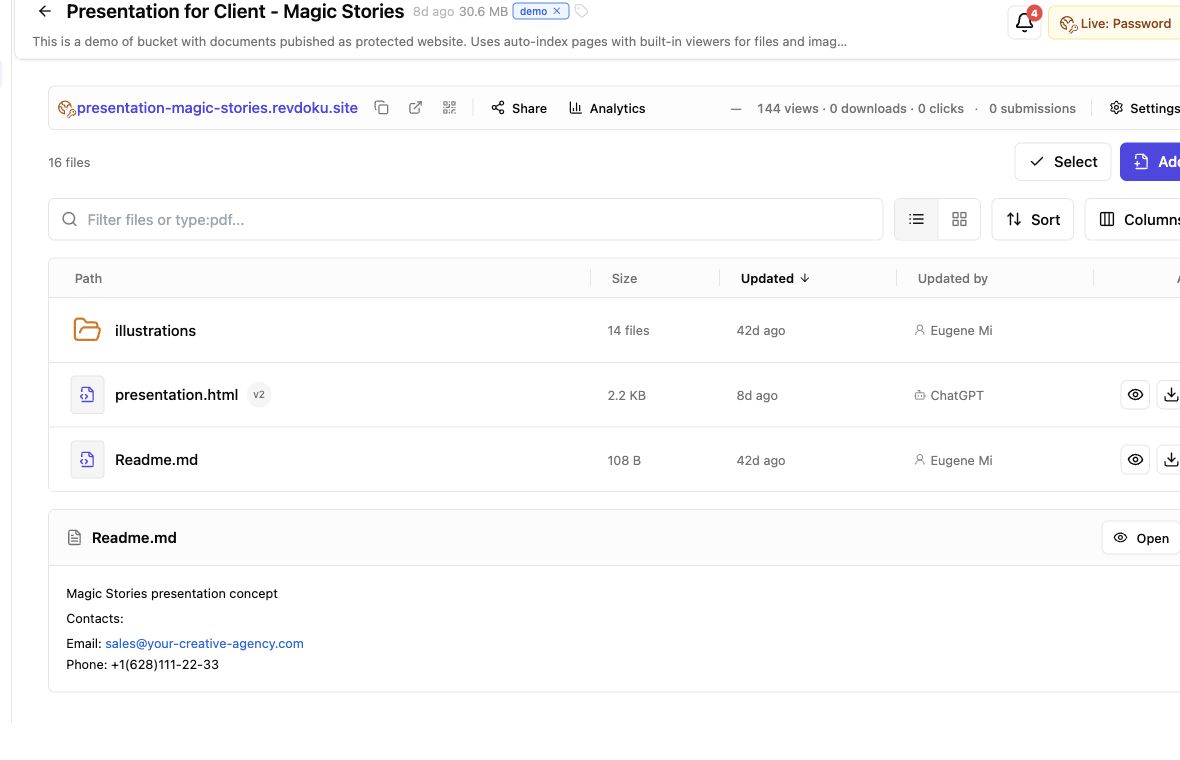
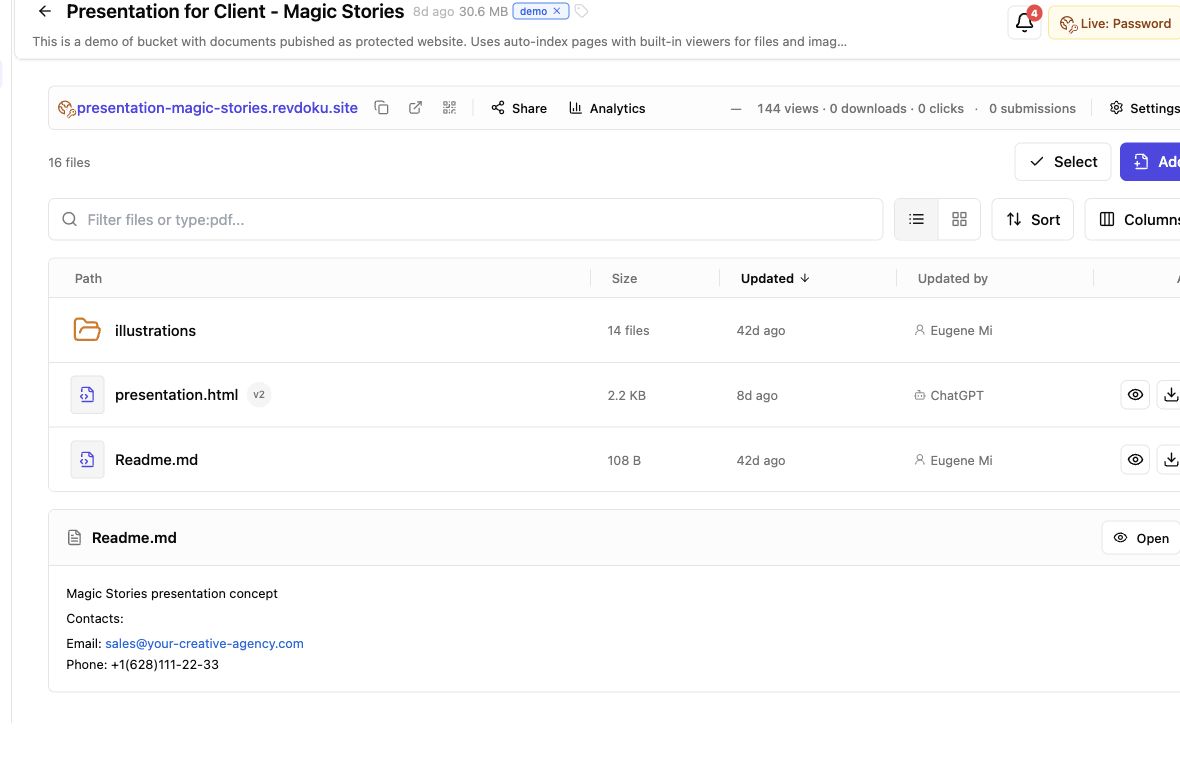
Screenshot of the Revdoku Magic Stories demo bucket in app.revdoku.com, made on July 31, 2026.
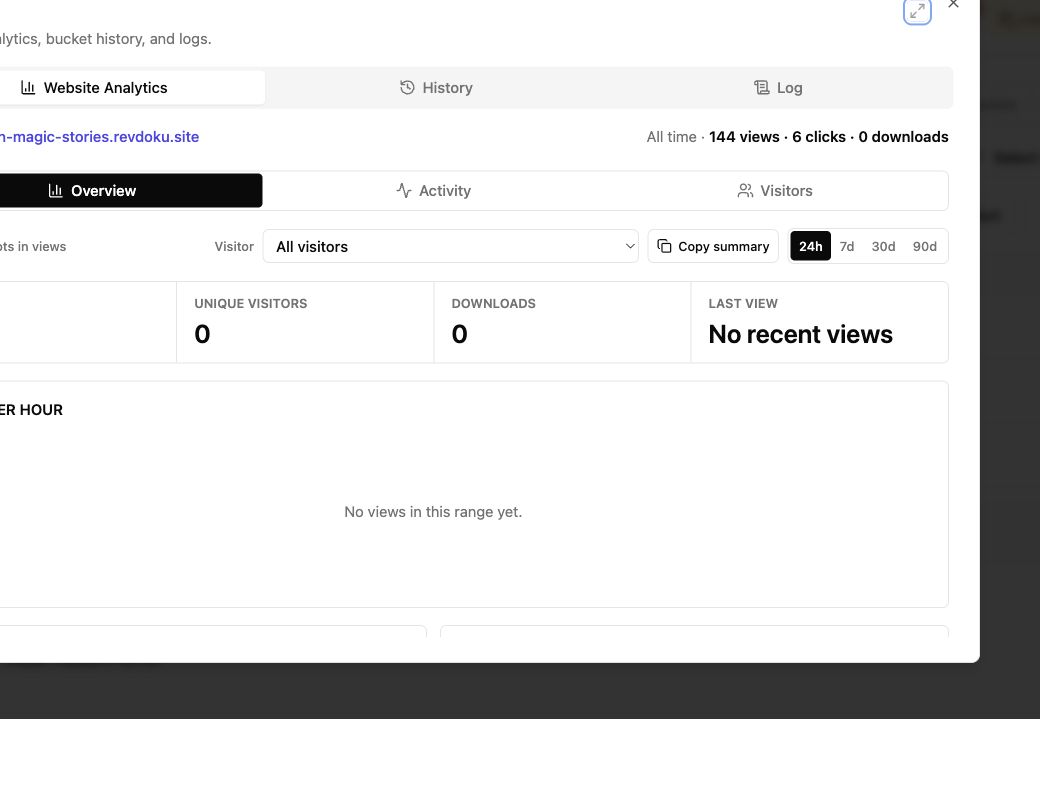
Screenshot of Revdoku website analytics for the Magic Stories demo bucket in app.revdoku.com, made on July 31, 2026.
What a Client Deliverables Portal Should Do
A client deliverables portal presents completed work to its recipient. Delivery should feel finished. That requires clear navigation, browser viewing, sensible access controls, and an easy response channel.
Revdoku organizes shared work into private buckets. A bucket can hold one proposal, research folder, presentation, or complete static website. Publishing turns the bucket into a live client portal. Without a custom website entry point, Revdoku can create file navigation and browser viewers. Its document publishing workflow supports folders containing HTML, Markdown, images, CSV files, PDFs, and related assets.
- Publishing: Turn local files into a link without server setup.
- Navigation: Clarify nested folders and related material.
- Viewing: Let clients read common formats in-browser.
- Access: Offer public, password, or email-gated delivery.
- Response: Collect questions and feedback beside the work.
- Measurement: Record opens and meaningful visitor actions.
- Revision: Keep the same link when files change.
This is narrower than project management. Clients need not learn your internal task board, sprint process, or CRM. The portal is for receiving, reviewing, and tracking deliverable updates.
How to Share Deliverables With Clients in One Link
Manual sharing should be the default because most deliveries need no code. A consultant with a finished PDF should not need hosting setup. An agency should not need a production deployment to share a static prototype for approval.
Publishing takes five steps:
-
Prepare the client-facing folder. Use plain names such as
Executive Summary,Research, andFinal Assets. Remove drafts, temporary exports, API keys, and internal notes. -
Create a bucket. Use one bucket per delivery context. A quarterly report may have its own bucket; an ongoing design engagement may regularly revise one.
-
Drop in the files. Upload a PDF, presentation export, or complete folder. Revdoku makes it a browsable client portal.
-
Select an access mode. Public access suits open material. Use password or email gates for proposals, client reports, and private demos.
-
Test and send the link. Before sending, test navigation, mobile viewing, downloads, forms, and access prompts in a private window.
Send a short message with the link:
The current report and supporting files are available here. This link will stay the same if I publish a revision. You can leave feedback directly on the page.
Client Project Deliverables Portal Navigation and File Sharing
Navigation is part of the deliverable. If clients must search filenames like export-7b-final2.pdf, the portal has preserved the files but lost their meaning.
Organize a folder’s first screen around the recipient’s likely questions. What should they read first? Which files are supporting evidence? What can they download?
| Portal Area | Suggested Contents | Client Question Answered |
|---|---|---|
| Start Here | Summary, cover note, or presentation | What am I looking at? |
| Main Deliverables | Approved reports, designs, or exports | Where is the work? |
| Supporting Material | Research, data, references, or images | What supports the result? |
| Downloads | Packaged source files or final assets | What should I save locally? |
| Feedback | Comment or contact form | How do I respond? |
Clients can read PDFs, inspect images, browse document folders, or open static demos without downloading and sorting everything first. For a static site, keep the main entry point obvious and test every relative link.
The WCAG 2.2 guidance from W3C sets a 24 by 24 CSS pixel minimum target size, with stated exceptions. For custom static sites, use readable contrast, visible focus states, descriptive link text, and controls large enough to select on a phone.
Choose the Right Access Mode for Secure Document Sharing
For secure document sharing, match access settings to the material.
A public brochure should be easy to open. A confidential pricing proposal needs restricted access.
| Access Mode | Best Fit | Main Tradeoff |
|---|---|---|
| Public | Portfolios, public reports, samples, and open demos | Anyone with the link can open it |
| Password-protected | Proposals, previews, private reports, and draft presentations | You must send the password through a sensible channel |
| Verified Email | Sales decks, investor material, and work where viewer identity matters | The visitor must verify an email address before viewing |
Verified Email is a separate access mode and uses an emailed one-time code rather than a shared site password. Explain the email request and collect only what you need. For multiple client reviewers, choose whichever provides the better experience: a shared password or identified access.
The 2024 Verizon Data Breach Investigations Report found that the human element was involved in 68% of breaches in its dataset. Access controls cannot prevent human error; simple habits help:
- Use a different password for each sensitive delivery.
- Send the password separately from the portal link when risk warrants it.
- Remove secrets and internal comments before upload.
- Consider whether regulated or highly sensitive data belongs in the portal.
- Retire access when the engagement and retention period end.
Use Feedback, Analytics, and Deliverable Tracking Without Guessing
Email weakens feedback. Clients may reply to old threads, comment on outdated attachments, or write looks good without naming the version. A portal keeps responses near the current work.
Revdoku can add a feedback or contact form to a bucket. Submissions stay with the bucket and notify its owner. The built-in form workflow does not require a separate server or form backend.
Ask focused questions instead of showing an empty comment box:
- Which section needs revision?
- Is this version approved for publication?
- Who else should review the material?
- What deadline applies to the next round?
Revdoku reports page views, clicks, and downloads. Protected links can connect activity to a captured email; open notifications alert the owner when someone accesses the material.
| Signal | Reasonable Interpretation | What It Does Not Prove |
|---|---|---|
| Proposal opened | The recipient reached the material | They read or accepted every term |
| Several pages viewed | Particular sections drew attention | The viewer agreed with them |
| Download recorded | A local copy was requested | The file was shared internally |
| Feedback submitted | The client took a defined action | Every stakeholder has approved |
Use these signals for timing, not mind reading. If a prospect opens a proposal after several quiet days, a short follow-up may be timely. Treat the event as context, not permission to pressure them.
Keep Every Client Portal Deliverable Current at the Same Link
Someone fixes a typo, exports a new PDF, and emails final-v3-revised.pdf. Two weeks later, a stakeholder reviews the first attachment.
Share the portal link once, then update its files. Revdoku supports updates and rollback while keeping the published URL unchanged, as described on its main product page. Clients can bookmark it, and old emails still point to the current version.
Use a lightweight revision pattern:
- Update the source file in your normal working environment.
- Review the exported client version.
- Replace or republish the relevant files in the same bucket.
- Open the live link and verify the revision.
- Notify the client only when the change affects their review or decision.
A brief portal change note can remove doubt:
| Revision Detail | Example |
|---|---|
| Updated date | July 14, 2026 |
| Changed material | Forecast assumptions and chart labels |
| Unchanged material | Scope, pricing, and setup plan |
| Action requested | Approve the revised forecast by Friday |
Do not silently replace formally approved material. For signed, contractual, or compliance-sensitive records, retain the exact approved copy under your document policy.
Four Ways Teams Use a Client Deliverables Portal
The portal should follow the work. These examples show one delivery model fitting different businesses without becoming a project management suite.
| Scenario | Portal Contents | Access and Follow-up |
|---|---|---|
| Freelance brand designer | Brand guide PDF, logo exports, font notes, and image assets | Password access; update a mislabeled asset without replacing the link |
| Consultant | Executive report, data appendix, presentation, and source CSV | Email gate; follow up after the sponsor opens the report and downloads the appendix |
| Agency prototype review | Static website demo, screenshots, and a feedback form | Password access; route comments through the portal instead of scattered chat messages |
| Founder sending a proposal | Proposal, pricing table, timeline, and relevant work samples | Email-gated access; use the open notification to choose a sensible follow-up time |
Suppose a consultant publishes a quarterly analysis Monday. The CFO opens the summary on Tuesday and downloads the underlying CSV. The consultant now has a concrete reason for a useful note: I saw the analysis was opened. Would a short walkthrough of the assumptions help? That beats an automated just checking in message.
An AI agent builder might use the same portal for a generated weekly report. The first version can still be manual. Later, an agent or script can refresh files through the API or CLI while the client link stays stable. Automate only when updates are repetitive enough to justify it.
Client File Sharing Alternatives and Pitfalls
Email suits one small, low-risk file. Use a shared drive when both sides edit documents. Use project management when the client participates in tasks and schedules. A custom portal fits organizations with specialized workflows and development capacity.
| Approach | Good At | Common Delivery Problem |
|---|---|---|
| Email attachments | Fast, familiar one-off sending | Old versions remain in old threads |
| Shared drive folder | Collaborative editing and storage | Permissions and folders can confuse recipients |
| Project management tool | Tasks, owners, dates, and ongoing coordination | Too much interface for simple delivery |
| Custom-built portal | Specialized workflows and branding | Requires engineering, hosting, monitoring, and maintenance |
| Revdoku bucket | Updateable browser delivery with access, feedback, and analytics | Intended for published client work, not full project management |
Before sharing deliverables, avoid these mistakes:
- Publishing internal notes, secrets, or unused draft files.
- Using vague filenames that make the navigation unreadable.
- Requesting an email for material that should simply be public.
- Assuming an open or download equals approval.
- Updating approved work without recording what changed.
- Sending several portal links when one organized bucket would be clearer.
Clients usually need no account to open a published link. They can view it in a browser under the selected access mode. A folder can mix file types; a static site can provide designed navigation. A built-in form can collect client replies without a separate backend.
Test the portal with someone unfamiliar with the engagement. If they can find and open the main deliverable, locate supporting files, and respond without instructions, it is ready.
One Link, Less Friction
A good client deliverables portal makes handoff feel calm. Clients get one place to browse current work. You control access, see protected opens, collect feedback, and update files without restarting the email trail.
- One bucket for one clear delivery context.
- One stable link for the client.
- One current version of each deliverable.
- One visible place for feedback and response.
Start with manual dashboard upload. That suits most freelancers, consultants, agencies, and small teams. Add API, CLI, or AI automation only when repeated publishing becomes burdensome.
When you are ready to share deliverables with clients without attachment confusion, create a Revdoku account and publish the first client-facing bucket.
Frequently asked questions
When should I use a client deliverables portal instead of email or a shared drive?
Use a portal when clients need one organized place to view current, finished work without sorting through attachments or navigating a collaborative workspace. Email remains practical for a single low-risk file, while shared drives are better when both sides actively edit documents.
Do clients need an account to view deliverables?
Clients generally do not need an account and can open the published link in a browser. Their exact experience depends on whether the portal is public, password-protected, or email-gated.
Which access mode should I choose for confidential client work?
Use password protection for private proposals, reports, and previews, or an email gate when identifying viewers is important. Give each sensitive delivery a unique password, share it separately when appropriate, and avoid uploading secrets or regulated data without confirming that the portal meets your requirements.
Can I update deliverables without sending a new link?
Yes. Replace or republish files within the same bucket to keep the existing URL current, then verify the live version before notifying the client. Preserve approved or compliance-sensitive copies separately, and record material changes so reviewers know what was revised.
How should I organize a portal containing several files?
Lead with a clear “Start Here” summary, followed by the main deliverables, supporting material, downloads, and a feedback option. Use descriptive filenames and test the portal with someone unfamiliar with the project to make sure the intended path is obvious.
What can portal analytics tell me about client engagement?
Opens, page views, clicks, and downloads can help you choose a useful time to follow up and identify material that attracted attention. They do not prove that the client read everything, agreed with it, or approved the work, so treat them as context rather than conclusions.
What should I test before sending the portal link?
Open the link in a private browser window and check access prompts, navigation, mobile usability, downloads, forms, and any static-site links. Confirm that drafts, internal notes, temporary files, and credentials have been removed before publishing.
Related Articles
What Should Be in a Client Portal? Essential Guide
Learn the essential client portal contents, folder structure, access options, feedback workflows, and templates for a clear client experience.
One Link Client Portal for Deliverables | Revdoku
Create a secure one-link client portal for reports, files, demos, feedback, analytics, and updates without sending a new URL.
Secure File Sharing for Clients: A Practical Guide
Learn how to securely share client files, control access, manage versions, collect feedback, and track engagement with one link.