Private Website for Client Work: A Better Handoff
Table of Contents
- Private Website for Client Work: A Better Handoff
- Private Website for Client Delivery vs. a Private Client Portal
- Build a Client Preview Website from Local Files
- Password Protected Client Website or Verified Email?
- Make the Client Preview Website Easy to Review
- Keep the Client Deliverable Link Stable Across Revisions
- Use Open Notifications and Visitor Analytics Wisely
- Collect Feedback Without Building a Backend
- Private Client Website Pitfalls
- Final Thoughts on a Private Website for Client Work
- Private Website for Client Work: A Better Handoff
- Private Website for Client Delivery vs. a Private Client Portal
- Build a Client Preview Website from Local Files
- Password Protected Client Website or Verified Email?
- Make the Client Preview Website Easy to Review
- Keep the Client Deliverable Link Stable Across Revisions
- Use Open Notifications and Visitor Analytics Wisely
- Collect Feedback Without Building a Backend
- Private Client Website Pitfalls
- Final Thoughts on a Private Website for Client Work
Private Website for Client Work: A Better Handoff
A private website for client work reduces a surprising amount of friction: clients need one place for the latest deliverable, while you need confirmation they opened it. Email attachments scatter work across threads; secure client file sharing keeps it together.
Drive folders expose file trees. A local demo works only on your computer.
A client preview website turns a PDF, presentation, document set, or static project folder into one live link. With Revdoku, drop files into a bucket and choose public, password, or Verified Email access. No AI tool is required.
Make three things obvious:
- What to review: the current proposal, demo, deck, or files
- How to respond: a clear feedback or contact form
- What happens next: the review deadline, decision, or next revision
TL;DR: Publish one protected client deliverable link, test it as a visitor, and update the same URL after feedback, without making the handoff a software project.
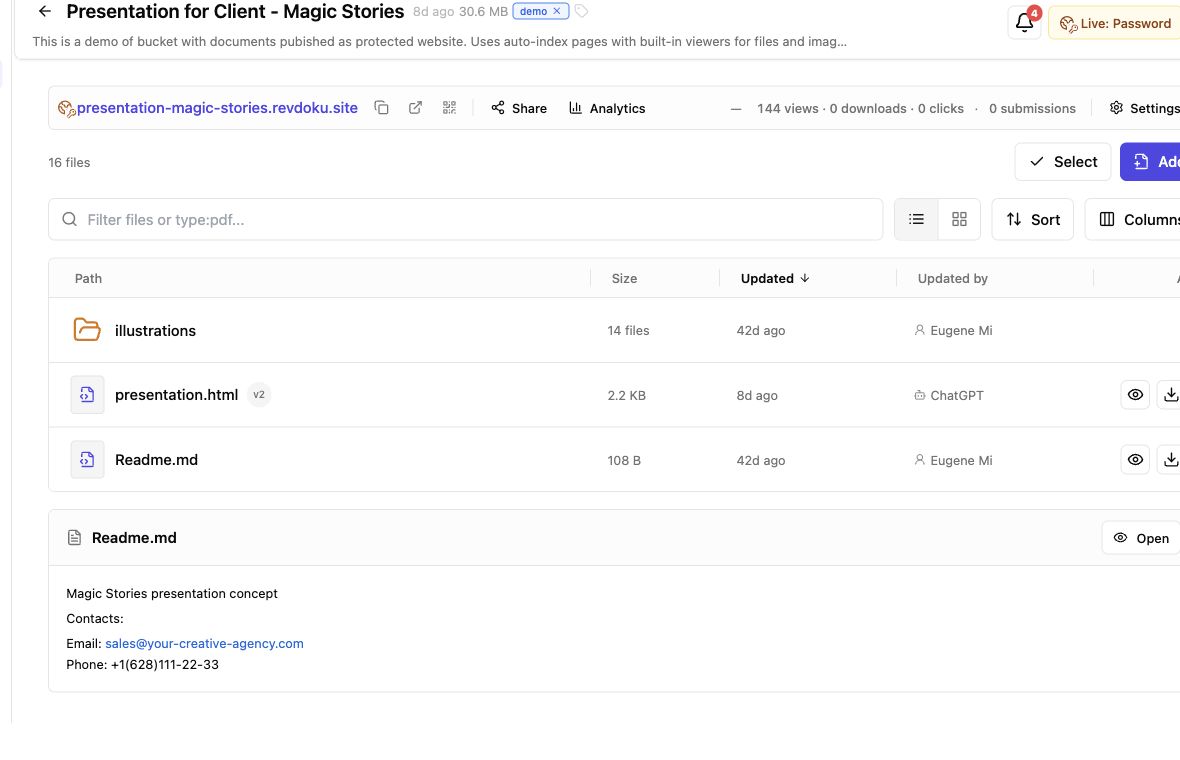
Screenshot of the Revdoku Magic Stories demo bucket in app.revdoku.com, made on July 31, 2026.
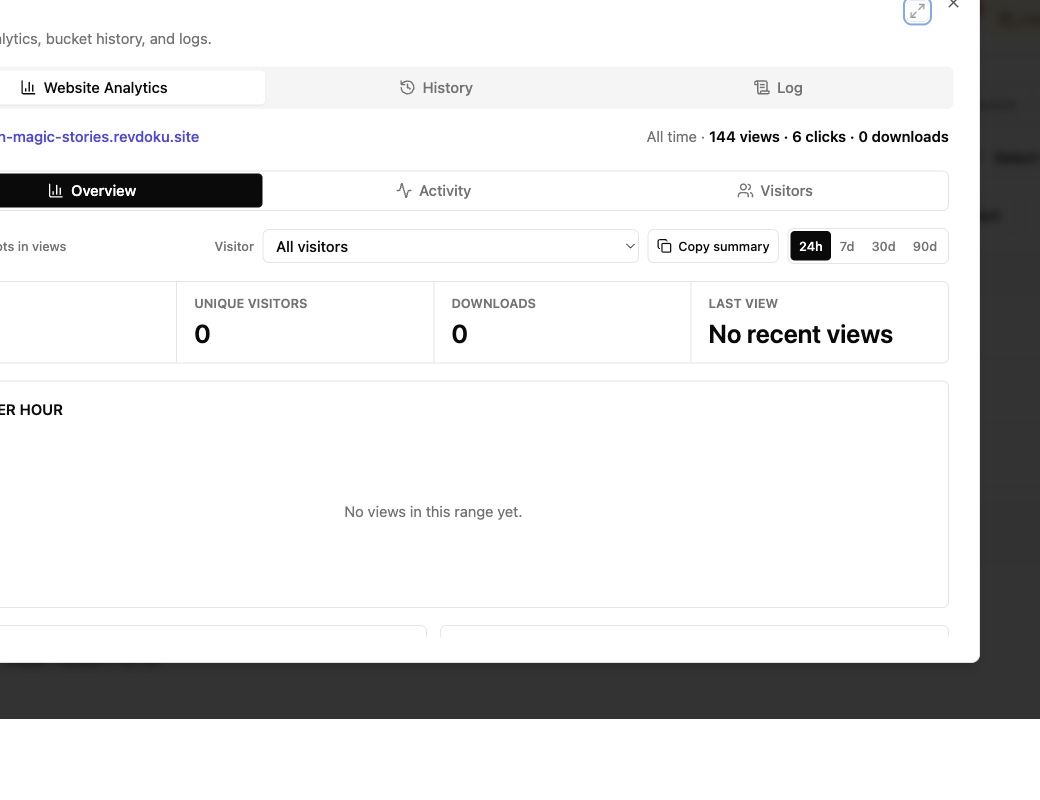
Screenshot of Revdoku website analytics for the Magic Stories demo bucket in app.revdoku.com, made on July 31, 2026.
Private Website for Client Delivery vs. a Private Client Portal
A private website for client delivery is a focused destination for work not ready for broad publication. It may contain a proposal, a folder of research, an interactive HTML demo, or a presentation with supporting files. The client opens one URL instead of downloading attachments and guessing which version is current.
A private client portal often manages the entire relationship: accounts, tasks, invoices, messages, and permissions. A client preview website instead presents the deliverable, controls entry, records activity, and lets the reviewer reply.
| Sharing method | Client experience | Owner visibility | Best fit |
|---|---|---|---|
| Email attachment | Download and open each file | Delivery or read receipt at best | One small, final file |
| Cloud drive folder | Browse a storage-style file tree | General activity, depending on plan | Ongoing file collaboration |
| Private client website | Open a branded, navigable link | Opens, pages, clicks, and downloads | Proposals, previews, demos, and handoffs |
| Custom portal | Sign in to a purpose-built system | Whatever the team develops | Complex, long-term workflows |
Give the client a clean front door, not another workplace to learn.
Build a Client Preview Website from Local Files
Start with the manual workflow. Revdoku’s sharing overview describes turning a file or folder into a web page, with optional protection and notifications. For local work, publishing is direct:
-
Prepare the deliverable. Put the PDF, deck, images, documents, or static HTML, CSS, and JavaScript files in one folder. Keep relative asset paths intact for a static demo.
-
Create or open a Revdoku bucket. Use one bucket per client preview website or deliverable stream. Name it “Acme product demo,” not “final-files-2.”
-
Drop in the file or folder. Revdoku adds suitable web navigation and viewers. Preserve the project structure around its static site entry point.
-
Choose access. Use a password for a known group, or Verified Email when identity and a lead record matter.
-
Open the live URL. Test the gate, navigation, downloads, forms, and mobile layout as a visitor.
-
Send one sentence with the link. State what changed, what feedback you need, and when you need it.
Example 1: A design agency exports a clickable static prototype with an index file and asset folders. It drops the folder into a bucket, protects it, tests it on a phone, and sends one preview link instead of a recording and zip archive.
Password Protected Client Website or Verified Email?
Match access to the work’s sensitivity and the client’s review process. More friction is not always safer; it may only delay review.
| Access mode | What the visitor does | Use it when | Tradeoff |
|---|---|---|---|
| Public | Opens the link directly | The work is approved for anyone with the URL | Lowest friction, least control |
| Password | Enters a shared password | A known client team needs simple private access | The password can be forwarded |
| Verified Email | Verifies an email before entry | You need per-visitor identity, open alerts, or a lead record | Adds a short access step |
For sensitive material, send the password through a different channel. Use a unique, long passphrase, not a reused client name. As a conservative reference point, NIST’s 2025 password guidance sets a 15-character minimum for single-factor account passwords and recommends blocking common or compromised choices. A shared-link password is not an account password, but the same habits are sensible.
Verified Email often suits proposals sent to several stakeholders. It ties activity to a visitor rather than a shared secret. Still, neither option is digital rights management. Authorized users can copy text, take screenshots, or share downloads. For regulated material, use a system that meets contractual, privacy, and compliance duties.
Make the Client Preview Website Easy to Review
Protection grants access; presentation helps complete the review. A good private client website should work on the client’s device, often a phone opened between meetings.
Google reported that 53% of mobile visits were abandoned when a page took longer than three seconds to load, based on aggregated Google Analytics data from 3,700 mobile sites in 2016. Though older, the study’s lesson remains: do not make clients wait for decorative media before the work appears. See the original Google mobile-speed report.
Check these items before sharing:
| Item | What to check | Why it matters |
|---|---|---|
| Opening view | Project name, version date, and requested decision | The client knows what this link is for |
| Navigation | Short labels and a clear reading order | Reviewers do not hunt through a file tree |
| Mobile view | Text, images, menus, and forms at a narrow width | The first open may happen on a phone |
| Downloads | Correct filenames and current versions | Old files create expensive confusion |
| Accessibility | Alt text, keyboard access, and readable contrast | More reviewers can use the preview |
For contrast, WCAG 2.2 specifies at least 4.5:1 for normal text at Level AA. Skip the ornate microsite. Clear beats clever.
Keep the Client Deliverable Link Stable Across Revisions
Revisions get messy when each update creates a new attachment or link. “Use the second link, but download the deck from the first email” predicts a bad meeting.
A Revdoku bucket keeps the public URL stable when you update its contents. The Revdoku static-demo guide describes republishing an edited folder to the same bucket so the review link, access mode, and analytics history stay together.
A clean revision loop looks like this:
- Collect the client’s comments in one place.
- Edit the local source files.
- Check filenames, links, and local assets.
- Update the existing bucket, not a new one.
- Test the live version through its access gate.
- Tell the client what changed at the same URL.
Example 2: A consultant shares a research packet on Monday. On Wednesday, the client corrects the revenue figures. The consultant updates the bucket’s chart and PDF, verifies the live pages, and replies, “The forecast and appendix are updated at the same link.” No one has to decide whether “forecast-final-v4.pdf” is newer than “forecast-approved.pdf.”
Date the deliverable and send a brief update when its live content changes.
Use Open Notifications and Visitor Analytics Wisely
An emailed proposal leaves an awkward gap. Did the buyer open it? Did the finance lead see the pricing page? Did anyone download the scope? A protected Revdoku link can send open notifications, while per-visitor analytics show pages, clicks, and downloads. Verified Email also captures the identity supplied at the gate.
Those signals support better timing:
- Opened, no reply: follow up after a reasonable window, not two minutes later
- Pricing or scope viewed: prepare to answer commercial or delivery questions
- File downloaded: allow for offline review; do not assume approval
- Several identified visitors: ask whether a group decision or meeting would help
- No open: confirm receipt of the right link and access instructions
Example 3: A freelancer sends a Tuesday morning proposal through a Verified Email client preview website. The operations lead opens the overview and downloads the scope that afternoon. The freelancer follows up next morning with one useful question about the start date. Analytics informed the timing, not the client’s thoughts.
Activity shows action, not intent. Disclose data collection, collect only what you need, and follow applicable privacy rules. Verizon’s 2024 DBIR found a non-malicious human element in 68% of breaches across its dataset, a useful reminder to limit casual sharing and avoid weak, reused credentials. See the 2024 DBIR summary.
Collect Feedback Without Building a Backend
A client preview website works best when the response path sits beside the work. Otherwise, the client returns from the browser to email and starts a context-poor second thread.
Revdoku adds a feedback or contact form to a bucket without a custom backend. The feedback-form guide explains that form submissions stay with the bucket and can trigger notifications.
Set it up deliberately:
- Ask one review question. Ask “What should change before approval?” rather than “Comments?”
- Request only needed identity fields. Name, email, and message are usually enough.
- State the next action. Say whether you will revise, reply, or schedule a call.
- Test the form yourself. Confirm receipt and sufficient notification context.
- Close the loop. Reply and record the decision in the client system.
Example 4: A founder shares a password-protected client website containing an interactive product demo. The page ends with two fields: “What blocked your task?” and “Which workflow should we test next?” Five reviewers can answer while the experience is fresh. The founder gets focused input without a database or context-losing survey link.
Built-in feedback focuses private client review on a decision, not passive viewing.
Private Client Website Pitfalls
The most common mistakes are operational, not technical. Teams overprotect harmless work, underprotect sensitive work, or publish a new URL after each edit.
| Pitfall | Better choice |
|---|---|
| Sending the password in the same message as sensitive files | Share the link and passphrase through separate channels |
| Creating a new bucket for every revision | Update the existing bucket and keep the stable URL |
| Asking for five form fields “just in case” | Collect the minimum needed for access or follow-up |
| Reading page views as approval | Use analytics to time a direct question |
| Skipping an outside-view test | Open the protected link in a private browser window |
A few concerns deserve direct answers:
Final Thoughts on a Private Website for Client Work
A private website for client delivery removes handoff uncertainty. The client sees one current destination. You choose public, password, or Verified Email access. Open notifications and per-visitor analytics help time follow-ups. A built-in form lets the reviewer respond directly.
Use this sequence:
- Drop a PDF or static folder into a Revdoku bucket.
- Choose the least restrictive access mode that fits the work.
- Test the live client preview website as a visitor.
- Share one URL and one clear request.
- Update the same bucket after feedback.
Start manually. If publishing becomes repetitive, add the API, CLI, or an AI agent later. The tool should disappear behind the handoff. The client remembers work that was easy to open, understand, and respond to.
Frequently asked questions
Can a client forward the link?
Yes. A password can also be shared. Verified Email identifies visitors, but cannot stop screenshots or copies.
Does this replace production hosting?
No. A client preview website suits static files, documents, presentations, and reviewable demos. A production application may need databases, server code, deployment controls, and other infrastructure.
Must I use AI or a command line?
No. Drag-and-drop is the main path; AI agents, the API, and CLI are optional for repetitive updates.
Should every preview be gated?
No. Use public access for material meant to travel freely, a password for simple shared access, and Verified Email when identity matters.
What should the email say?
Name the deliverable, requested decision, deadline, and access step. Keep the note shorter than the preview.
Which access option should I choose for a client preview website?
Use public access for material that can circulate freely, a password for straightforward team access, and Verified Email when you need to identify individual visitors. Choose the least restrictive option that still matches the deliverable’s sensitivity and your privacy obligations.
How should I organize files before publishing them?
Place the current deliverable and its supporting files in one clearly named folder. For a static demo, preserve the entry file, relative paths, and asset directories so scripts, styles, and images continue to load correctly.
How can I verify the client experience before sharing the link?
Open the live URL in a private browser window and complete the same access steps the client will use. Check navigation, downloads, forms, mobile layout, filenames, and whether the requested decision is immediately clear.
What is the best way to handle revisions?
Update the existing bucket so the client can keep using the same URL. After publishing, test the protected version again and send a brief note describing what changed and when it was updated.
How should I follow up based on visitor activity?
Use opens, page views, clicks, and downloads to choose a sensible follow-up time, not to infer approval or intent. Ask a direct, useful question after allowing enough time for review, and confirm access instructions if the link has not been opened.
What feedback should the review form request?
Ask one focused question tied to the next decision, such as what must change before approval. Collect only the identity details needed for a response, explain what will happen next, and test the form before sending the preview.
When is a private client website not the right solution?
It is not a replacement for production hosting, digital rights management, or a compliance-certified document system. Use dedicated infrastructure when the project requires server-side code, databases, advanced permissions, contractual controls, or protection beyond managed access to review materials.
Related Articles
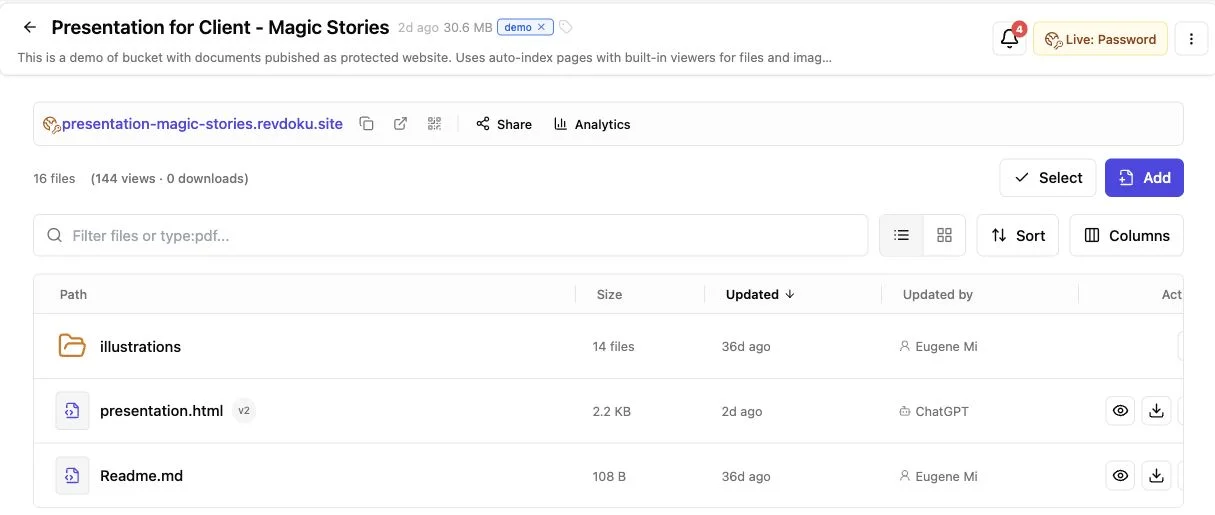
How to Build a Lightweight Client Portal Without CRM
Build a secure client portal without CRM software. Share current files, control access, collect feedback, and track client engagement.
Client Portal for Freelancers: Secure Delivery
Learn how a simple client portal streamlines file delivery, protects access, collects feedback, and improves freelancer follow-up.
Client Portal for Agencies: Secure, Simple Delivery
Share client deliverables through one secure, trackable link with access controls, analytics, feedback forms, and seamless updates.