Connect Codex in the ChatGPT desktop app to Revdoku
Open Codex in the ChatGPT desktop app for macOS or Windows to create and publish websites with Revdoku. The former standalone Codex app now lives inside ChatGPT desktop. Add Revdoku once as an MCP server, then ask Codex to publish. Codex web and cloud chats do not read this local MCP configuration; they need a workspace-enabled Revdoku plugin. Otherwise use the desktop app or the CLI.
For the Codex CLI, see the Codex CLI guide. For every method in one place, see the full Codex connection guide.
1. Create a Revdoku account first
Go to https://app.revdoku.com, create an account, and sign in.
2. Add Revdoku as an MCP server
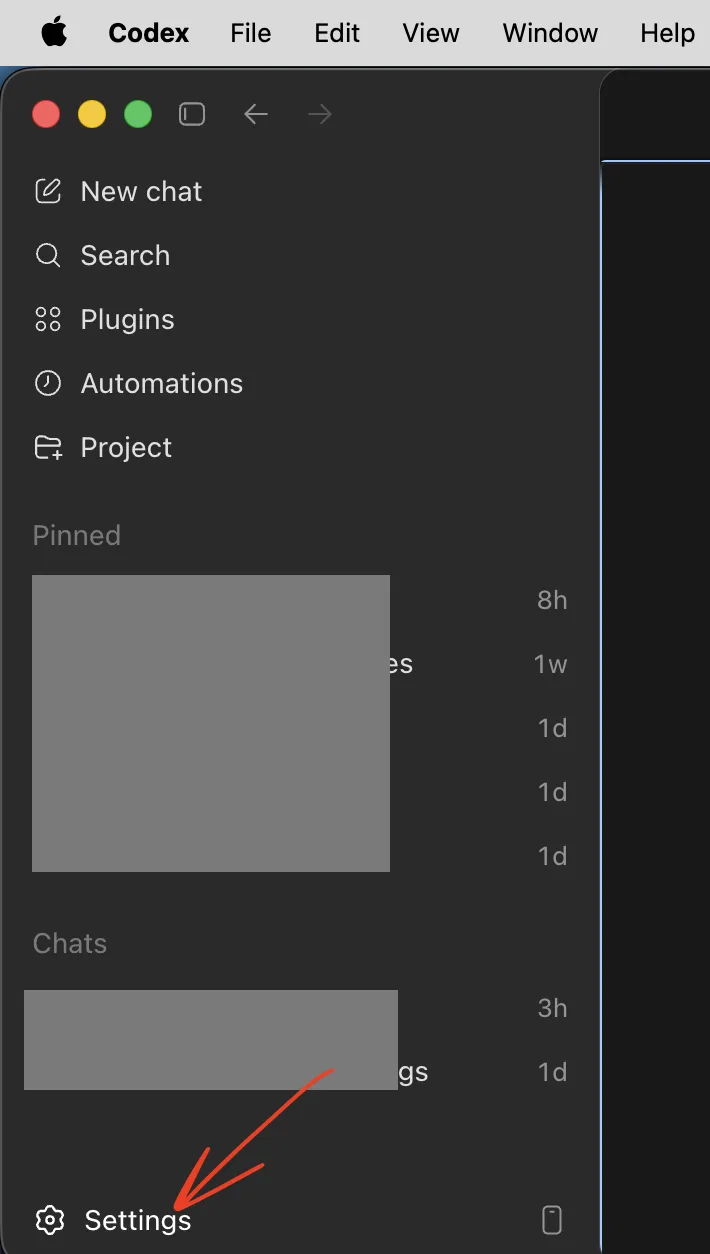
- Open Codex and click Settings at the bottom of the sidebar.
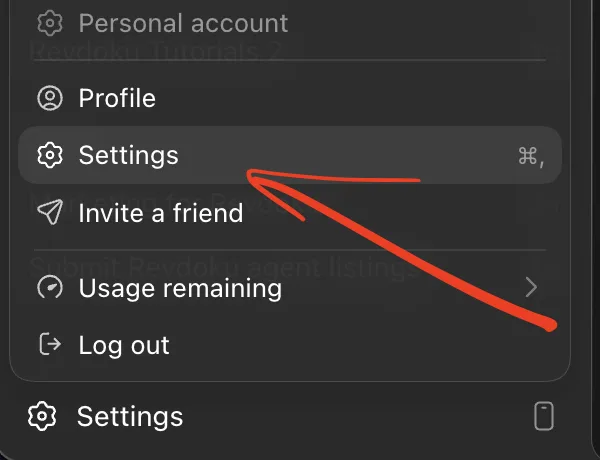
- Click Settings again in the menu.
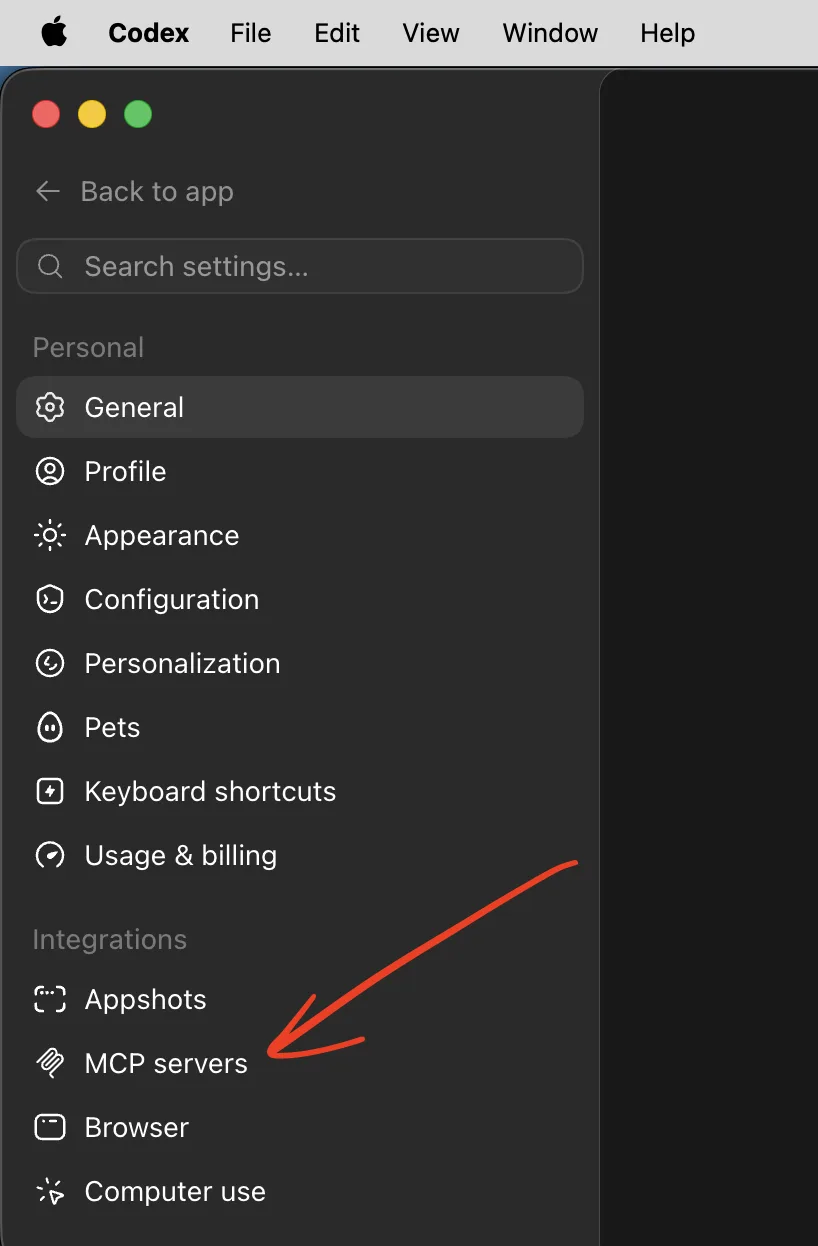
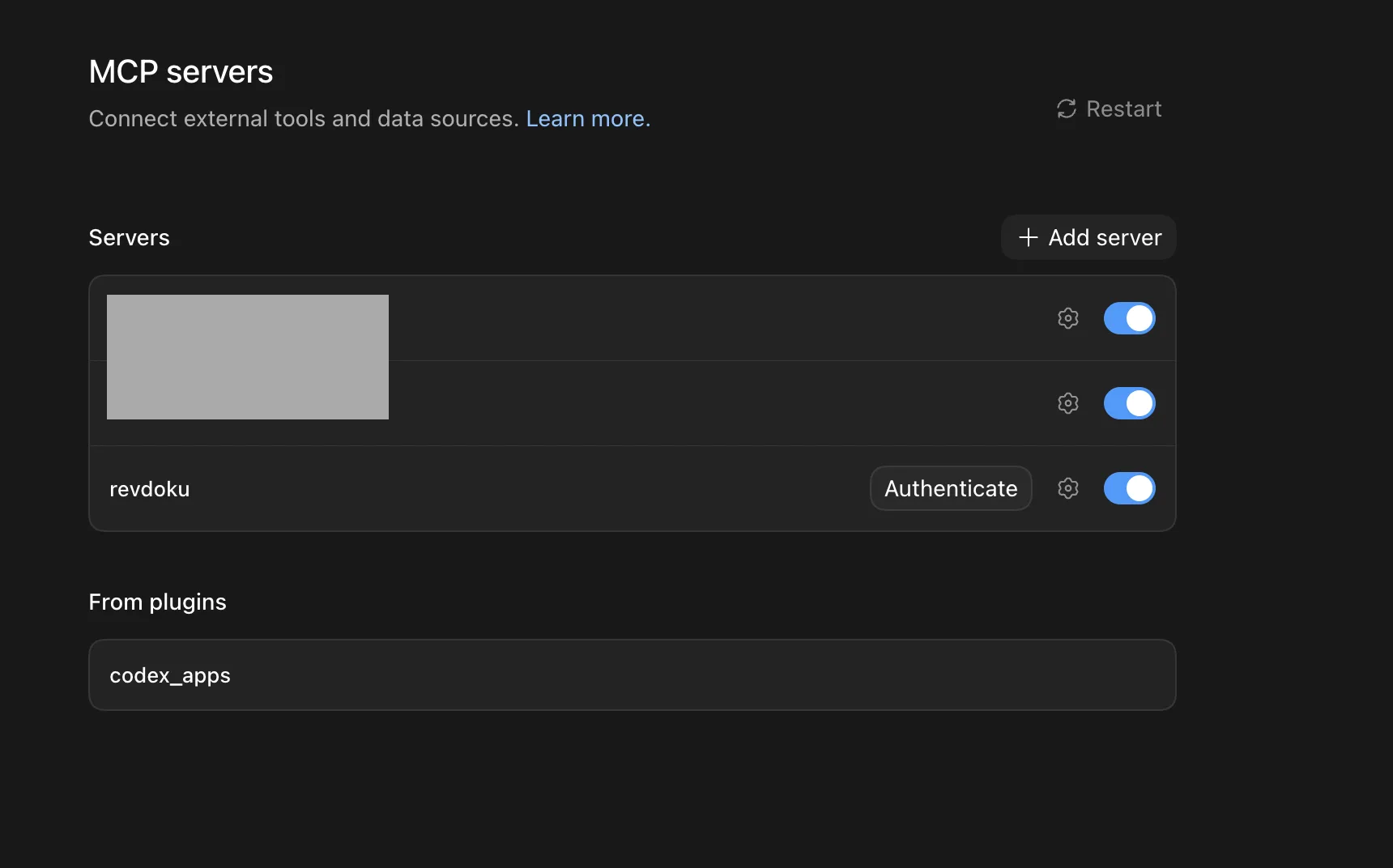
- Under Integrations, open MCP servers.
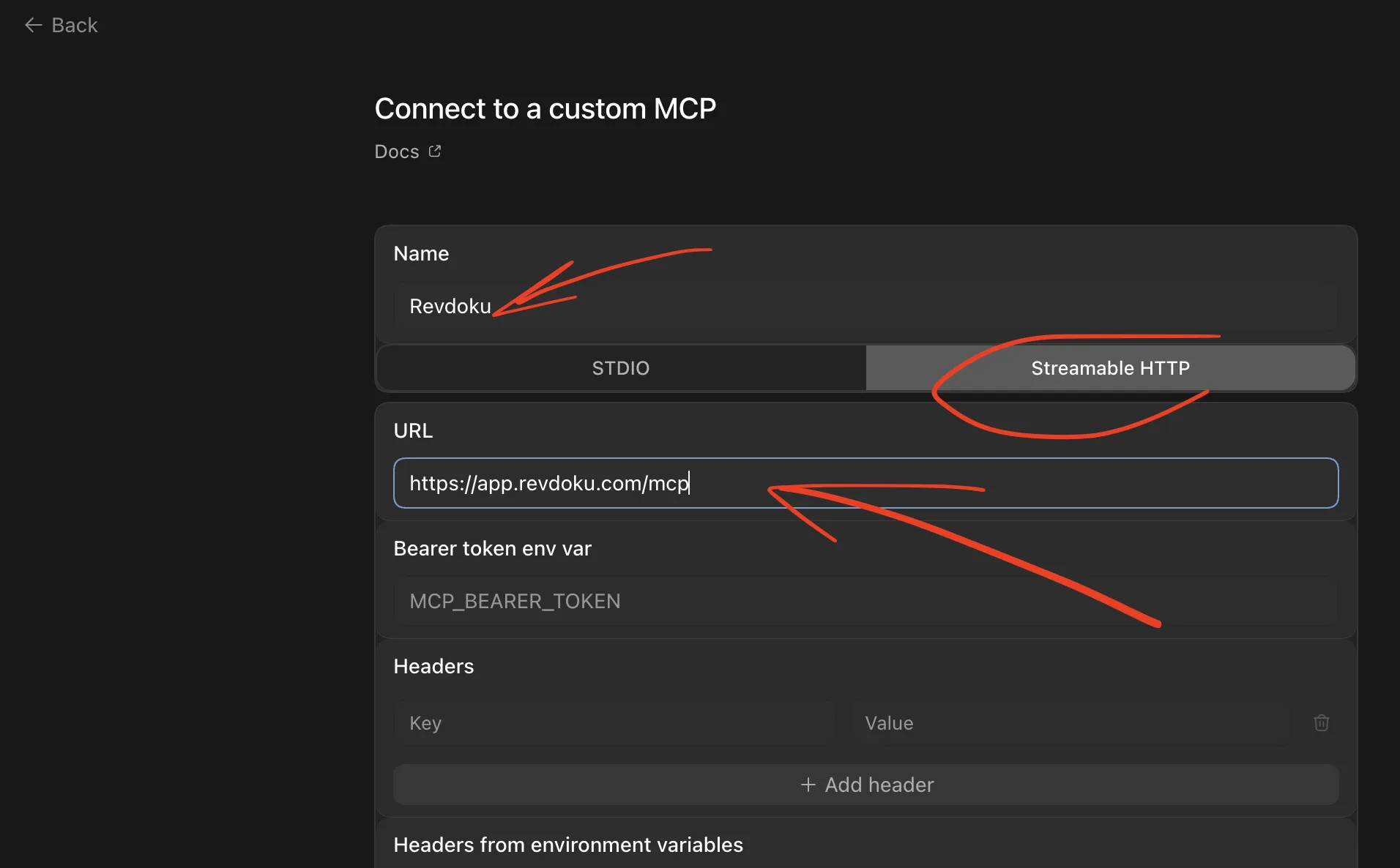
- Click Add server. Enter the name
Revdoku, select Streamable HTTP, pastehttps://app.revdoku.com/mcp, and click Save.
- Find Revdoku in the list, click Authenticate, and confirm the authorization to Revdoku.
- Open a New chat, add Revdoku from the + menu, or just type
publish with Revdoku.
Quick alternative: Copy Instructions for AI
- In the Revdoku app, click New (or the + on mobile) and select Copy Instructions for AI.
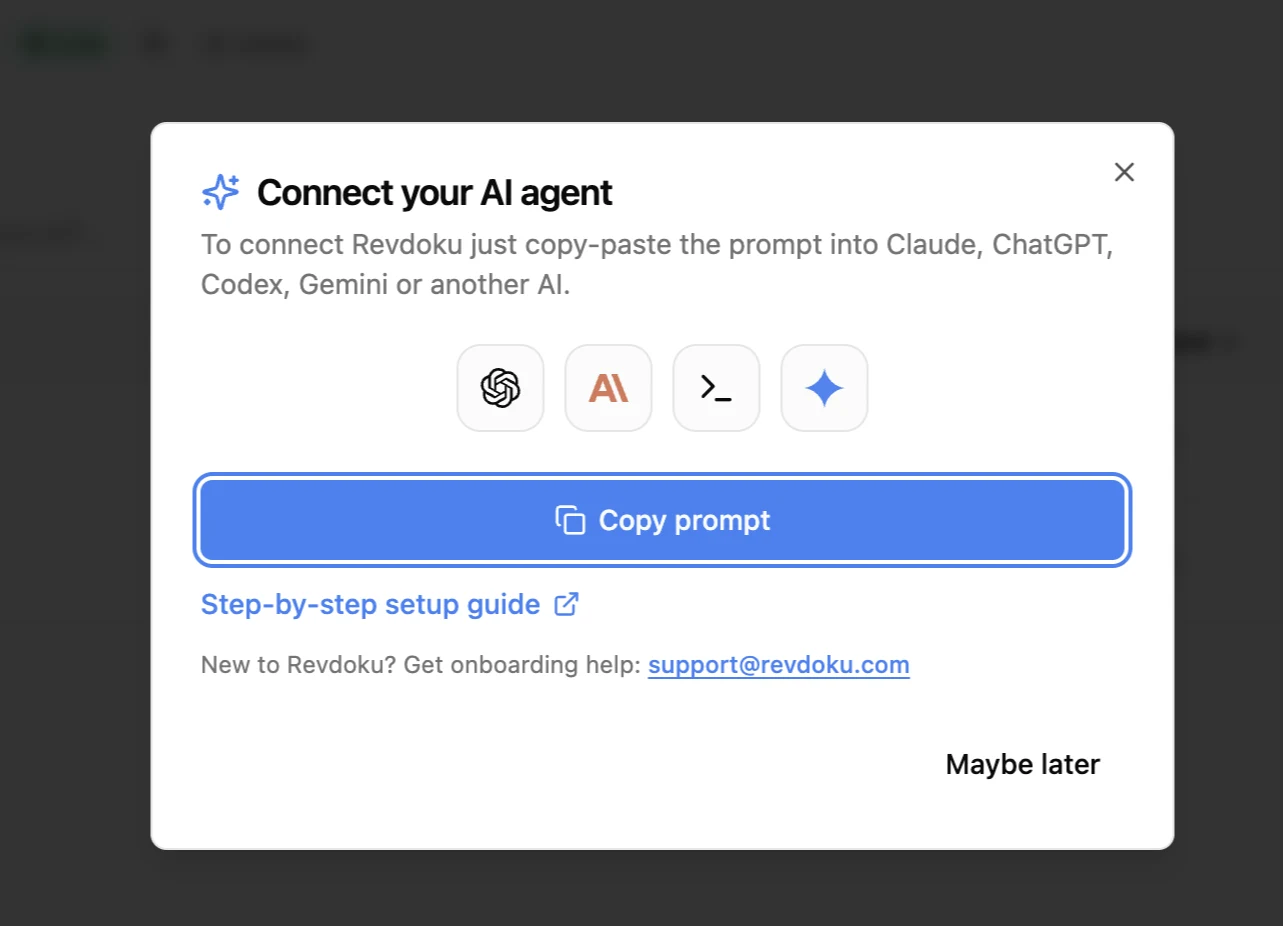
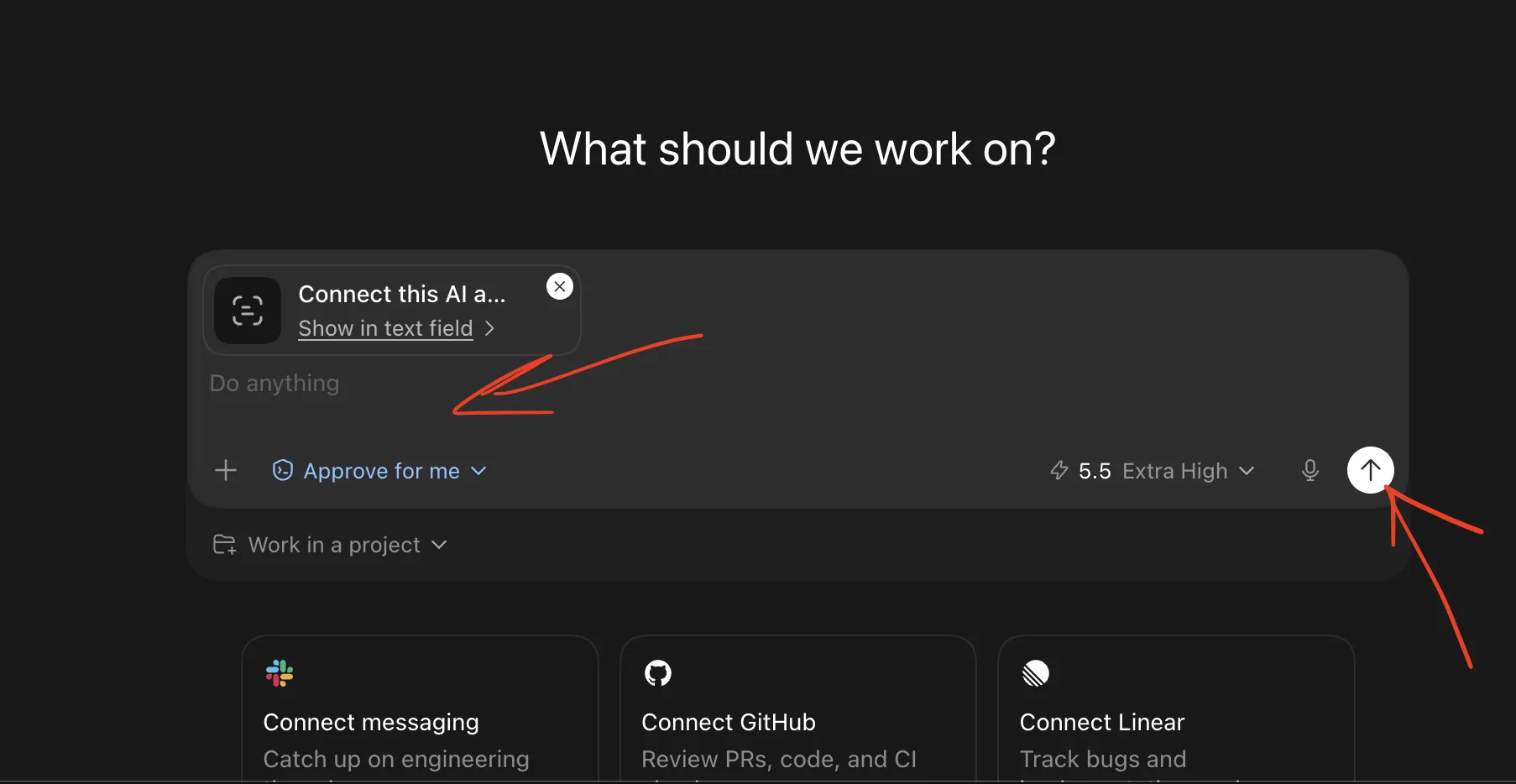
- Paste the copied instructions into a new Codex chat and send.
- Codex connects to your Revdoku account automatically and confirms.
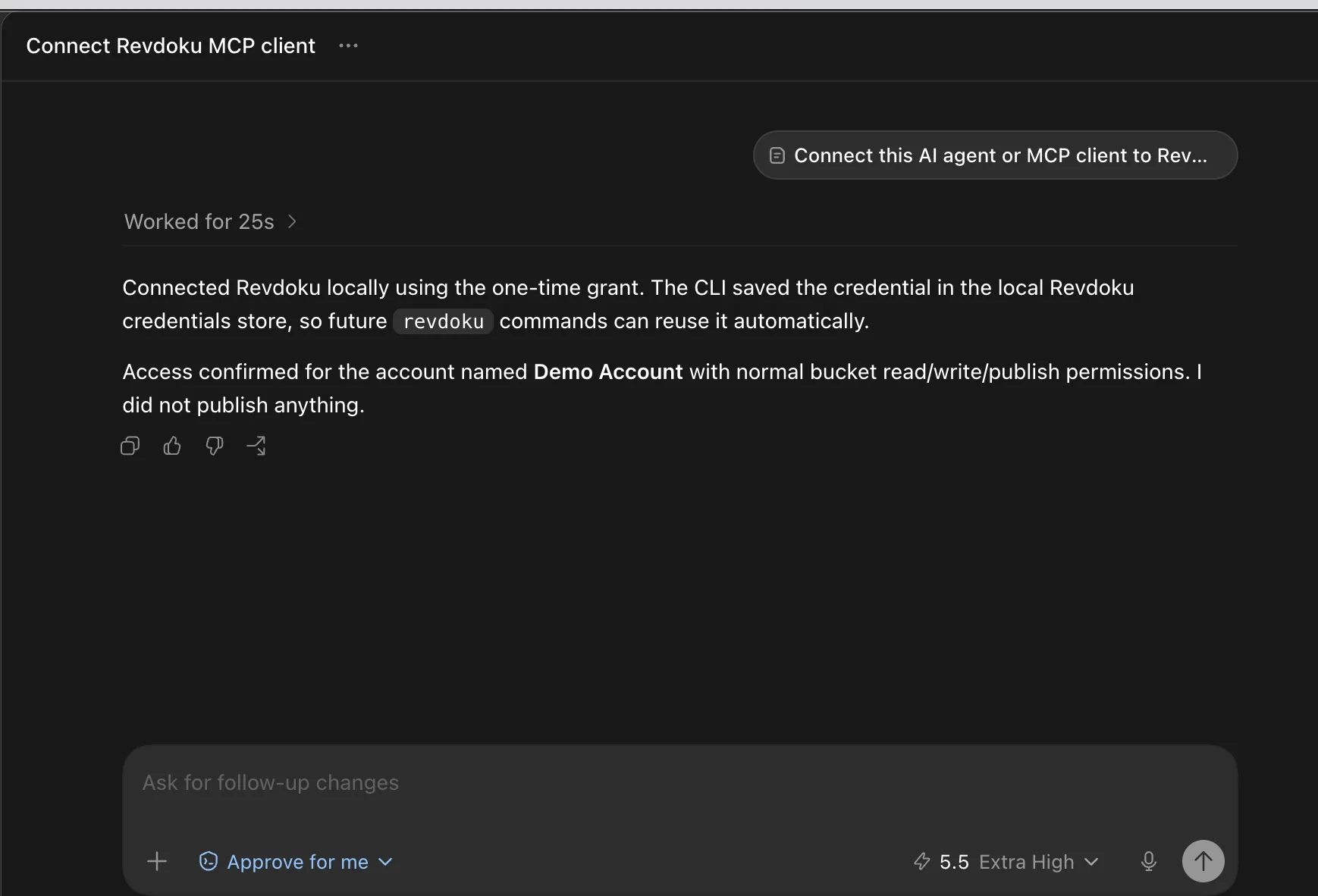
You’ve connected Revdoku. Now just ask
publish to Revdokuand your AI publishes it as a live URL.
Check the published bucket from ChatGPT
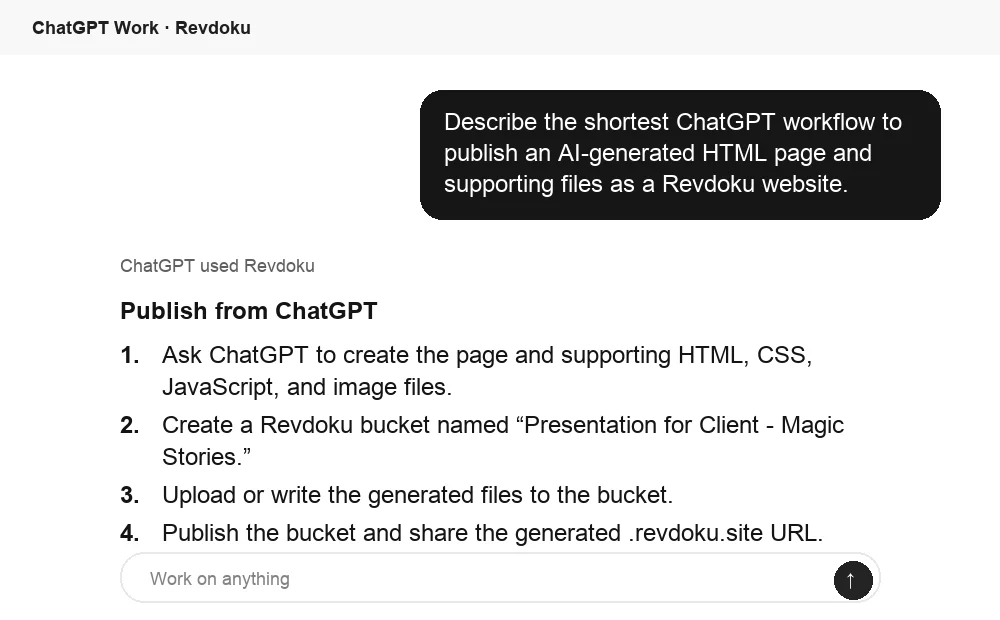
After Codex in the desktop app publishes through Revdoku, ChatGPT can inspect the same bucket if Revdoku is connected there too. This is useful for a quick publish summary before you send the link.
Related
- Full Codex connection guide — desktop, CLI, and IDE setup in one place.
- Codex CLI guide