How to Password Protect an HTML Page Securely
Table of Contents
- Password Protect an HTML Page Before You Share It
- What HTML Page Password Protection Actually Means
- Why Simple Password-Protected HTML Is Usually Cosmetic
- Compare Ways to Password Protect an HTML Page
- Prepare and Protect an HTML Folder for Publishing
- How to Password Protect an HTML Page With Revdoku
- Choose Access for a Password Protected Website
- Real-World HTML Page Password Protection Examples
- HTML Page Password Protection Mistakes
- Final Thoughts
- Ask ChatGPT to check the access mode
- Password Protect an HTML Page Before You Share It
- What HTML Page Password Protection Actually Means
- Why Simple Password-Protected HTML Is Usually Cosmetic
- Compare Ways to Password Protect an HTML Page
- Prepare and Protect an HTML Folder for Publishing
- How to Password Protect an HTML Page With Revdoku
- Choose Access for a Password Protected Website
- Real-World HTML Page Password Protection Examples
- HTML Page Password Protection Mistakes
- Final Thoughts
- Ask ChatGPT to check the access mode
Password Protect an HTML Page Before You Share It
For password protection on an HTML page, the password box is the easy part. TL;DR: Dependable server-side access control must verify access before loading files. A page prompt may look convincing while exposing the HTML, images, scripts, and documents through View Source, a poor bargain for a client proposal or unreleased demo.
AI-generated HTML can arrive in complete folders within minutes, even for people who have never managed a web server. This guide explains dependable HTML page password protection, why client-side scripts are usually cosmetic, and how to publish through Revdoku with Password or Verified Email. It also covers testing, choosing a gate, and using visitor activity to time follow-up.
What HTML Page Password Protection Actually Means
An HTML file is a document, not an access-control system. A browser receives the file before rendering it. With password logic in that file, visitors can already inspect or save the protected content.
Real HTML page password protection checks visitors server-side before serving index.html or related assets. The server creates sessions for valid credentials and rejects other requests. The same rule must apply to nested pages, PDFs, images, JavaScript, and downloads. Protecting only the home screen is like locking the front door while leaving the loading dock open.
Choose a method based on your needs:
- Confidentiality: unauthorized visitors should not receive the files.
- Identity: you want to know which client or stakeholder opened the link.
- Activity: you want page, click, or download signals after access.
- Continuity: you want to update the work without sending a new URL.
A server gate provides confidentiality; an email gate and analytics add identity and activity; a stable link ensures continuity. HTTPS encrypts the browser-server connection but does not provide access control.
Why Simple Password-Protected HTML Is Usually Cosmetic
A common tutorial adds this JavaScript prompt:
<script>
const password = "client123";
if (prompt("Enter password") !== password) {
  document.body.innerHTML = "Access denied";
}
</script>
This creates a simple password-protected HTML screen but sends every visitor the secret and content. Visitors can find client123 in the source, disable JavaScript, remove the browser condition, or request a linked PDF directly. Hashing only obscures the password; visitors can copy the hash or alter the matching code.
Quickly test simple password protected HTML:
- Open View Source and search for the password or hash.
- Disable JavaScript and reload the page.
- Open a protected asset URL in a private window.
- Use the browser network panel to see what arrived before access.
OWASP’s frontend authorization guidance says authorization decisions belong on the server and client-side controls should be treated as presentation only. JavaScript gates suit puzzles, classroom exercises, or playful reveals where secrecy does not matter. It should not protect paid work, customer data, financial forecasts, or unreleased products. If disclosure risks an awkward call, use a real gate.
Compare Ways to Password Protect an HTML Page
Access-control methods solve different problems.
| Approach | Where the check happens | Security level | Best fit |
|---|---|---|---|
| JavaScript prompt or hidden overlay | In the visitor’s browser | Cosmetic | Games and low-stakes reveals |
| HTTP Basic Authentication | On the web server | Server-enforced when used with HTTPS | Small sites managed by someone comfortable with server settings |
| Managed publishing gate | At the hosting layer | Server-enforced | Client files, static demos, proposals, and AI-generated HTML folders |
| Full application login | In an application backend | Strong and flexible when built well | User accounts, roles, audit needs, and sensitive workflows |
HTTP Basic Authentication is simple but requires server configuration. MDN explains that Basic credentials are Base64-encoded rather than encrypted, so HTTPS is mandatory. A managed gate removes most setup. Full login systems suit separate accounts, roles, expiration rules, or multi-factor authentication, but are excessive for a two-week design review.
Use passwords carefully. Verizon’s 2025 credential-stuffing research reports that compromised credentials were an initial access vector in 22% of reviewed breaches. In the median case, only 49% of a user’s passwords were distinct, and credential stuffing made up 19% of daily authentication attempts in the analyzed identity logs. For HTML page password protection, use a unique project password, not a personal one, and rotate it when the engagement ends.
Prepare and Protect an HTML Folder for Publishing
Before protecting an HTML page or folder, prepare the files for sharing. An AI-generated project usually needs one clear site root:
client-preview/
├── index.html
├── styles.css
├── app.js
├── assets/
│   └── chart.png
└── files/
    └── proposal.pdf
Review the folder as a client deliverable.
| Item | What to Check | Why It Matters |
|---|---|---|
| Entry page | index.html opens and all relative links work |
The host needs a reliable page at the root |
| Secrets | No API keys, .env files, tokens, or hidden notes |
A password gate cannot make embedded secrets safe |
| Dependencies | Fonts, scripts, and images load over HTTPS | Localhost paths and missing files break after upload |
| Forms | Buttons have a real destination or are clearly labeled as a demo | Placeholder forms can mislead reviewers |
| Private data | Names, comments, sample records, and metadata are approved for sharing | AI output can repeat source material you forgot about |
Open the folder in a clean browser session and click every route. For framework projects, ask the AI tool to export a static dist or build folder. Upload only finished files, not adjacent source files. Revdoku can publish an HTML folder, with CSS, JavaScript, images, PDFs, and other files, through simple drag-and-drop.
How to Password Protect an HTML Page With Revdoku
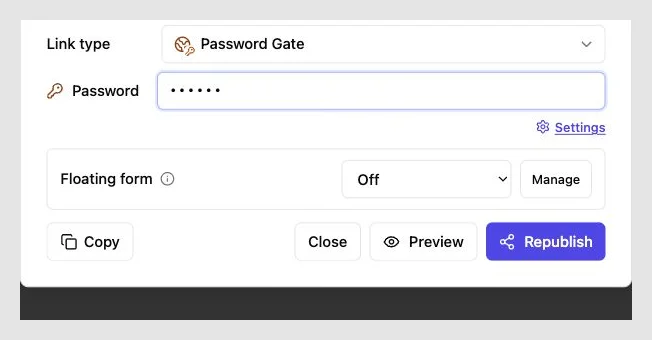
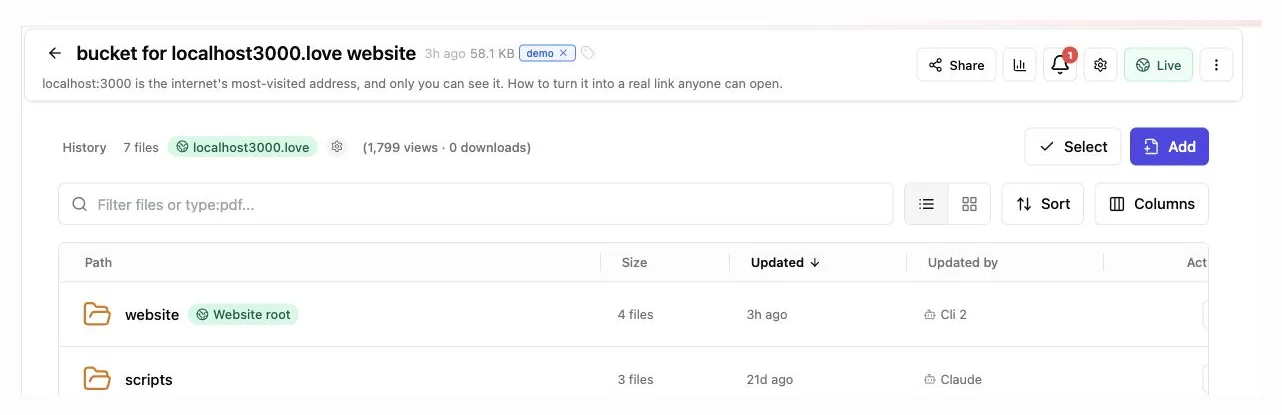
Revdoku puts server-side access control before the published folder, so generated HTML needs no password script. The dashboard workflow takes minutes:
- Sign in to Revdoku and create a bucket named for the client or project.
- Drag the finished HTML folder into the bucket. Keep subfolders intact so paths like
assets/chart.pngwork. - Confirm that
index.htmlis at the published folder level. Without an entry page, Revdoku can create a navigable file index. - Choose to publish the bucket as a website and review the live title and description.
- Select Password for a shared secret or Verified Email when visitor identity matters more than a reusable password.
- Copy the stable website link. For Password access, share the password separately, never in the URL.
- Open the link privately. Test wrong and correct credentials, a nested page, and a direct document URL.
- Send the link only after its visitor view passes.
The Revdoku publishing documentation confirms that an index.html file becomes the site root and that a selected top-level folder can be published without serving sibling folders. This helps when a bucket also contains working notes or scripts. For most people, dashboard drag-and-drop is enough. The CLI, API, and AI-agent connections can repeat the process later.
Choose Access for a Password Protected Website
Choose a password protected website gate based on the surrounding conversation. More friction can make a busy client postpone opening the page.
| Access mode | Use it when | Main tradeoff |
|---|---|---|
| Public | The page is approved for anyone with the link | No access barrier and limited visitor identity |
| Password | A small trusted group needs quick access | The shared password can be forwarded |
| Verified Email | You need an identified visitor before access | The extra step may reduce opens |
Use Password for early design previews sent to one client team. Use Verified Email for proposals, investor updates, or partner decks when visitor identity informs follow-up. Verified Email is a separate OTP-based mode and uses no shared site password.
After access, Revdoku can give the owner practical signals:
- an open notification for a protected link;
- visitor-level data on pages and paths viewed;
- clicks and downloads;
- captured leads and feedback or contact-form submissions.
The Revdoku overview also explains that files can be updated while the link stays the same. That avoids the familiar final-v7-really-final problem. Analytics show activity, not proof that someone read every sentence. Opening three pages may mean interest, distraction, or both. The signal can time follow-up but cannot reveal their thoughts.
Real-World HTML Page Password Protection Examples
The method is clearest in ordinary client work. These are representative examples, with numbers included to make the choices concrete.
-
Freelance proposal: A consultant publishes a 14-page HTML proposal with a PDF scope attachment. Password access suits the two expected client contacts. A Tuesday-morning open notification prompts a specific question that afternoon, not a vague check-in.
-
Agency prototype: An agency shares a static product demo with three stakeholders through Verified Email access. Analytics show all three opened the overview but only one reached pricing, so the team revises that transition and republishes to the same link before the review call.
-
Client deliverable room: A research firm uploads an 18-slide presentation, a CSV appendix, images, and an HTML summary in one folder. The gate covers the bundle; download activity shows which supporting file drew attention, and a built-in form collects corrections without a separate backend.
-
AI-generated dashboard: A founder asks an AI agent to export a static market dashboard. After removing sample API keys and checking the calculations, the founder manually drops the folder into Revdoku and adds a password. An agent or CLI can later update the same bucket, but automation remains optional.
In each case, the whole deliverable, not one decorative login screen, is the useful unit, with the gate, files, updates, and visitor history on one durable link.
HTML Page Password Protection Mistakes
Most failures happen around the gate. Review these points before sending a protected HTML page.
| Mistake | Better Practice | Reason |
|---|---|---|
| Store the password in JavaScript | Enforce access at the server or hosting layer | Visitors can inspect browser code |
Protect only index.html |
Test nested pages, assets, and direct download URLs | Alternate paths can bypass a partial rule |
| Reuse a personal password | Create a unique project password and rotate it | A forwarded or leaked password should have a small blast radius |
| Put the password in the same public message or URL | Send it through a separate channel | URLs can appear in history, logs, and previews |
Upload .env, source notes, or raw client data |
Publish only the reviewed output folder | Access control does not excuse unnecessary exposure |
| Treat the gate as copy prevention | Share only with people authorized to receive the work | An authorized viewer can still save or photograph content |
Common questions have short answers:
Final Thoughts
To password protect an HTML page properly, remember that a browser-side prompt is part of the page, not its security boundary. Use it only as a cosmetic lock. For client work, check access server-side before delivering any HTML, image, script, or document.
A managed workflow makes that practical for non-developers.
Review the folder, remove secrets, upload it to Revdoku, choose Password or Verified Email, and test the link privately. Then share proposals, demos, presentations, and AI-generated pages through one stable URL, track opens, and update the deliverable without sending new links. That is HTML page password protection with a real boundary.
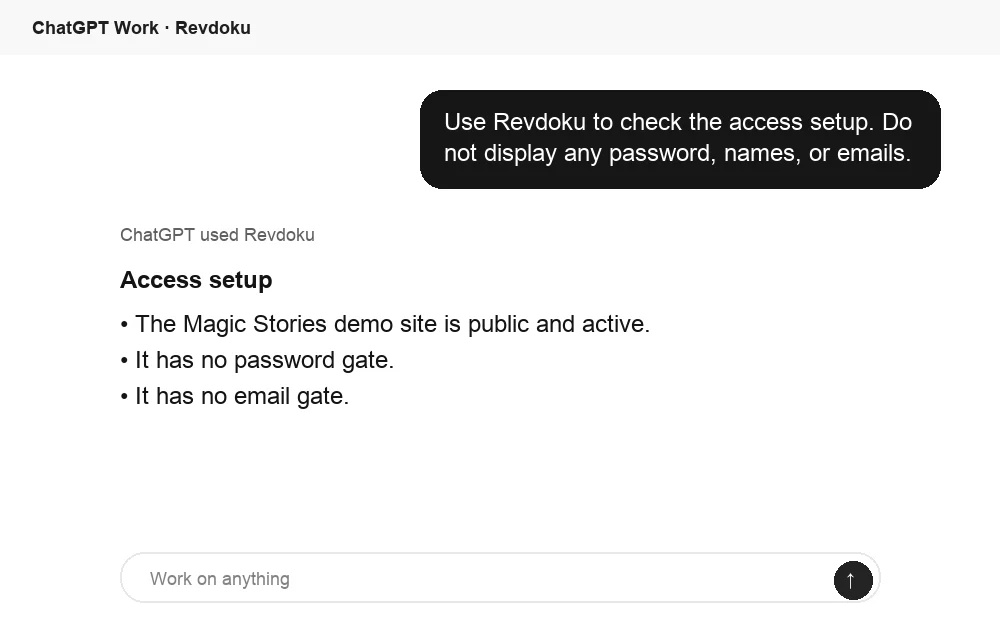
Ask ChatGPT to check the access mode
Before sharing, ChatGPT can ask Revdoku what access mode is active for the bucket. Use this to confirm whether the link is public, password protected, or email gated.
Frequently asked questions
Can one local HTML file protect itself securely?
No. It may hide or encrypt content, but the browser needs the revealing code and key. Dependable access control requires a server or managed publishing layer.
Does HTTPS password protect an HTML page?
No. HTTPS protects data in transit and complements, but does not replace, a password gate.
Can a recipient share access?
A shared password can be forwarded. Verified Email improves attribution, but no web gate can prevent authorized viewers from copying content.
Do I need to code the Revdoku gate?
No. Upload the folder, choose a dashboard access mode, and use code, API, CLI, or agent workflows only if helpful.
Which access method should I choose for a client preview?
Use Password when a small, trusted group needs quick access with minimal friction. Choose Verified Email when identifying individual visitors is important for follow-up, proposals, or stakeholder reviews.
What files should I upload when publishing an HTML project?
Upload only the reviewed output folder containing index.html and its required styles, scripts, images, and documents. Exclude source notes, environment files, API keys, tokens, and unrelated project materials.
How can I confirm that the entire site is protected?
Test the published link in a private browser window using both incorrect and correct credentials. Also open nested pages, images, and direct document URLs to confirm that none can bypass the gate.
What is the safest way to share a project password?
Create a unique password for the project and send it through a different channel from the website link. Do not place it in the URL, and rotate or remove it when the review period ends.
Can I update the protected page without sending a new link?
Yes, a stable published URL can continue serving the project after its files are updated. Retest the gate, links, and downloads after each significant update before notifying reviewers.
What should I do if my project uses a framework instead of plain HTML?
Export a static production folder, commonly named dist or build, and publish that output rather than the development source. Check that routes and asset paths work without localhost services or private environment variables.
Do analytics prove that a visitor read the entire page?
No, opens, page views, clicks, and downloads indicate activity rather than comprehension. Use those signals to improve the timing and relevance of follow-up, not to assume what the visitor understood or decided.
Related Articles
GitHub Pages Password Protection and Privacy
Learn why private repositories do not protect Pages sites and compare secure access options for internal teams and external clients.
How to Password Protect a Vercel Deployment
Learn how to secure Vercel deployments with password protection, authentication, trusted access, or protected Revdoku hosting.
How to Password Protect a Website Made with Claude
Learn how to export, secure, publish, and test a Claude-made website using password protection or verified-email access.