How to Protect a Website with a Password
Table of Contents
- How to Protect a Website with a Password Starts with the Build
- CMS Website Password Protection Uses the Application
- What Changes for Static and AI-Generated Websites
- Why JavaScript-Only Website Password Protection Is Weak
- How to Password-Protect a Static Website with StatiCrypt
- How to Protect an AI-Generated Website with Revdoku
- Website Password Protection Methods Compared
- A Practical Decision Guide with Four Examples
- Test Website Password Protection in a Private Window
- Final Thoughts
- How to Protect a Website with a Password Starts with the Build
- CMS Website Password Protection Uses the Application
- What Changes for Static and AI-Generated Websites
- Why JavaScript-Only Website Password Protection Is Weak
- How to Password-Protect a Static Website with StatiCrypt
- How to Protect an AI-Generated Website with Revdoku
- Website Password Protection Methods Compared
- A Practical Decision Guide with Four Examples
- Test Website Password Protection in a Private Window
- Final Thoughts
How to Protect a Website with a Password Starts with the Build
Learning how to protect a website with a password starts with one question: how was the site built? A password box tells you almost nothing about the protection behind it. The real test is whether the server sends protected files before or after access is approved.
Most websites fall into one of these groups:
- Application-backed sites such as WordPress, Drupal, and Ghost already have server-side access controls.
- Static sites are folders of HTML, CSS, JavaScript, images, PDFs, and similar files.
- Protected publishing services add an access layer in front of static files without requiring you to build a login system.
The right method depends on that structure. A WordPress page, a Claude-generated demo, and a folder of client PDFs should not all use the same solution.
CMS Website Password Protection Uses the Application
A content management system already has software on the server deciding what each visitor may receive. Use that machinery, or a maintained extension built for it, instead of placing a JavaScript overlay on the page.
-
WordPress: Core WordPress offers Public, Private, and Password Protected visibility for individual posts and pages. A visitor receives the protected content only after entering the correct password. Restricting an entire WordPress site is different and may require a plugin or a hosting-level control. See the official WordPress content visibility guide.
-
Drupal: Drupal treats every visitor as a user and distinguishes between anonymous and authenticated roles. Permissions control actions such as viewing or editing content. Exact restrictions depend on the site configuration and the modules defining those permissions, so test the intended content type and file paths. The Drupal user guide explains the model.
-
Ghost: Ghost uses member authentication and per-post access levels, including public, members-only, paid-members-only, and selected tiers. That is an identity and membership system, not necessarily the shared-password feature WordPress provides. Read the official Ghost tiers guide.
With any CMS, check themes, media files, feeds, APIs, and caches. The page may be protected while an uploaded document remains public at its direct URL.
What Changes for Static and AI-Generated Websites
Claude, ChatGPT, Codex, and similar tools often produce a static output folder. A typical project contains:
- Pages:
index.htmland nested HTML files - Presentation code: CSS and JavaScript
- Media: images, fonts, audio, or video
- Deliverables: PDFs, spreadsheets, decks, or downloads
Static does not mean insecure. It means the site itself usually has no application backend checking identities. The host receives a request for a path and returns the corresponding file. Unless the host or another access layer intervenes, someone who knows /files/proposal.pdf can request that PDF without visiting the homepage.
This distinction matters when you protect an AI-generated website. A password form added to index.html cannot automatically govern an image, nested page, or document stored beside it. Proper website password protection must cover every protected request before the bytes are returned. The browser should receive an access-required response, such as a login page or an HTTP error, instead of the protected file.
Why JavaScript-Only Website Password Protection Is Weak
The easiest static-site method is a form that compares a password in JavaScript and hides or reveals the page. It may discourage casual viewing, but it is usually a visual deterrent rather than access control.
If the server has already delivered the material, a visitor using only a browser or a simple Chrome extension may be able to:
- Inspect the page source and scripts for the password, hash, or comparison logic
- Disable or modify JavaScript so the hiding code never runs
- Request linked PDFs, images, or nested pages directly
- Read text already present in the document using Chrome plugins for skipping paywalls or blockers
- Save the response before the overlay changes what appears on screen
Reader modes and paywall-bypass extensions vary by browser and page. Some expose hidden text; others do not. That variation is not the main issue. The weakness is post-delivery enforcement: the browser received the content before approving access.
Bots, link-preview services, and scanners can also fetch what the server returns. Use a JavaScript-only gate for a game, surprise page, or low-stakes reveal where disclosure would not matter. Do not use it for confidential client work.
How to Password-Protect a Static Website with StatiCrypt
StatiCrypt (open-source) takes a different approach. It encrypts static HTML and places the ciphertext inside a password page. The visitor’s browser uses the password to decrypt the content locally, so no custom backend is needed.
The current workflow is straightforward:
- StatiCrypt encrypts the HTML using AES-256 and derives the encryption key from the password.
- You deploy the encrypted output to ordinary static hosting.
- A compatible browser uses WebCrypto to decrypt the page after the visitor enters the password.
StatiCrypt 3 uses 600,000 PBKDF2-SHA-256 iterations and recommends a password of at least 16 alphanumeric characters. Because WebCrypto requires a secure browser context, modern StatiCrypt pages must run over HTTPS or localhost.
The encrypted content remains publicly downloadable as ciphertext. An attacker can copy it and try password guesses offline, without waiting for a server rate limit. Password strength therefore matters a great deal.
StatiCrypt is portable and practical for low-complexity static hosting, but it provides neither visitor identity nor simple individual revocation. A shared URL and password can be forwarded. Changing access normally means choosing a new password, re-encrypting the pages, and redeploying them.
However, browser-side decryption requires a modern browser and may be slower on older computers or phones. The encrypted files remain publicly downloadable as ciphertext.
How to Protect an AI-Generated Website with Revdoku
A server or edge access form can stop a request before any protected page or asset is delivered. Revdoku applies that model to static client work without requiring changes to the website code.
The workflow can be completed manually or through an AI chat such as Claude or ChatGPT:
- Create a private bucket and drag in a PDF, presentation, finished website folder, or mixed set of files.
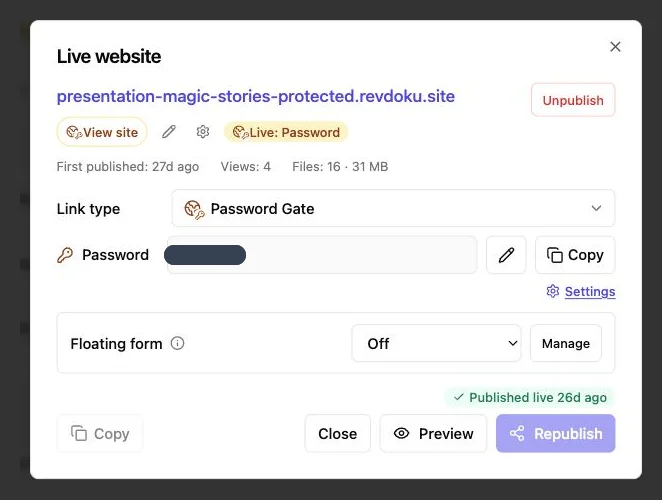
- Publish it and choose Password or Verified Email access.
- Test the resulting link and its direct file paths in a private window.
- Share the stable URL, review activity, and update the same bucket when the deliverable changes.
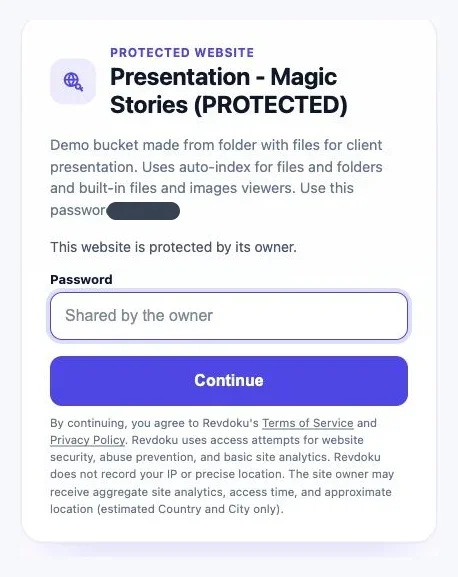
With Password access, the owner can change the shared password, and successful unlocks are recorded. An unlock proves that the secret was used. It does not prove which person typed it.
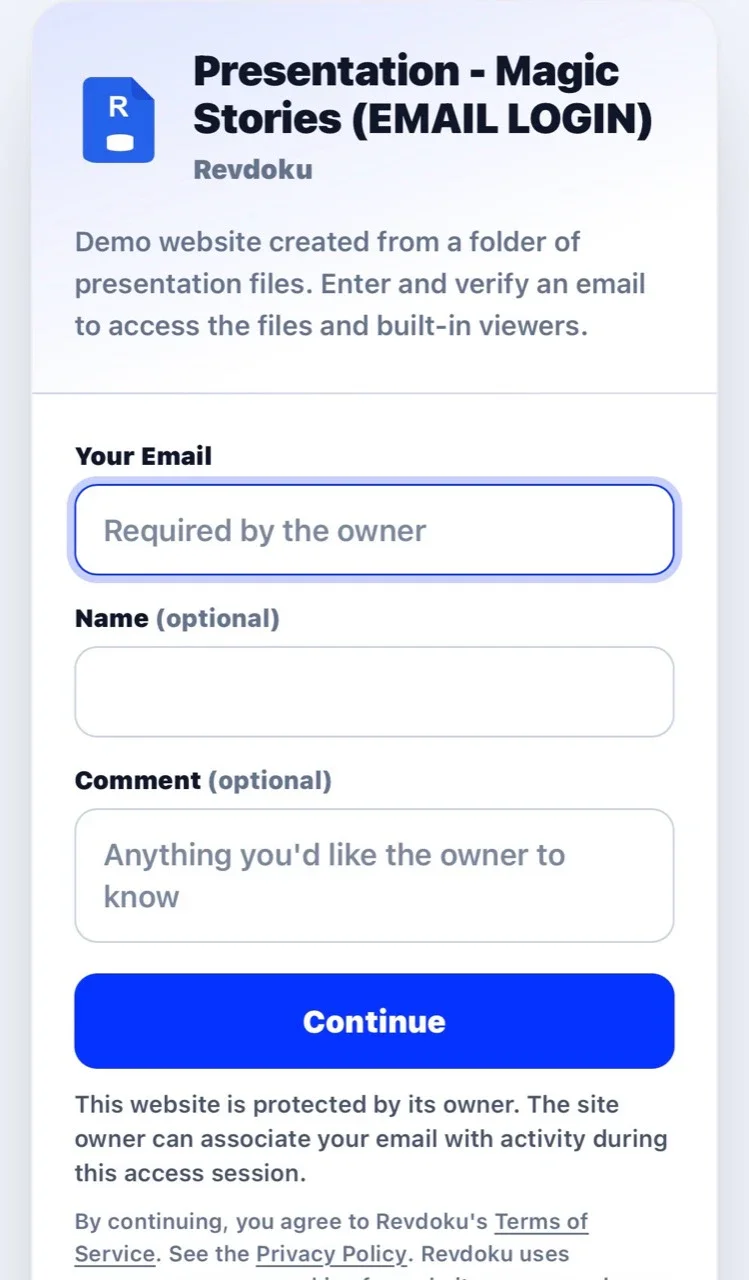
Verified Email website access asks the visitor for an email address and sends a one-time code. The visitor does not need a Revdoku account. This attributes the session to control of that inbox, not necessarily to the physical person using it.
The access check covers pages, documents, images, nested routes, and downloads. Owners can review unlocks, pages or documents opened, clicks, downloads, and timing, and can enable notifications for protected access and activity. Built-in feedback and contact forms can collect responses without a separate backend. The Revdoku documentation also explains stable updates and optional CLI, API, and agent publishing.
Website Password Protection Methods Compared
These methods solve different problems. Encryption is not the same as identity, and a convincing password screen is not necessarily a gate.
| Approach | Where Access Is Checked | What an Unauthorized Browser Gets | Visitor Identity | Best Fit |
|---|---|---|---|---|
| CMS or application access | On the application server | Only content permitted by its role or session | Can support individual accounts | WordPress pages, Drupal sites, Ghost memberships, and applications |
| JavaScript-only hiding | In the browser after delivery | Often the original HTML and assets | None | Low-stakes visual deterrents |
| StatiCrypt encryption | Decryption happens in the browser | Publicly downloadable ciphertext | None | Portable encrypted HTML on simple static hosting |
| Revdoku access form | At the server or edge before delivery | An access-required response | Shared-secret session or verified inbox | Client proposals, decks, demos, documents, and static folders |
My rule is simple: if disclosure would cause a serious client conversation, do not rely on code sent to the visitor for authorization. Use an application login, encrypted content with a strong threat model, or a maintained server-side access layer.
A Practical Decision Guide with Four Examples
Choose the lightest method that still meets the real requirement. More friction is not automatically safer, and less friction is not automatically careless.
-
A consultant shares a 12-page proposal with two client contacts. A server-side shared password is reasonable when quick access matters more than individual attribution. Send the password separately from the URL.
-
An agency sends a product demo to four stakeholders. Verified Email is a better fit when the agency wants activity associated with each stakeholder’s inbox and useful timing for follow-up.
-
A founder publishes an encrypted event page on basic static hosting. StatiCrypt can work when the group accepts one shared password, no visitor analytics are needed, and the founder can redeploy to change access.
-
A publisher restricts articles by subscriber tier. Ghost member access fits better than a shared password because subscriptions, member identity, and content levels already live in the application.
Use individual accounts, single sign-on, or a platform designed for the relevant data class when you need role changes, multifactor authentication, formal audit records, or selective revocation. Ordinary shared-password access by itself is not appropriate for regulated or highly sensitive records.
Test Website Password Protection in a Private Window
Do not test only the homepage in the browser where you configured the site. Existing cookies can make a public file look protected. Copy each exact URL into a logged-out private window or a separate browser profile.
| Item | What to Test | Passing Result |
|---|---|---|
| Homepage | Open the main URL without signing in | The access form appears before site content |
| Wrong password | Submit an incorrect value | No protected bytes or useful preview appears |
| Direct PDF | Open a document URL such as /files/proposal.pdf |
The request returns an access-required response |
| Direct image | Open a sensitive image URL | The image is not returned before access |
| Nested page | Visit a route such as /demo/pricing.html |
The same gate applies |
| Download | Paste a download URL into a fresh session | The file remains blocked |
| Update | Replace or republish a file | The stable link shows the new version and remains protected |
Use a long, unique password and keep it out of URLs. For context, current NIST guidance requires at least 15 characters for centrally verified single-factor passwords. StatiCrypt recommends 16 or more because offline guessing is possible.
No website password system can stop an authorized visitor from copying text, downloading permitted files, taking screenshots, photographing a screen, or sharing what they legitimately receive. This is access control, not DRM.
Final Thoughts
The correct answer to how to protect a website with a password depends on what serves it. Use the existing server-side controls for WordPress, Drupal, Ghost, and other applications. For a static site, reject JavaScript-only hiding when the content actually needs protection. Choose StatiCrypt when portable browser encryption and a shared password are enough. Choose a server-side access layer when you need protected direct URLs, simpler password changes, verified email, visitor analytics, notifications, feedback, or stable updates.
Test the homepage and every direct asset path while logged out. If an unauthorized browser receives the protected bytes, the site is not properly gated.
Continue with these practical guides:
History
- August 6, 2026 — Published by Revdoku Content Team
- August 6, 2026 — Reviewed by Eugene Mi
- August 6, 2026 — Last updated by Revdoku Content Team.