Update an Existing Link Without Changing the URL
Table of Contents
- Introduction
- Update an Existing Link: What Changes Behind a Stable Client Link
- Why a Same Link New Version Workflow Works Better
- How to Update a File Without Changing the Link
- Same Link New Version vs Changing Third-Party URLs
- Version History: How to Roll Back a File Version at the Same Link
- Access, Notifications, and Analytics After an Update
- Four Practical Examples of Updating an Existing Link
- Best Practices to Replace Published File Content and Avoid Pitfalls
- Final Thoughts
- Introduction
- Update an Existing Link: What Changes Behind a Stable Client Link
- Why a Same Link New Version Workflow Works Better
- How to Update a File Without Changing the Link
- Same Link New Version vs Changing Third-Party URLs
- Version History: How to Roll Back a File Version at the Same Link
- Access, Notifications, and Analytics After an Update
- Four Practical Examples of Updating an Existing Link
- Best Practices to Replace Published File Content and Avoid Pitfalls
- Final Thoughts
Introduction
To update an existing link after sending work to a client, keep the URL and replace what it serves. The stable client link still works in the original email, proposal, message, or bookmark. This avoids URLs named final, final-2, and really-final.
In Revdoku, a bucket owns the published address. Update and republish that bucket for a same link new version workflow. Version history lets you restore an earlier state if an update fails.
In short:
- How to update a file without changing the link
- Where version history and rollback fit
- What happens to access controls and analytics
- Why changing a third-party URL is a different task
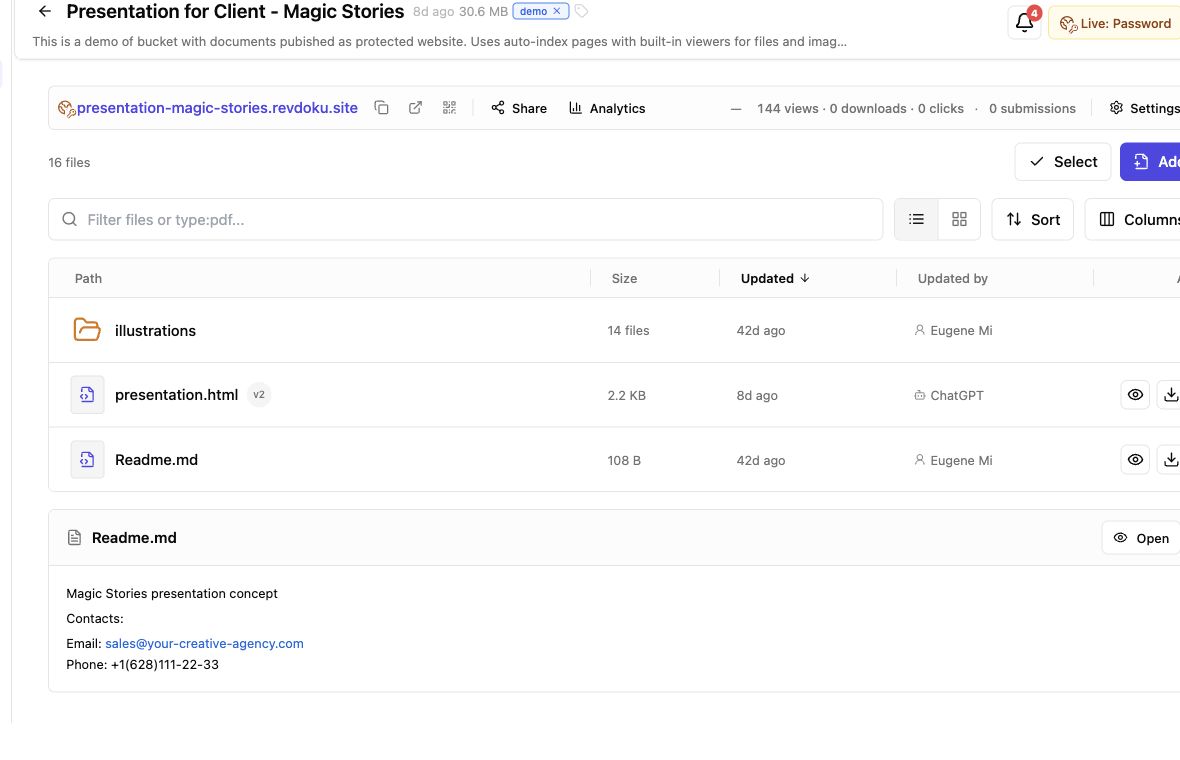
Screenshot of the Revdoku Magic Stories demo bucket in app.revdoku.com, made on July 31, 2026.
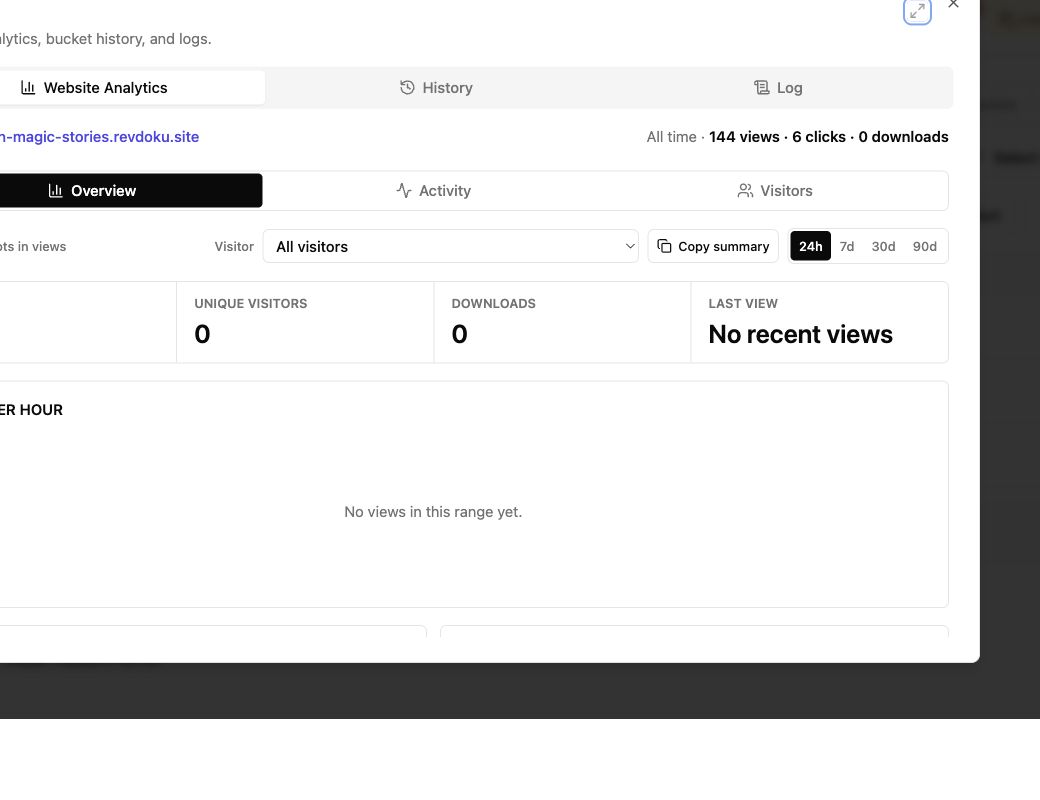
Screenshot of Revdoku website analytics for the Magic Stories demo bucket in app.revdoku.com, made on July 31, 2026.
Update an Existing Link: What Changes Behind a Stable Client Link
Published files in a bucket power each Revdoku link. That bucket owns the live URL and its publishing settings. To keep the URL, update that bucket instead of creating another.
The distinction is simple:
| Element | What Happens During an Update |
|---|---|
| Published files | Revised documents, pages, images, data, or other assets replace the current content |
| Revdoku bucket | The same bucket remains the source of the publication |
| Public URL | The existing address continues to work |
| Access settings | Public, password, or email access stays associated with the publication unless you change it |
| Analytics history | Activity remains connected to the same publication rather than being split across new links |
Revdoku’s existing-site workflow confirms that the bucket owns the live URL and publishing settings. It recommends republishing changed files to that bucket.
File paths matter. According to the Revdoku API documentation, uploading to the same path creates a new file version. Replacing proposal.pdf differs from adding proposal-final-2.pdf beside it. The first updates the intended file; the second may leave clients two choices.
Why a Same Link New Version Workflow Works Better
A stable client link removes persistent friction. Clients should not search five messages for the current presentation.
I prefer one boring, dependable link to clever filenames. Boring wins near a deadline.
Benefits include:
- Email continuity: The original message’s URL stays useful.
- Fewer version mistakes: Reviewers are less likely to comment on obsolete files.
- Reusable placements: Bookmarks, QR codes, portals, and project notes need no edits.
- Cleaner follow-up: Open activity and feedback stay with one destination.
- Less client administration: Recipients needn’t save another attachment or update internal records.
A 2024 Pew Research Center study found that 38% of webpages available in 2013 were no longer accessible a decade later. The research covers the broader web, not Revdoku, but shows how quickly moved or missing addresses become unreliable. See the Pew Research Center analysis.
Updating content at the same address cannot prevent all link decay, but avoids creating a new URL for every change.
How to Update a File Without Changing the Link
Start in the Revdoku dashboard. AI agents, the CLI, and the API can automate the process later, but are optional.
-
Open the existing bucket. Use the bucket connected to the client-facing URL, not a new one.
-
Prepare the replacement. Check filenames, folder structure, and inter-file links. When replacing one PDF, keep its path unless you want another file to appear.
-
Upload the revised file or folder. Drag the replacement into the existing bucket. For folders, include required images, styles, scripts, and downloads.
-
Review the draft state. Before publishing, open important pages and test navigation, mobile layout, downloads, forms, and changed links.
-
Republish the same bucket. Republish to the established URL. Automated folder publishing can reuse unchanged files and upload only changed bytes.
-
Wait until publishing finishes. Test the client URL after the publication reports that it is ready. Checking too early can make a healthy asynchronous build look broken.
-
Verify as a visitor. Open the old URL in a private window and confirm the correct version and expected password or email gate.
Same Link New Version vs Changing Third-Party URLs
Replace a published Revdoku file by updating its hosted content; external destinations require separate changes. This applies when a page links to Google Drive, Dropbox, a scheduling service, payment page, or another website.
| Action | Who Controls the Content? | Result at the Revdoku URL | Correct Approach |
|---|---|---|---|
| Replace a PDF in the existing bucket | Revdoku bucket owner | Revised PDF appears after republishing | Upload to the intended path and republish |
| Edit an external hyperlink inside a published page | Revdoku owner and third-party site | Page contains the new destination after republishing | Edit the page, republish, and test the external URL |
| Change a Google Doc that a Revdoku page links to | Third-party provider | Revdoku’s hosted files do not become a new version | Manage the document and permissions in Google, then test the link |
| Create another Revdoku bucket for the revision | New bucket owner | Usually creates another publication identity | Avoid this when the existing client URL should remain canonical |
A stable Revdoku page cannot stabilize a third-party destination. Changed Dropbox permissions or a missing external page can still produce errors.
For version history, controlled access, and Revdoku analytics, upload the deliverable to the bucket rather than relying on an external URL. If the external service remains, test its availability and permissions separately.
Version History: How to Roll Back a File Version at the Same Link
Version history provides a safety net for published updates. Revdoku records a new version when content is uploaded to the same file path, while its public feature summary states that owners can update or roll back without changing the link.
Rollback steps:
-
Identify the faulty release. Identify the faulty files, such as a damaged PDF, missing image, incorrect price, or JavaScript error.
-
Choose the earlier version. In the bucket’s version history, choose the last known good content.
-
Restore the historical state. Restore the selected content as current without changing the published address.
-
Check related files. For releases spanning several assets, confirm the restored HTML, styles, data, images, and downloads belong together.
-
Republish and test. Republish the restored content to the same bucket and test the established URL as a visitor.
Rollback cannot recall copies visitors already downloaded. Browser caches, forwarded files, screenshots, and third-party archives may persist. Revdoku’s privacy policy makes the same general point about visitor copies and cached public content.
For sensitive corrections, restore the good version, then notify recipients if the mistake could affect a decision.
Access, Notifications, and Analytics After an Update
The same bucket keeps sharing together. Revdoku offers three access patterns; choose the one that fits the material without creating separate revision URLs.
| Access Mode | Visitor Experience | Suitable For |
|---|---|---|
| Public | Anyone with the URL can open the content | Public portfolios, samples, and general information |
| Password | Visitors enter the shared password | Proposals, private previews, and client deliverables |
| Verified email | Visitors verify their email before access | Named-recipient sharing and lead records |
After updating at the same link, retest the access gate. An authorized browser session may hide broken protection.
Revdoku can send an email when someone opens a protected link and show who opened it and when. Its sharing overview also describes password or email protection, open alerts, and built-in feedback collection. Where enabled for the publication, analytics can add details such as pages viewed, clicks, and downloads.
Use those signals with restraint:
- Confirm the intended client opened the revision.
- Follow up while it is fresh.
- Check whether visitors reached the update or download.
- Treat an open as interest, not approval or agreement.
One publication also keeps activity from splitting across similar URLs.
Four Practical Examples of Updating an Existing Link
These are illustrative workflows, not invented customer results. They show the method across client work.
| Scenario | Revision | Same-Link Benefit | Recovery Plan |
|---|---|---|---|
| Freelance proposal | Correct a tax line on page 7 of an 18-page PDF | The link in the original proposal email opens the corrected document | Restore the prior PDF version if formatting breaks |
| Agency presentation | Replace 6 slides in a 42-slide campaign deck | Client bookmarks and protected access continue to point to the current deck | Roll back the deck while the design team repairs the export |
| Founder demo | Update copy, a call-to-action, and 3 assets in a 14-file static demo | Investors keep using the URL already included in meeting notes | Restore the last working file set if navigation fails |
| Automated weekly report | Refresh data.csv and index.html through an agent or CLI |
Subscribers return to one report address each week | Restore the previous report if data validation fails |
Keep the publication identity, change its content, and verify the result. Changes can span one page or an entire folder.
Optional automation can streamline recurring updates. Agents can edit files and republish the bucket; the API or CLI can compare hashes and transfer only changed content. Clients still use one current link.
Best Practices to Replace Published File Content and Avoid Pitfalls
Reliable updates depend more on discipline than complexity. Use this release check when updating a file at the same link.
| Item | What to Do | Problem Avoided |
|---|---|---|
| Canonical bucket | Keep one bucket as the approved source for each client deliverable | Duplicate publications and competing URLs |
| File paths | Replace files at their intended paths and remove obsolete duplicates | Two versions appearing in the same file listing |
| Release note | Record what changed, who approved it, and when it was published | Unclear history during later review |
| Connected assets | Test images, fonts, scripts, navigation, and downloads together | A page that loads but is partly broken |
| Visitor test | Open the original URL in a private window after publishing | Cached content hiding a failed update |
| Access test | Recheck password or email verification from a signed-out session | Accidental exposure or blocked recipients |
| Rollback point | Know the last good version before a large update | Guesswork during urgent recovery |
| Client notice | Explain material changes without sending a replacement URL | Reviewers missing a pricing, scope, or deadline change |
| Automation scope | Let agents update only the intended bucket and paths | A script publishing to the wrong client destination |
A common mistake is creating a new bucket because a revision feels like a new release. That may suit a separate project or audience, but usually not a link already in circulation.
Final Thoughts
To update an existing link, replace the intended content in the current Revdoku bucket and republish it. The URL remains the client’s reference, with version history as a fallback.
In short:
- Use one canonical bucket for the deliverable.
- Replace published content instead of creating another client URL.
- Test the original link, access gate, downloads, and forms.
- Use rollback to recover an earlier content state.
- Manage third-party destinations separately from Revdoku-hosted files.
This approach works for proposals, presentations, document folders, demos, and recurring reports. Manual drag-and-drop is enough for ordinary updates. Agents, the CLI, and the API can later automate publishing without changing the sharing model: clients keep one link while you control its content.
Frequently asked questions
Will clients need a new link after I update a file?
No. If you replace the content in the existing Revdoku bucket and republish it, the original client URL remains valid. Links in emails, bookmarks, portals, and QR codes will continue to point to the updated publication.
Should I keep the same filename and file path?
Yes, when the revised file is intended to replace the current one. Uploading it to the same path creates a new version, while using a different filename may leave visitors with multiple files to choose from.
When should I create a new bucket instead?
Create a new bucket when the content belongs to a separate project, audience, or publication that needs its own identity and settings. For revisions to a link already shared with clients, continue using the existing bucket.
Do access controls remain in place after an update?
Public, password-protected, or verified-email access normally remains associated with the same publication. Test the original URL from a signed-out or private browser session after republishing to confirm the access gate still works as intended.
Why might I still see the old version after publishing?
The publication may still be processing, or your browser may be showing cached content. Wait until publishing reports completion, then reopen the original URL in a private window and check the affected pages or downloads.
Can I restore an earlier version without changing the link?
Yes. Select the last known good state from the bucket’s version history, restore it, and republish the same bucket. If several files depend on one another, verify that the restored assets belong to the same release before publishing.
Will updating Revdoku fix a broken Google Drive, Dropbox, or other external link?
Not by itself, because the external provider controls that destination and its permissions. Update the hyperlink in your published page if necessary, manage access through the third-party service, and test both links separately.