Run Claude or Codex on a Closed MacBook while you do other things
Run Claude Code or Codex on a Closed MacBook
I was experimenting with vibe coding on the move: connect a MacBook to the phone hotspot, start a Claude Code or Codex task, close the laptop, put it in a bag, and keep walking.
It worked, but the Mac kept dropping the Wi-Fi connection through the phone hotspot. This is the setup that made it stable enough to start a task, close the MacBook, come back later, and see the result.
Quick safety note: a closed MacBook can get warm in a bag, especially during installs, builds, or long agent runs. Use this for light or moderate tasks, check it after a few minutes, and do not block ventilation if the job is heavy.
1. Start Amphetamine and prevent system sleep
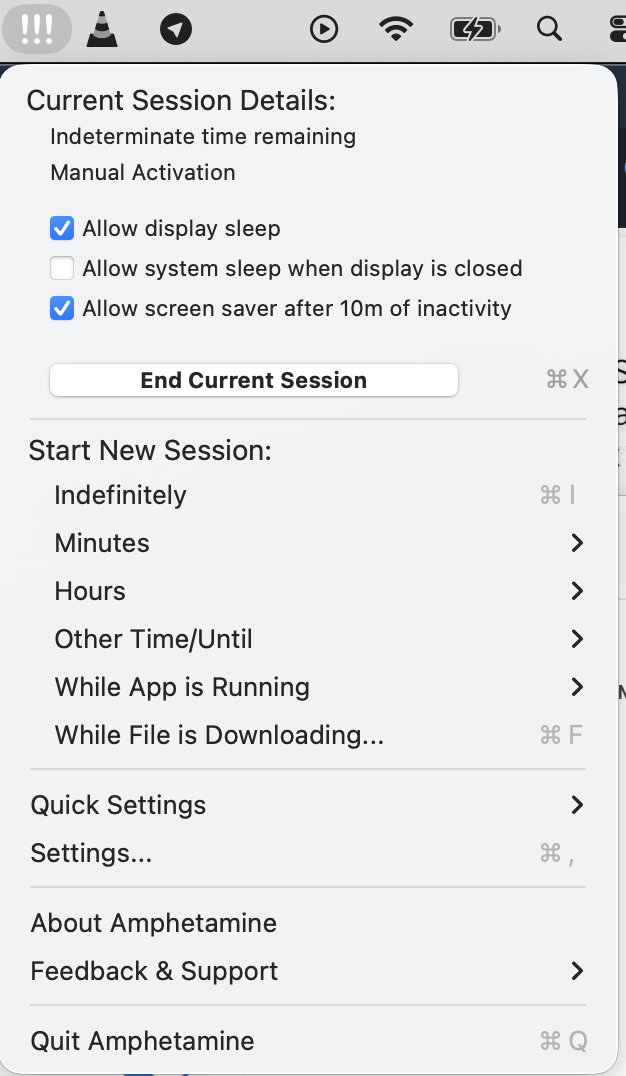
Install Amphetamine from the Mac App Store, then start an indefinite session before closing the lid.
In the Amphetamine menu:
- keep Allow display sleep enabled,
- keep Allow system sleep when display is closed disabled,
- confirm the session is active before closing the MacBook.
When Amphetamine is active, the menu bar icon can show !!! or Zzz, depending on the icon style.
This lets the display sleep while keeping the Mac awake enough for Claude Code or Codex to continue running.
2. Set macOS Battery options
Open System Settings > Battery > Options.
Use these settings:
- Prevent automatic sleeping on power adapter when the display is off: off
- Wake for network access: Always
- Low Power Mode or Energy Mode: not Low Power
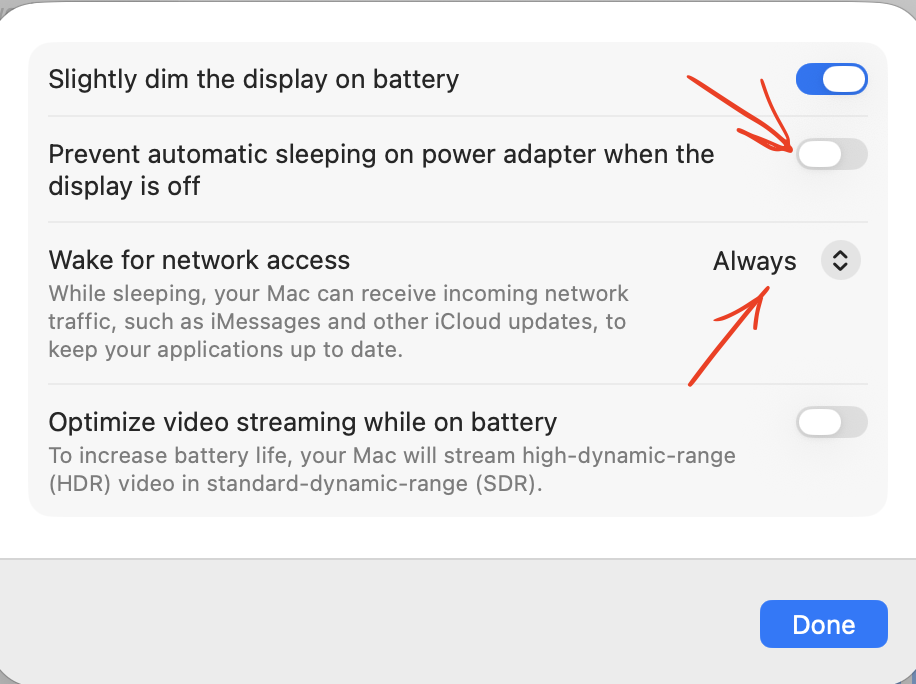
Apple documents these sleep and wake controls in its Mac sleep and wake settings and Mac Battery settings pages. The exact labels can vary a little by macOS version and Mac model.
3. Turn off Mac Low Power Mode
For agent tasks, avoid Low Power Mode on the Mac. Use Automatic or normal power mode instead.
Claude Code and Codex may run package installs, builds, tests, network requests, and file writes. Low Power Mode is useful for battery life, but it can make long-running tasks slower and less predictable. Apple describes Low Power Mode as a setting that reduces energy use to increase battery life.
4. Connect to the iPhone hotspot
On the iPhone, open Settings > Personal Hotspot and make sure the hotspot is available.
For this setup, turn Maximize Compatibility off. In my tests, that stopped the random disconnects while the MacBook was closed and connected through the phone.
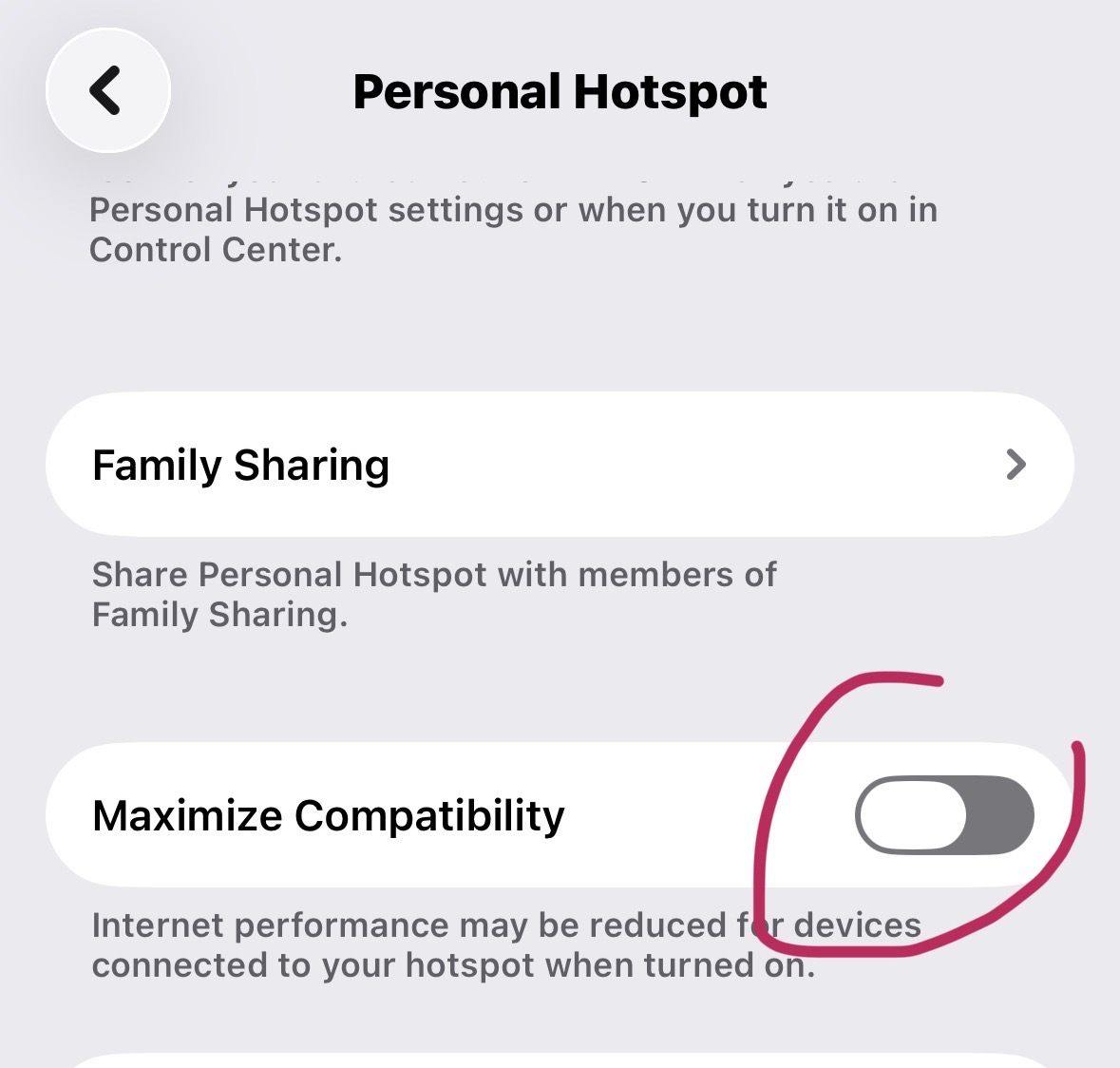
If the Mac cannot join the hotspot at all, try turning Maximize Compatibility back on temporarily. Apple recommends that as a compatibility troubleshooting step in its Personal Hotspot support guide, but for this closed-lid workflow the stable setting was off.
5. Turn off iPhone Low Power Mode
On the iPhone, open Settings > Battery and turn Low Power Mode off.
Apple says iPhone Low Power Mode reduces background activity to extend battery life. For this workflow, the hotspot needs to stay reliable for the Mac, so do not let the phone aggressively save power during the run.
6. Start the Claude or Codex task
Before closing the lid:
- Connect the MacBook to the iPhone hotspot.
- Start Claude Code or Codex in the terminal.
- Wait until the task has actually started and made its first network or tool call.
- Confirm Amphetamine is still active in the menu bar.
- Close the MacBook.
After that, you can put the MacBook in a bag, keep the phone hotspot on, and come back later. For me, this made it possible to pull the laptop out after a couple of hours and see the finished result instead of a disconnected session.
Quick checklist
- Amphetamine session active
- Allow display sleep enabled
- Allow system sleep when display is closed disabled
- Wake for network access set to Always
- Mac Low Power Mode off
- iPhone Maximize Compatibility off
- iPhone Low Power Mode off
- Hotspot connected before closing the lid
Troubleshooting
If the task pauses or stops, reopen the MacBook and check Amphetamine first. The session must still be active.
If the hotspot disconnects, reconnect once with the lid open, then close it again. If your Mac cannot connect at all, try Maximize Compatibility on, connect, and then decide which setting is more stable for your phone and Mac combination.
If the Mac gets hot, stop the run or keep the laptop outside the bag. This workflow is convenient, but it is not a replacement for proper cooling during heavy builds.
Using this with Revdoku
If Claude Code or Codex is generating a website, report, dashboard, or static page, ask it to publish the result with Revdoku when the task finishes. That way the output is available as a live URL even if the MacBook goes back in your bag.
History
- June 6, 2026 — Published by Revdoku Content Team
- June 7, 2026 — Reviewed by Eugene Mi
- July 22, 2026 — Last updated by Revdoku Content Team.