Set Up Cloudflare Turnstile for Revdoku Custom Domains
Table of Contents
- Step 1, Open Cloudflare Turnstile for your custom domain
- Step 2, Add a widget
- Step 3, Add your Revdoku custom domain as an allowed hostname
- Step 4, Choose the widget mode
- Step 5, Create and copy the Turnstile keys
- Step 6, Add the Turnstile site key and Turnstile secret key to your Revdoku bucket
- Troubleshooting
- Ask ChatGPT to check the protected site setup
- Step 1, Open Cloudflare Turnstile for your custom domain
- Step 2, Add a widget
- Step 3, Add your Revdoku custom domain as an allowed hostname
- Step 4, Choose the widget mode
- Step 5, Create and copy the Turnstile keys
- Step 6, Add the Turnstile site key and Turnstile secret key to your Revdoku bucket
- Troubleshooting
- Ask ChatGPT to check the protected site setup
TL;DR: Revdoku protects public form submissions on your free
*.revdoku.site address with a built-in CAPTCHA, no setup needed.
You only need your own Cloudflare Turnstile keys for a Revdoku custom domain when all of these are true:
- your site is published on a custom domain (e.g.
app.yourbrand.com), and - it accepts visitor submissions through built-in forms (feedback, contact, sign-ups, comments, etc.).
If your custom domain site is read-only, skip this.
Why? Cloudflare Turnstile keys are hostname-locked. Revdoku’s built-in widget only allows
*.revdoku.site, so a custom domain needs its own hostname-approved widget.
Step 1, Open Cloudflare Turnstile for your custom domain
- Sign in to the Cloudflare dashboard.
- In the left sidebar, open Turnstile.
(Direct link:
https://dash.cloudflare.com/?to=/:account/turnstile.)
Turnstile is free.
Step 2, Add a widget
- Click Add widget.
- Widget name, something recognizable, e.g.
My app – app.yourbrand.com.
Step 3, Add your Revdoku custom domain as an allowed hostname
- Under Hostnames, add your exact published domain, e.g.
app.yourbrand.com. - If you serve both the apex and
www, add both (yourbrand.comandwww.yourbrand.com). - You do not need to add
revdoku.site, that’s covered by the built-in key.
Step 4, Choose the widget mode
- Select Managed (recommended). It shows a visible checkbox/challenge only when needed.
- Do not pick an invisible/“interaction-only” mode, Revdoku renders one visible managed widget, and an invisible widget would issue no token, so every submission would fail.
Step 5, Create and copy the Turnstile keys
Click Create. Cloudflare shows:
| Key | What it is | Where it goes in Revdoku |
|---|---|---|
| Site Key | Public Turnstile site key. Safe to embed in the page. | a Variable named CLOUDFLARE_TURNSTILE_SITE_KEY |
| Secret Key | Private Turnstile secret key. Used server-side to verify. Never put it in the page. | a Secret named CLOUDFLARE_TURNSTILE_SECRET_KEY |
Keep this tab open.
Step 6, Add the Turnstile site key and Turnstile secret key to your Revdoku bucket
- In Revdoku, open the bucket for your site.
- Open Website settings → App → Variables & Secrets.
- Under Variables (public), add:
- Name:
CLOUDFLARE_TURNSTILE_SITE_KEY - Value: your Site Key from Cloudflare.
- Name:
- Under Secrets (server-only), add:
- Name:
CLOUDFLARE_TURNSTILE_SECRET_KEY - Value: your Secret Key from Cloudflare.
- Name:
- Click Save. Add both keys; one key alone won’t work.
Your Revdoku custom domain now uses your Cloudflare Turnstile widget for visitor submissions; the secret stays encrypted on Revdoku’s servers and never reaches the page.
Troubleshooting
- Submissions fail with a Turnstile error, the site’s domain isn’t in the widget’s hostname list (Step 3), or only one of the two keys is saved (Step 6).
- The widget never appears, make sure the mode is Managed, not invisible.
- It worked on
*.revdoku.site, but not the custom domain, that’s expected: the built-in key doesn’t cover custom domains. Add your own.
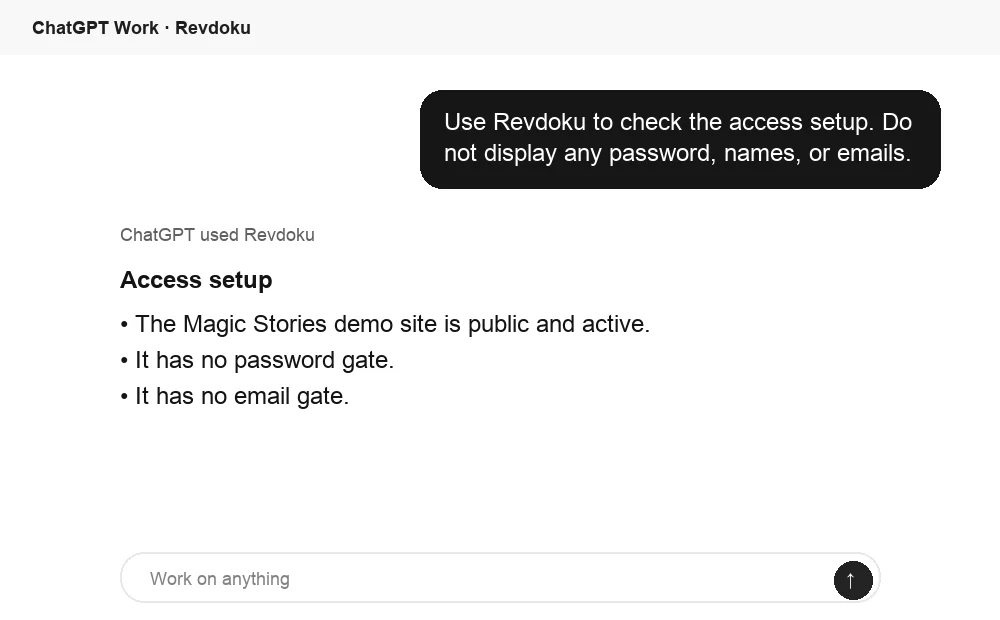
Ask ChatGPT to check the protected site setup
Before sharing the link, ChatGPT can ask Revdoku which access mode is active for the bucket. Use this as a quick check for public, password, or email-gated publishing.
Frequently asked questions
Do I need Cloudflare Turnstile keys if I only use a revdoku.site address?
No. Revdoku already includes CAPTCHA protection for public submissions on free *.revdoku.site addresses. You only need your own keys when using a custom domain with visitor-facing write actions.
Do read-only custom domain sites need Turnstile keys?
No. If visitors cannot submit forms, you can skip Turnstile setup. The keys are only needed when public visitors can submit data on your site.
Which hostname should I add in Cloudflare Turnstile?
Add the exact domain where your Revdoku site is published, such as app.yourbrand.com. If your site is available on both the apex domain and www, add both hostnames.
Why does the custom domain need separate Turnstile keys?
Cloudflare Turnstile widgets are tied to approved hostnames. Revdoku’s built-in protection is configured for *.revdoku.site, so it cannot validate submissions from your own domain. Your custom domain needs its own Cloudflare-approved widget.
Which Turnstile widget mode should I choose?
Use Managed mode. It works with Revdoku’s visible widget flow and only shows a challenge when Cloudflare decides one is needed. Invisible or interaction-only modes can prevent Revdoku from receiving a valid token.
Where should I store the Site Key and Secret Key in Revdoku?
Store the Site Key as a public variable named CLOUDFLARE_TURNSTILE_SITE_KEY. Store the Secret Key as a server-only secret named CLOUDFLARE_TURNSTILE_SECRET_KEY. Both must be saved for verification to work.
What should I check if submissions still fail?
First confirm that the exact custom domain is listed in the Turnstile widget’s hostnames. Then verify that both the public site key and server-only secret key are saved in Revdoku with the correct names. If the widget does not appear, check that the widget mode is Managed.