Password Plus Email Visitor Analytics in Revdoku
Table of Contents
- 1. Start from a live site
- 2. Open the bucket
- 3. Open website and publishing settings
- 4. Select password plus email access
- 5. Open the public protected site
- 6. Review traffic analytics
- 7. Review visitor analytics
- 8. Ask ChatGPT how to share and track
- Combine password access with recipient links
- Where password plus email shines
- 1. Start from a live site
- 2. Open the bucket
- 3. Open website and publishing settings
- 4. Select password plus email access
- 5. Open the public protected site
- 6. Review traffic analytics
- 7. Review visitor analytics
- 8. Ask ChatGPT how to share and track
- Combine password access with recipient links
- Where password plus email shines
Use Password + ask to leave email when a Revdoku website should stay protected and you need to know who accessed it. This mode asks visitors for the shared password, an email address, and an optional comment before showing the published site. This walkthrough uses the Semi News Today live site for the visitor gate and the owner analytics.
1. Start from a live site
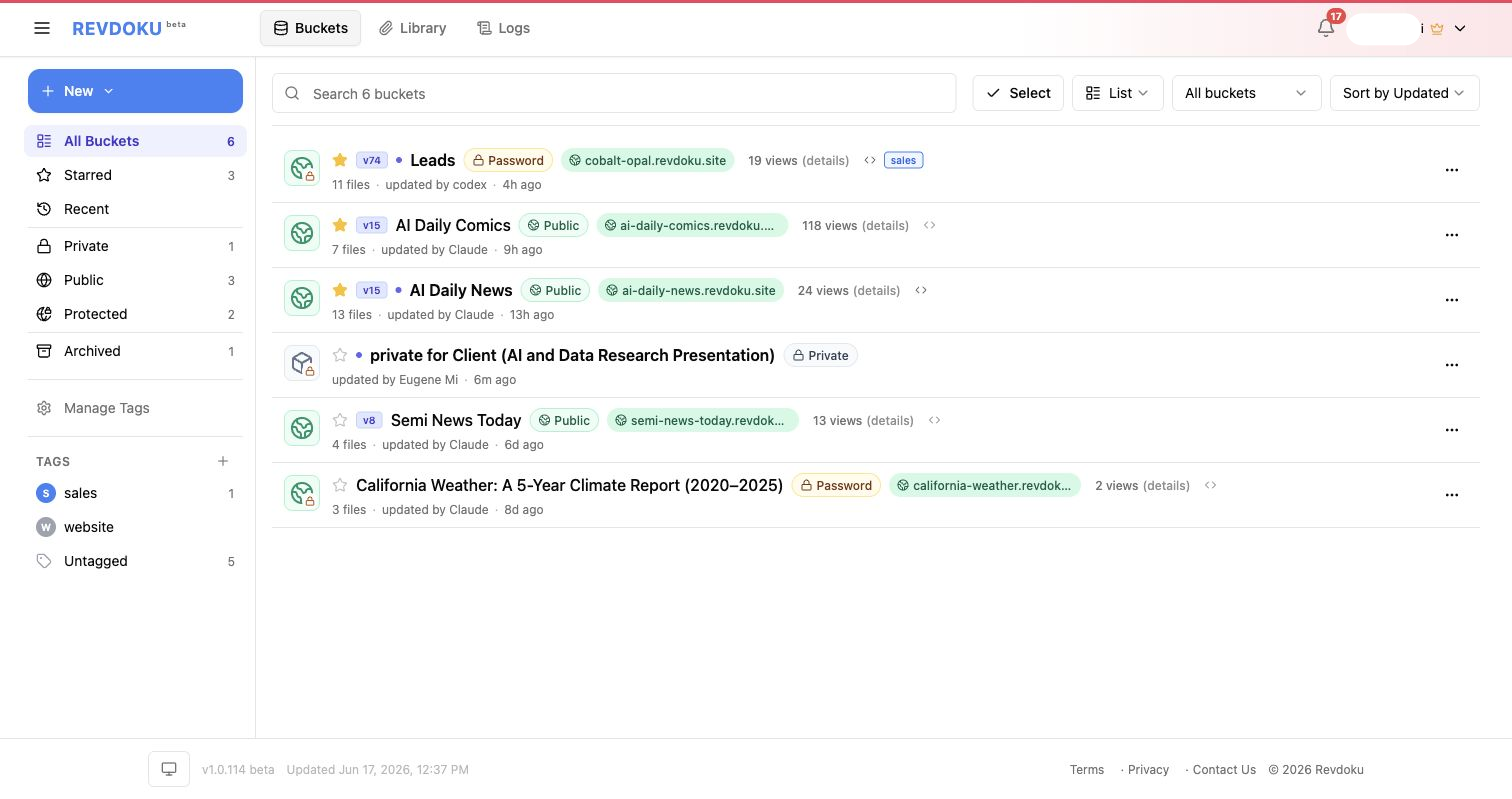
In the bucket list, choose the site you want to gate. The list shows each bucket’s access badge, live URL, file count, and current view count.
2. Open the bucket
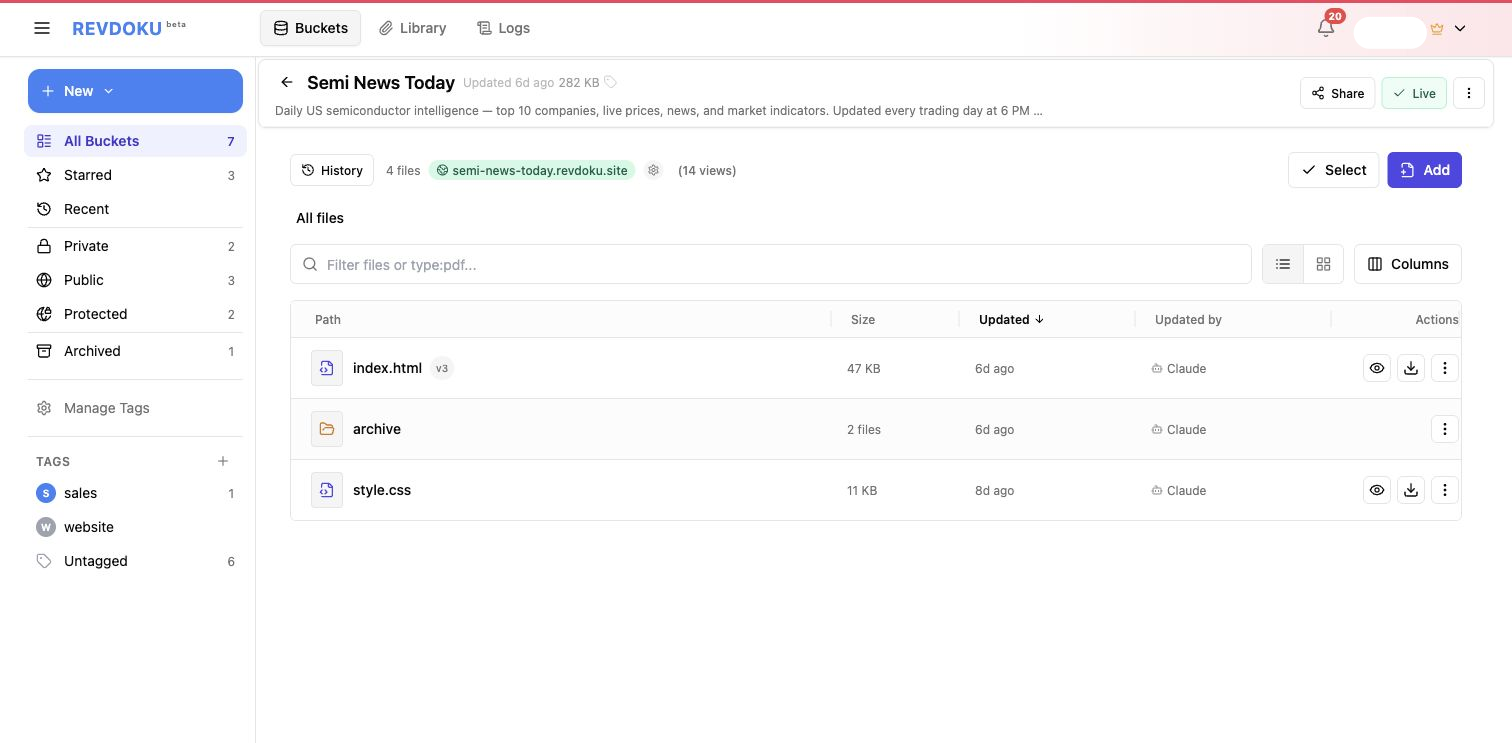
The bucket detail page shows the files that are published to the live site. In this example, the site includes index.html, style.css, and an archive folder.
3. Open website and publishing settings
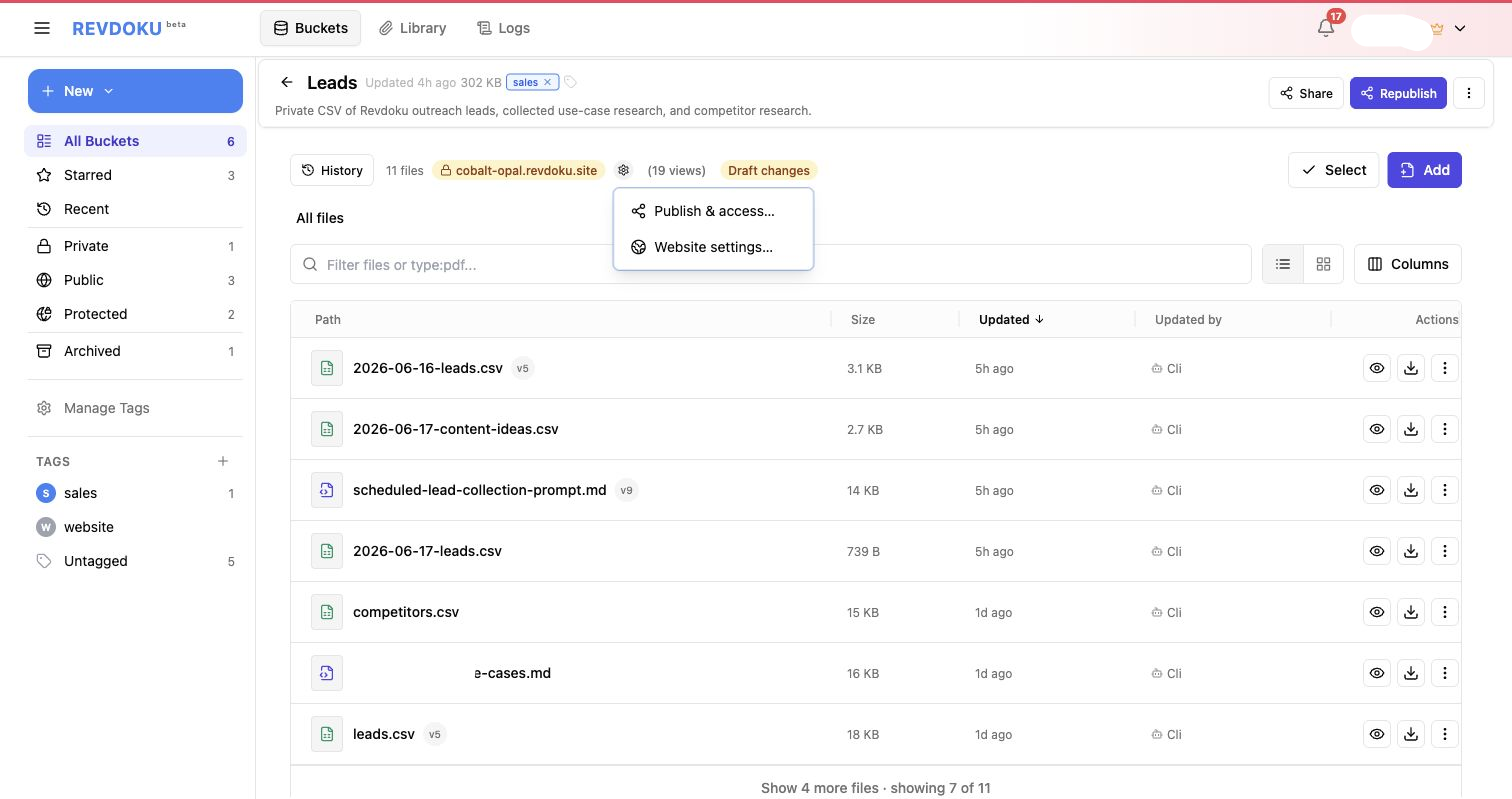
Use Website and publishing settings to reach the live access controls, then choose Publish & access… for public, password, password-plus-email, and republish settings.
4. Select password plus email access
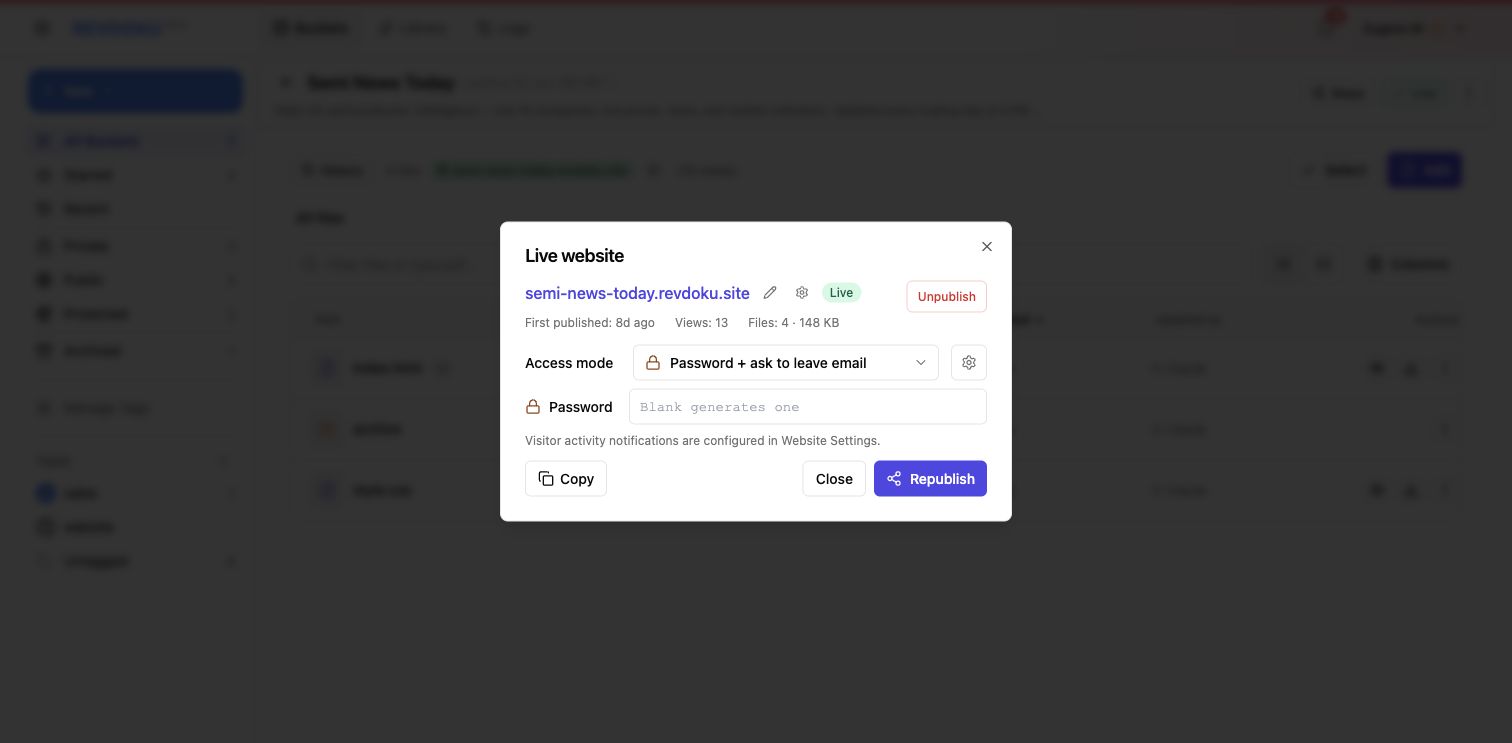
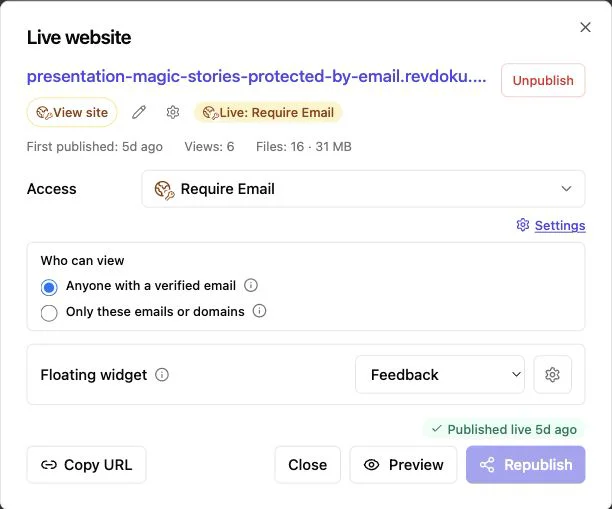
In the live website dialog, set Access mode to Password + ask to leave email, enter the shared password, then click Republish.
5. Open the public protected site
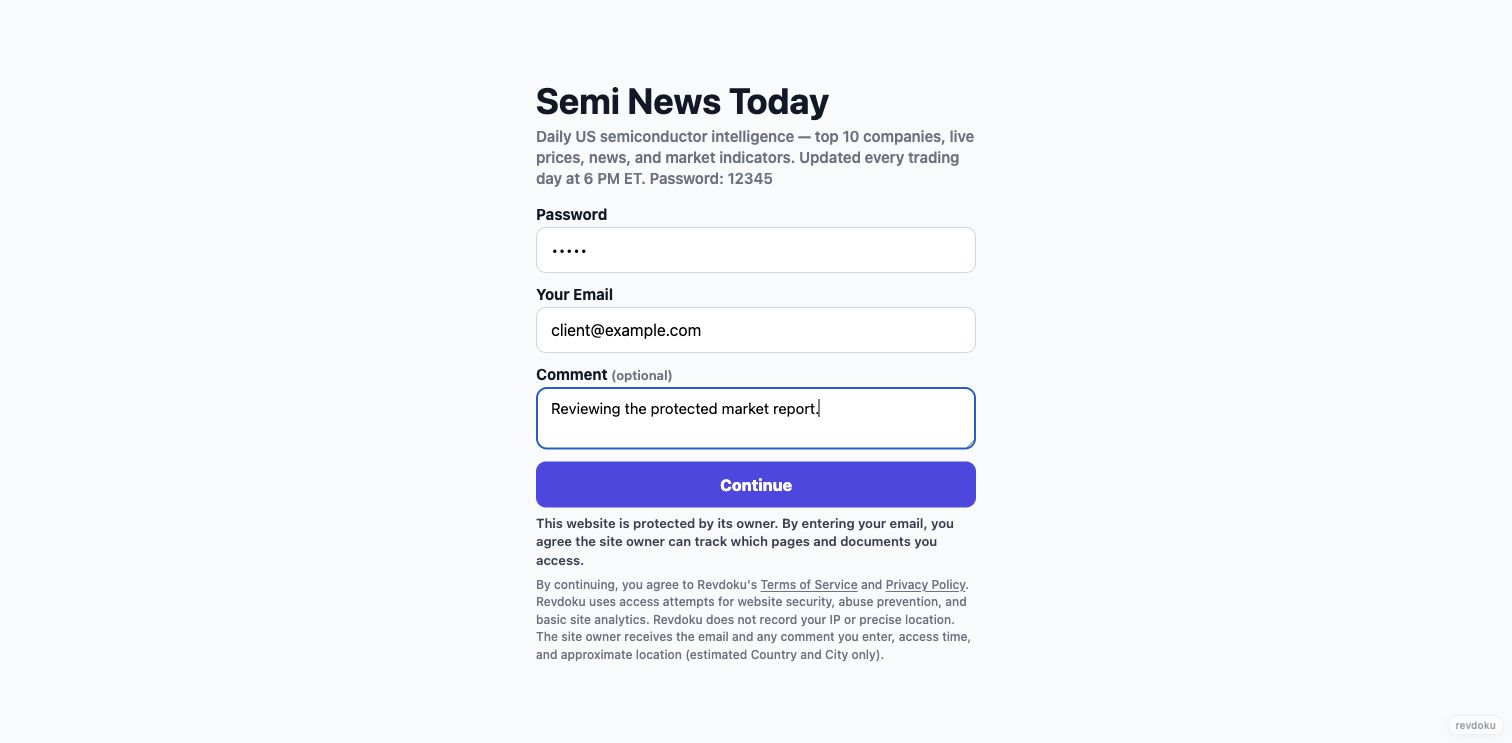
When a visitor opens the site, Revdoku shows a protected page before any website content is visible. In password plus email mode, the form asks for password, email, and an optional comment.
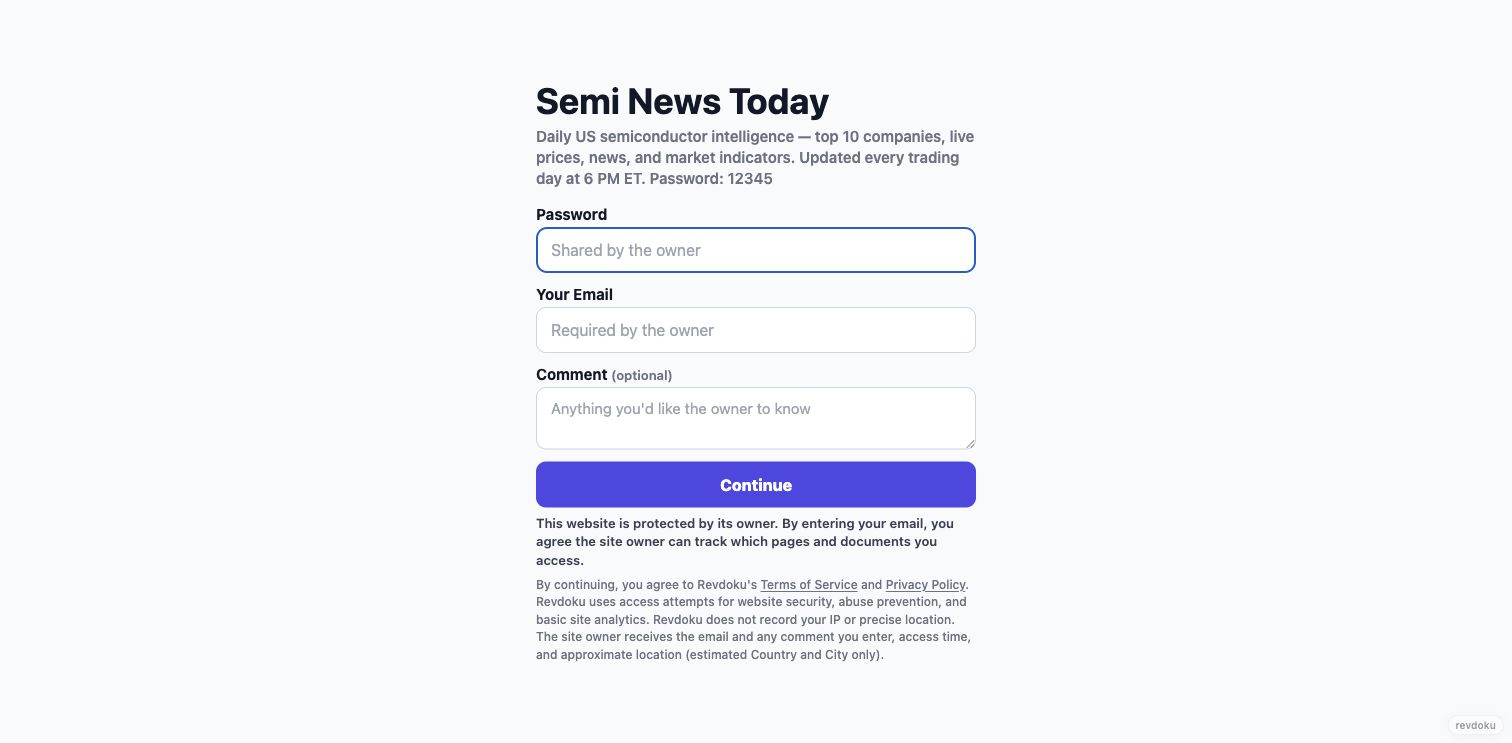
The page tells the visitor that the owner can track which pages and documents they access. The visitor fills in the password and email fields, then continues into the site.
6. Review traffic analytics
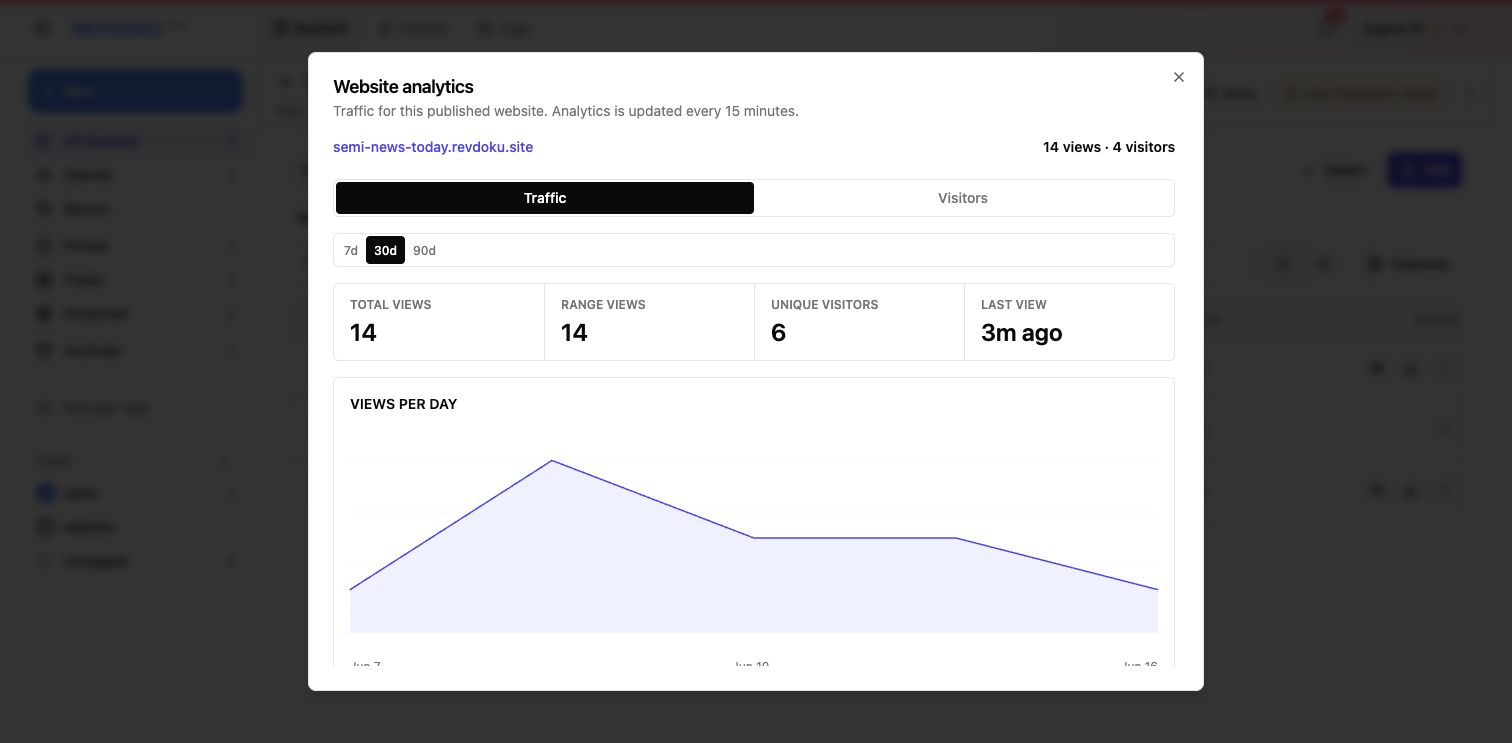
Back in the app, click the view count or analytics details for the published website. The Traffic tab shows total views, range views, unique visitors, top pages, sources, countries, 404 paths, and other activity sections.
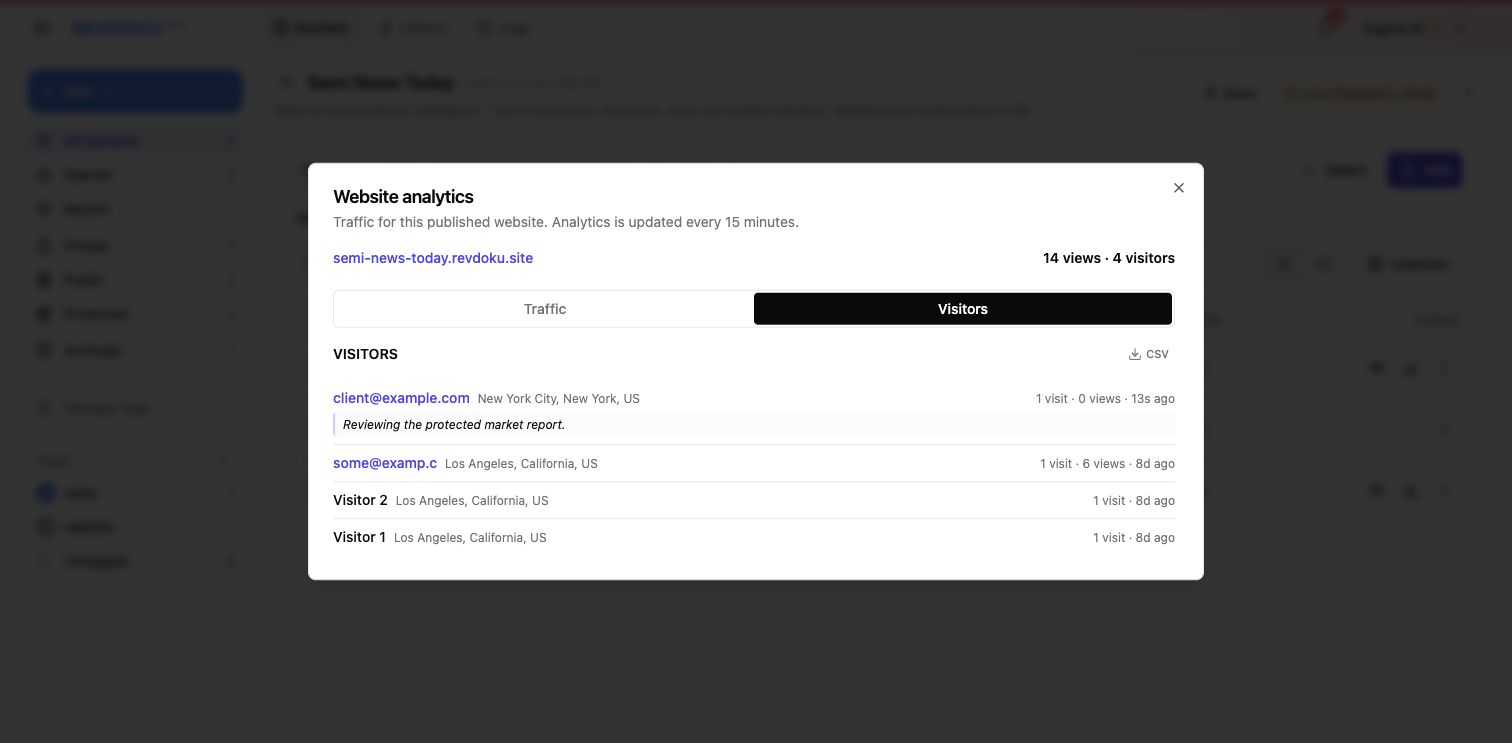
7. Review visitor analytics
Open the Visitors tab to see visitor-level attribution. For a password plus email site, Revdoku can show the submitted email address, approximate location, visit count, view count, last visit time, and any comment the visitor entered.
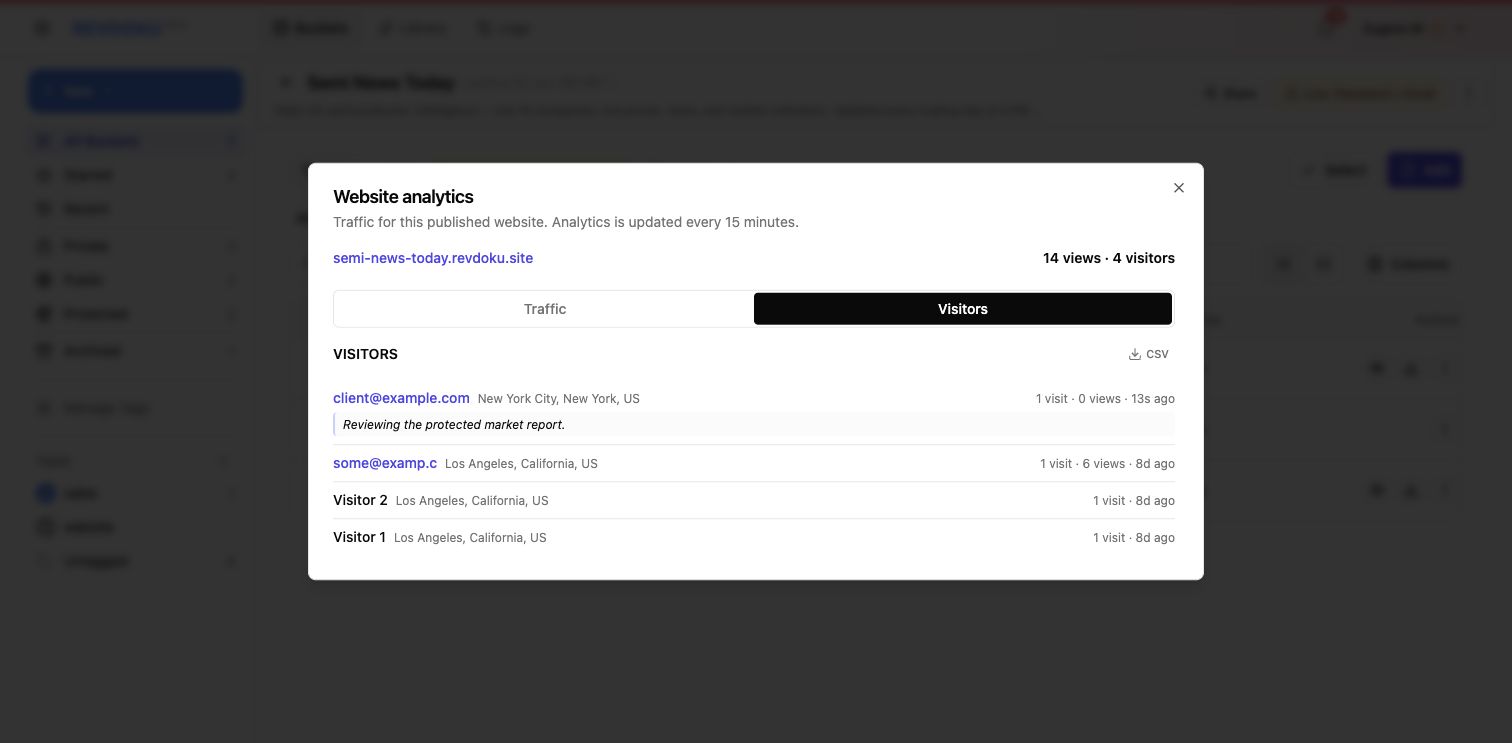
Visitor detail is summarized directly in the Visitors tab. Use it together with Traffic top pages to tell the “who opened it and what was active” story. Analytics can lag by several minutes, so treat the Visitors tab as the durable activity record rather than expecting every page view to appear instantly.
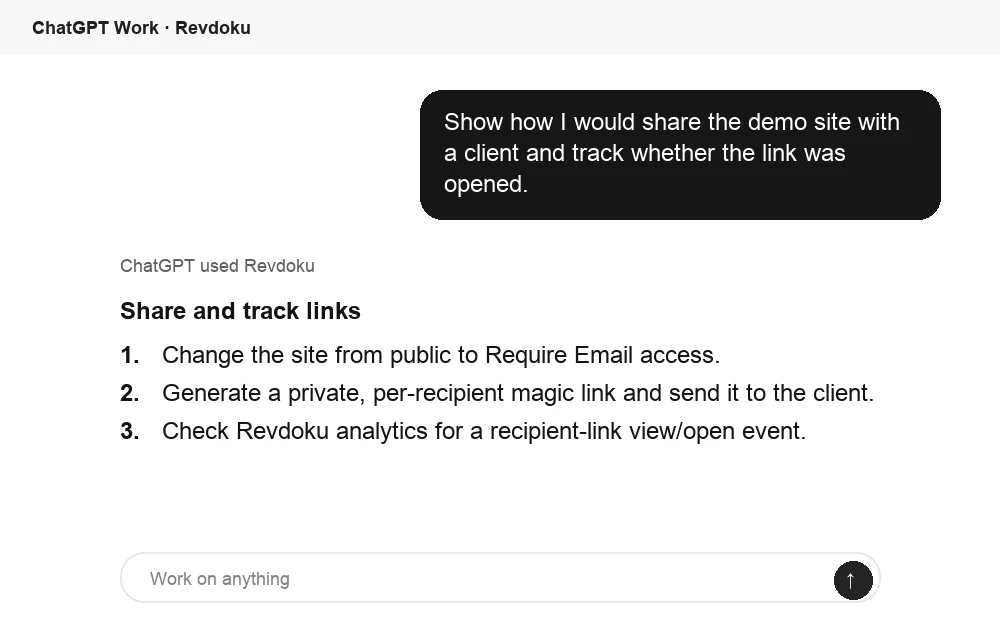
8. Ask ChatGPT how to share and track
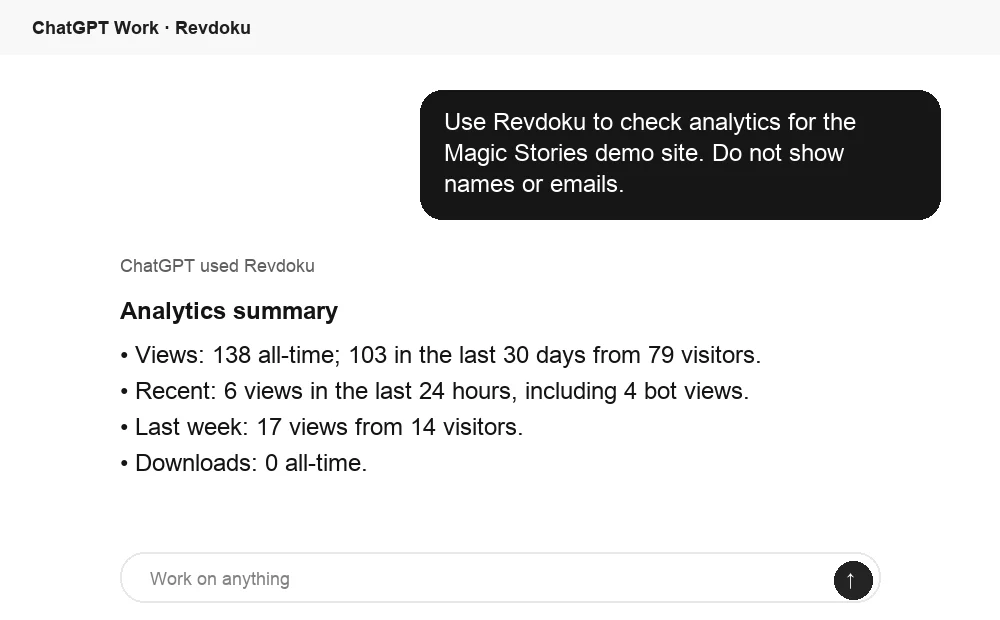
With Revdoku connected, ChatGPT can explain the right sharing mode and remind you what to check after the link opens: email-gated access, recipient-specific links, and analytics for recipient-link view/open events.
Combine password access with recipient links
When you need a protected website and named follow-up links, ChatGPT can create recipient links for a Revdoku site after the access mode is configured.
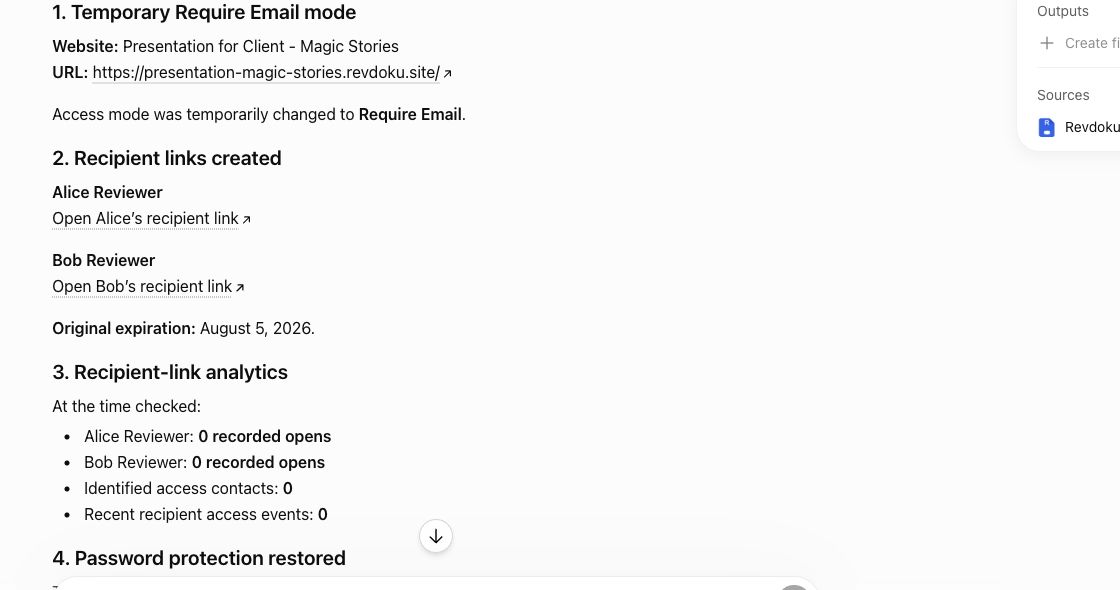
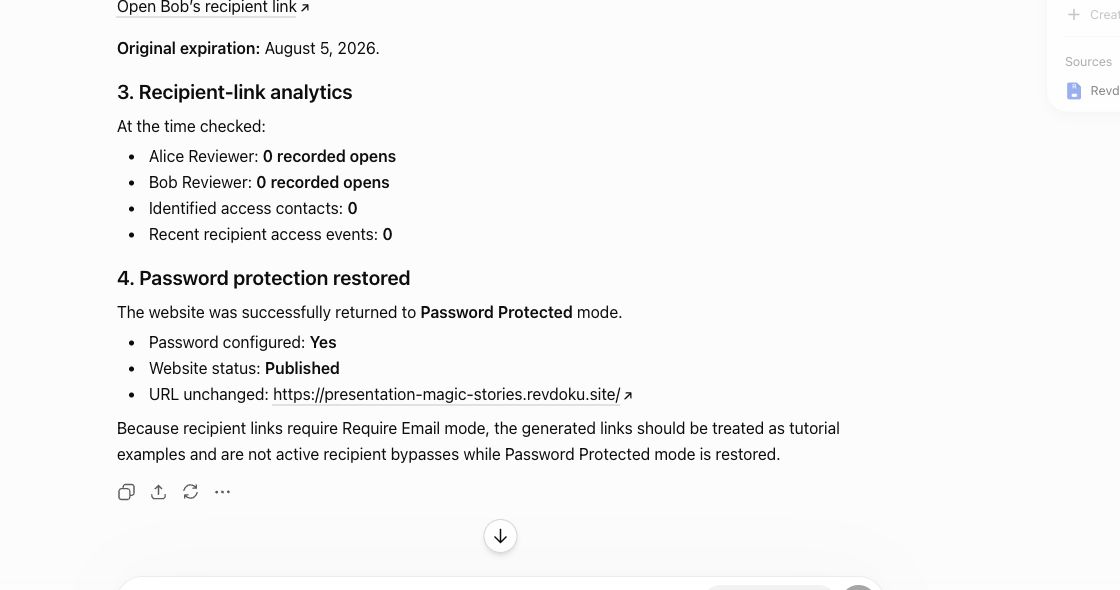
After sharing those links, ask ChatGPT to summarize analytics for the recipient activity so you can follow up with context.
Where password plus email shines
This mode is strongest for client portals, investor updates, sales reports, gated dashboards, research packets, and AI-generated report bundles, anywhere you want a shared password and a visitor email before showing the site, and the ability to attribute access to submitted email addresses instead of anonymous password visitors. Create a free Revdoku account to gate your next report and see who opens it.
Related Articles
How to Track Who Opened a Link Accurately
Learn how public, password, tagged, and verified email links track opens, identify visitors, and measure engagement accurately.
Website Visitor Identification with Verified Email
Identify verified viewers of shared proposals, reports, and demos while keeping anonymous website traffic private.
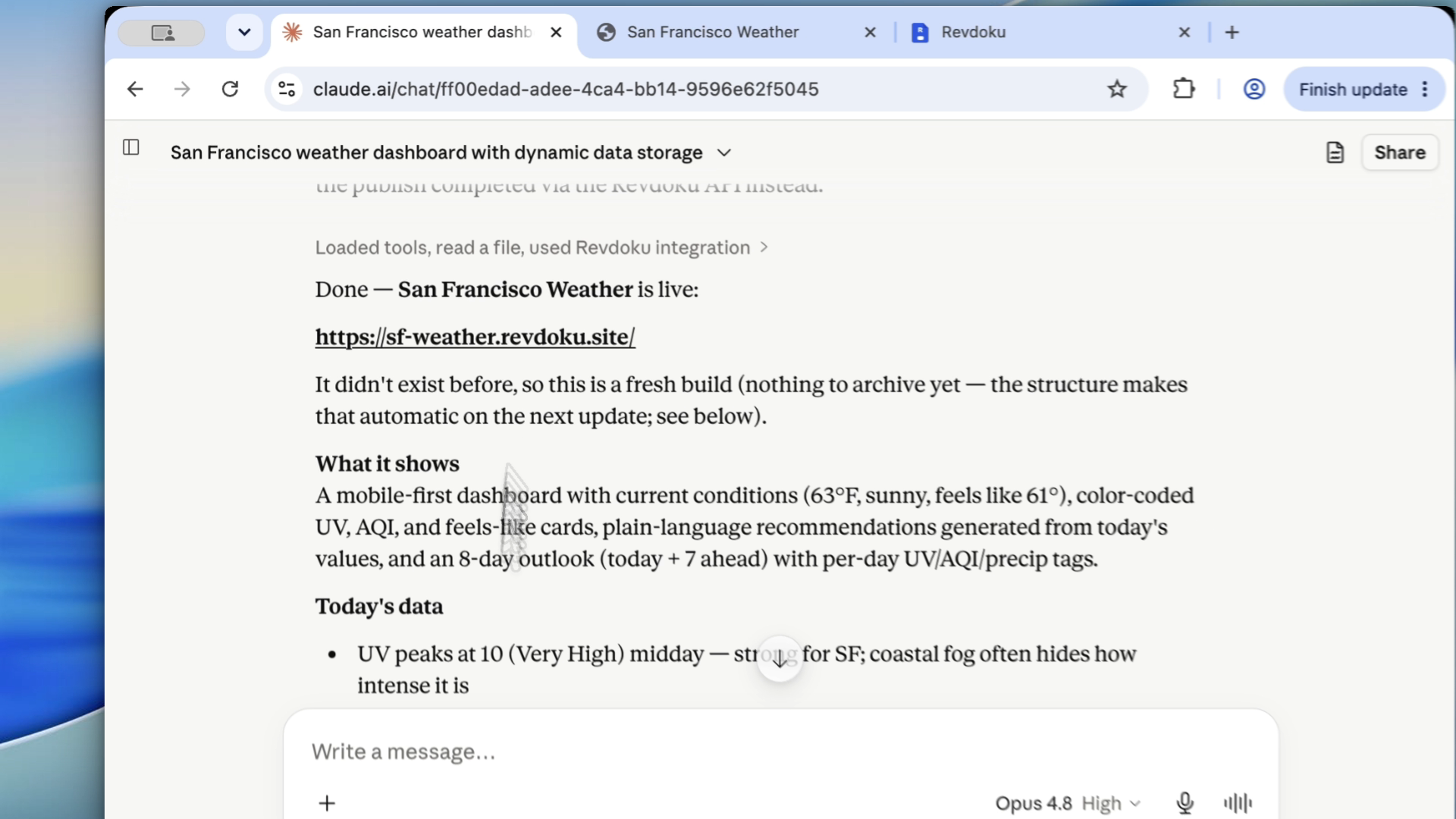
After the Taste Pass: How to Publish and Keep Updating Claude Code Websites
Learn how to publish Claude Code websites with Revdoku, review privately, keep one URL for updates, and track analytics after sharing.