Upload Files to a Revdoku Bucket by Email
Table of Contents
This tutorial shows how to upload files to Revdoku by email, without downloading them first. A registered account member emails attachments to a special Revdoku inbound address, and Revdoku adds them to the target bucket automatically.
Note: These screenshots use the older Workspaces wording. Revdoku now calls workspaces Buckets; the workflow is the same. The Library shown here is a special bucket for the account’s reusable files.
What this Revdoku email upload tutorial shows
- Where to find the Revdoku inbound upload email address.
- How to compose an email with file attachments.
- How Revdoku confirms that files were added.
- Where the uploaded file appears in Revdoku.
- How to check the upload log.
1. Open Revdoku email upload
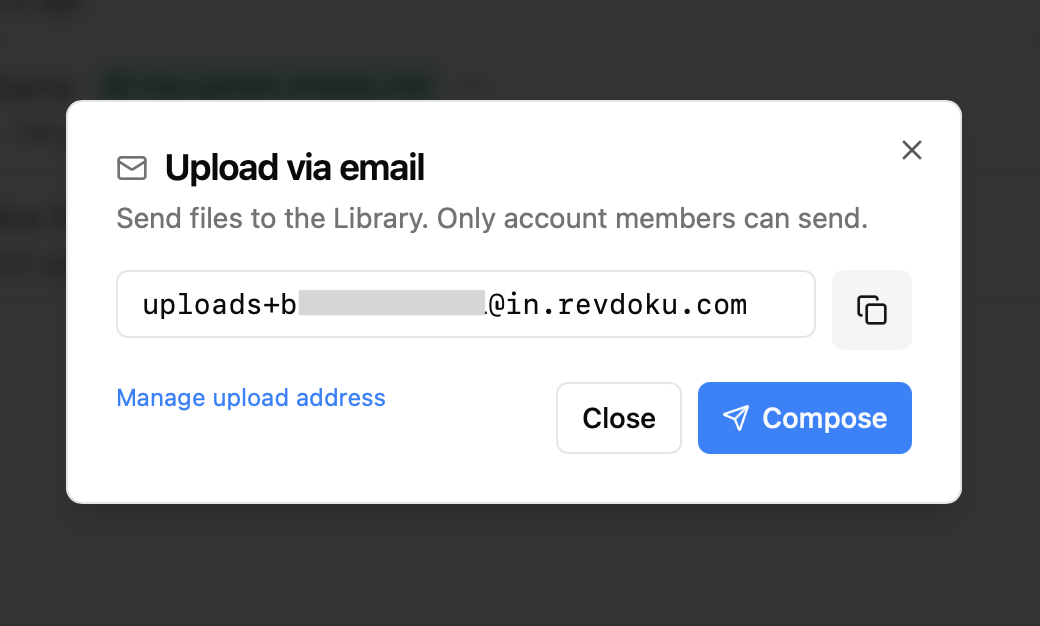
In Revdoku, open the bucket or Library destination and choose email upload. Revdoku shows a special inbound address ending in @in.revdoku.com.
Only registered account members can send files to this address, preventing outside uploads.
Copy the address manually or click Compose to open a prefilled email draft.
2. Compose the email from a registered address
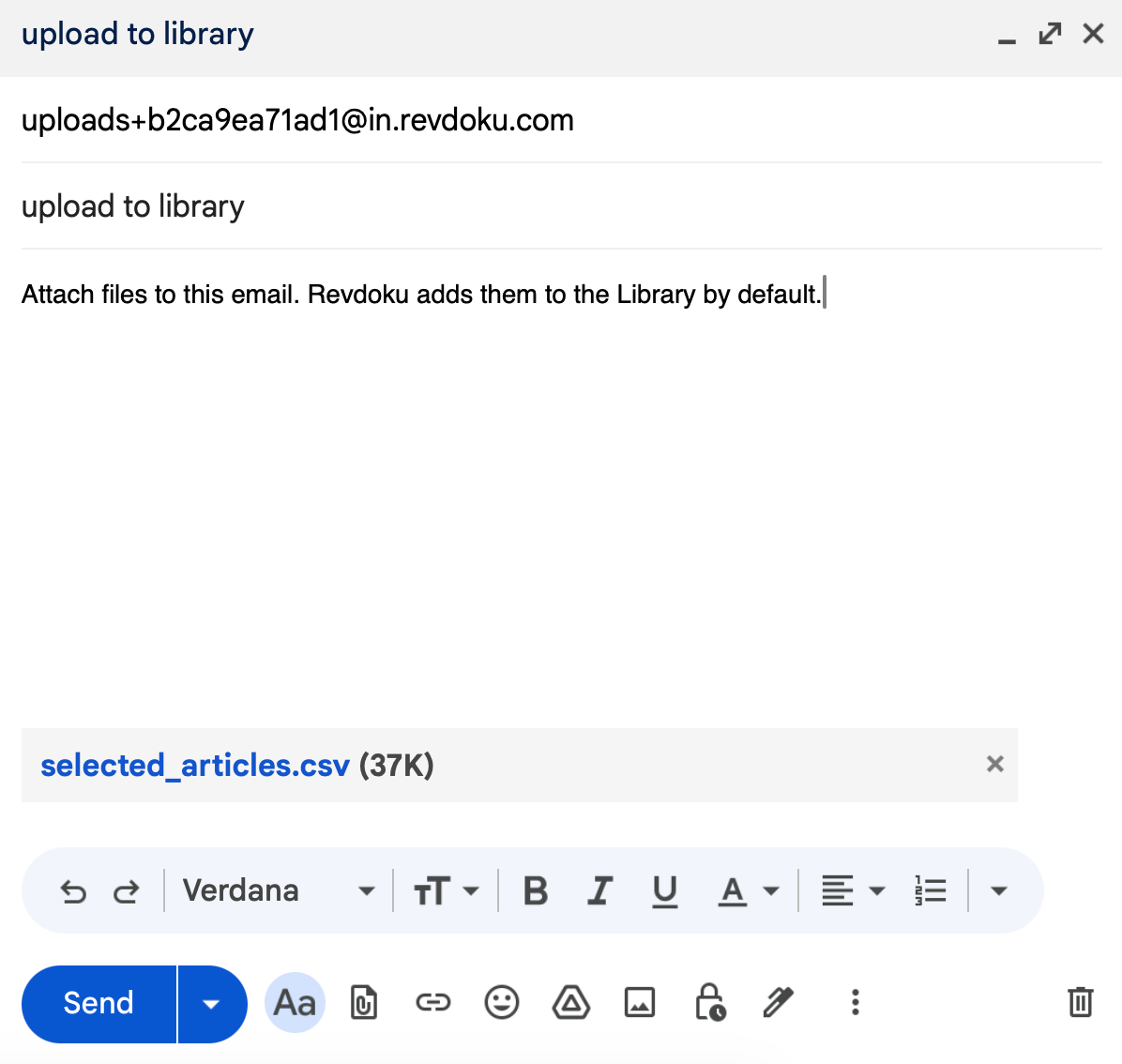
In your email client, send files from the address connected to your Revdoku account. Attach the files you want to upload.
In this example, the attachment is selected_articles.csv.
3. Send files to Revdoku as email attachments
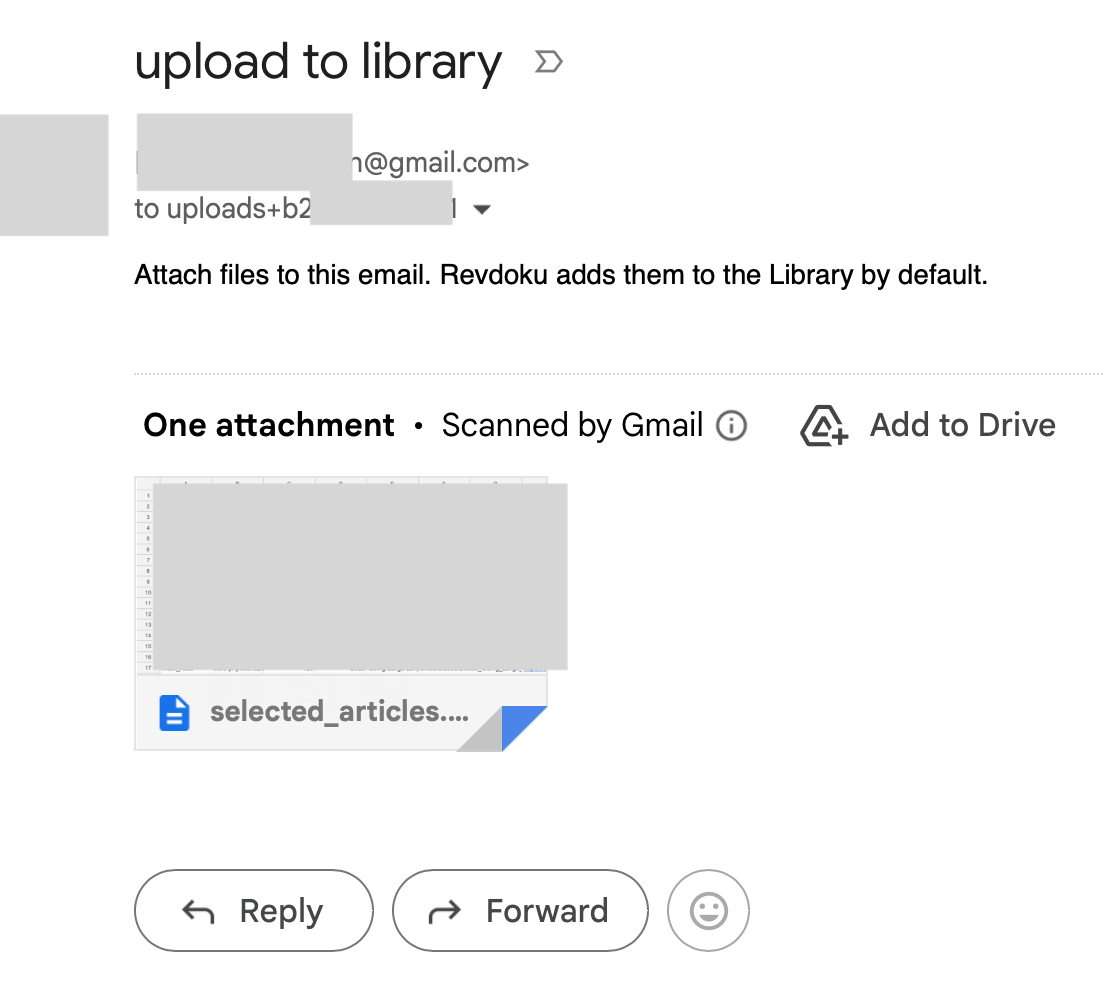
After you send the email, it appears in your sent mail with the attachment. The email body can be simple; Revdoku imports the attachment.
4. Read the Revdoku confirmation email
Revdoku sends an automated confirmation after processing. The confirmation shows how many attachments were added, which files were added, and any skipped attachments.
In this example:
1 attachmentwas added.selected_articles.csvwas added.0 attachmentswere skipped.
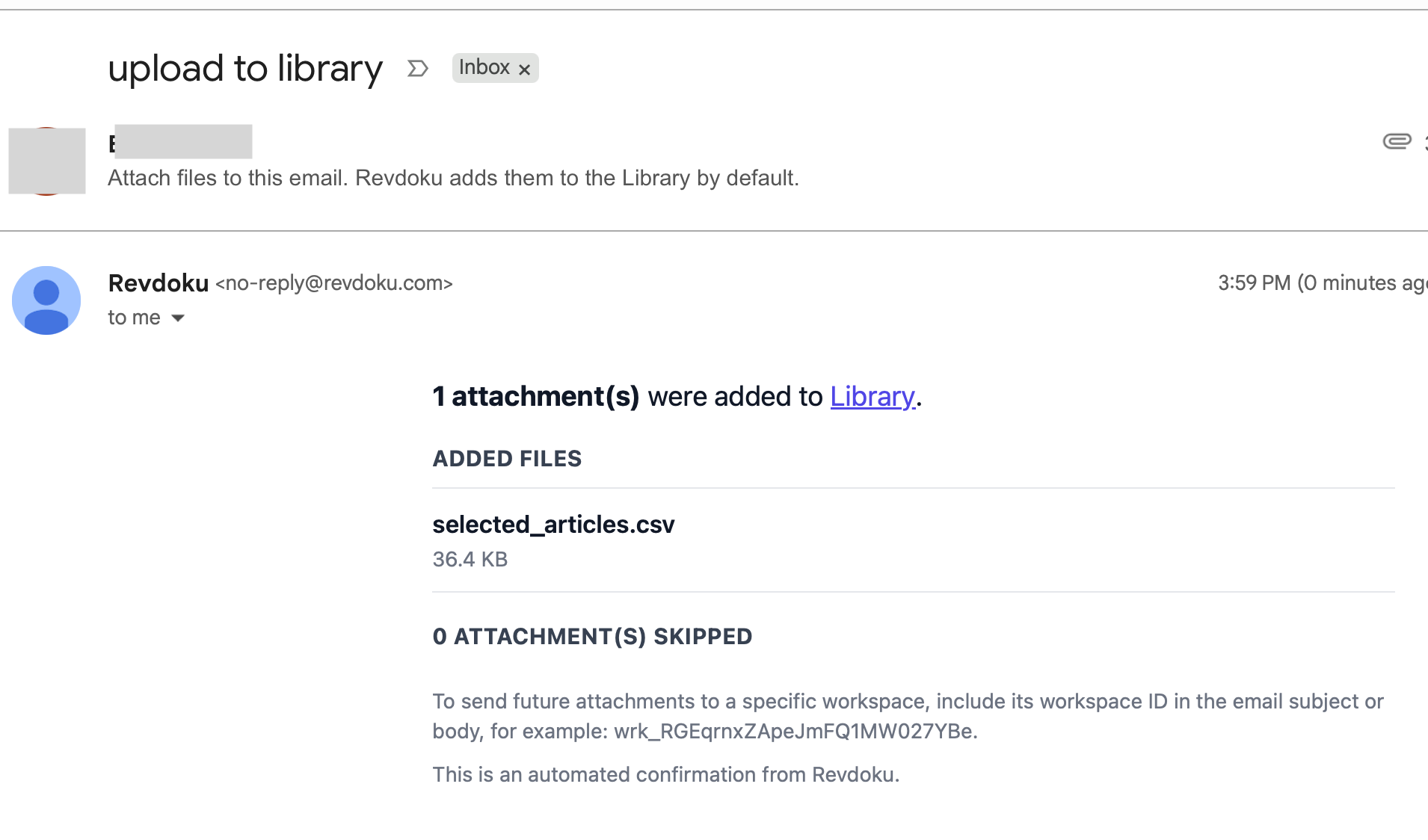
The confirmation also explains how to target a workspace. In current terminology, the workspace ID is the bucket ID: include the bucket/workspace ID in the subject or body to route future attachments to a specific bucket instead of the default Library.
5. Confirm the file appears in Revdoku
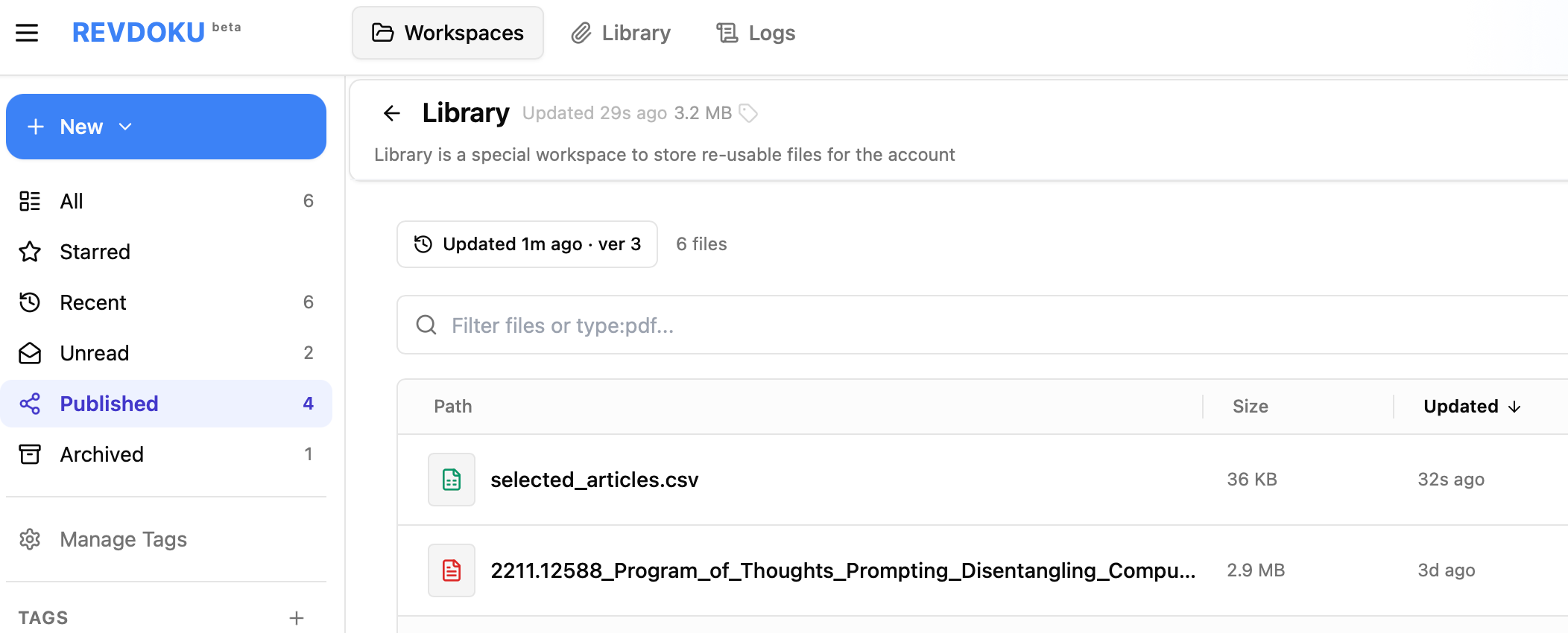
Back in Revdoku, the attachment appears in the destination file list. Here, selected_articles.csv appears in the Library with a recent update time.
6. Check the upload log
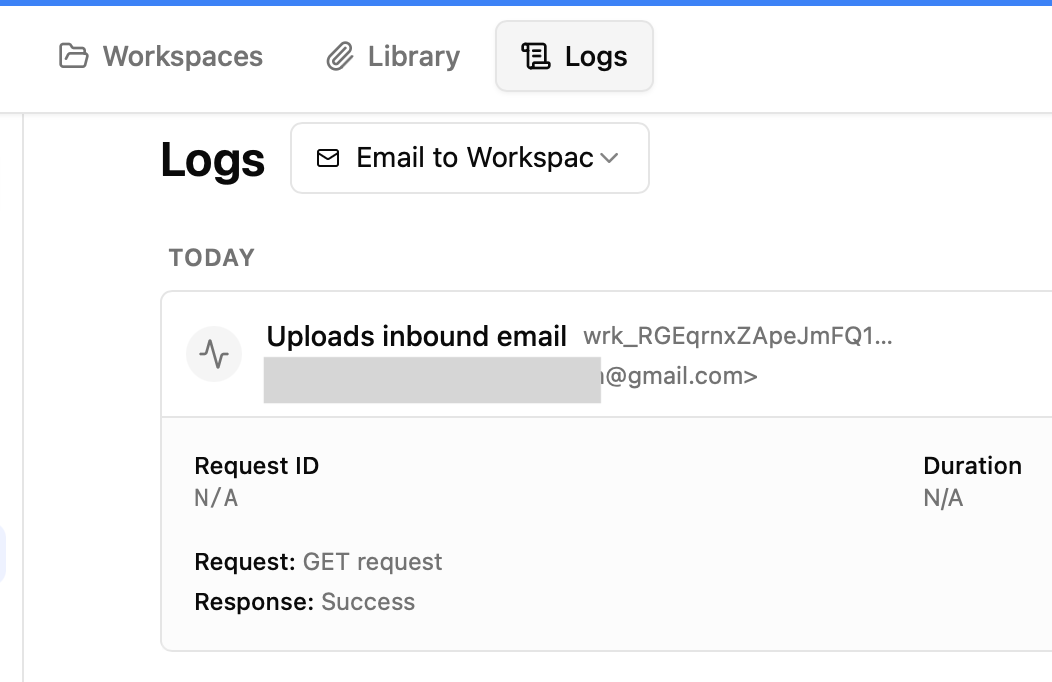
Open Logs and filter for email-upload. Revdoku shows the inbound email event, sender, target workspace/bucket identifier, and success response.
Tips for using Revdoku email upload
- Use it when a report, CSV export, invoice, research file, or client attachment already lives in email.
- Send from an email address registered to a Revdoku account or account member.
- Include only the files you want imported; Revdoku adds attachments, not the whole email thread.
- Use the bucket/workspace ID in the subject or body when routing to a specific bucket.
- Check the confirmation email if a file does not appear; skipped attachments are listed there.
Email upload makes Revdoku a fast email-to-bucket intake channel. Instead of downloading and manually uploading an attachment, account members can forward or compose an email to the Revdoku inbound address and add files to the right bucket automatically.
Get Email address for your AI agent
- Create a cloud bucket and copy its
<unique.id>@revdokumail.comemail address. - Emails sent to this email are saved as JSON and Markdown, attachments are extracted.
- Connect AI agents to read and manage saved emails and files via the API, CLI, MCP, or Skill.
Frequently Asked Questions
Who can upload files to Revdoku by email?
Only registered Revdoku account members can send attachments to the inbound upload address. This helps prevent outside senders from adding files to your buckets.
Do I need to download an attachment before adding it to Revdoku?
No. If the file is already in your email, you can send or forward it directly to the Revdoku inbound address. Revdoku imports the attachment into the target bucket after processing the email.
Where do emailed files go by default?
If no specific bucket or workspace ID is provided, files may be added to the default destination shown by Revdoku, such as the Library. To route files elsewhere, include the bucket or workspace ID in the email subject or body.
Does Revdoku import the email message or only the attachments?
Revdoku imports the file attachments, not the full email thread. Keep the email simple and attach only the files you want added.
How can I confirm that an email upload worked?
Check the automated confirmation email from Revdoku. It reports how many attachments were added, which files were processed, and whether any attachments were skipped.
What should I do if my uploaded file does not appear?
First, review the Revdoku confirmation email for skipped attachments or processing notes. Then check that you sent the email from a registered account address and used the correct inbound address or bucket identifier.
When is email upload most useful?
Email upload is useful for files that already arrive by email, such as CSV exports, invoices, reports, research files, or client attachments. It removes the extra step of downloading the file and uploading it manually.