Publish a Password-Protected Website with Revdoku
Table of Contents
- What this gated website tutorial shows
- 1. Ask Claude to build a website
- 2. Let the agent prepare files and data
- 3. Open the first live Revdoku preview
- 4. Notice the difference before the protected publish is ready
- 5. Ask Claude to republish with a Revdoku password
- 6. Test the gated website password gate
- 7. Switch to password plus email to share private site access
- 8. Enter password and email as a visitor
- 9. Ask Claude to list protected site visitors
- Recommended access modes
- Ask ChatGPT to confirm protected access
- Takeaway
- What this gated website tutorial shows
- 1. Ask Claude to build a website
- 2. Let the agent prepare files and data
- 3. Open the first live Revdoku preview
- 4. Notice the difference before the protected publish is ready
- 5. Ask Claude to republish with a Revdoku password
- 6. Test the gated website password gate
- 7. Switch to password plus email to share private site access
- 8. Enter password and email as a visitor
- 9. Ask Claude to list protected site visitors
- Recommended access modes
- Ask ChatGPT to confirm protected access
- Takeaway
TL;DR: Claude builds and publishes a small Revdoku website, protects it with a password, then adds email capture so the owner can see who visited.
Watch the video or follow the screenshot walkthrough.
What this gated website tutorial shows
- Asking Claude to build and publish a website with Revdoku.
- Opening the generated site.
- Republishing the site with a password.
- Confirming that the password gate blocks access before the site loads.
- Switching to password-plus-email access.
- Checking visitor information after access.
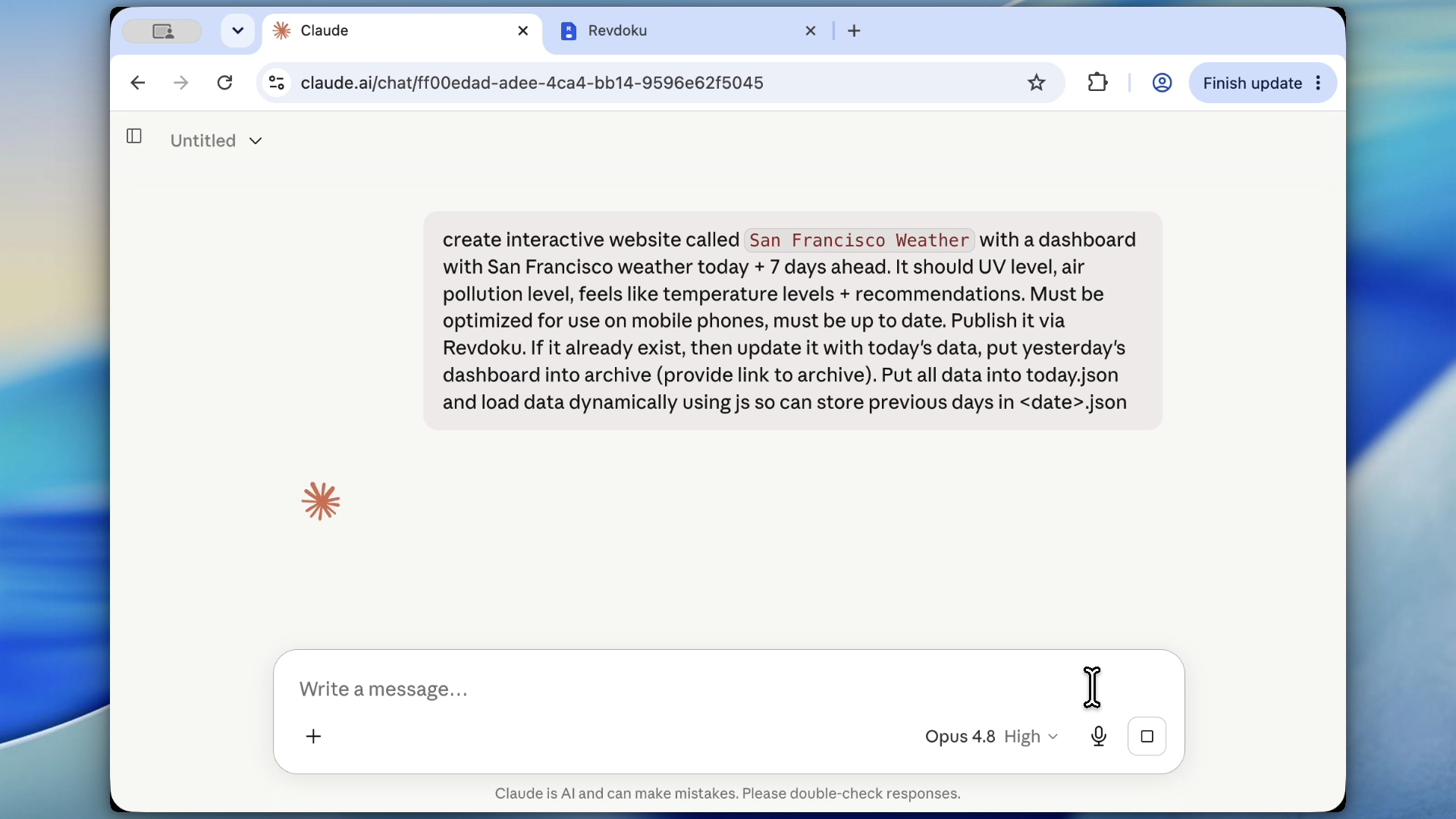
1. Ask Claude to build a website
Start with a clear website prompt. Here, Claude builds a San Francisco weather dashboard with dynamic data storage.
Include the site goal, data sources or file names, and publishing requirement so the agent creates a hosted Revdoku site.
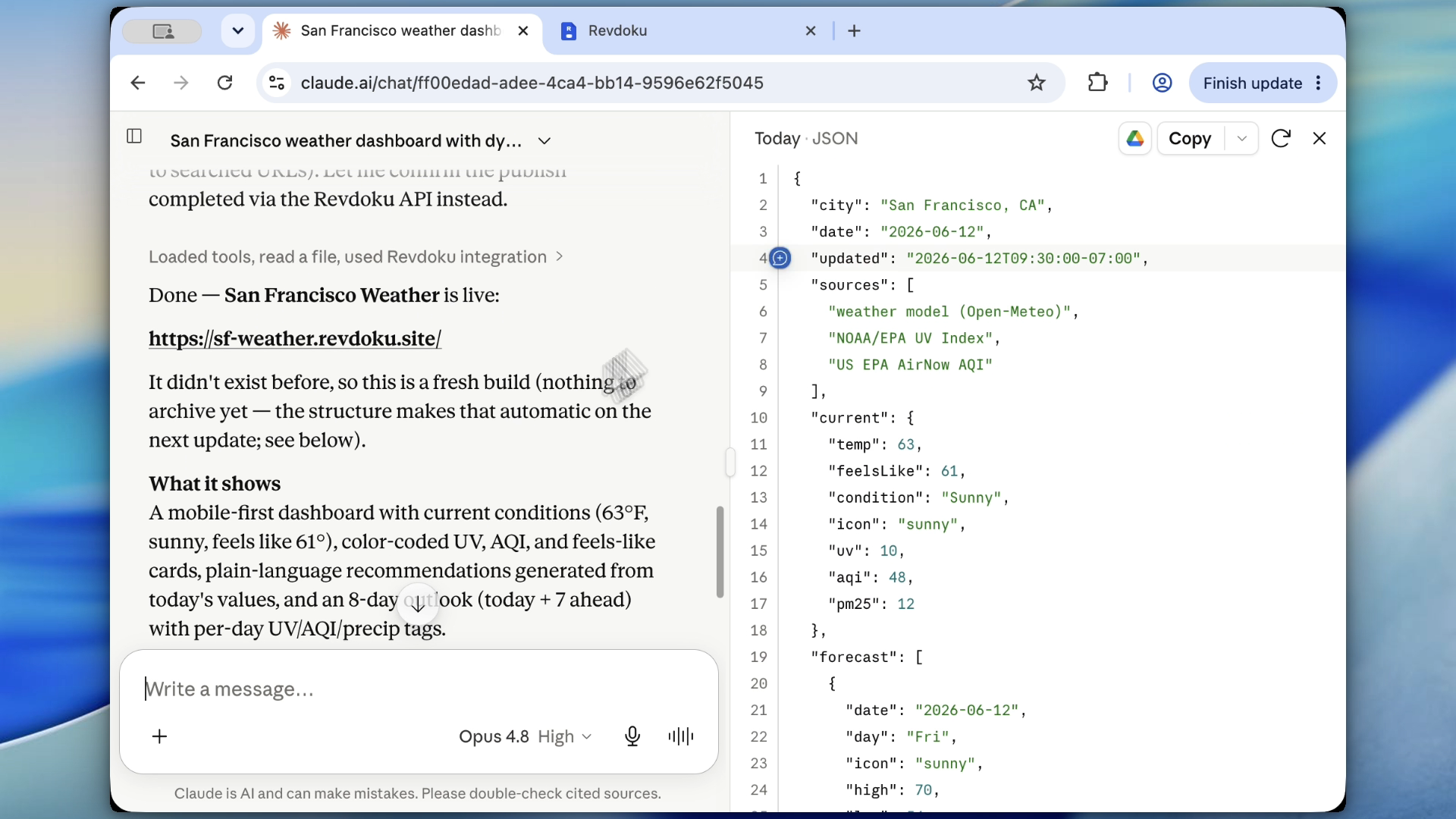
2. Let the agent prepare files and data
Claude creates the website files and supporting data before publishing to Revdoku.
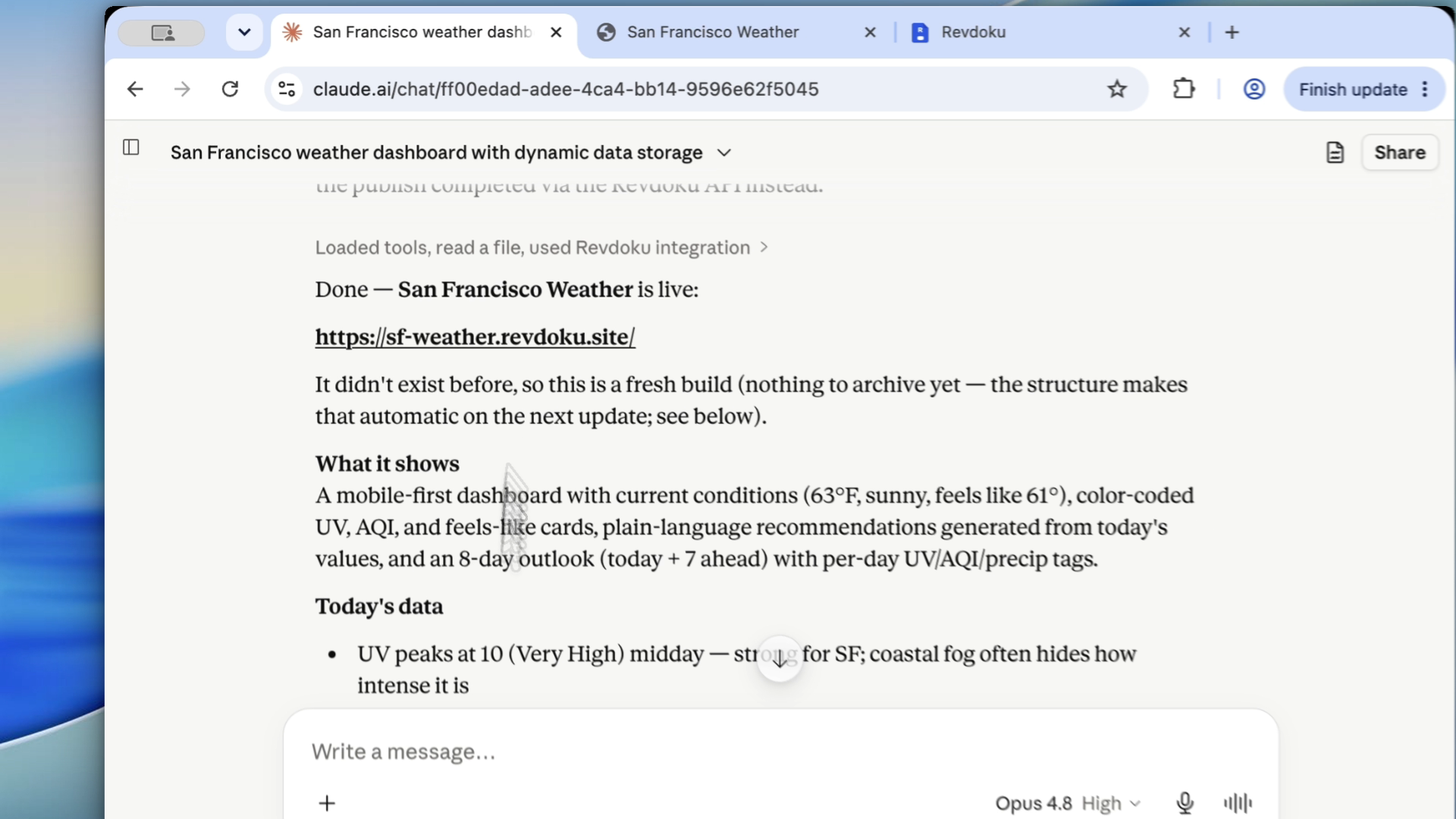
3. Open the first live Revdoku preview
After publishing, open the Revdoku URL and confirm the site renders before adding protected access. Here, the weather dashboard loads as a public page first.
4. Notice the difference before the protected publish is ready
If the site is unpublished or a protected update is still running, the URL may show a not-available state. Wait for Revdoku to finish publishing before testing access.
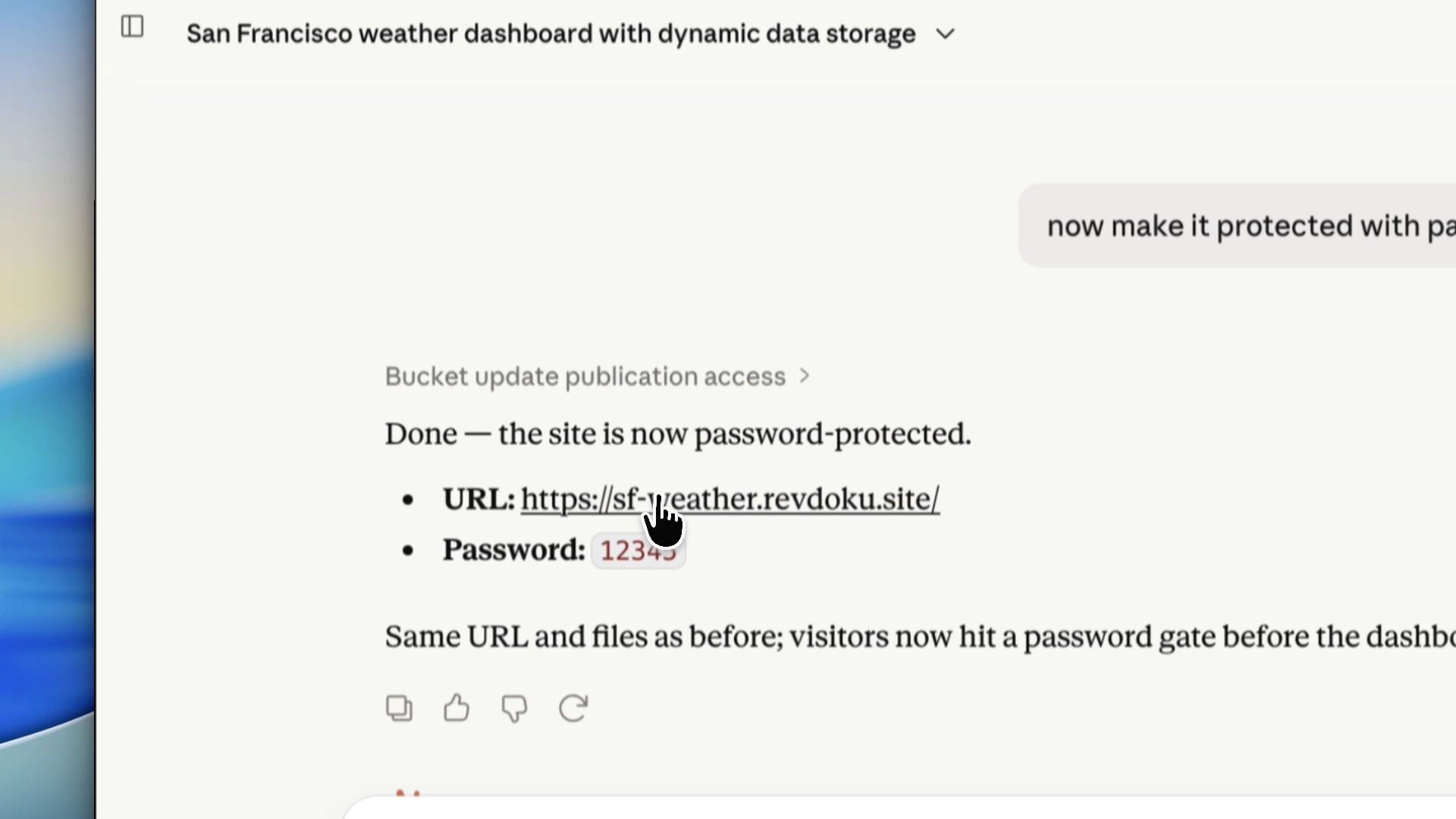
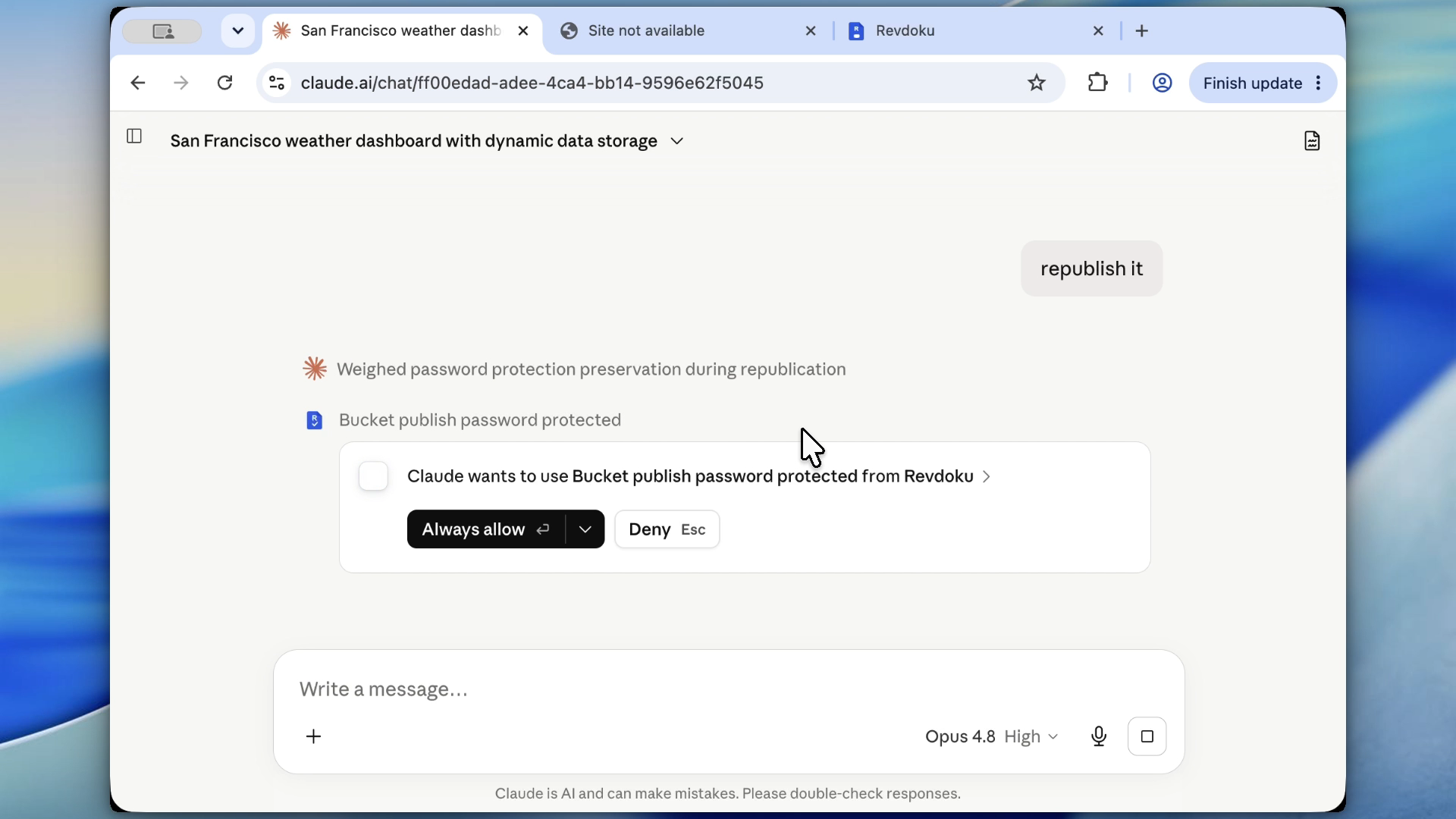
5. Ask Claude to republish with a Revdoku password
Tell Claude to republish the site with a Revdoku password. Here, the password is 12345.
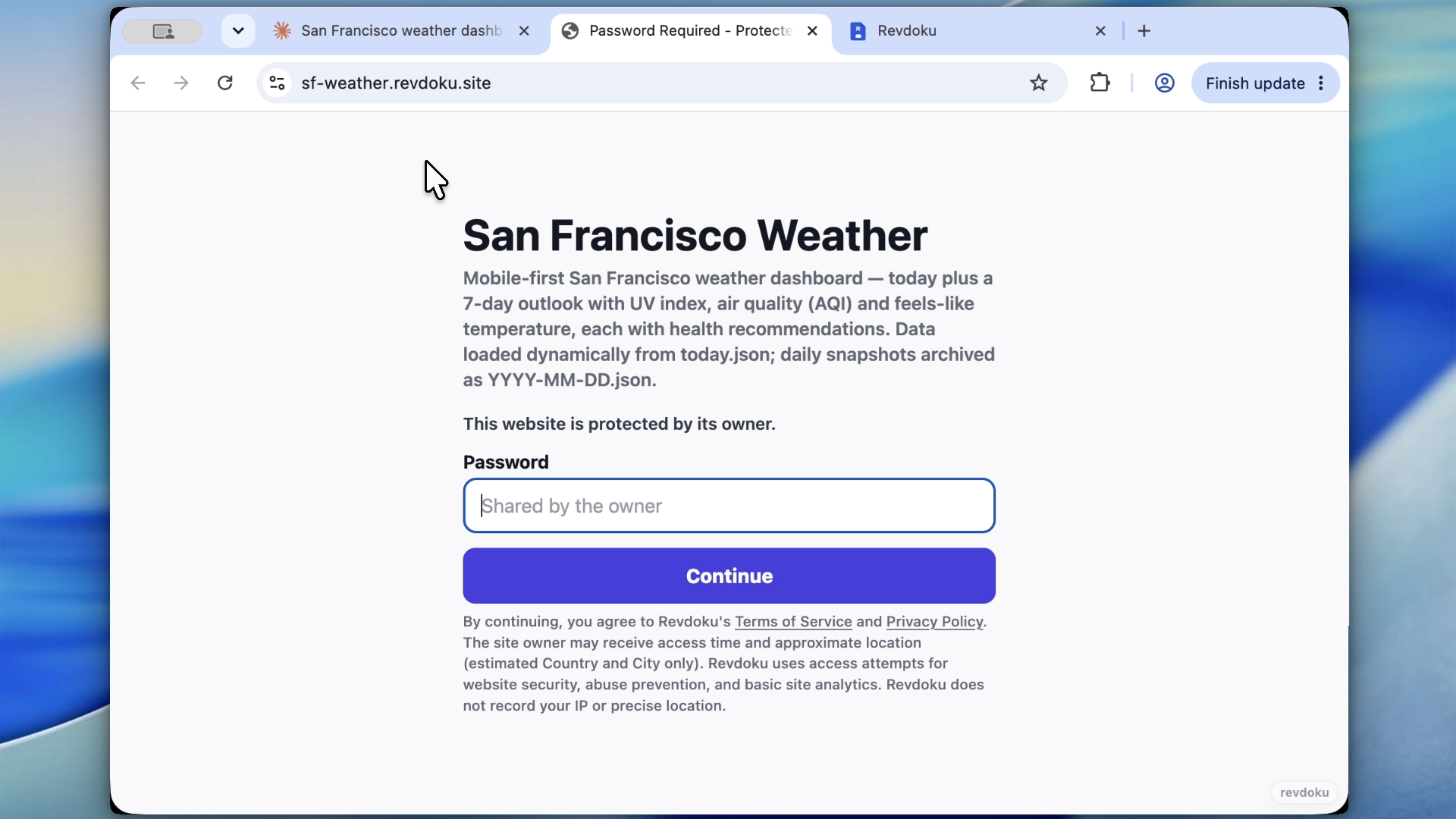
6. Test the gated website password gate
Open the site URL again. Visitors now see a Revdoku password gate before the weather dashboard loads.
This is a real gate on the hosted bucket. It is enforced by Revdoku access controls, not by JavaScript inside the generated website.
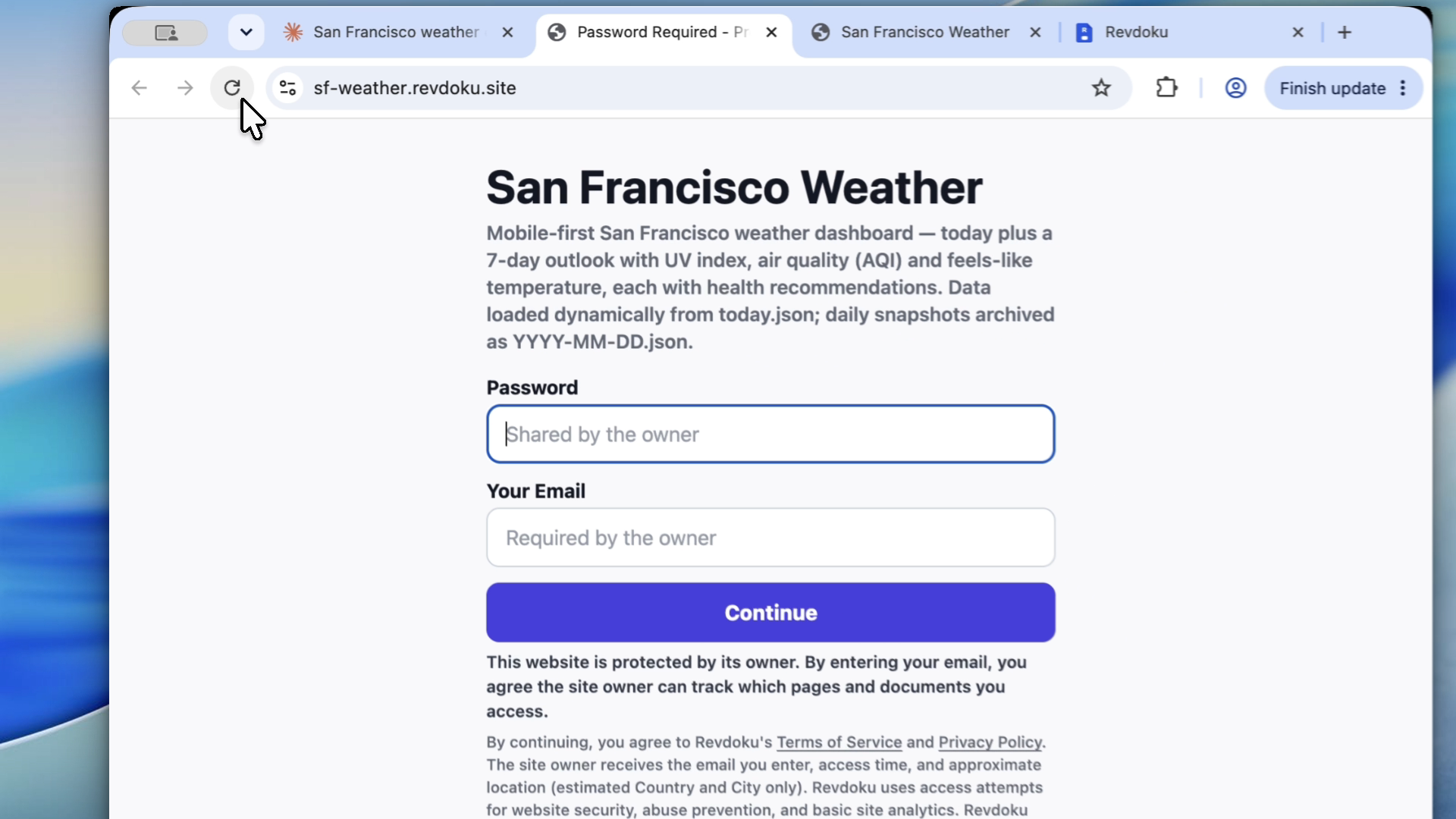
7. Switch to password plus email to share private site access
For visitor attribution, ask Claude to republish the same site with password-plus-email access. The visitor must enter both the shared password and an email address.
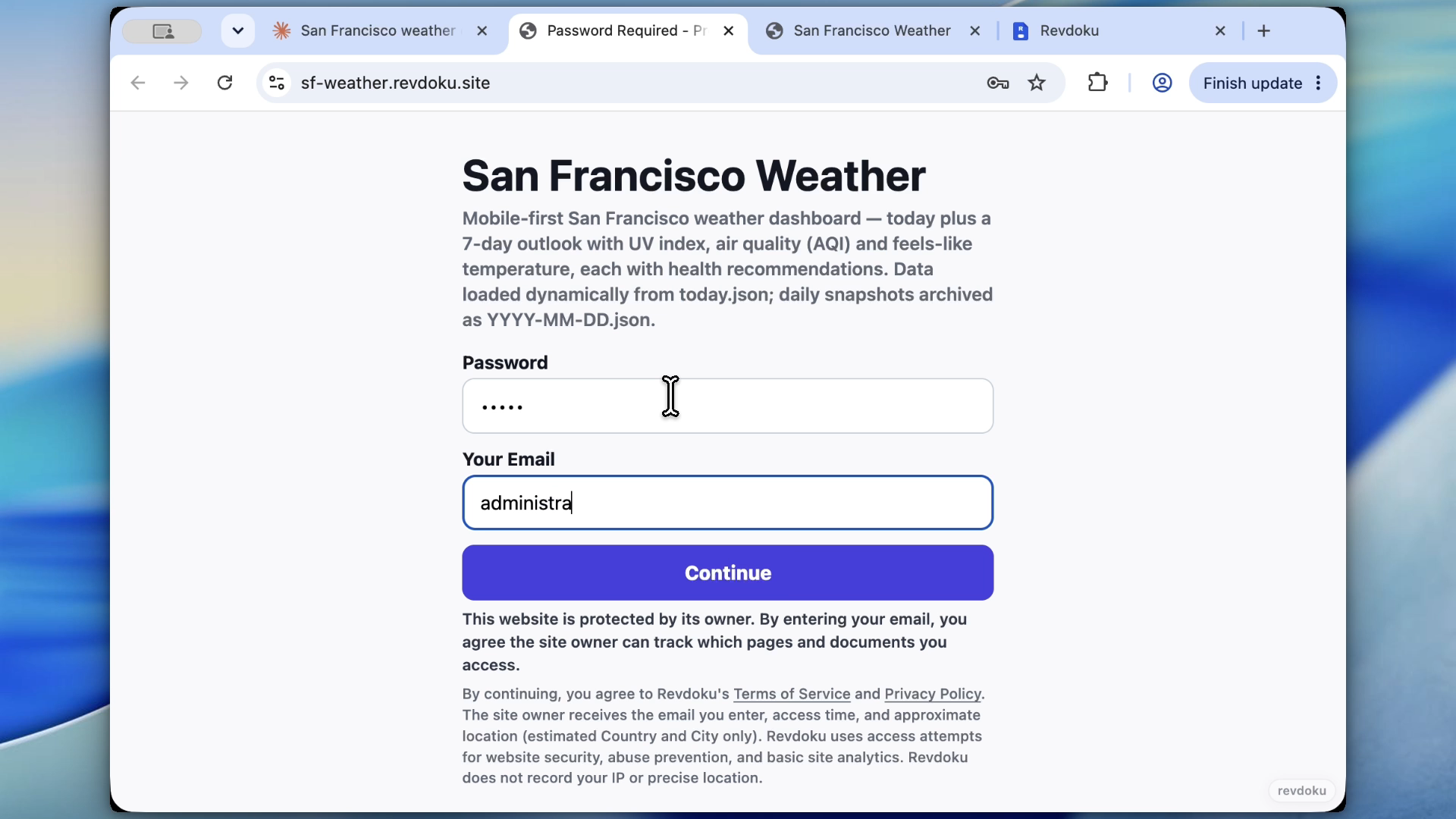
8. Enter password and email as a visitor
Test the visitor flow with the password and an email address. The consent copy explains that the owner can track which pages and documents the visitor accesses.
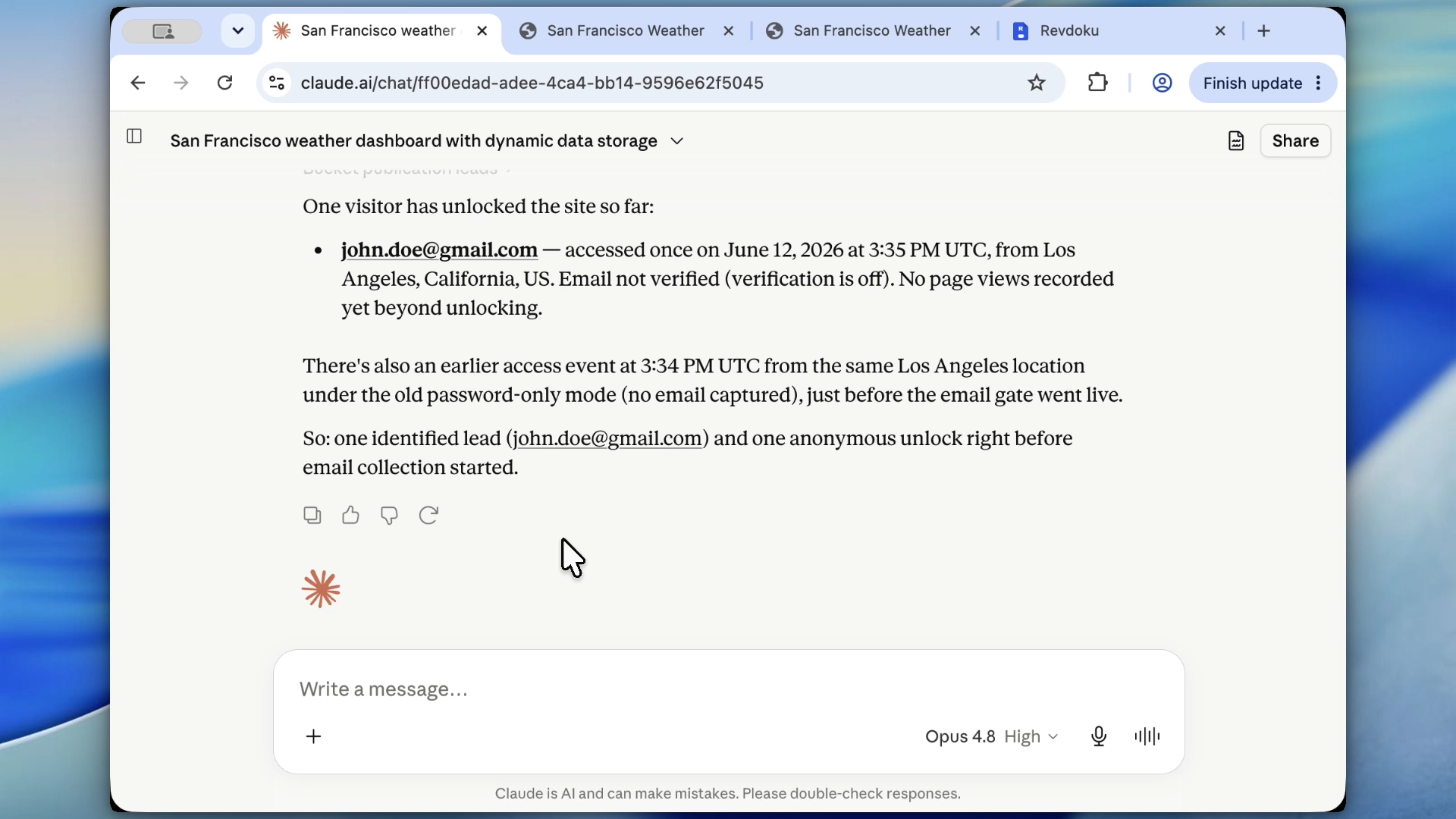
9. Ask Claude to list protected site visitors
After access, ask Claude or open Revdoku analytics to review visitors. The owner can see who opened the site, when, and whether Revdoku captured an email.
Recommended access modes
- Use
Publicwhen the site is ready for anyone. - Use
Passwordwhen you need a shared gate without visitor identity. - Use
Password + Emailwhen you need visitor attribution.
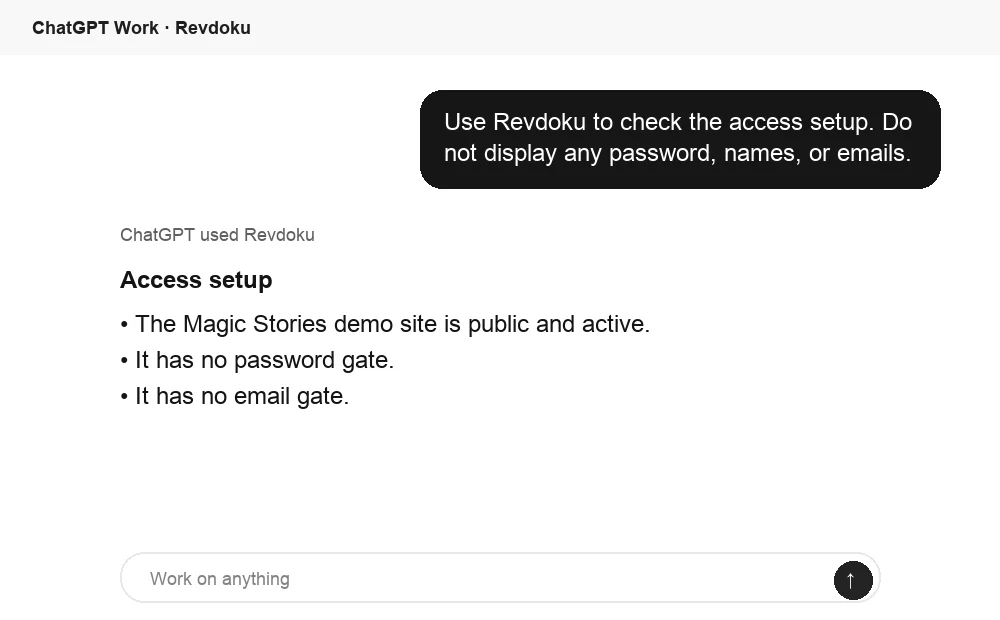
Ask ChatGPT to confirm protected access
Before sharing, ChatGPT can ask Revdoku what access mode is active for the bucket. Use this to confirm whether the link is public, password protected, or email gated.
Takeaway
Revdoku lets you publish an AI-generated website, protect access, and choose the right access mode. You can start public, switch to password-only for private sharing, and use password-plus-email when visitor attribution matters.
Frequently asked questions
Should I publish the site publicly before adding a password?
It is useful to publish and open the site once before gating it. This confirms that the generated website works correctly, so any later access issue is easier to separate from a build or publishing problem.
Is the Revdoku password gate part of the website code?
No. The password gate is enforced by Revdoku access controls on the hosted site, rather than by JavaScript inside the generated page. That makes it more appropriate for private sharing than hiding content with frontend-only code.
When should I use password-only access?
Use password-only access when you want a simple shared gate and do not need to know exactly who visited. It works well for private previews, internal drafts, or temporary review links.
When is password plus email the better option?
Use password plus email when visitor attribution matters. It lets the owner review which email addresses accessed the protected site and when, which is helpful for client reviews, stakeholder previews, or controlled document sharing.
What should I do if the site says it is not available?
Wait for the Revdoku publish process to finish, then reload the URL. A not-available state can appear while the site is unpublished or while a protected update is still being applied.
Can I change the access mode after publishing?
Yes. The workflow shown starts with a public site, then republishes it with a password, and later switches to password plus email. This makes it practical to adjust access as the site moves from testing to private sharing.
What visitor information can the owner review?
After someone passes the gate, the owner can ask Claude or check Revdoku analytics for visitor details. The available information can include who opened the site, when access happened, and whether an email address was captured.
Related Articles
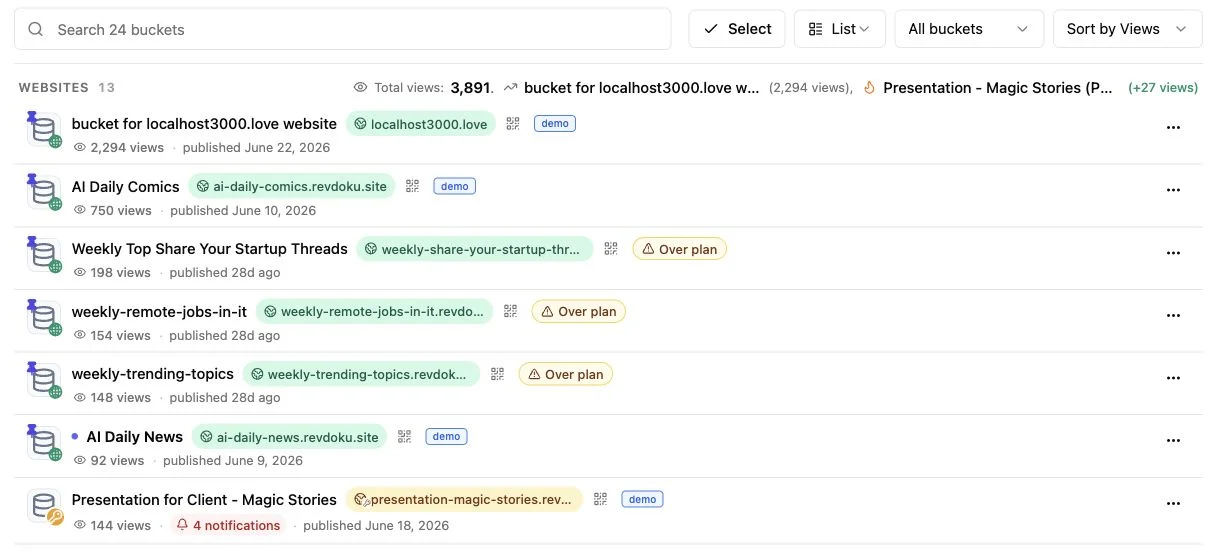
AI Agent Website Hosting: Runtime vs Static
Learn when AI agents need runtime hosting and when static publishing is enough for secure, accessible client deliverables.
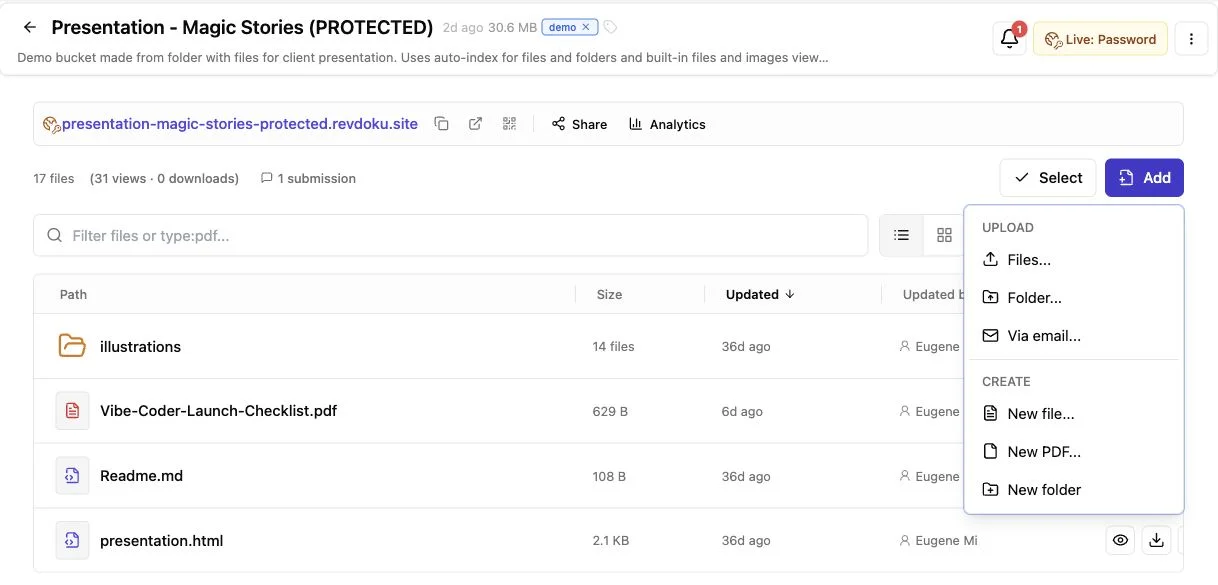
Claude Website Publishing: Artifact to Live Site
Learn how to review, export, host, test, and update Claude-generated websites for secure client delivery or public publishing.
ChatGPT Sites Alternative: Publish with Revdoku
Use Revdoku to host ChatGPT-generated sites with live URLs, password access, analytics, and updates across AI agents.