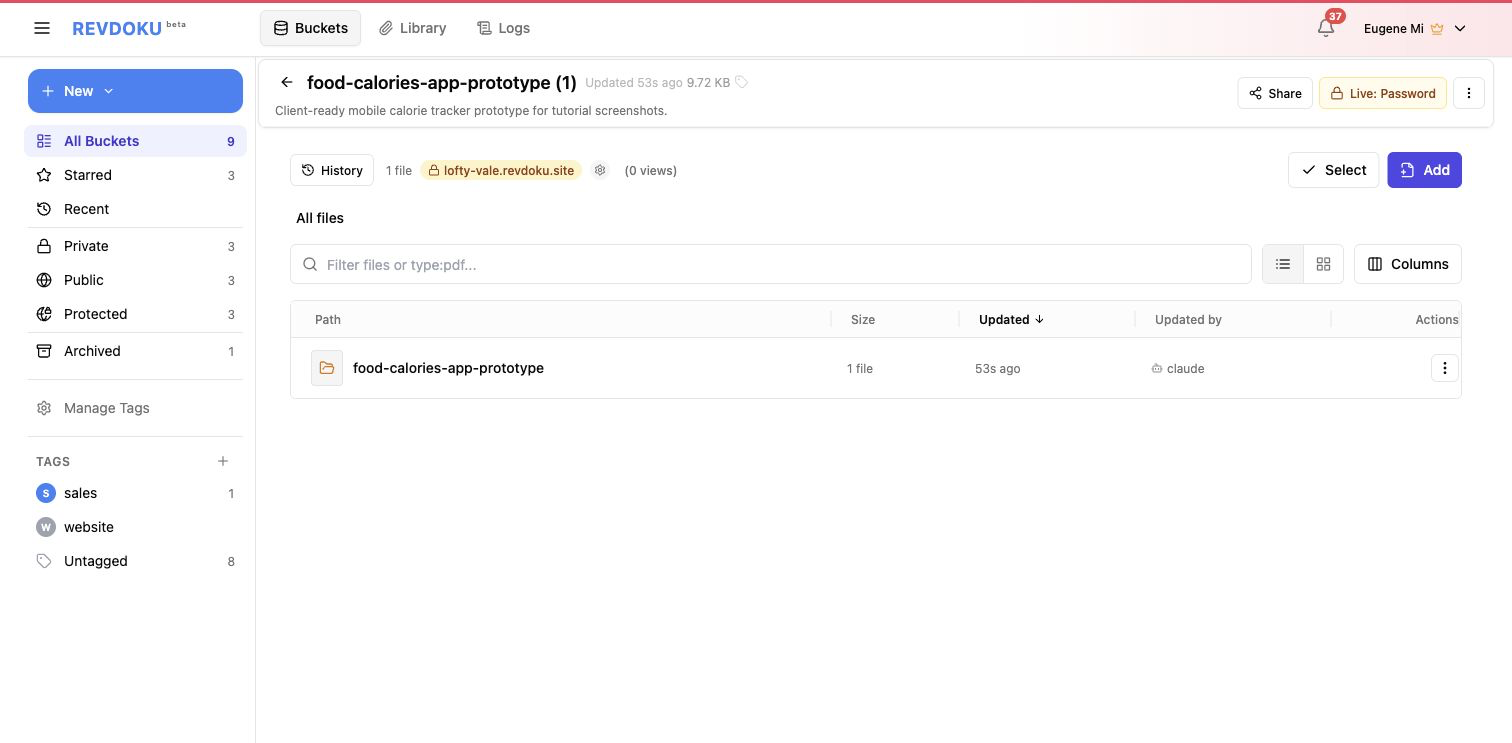
How to Publish a Codex App
Codex is good at building things — a static site, a small web app, a dashboard, a report, even a browser game. The catch is always the same last step: the result sits in a folder on your machine, and you need a real URL to send to a client, a teammate, or yourself on another device.
This guide shows the shortest path from “Codex just built it” to “here is the live link” using Revdoku — public, password-protected, or on your own domain — without setting up hosting, and with one URL you can keep updating.
What you need
- Codex (the CLI or the Codex app) that produced a folder with an
index.htmlat the root, or a framework build output such asdist/,build/, orout/. - A free Revdoku account.
A typical Codex output folder:
codex-dashboard/
  index.html
  styles.css
  app.js
  data/metrics.csv
  assets/chart.webp
1. Connect Codex to Revdoku
You only do this once. There are two ways, depending on where the files live.
Hosted (most common) — add Revdoku to Codex CLI as an MCP server and sign in with OAuth:
codex mcp add revdoku --url https://app.revdoku.com/mcp
codex mcp login revdoku
Local files — if Codex needs to publish from your own machine (a local project, SSH, Docker, WSL2, or a VM), install the local Revdoku client instead:
curl -fsSL https://revdoku.com/install.sh | bash
revdoku login
Both use Revdoku OAuth, so there is no API key or password to paste into Codex. (Never share a Revdoku password or API key in a chat.) Full setup details are on the Connect Codex to Revdoku page.
2. Ask Codex to publish the folder
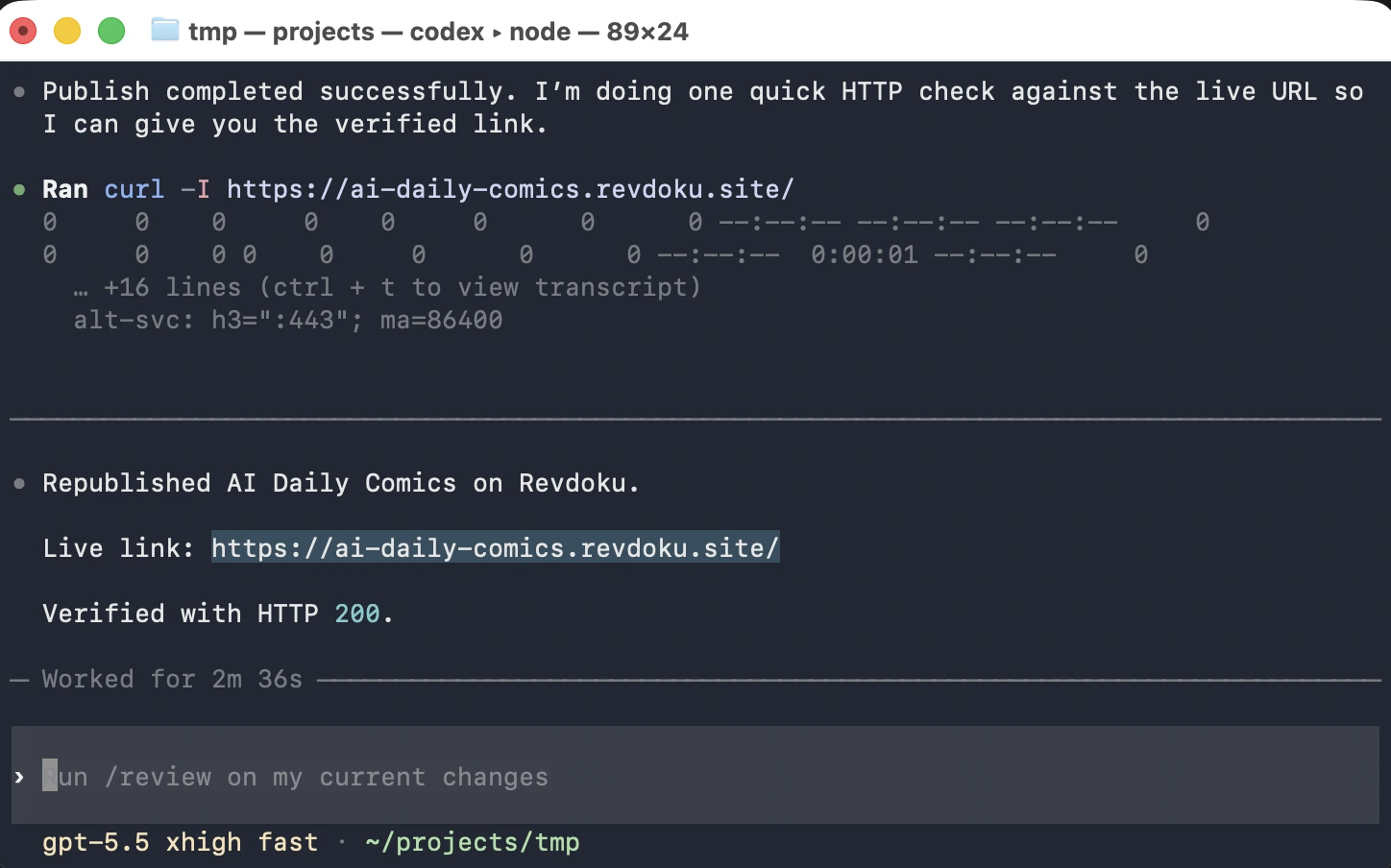
Once connected, just ask. Codex creates a Revdoku bucket, uploads the files, publishes the site, and returns the live URL. Prompts that work well:
- “Build a static report website and publish
index.htmlto Revdoku, then give me the live URL.” - “Upload this folder to Revdoku and publish it as a website.”
- “Turn this data into an interactive dashboard and publish it.”
3. Choose who can see it
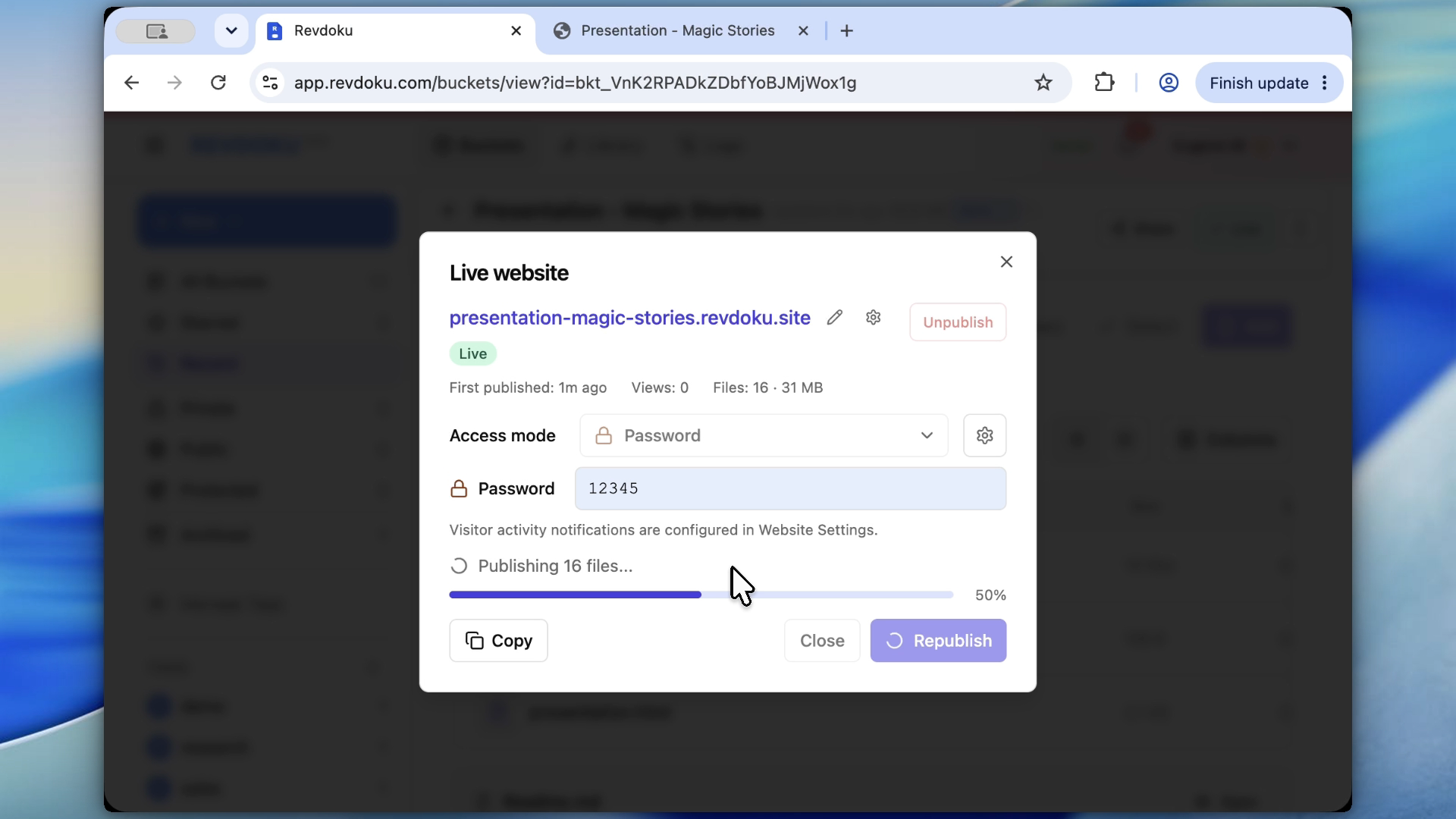
Revdoku gives the published site one of three access modes — set it when you publish, or change it later without touching the code:
- Public — anyone with the link.
- Password — a shared password gate, ideal for client demos.
- Password + email — visitors enter an email before viewing, so you can follow up.
Ask Codex to publish a protected demo directly: “publish with access_mode: password” (or password_ask_info for password plus email).
4. Share the link
You get a stable *.revdoku.site URL (or connect a custom domain). Send that — not a zip. It opens in any browser, on any device, with nothing for the other person to install.
5. Update the app and keep the same URL
This is the part that makes Codex and Revdoku click: when the app changes, ask Codex to revise the same bucket and republish. The URL does not change, so every link you already shared stays current.
- “Update the pricing in the dashboard and republish the same Revdoku site.”
6. See who opened it
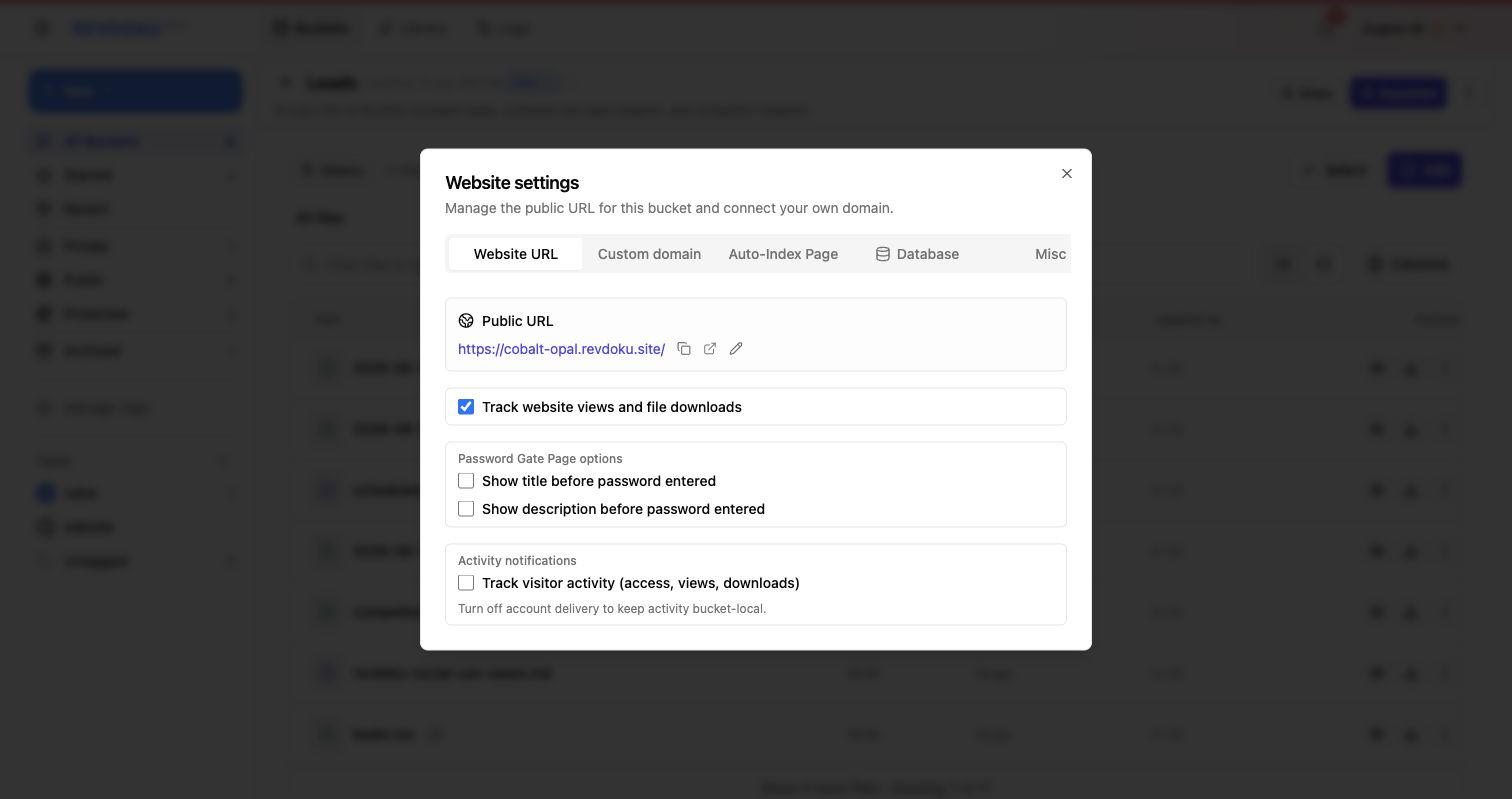
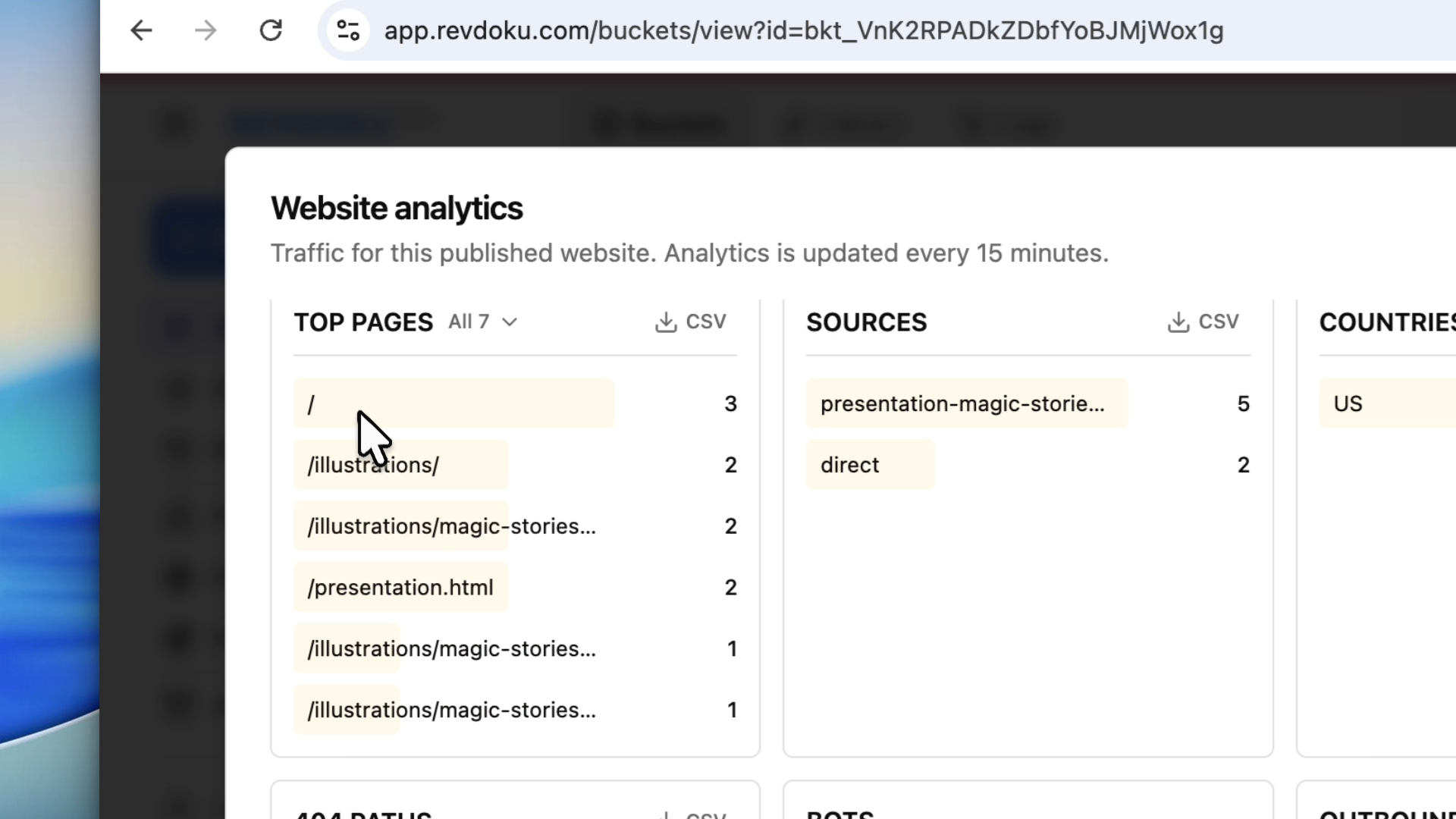
After you share, Revdoku shows visit analytics for the published site — how many people opened it and which pages or files they viewed. For a client demo or an investor update, that is often the most useful part.
When Revdoku is the right fit
Revdoku publishes the files Codex produces, so it is the short path when the output is:
- A static site, landing page, or microsite.
- A frontend app, dashboard, or interactive chart.
- A report, prototype, or browser game.
- A folder of HTML, Markdown, CSV, PDF, and assets.
If the project needs an always-on backend — a server process, a database, custom runtimes, or server-side APIs — deploy that on an app platform or VPS instead. See Revdoku vs Vercel and Revdoku vs VPS hosting for where the line falls. For most “Codex built me a thing, let me share it” moments, the file output is all you need to publish.
Keep reading
- Connect Codex to Revdoku — the one-time setup.
- Best ways to publish AI-generated websites and file folders — the full decision guide.
- Codex Sites alternatives for Claude and ChatGPT users — how the options compare.
Ready to ship it? Create a free Revdoku account and publish what Codex just built in a couple of minutes.
Frequently asked questions
Can Codex publish a website on its own?
Yes. Once Codex is connected to Revdoku (through the MCP server or the local client), you can ask it to upload your folder and publish it, and it returns the live URL — no manual upload step required.
Do I need to set up hosting or a server?
No. Revdoku hosts the published files for you. There is no web server, DNS, or build pipeline to configure to get a live URL.
Can I password-protect a Codex app?
Yes. Publish with access_mode: password for a shared password, or password_ask_info to require an email before viewing. You can also change the access mode after publishing.
Can I update the app without changing the URL?
Yes. Ask Codex to revise the same Revdoku bucket and republish. The URL stays the same, so previously shared links keep working.
Does this work with the Codex CLI and the Codex app?
Yes. The hosted MCP connection works from Codex, and the local Revdoku client covers projects on your own machine, SSH, Docker, WSL2, or a VM.