How to Set Up GitHub Sync in Revdoku
Table of Contents
- Choose the setup that matches your starting point
- Before you start
- 1. Open the Revdoku bucket
- 2. Open Bucket Settings and GitHub Sync
- 3. Connect GitHub
- 4. Choose the sync direction
- Import an existing GitHub repository
- Back up an existing Revdoku bucket to GitHub
- 5. Verify the first sync
- How automatic two-way sync works
- Common GitHub Sync workflows
- Migrate from GitHub Pages without abandoning GitHub
- Keep an automated Revdoku website backed up
- Let developers and content operators use different tools
- Next steps
- Choose the setup that matches your starting point
- Before you start
- 1. Open the Revdoku bucket
- 2. Open Bucket Settings and GitHub Sync
- 3. Connect GitHub
- 4. Choose the sync direction
- Import an existing GitHub repository
- Back up an existing Revdoku bucket to GitHub
- 5. Verify the first sync
- How automatic two-way sync works
- Common GitHub Sync workflows
- Migrate from GitHub Pages without abandoning GitHub
- Keep an automated Revdoku website backed up
- Let developers and content operators use different tools
- Next steps
How to Set Up GitHub Sync in Revdoku
Revdoku GitHub Sync connects a bucket and a GitHub repository. You can import an existing repository into an empty bucket, then publish its static files with Revdoku. You can also create a new private GitHub repository from an existing bucket so the repository acts as an automatically updated backup.
After setup, changes sync automatically in both directions. That means developers can keep using GitHub while Revdoku handles the published website, analytics, access controls, and forms.
Choose the setup that matches your starting point
| Starting point | Choose in Revdoku | Result |
|---|---|---|
| An existing GitHub repository | Existing GitHub repository | Revdoku imports the repository into an empty bucket. You can review the files and publish the bucket as a website. |
| An existing Revdoku bucket | This Revdoku bucket | Revdoku creates a new private repository and copies the bucket files to it. The repository can serve as a Git backup. |
The same GitHub Sync connection can support either workflow. The important choice is which copy already contains the files you want to keep.
Before you start
You need:
- A Revdoku account and a bucket.
- A GitHub account you can authorize.
- Permission to the GitHub owner and repository you want to use.
- An empty Revdoku bucket if you are importing an existing repository.
- A static website output such as
index.html, CSS, JavaScript, and images if you intend to publish the repository as a website.
If a repository uses a build tool, sync the browser-ready output or make sure the bucket contains the generated static files visitors need. Revdoku publishes files; it does not replace an application server or database.
1. Open the Revdoku bucket
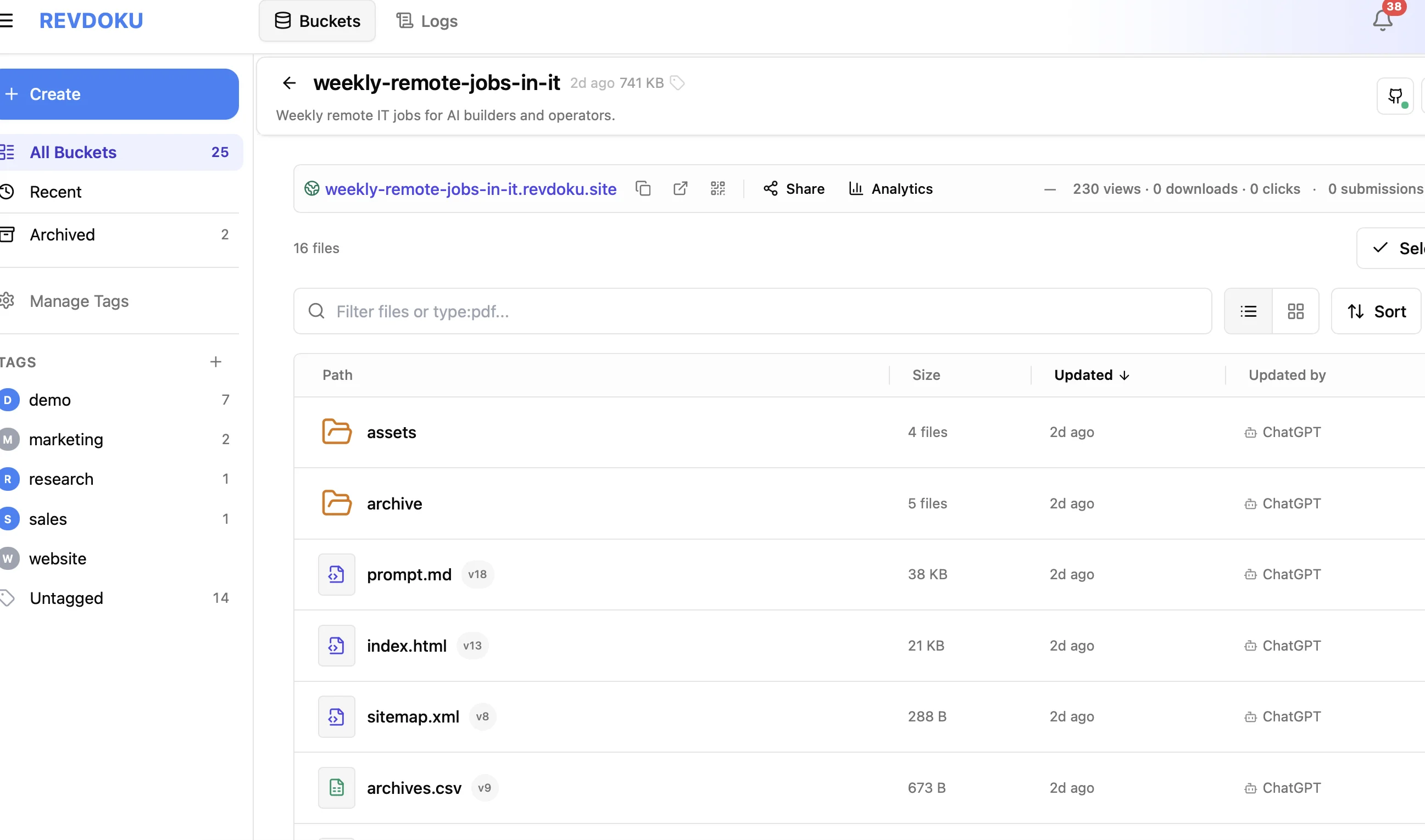
Open the bucket that should connect to GitHub. In this example, the bucket contains the files for the Weekly Remote Jobs in IT website and already has a live Revdoku URL.
2. Open Bucket Settings and GitHub Sync
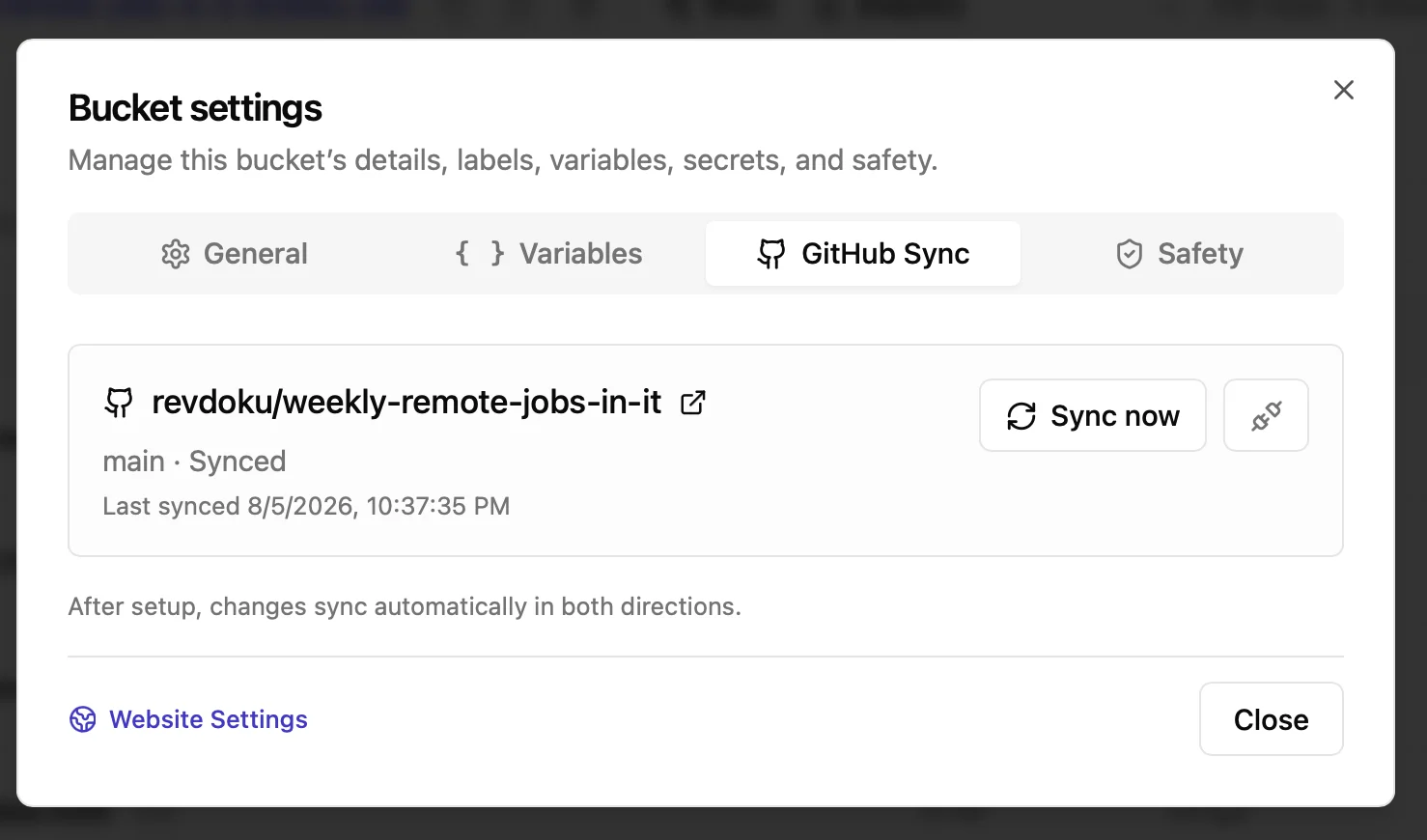
Open the bucket menu, select Bucket Settings, and then open the GitHub Sync tab.
A connected bucket shows the GitHub repository, branch, last sync time, and sync status. Use Sync now when you want to request an immediate sync instead of waiting for the automatic cycle.
3. Connect GitHub
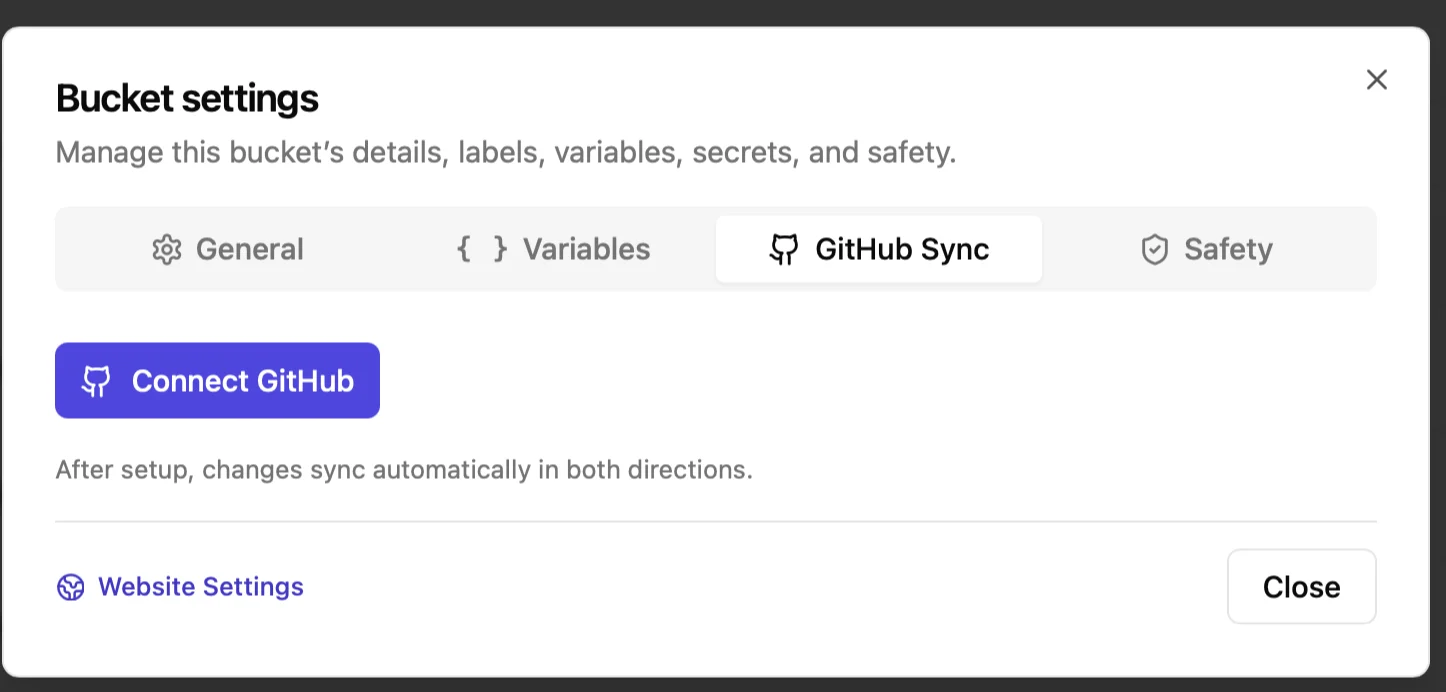
If this bucket is not connected yet, select Connect GitHub. Complete the GitHub authorization flow so Revdoku can access the account or organization where the repository lives.
Grant access only to the repositories needed for the workflow. If an organization controls repository access, an organization owner may need to approve the connection.
4. Choose the sync direction
Revdoku asks where the files currently live:
- Select Existing GitHub repository to import a repository into an empty Revdoku bucket.
- Select This Revdoku bucket to create a new private GitHub repository from the current bucket.
Import an existing GitHub repository
Choose Existing GitHub repository when GitHub already contains the website. Select the repository and branch, then start the import. Revdoku copies the repository files into the empty bucket.
After the first sync:
- Review the bucket files.
- Confirm that the website entry file, normally
index.html, is present. - Publish the bucket as a Revdoku website.
- Choose public, password-protected, or verified-email access.
- Test the live link and any forms or asset paths.
This is the quickest path for moving a static GitHub Pages site while keeping the GitHub repository connected. See How to migrate a GitHub Pages website to Revdoku for the complete migration checklist.
Back up an existing Revdoku bucket to GitHub
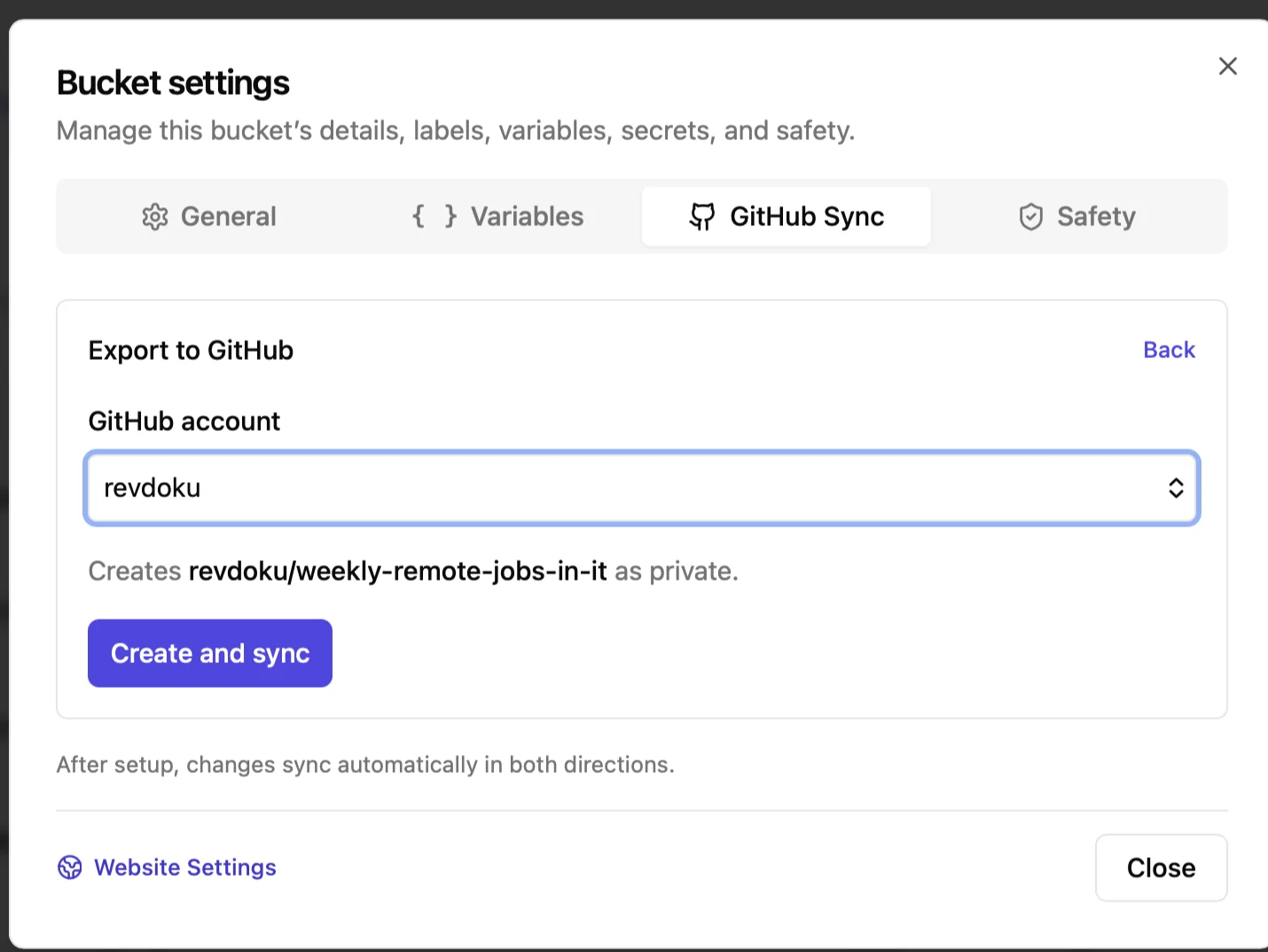
Choose This Revdoku bucket when the current bucket is the copy you want to preserve. Select the GitHub account or organization that should own the repository. Revdoku shows the repository it will create; confirm with Create and sync.
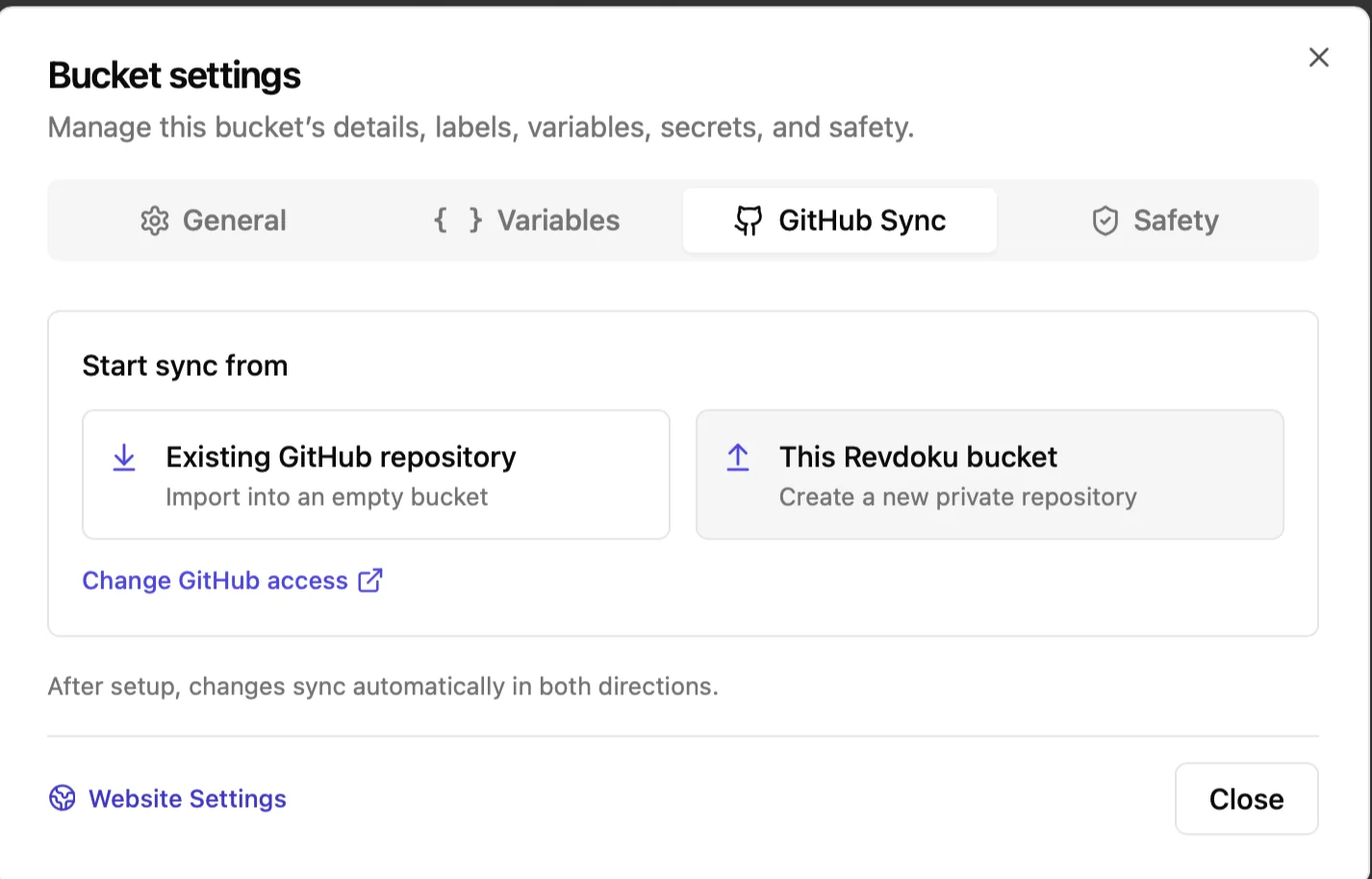
Revdoku creates the repository as private and copies the bucket files into it. This is useful when ChatGPT, Claude, Codex, or a scheduled process updates the bucket and you also want those files stored in GitHub.
5. Verify the first sync
Return to Bucket Settings → GitHub Sync and confirm that the status is Synced. Then open the GitHub repository and verify that the expected files and recent Revdoku Sync commits are present.
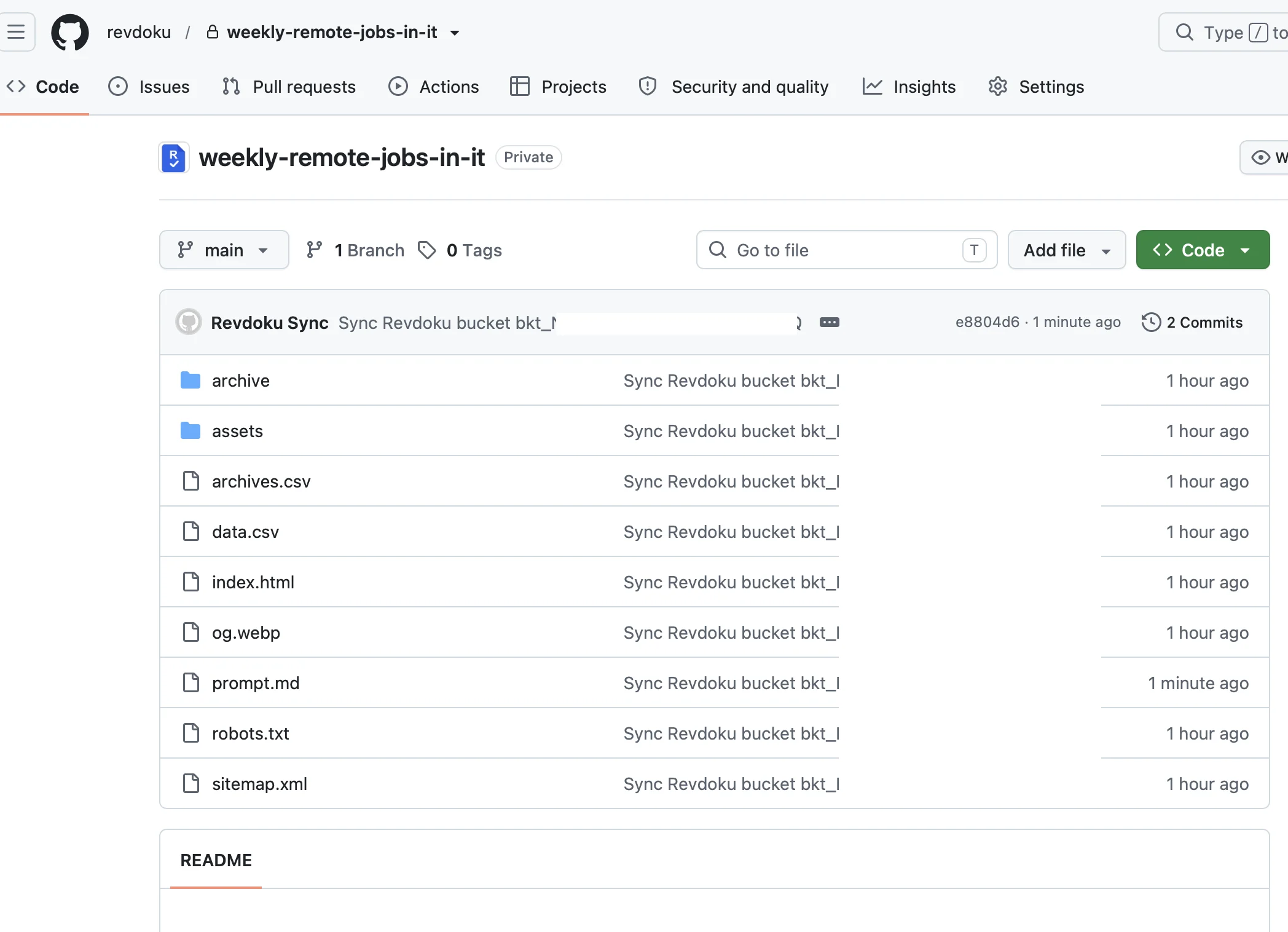
Check both sides after the first sync:
- The Revdoku bucket contains the expected folders and files.
- The GitHub repository points to the intended branch.
- The published website still loads CSS, JavaScript, images, and nested pages.
- No generated secrets, environment files, or private source material were added accidentally.
How automatic two-way sync works
Once connected, changes sync automatically in both directions:
- A change committed to the connected GitHub branch can appear in the Revdoku bucket.
- A file updated in the Revdoku bucket can be committed back to the connected GitHub repository.
- Sync now can request an immediate synchronization when you want to verify a change.
Treat the bucket and repository as two interfaces to the same file set. Avoid editing the same file on both sides at the same time. After a large import or automated update, inspect the sync status and test the site before sharing it.
Common GitHub Sync workflows
Migrate from GitHub Pages without abandoning GitHub
Import the existing repository into an empty Revdoku bucket, publish the bucket, and leave GitHub Sync enabled. The repository remains available for Git history and developer work while Revdoku adds publishing controls around the site.
Keep an automated Revdoku website backed up
Create a private repository from the bucket. When an AI agent or scheduled task updates the bucket, GitHub Sync keeps a repository copy of the website files and their sync commits.
Let developers and content operators use different tools
Developers can work through branches, commits, and local editors. Content operators or AI agents can work through the Revdoku bucket. Automatic two-way sync keeps the connected branch and bucket aligned.
Next steps
- Migrate a GitHub Pages website to Revdoku.
- Compare Revdoku and GitHub Pages.
- Automatically update weekly websites with ChatGPT and Revdoku.
When the sync status is healthy and the site passes your checks, keep the GitHub repository as the development source, the backup, or both—while Revdoku provides the live link and sharing workflow.