How to Password-Protect a Revdoku Website
Table of Contents
- 1. Open the bucket you want to publish
- 2. Open the publishing controls
- 3. Public access
- 4. Password access
- 5. Password plus email access
- 6. Review protected websites in the bucket list
- 7. Open website and publishing settings
- 8. Review live publish and access settings
- 9. Update a live site’s access settings
- 10. Republish the protected site
- 11. Review website settings
- 12. Hide title and description on the password page
- 13. Ask ChatGPT to check access mode
- Publish a protected site of your own
- 1. Open the bucket you want to publish
- 2. Open the publishing controls
- 3. Public access
- 4. Password access
- 5. Password plus email access
- 6. Review protected websites in the bucket list
- 7. Open website and publishing settings
- 8. Review live publish and access settings
- 9. Update a live site’s access settings
- 10. Republish the protected site
- 11. Review website settings
- 12. Hide title and description on the password page
- 13. Ask ChatGPT to check access mode
- Publish a protected site of your own
Reach for Revdoku when a bucket of files needs to become a shareable website without making every file public. A published site can be open to everyone, protected behind a shared password, or protected behind a password plus visitor email collection. This walkthrough uses the Leads bucket for the password-protected file site and the Semi News Today bucket for the live password-plus-email example.
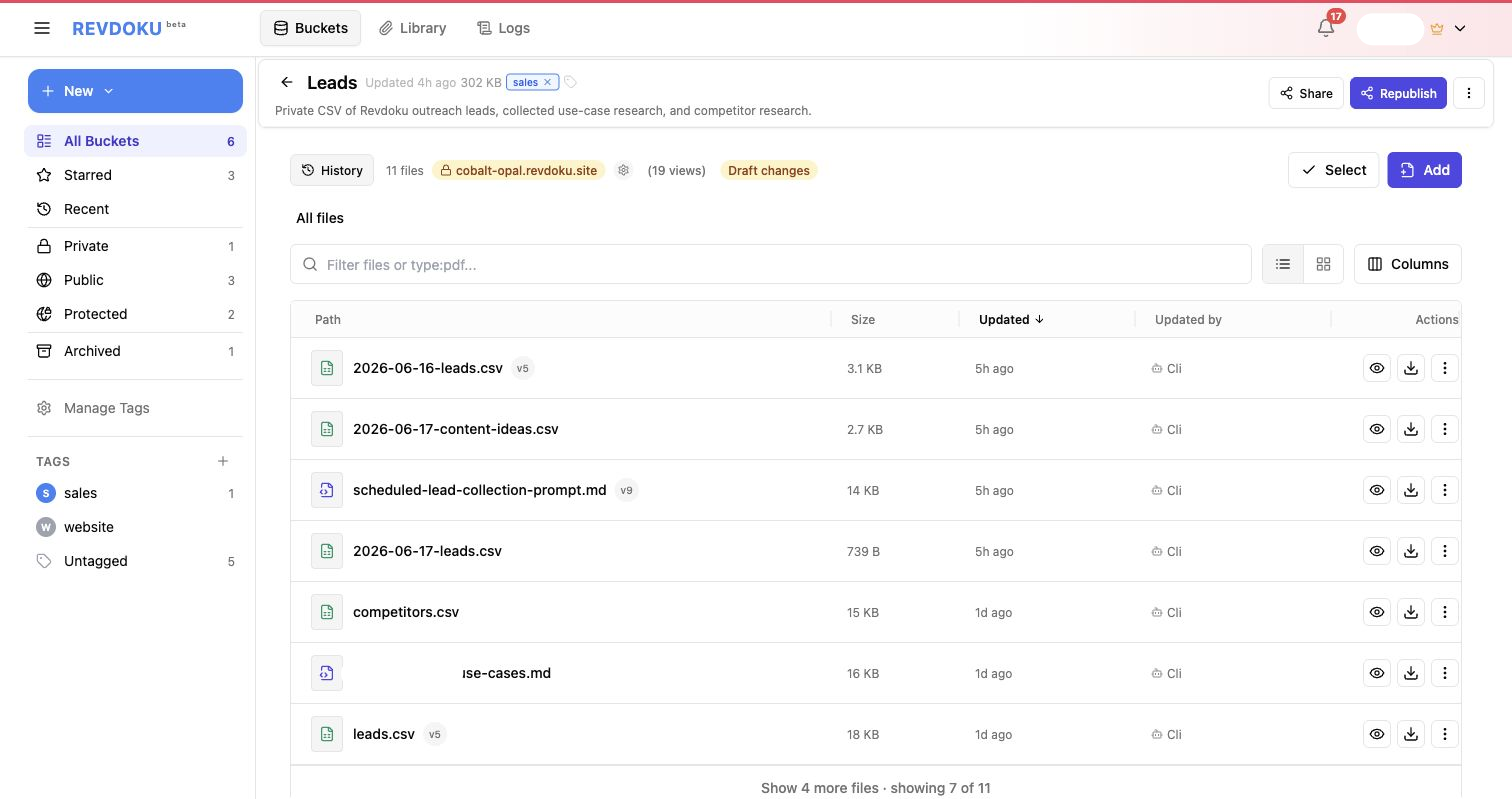
1. Open the bucket you want to publish
Start from a bucket that already contains the files, report, or generated website you want to share. In this example, the bucket includes CSV files and research documents.
2. Open the publishing controls
On a live bucket, use Website and publishing settings to open the site menu. Revdoku keeps the live URL, view count, access controls, and website settings close to the bucket contents.
3. Public access
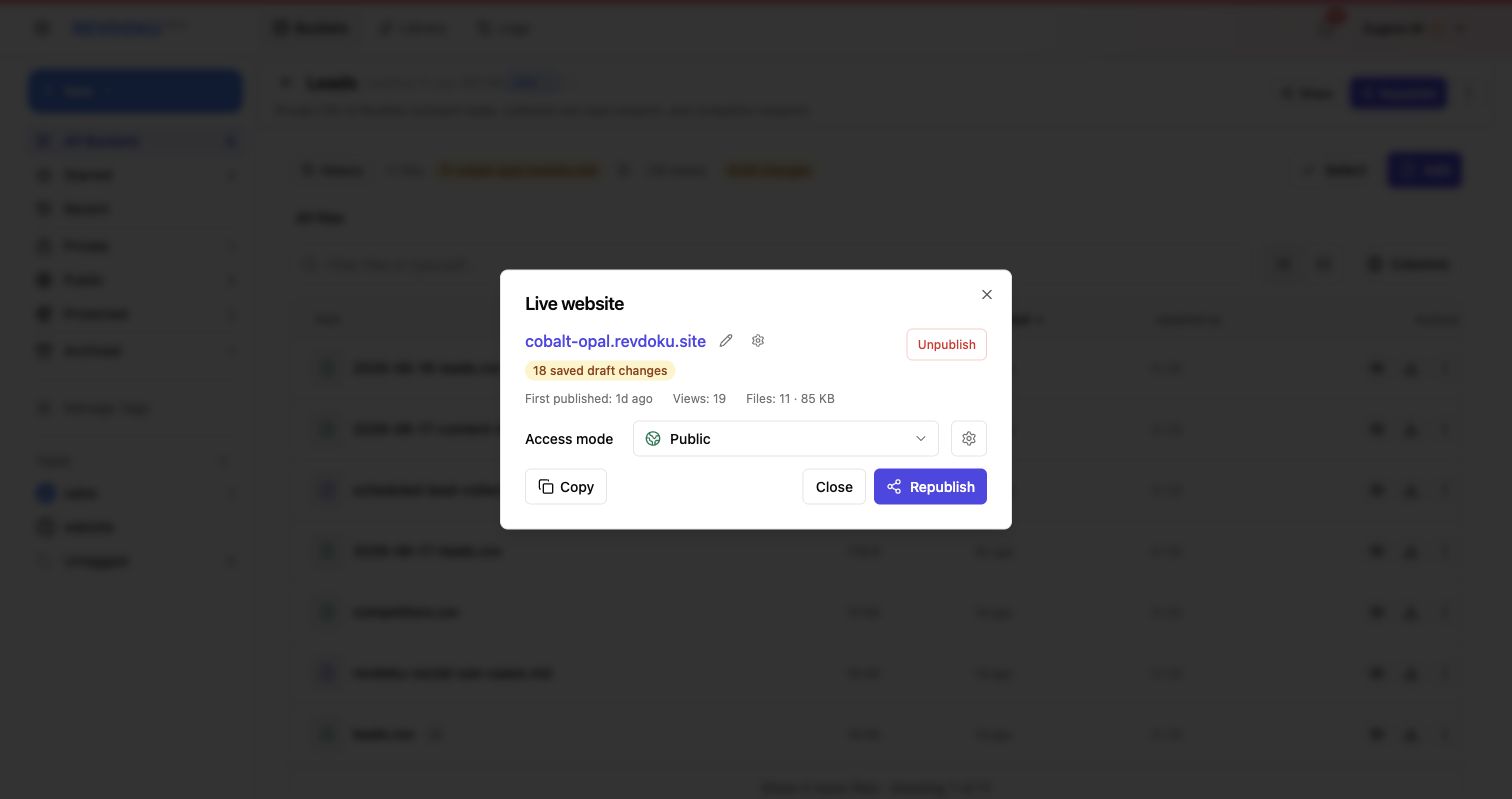
Choose Public when the site should be available to anyone with the link. Keep tracking enabled when you still want traffic and download analytics.
4. Password access
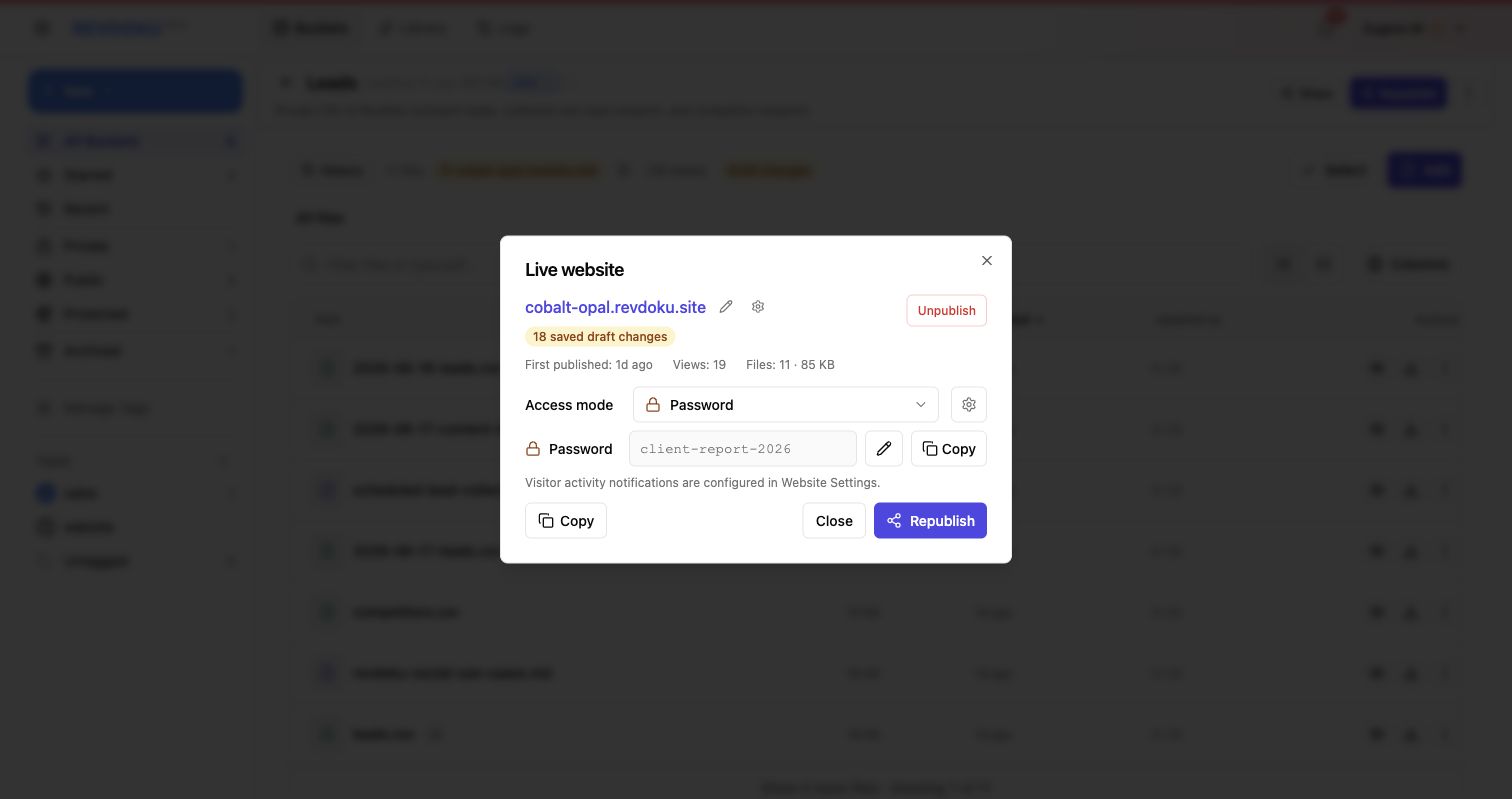
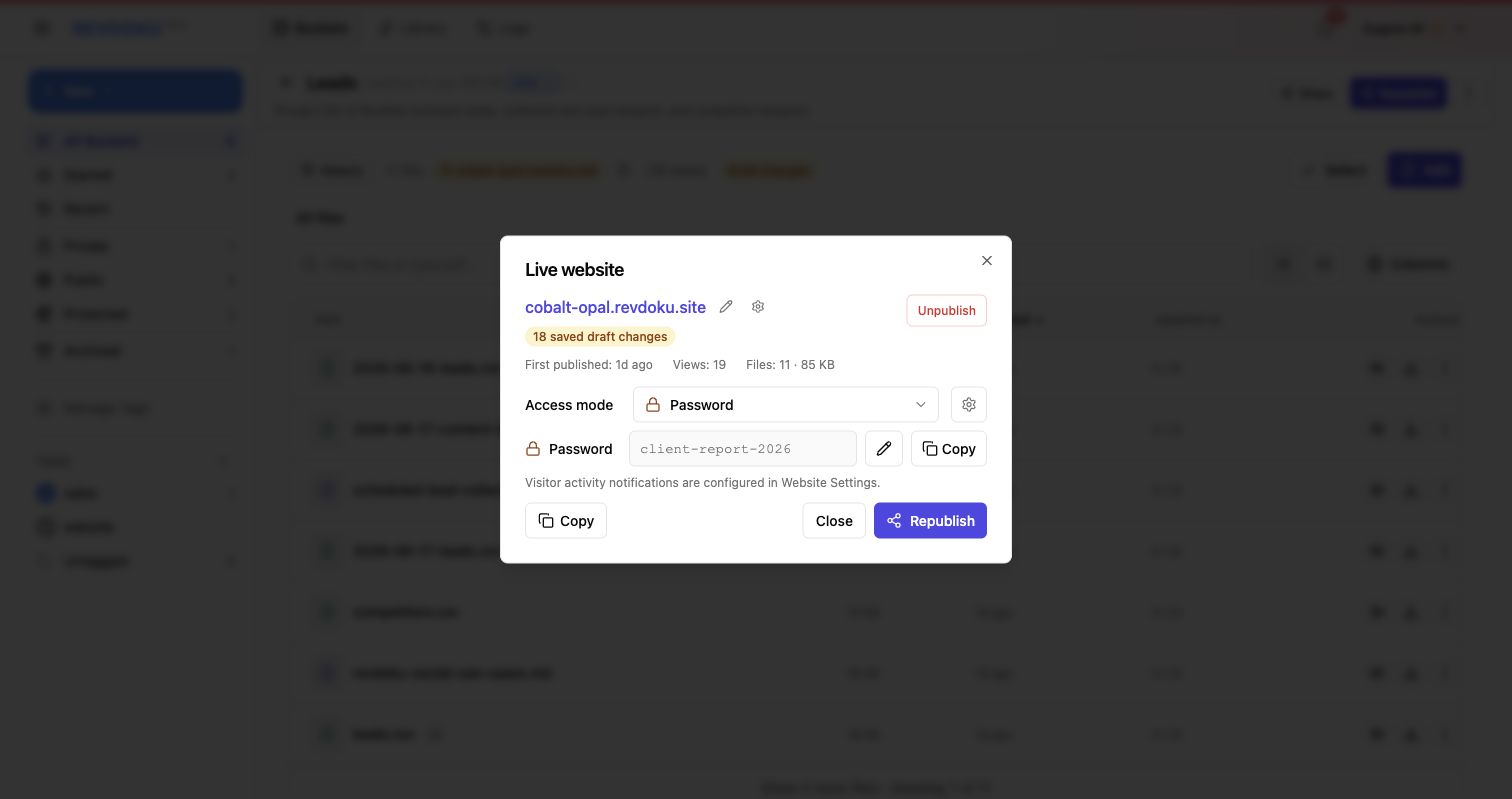
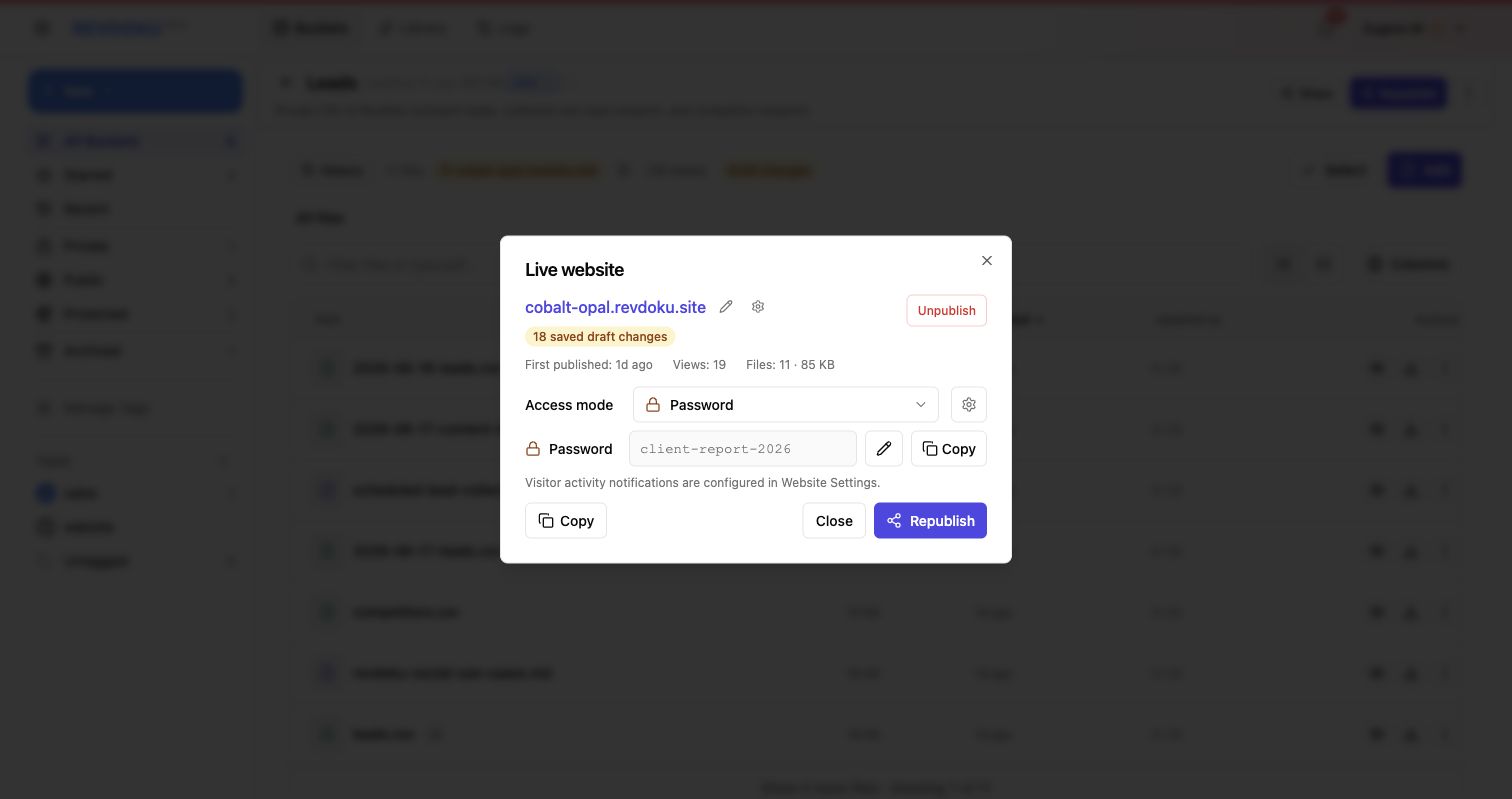
Choose Password when the website should be shared only with people who have the password. The live website dialog shows the public URL, first-published time, view count, file count, password controls, and republish status.
5. Password plus email access
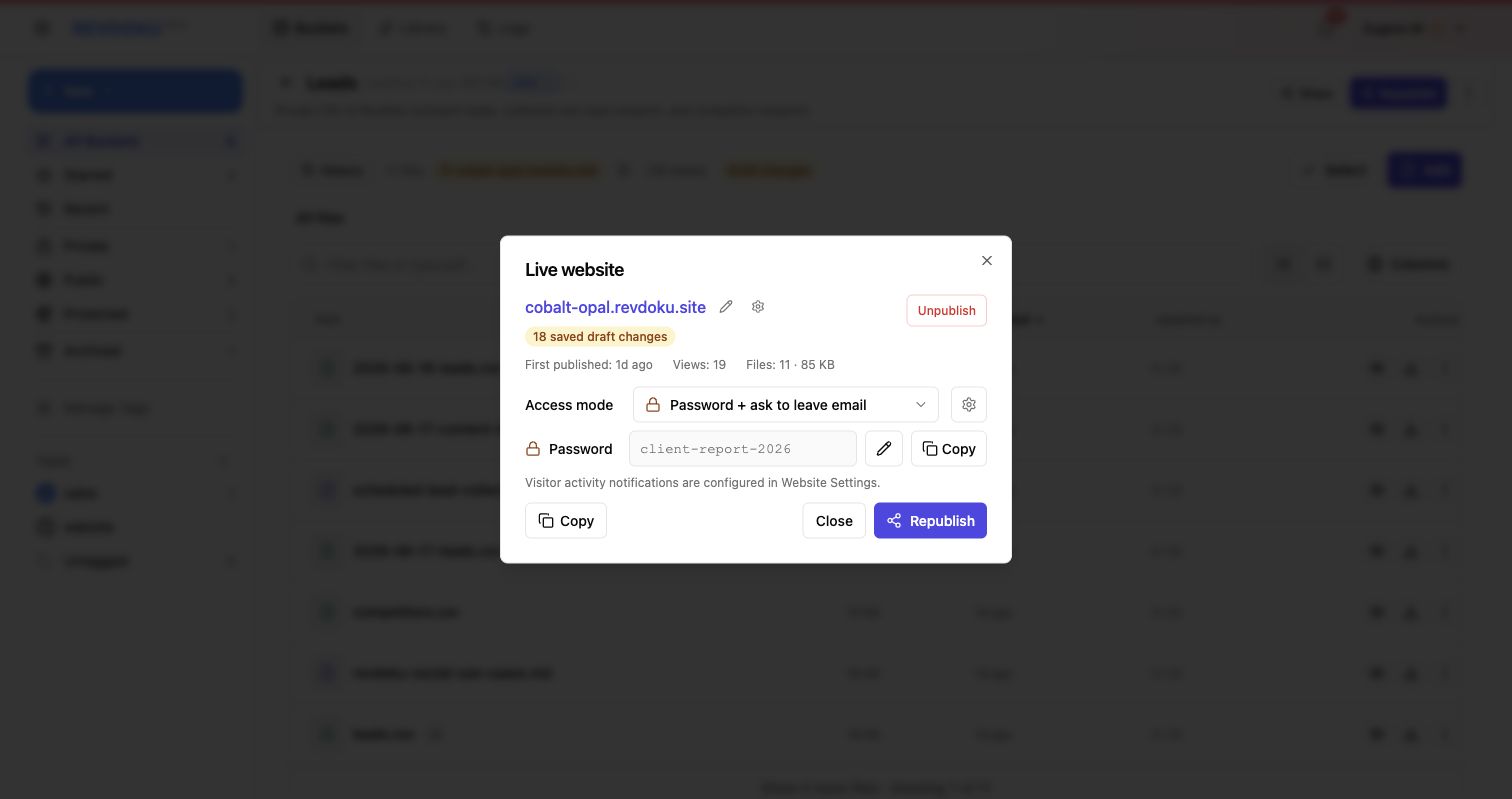
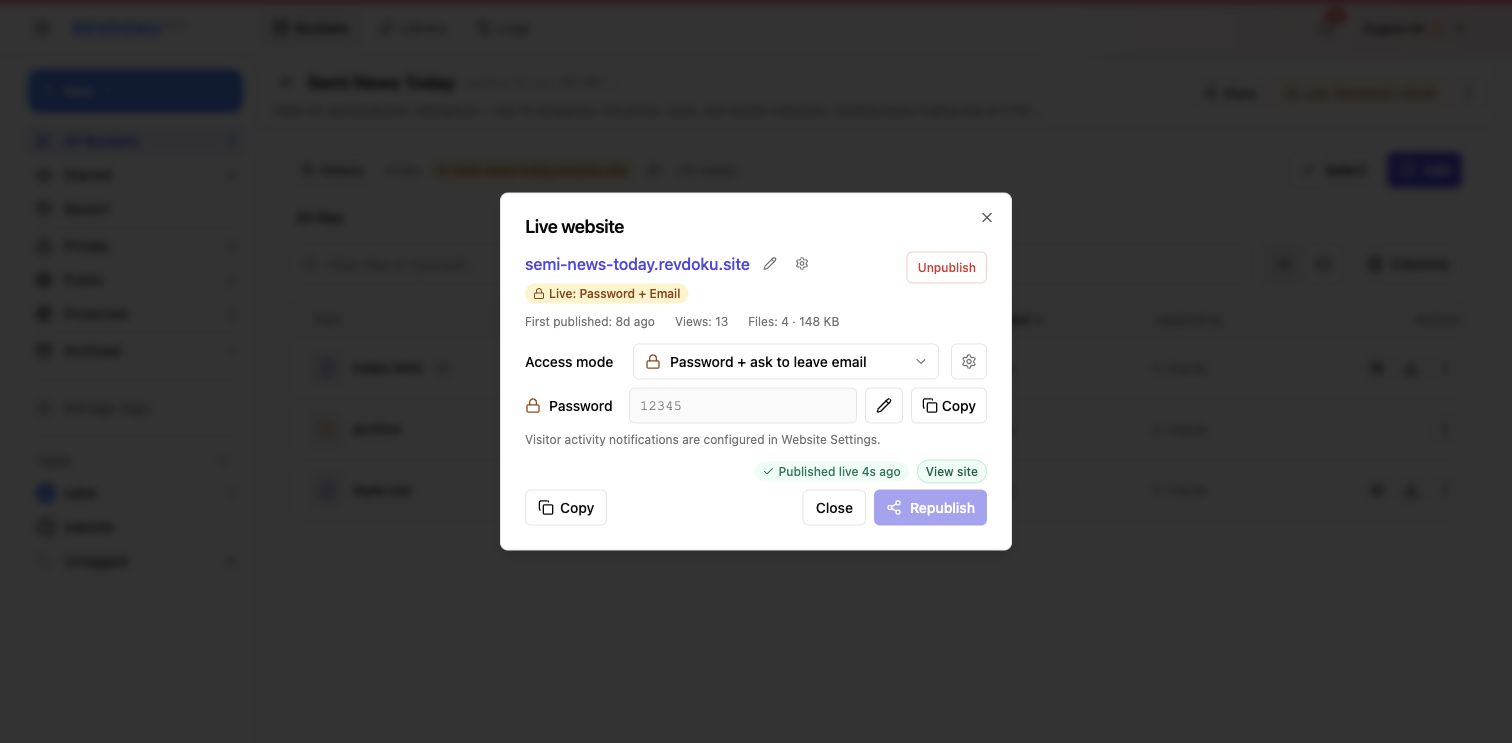
Choose Password + ask to leave email when you want authorized visitors to identify themselves. This mode asks for the shared password, email address, and an optional comment before showing the site. Use it for client portals, investor updates, internal reports, gated demos, or any file bundle where follow-up matters.
6. Review protected websites in the bucket list
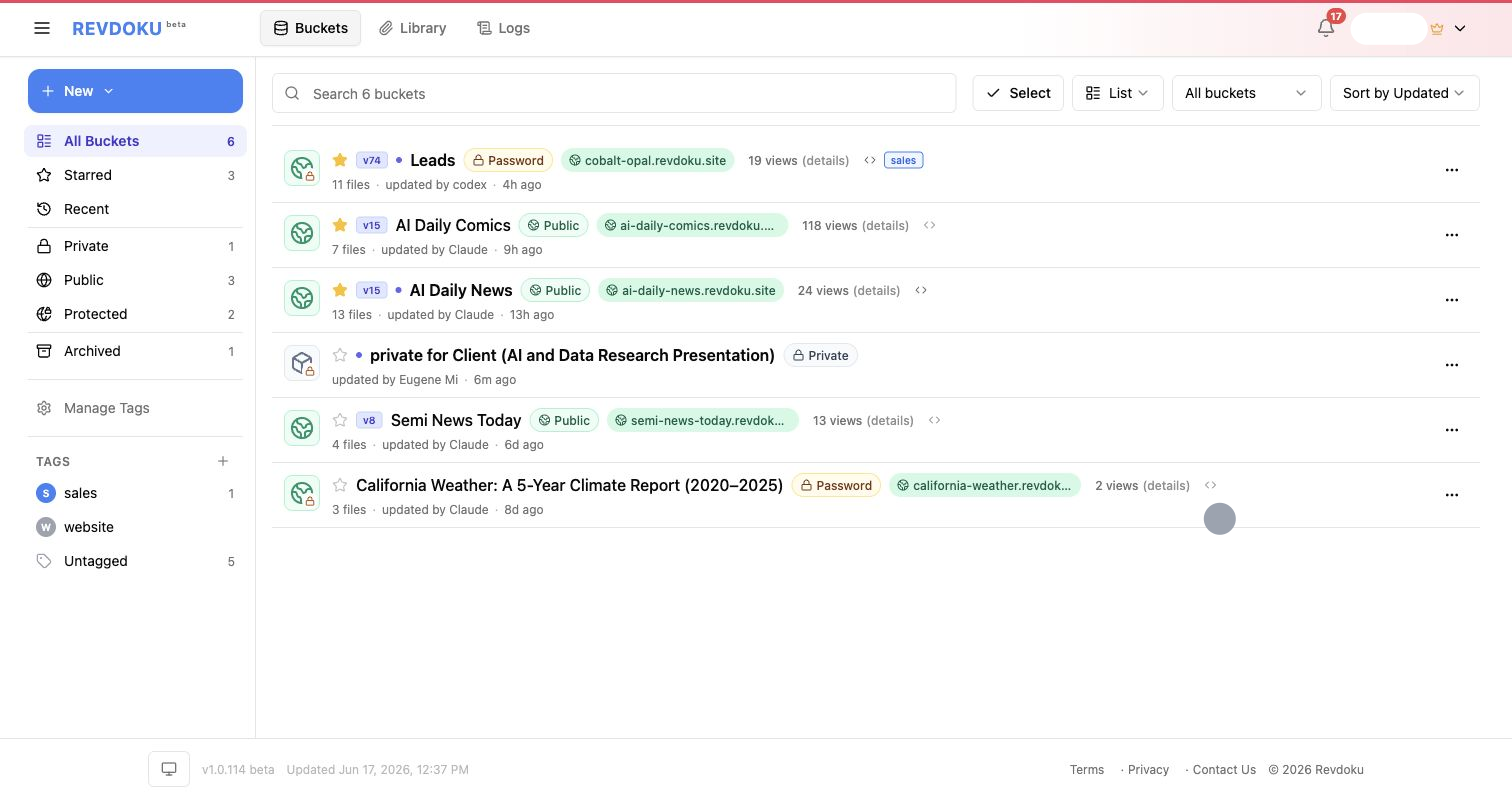
The bucket list shows each published site’s access badge, live URL, file count, and current view count. Use the Protected filter when you want to audit password-gated sites.
7. Open website and publishing settings
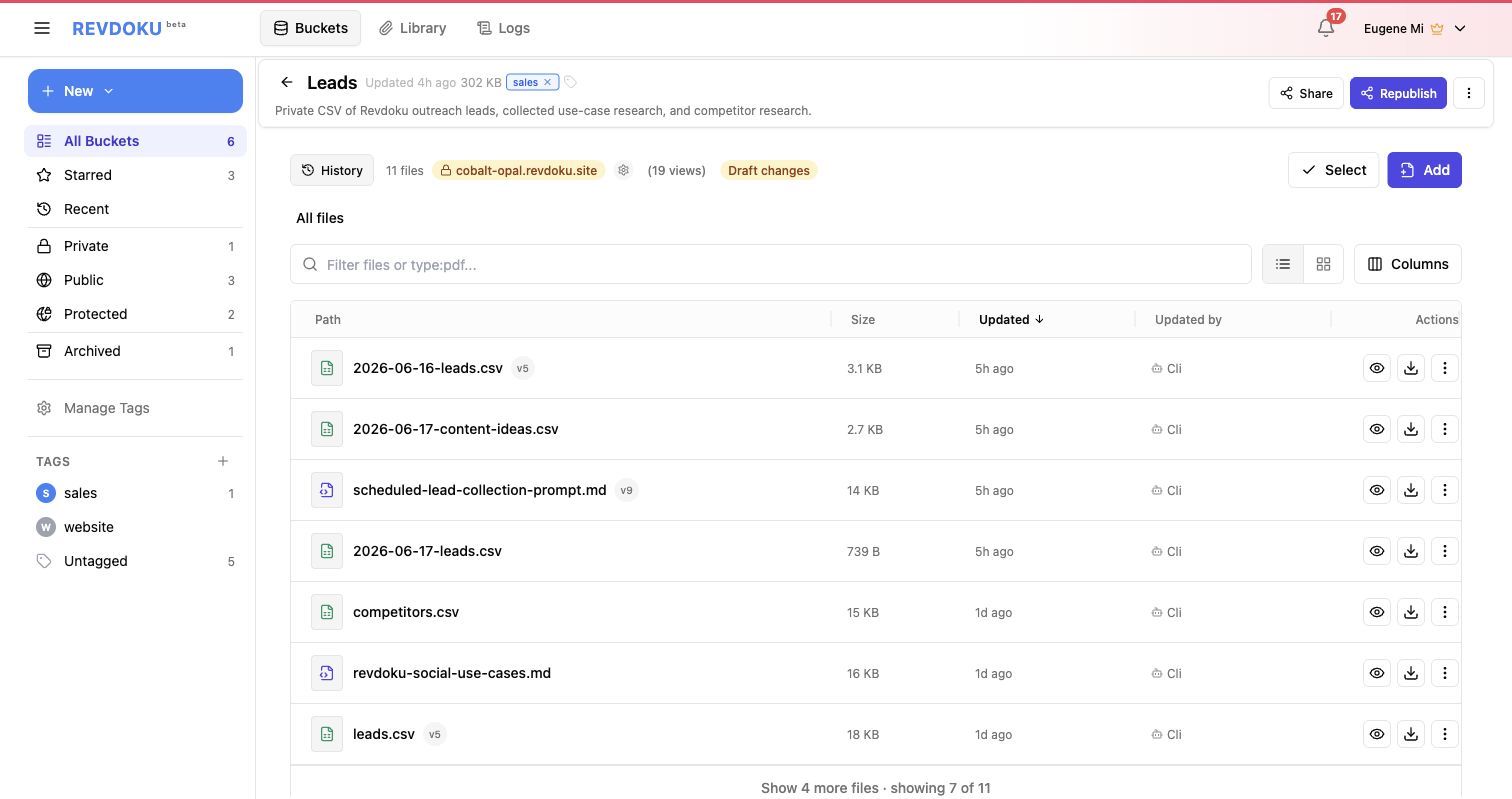
On a live bucket, Revdoku shows the current live state directly in the bucket header. Open Website and publishing settings when you want to change access, copy the public URL, customize the website, or review analytics.
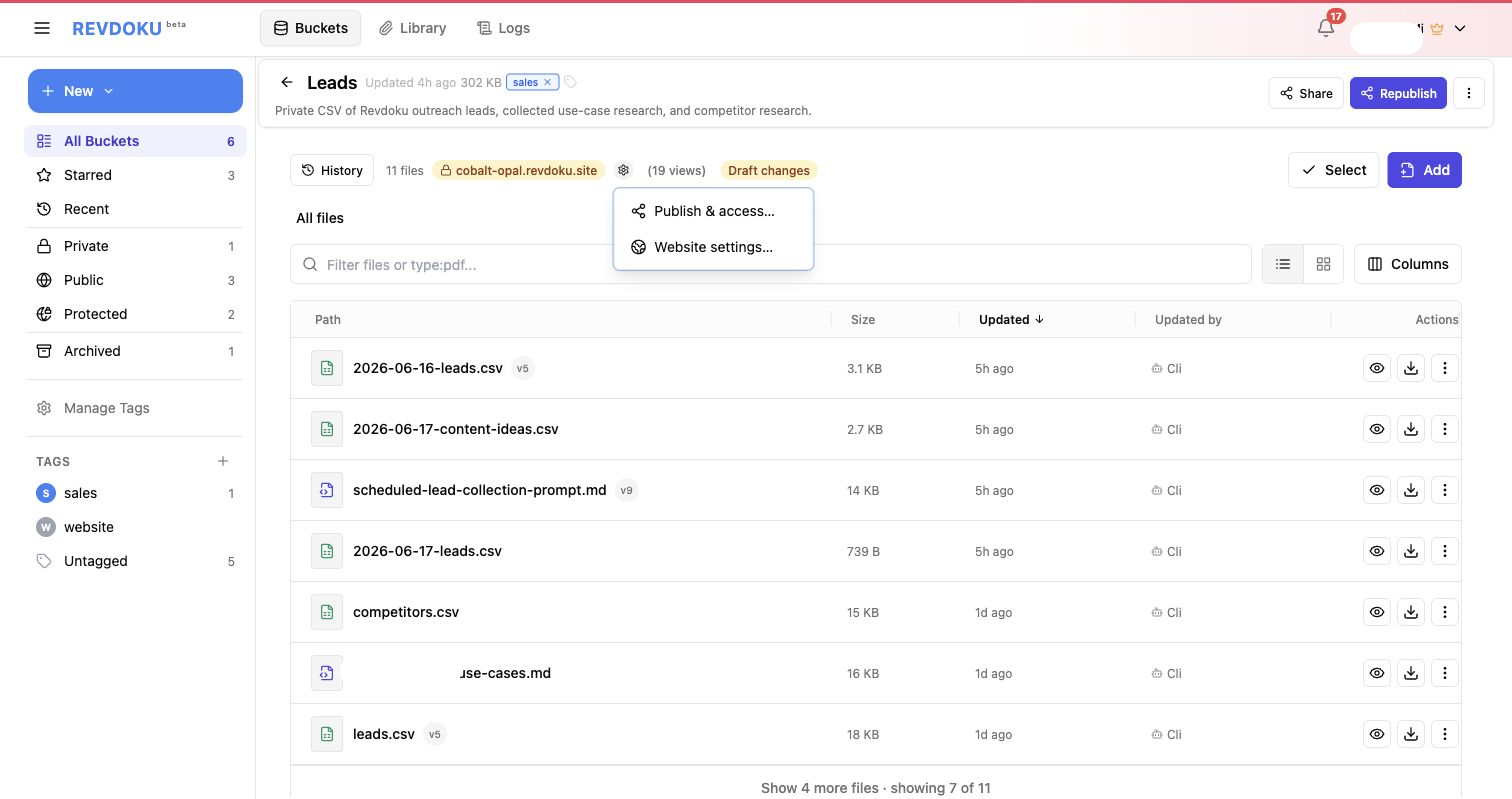
The settings menu separates access controls from website configuration: Publish & access… controls public/password/email access and republishing, while Website settings… controls the public URL, custom domain, tracking, activity delivery, password gate display, and generated index page.
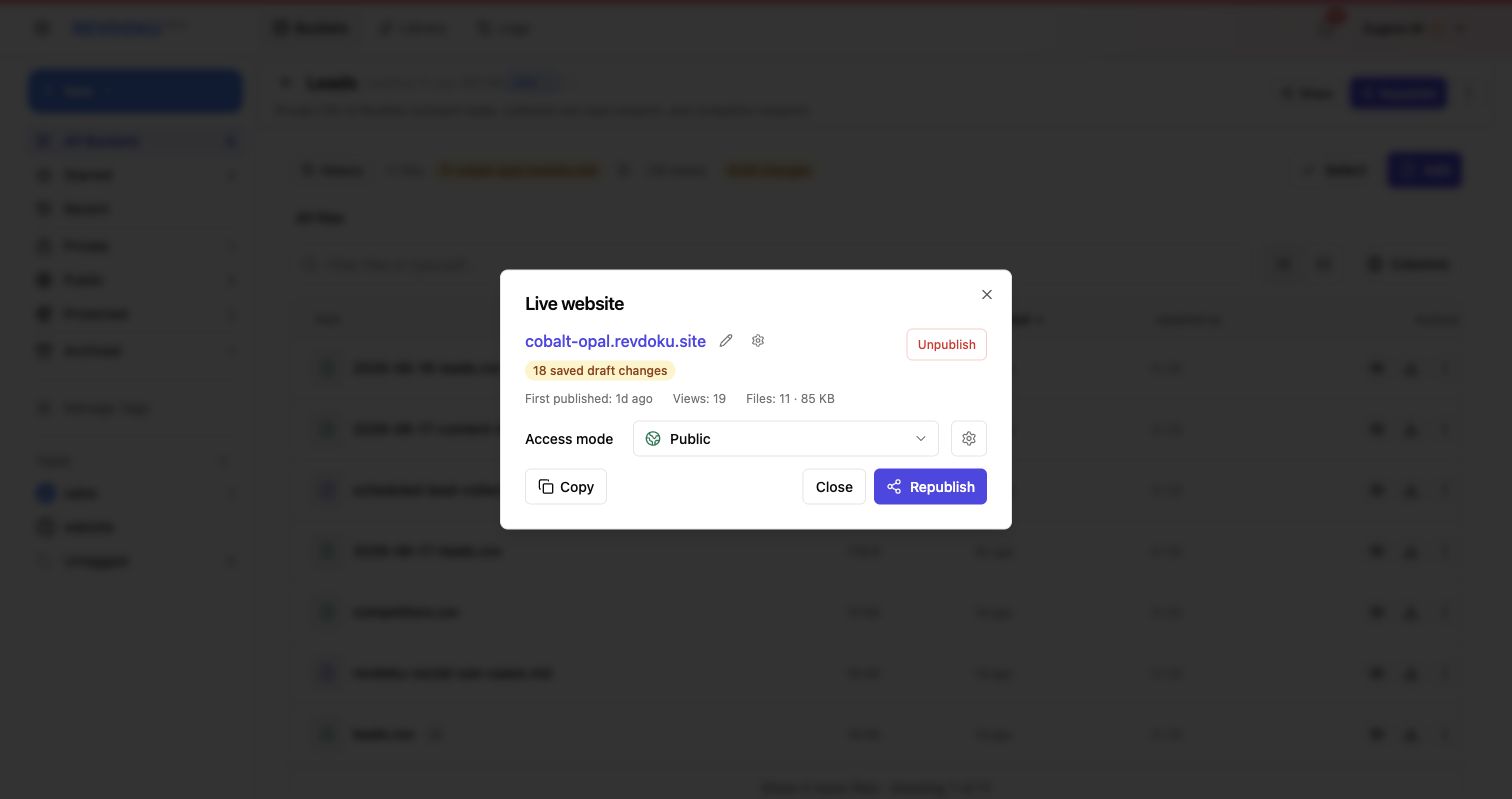
8. Review live publish and access settings
The live website dialog summarizes the website URL, current access mode, first publish time, views, file count, password controls, and latest publish status.
9. Update a live site’s access settings
For an already-published website, open Publish & access…, choose the access mode, and update the password when needed.
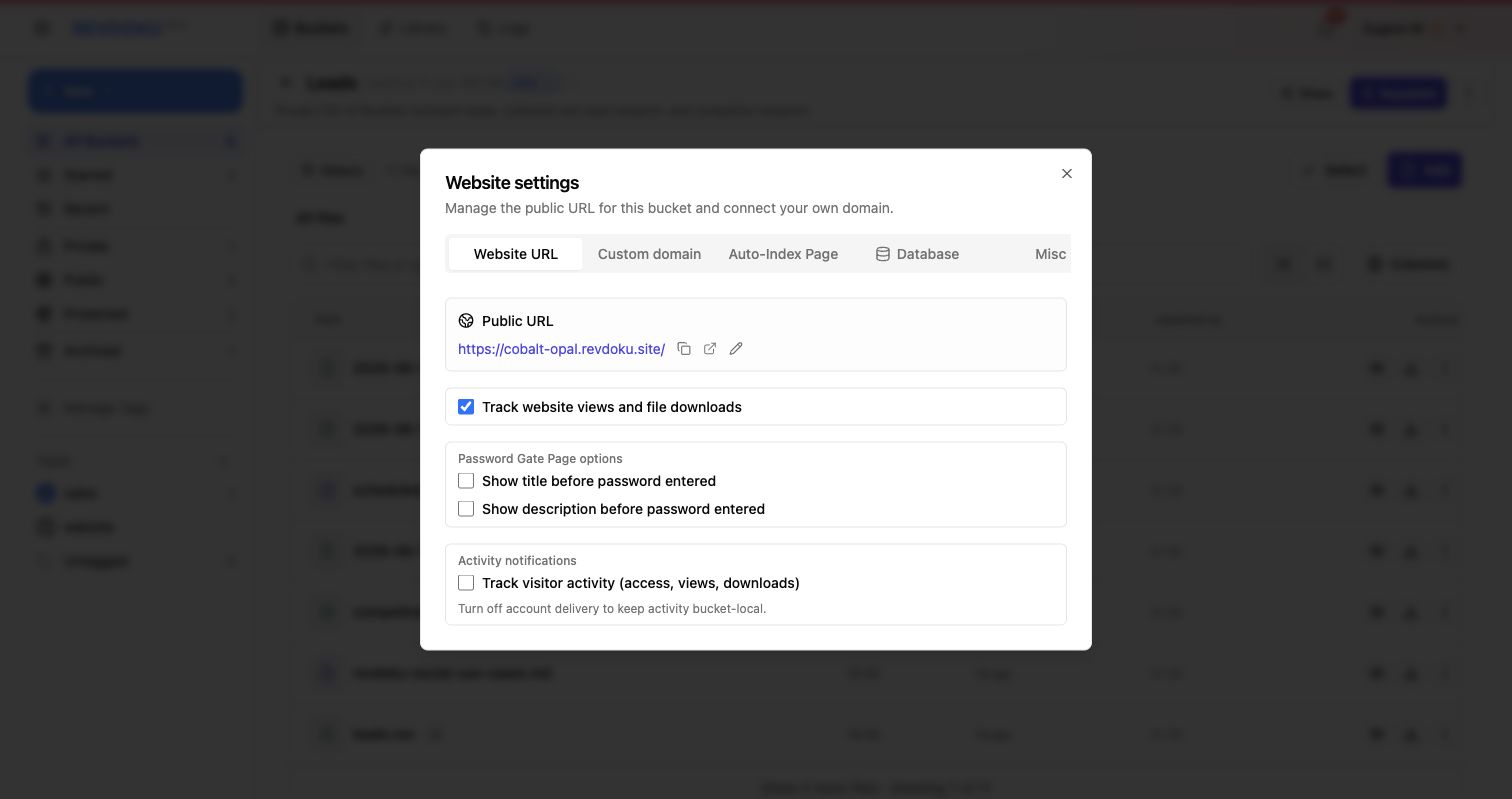
Visitor activity tracking and account delivery live in Website settings on the Website URL tab. Use this area to review or enable access, view, and download activity for follow-up.
10. Republish the protected site
Click Republish to apply access changes. Once publishing finishes, the dialog confirms the live access mode and provides a direct View site link.
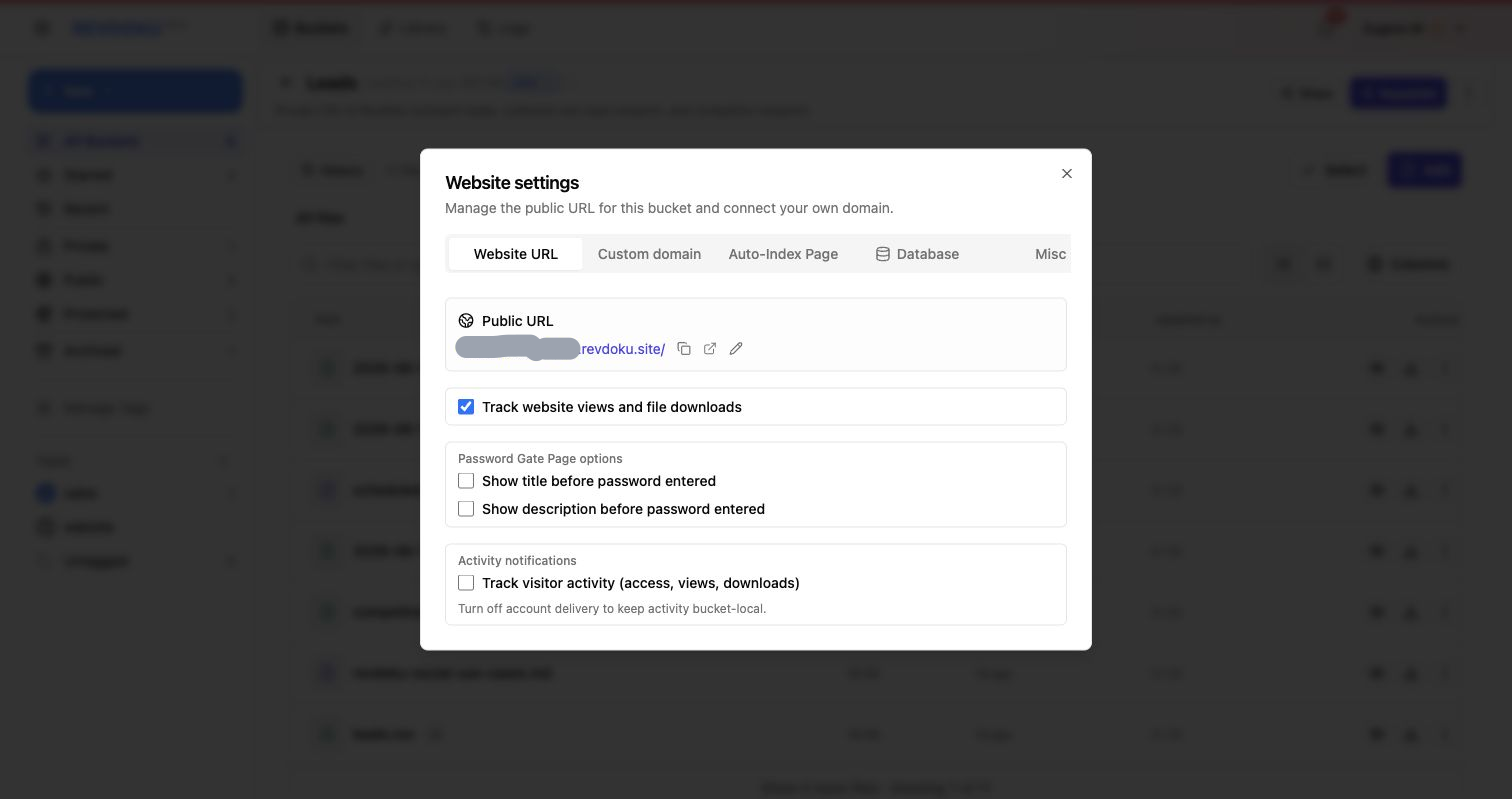
11. Review website settings
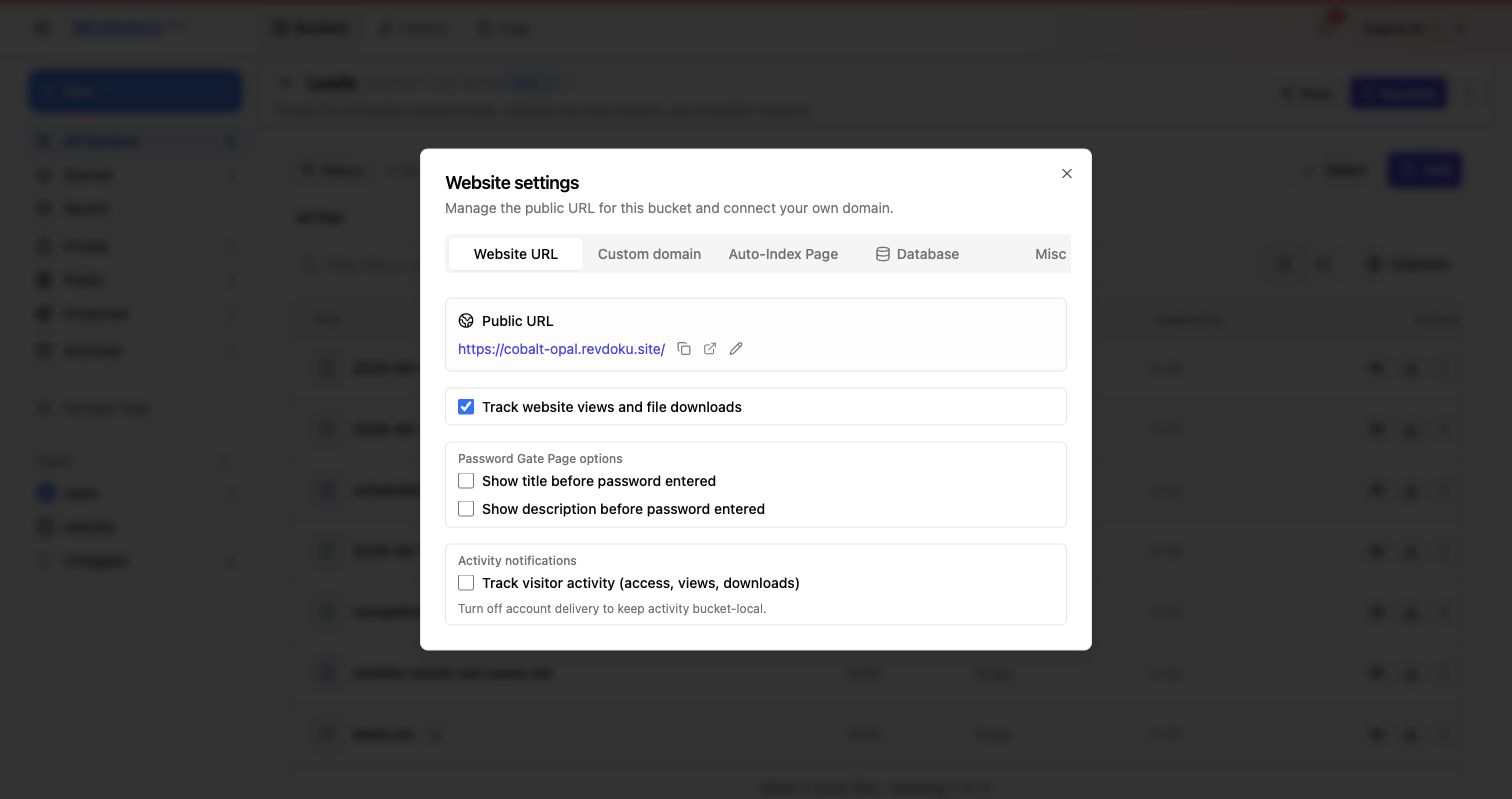
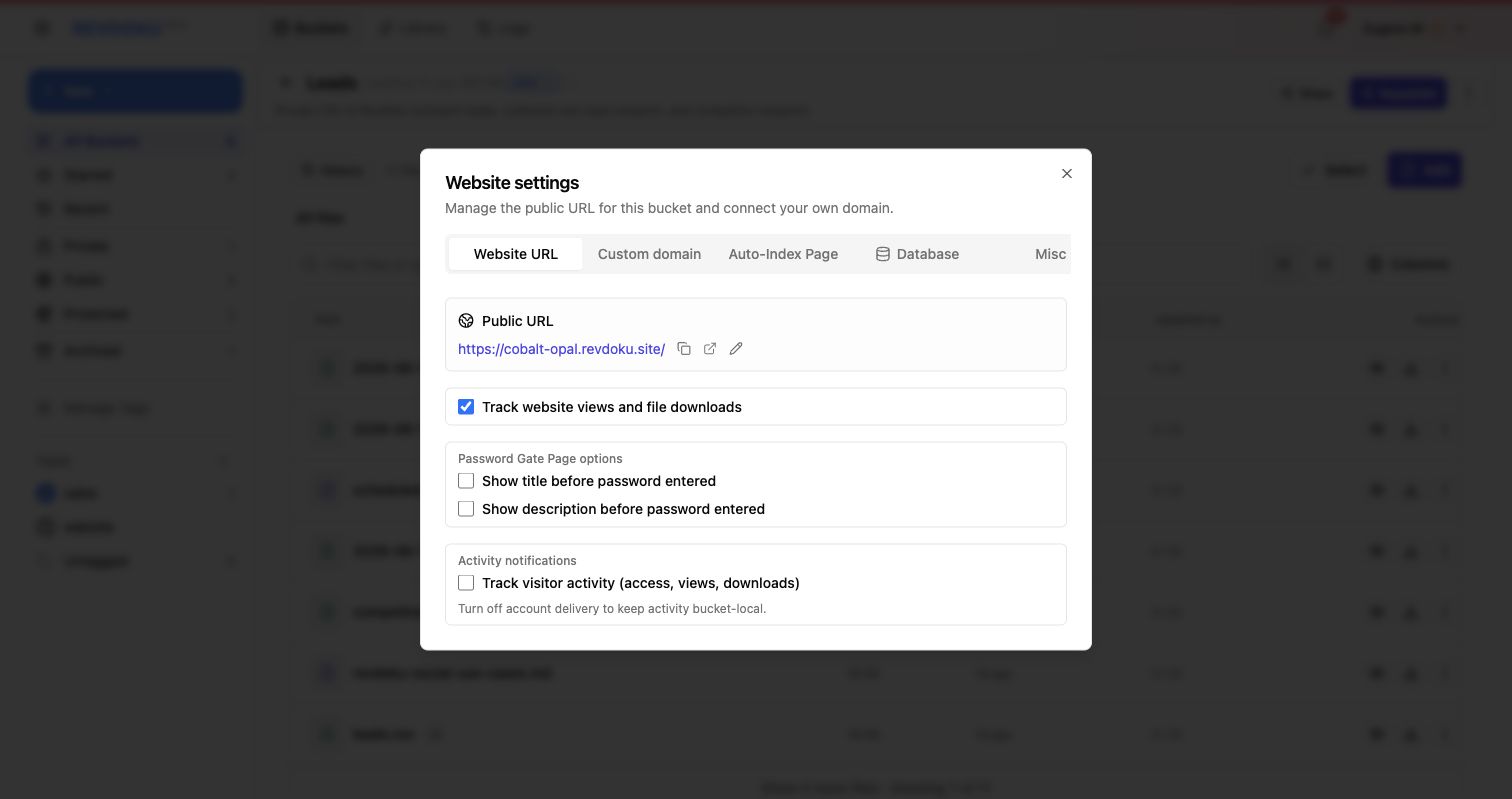
The Website URL tab is the home base for general website settings. It shows the public URL, copy/open actions, view tracking, password gate page options, and visitor activity tracking.
12. Hide title and description on the password page
For password-protected websites, the Website URL tab includes password gate page options. Turn off Show title before password entered and Show description before password entered when the visitor should not see the bucket name or summary until after they know the password.
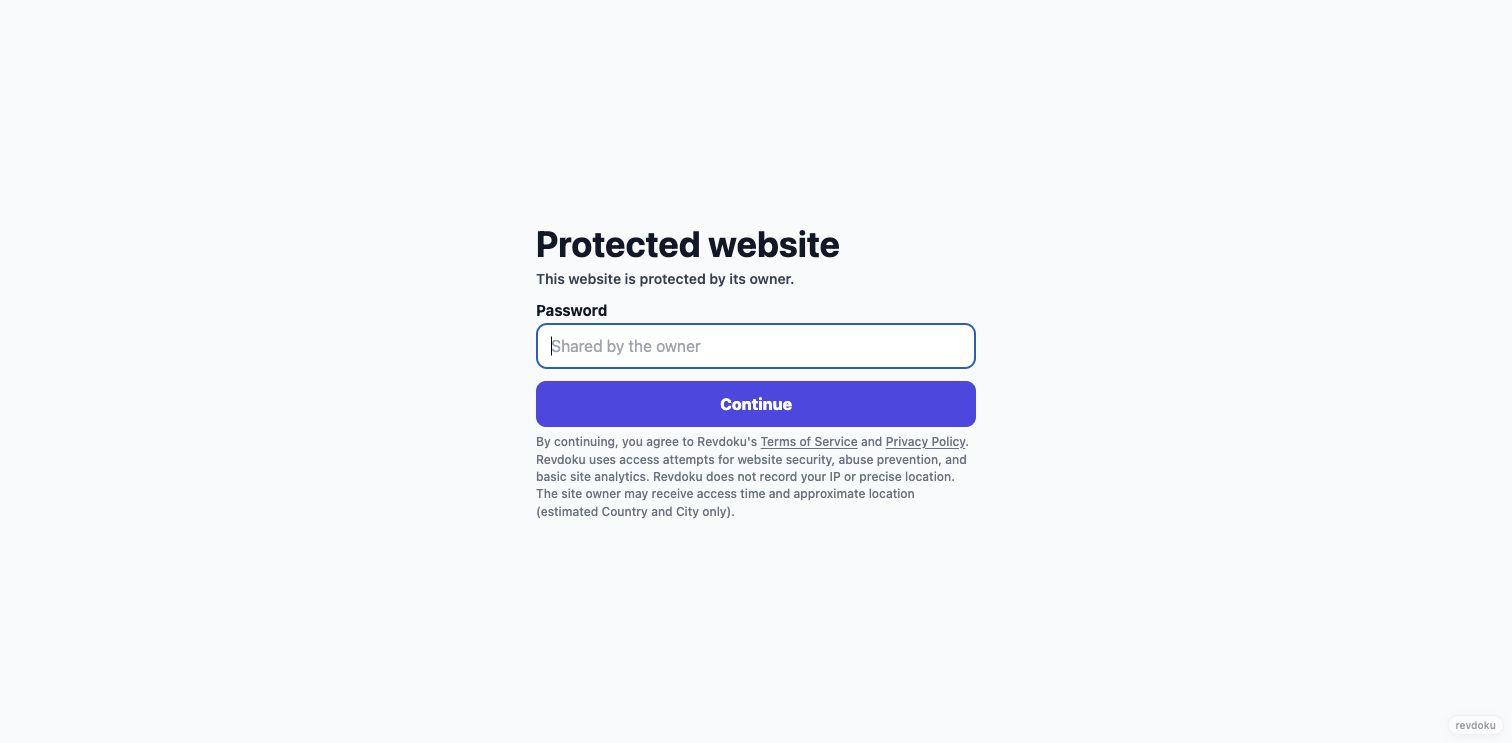
With both options off, the public gate uses generic copy instead of revealing the site title or description. Visitors see “Protected website” and “This website is protected by its owner” before entering the password.
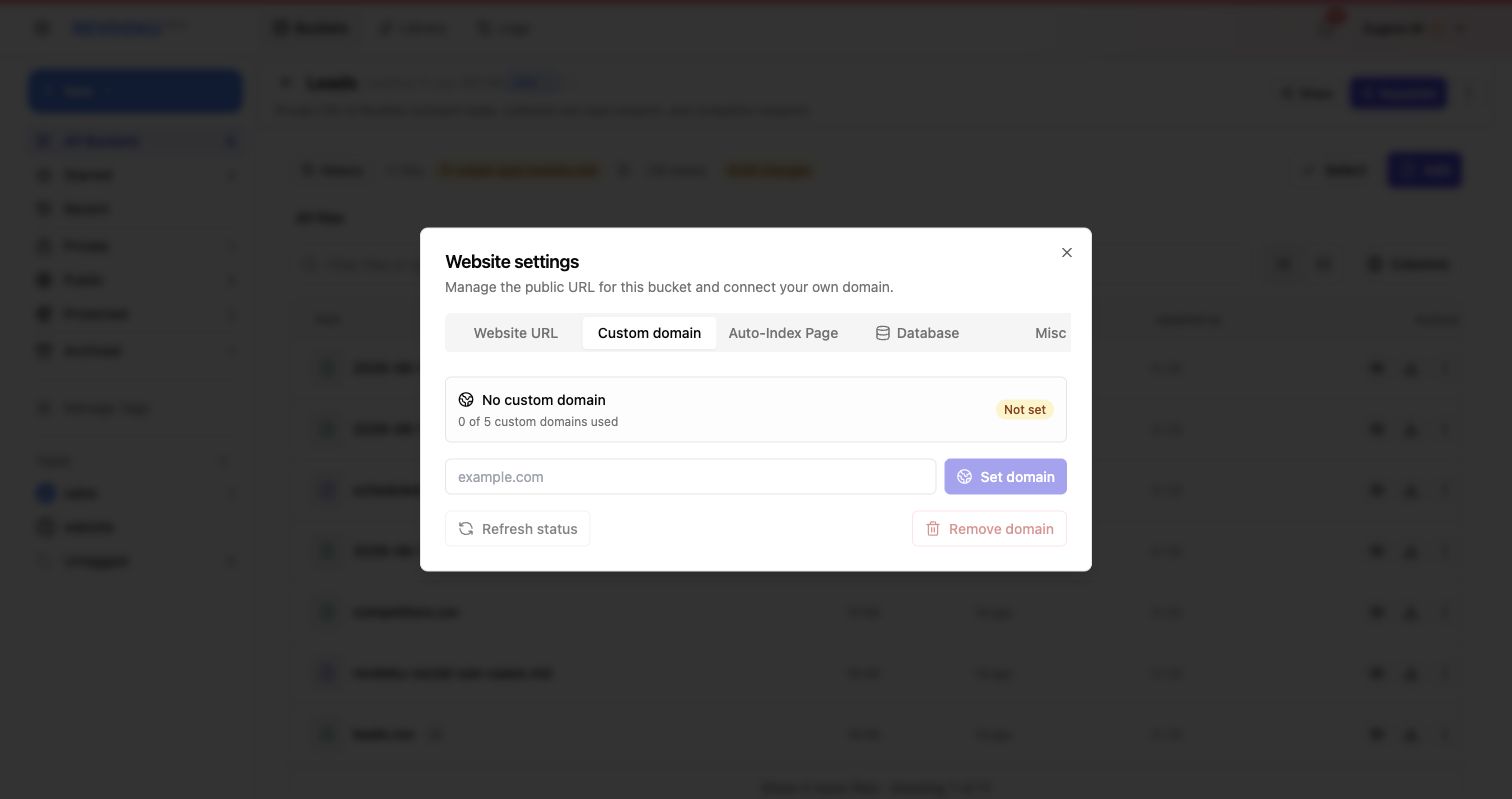
The Custom domain tab is where you connect a branded domain to the published Revdoku site.
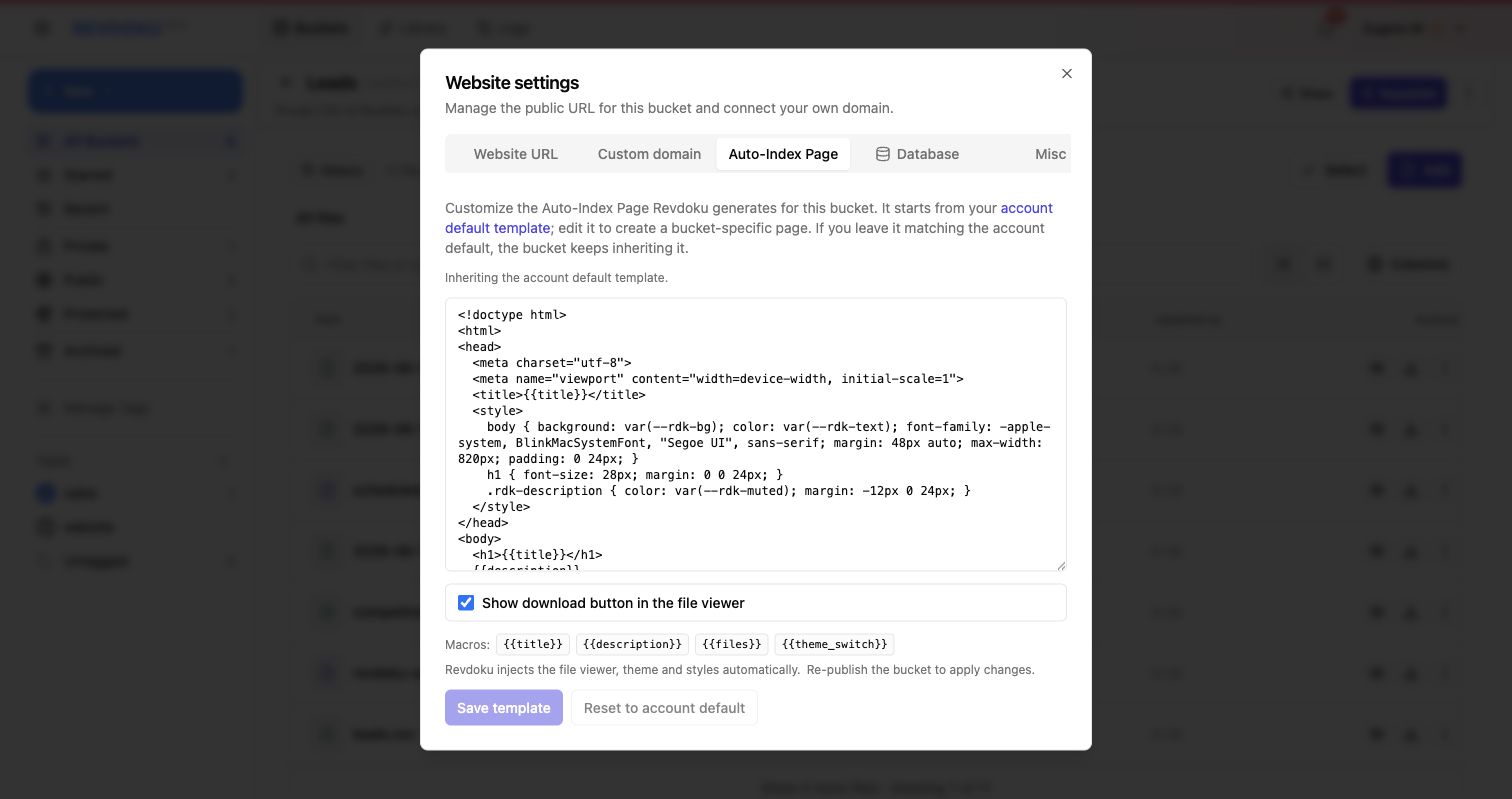
The Auto-Index Page tab lets you customize the generated file index for a bucket-specific website.
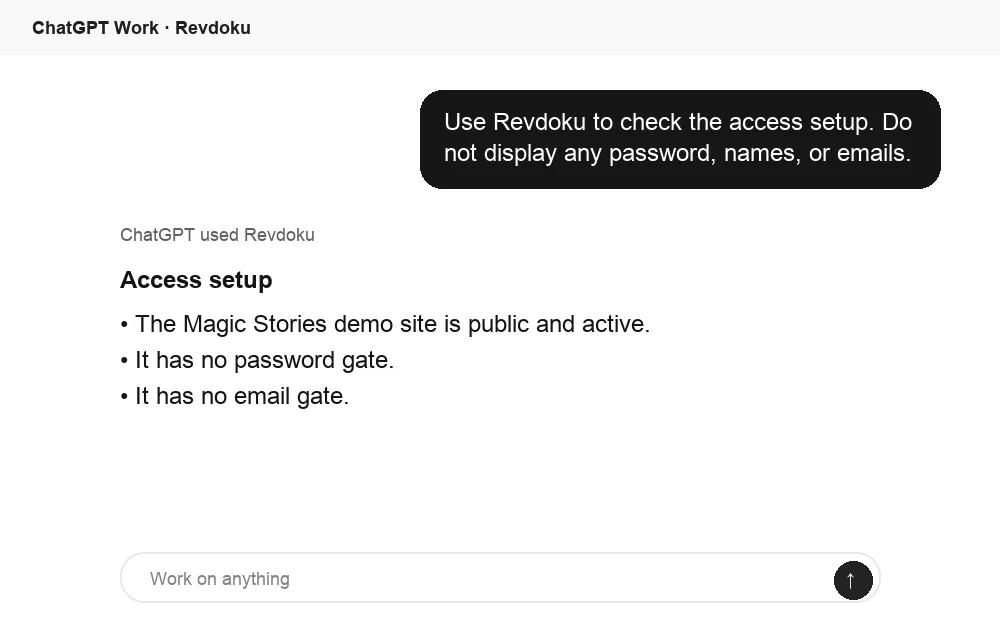
13. Ask ChatGPT to check access mode
If ChatGPT is connected to Revdoku, ask it to check whether a published site is public, password gated, or email gated before you send the link. This is useful when you manage several published buckets and want a quick safety check.
Publish a protected site of your own
Revdoku is built for workflows that start with files, not a CMS. Create or collect files in a bucket, publish them as a website, and choose the right access model, public, password, or password plus email, without moving the content anywhere else. Create a free Revdoku account to publish your first protected website.
Related Articles
Follow Up After Someone Opens a Protected Revdoku Site
Use visitor activity settings, traffic analytics, and visitor-level analytics to see who opened a protected Revdoku site and follow up.
Publish a Password-Protected Website with Revdoku
Learn how to publish a Revdoku website, add password protection, require email access, and review protected-site visitors.
How to Choose the Right Website Access Mode in Revdoku
Public, password, or password plus email: a practical guide to choosing how much friction to put in front of a Revdoku website.