How to Choose the Right Website Access Mode in Revdoku
Table of Contents
- Use public access for open sharing
- Use password access for simple private sharing
- Use password plus email for visitor-level attribution
- Compare access modes from the bucket list
- Change access mode from ChatGPT
- Ask ChatGPT to check access mode
- Understand the visitor experience
- Understand the analytics tradeoff
- Which mode should you use?
- Use public access for open sharing
- Use password access for simple private sharing
- Use password plus email for visitor-level attribution
- Compare access modes from the bucket list
- Change access mode from ChatGPT
- Ask ChatGPT to check access mode
- Understand the visitor experience
- Understand the analytics tradeoff
- Which mode should you use?
Revdoku turns a bucket of files into a live website, and you decide how much friction to put in front of it. There are three practical access modes, public, password-protected, and password plus email, and the right choice depends on how sensitive the content is and whether you need to know who opened it. This guide walks through each mode and when to use it.
Use public access for open sharing
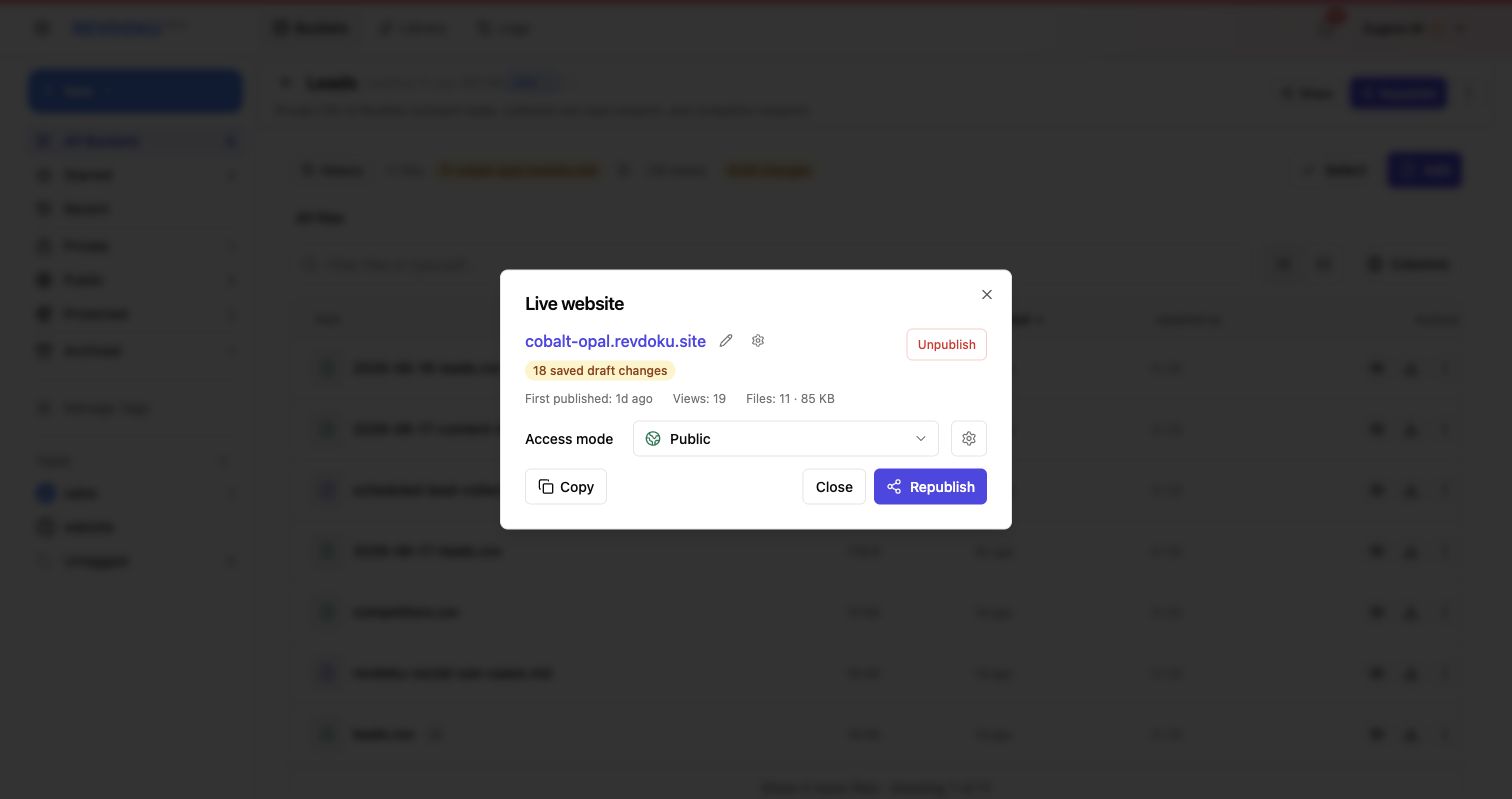
Choose Public when the content is meant to be easy to open and forward, public demos, daily updates, simple generated websites, or pages that do not reveal private client or internal data. Keep view tracking enabled when you still want traffic and download analytics.
Use password access for simple private sharing
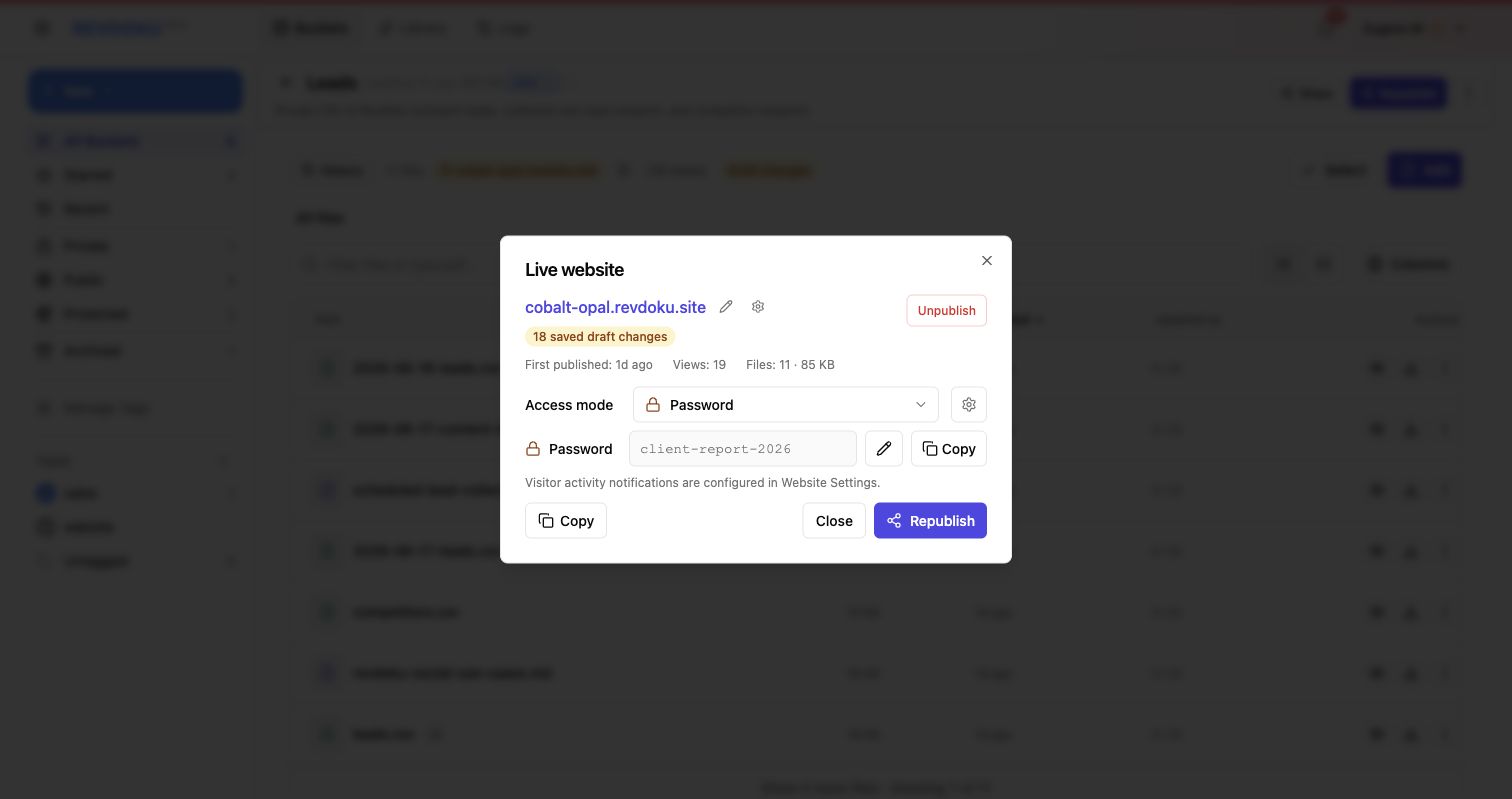
Choose Password when you want a lightweight gate but do not need every visitor to identify themselves. This is useful for client previews, internal reports, private data files, and links that may be shared with a small group. Use Website Settings to keep visitor activity tracking enabled when you want access, view, and download activity recorded.
Use password plus email for visitor-level attribution
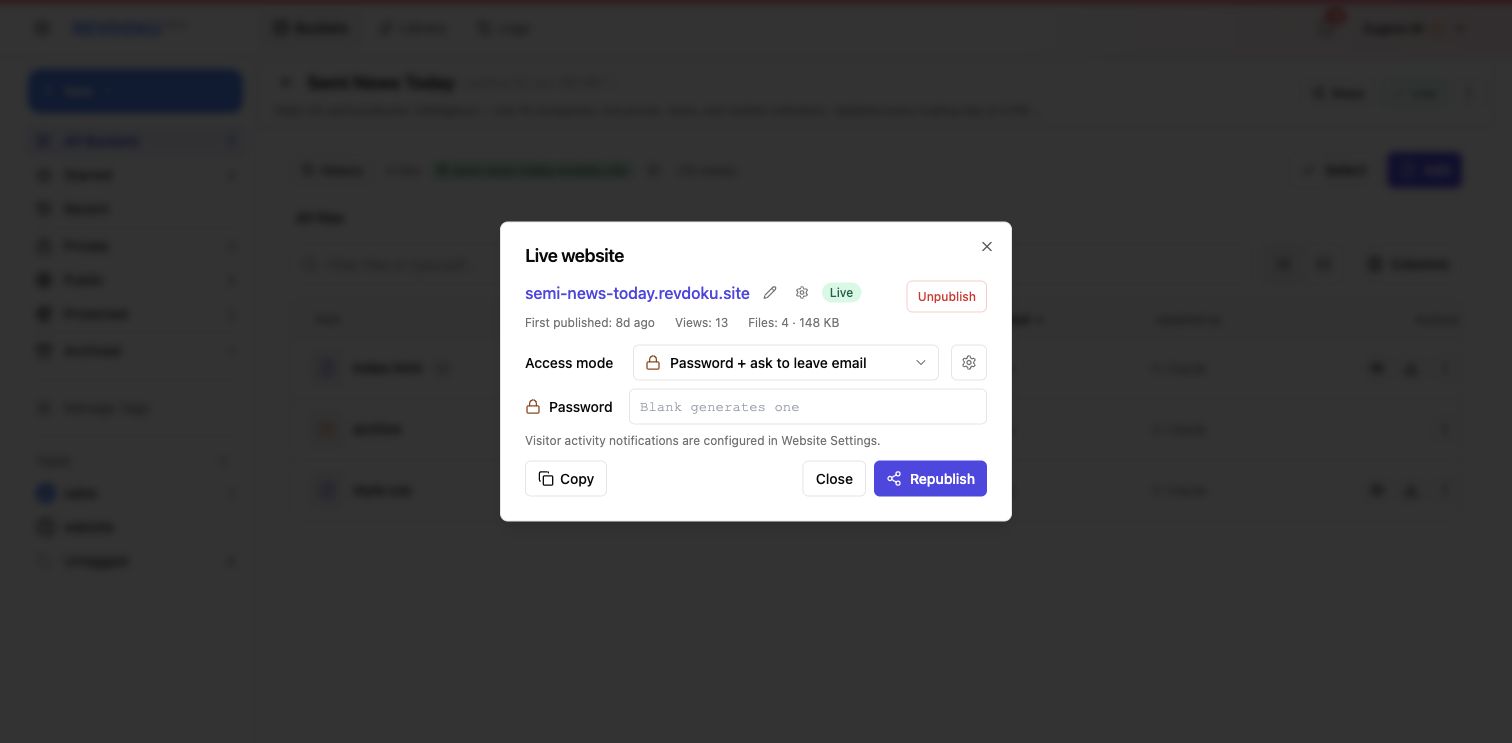
Choose Password + ask to leave email when you need to know who accessed the site. This mode is best for investor updates, client portals, gated reports, sales handoffs, and any file bundle where follow-up matters.
Compare access modes from the bucket list
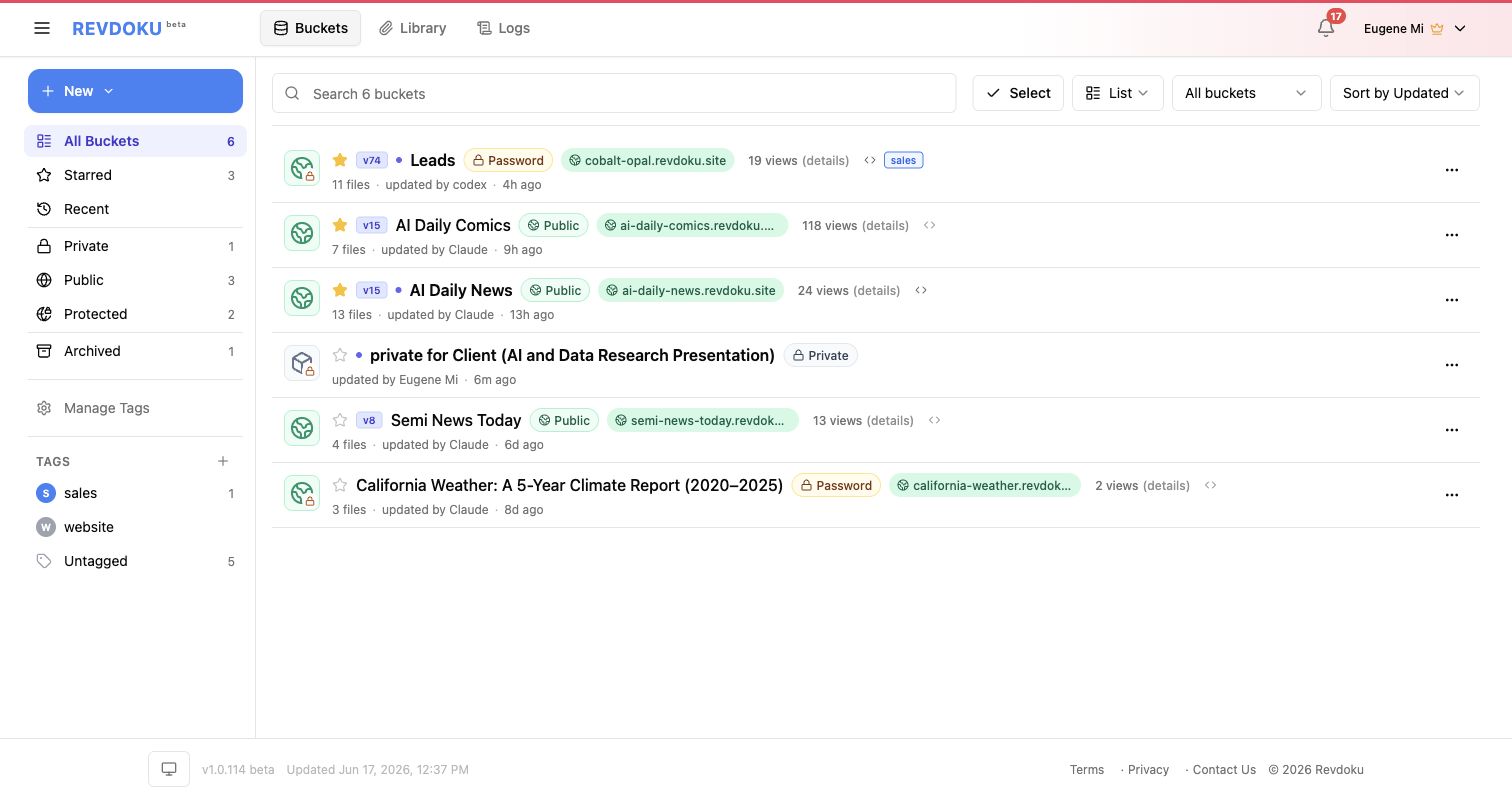
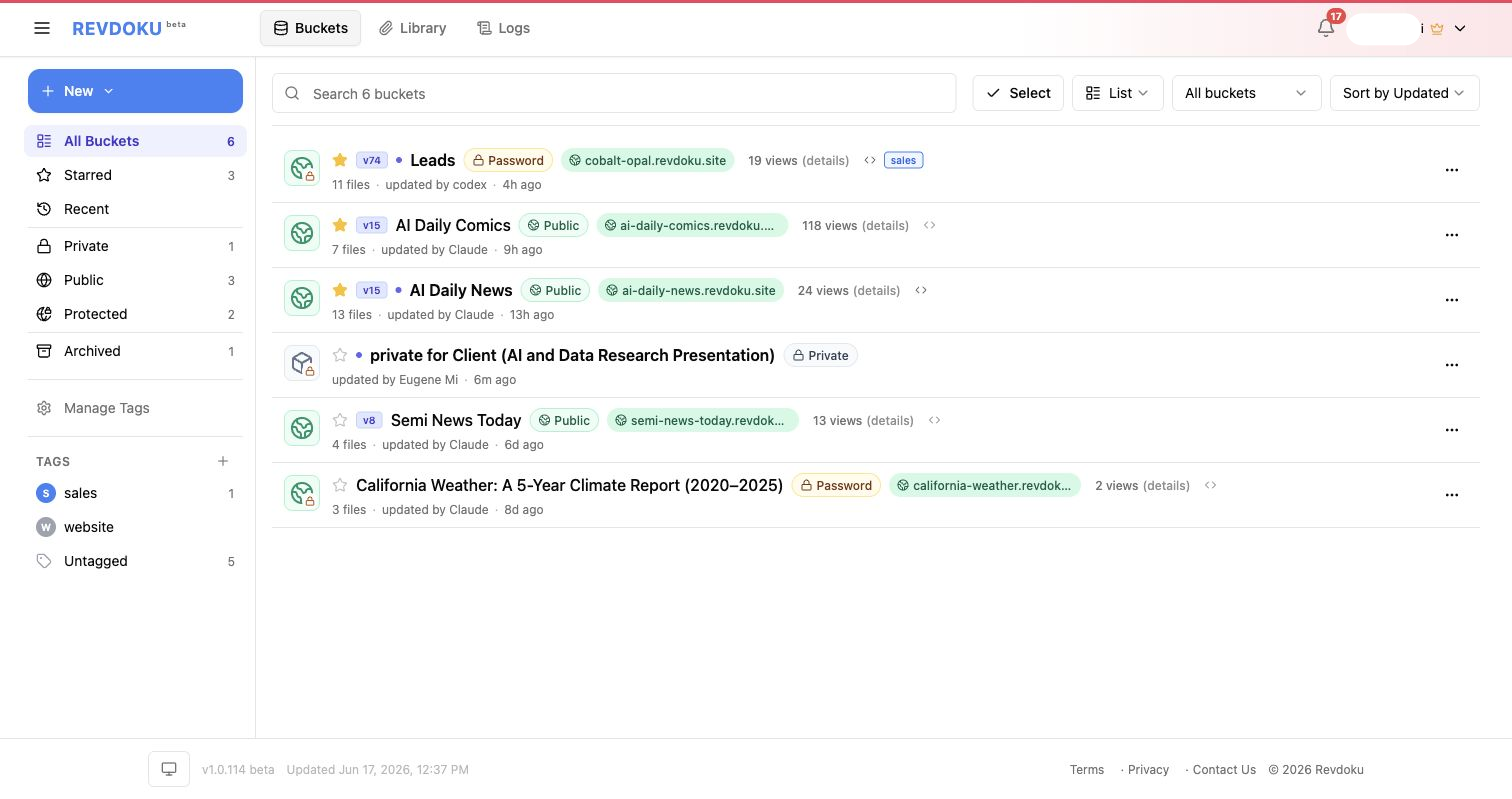
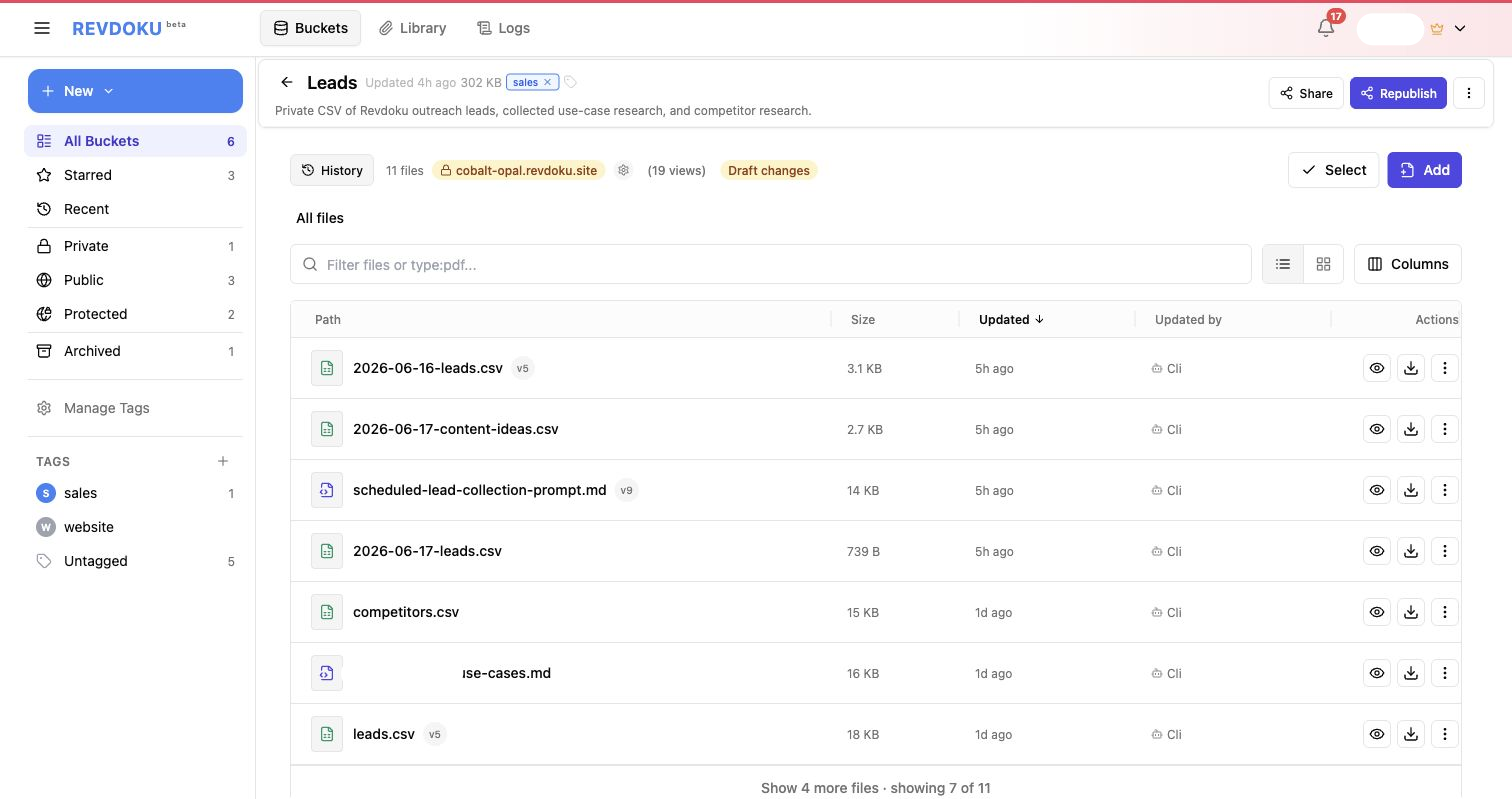
The bucket list shows whether each published site is public or protected, plus the live URL, view count, file count, and latest update time. Use it as the owner dashboard for deciding what needs review.
Change access mode from ChatGPT
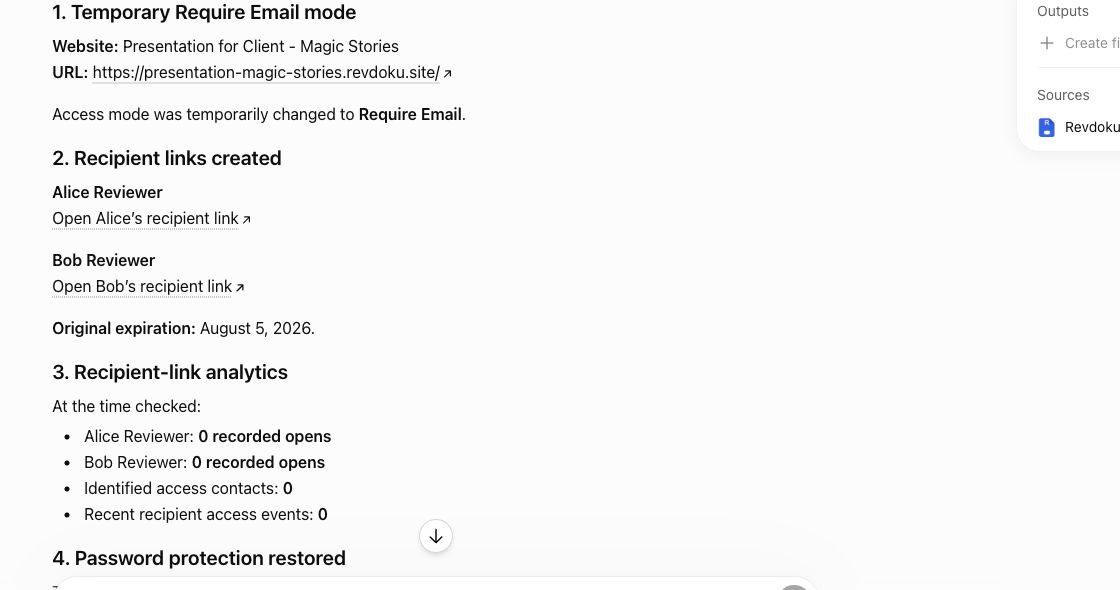
Access mode can be changed after publishing. For example, ChatGPT can switch a demo website back to password protection and confirm the published site uses the restored settings.
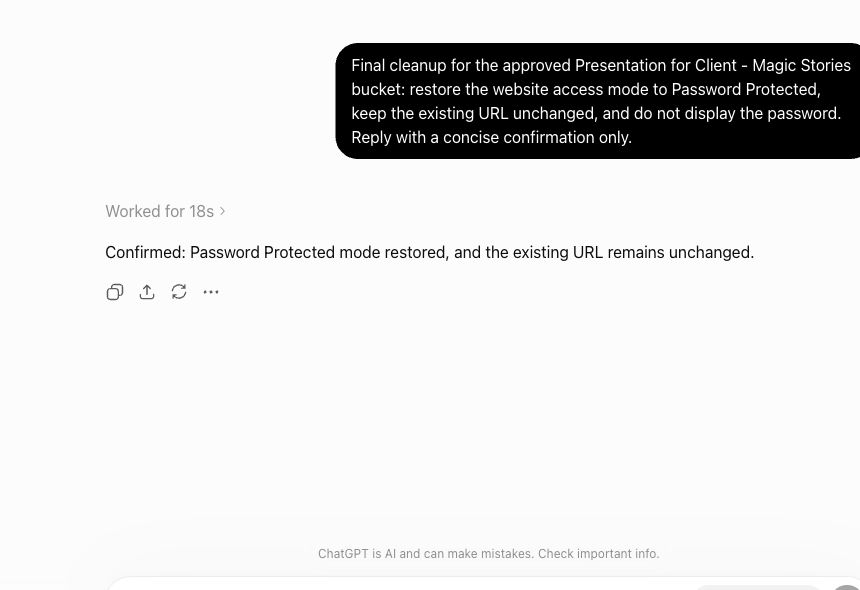
When you want tighter tracking without changing the public URL, ChatGPT can also create named recipient links for the same Revdoku website.
Ask ChatGPT to check access mode
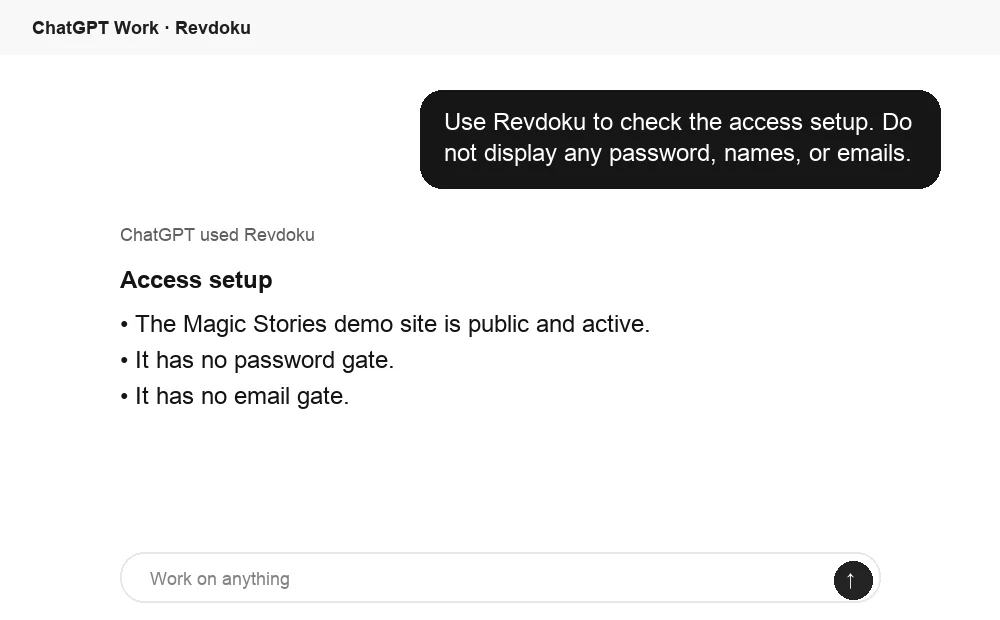
If Revdoku is connected in ChatGPT, you can ask ChatGPT to check the current access setup before you share a link. That is useful when a bucket has been republished several times or when you want a quick confirmation that a demo is public, password gated, or email gated.
Understand the visitor experience
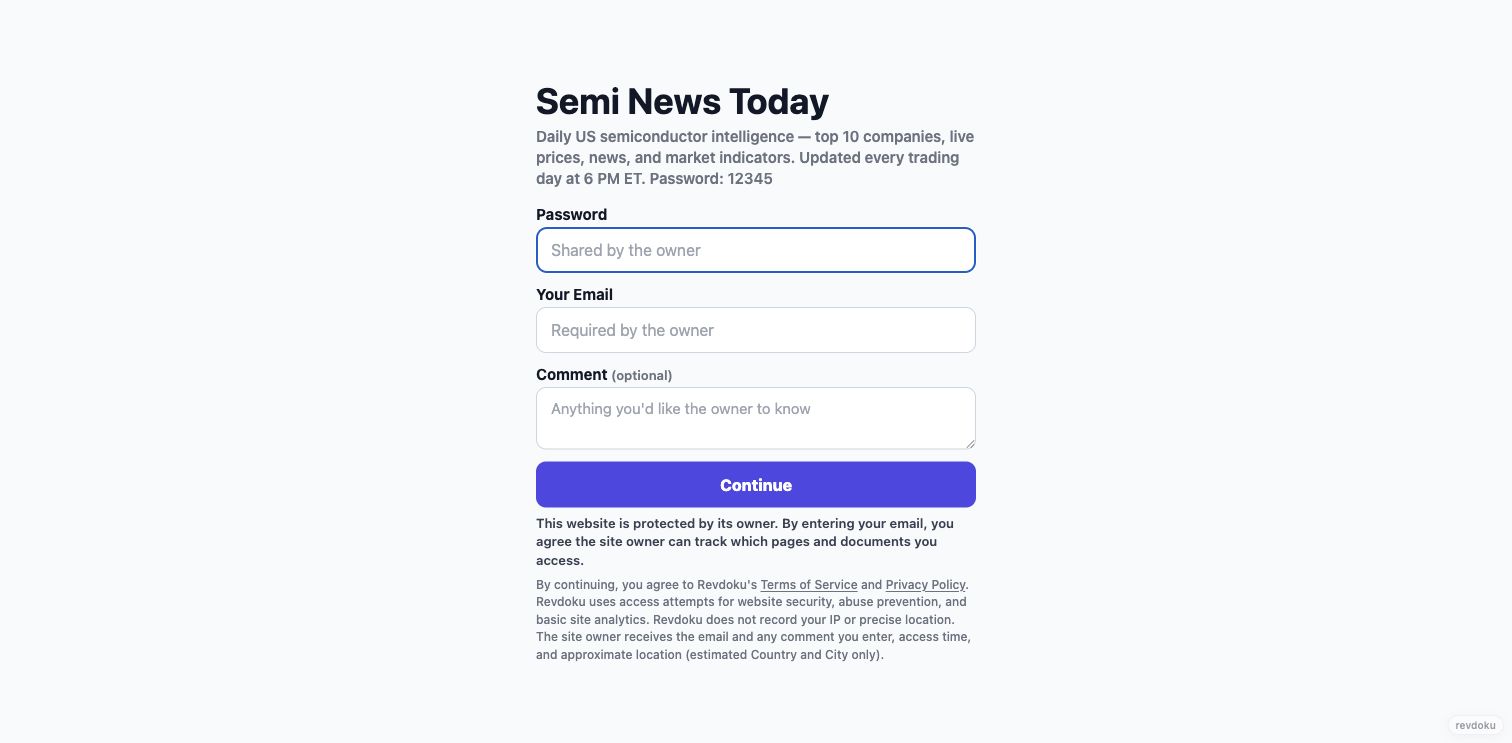
Password plus email adds identity fields to the visitor gate. The visitor enters the shared password and their email address before viewing the site, and can leave an optional comment for the owner.
Understand the analytics tradeoff
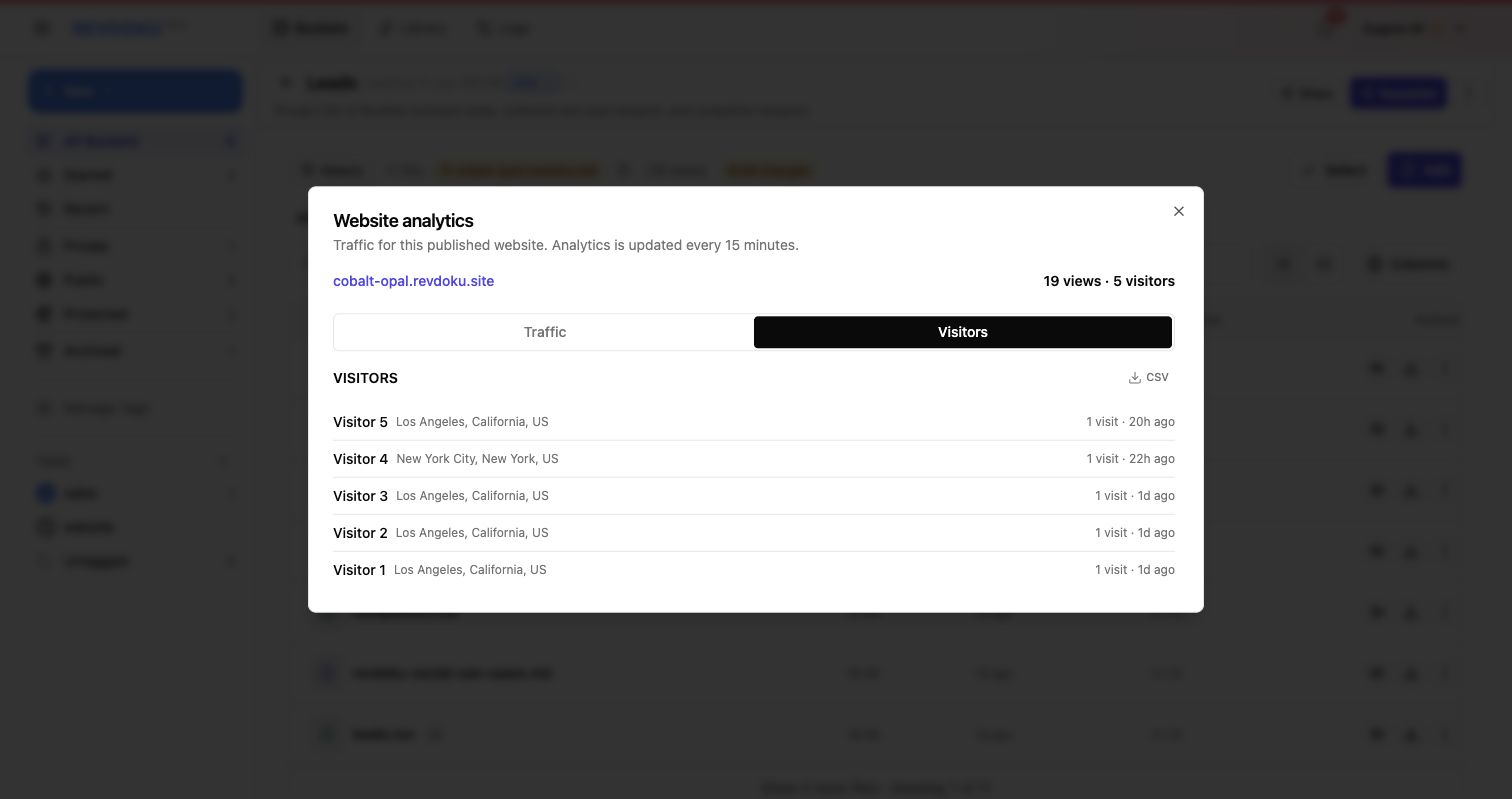
Password-only analytics show visits, approximate location, and timing, but visitors stay anonymous.
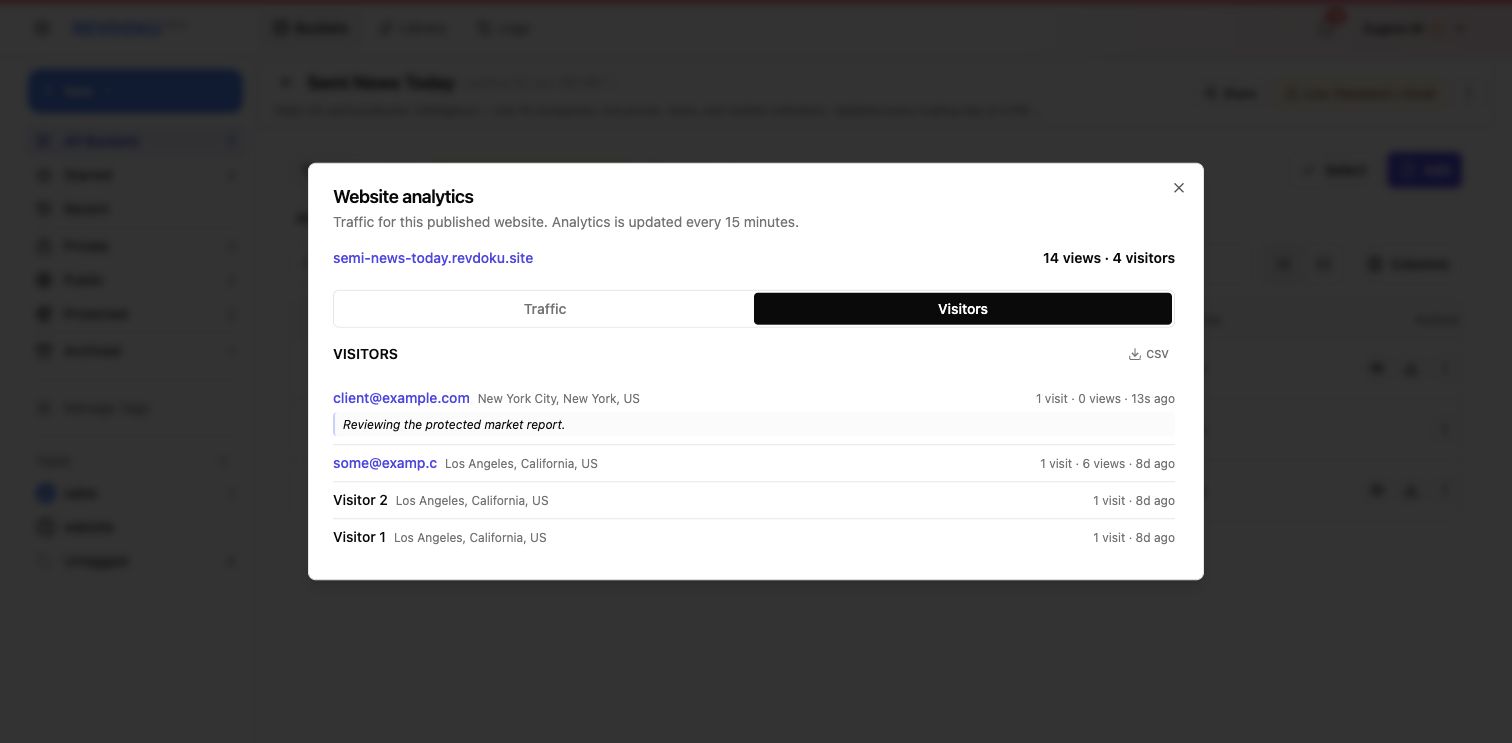
Password plus email attributes access to the submitted email address and shows the visitor’s optional comment alongside location and timing.
Which mode should you use?
A simple rule of thumb:
- Use Public when reach matters more than control.
- Use Password when the link is private but visitor identity is not essential.
- Use Password + ask to leave email when you need follow-up, accountability, or proof of access.
Think of it as a spectrum: publish instantly, protect with a password, or collect visitor identity and analytics when the content is sensitive or high-value.
Ready to publish your own protected site? Create a free Revdoku account and turn a bucket of files into a live, access-controlled website.
Related Articles
Password Plus Email Visitor Analytics in Revdoku
Use password plus email access to identify visitors and attribute website access to submitted email addresses.
Publish a Password-Protected Website with Revdoku
Learn how to publish a Revdoku website, add password protection, require email access, and review protected-site visitors.
How to Password-Protect a Revdoku Website
Turn a bucket of files into a shareable website that is open, password-protected, or gated behind a password plus visitor email.