Control Codex from iPhone or Android with ChatGPT Remote
Control Codex from iPhone or Android with ChatGPT Remote
Yes. Codex remote control from phone is available through Remote in the ChatGPT mobile app. Your Mac, Windows PC, or SSH environment still runs the task; your phone sends prompts, approvals, and follow-ups.
This is useful when a test run, install, or build will outlast your time at the desk. You can leave without moving the project to a cloud environment or losing the host’s local setup.
The key requirement is the latest ChatGPT desktop app. Mobile setup starts there, not in Codex CLI or the IDE extension.
Before you start
You need:
- Codex access in your ChatGPT account and workspace,
- the latest ChatGPT desktop and mobile apps,
- the same account and workspace on both devices,
- a host computer that stays awake, online, and signed in.
A workspace admin may need to enable Remote Control. Availability can also vary by rollout.
1. Start Remote setup on your computer
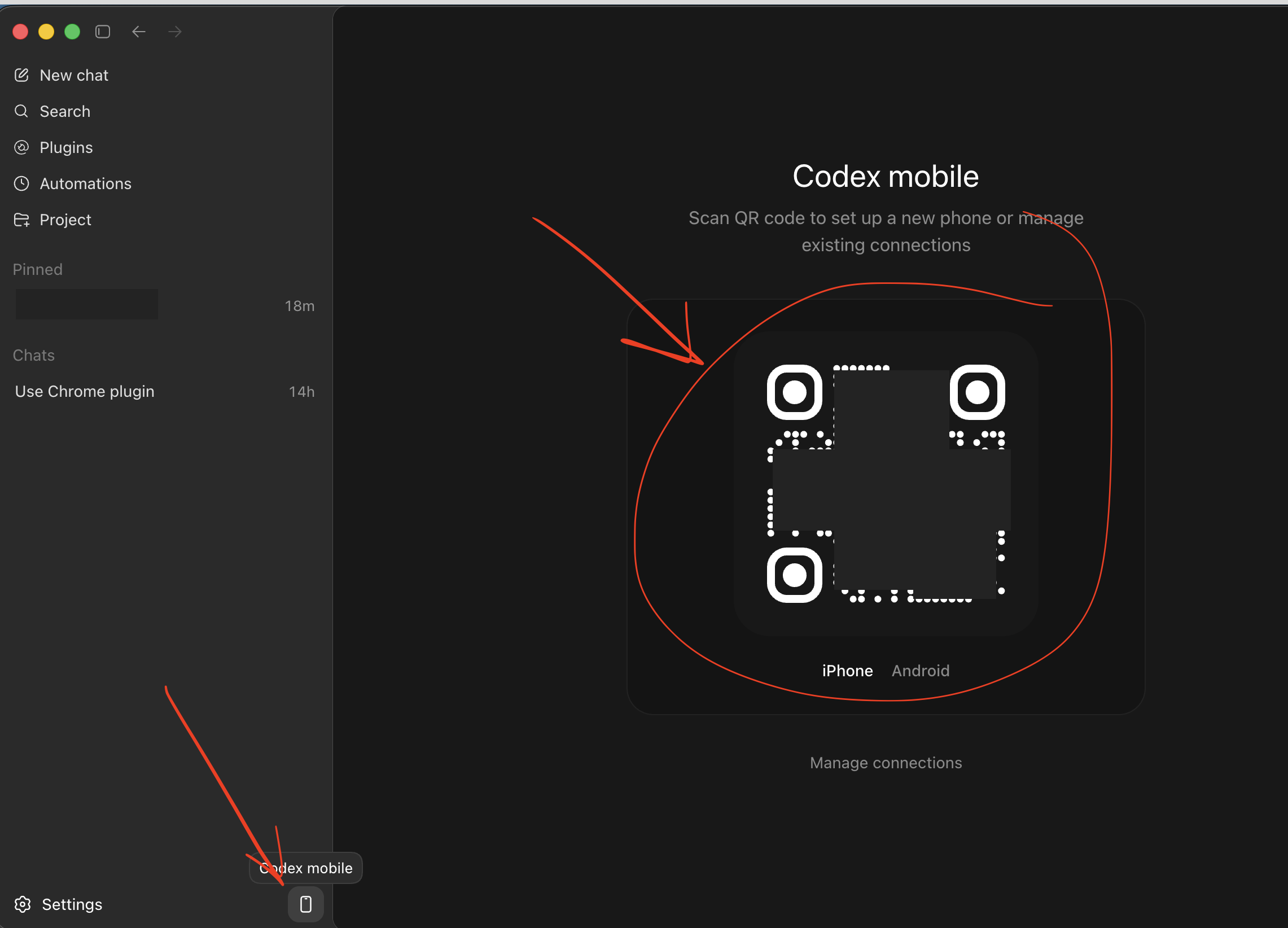
Open the ChatGPT desktop app on the Mac or Windows computer that has your project. In the sidebar, select Set up Remote.
The app enables remote access and displays a QR code.
2. Pair your phone
Scan the QR code with your iPhone or Android phone. ChatGPT opens the Remote setup flow.
Confirm the account and workspace, then complete any required MFA, SSO, or passkey steps. When pairing finishes, the computer appears under Remote in the mobile app.
Each phone or supported desktop device must be paired with each host it will control.
3. Keep the host available
In the desktop app, open Settings > Connections. Confirm that connections are allowed and enable Keep this Mac awake or the Windows equivalent when available.
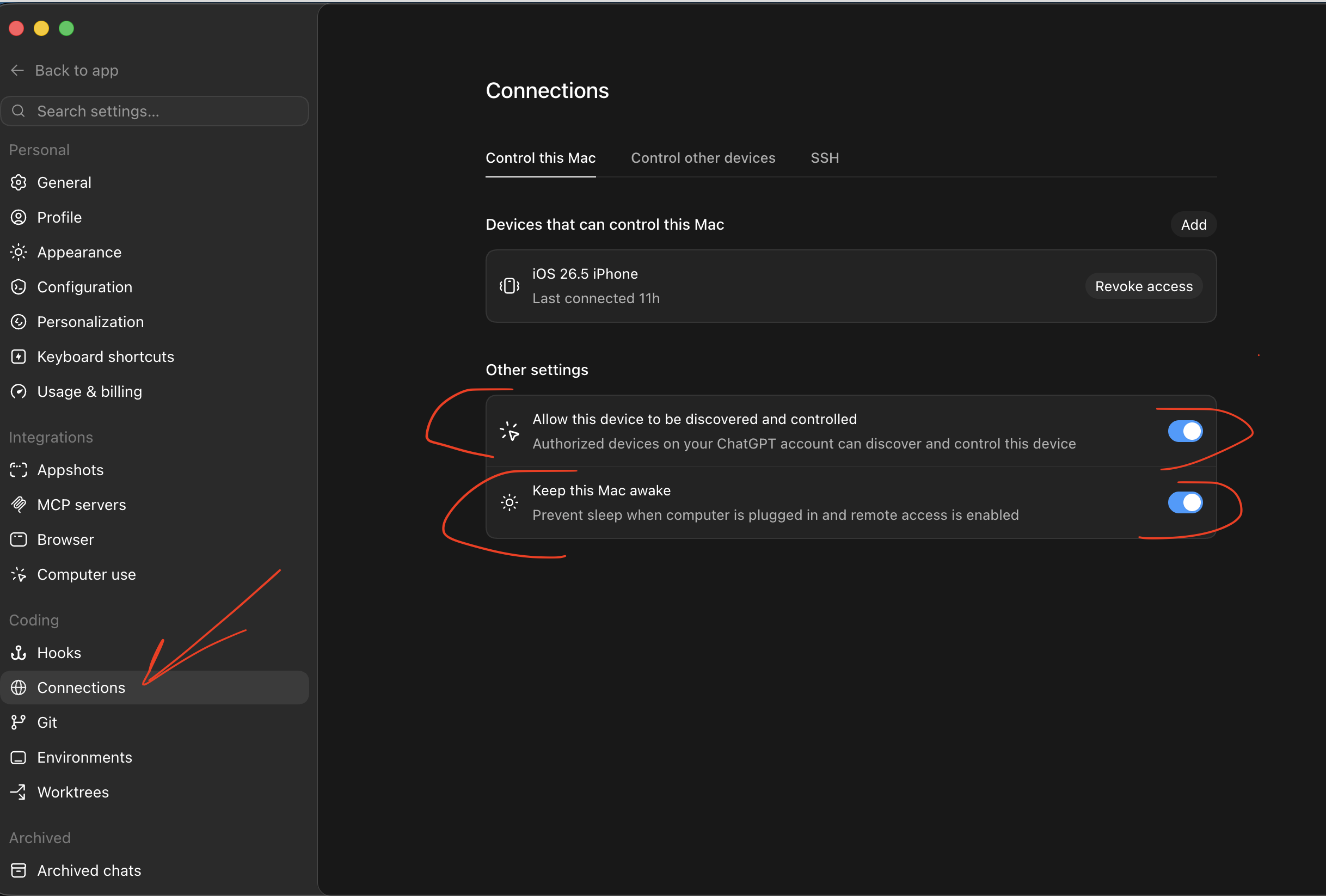
Remote access stops while the host is asleep, offline, or the app is closed. Keep a laptop plugged in. Computer Use on Windows also needs an unlocked session.
For occasional use, connect the computer where you already work. For long-running jobs, an always-on Mac, Windows PC, or SSH host is more reliable. Install only the projects, credentials, MCP servers, skills, and tools that Codex needs there.
4. Control Codex from your phone
Open ChatGPT on iPhone or Android and select Remote. Choose the host, project, or active task.
From your phone you can:
- start or continue a Codex task,
- answer questions and approve actions,
- review terminal output, diffs, tests, and screenshots,
- send follow-up instructions,
- switch between connected hosts.
Files, credentials, plugins, MCP servers, browser access, sandboxing, and approvals still come from the host. The phone is a control surface, not the execution environment.
Codex CLI remote control and SSH
Codex CLI remote control does not start from the CLI alone. Keep the CLI for terminal work, but use the ChatGPT desktop app to pair your phone.
For a Codex app SSH remote workflow:
- Add the host to
~/.ssh/configand confirmssh your-hostworks. - Install and authenticate Codex on the SSH host.
- In the desktop app, open Settings > Connections > SSH.
- Add the host and select a remote project folder.
The phone connects to the desktop app, which runs Codex against the SSH host’s filesystem and shell. Codex must be on the remote login shell’s PATH.
Does Codex have remote control like Claude Code?
Yes, but setup differs. Claude Code can start Remote Control directly from its CLI with claude remote-control or /remote-control. Codex starts mobile pairing from the ChatGPT desktop app. Both keep execution on the connected machine.
See Claude Code Remote Control for the Claude workflow.
Security basics
Treat Remote like access to your development machine:
- pair only devices you control,
- use least-privilege accounts and trusted SSH keys,
- keep normal sandboxing and approvals enabled,
- do not expose unauthenticated remote listeners,
- review diffs and tests before merging or deploying.
OpenAI’s relay connects authorized ChatGPT devices without requiring you to publish the host directly to the internet. Your host’s existing security controls still apply.
Publish from Remote with Revdoku
If Codex builds a static site while you are away, use Remote to review the output and approve publishing. Upload the finished folder to an existing Revdoku bucket, publish index.html, and return the live link. Keep deployment credentials on the host rather than sending them through the phone.
See Publish websites from Codex with Revdoku for that workflow.
Quick troubleshooting
- Remote is missing: update both ChatGPT apps and check workspace access.
- The host is missing: confirm both devices use the same account and workspace, then pair again.
- Work stopped: wake the host, reconnect it, and reopen the desktop app.
- An SSH project is missing: test the SSH alias locally and confirm
codexis on the remote login shell’sPATH.
For current settings and availability, use OpenAI’s Remote connections guide.
Frequently asked questions
Does Codex have remote control like Claude Code?
Yes. Open Remote in the ChatGPT mobile app to control Codex tasks running on a connected computer. Unlike Claude Code, which can start Remote Control from its CLI, Codex mobile pairing starts in the ChatGPT desktop app.
Can I start Codex CLI remote control from the terminal?
No. Codex CLI can stay installed for terminal work, but current mobile setup starts in the ChatGPT desktop app. The CLI or IDE extension alone cannot pair the phone.
Can Remote control Codex on an SSH host?
Yes. Add the host to your SSH config, verify the connection, install and authenticate Codex on the remote host, then add it under Settings > Connections > SSH in the desktop app.
Where does Codex run during a remote session?
The connected computer or SSH environment runs the task. Your phone sends prompts and approvals, while the host supplies files, credentials, tools, MCP servers, browser access, sandboxing, and security controls.