Claude Code Remote Control from iPhone & Android
Table of Contents
- What Claude Code Remote Control does
- 1. Start Claude Code on the laptop
- 2. Enable Claude Code /remote-control from the terminal
- 3. Open Code in the Claude Code mobile app on iOS or Android
- 4. Control connected laptop sessions from mobile
- Keep the laptop awake with Amphetamine on Mac and PowerToys Awake on Windows
- What stays on the host machine
- When to use this
- Security checklist
- Codex has a similar phone workflow
- Using this with Revdoku
- Troubleshooting
- Related
- What Claude Code Remote Control does
- 1. Start Claude Code on the laptop
- 2. Enable Claude Code /remote-control from the terminal
- 3. Open Code in the Claude Code mobile app on iOS or Android
- 4. Control connected laptop sessions from mobile
- Keep the laptop awake with Amphetamine on Mac and PowerToys Awake on Windows
- What stays on the host machine
- When to use this
- Security checklist
- Codex has a similar phone workflow
- Using this with Revdoku
- Troubleshooting
- Related
Control Claude Code from iPhone or Android with Remote Control
Claude Code Remote Control lets you reach a local Claude Code session from your phone. The work still runs on your laptop or workstation, but you can continue the session from the Claude mobile app on iPhone or Android, or from claude.ai/code in a browser.
Anthropic’s official guide: Claude Code Remote Control. The model is local-host control: your phone is not running the repository. Your laptop still owns the files, shell, local MCP servers, environment variables, credentials, package managers, and Claude Code permissions.
Use this when Claude Code is already working on a real local project and you want to control it from iPhone or Android, leaving the desk without losing the session.
What Claude Code Remote Control does
Remote Control connects another device to a Claude Code session running on your machine. From mobile, you can:
- see connected Claude Code sessions,
- answer prompts that need input,
- steer the next step,
- review progress while tests or builds run,
- keep a long coding task moving while the laptop stays online.
It does not move the development environment to the phone. The laptop remains the execution environment.
1. Start Claude Code on the laptop
Open Claude Code in the project folder you want to control remotely, the same local repository, SSH workspace, or development folder where the task is already running.
For example:
cd ~/projects/websites
claude
Once Claude Code is open, start or continue the task normally. Remote Control works best when the local session already has the project context and can run commands on the host machine.
2. Enable Claude Code /remote-control from the terminal
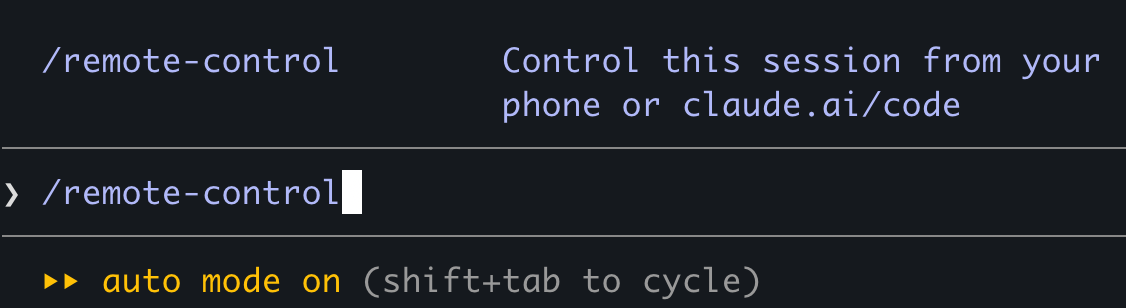
Inside the active Claude Code session, run:
/remote-controlClaude shows the command as a way to control the current session from your phone or claude.ai/code.
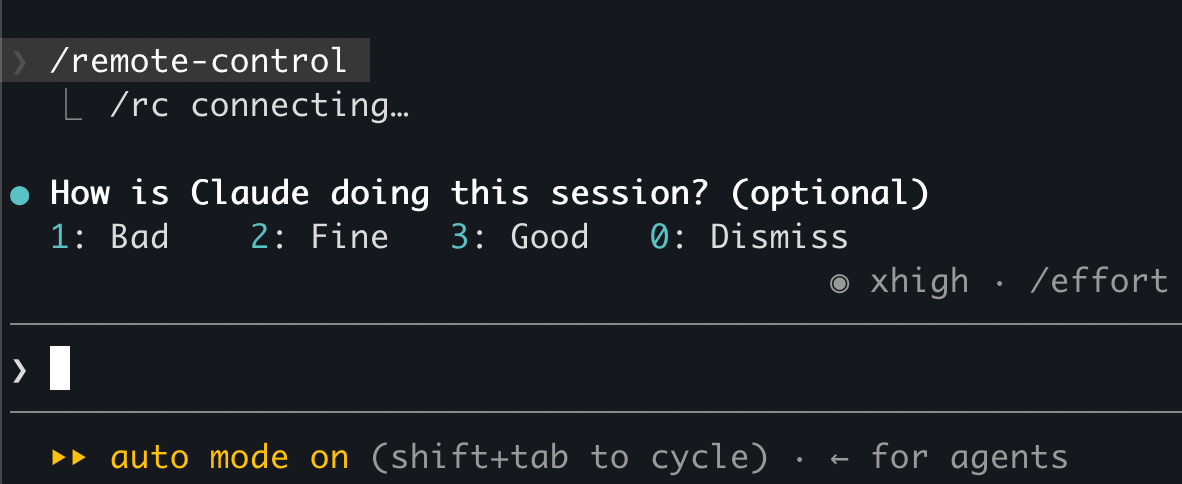
After you submit the command, Claude connects the session. Depending on its state, you may briefly see a connecting message or a normal Claude Code prompt while Remote Control starts.
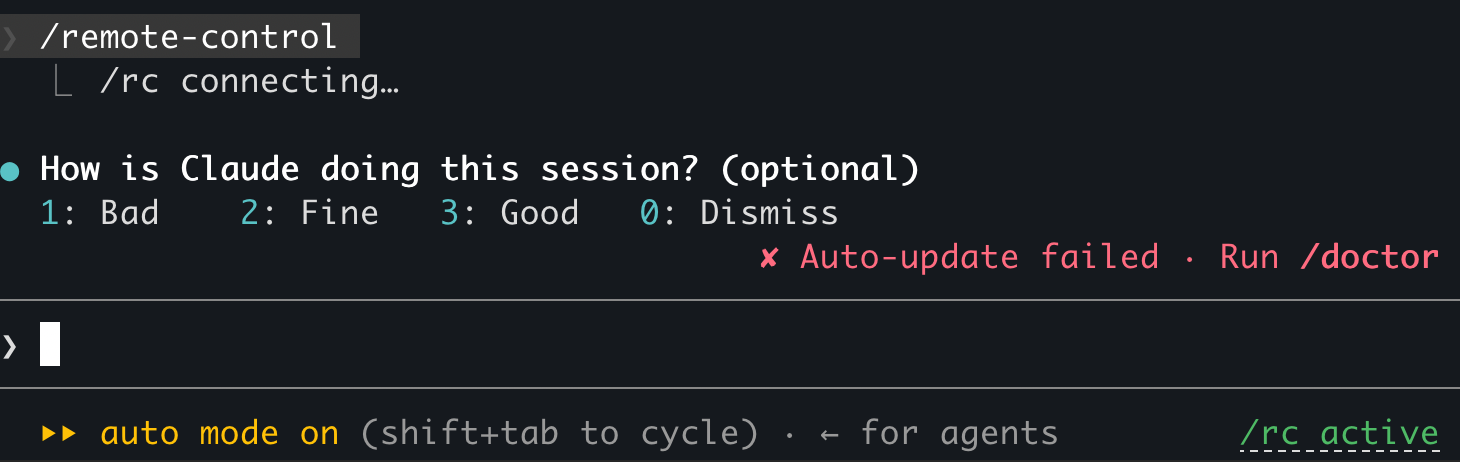
When Remote Control is active, Claude Code shows /rc active in the terminal status area.
You can also start it directly from the terminal with a named session:
claude remote-control --name "My Project"Use a clear name if you run Claude Code on more than one laptop or in multiple project folders. It makes the mobile session list easier to scan.
3. Open Code in the Claude Code mobile app on iOS or Android
Install the Claude mobile app on iPhone or Android and sign in with the same Claude account and organization you use for Claude Code.
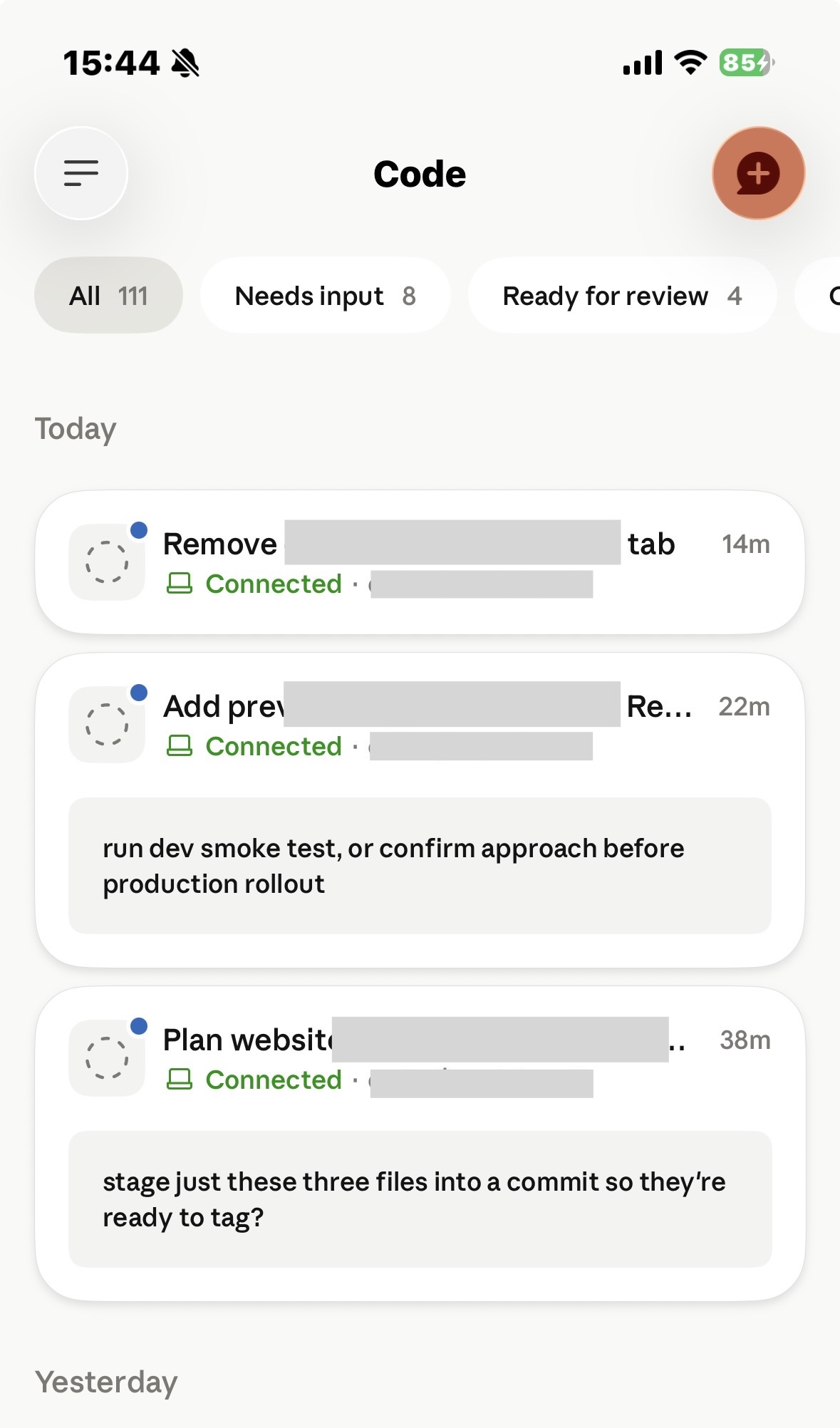
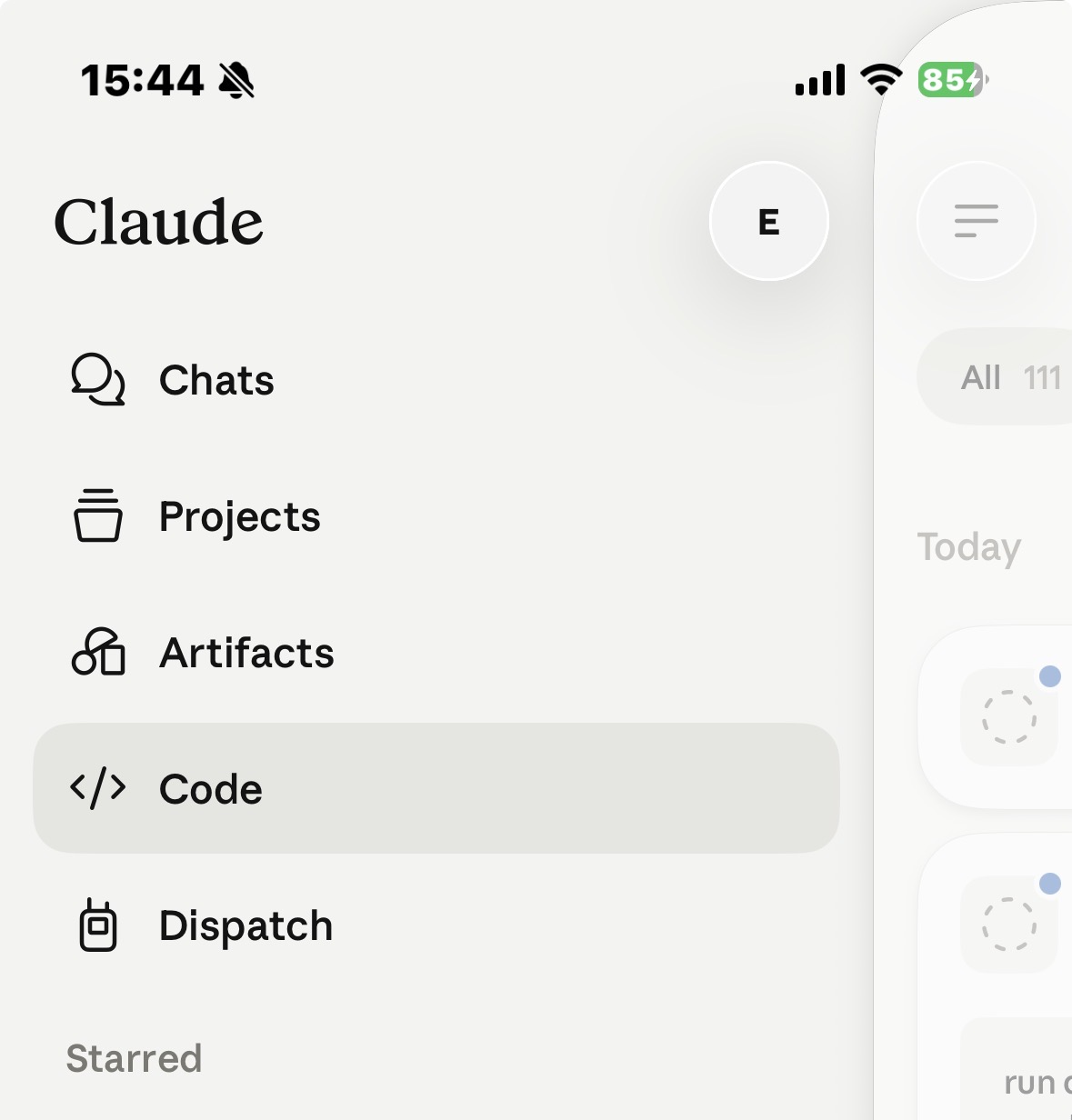
Open the Claude app, open the navigation menu, then tap Code, where Claude mobile lists remote Claude Code sessions.
4. Control connected laptop sessions from mobile
Inside Code, Claude mobile shows connected sessions from the laptop. The list can include sessions that need input, sessions ready for review, and active connected sessions.
Tap a session to continue it. From the phone, you can answer Claude’s questions, approve or reject the next step, review changes, and keep the task moving. The laptop still runs the commands and owns the repo.
Keep the laptop awake with Amphetamine on Mac and PowerToys Awake on Windows
Claude Code Remote Control has no built-in settings for keeping the laptop awake. If the laptop sleeps, loses network, closes Claude Code, or disconnects from the internet, the mobile session can stop.
On macOS, use Amphetamine to keep the Mac awake during long Claude Code or Codex runs, it is the standard Mac keep-awake utility. If you also want the machine to keep working while a MacBook is closed or connected through an iPhone hotspot, see this Revdoku tutorial: Run Claude or Codex on a Closed MacBook while you do other things.
On Windows, a practical equivalent is Microsoft PowerToys Awake. Awake keeps a Windows computer awake without changing normal power and sleep settings. Use it for long-running work while signed in. If you need the PC to stay awake after locking the screen, configure Windows power plan and sleep settings directly, because user-mode keep-awake tools may not work from the lock screen.
For any unattended setup, keep security in mind. A laptop that stays awake with an active coding agent should be in a trusted location, on a trusted network, with appropriate Claude Code permissions.
What stays on the host machine
Remote Control does not turn your phone into a development machine. The host laptop or workstation still provides:
- repository files,
- shell commands,
- local MCP servers,
- installed CLIs and package managers,
- environment variables and credentials available to Claude Code,
- project-specific config,
- Claude Code permissions and safety controls.
This is why Remote Control is useful for real local work. You can leave the desk without losing the running session, but the code and tools stay on the computer where they were already configured.
When to use this
Remote Control is a good fit when you have already started a local coding task and need to continue from another device:
- Claude is running tests and may need approval for the next command.
- You are walking away from the laptop but want to watch progress.
- The repo depends on local services or MCP servers that are already configured.
- You want to steer an in-progress task without exposing the project to a separate cloud environment.
- A session is ready for review and you only need to answer or approve from mobile.
For brand-new work that does not need your local environment, a cloud or web session may be enough. For in-progress local work, Remote Control keeps the existing context.
Security checklist
Treat Remote Control like remote access to your development machine.
Before using it:
- sign in with the correct Claude account and organization,
- keep Claude Code and the Claude mobile app updated,
- keep the host machine awake and online,
- avoid exposing sensitive credentials to broad agent permissions,
- keep one eye on diffs before accepting changes,
- run tests before merging or deploying,
- disconnect Remote Control when you are done.
If you use a team or enterprise setup, check whether Remote Control is enabled by policy. Anthropic notes it may be controlled by admin settings for some organizations.
Codex has a similar phone workflow
Codex has a similar mobile workflow through the ChatGPT mobile app, but the setup differs. For Codex, install Codex Desktop first, even if you already use Codex CLI. The Codex app is the host that pairs the machine with mobile.
See the companion Codex guide: Control Codex from iPhone or Android with Codex Desktop.
Using this with Revdoku
If Claude Code is building a static website, report, dashboard, or documentation site, pair Remote Control with Revdoku. Start the build locally, supervise from your phone, then ask Claude to upload the finished files to a Revdoku bucket and publish index.html.
A useful prompt is:
Build the static site locally, upload the finished files to a Revdoku bucket, publish index.html, and return the live URL.That gives you a public result without reopening the laptop just to share the output.
Troubleshooting
If the session does not appear on mobile, confirm Claude Code is still running, Remote Control shows /rc active, and the mobile app is signed into the same Claude account and organization.
If the session disconnects after a few minutes, check sleep settings first. Claude Code does not keep the laptop awake by itself, so use Amphetamine on macOS, PowerToys Awake or Windows power settings on Windows, and keep it online.
If you see old sessions or too many cards, use clear remote-control names and close sessions you no longer need.
Related
- Control Codex from iPhone or Android with Codex Desktop
- Run Claude or Codex on a Closed MacBook while you do other things
- Anthropic Claude Code Remote Control docs
- Microsoft PowerToys Awake
- Publish websites from Claude Desktop and terminal Claude
Frequently asked questions
Does Remote Control run my code on the phone?
No. The phone only controls a Claude Code session that is already running on your laptop or workstation. The host machine still owns the repository files, shell, local MCP servers, environment variables, credentials, and Claude Code permissions. Your phone is a remote control, not a development environment.
How do I turn on Remote Control for an active session?
Inside the running Claude Code session, type /remote-control and submit it. Claude connects the session and shows /rc active in the terminal status area once it is live. You can also start it directly from the terminal with claude remote-control --name "My Project".
Why does my mobile session stop after a few minutes?
Remote Control has no built-in keep-awake feature, so the session drops if the laptop sleeps, loses network, or closes Claude Code. On macOS, use Amphetamine to keep the Mac awake during long runs; on Windows, use PowerToys Awake or adjust the power plan directly. Always confirm the machine stays online for the duration of the task.
Do my laptop and phone need the same account?
Yes. Sign in to the Claude mobile app with the same Claude account and organization you use for Claude Code. If the accounts or organizations differ, the connected session will not appear under Code in the app. This is also the first thing to check when a session is missing from the mobile list.
What can I actually do from the phone?
From the Code screen you can see connected sessions, answer prompts that need input, approve or reject the next step, and review changes and progress. The laptop continues to run all commands and own the repo. It is best suited to steering and supervising an in-progress task rather than starting heavy new work.
When should I use Remote Control instead of a cloud or web session?
Choose Remote Control when the task depends on your local environment, installed CLIs, configured MCP servers, credentials, or local services, and you simply want to continue it from another device. For brand-new work that does not need your machine, a cloud or web session may be enough. Remote Control’s advantage is preserving the existing local context while you step away from the desk.
How is this different from controlling Codex from a phone?
Codex offers a similar mobile workflow through the ChatGPT app, but it requires installing Codex Desktop first, even if you already use the Codex CLI. The Codex Desktop app acts as the host that pairs the machine with mobile. Claude Code, by contrast, enables remote control directly from the terminal session with /remote-control.