Review a Resume
This use case demonstrates how to review a resume for quality and consistency. You will upload a resume PDF into Revdoku, run the Resume & CV Review checklist, and read the issues the AI finds — such as missing contact fields and inconsistent date formats.
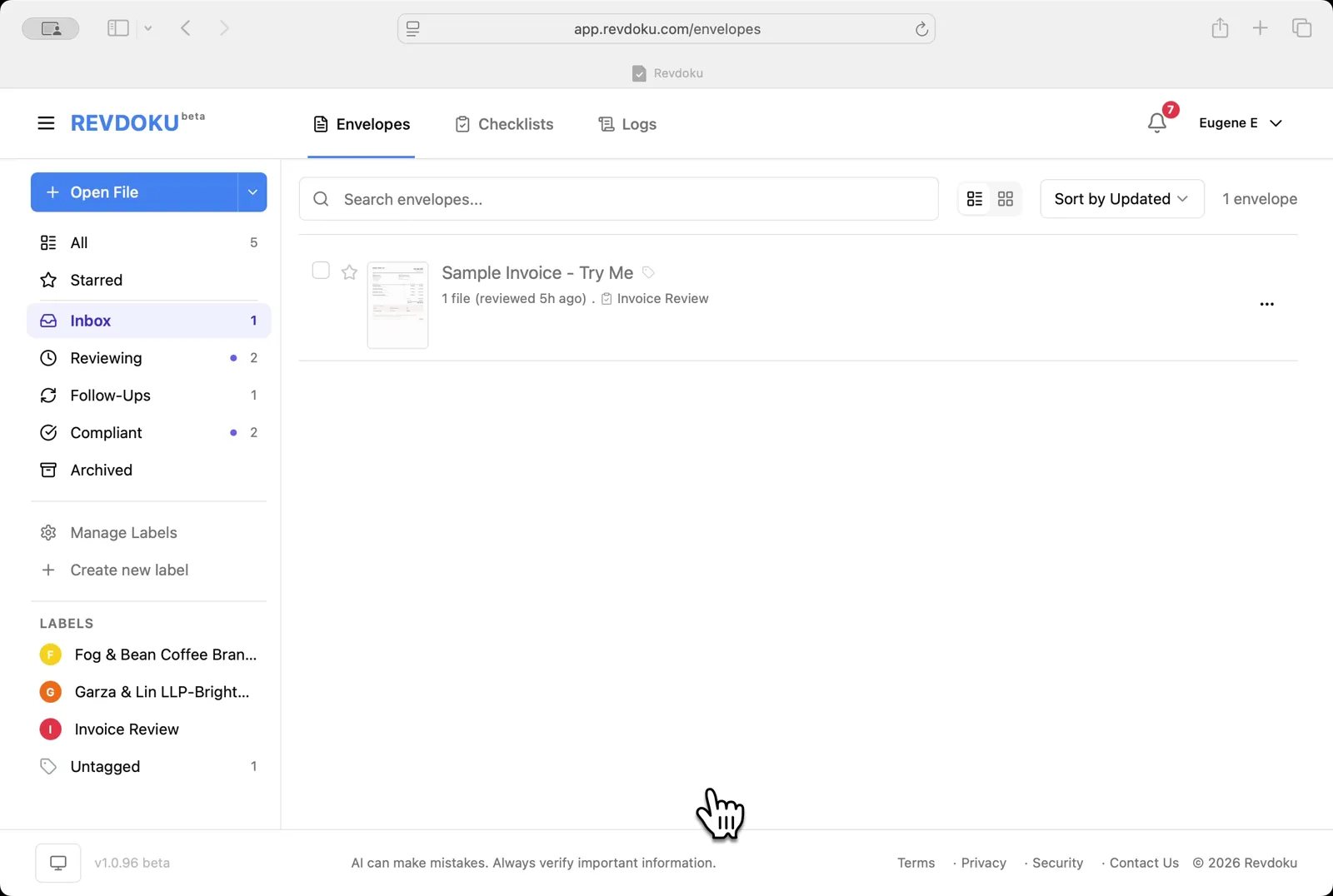
Step 1: Open the Envelopes inbox.
Open the Envelopes inbox. The inbox shows one item, a sample invoice.
Step 2: Open resume.pdf.
Open resume.pdf. The resume for Marcus Thompson, Senior Software Engineer, opens in the viewer with no checklist attached.

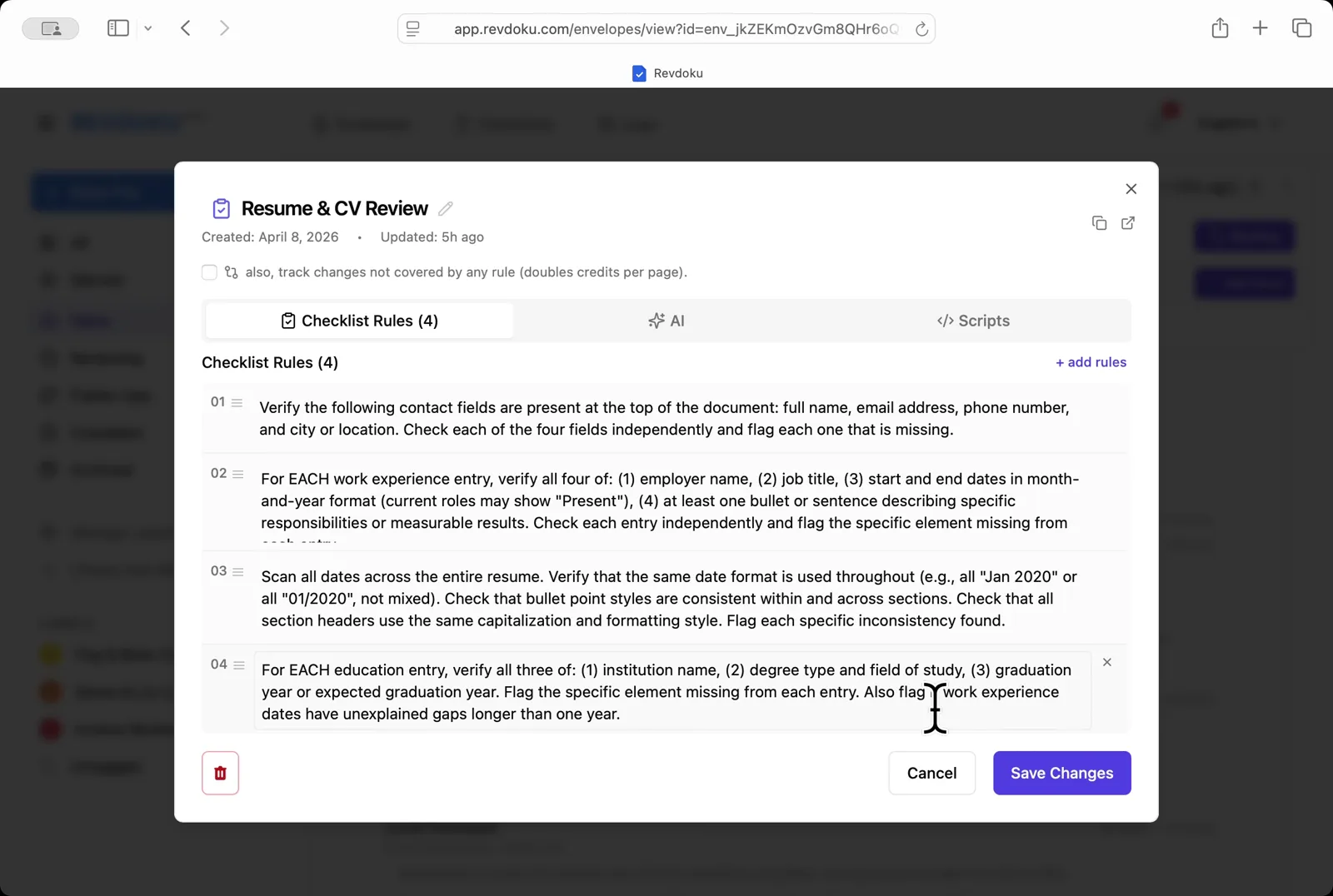
Step 3: Open the Resume & CV Review checklist.
Open the Resume & CV Review checklist. The dialog shows four rules: contact fields, work experience entries, date format consistency, and education entries.
Step 4: Start the review.
Start the review. Pick the Resume & CV Review checklist and click Run Review.
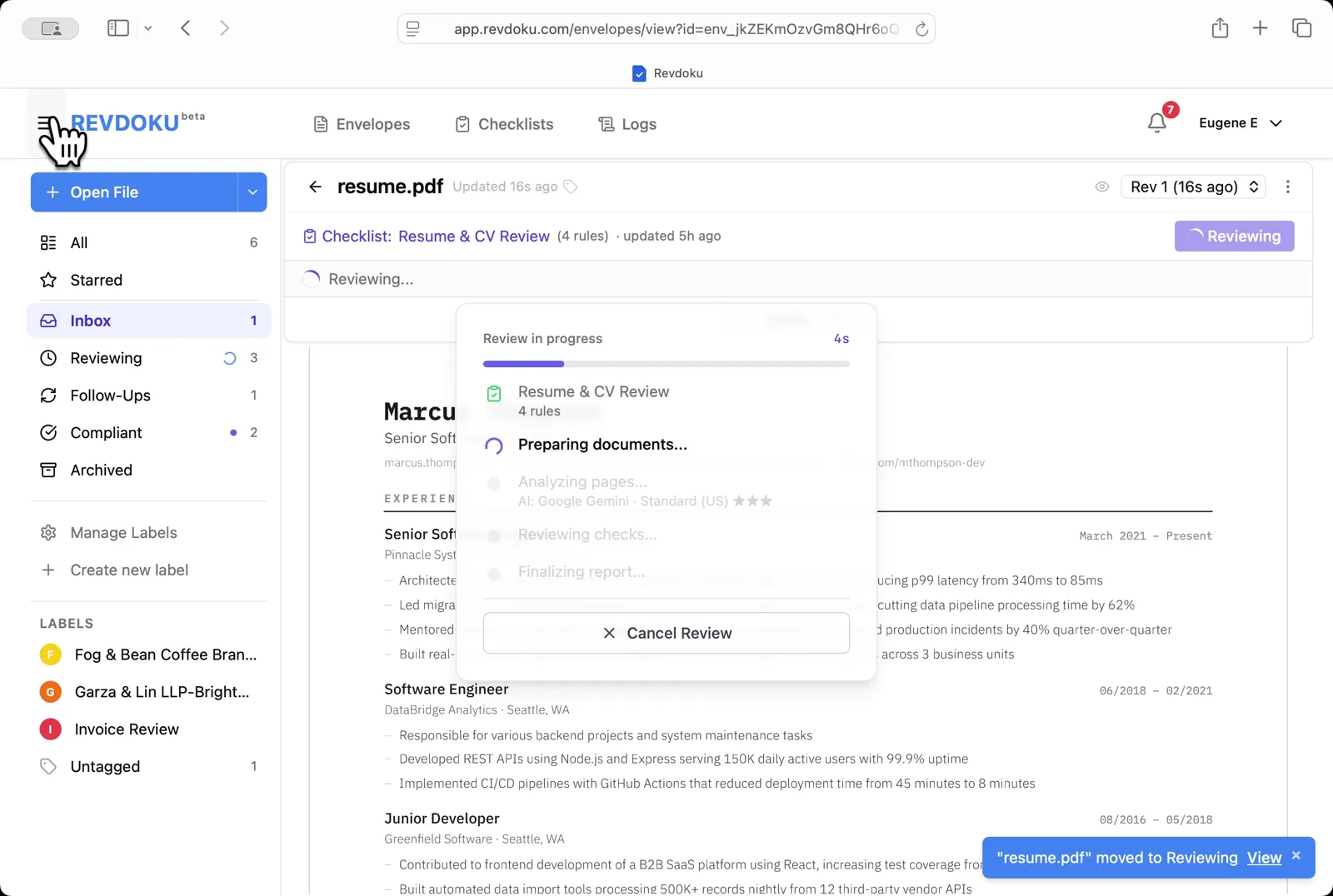
Step 5: Revdoku prepares and analyzes.
Revdoku prepares the document and starts analyzing the page with Google Gemini
Revdoku prepares the document and starts analyzing the page with Google Gemini.
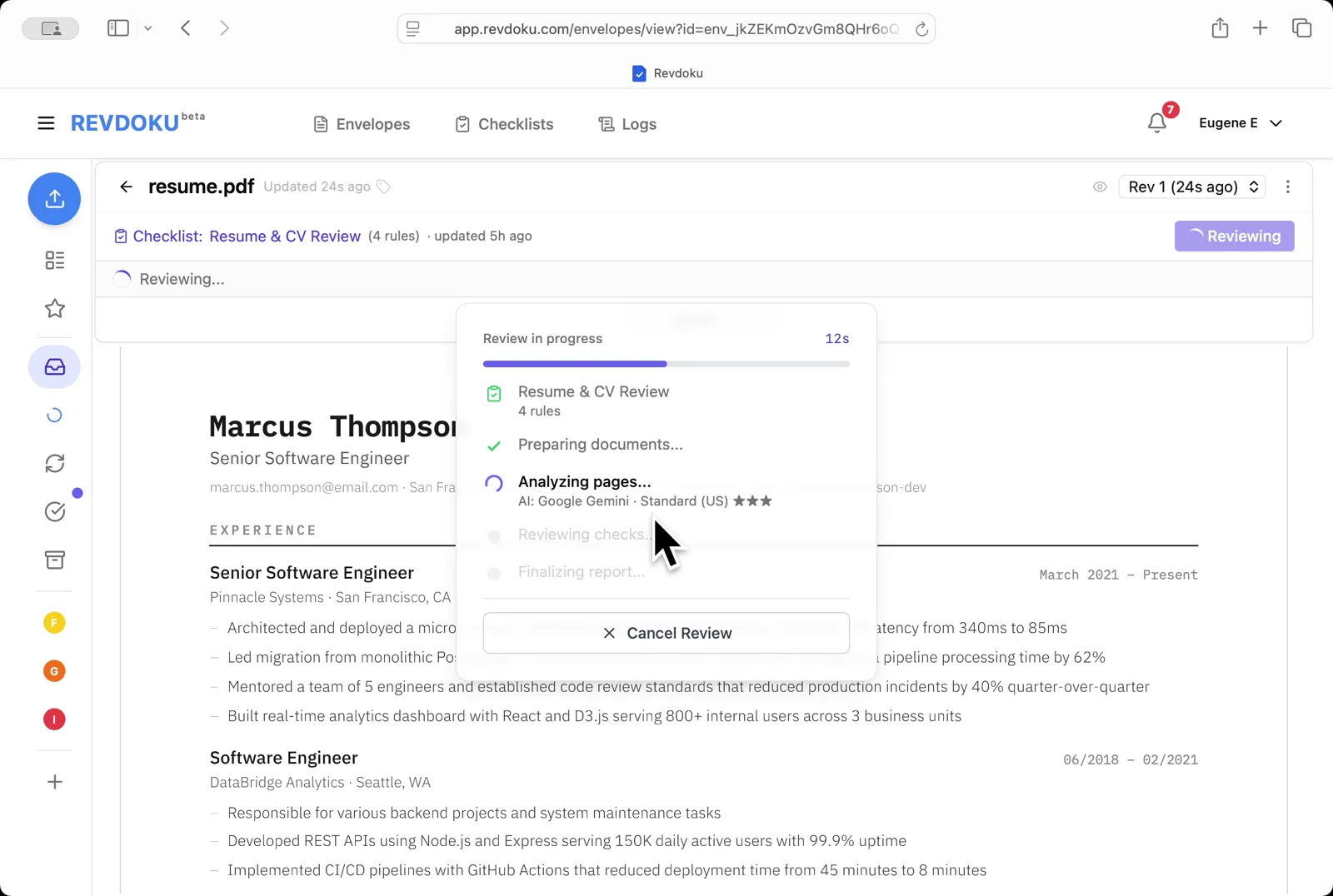
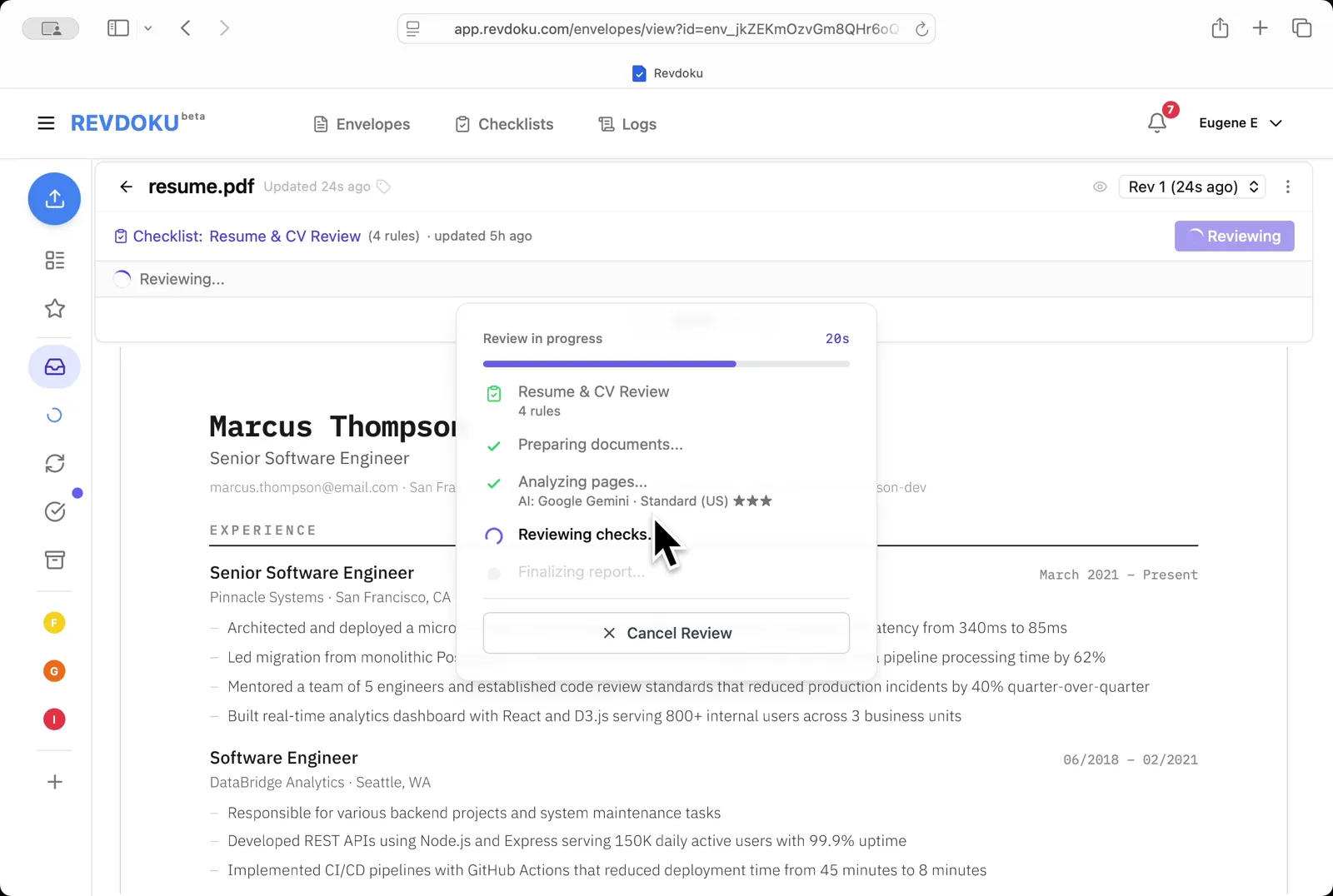
Step 6: Revdoku runs the checks.
Revdoku analyzes the page with Google Gemini and runs the four checks
Revdoku analyzes the page with Google Gemini and runs the four checks.
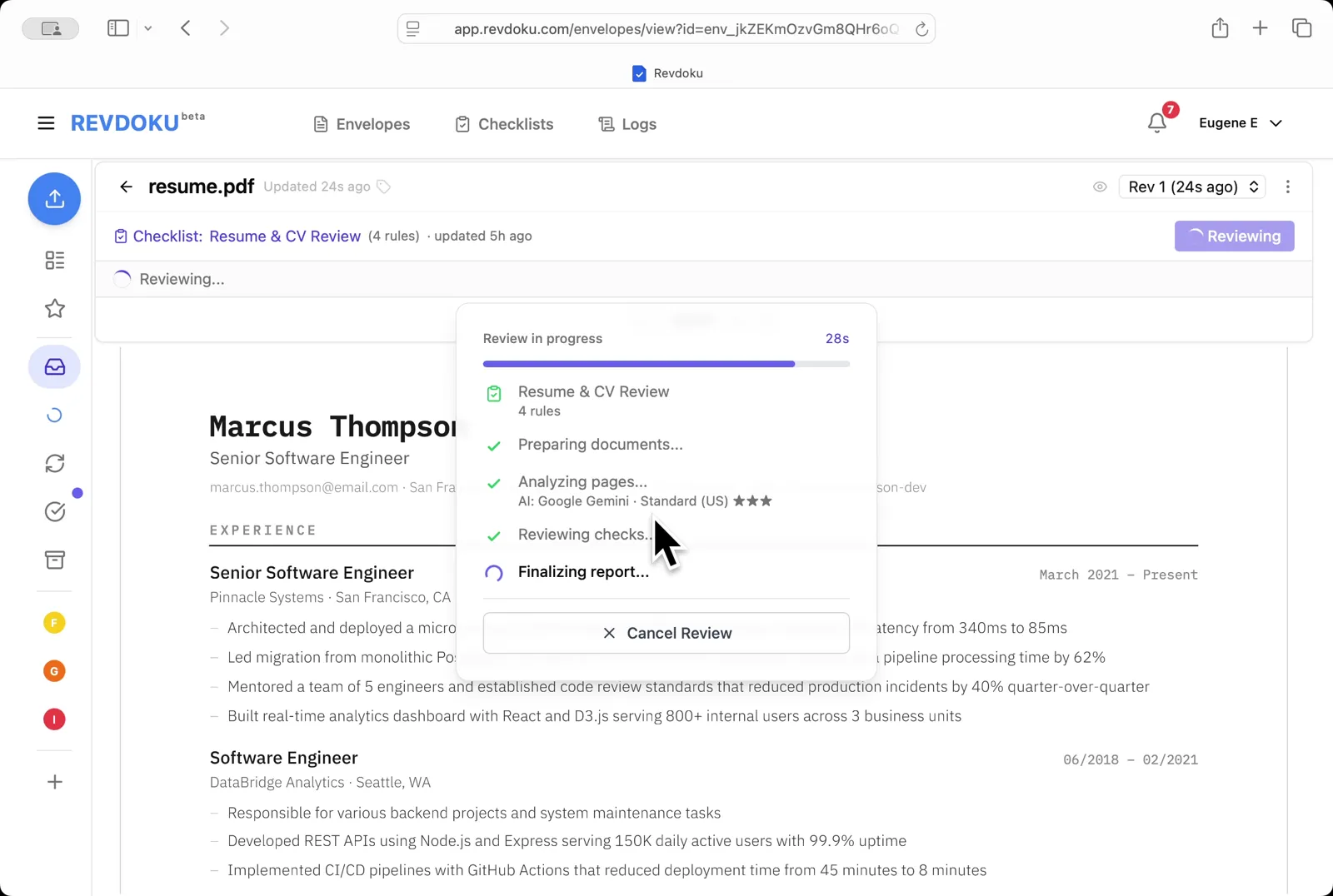
Step 7: Revdoku finalizes the report once the checks have run
Revdoku finalizes the report once the checks have run.
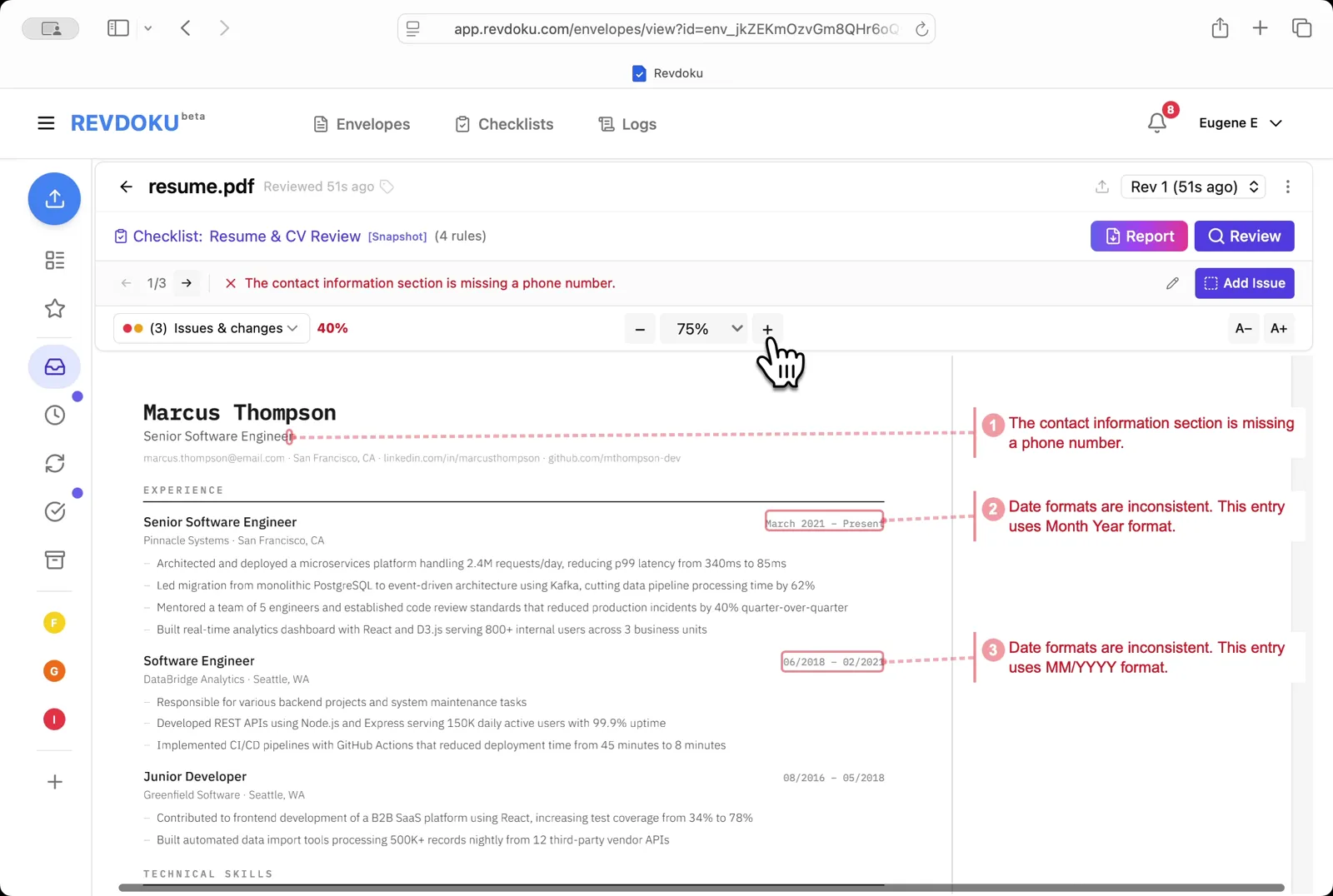
Step 8: See the issues on the resume.
See the issues on the resume. Three issues are flagged: a missing phone number in the contact section, and two inconsistent date formats in the work experience entries.
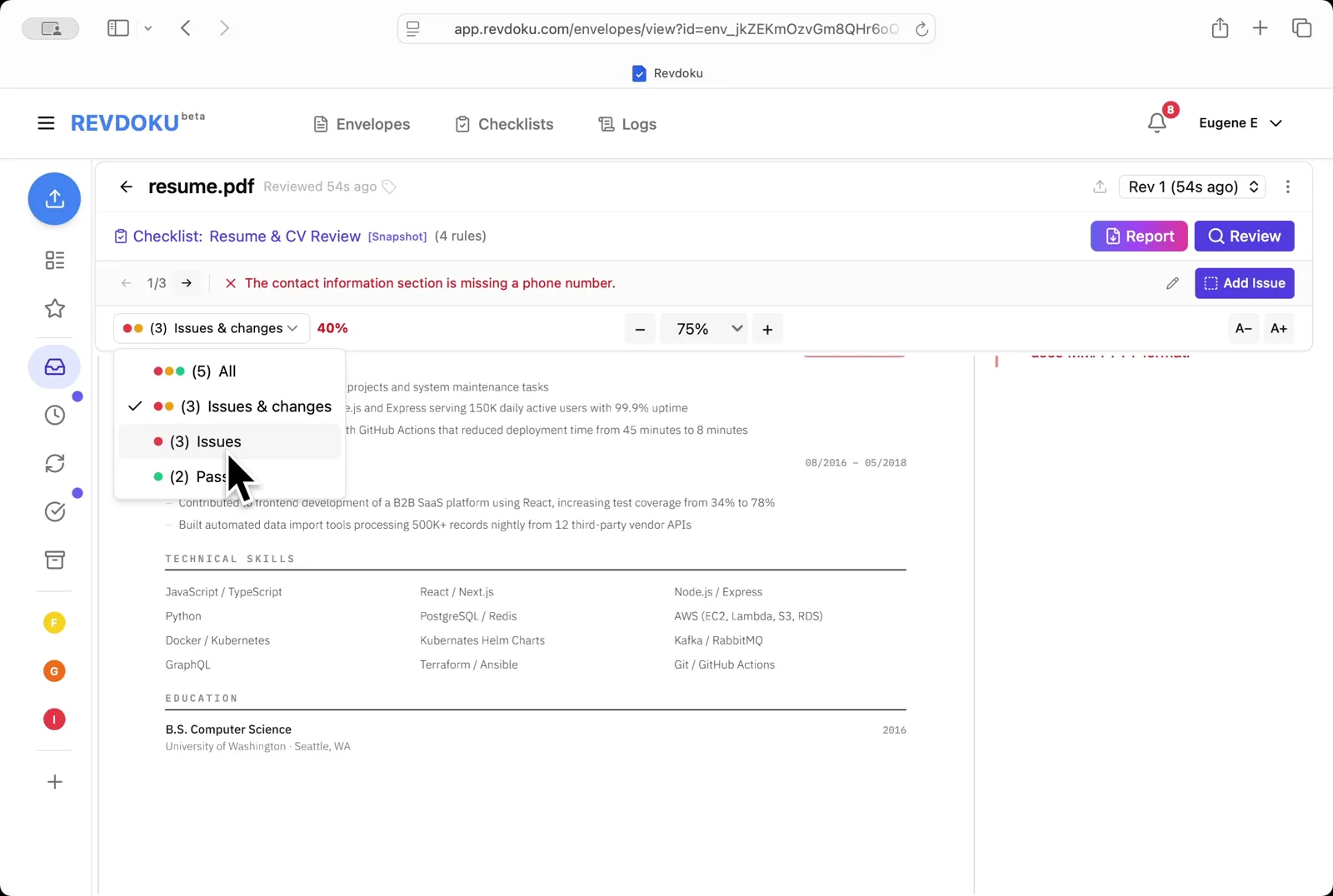
Step 9: Filter the results.
Filter the results. Use the dropdown to switch between All, Issues & changes, Issues only, and Passed.
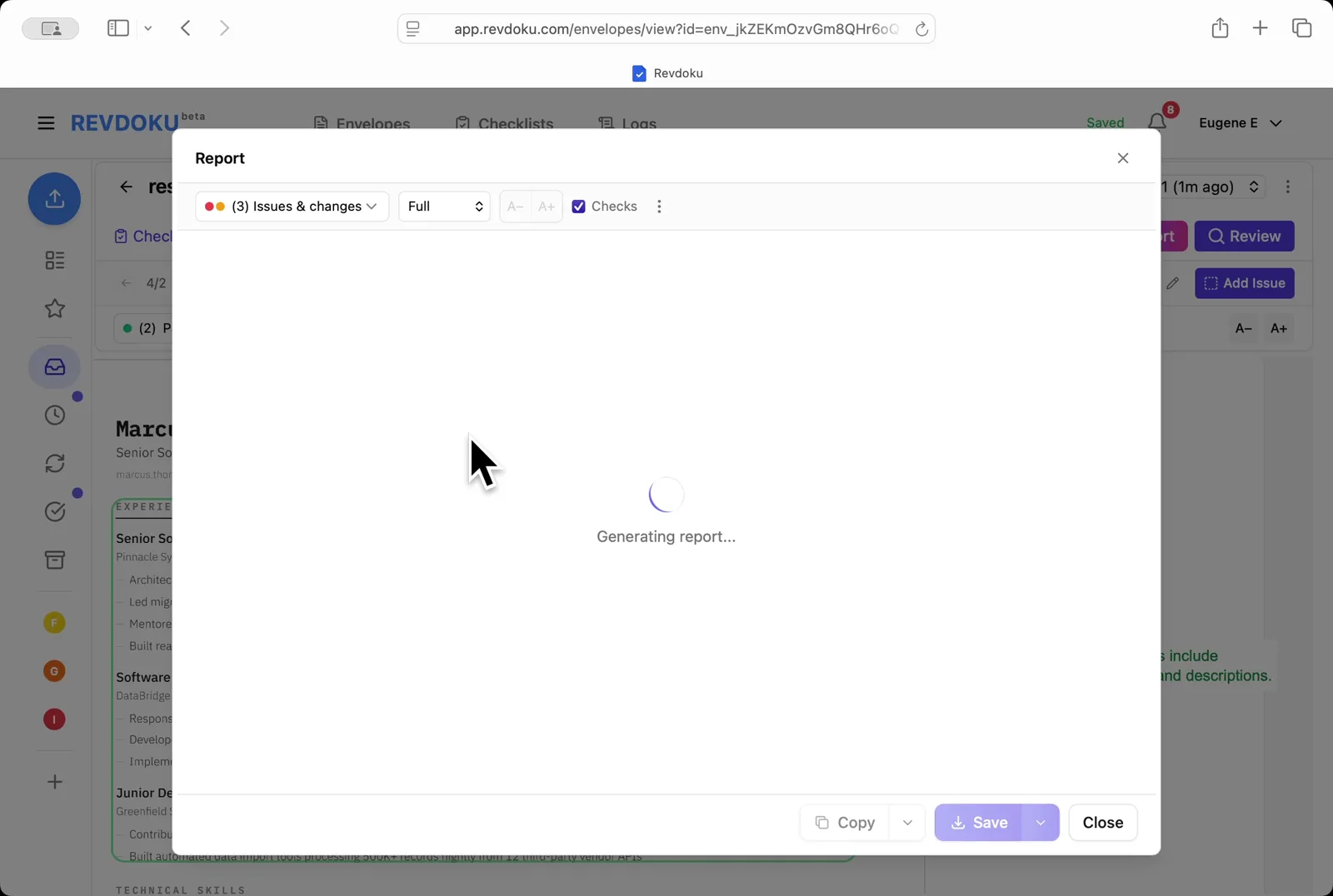
Step 10: Generate the report.
Generate the report. Click Report to assemble a printable summary.
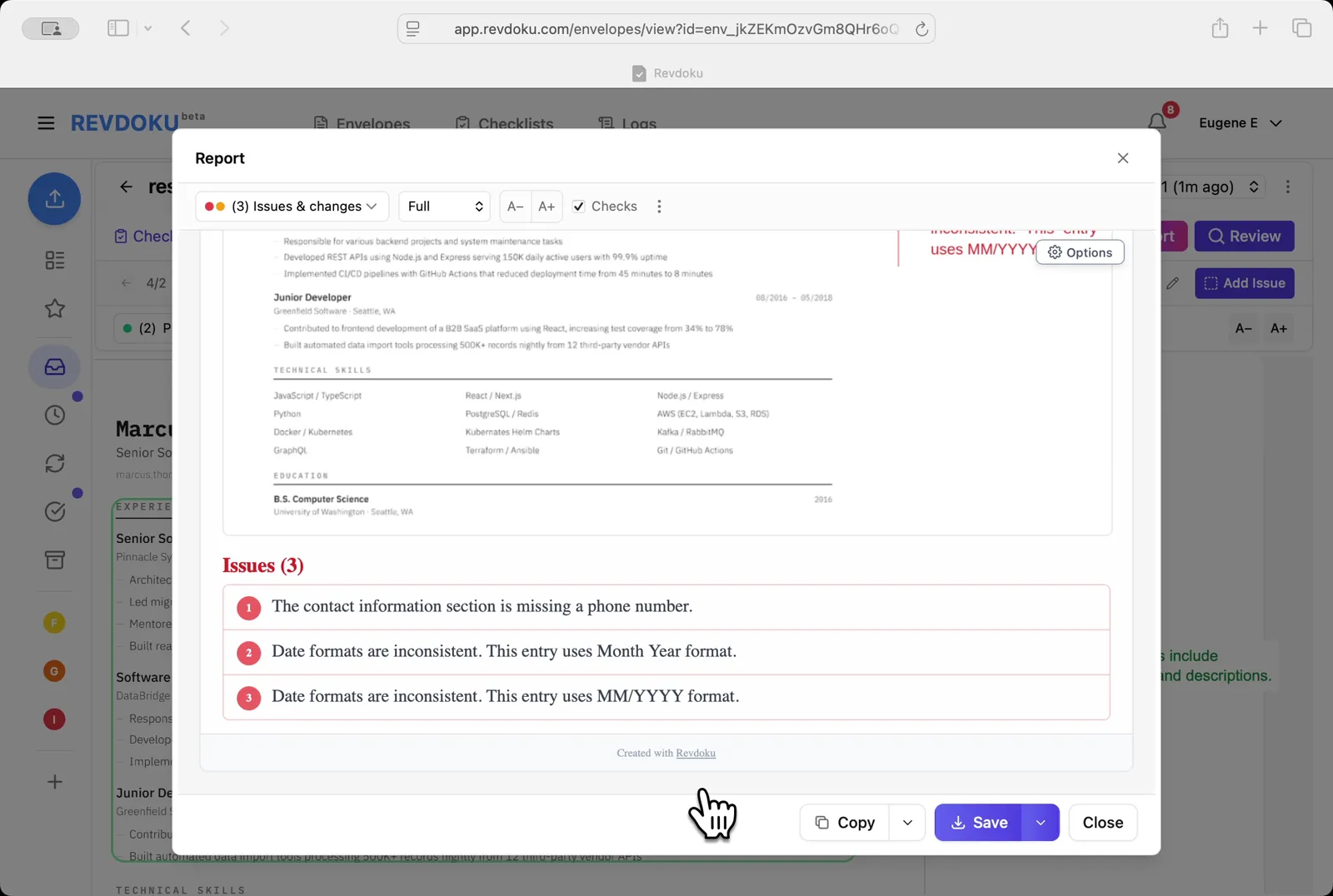
Step 11: Read the final report.
Read the final report. The Issues (3) section lists the missing phone number and the two inconsistent date formats, ready to copy or save.
Conclusion
In this tutorial it was demonstrated how to use Revdoku for reviewing a resume. The following steps were shown:
- Open the Envelopes inbox
- Open resume.pdf
- Open the Resume & CV Review checklist
- Start the review
- Revdoku prepares the document and starts analyzing the page with Google Gemini
- Revdoku analyzes the page with Google Gemini and runs the four checks
- Revdoku finalizes the report once the checks have run
- See the issues on the resume
- Filter the results
- Generate the report
- Read the final report
What You Learned
This case showed how Revdoku can take a document, apply a structured checklist, and surface specific findings — all in under a minute. No manual line-by-line reading required.