Review an Invoice
This use case demonstrates how to review an invoice for common errors. You will drop an invoice PDF into Revdoku, run the Invoice Review checklist with Google Gemini, and read the issues and passes the AI surfaces.
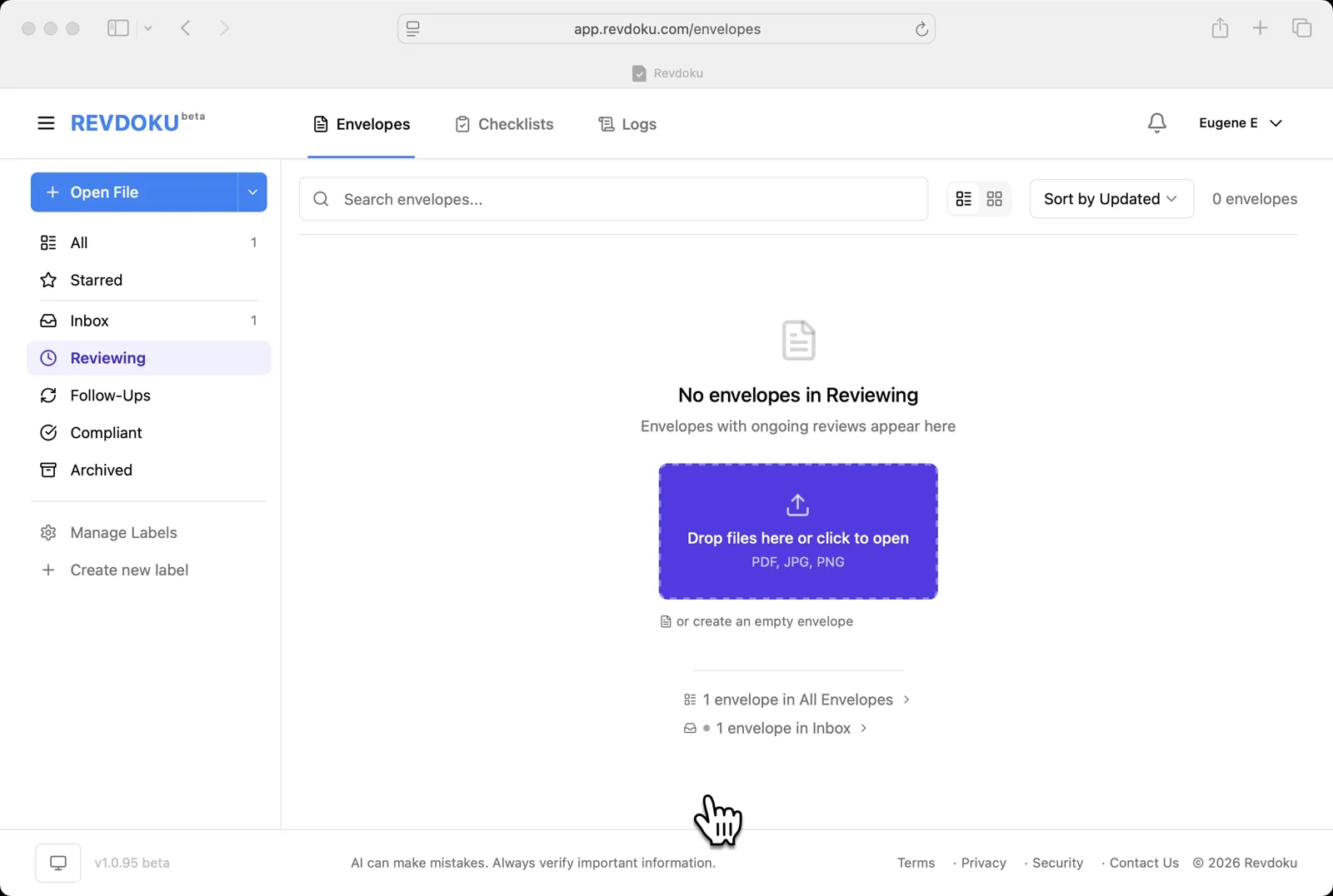
Step 1: Drop the invoice in.
Drop the invoice in. With the Reviewing folder empty, drop your PDF onto Drop files here or click to open to start a new envelope.
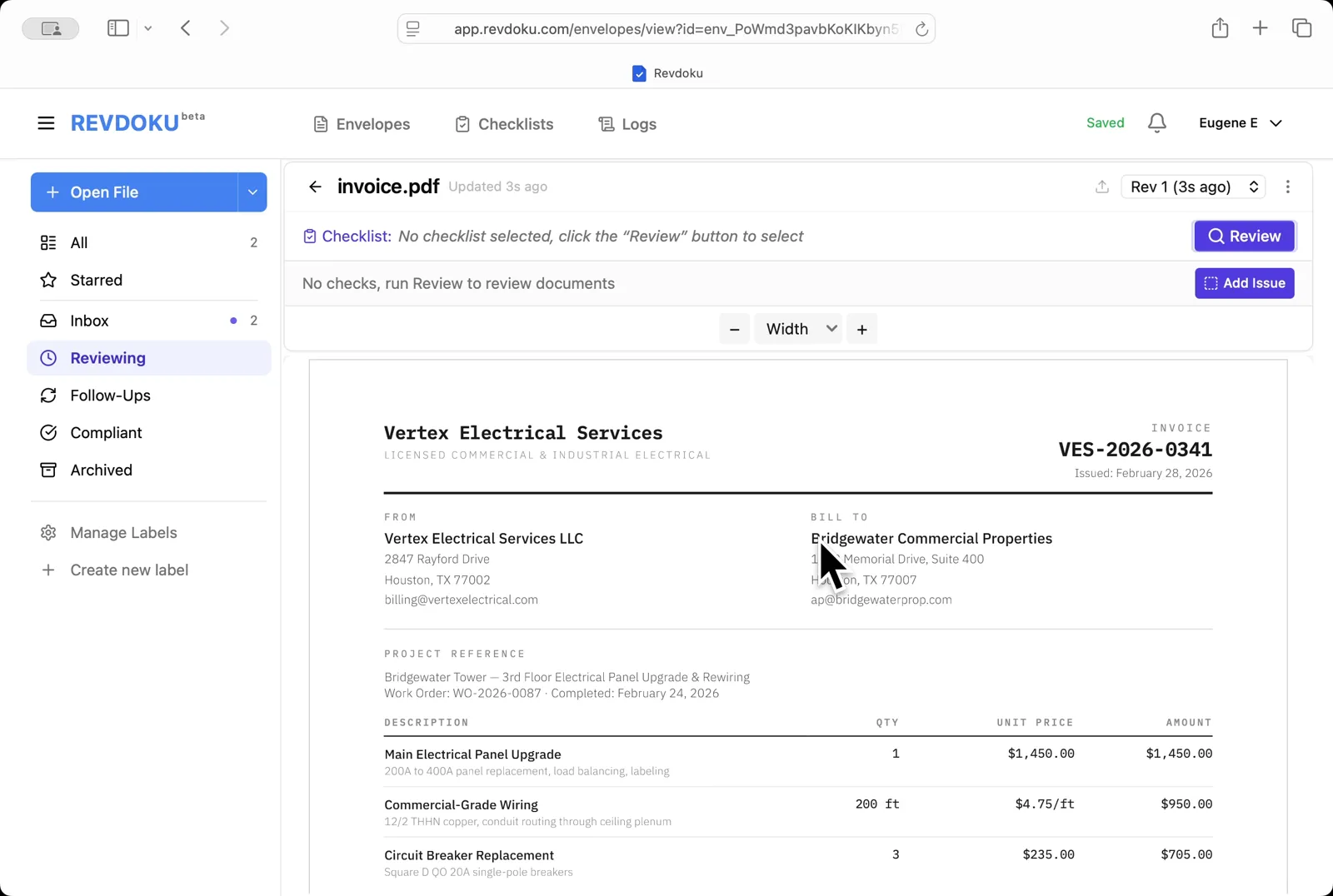
Step 2: Open the uploaded invoice.
Open the uploaded invoice. invoice.pdf opens in the viewer with no checklist attached.
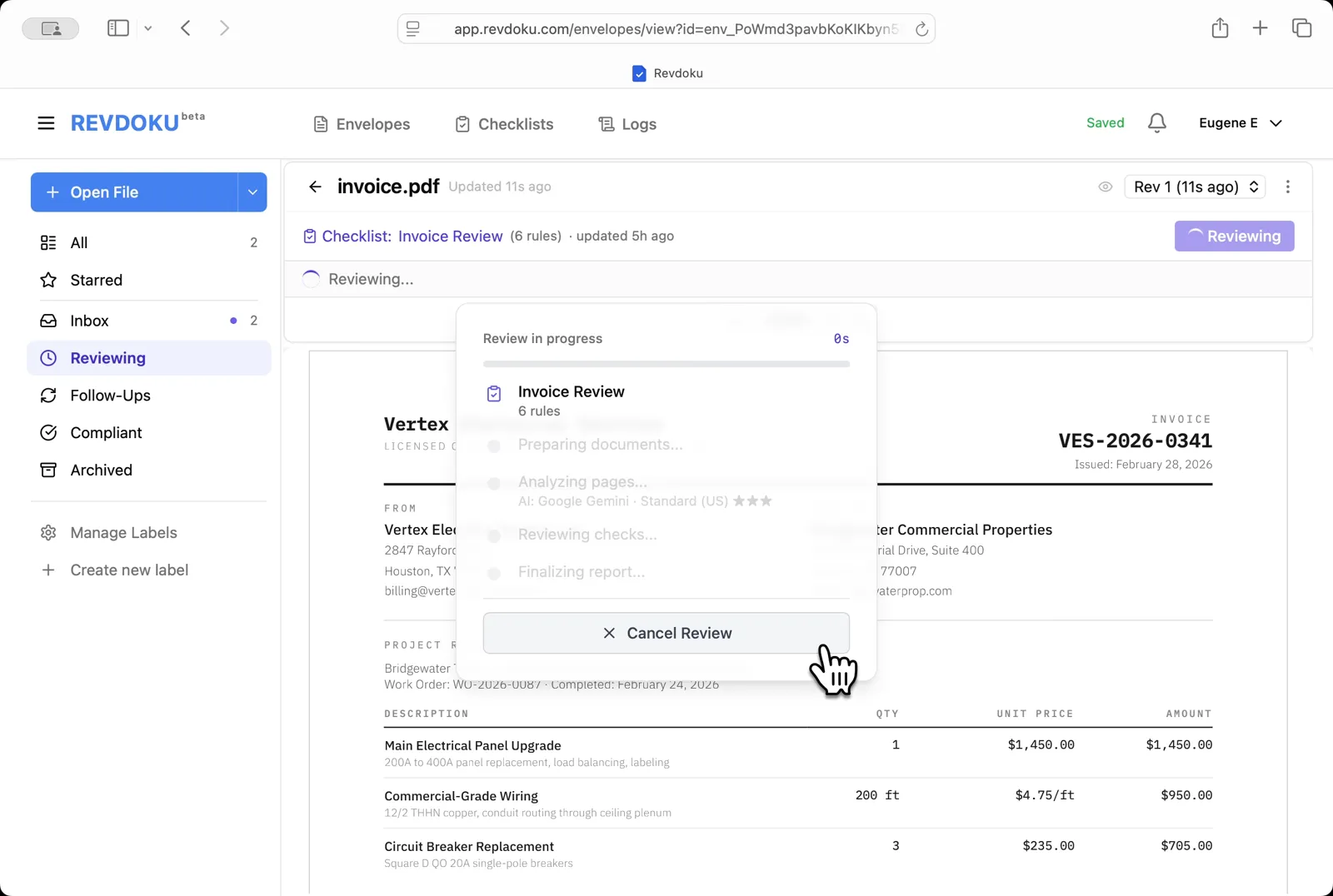
Step 3: Start the Invoice Review checklist.
Start the Invoice Review checklist. Click Review and pick Invoice Review (6 rules) to check the invoice with Google Gemini.
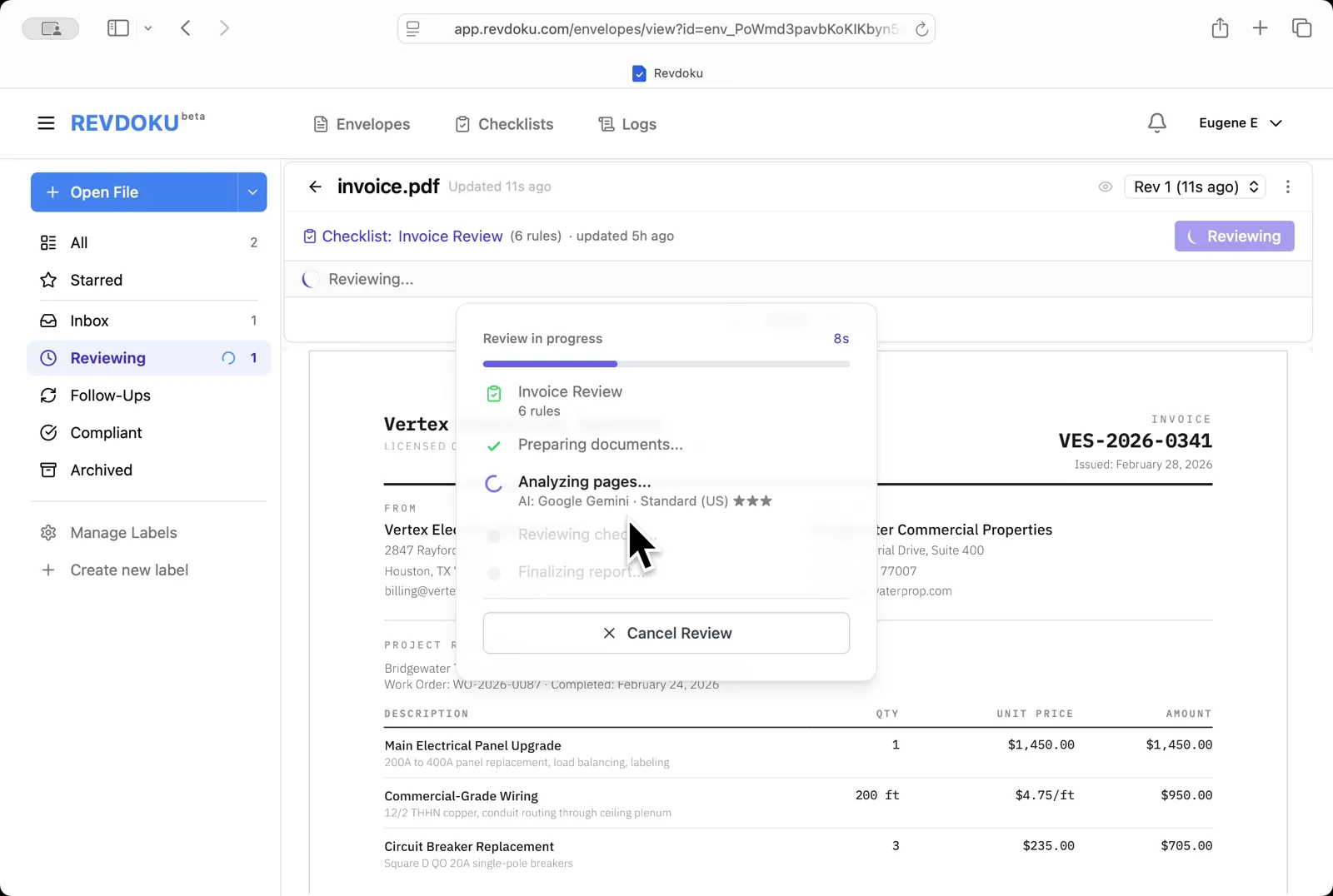
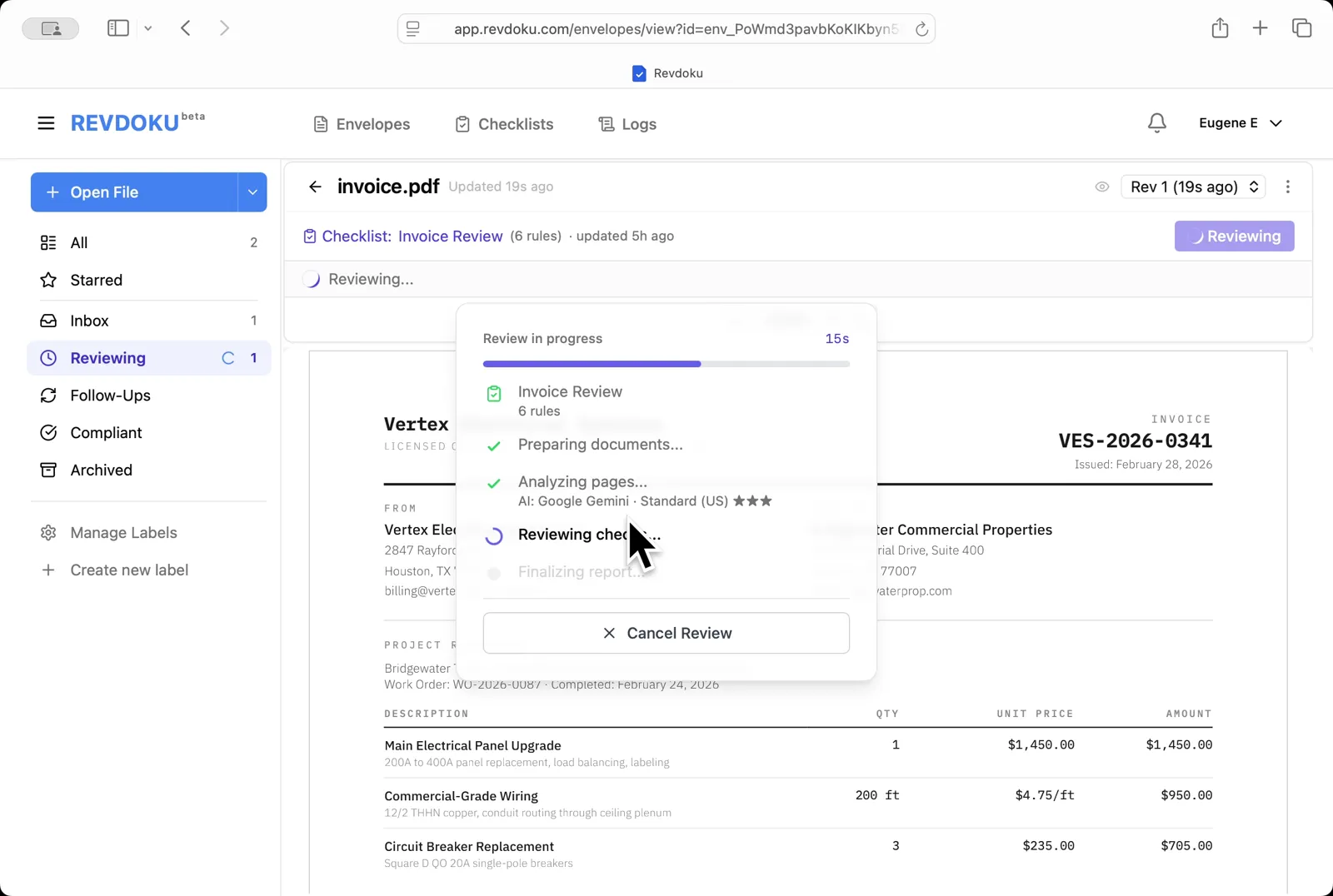
Step 4: Revdoku analyzes the invoice.
Revdoku analyzes the invoice. It extracts the page text and runs the six checks against it.
Step 5: The checks finish running.
The checks finish running. Revdoku writes the report and matches each finding to a place on the page.
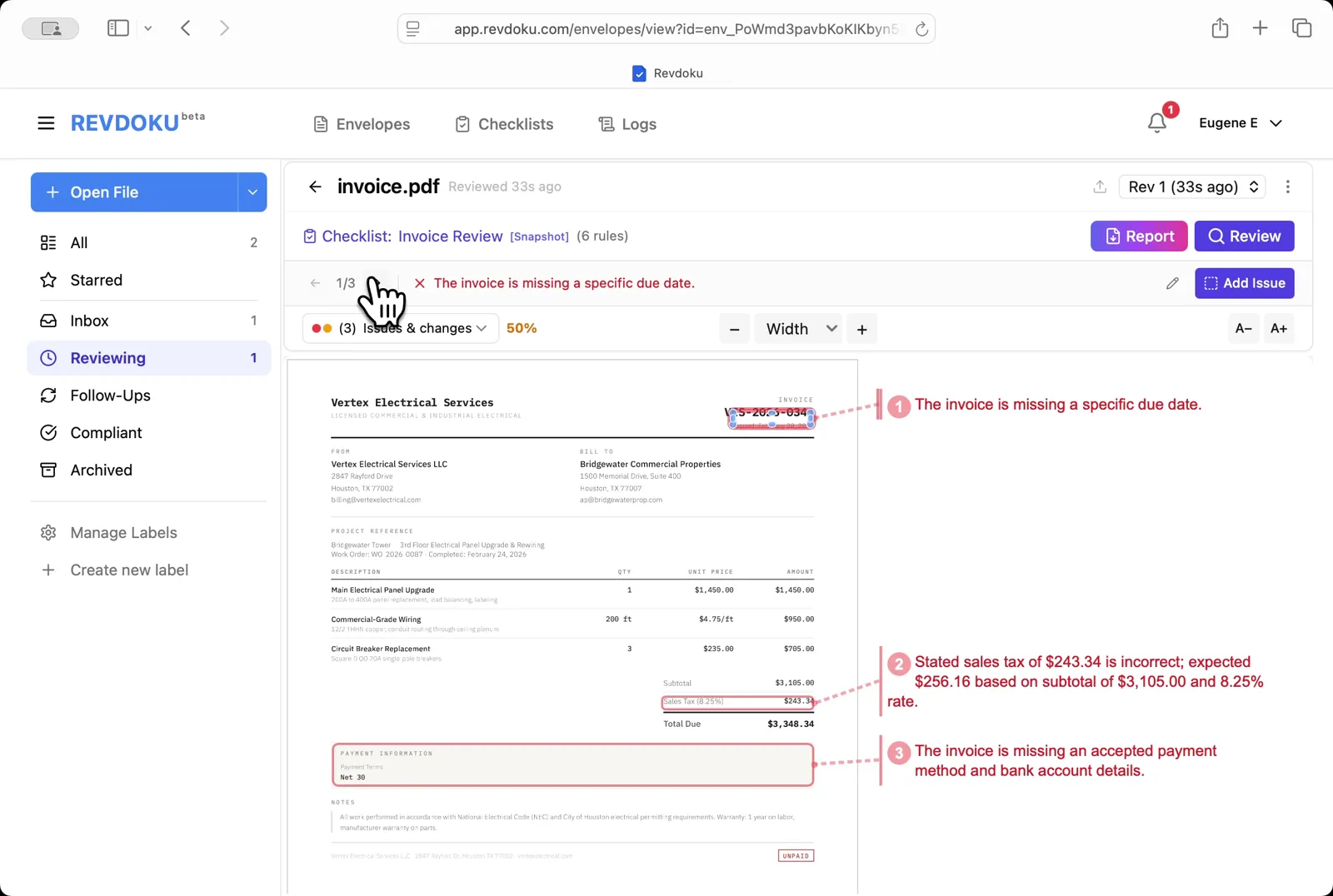
Step 6: Read the three issues.
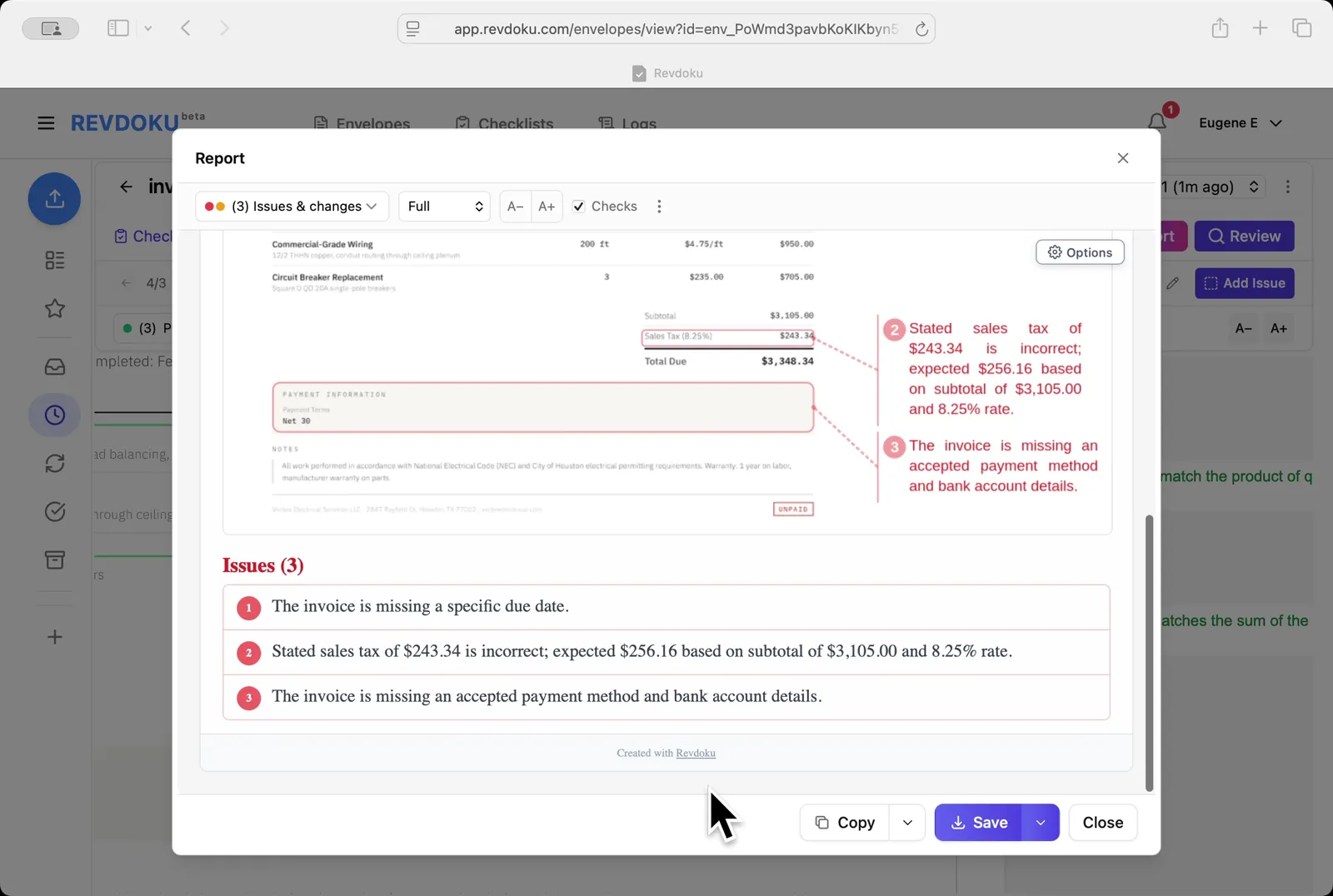
Read the three issues. Revdoku flags a missing due date, an incorrect sales tax ($243.34 stated, $256.16 expected at 8.25% on $3,105.00), and a missing payment method and bank details.
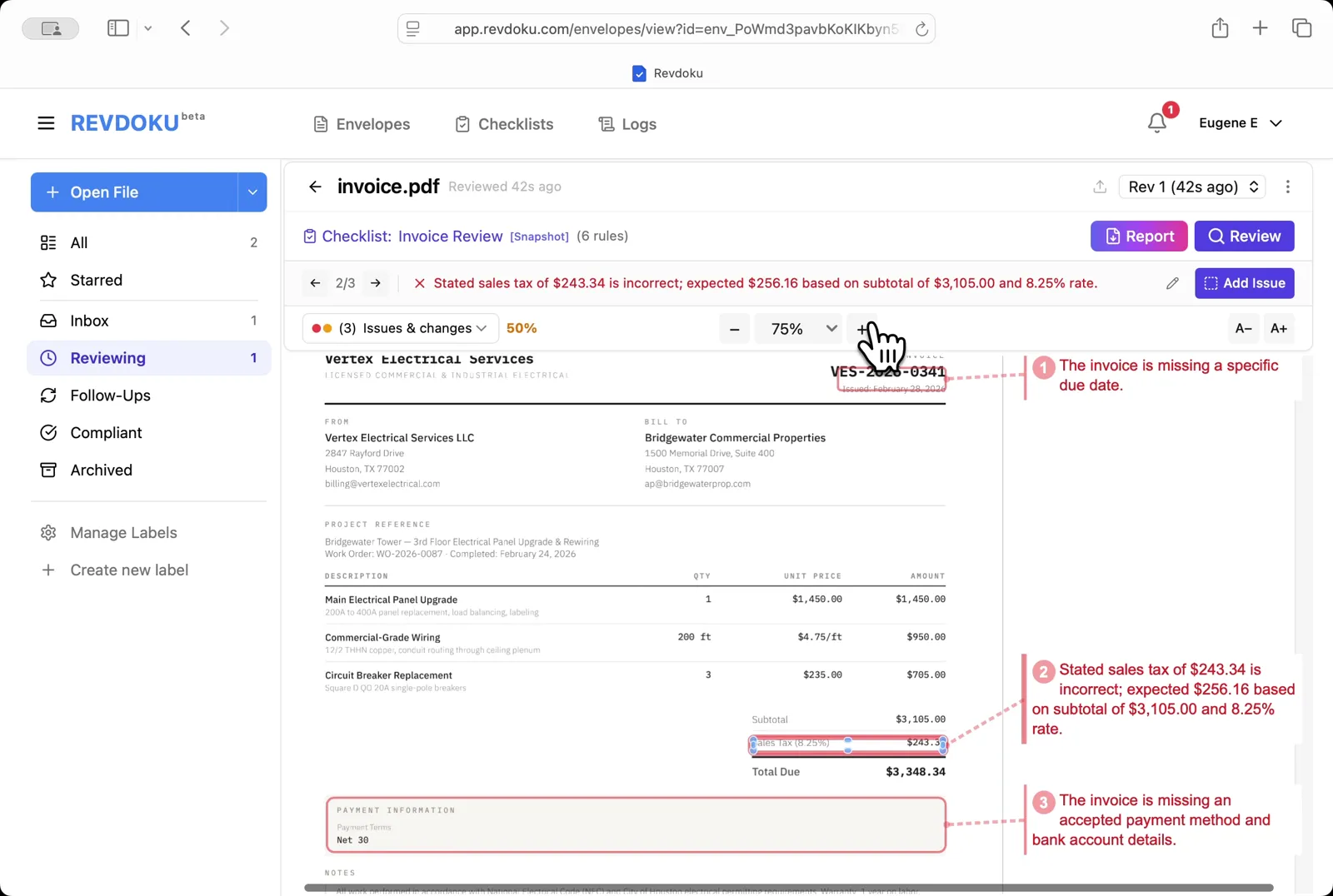
Step 7: Zoom out to see all issues at once.
Zoom out to see all issues at once. The 50% view shows all three flagged areas connected to their annotations.
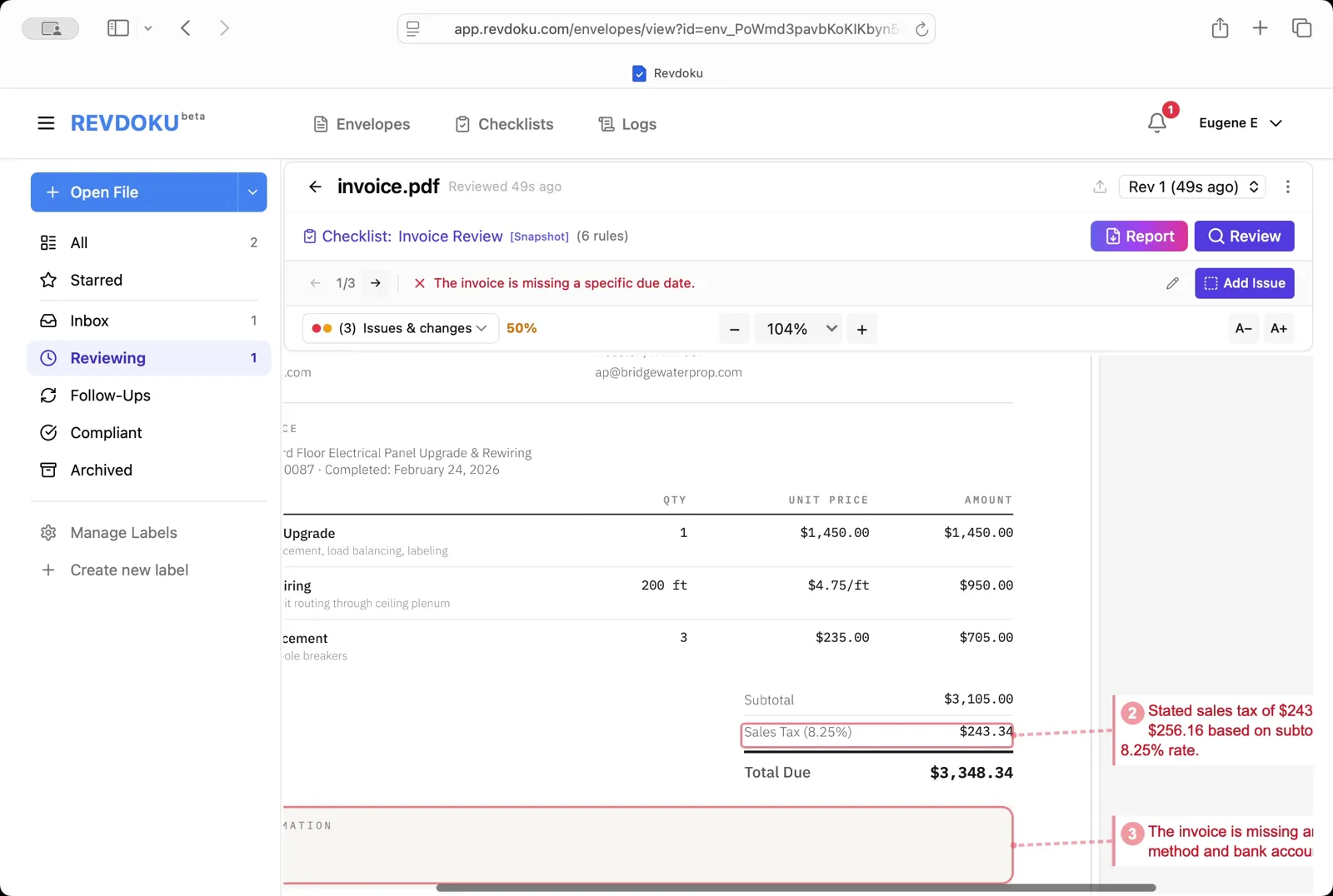
Step 8: Zoom in on the sales tax error.
Zoom in on the sales tax error. Use the + button to inspect the Sales Tax (8.25%) line where the math is wrong.
Step 9: Filter to passed checks.
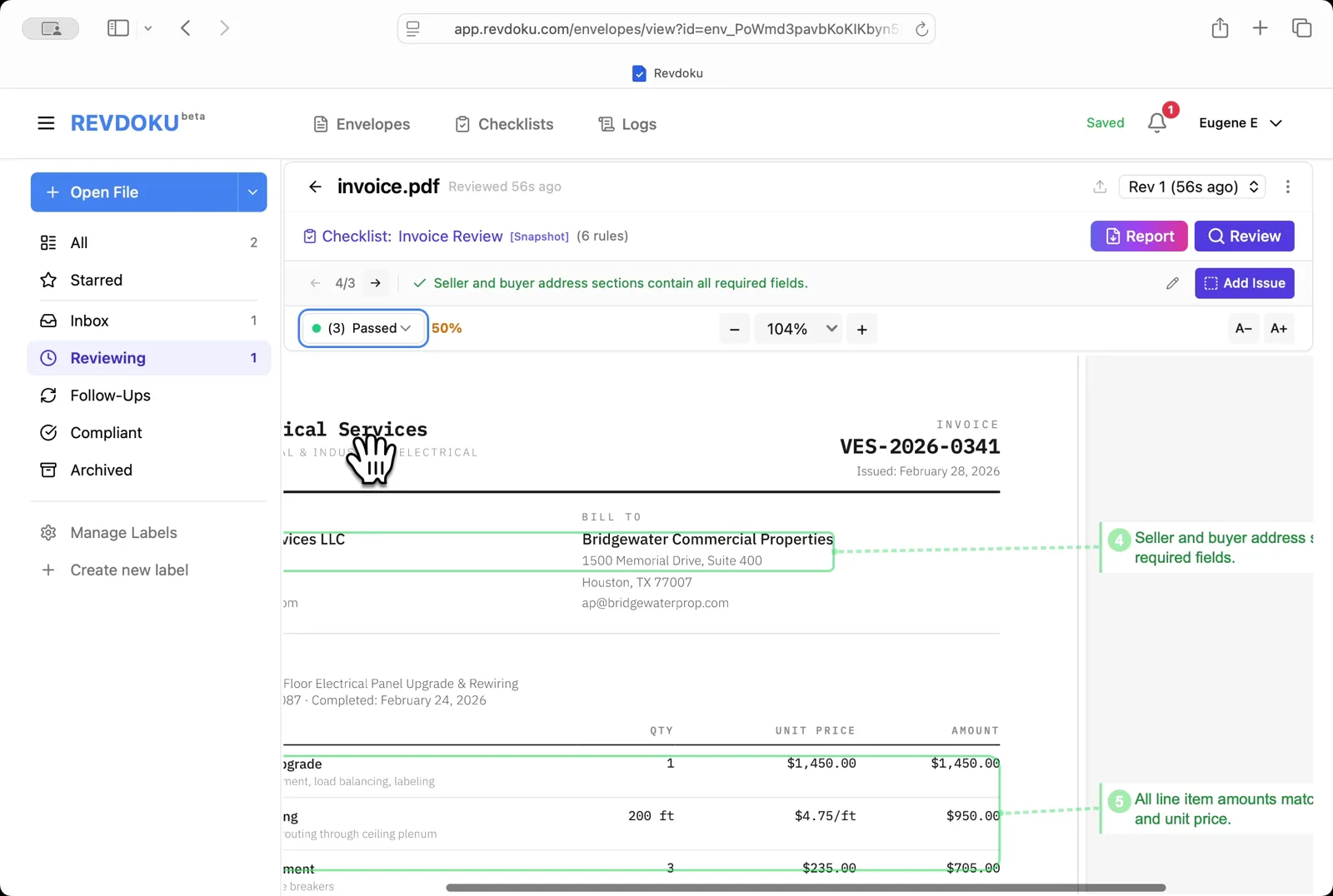
Filter to passed checks. Pick Passed in the dropdown to see what the invoice got right — the seller and buyer addresses are complete.
Step 10: Confirm the totals add up.
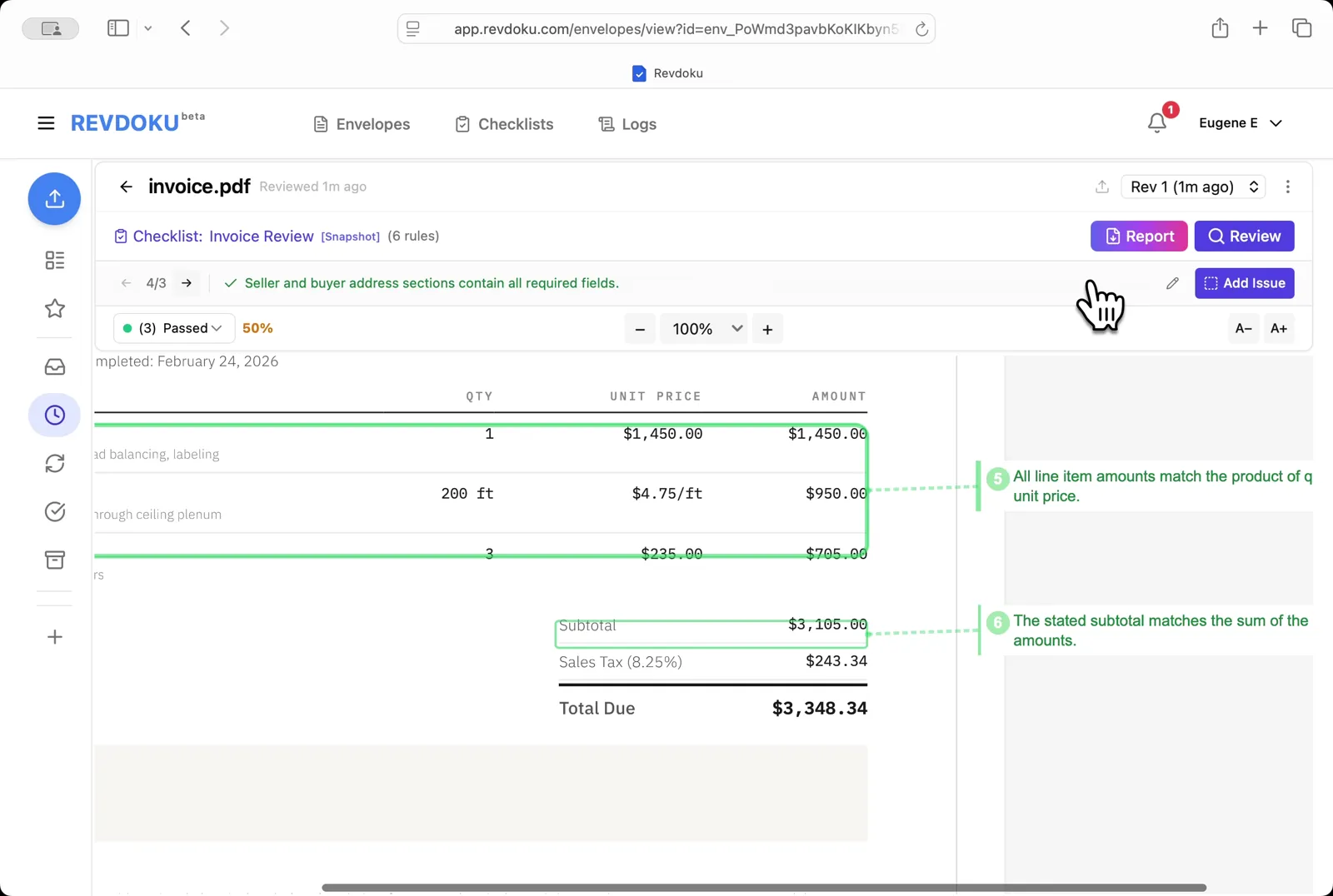
Confirm the totals add up. Two more passes: every line item amount equals quantity × unit price, and the $3,105.00 subtotal matches the sum of the line items.
Step 11: Open the report.
Open the report. The Issues (3) section lists the missing due date, the wrong sales tax, and the missing payment information, ready to copy or save.
Conclusion
In this tutorial it was demonstrated how to use Revdoku for reviewing an invoice. The following steps were shown:
- Drop the invoice in
- Open the uploaded invoice
- Start the Invoice Review checklist
- Revdoku analyzes the invoice
- The checks finish running
- Read the three issues
- Zoom out to see all issues at once
- Zoom in on the sales tax error
- Filter to passed checks
- Confirm the totals add up
- Open the report
What You Learned
This case showed how Revdoku can take a document, apply a structured checklist, and surface specific findings — all in under a minute. No manual line-by-line reading required.