Categorize an Expense Report
This use case demonstrates how to categorize an expense report. You will upload an expense report PDF into Revdoku, run the Expense Categorization checklist to tag every line item, then use a custom script to produce a per-category spending breakdown.
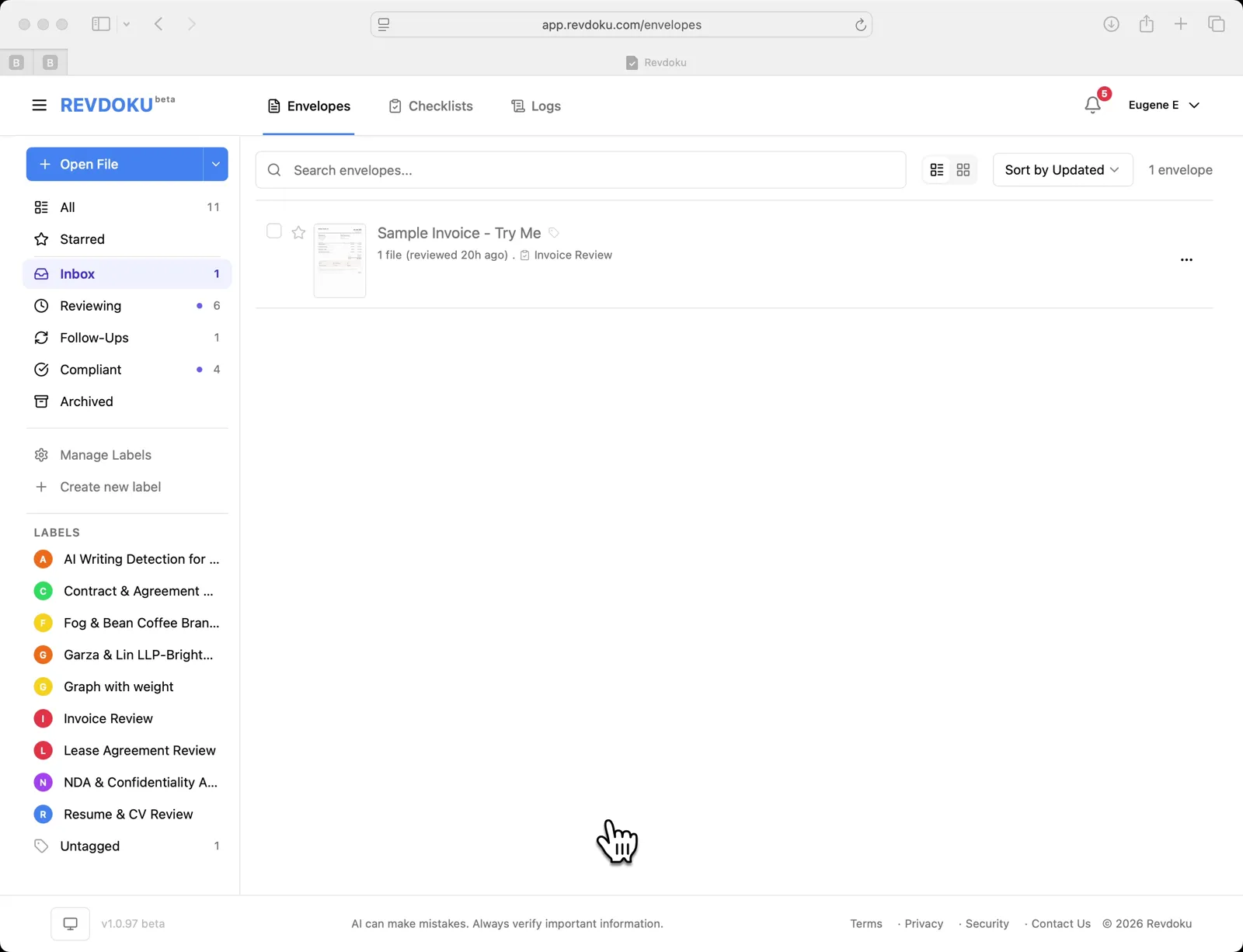
1. Open the inbox
Start in the Revdoku Envelopes inbox and open a new document to review.
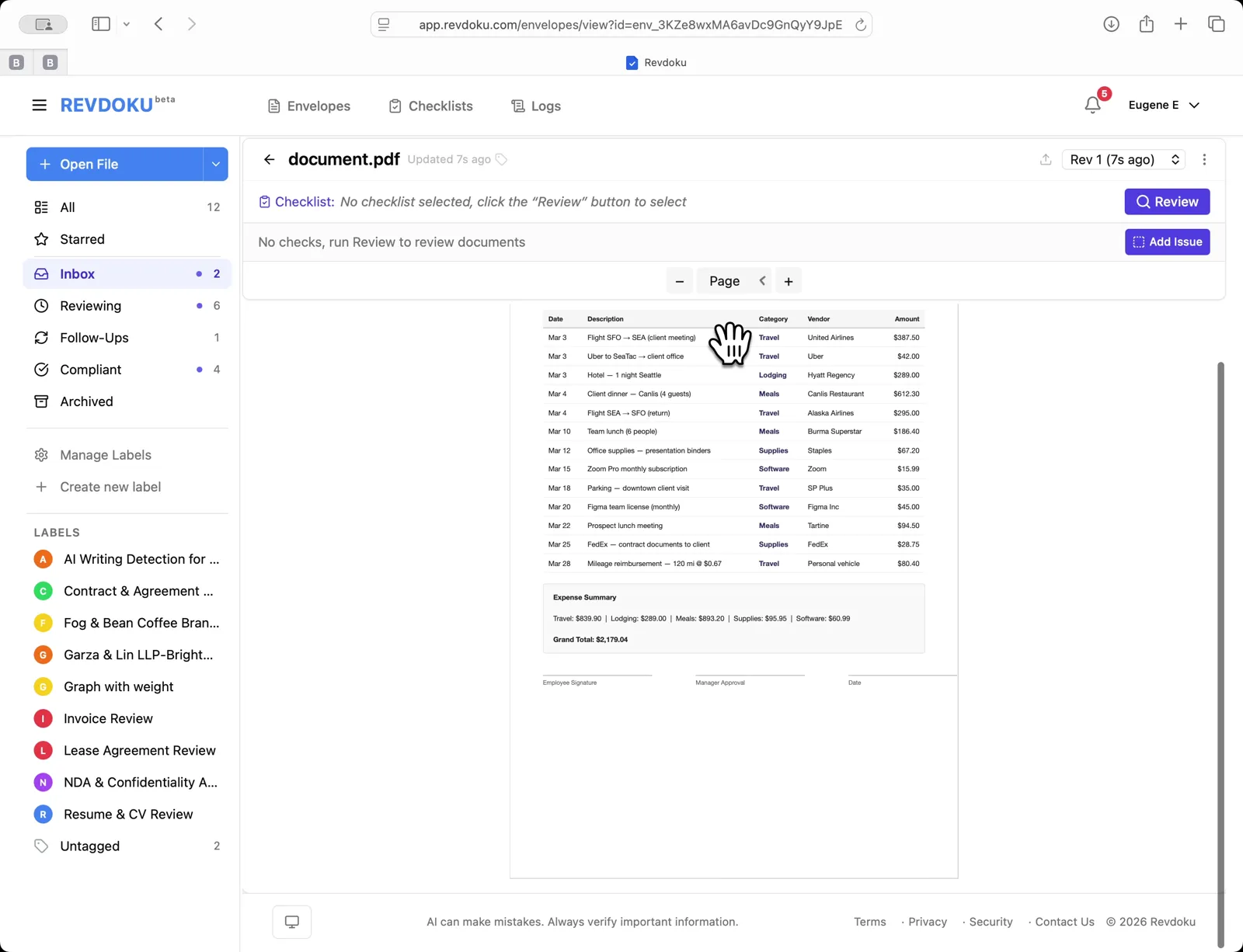
2. Load the expense report
The PDF opens in the envelope viewer — a March 2026 employee expense report with 13 line items totaling $2,179.04. The blue banner prompts you to pick a checklist.
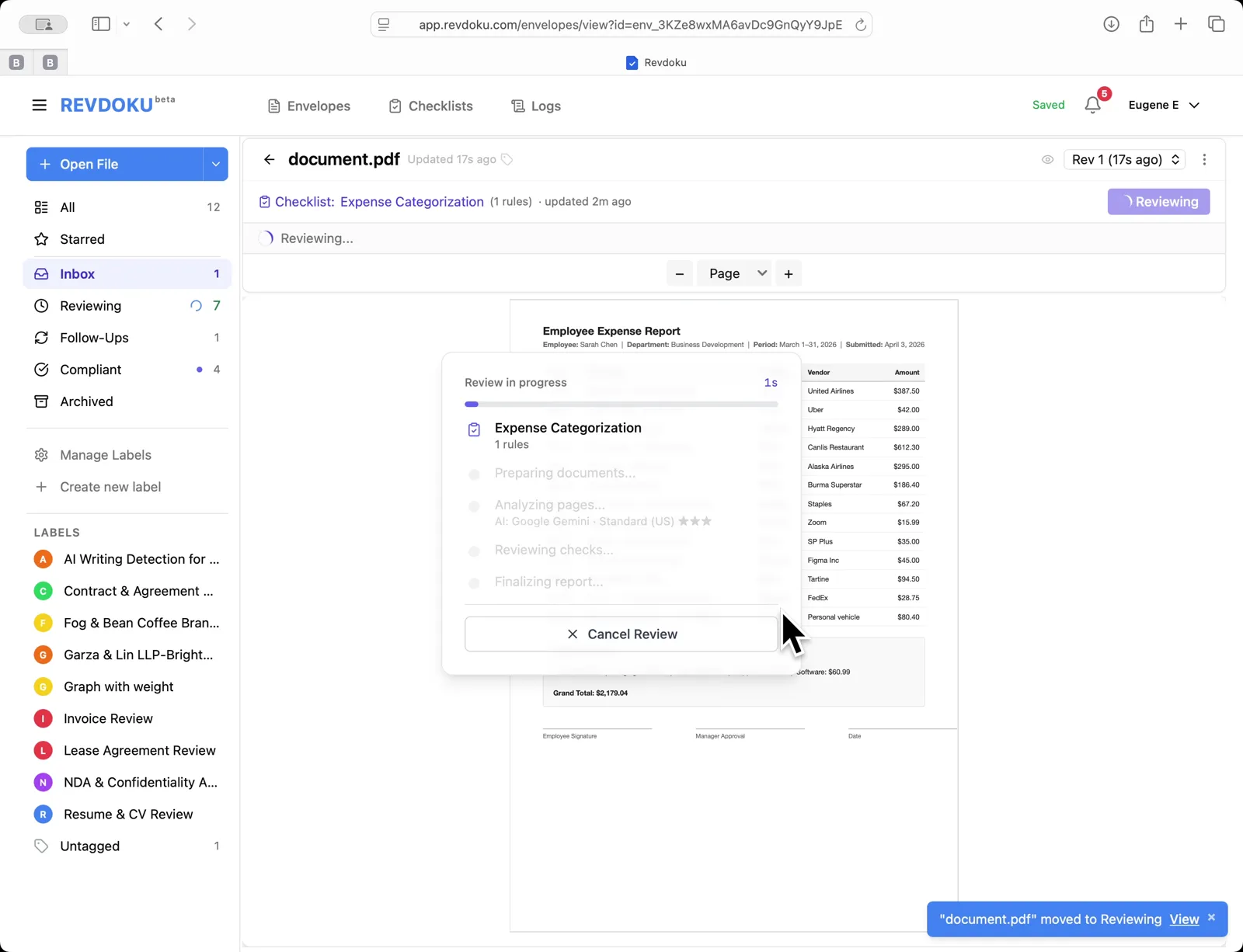
3. Start the review
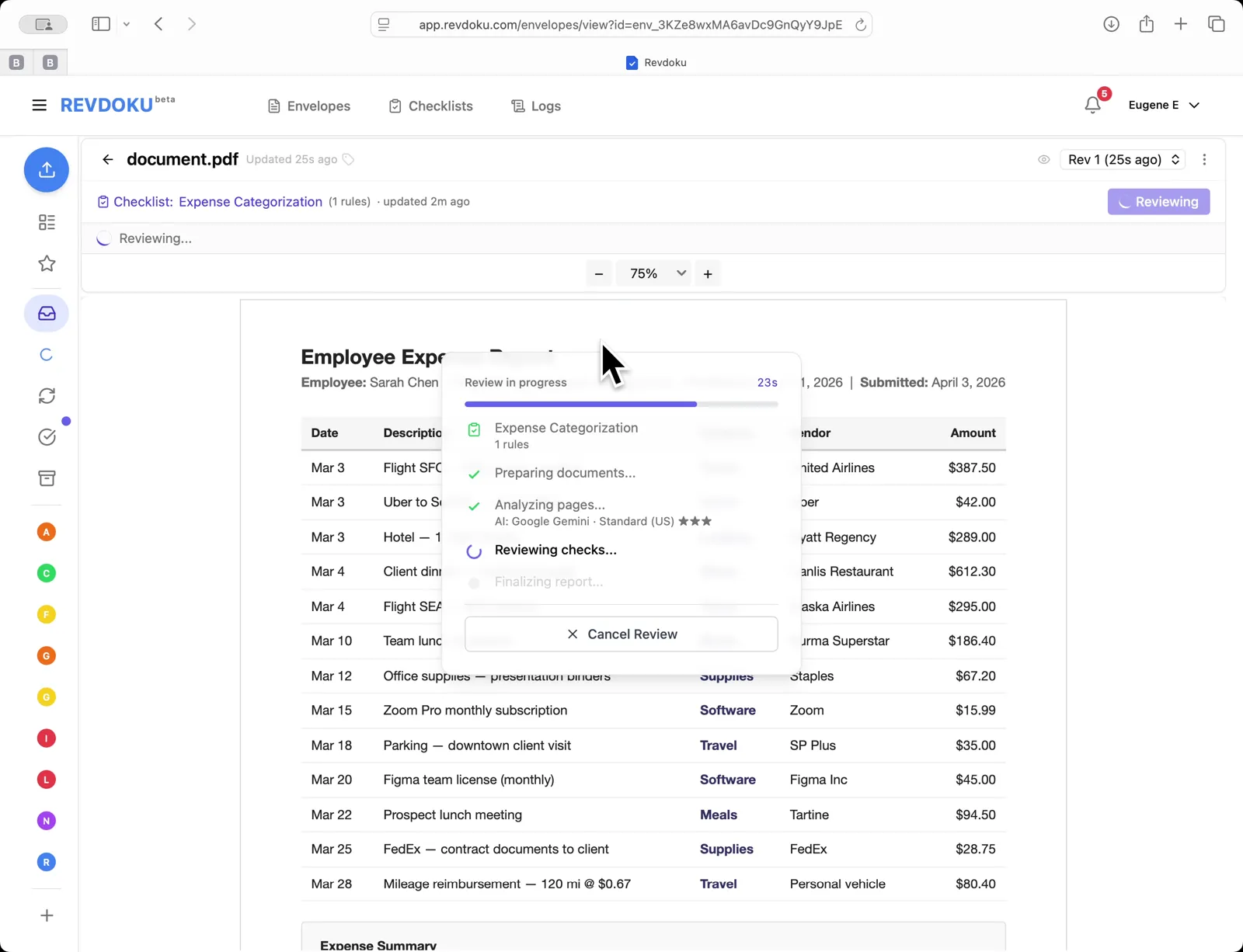
Pick the Expense Categorization checklist (1 rule) and click Review. The progress modal appears and the document moves to Reviewing.
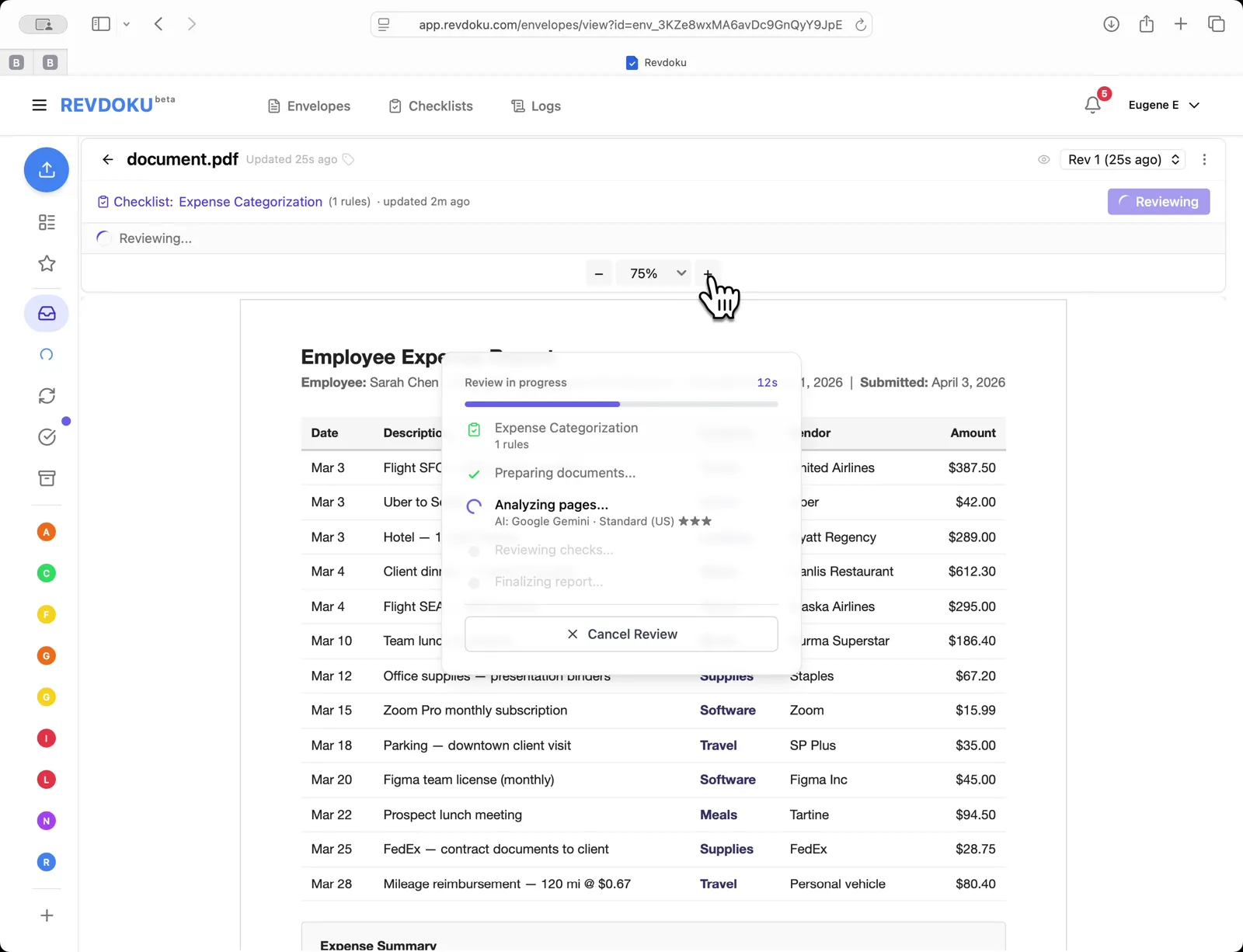
4. AI analyzes the pages
Revdoku runs the Analyzing pages stage using Google Gemini.
5. Checks run
The pipeline advances to Reviewing checks.
6. Review complete
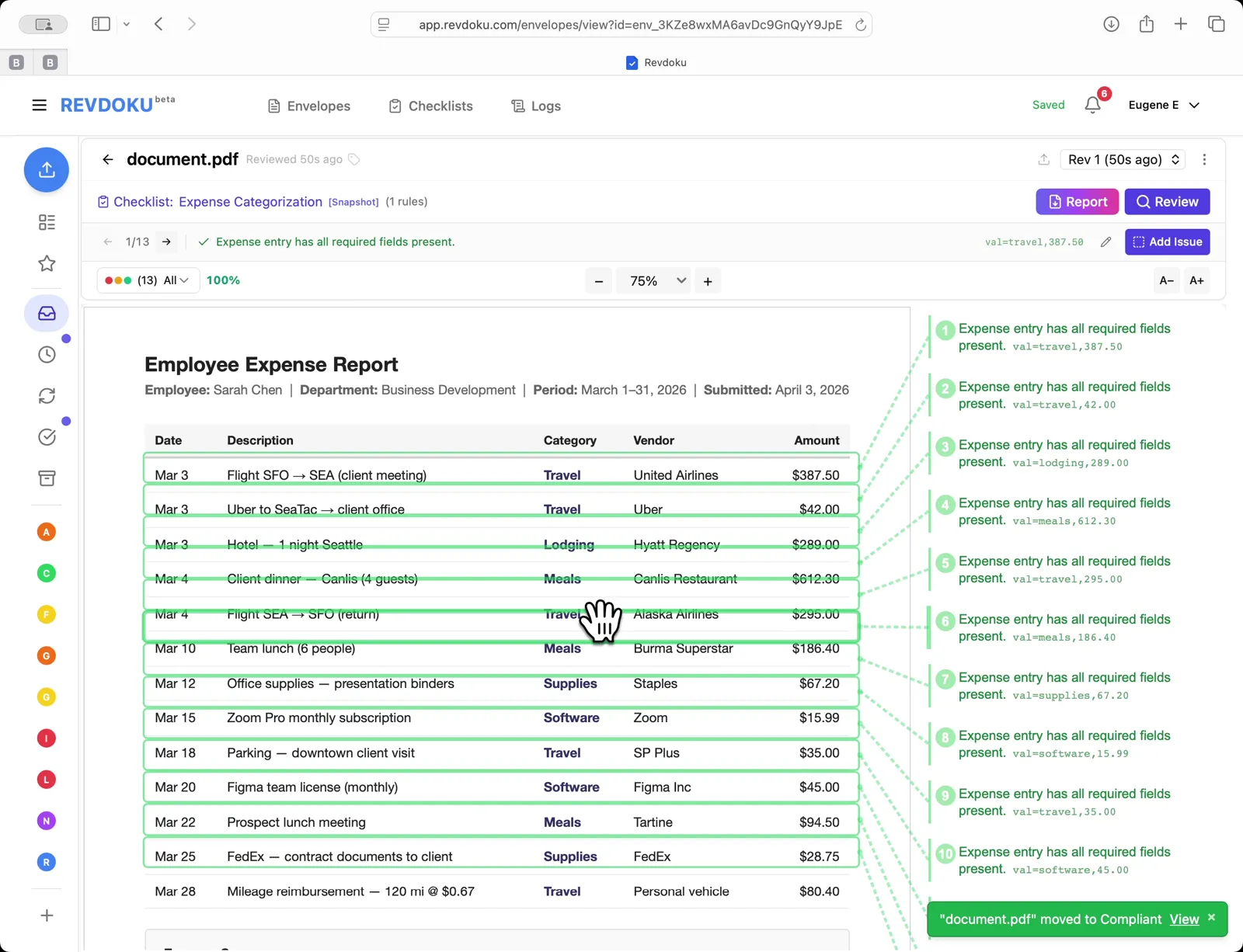
All 13 rows pass. Each row is annotated with a val:<category>,<amount> pair (e.g. val:travel,387.50) and the document moves to Compliant.
7. Open the script editor
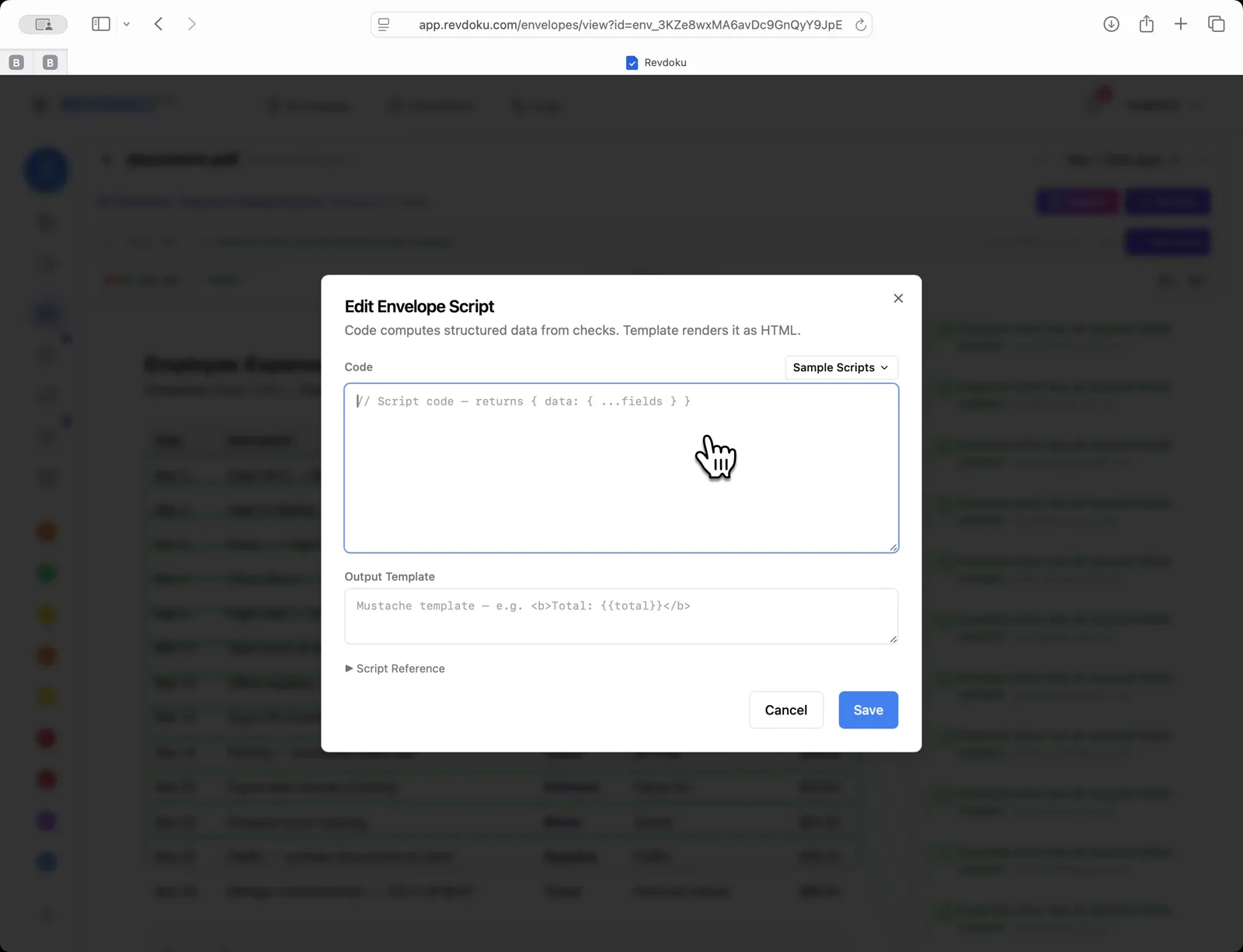
Open Edit Envelope Script. The dialog has two fields: Code (computes structured data from the checks) and Output Template (renders it as HTML).
8. Add the rollup code
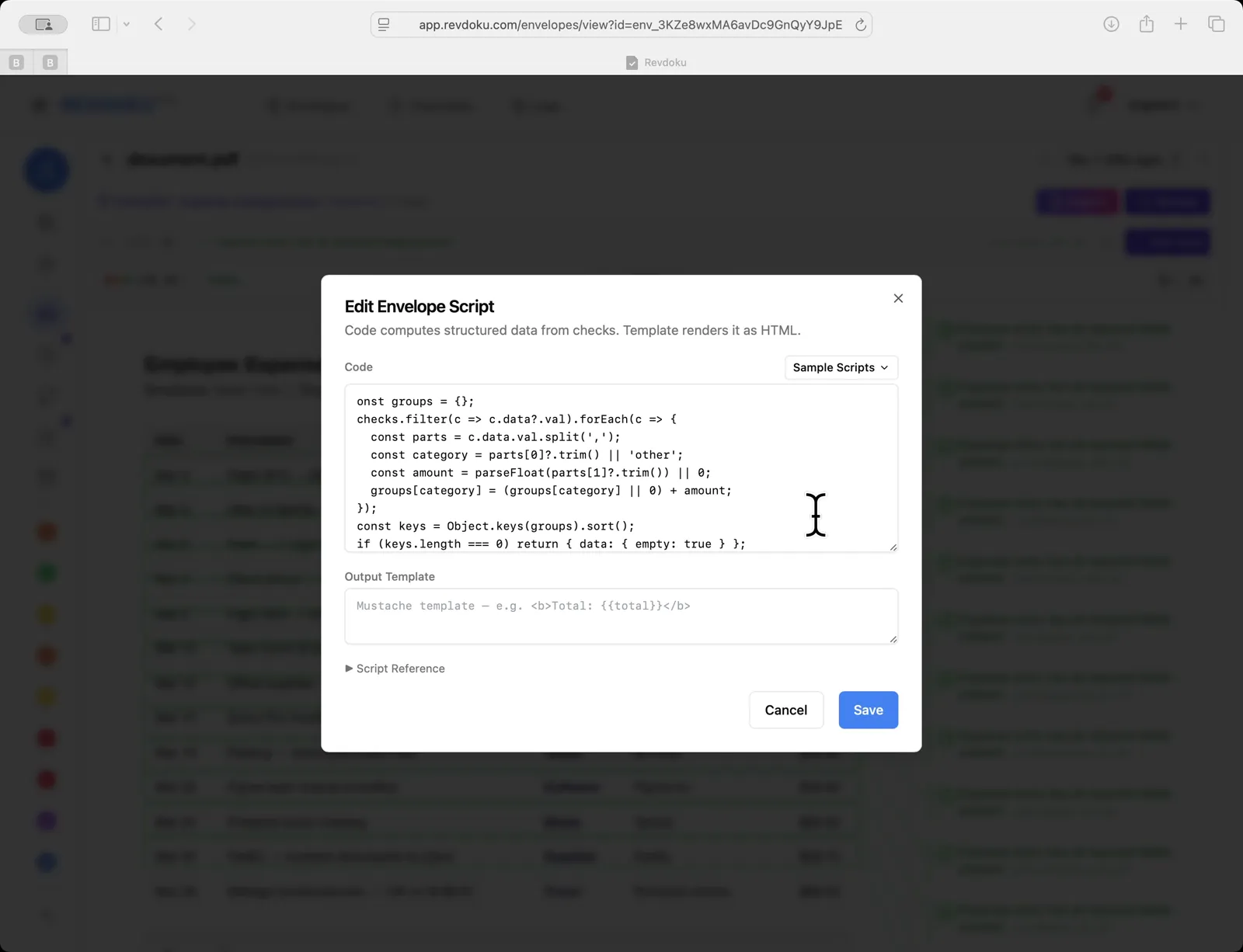
Paste a snippet that filters checks with a val field, splits each on the comma into category and amount, and accumulates totals per category.
9. Saving without a template fails
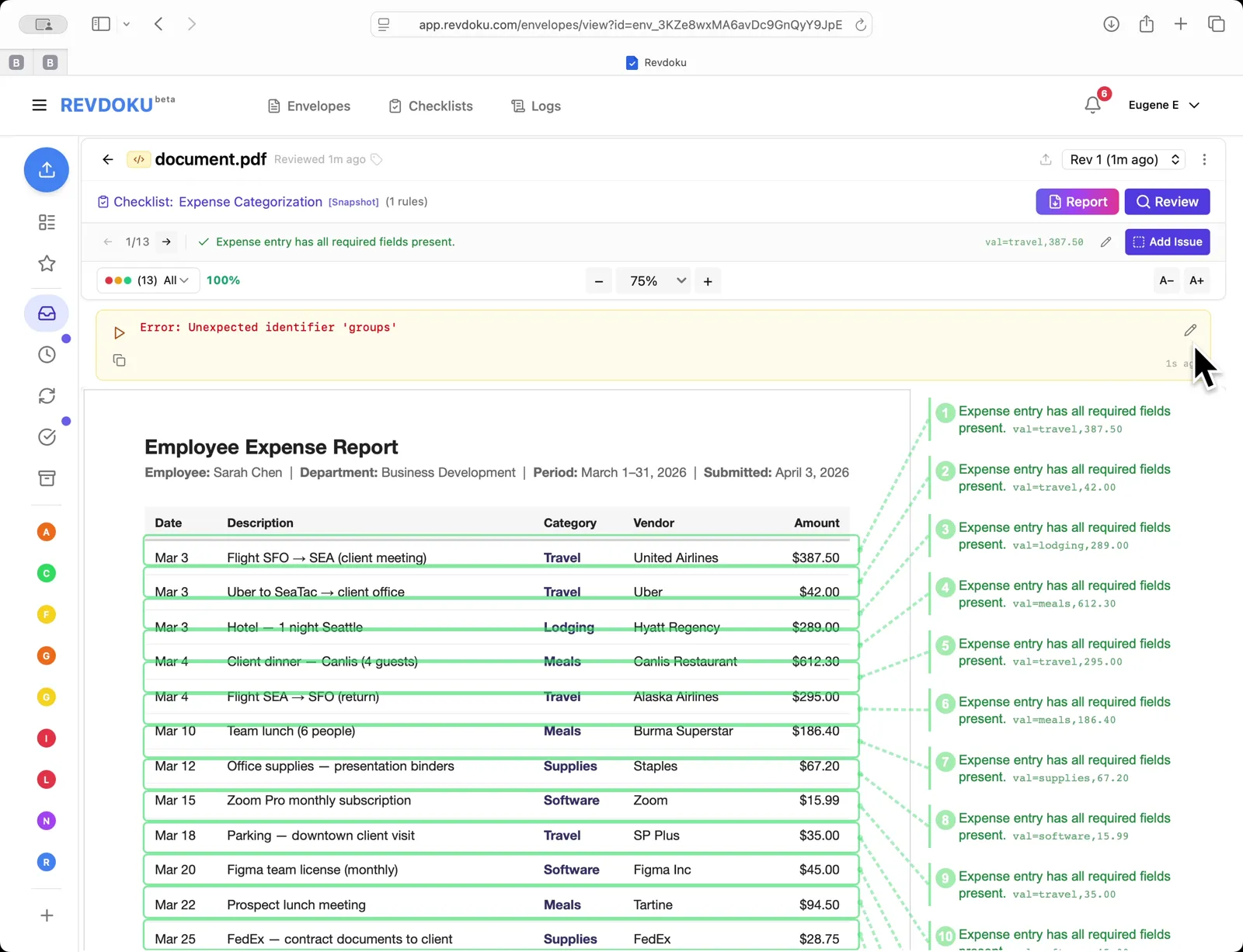
Saving with an empty template surfaces an Error: Unexpected identifier groups banner above the table. Click the pencil icon to reopen the editor.
10. Add the output template
Fill the Output Template with a Mustache template that prints the total and iterates each category:
<b>Total: ${{total}}</b>{{#each items}}<br/><b>{{category}}</b>: ${{amount}} ({{{pct}}}%){{/each}}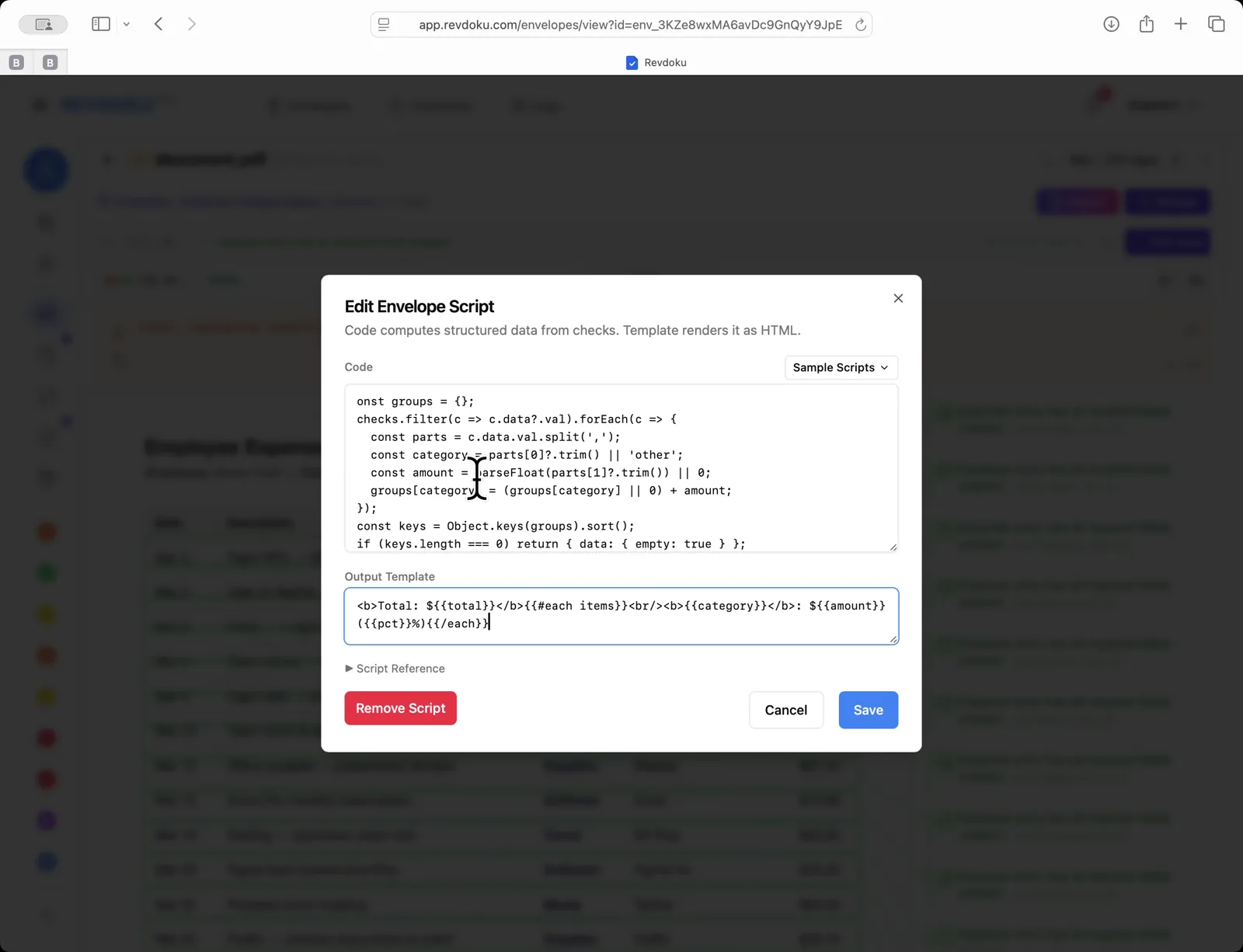
11. View the rolled-up summary
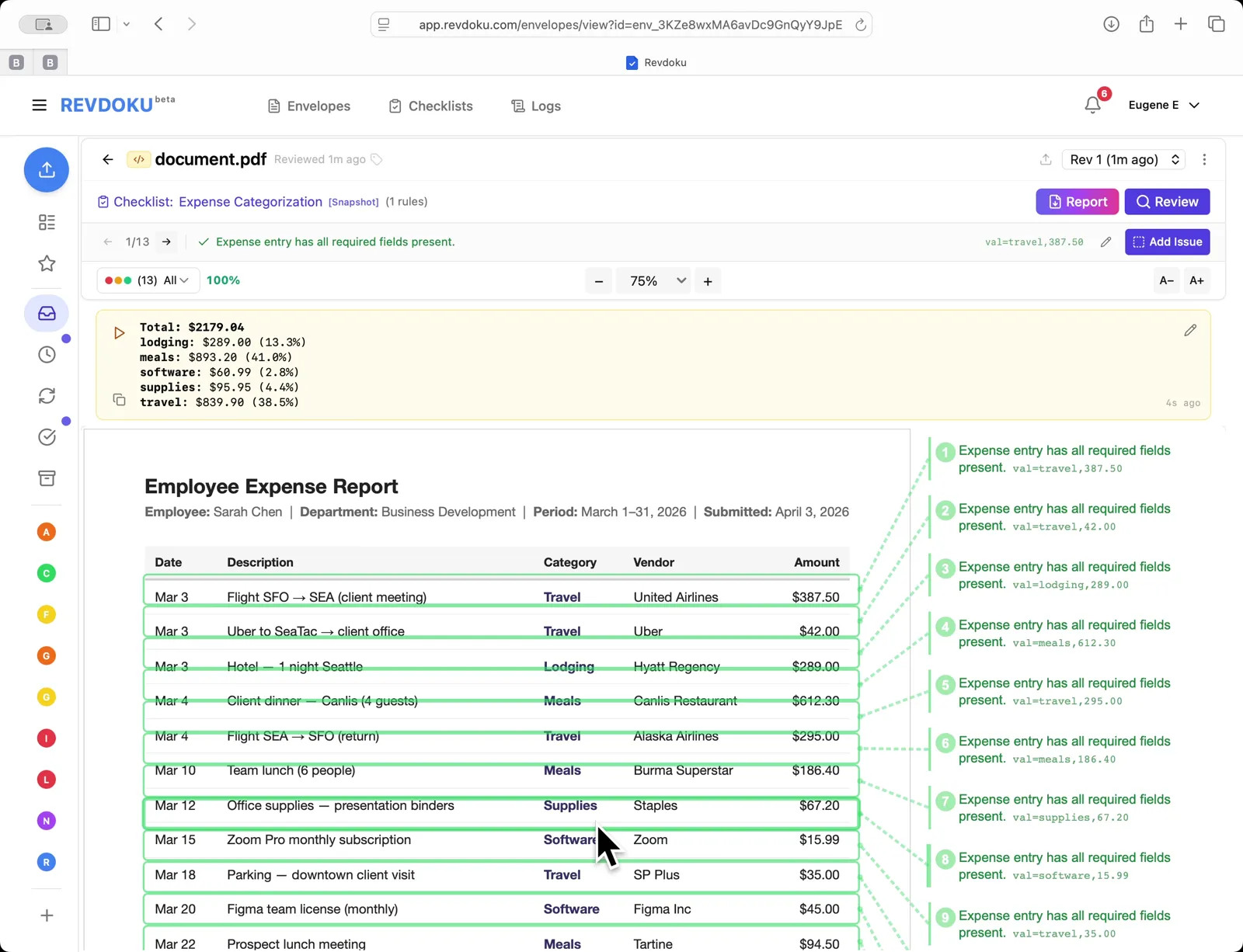
The script runs and a summary box replaces the error:
- Total: $2179.04
- lodging $289.00 (13.3%)
- meals $893.20 (41.0%)
- software $60.99 (2.8%)
- supplies $95.95 (4.4%)
- travel $839.90 (38.5%)
Conclusion
In this tutorial it was demonstrated how to use Revdoku for categorizing an expense report. The following steps were shown:
- Open the inbox
- Load the expense report
- Start the review
- AI analyzes the pages
- Checks run
- Review complete
- Open the script editor
- Add the rollup code
- Saving without a template fails
- Add the output template
- View the rolled-up summary
What You Learned
This case showed how Revdoku can take a document, apply a structured checklist, and surface specific findings — all in under a minute. No manual line-by-line reading required.