AI Website Review Checklist Before Publishing
Table of Contents
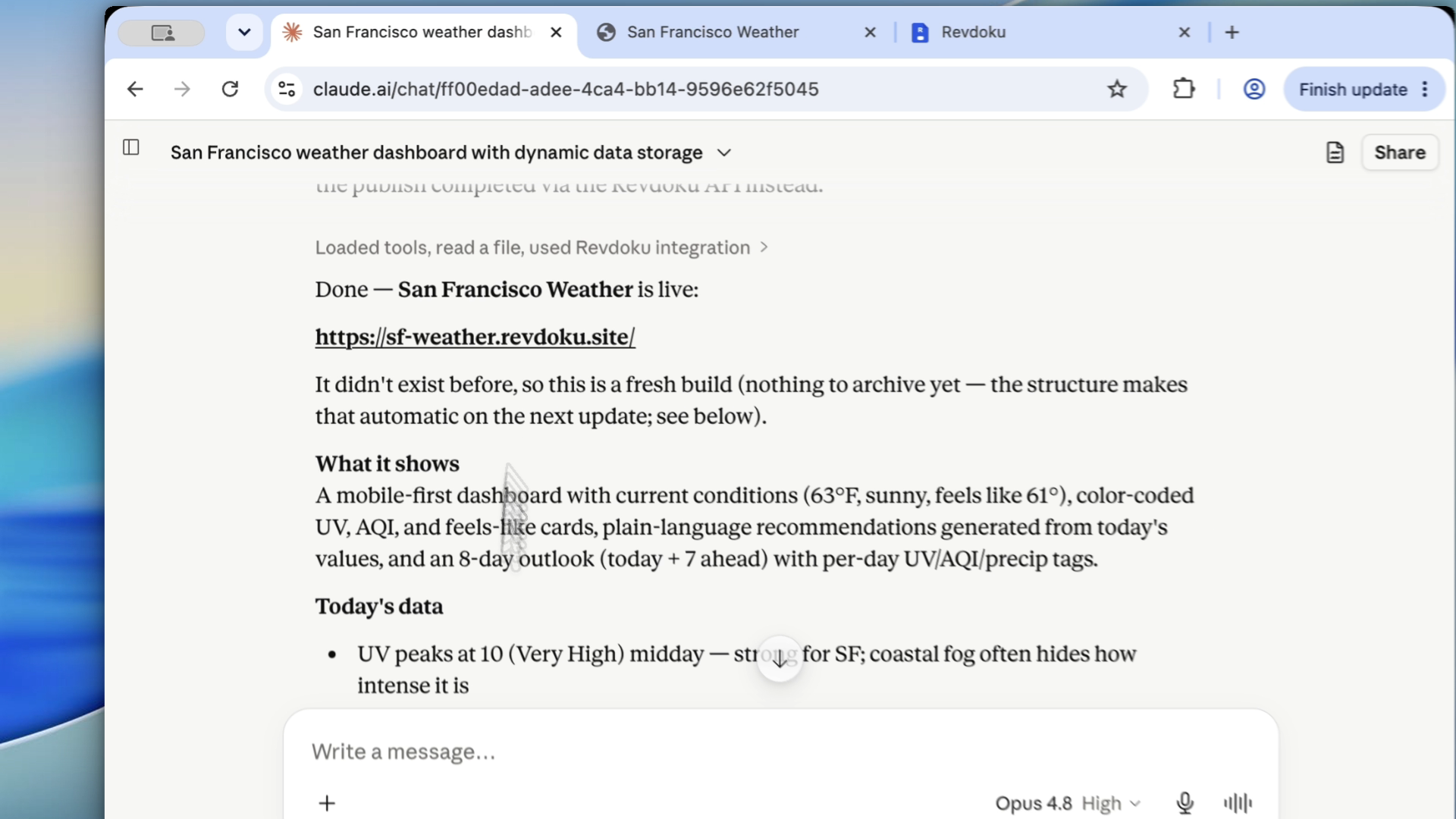
AI generated website drafts can look finished before they are ready. A button overlaps on mobile. A generated chart uses fake data. A password page has the wrong copy. An image is cropped. The agent fixed the visible bug, but broke a different screen.
Use this review loop: generate, inspect, screenshot, correct, publish privately, approve, then update the live URL.
Note: first confirm the page loads and the main story is visible.
Step 1: Generate the AI website draft
Ask Claude Code, Codex, ChatGPT, or another agent for a first version. Include:
- The purpose of the site.
- The intended audience.
- Required pages or sections.
- Data files or assets.
- Mobile expectations.
- Publishing target.
Treat the first generated result as a draft.
Step 2: Run an AI website QA checklist in the browser
Open the site and test it like a visitor. Do not only read the code. Click buttons, resize the window, open mobile view, and inspect page states.
Look for:
- Broken links.
- Blank sections.
- Overlapping text.
- Missing assets.
- False or placeholder data.
- Slow or broken interactions.
- Forms that do not submit.
- Accessibility problems.
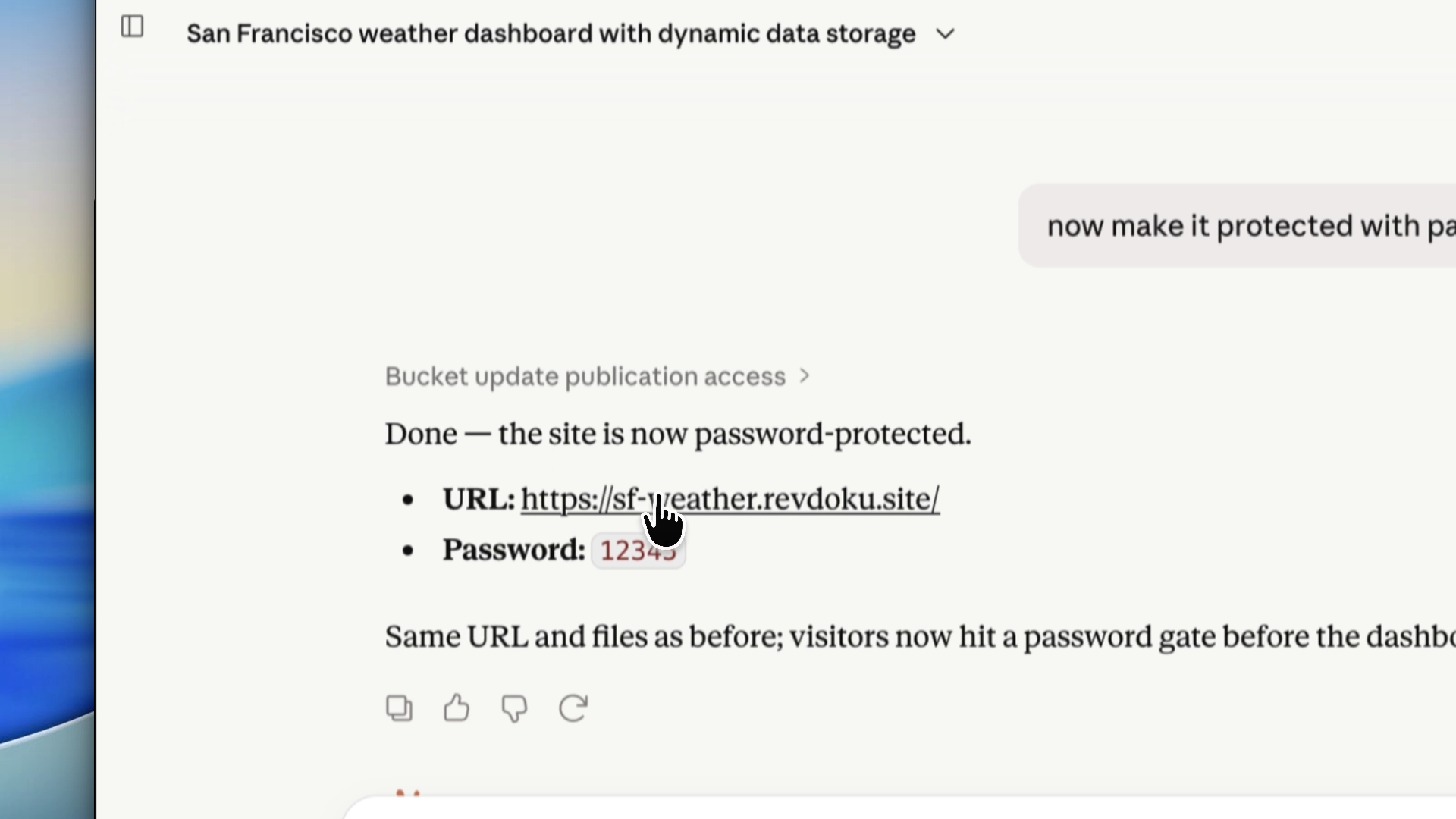
Note: an unfinished page signals workflow status: wait for publish completion before judging the visitor experience.
Step 3: Use screenshots for Claude Code UI review
Screenshots make Claude Code UI review more precise. Instead of “the layout is weird,” show the exact section and expected behavior.
Good feedback:
On mobile, the CTA button overlaps the pricing text. Keep the button below the paragraph with at least 16px spacing.Bad feedback:
Fix the design.Specific review prompts save context and prevent wrong-page rewrites during AI website QA.
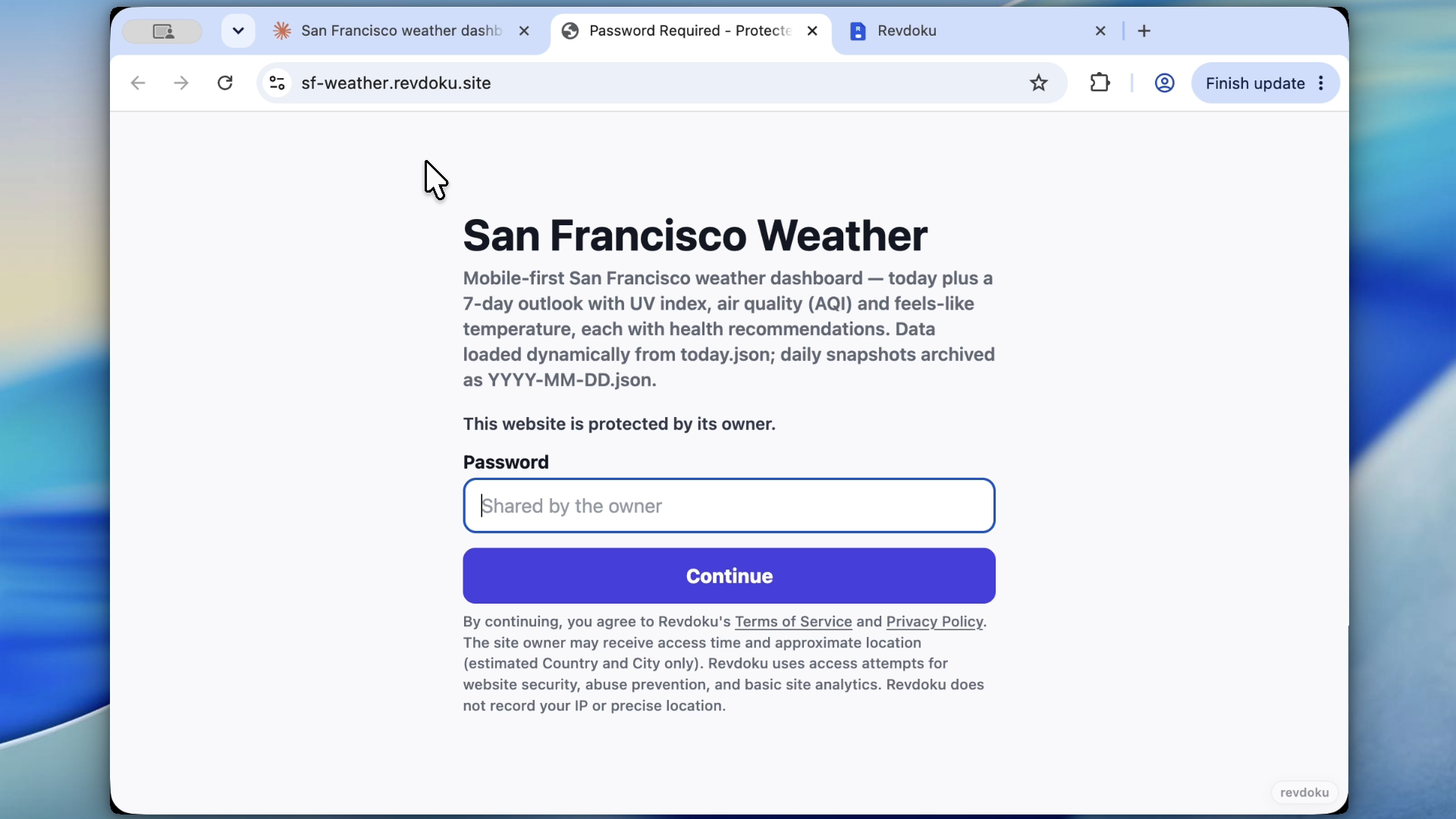
Note: a Revdoku private preview lets stakeholders inspect the real site without making an unfinished page public.
Step 4: Publish generated website safely, privately first
When the local version looks good, publish it to a password-protected Revdoku private preview. This gives reviewers a real URL without making the site public.
Use private publishing for:
- Client review.
- Internal approval.
- Founder or executive sign-off.
- Compliance and copy review.
- Testing generated dashboards or reports.
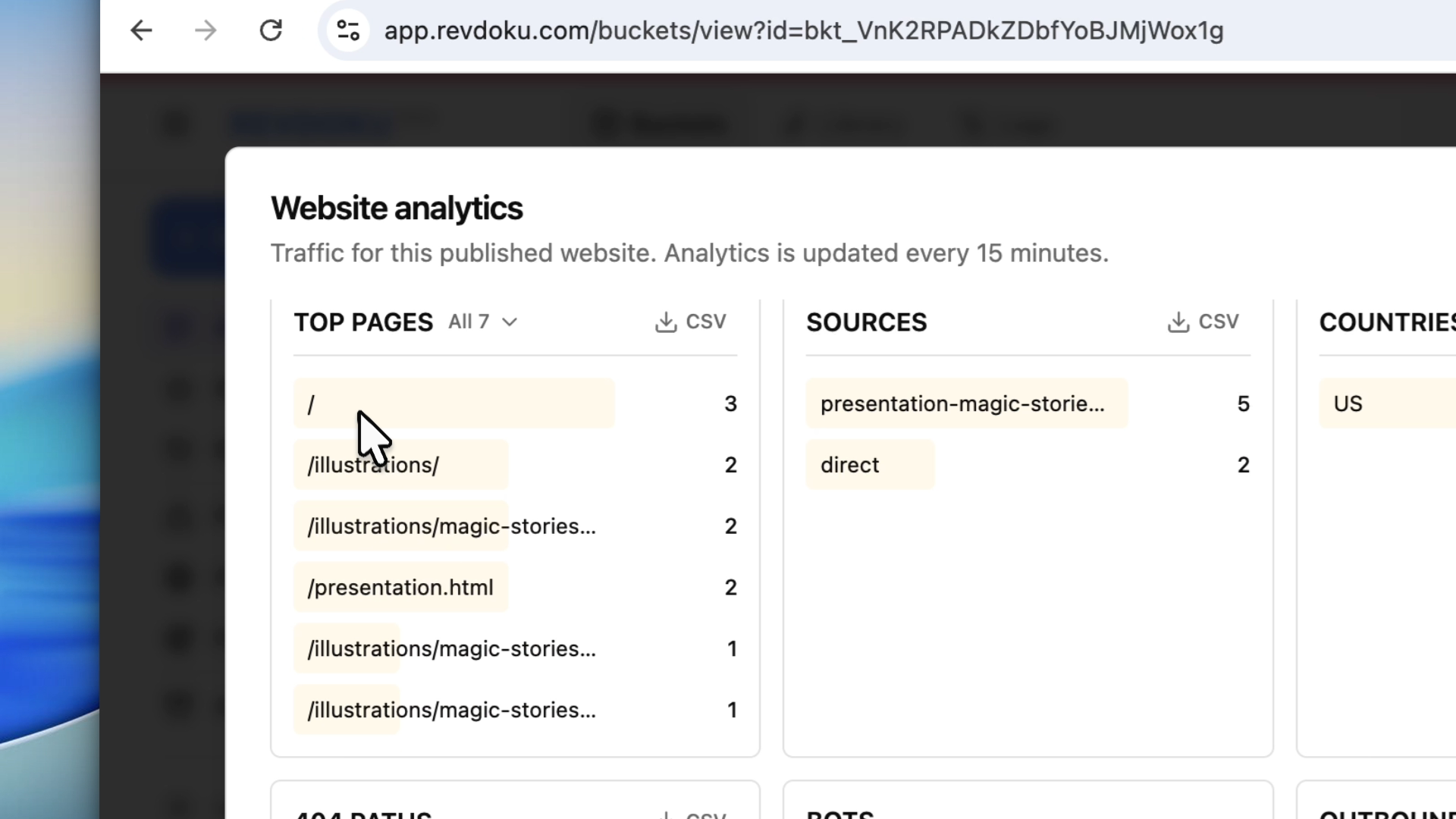
Note: analytics show whether reviewers opened the page before you chase feedback.
Step 5: Approve and update the live URL
After review, update the same Revdoku bucket and switch access mode:
- Public for launch.
- Password for a controlled group.
- Password-plus-email when visitor attribution matters.
Then open the final URL and run one last smoke test.
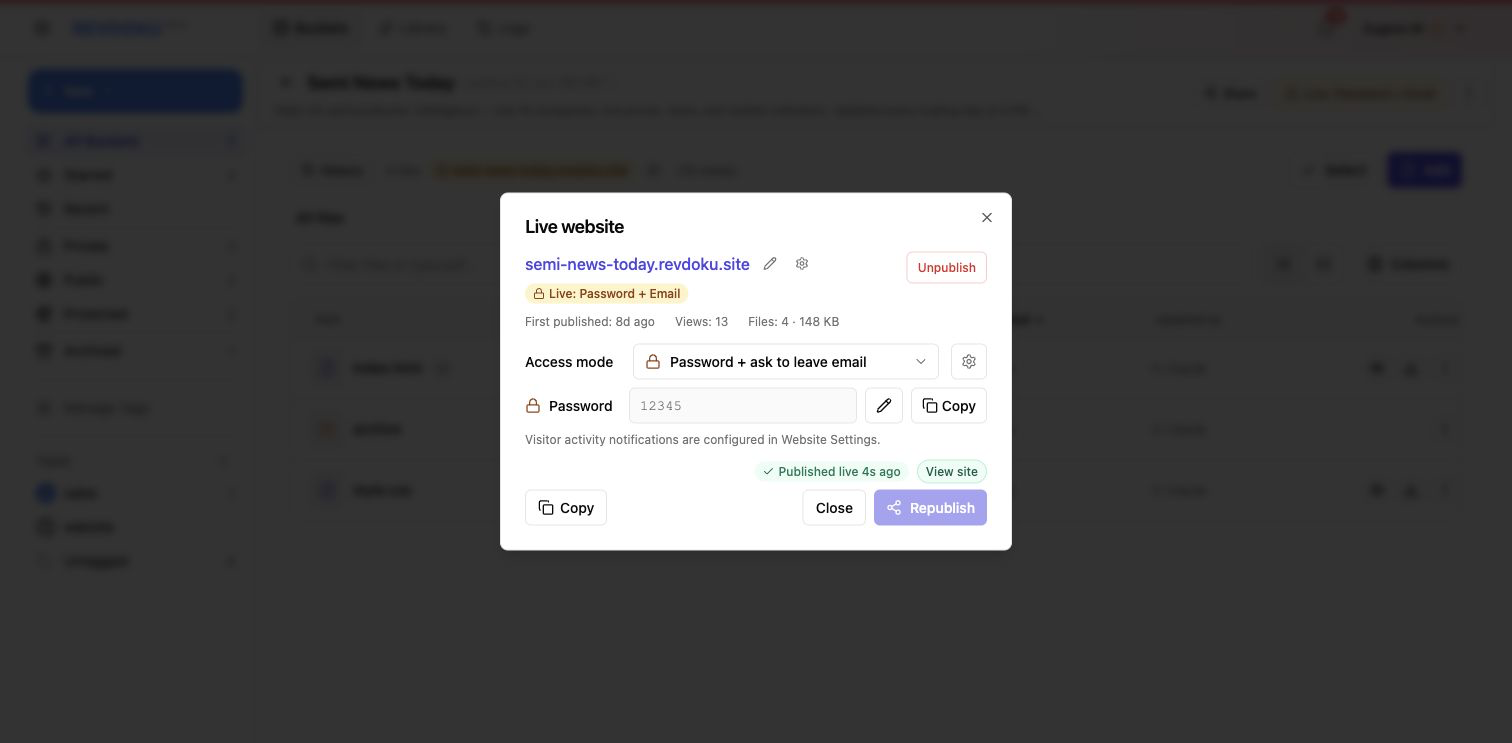
Note: once approved, keep the Revdoku destination and update the live page intentionally.
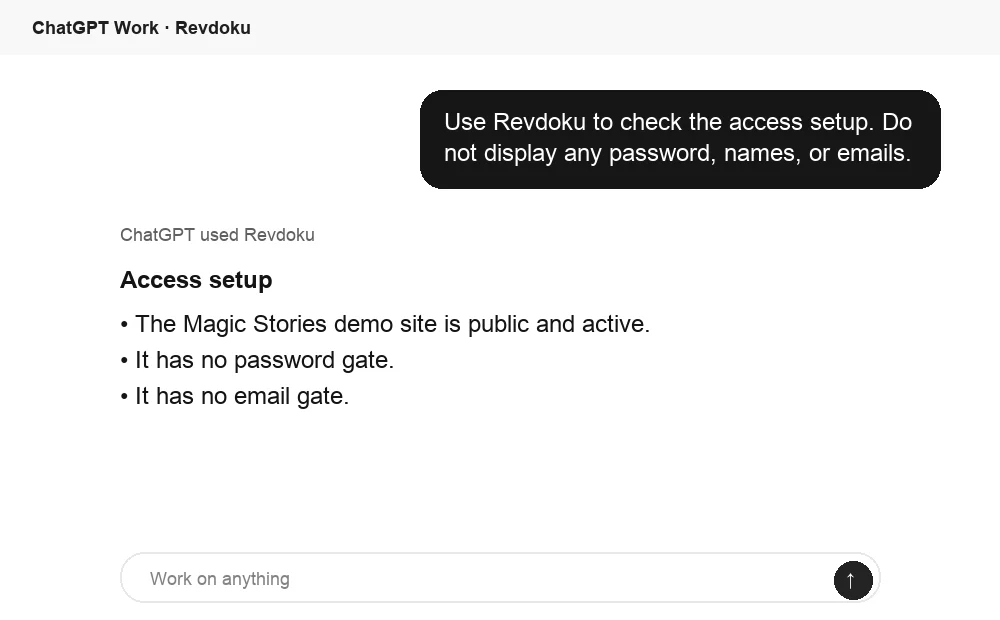
Ask ChatGPT to check access before review
Before sharing the generated site, ChatGPT can ask Revdoku what access mode is active for the bucket. Use this as a quick review check before a client, teammate, or stakeholder opens the link.
Takeaway
The safest AI website workflow is not “generate and ship.” Instead: generate, inspect, screenshot, fix, publish privately, approve, and update. Revdoku makes the private draft and final live URL part of the same practical loop.
Frequently asked questions
Why is browser review necessary for an AI-generated website?
Code can look correct while the actual page still has layout, interaction, or content problems. Reviewing in the browser helps catch issues such as broken buttons, missing assets, mobile overlap, and unfinished states before visitors see them.
What should I check first when reviewing an AI website draft?
Start by confirming that the page loads, the main content is visible, and the primary action works. After that, test navigation, mobile layout, forms, images, and any dynamic content or data-driven sections.
How do screenshots help when asking an AI agent to fix UI issues?
Screenshots show the exact problem area, which makes the feedback more specific and reduces the chance of unrelated changes. Pair the screenshot with a clear instruction about what should change, such as spacing, alignment, or behavior on mobile.
When should I use a private preview instead of publishing publicly?
Use a private preview whenever the site still needs client, internal, compliance, or executive review. It lets stakeholders inspect a real URL while keeping unfinished work away from the public site.
How can I avoid publishing fake or placeholder data?
Check charts, reports, testimonials, pricing, contact details, and generated copy against the intended source material. If the site uses data files or dashboards, verify that the displayed values match the real inputs before approval.
Which access mode should I choose for review or launch?
Use password protection for a small review group and password-plus-email when you need to know who viewed the page. Switch to public access only after approval and a final smoke test on the live URL.
What should the final smoke test include before launch?
Open the final URL as a visitor and confirm the key page, navigation, calls to action, images, and forms still work. Also test a mobile viewport and make sure the approved version is the one now visible at the live destination.
Related Articles
GitHub Pages Password Protection and Privacy
Learn why private repositories do not protect Pages sites and compare secure access options for internal teams and external clients.
How to Password Protect a Vercel Deployment
Learn how to secure Vercel deployments with password protection, authentication, trusted access, or protected Revdoku hosting.
How to Password Protect a Website Made with Claude
Learn how to export, secure, publish, and test a Claude-made website using password protection or verified-email access.