Publish a Local Folder as a Revdoku Website
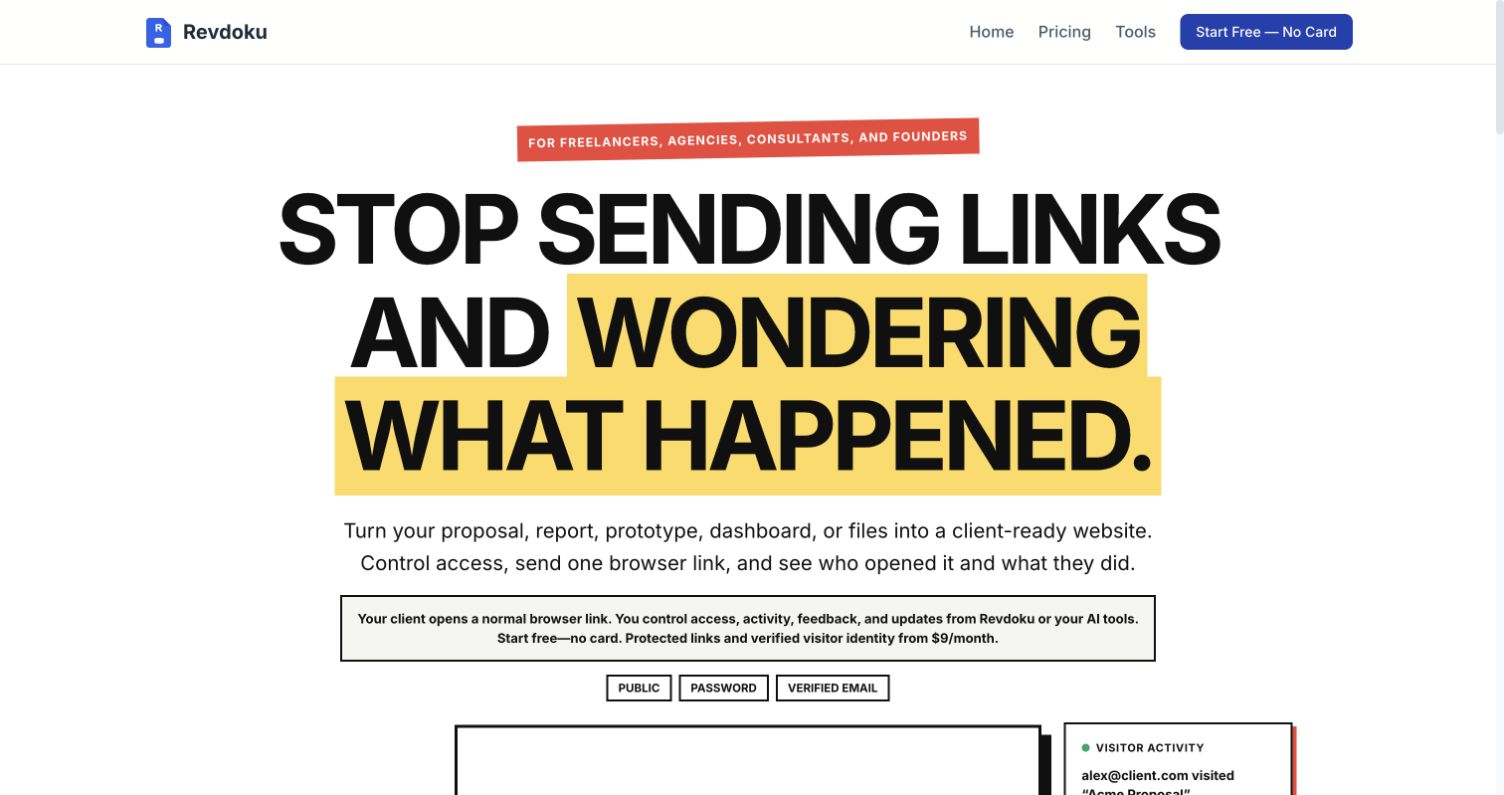
Revdoku turns a local website folder into a shareable link. It is a good fit for a vibe-coded site you want to show to a client, protect with a password or email check, update at the same URL, and track after sharing.
Before you start
Prepare the folder you actually want people to open. For a plain static site, that folder usually looks like this:
my-site/
├── index.html
├── styles.css
├── script.js
└── assets/
If you used a framework, run its build command first and use the output folder, often dist, build, or out. Make sure index.html is at the root.
1. Create a Revdoku account
Open Revdoku and create an account. You can publish from the dashboard by dragging and dropping. The CLI is optional and useful when you expect to update the same site often.
2. Create a bucket
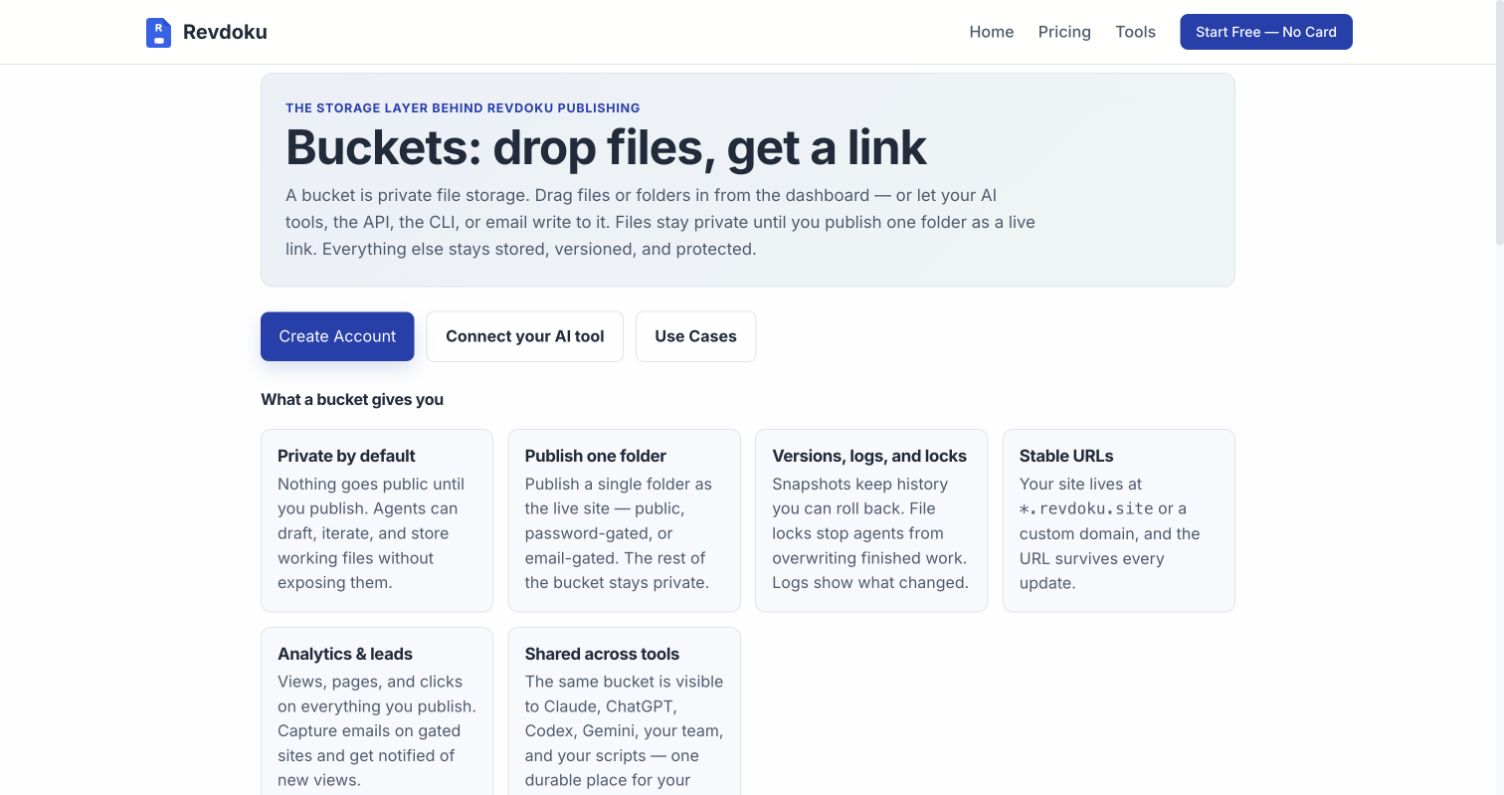
In the Revdoku dashboard, create a bucket and give it a clear name, such as “Client homepage preview.” A bucket holds the site files and keeps future versions attached to the same project.
You can keep the bucket private while you check the upload. Publishing is a separate step.
3. Upload the website folder
Drop the whole folder into the bucket. Keep its internal structure intact; moving CSS, JavaScript, or image files can break relative links.
Check that the bucket contains:
index.htmlat the top level- Every referenced image and font
- The compiled JavaScript files
- Any JSON or CSV files the site loads in the browser
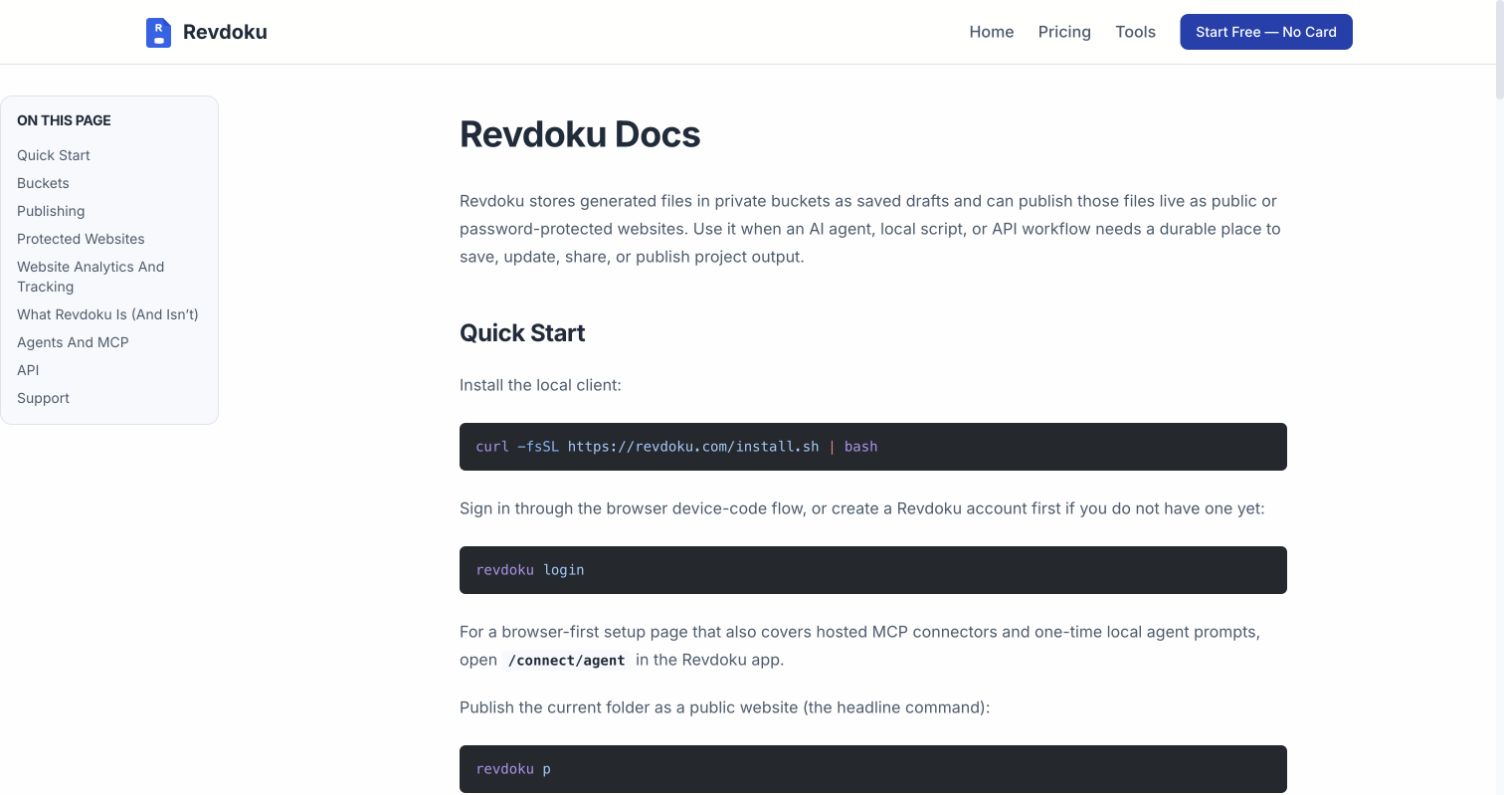
For a repeatable terminal workflow, install the Revdoku CLI and run this from the folder you want to publish:
revdoku publish .The CLI uploads the folder and remembers the bucket binding for later updates.
4. Publish the bucket as a website
Choose Publish as website, confirm that index.html is the entry page, and select an access mode:
- Public for a link anyone can open
- Password for a shared review code
- Email when visitors should verify their email addresses before viewing
Revdoku gives you a stable site URL. Open it in a private browser window and test the homepage, navigation, images, JavaScript, downloads, and mobile layout.
5. Share and review activity
Send the published URL, not a localhost address. Protected sites can notify you when someone opens them. Revdoku analytics show page visits and activity; verified email access or recipient links can help identify viewers.
If the site includes a Revdoku feedback or contact form, submit a test before sending the link to a client.
Update the site
Change the local files, rebuild if needed, then upload the new folder version to the same bucket. With the CLI, run:
revdoku publish .The public link stays the same. Test the published page again after each update.
| Check | Ready when |
|---|---|
| Home page | index.html opens at the site root |
| Assets | CSS, scripts, images, and fonts load |
| Access | Public, password, or email mode works |
| Mobile | Main pages fit a phone screen |
| Updates | A new version keeps the same URL |
Your site is live.
Related Articles
GitHub Pages Password Protection and Privacy
Learn why private repositories do not protect Pages sites and compare secure access options for internal teams and external clients.
How to Password Protect a Vercel Deployment
Learn how to secure Vercel deployments with password protection, authentication, trusted access, or protected Revdoku hosting.
How to Password Protect a Website Made with Claude
Learn how to export, secure, publish, and test a Claude-made website using password protection or verified-email access.