Put Your Restaurant Menu Online with a QR Code
Table of Contents
- Put Your Restaurant Menu Online Without Rebuilding Your Website
- Choose PDF Menu Hosting or a Static HTML Menu
- Prepare a Mobile-Friendly QR Code Menu
- Host Your Menu Online With Revdoku
- Test the Online Menu Before Creating Your QR Code Menu
- Generate the QR Code With a Separate Reputable Tool
- Print and Test Your QR Code Menu
- Update the Menu Later Without Changing the URL
- Practical Examples and Pitfalls
- Final Thoughts
- Put Your Restaurant Menu Online Without Rebuilding Your Website
- Choose PDF Menu Hosting or a Static HTML Menu
- Prepare a Mobile-Friendly QR Code Menu
- Host Your Menu Online With Revdoku
- Test the Online Menu Before Creating Your QR Code Menu
- Generate the QR Code With a Separate Reputable Tool
- Print and Test Your QR Code Menu
- Update the Menu Later Without Changing the URL
- Practical Examples and Pitfalls
- Final Thoughts
Put Your Restaurant Menu Online Without Rebuilding Your Website
A QR code menu can save customers from typing a web address and save staff from replacing printed menus after every price change. The code is only a shortcut to a fast, readable page or document you control.
This tutorial explains how to put your restaurant menu online as a mobile-friendly PDF or static HTML page, publish it with Revdoku, and connect it to a QR code made with a separate generator. You will also test the complete path, from scanning the code to reading the smallest price on a phone.
TL;DR: Prepare a mobile-friendly menu, host it at a stable URL, test it on phones, generate and print the QR code, and update the same destination when prices change.
The full process has six parts:
- Prepare the menu for a small screen.
- Publish it at a stable URL.
- Test that URL on real phones.
- Create the QR code with a separate tool.
- Print and scan the finished code.
- Update the menu later without changing its link.
Choose PDF Menu Hosting or a Static HTML Menu
Choose the right format for customers and future updates. A PDF is usually easier because most restaurants already have a print menu. Static HTML takes more work but offers a smoother phone experience.
| Consideration | Mobile-Readable PDF | Static HTML Menu |
|---|---|---|
| Setup | Export and upload one file | Upload an HTML file plus its images and styles |
| Phone experience | May require zooming if poorly designed | Can adapt to the width of any screen |
| Design control | Preserves the printed layout | Depends on browser and CSS rules |
| Updates | Replace the PDF at the existing link | Replace one or more site files |
| Search and copying | Works when text remains selectable | Usually easy to search and copy |
| Best fit | A short menu that changes occasionally | A longer menu or online price list with frequent changes |
For many independent restaurants, PDF menu hosting is a practical starting point. Use a single-column layout and keep the file small. A narrow two-page PDF is easier to read than a three-column dining-room menu squeezed onto a phone.
Choose static HTML when mobile navigation matters more than matching the print design. HTML lets you add section links for breakfast, drinks, desserts, and dietary choices. It can also resize text without making customers pan sideways.
Neither format creates ordering, payment, reservation, or inventory functions. This guide covers menu publishing and sharing, not restaurant commerce.
Prepare a Mobile-Friendly QR Code Menu
A menu can look perfect on a laptop and still fail at the table. Customers may use one hand, sit in dim light, or have a slow connection. Design for that situation.
For a PDF, start with a narrow portrait page. Use live text instead of a menu photograph. Live text stays sharper when enlarged and can be read by assistive technology. It also lets customers search for dishes or allergens.
| Item | What to Check | Why It Matters |
|---|---|---|
| Text size | Body text remains readable at normal phone width | Constant pinching and zooming makes the menu tiring to use |
| Contrast | Dark text has a clear contrast with its background | Low light and screen glare can hide pale text |
| File size | Aim for about 1 to 3 MB when images are included | Smaller files usually open faster on mobile data |
| Layout | Use one column or short, clearly separated sections | Wide columns force horizontal scrolling |
| Text layer | Customers can select dish names and prices | A scanned image is less accessible and harder to search |
| Information | Prices, descriptions, dietary notes, and dates are current | A polished menu is still wrong if its information is stale |
The Web Content Accessibility Guidelines specify a contrast ratio of at least 4.5:1 for normal text under Level AA. The WCAG contrast guidance covers web pages, but the same target suits a digital menu.
For static HTML, set the viewport correctly and let content reflow. Keep buttons and links large enough to tap. WCAG 2.2 sets a minimum target size of 24 by 24 CSS pixels in many cases, as explained in its target-size guidance.
Include near the menu:
- The restaurant name, address, and telephone number
- Serving hours for the displayed menu
- Currency and whether taxes or service charges are included
- A note that ingredients and availability can change
- Clear allergen guidance that tells guests to speak with staff
- A visible revision date, such as Updated July 2026
Host Your Menu Online With Revdoku
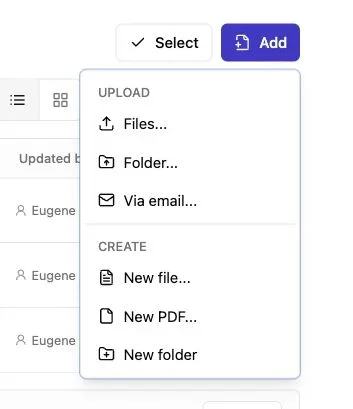
Note: Use the Add menu to upload files or a complete folder.
Once the file works on a phone, publish it with Revdoku. Create a dashboard bucket, add the PDF or static site folder, and share the live link.
For a PDF menu, follow this sequence:
- Sign in to Revdoku and create a bucket for the restaurant menu.
- Give the bucket a plain internal name, such as Main dining menu.
- Drag the improved PDF into the bucket.
- Open the sharing settings and choose the access level.
- Copy the published link and open it in a private browser window.
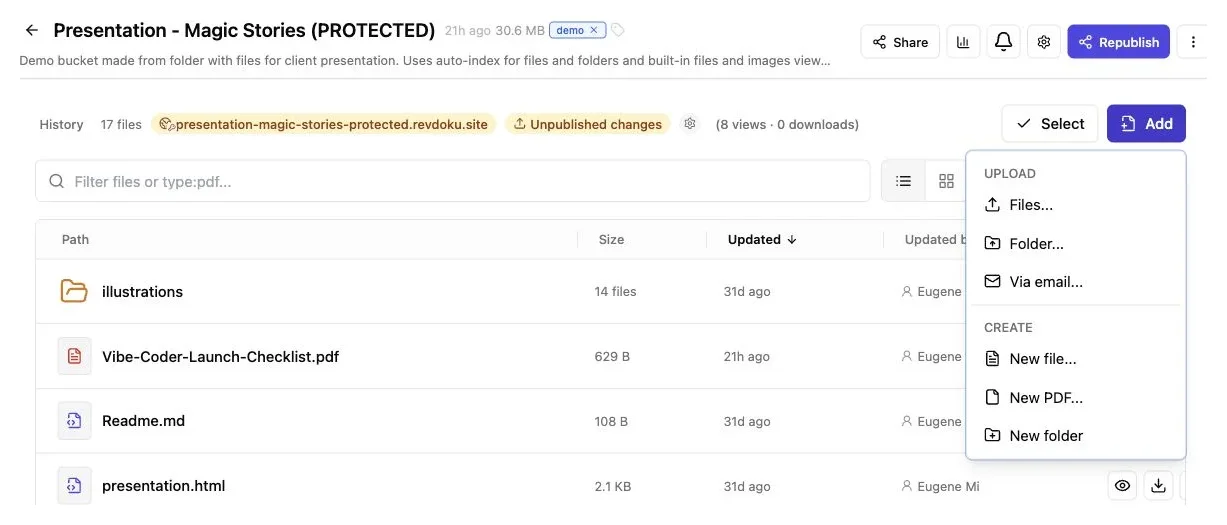
Add the menu PDF or its complete website folder to the bucket before publishing.
A public link is normally the least frustrating choice for a table menu. Customers can scan and read without providing personal information. An email gate can record leads and per-visitor activity but adds unexpected friction. A password can make sense for a private event menu or an internal staff price list.
To host a static HTML menu online, upload the complete folder. Include the main HTML file and all local assets, including stylesheets, fonts, and images. Test for missing files after publishing. A page that worked on your computer may fail online if an image path points to a local folder.
Revdoku gives the bucket a stable sharing link. You can later replace the menu while keeping the URL encoded in the printed QR code. Revdoku hosts the content and manages its link. It does not generate the QR code.
Test the Online Menu Before Creating Your QR Code Menu
Do not create or print a QR code immediately after uploading. Test the destination first. A QR image cannot fix an unreadable PDF, missing stylesheet, or accidental access gate.
Open the Revdoku link on at least one iPhone and one Android phone if available. Turn off Wi-Fi once to test the online price list over cellular.
| Test | What to Do | Pass Condition |
|---|---|---|
| First load | Open the link in a private browser tab | The menu opens without an owner login |
| Readability | Read the smallest description and price | Text is legible without repeated zooming |
| Navigation | Move between pages or HTML sections | The customer does not get lost or scroll sideways |
| Accuracy | Compare several dishes with the source menu | Names, prices, and dietary marks match |
| Download | Use the download control if you allow downloads | The current file downloads with a sensible name |
| Slow connection | Test over cellular data | The first useful content appears in a reasonable time |
| Accessibility | Increase the phone’s text size or zoom | Important content remains available and understandable |
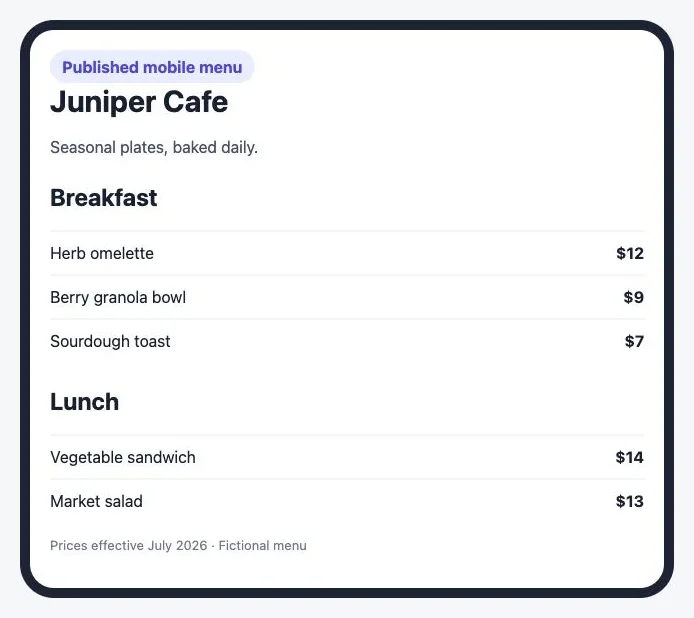
Dish names and prices remain readable at the default phone width without horizontal scrolling.
If a PDF opens with tiny text, return to the source document and export a narrower version. Higher resolution alone will not fix the layout. If static HTML moves sideways, inspect wide tables, fixed-width images, and CSS containers. Images should generally have a maximum width of 100% so they shrink with the screen.
This test also catches links to a dashboard or editing screen instead of the public share URL. Test the exact address you will encode.
Generate the QR Code With a Separate Reputable Tool
After testing the live link, copy it into a separate QR generator. Revdoku supplies the URL; the QR tool makes it scannable.
Well-known options include Adobe Express and Canva. Review the chosen provider’s current terms and privacy policy before submitting a private or sensitive address. A public menu URL should not contain customer information or account credentials.
Use this process:
- Copy the public Revdoku menu link directly from the sharing view.
- Paste it into the separate QR generator.
- Choose a dark foreground on a plain light background.
- Avoid placing a large logo over the code.
- Export a high-resolution PNG for office printing or an SVG when a professional printer requests vector artwork.
- Save the source graphic with a clear filename, such as main-menu-qr-2026.svg.
A static QR code works because the Revdoku destination stays stable as bucket content changes. You should not need a paid dynamic QR service to change prices. The QR code retains the same Revdoku URL.
QR codes have four error-correction levels. According to DENSO WAVE, they can restore about 7%, 15%, 25%, or 30% of codewords depending on the selected level. Error correction helps with minor damage but cannot compensate for poor printing. A clean, simple code remains the safest choice.
Print and Test Your QR Code Menu
A code that scans from a monitor can still fail after printing. Glossy lamination, low toner, decorative backgrounds, folds, and undersized codes can cause trouble.
Test a sample before ordering 500 table cards. A printed width of roughly 25 to 40 mm is a practical starting range for close scanning, though the right size depends on the URL length, printing method, and expected scanning distance. A code on a wall should be much larger than one on a tabletop.
Keep a blank border around all four sides. DENSO WAVE’s QR code basics call for a quiet zone four modules wide around a standard QR code. Do not let text, borders, or artwork enter that space.
Test the sample under realistic conditions:
- Scan with both the built-in iPhone Camera app and an Android camera.
- Test from the distance at which a seated guest will hold the phone.
- Try bright daylight, ordinary indoor light, and dim evening light.
- Rotate the table card and test it from several angles.
- Place the sample under the laminate or cover used in the restaurant.
- Confirm that the browser opens the correct live menu, not merely that the camera recognizes a code.
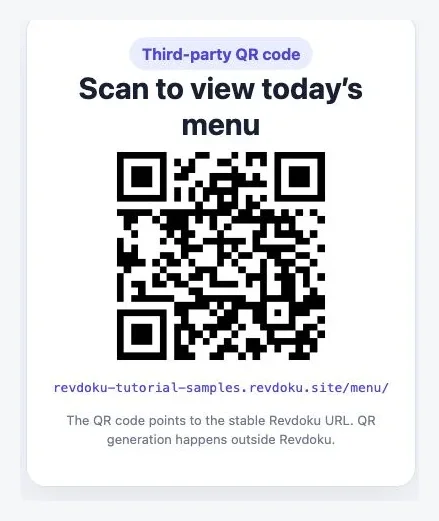
The card uses a short instruction, a readable fallback URL, and clear space around the code. QR generation happens outside Revdoku.
Add a short instruction beside it, such as Scan to view the current menu. It also helps to print a short, readable fallback URL. A damaged camera, restricted device, or accessibility need may make scanning inconvenient. Keep a few physical menus available too.
Update the Menu Later Without Changing the URL
Reliable PDF hosting keeps the printed QR code separate from the current document. The card points to a stable Revdoku bucket, while the file inside that bucket can change.
When prices or dishes change, use a controlled update routine:
- Edit the original design or HTML source rather than patching the published copy.
- Update the visible revision date.
- Export and improve the new PDF, or prepare the revised static HTML files.
- Replace the existing content in the same Revdoku bucket.
- Open the original shared URL in a private window.
- Scan one of the codes already in the restaurant.
- Check several changed prices against the approved source.
Because the URL remains unchanged, you normally need not regenerate the QR code or reprint table cards. This helps cafés change seasonal drinks monthly or restaurants adjust market-price dishes weekly.
Stable links also reduce mistakes. If staff create new links, old codes may lead to outdated prices. Give one person responsibility for the production menu and keep the previous approved file in an archive outside the live bucket.
Revdoku can notify an owner when someone opens a protected link and provide visitor activity, page views, clicks, downloads, and captured leads when supported by the access setup. For a normal public dining menu, use analytics with care and do not claim to identify visitors who have not provided their information.
Practical Examples and Pitfalls
The same method supports several restaurant situations. Choose access and format for the customer’s setting.
| Example | Sensible Setup | Reason |
|---|---|---|
| Neighborhood café | Public, one-page PDF menu | Staff can replace seasonal drinks at the same link |
| Multi-section restaurant | Public static HTML menu | Section links reduce long scrolling on a phone |
| Catered private event | Password-protected PDF | The host can share limited event information with guests |
| Food truck | Public compact PDF with large type | The menu loads quickly and can be read while standing outside |
Most QR menu failures come from:
- Uploading a photograph of a printed menu with tiny or blurry text
- Encoding an editing link, temporary preview link, or owner-only dashboard URL
- Requiring an email address for an ordinary table menu without a clear reason
- Printing the code before checking the destination on a phone
- Removing the quiet zone or using a low-contrast brand color
- Creating a new URL for every price update
- Assuming a QR code provides ordering, payments, reservations, or stock control
Final Thoughts
Begin with the reading experience, not the square graphic. Prepare a narrow, searchable PDF or responsive static HTML page. Publish it in Revdoku, test the link on real phones, then create the code with a reputable QR tool.
The durable setup is simple:
- One mobile-readable source of current menu information
- One stable Revdoku sharing URL
- One clean, well-tested QR code pointing to that URL
- One documented process for replacing the menu and checking the result
This avoids reprinting after price changes. It gives guests direct access to the current menu without implying that Revdoku handles orders, payments, reservations, or inventory. Test every update through an existing printed code. That minute-long scan can prevent days of confused orders.
Frequently asked questions
Can customers use the menu without installing an app?
Yes. A standard QR code opens a web address through the phone’s camera or scanner. The destination should work in a normal browser.
Should the PDF allow downloads?
It depends. Downloads help guests keep catering or event menus, but a downloaded copy can become stale. For a frequently changing menu, make the revision date obvious and encourage guests to use the live link.
What happens if the internet is unavailable?
Unless cached, the online menu cannot load without a connection. Keep printed menus as a fallback and make sure staff know where they are stored.
Do you need automation?
No. Most restaurants can publish by dragging a PDF or folder into Revdoku. The API, CLI, and AI-agent options are available for teams that later want to automate repetitive publishing, but remain secondary to the dashboard workflow.
Should I use a PDF or static HTML for my online menu?
A mobile-friendly PDF is usually the quickest option for a short menu that changes occasionally. Static HTML is better for longer menus, frequent updates, responsive layouts, and section-based navigation.
Can I update prices without reprinting the QR code?
Yes. Replace the menu content in the same Revdoku bucket so the public sharing URL remains unchanged. After every update, scan an existing printed code and verify the revised prices and dishes.
How can I make sure the menu is easy to read on a phone?
Use large, high-contrast live text, a narrow layout, and compressed images. Test the smallest descriptions and prices on real iPhone and Android devices, including over cellular data and with increased text size or zoom.
Should customers have to enter an email address or password?
For an ordinary table menu, a public link usually offers the simplest experience. Email gates and passwords are better reserved for situations such as lead collection, private events, or internal staff materials.
What should I check before printing QR table cards?
Confirm that the encoded address is the public menu URL rather than a dashboard, editing, or temporary preview link. Print one sample and test it from realistic distances, angles, and lighting conditions while preserving a clear quiet zone around the code.
What happens if a guest cannot scan the code or access the internet?
Provide a short fallback URL beside the QR code and keep a few current printed menus available. Staff should know where those menus are stored so they can assist guests immediately.
Does this setup support online ordering, payments, or reservations?
No. Revdoku hosts and shares the menu, while a separate generator creates the QR code. Ordering, payment, reservation, and inventory features require additional restaurant systems.
Related Articles
GitHub Pages Password Protection and Privacy
Learn why private repositories do not protect Pages sites and compare secure access options for internal teams and external clients.
How to Password Protect a Vercel Deployment
Learn how to secure Vercel deployments with password protection, authentication, trusted access, or protected Revdoku hosting.
How to Password Protect a Website Made with Claude
Learn how to export, secure, publish, and test a Claude-made website using password protection or verified-email access.