How to Host an HTML Course Without an LMS
Table of Contents
- Publish an HTML course without running an LMS
- 1. Confirm that static HTML course hosting fits your course
- 2. Check the course export before HTML course hosting
- 3. Verify relative paths before you publish the HTML course
- 4. Upload and host the course export with the right access mode
- 5. Publish the HTML course and test the live link
- 6. Share, measure, collect feedback, and update
- 7. Troubleshoot common static HTML course hosting failures
- Final Thoughts
- Publish an HTML course without running an LMS
- 1. Confirm that static HTML course hosting fits your course
- 2. Check the course export before HTML course hosting
- 3. Verify relative paths before you publish the HTML course
- 4. Upload and host the course export with the right access mode
- 5. Publish the HTML course and test the live link
- 6. Share, measure, collect feedback, and update
- 7. Troubleshoot common static HTML course hosting failures
- Final Thoughts
Publish an HTML course without running an LMS
An exported course can look finished locally yet be hard to share. Email may reject the folder, cloud drives expose its files, and index.html may behave differently online.
With e-learning static hosting, an export of HTML, CSS, JavaScript, images, audio, and video can be published as an ordinary website. Learners receive one browser link, with no installation or LMS account required.
TL;DR: Learn to inspect, upload, configure, test, and update a course export with Revdoku. Revdoku provides static HTML hosting, not LMS enrollment, SCORM reporting, or server-side learning records.
1. Confirm that static HTML course hosting fits your course
Before uploading, determine what the course expects from its host. A static course runs in the learner’s browser: the host delivers files, while JavaScript handles slides, menus, simple quizzes, and local progress.
This suits many client courses, product tutorials, onboarding guides, interactive presentations, and self-paced resources, especially when you need one stable link rather than completion reports.
| Requirement | Static hosting | LMS or application server |
|---|---|---|
| Display HTML, images, audio, and video | Yes | Yes |
| Run browser-side JavaScript interactions | Yes | Yes |
| Restrict access to the published link | Yes, if the host supports gates | Yes |
| Record SCORM completion and scores | No | Yes |
| Enroll learners in assigned courses | No | Yes |
| Issue certificates from verified records | No | Usually |
| Run databases or custom server code | No | Yes |
Inspect the export outside the authoring tool. If it contains standard website files and requires no LMS connection, it is probably suitable for static hosting.
A SCORM package is different. The ADL SCORM programmer guide explains that course content communicates with an LMS through a JavaScript API to retrieve learner information and save data such as scores. Static hosting cannot provide that LMS API. Pages may open, but completion, resume state, pass/fail status, and score reporting may fail.
2. Check the course export before HTML course hosting
A reliable export includes an entry page, usually index.html, and every file it references. Revdoku serves the selected folder’s index.html or index.htm as its home page. Without one, it may show an unintended file index.
A typical folder looks like this:
client-safety-course/
  index.html
  css/
    course.css
  js/
    course.js
  images/
    cover.webp
  audio/
    lesson-01.mp3
  modules/
    lesson-01.html
  data/
    course.json
Inspect these items before publishing:
| Item | What to check | Why it matters |
|---|---|---|
| Entry page | index.html is at the root of the folder being published |
The course needs a predictable starting page |
| Folder structure | Asset and module folders remain in their original locations | Moving files can break relative references |
| File names | Capitalization matches the references in the HTML | Online hosts may treat Logo.png and logo.png as different files |
| Media | Audio and video files are included, not linked to temporary local paths | Missing media can leave lessons unusable |
| Licenses | Fonts, stock media, and course material may be shared with the audience | Publishing changes who can access the files |
| Sensitive files | Drafts, answer keys, source files, and private notes are removed | Only intended learner material should be served |
Do not flatten the export. A path such as images/cover.webp requires the images folder beside index.html. Preserve the structure unless you understand its code.
3. Verify relative paths before you publish the HTML course
Broken paths commonly make courses fail after working in the authoring preview. Inspect references in index.html:
<link rel="stylesheet" href="css/course.css">
<script src="js/course.js"></script>
<img src="/assets/cover.webp" alt="Course cover">
<a href="modules/lesson-01.html">Start lesson</a>
The browser resolves these relative asset paths from the current document. MDN’s guide to links notes that moving either the document or its target can break a relative link. Paths beginning with / start at the website root, while paths beginning with file:///, a Windows drive letter, or a local user directory point back to the creator’s computer and will fail for learners.
Test the export in this order:
- Open
index.htmland move through every lesson. - Check images, fonts, audio, video, downloads, and quiz interactions.
- Open the browser’s developer tools and inspect the Console for JavaScript errors.
- Inspect the Network panel for red requests or
404 Not Foundresponses. - Repeat the test through a small local web server if the course loads JSON, modules, or other files with
fetch().
A consultant’s five-module compliance course worked on the desktop, but its images disappeared online because the HTML referenced C:\Users\Name\Course\images. Re-exporting with relative paths such as images/photo-01.jpg fixed it without changing the lessons.
4. Upload and host the course export with the right access mode
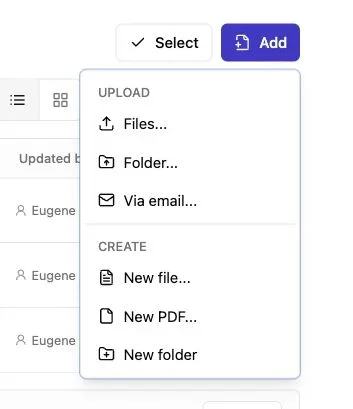
Note: Use the Add menu to upload files or a complete folder.
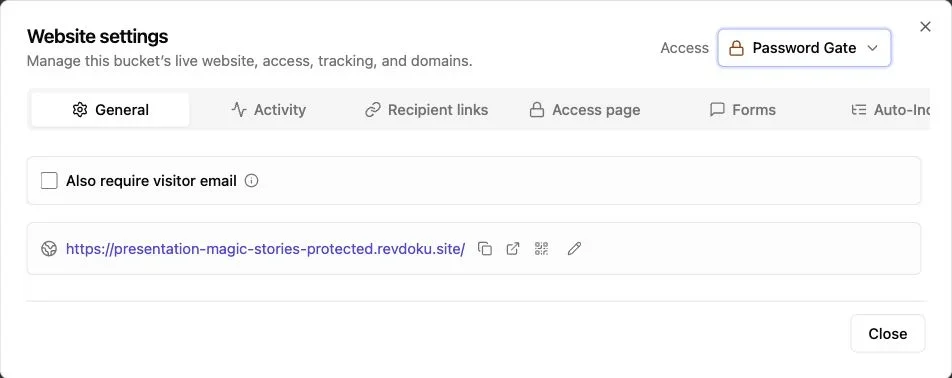
Note: Website settings control the live URL and access mode.
Revdoku stores uploads in private buckets. Create one and drag the complete export folder into the dashboard. You can also upload a ZIP, but verify its extracted structure before publishing. Upload the export itself, not a parent folder with unrelated drafts.
To publish manually:
- Create a bucket with a clear name, such as
Acme Manager Training. - Drag in the exported folder or upload its ZIP archive.
- Open the uploaded file tree and locate
index.html. - Select the course folder as the publication root if the bucket contains other material.
- Review the file count and inspect several image and media files.
- Open the publishing settings and choose the audience’s access mode.
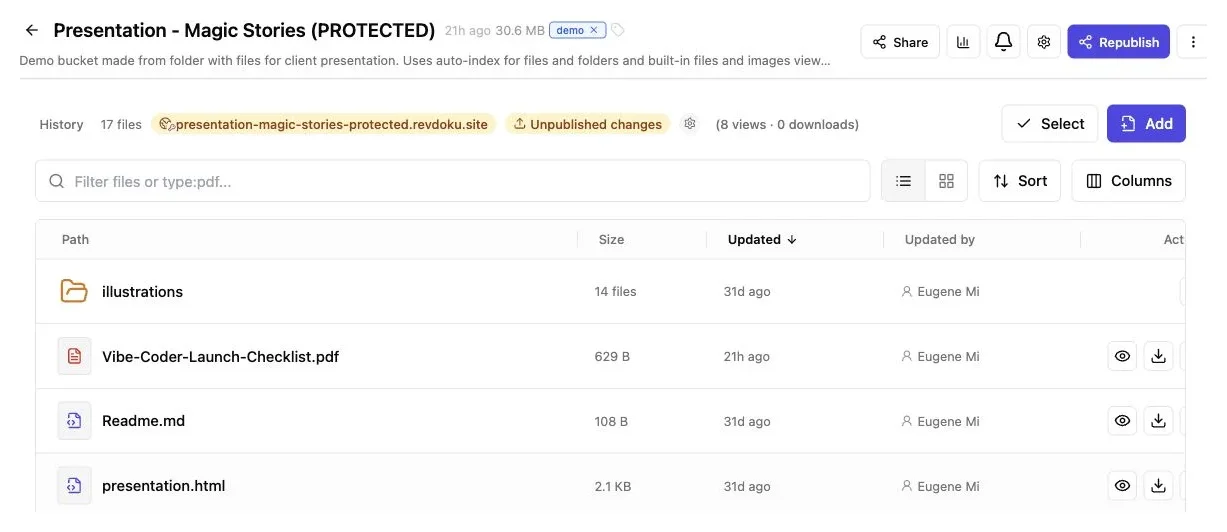
Keep the exported entry page and its original supporting folders together so relative paths continue to work.
According to the Revdoku buckets overview, files remain private until one folder is published. Files outside that publication root stay stored but are not served as part of the course.
| Access mode | Best use | Important trade-off |
|---|---|---|
| Public | Open tutorials, marketing education, or resources linked from a website | Anyone with the URL can open it, and public material may be discovered or forwarded |
| Password | Client training, paid workshops, or internal previews shared with a known group | A shared password identifies access to the group, not necessarily an individual |
| Verified email | Courses where you need to know which invited person opened the link | Learners complete an email verification step before entering |
Public access minimizes friction for product tutorials. Password access suits one client team; verified email suits cases where individual activity and identity justify the extra step.
5. Publish the HTML course and test the live link
Publishing turns the folder into a website with a stable revdoku.site address and, where supported, a custom domain. After publishing, open the URL in a private window to test the gate and course without your signed-in owner session.
Test the full learner experience:
- Enter through the selected public, password, or verified-email gate.
- Start the first lesson from the home page.
- Use Next, Previous, menu, restart, and exit controls.
- Play at least one audio or video file to the end.
- Complete an interaction or quiz and verify its feedback.
- Open a deep lesson link directly in a new tab.
- Repeat the main path on a phone and another browser.
- Check that downloads open and external links point to the intended destinations.
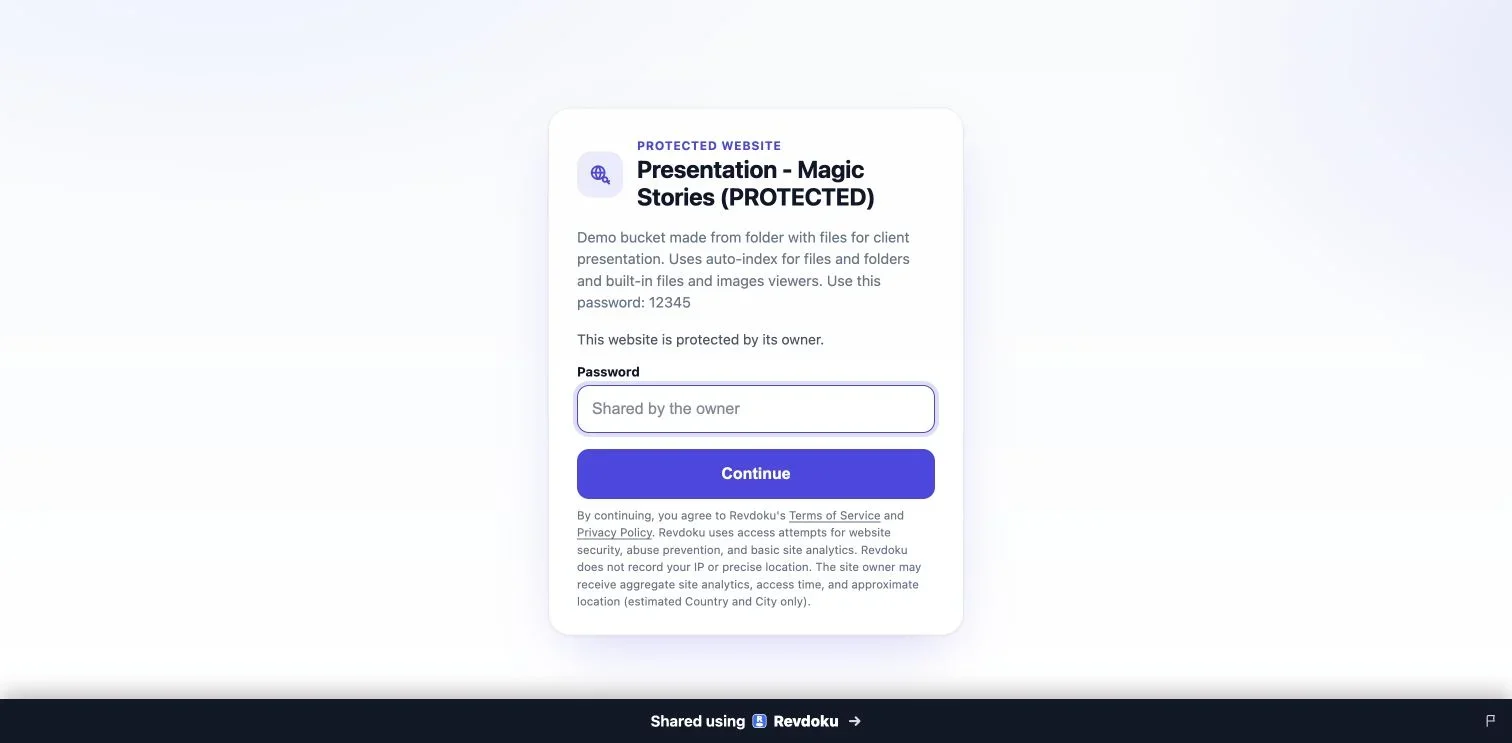
Test the gate as a signed-out visitor before sharing the course. The password is hidden in this documentation image.
Test speed as well as correctness, particularly on mobile connections. Google’s web performance audit guidance suggests measuring total page weight and inspecting unusually large files. Its example reduced one oversized image from 349 KB to 17 KB, an improvement of about 95%, by resizing it and choosing a more suitable format.
An agency could publish a browser-based software tutorial for a prospect without configuring LMS users, curricula, or reporting.
6. Share, measure, collect feedback, and update
After testing, share the course URL instead of the ZIP. Learners need not download or extract anything, and the link can appear in an email, client portal, proposal, QR code, or onboarding document.
Revdoku adds controls that plain file storage usually lacks:
- Open notifications for protected links can help you time a follow-up.
- Per-visitor analytics can show pages viewed, links clicked, and files downloaded.
- Verified-email access can associate activity with a visitor instead of an anonymous session.
- Built-in feedback and contact forms can collect responses without adding your own backend.
- The bucket can be updated and republished without sending a replacement URL.
A page view confirms loading, not learner understanding. If formal comprehension or compliance evidence matters, use an LMS assessment and reporting workflow.
A freelance trainer sends a password-protected negotiation course to a client’s managers. An open notification confirms they started, while low activity on the final resources page prompts a clearer link. The trainer uploads the revision to the same bucket and URL.
For partner onboarding, verified-email access shows which invitees entered, visited pages, and downloaded the companion guide. This can inform follow-up but is not a certified completion record.
Use this update sequence:
- Make changes in the source authoring tool.
- Export a complete new course folder.
- Test it locally.
- Replace the published files while preserving the folder structure.
- Republish the same bucket.
- Test the live URL again in a private window.
7. Troubleshoot common static HTML course hosting failures
Most failures fit a few categories. Diagnose the first failed request instead of reuploading unchanged files.
| Symptom | Likely cause | Practical fix |
|---|---|---|
| Images or styles are missing | Incorrect relative paths, changed folder structure, or capitalization mismatch | Restore the exported structure and compare each requested URL with the uploaded file name |
| Lesson links return 404 | The target file is absent or the link resolves from the wrong directory | Use the browser Network panel, locate the failed path, and correct the HTML or export settings |
| Course loads slowly | Large video, audio, PNG, or uncompressed assets | Resize images, compress media, remove unused files, or host long video through an appropriate streaming service |
| Home page shows a file listing | No index.html exists at the publication root |
Move the correct entry page to the selected root or republish the folder that contains it |
| Refreshing a lesson route fails | The export is a single-page application that expects route fallback | Publish in SPA mode if supported, switch the exporter to hash routes such as #/lesson/2, or use a host with redirect configuration |
| Quiz or completion data disappears | The package expects an LMS API, database, cookies, or server endpoint | Publish through a compatible LMS or add a real application backend |
| Course works locally but not online | Browser security rules or cross-origin requests block local assumptions | Inspect Console errors and replace private, HTTP, or local URLs with accessible HTTPS resources |
| Upload or publishing stalls | The export contains very large files or thousands of unnecessary source files | Remove source maps, authoring files, caches, and duplicate media from the publishable export |
With SPA routing, JavaScript may move a course from / to /lesson/2. Refreshing that URL makes static hosting look for a file at that path. If none exists, the host returns 404. Hash routing avoids the lookup by keeping the route after # in the browser. For single-page application exports, select Revdoku’s SPA publishing mode.
Static settings cannot fix courses that call LMSInitialize, seek a SCORM API, submit results to PHP, or depend on server sessions. Choose a SCORM-compatible LMS, an xAPI setup with a learning record store, or a custom application host. Revdoku is a static host, not an LMS or SCORM reporting service.
Final Thoughts
A self-contained HTML course does not require a full LMS. Preserve its structure, place index.html at the publication root, verify relative paths, upload the complete folder, and test it as a learner.
Revdoku delivers courses without LMS administration, offering public, password, or verified-email access, open notifications, visitor activity, feedback, and same-link updates.
Use static hosting for browser content needing only files and JavaScript; use an LMS for enrollment, durable progress records, SCORM communication, scored assessments, or certificates. Distinguishing them before publishing prevents most surprises.
Frequently asked questions
How can I tell whether my course is suitable for static HTML hosting?
A course is a good fit if it consists of standard web files and runs entirely in the browser without an LMS connection or server-side code. If you need enrollment, verified completion records, SCORM reporting, scored assessments, or certificates, use an LMS or application server instead.
What files must be included when I publish an HTML course?
Upload the complete exported folder, including the root index.html file and every referenced stylesheet, script, image, media file, module, and data file. Preserve the original folder structure and remove drafts, source files, answer keys, and other material learners should not access.
Why does my course work locally but fail after publishing?
The most common causes are local file paths, incorrect capitalization, missing assets, changed folders, or browser security restrictions. Check the browser Console and Network panel for errors and failed requests, then confirm that each referenced path matches an uploaded file exactly.
Should I choose public, password, or verified-email access?
Use public access for open resources where minimal friction matters. A password works well for a known group, while verified email is more appropriate when you need to associate access and activity with individual invitees.
Can Revdoku track course completion, quiz scores, or SCORM data?
No. Revdoku can provide visitor activity, open notifications, clicks, downloads, and feedback, but these are not certified learning records. Courses that require durable completion status, SCORM communication, formal scores, or certificates should be delivered through a compatible LMS.
How should I test a course before sharing it with learners?
Open the live link in a private browser window and complete the main learner journey, including navigation, media, quizzes, downloads, and deep links. Repeat key tests on a phone and another browser, and check loading speed on a typical mobile connection.
Can I update the course without sending learners a new link?
Yes. Make changes in the authoring tool, export and test a complete new folder, replace the published files while preserving their structure, and republish the same bucket. Test the live course again afterward to catch missing assets or broken paths.
Related Articles
GitHub Pages Password Protection and Privacy
Learn why private repositories do not protect Pages sites and compare secure access options for internal teams and external clients.
How to Password Protect a Vercel Deployment
Learn how to secure Vercel deployments with password protection, authentication, trusted access, or protected Revdoku hosting.
How to Password Protect a Website Made with Claude
Learn how to export, secure, publish, and test a Claude-made website using password protection or verified-email access.