Codex mobile is disabled by your workspace admin
Codex mobile is disabled by your workspace admin
If Codex mobile says it is disabled by your workspace admin, the message usually means the feature is blocked by workspace policy, not that your phone is broken.
Codex remote control connects a phone to a Codex app host. In a managed ChatGPT workspace, administrators can control whether users are allowed to use device remote control. When that policy blocks access, reinstalling the app or rescanning the QR code will not fix it by itself.
What the message means
The message means one of these is likely true:
- Your workspace has not enabled Codex remote control.
- Remote control is disabled for managed users.
- Your account is in the wrong workspace.
- Your role does not have access to the Codex feature you are trying to use.
- Required authentication steps such as SSO, MFA, or passkeys are incomplete.
- The organization has enabled Codex for local work but limited mobile or cloud-related surfaces.
The exact wording may vary, but the underlying idea is the same: your account is following workspace policy.
First checks for the user
Before asking an admin, make sure this is not a simple account mismatch.
Check:
- You are signed in to ChatGPT mobile with the same account used in the Codex app.
- You have selected the same workspace on the phone and on the host.
- The ChatGPT mobile app is up to date.
- The Codex app on the host is up to date.
- The host computer is awake, online, and signed in.
- You started setup from the Codex app, not only from the CLI.
If all of that is correct and the message still points to the workspace admin, treat it as a policy issue.
What to ask the admin
Send the admin a short, specific request:
I am trying to use Codex mobile remote control from ChatGPT on my phone.
The setup flow says it is disabled by my workspace admin.
Can you check whether device remote control is allowed for my workspace and role?
Ask them to verify:
- Codex access for your workspace.
- Device remote control permission.
- Any role-based restrictions.
- SSO, MFA, passkey, or security requirements.
- Whether local Codex, Codex cloud, and mobile access are governed separately.
If the policy is intentionally disabled, ask which approved workflow the team wants you to use instead.
What admins are usually protecting
Remote control can expose more than a single chat session. The connected host may contain:
- Local repositories.
- Project files.
- Credentials already available to that machine.
- MCP servers and plugins.
- Browser or Computer Use capabilities.
- Local build tools and terminals.
For that reason, some organizations disable remote control until they have reviewed security policy, device management, and audit requirements.
That is not a bad instinct. It just changes the workflow.
Workarounds when mobile is blocked
If mobile remote control is blocked, use an approved route instead:
- Continue the work directly in the Codex app on the host.
- Use Codex CLI in the project directory.
- Use Codex cloud if your workspace allows cloud tasks.
- Use the Codex IDE extension if the work belongs inside an editor.
- Use an approved remote desktop or SSH workflow if your organization permits it.
Do not try to bypass a managed workspace policy with personal accounts or exposed remote listeners. For work projects, the durable fix is an approved access path.
How to keep the output shareable
Even when mobile control is disabled, you can still make Codex output easy to review.
Use Codex on the approved device, then publish the result with Revdoku:
- Let Codex generate or update the files.
- Review the folder locally.
- Upload the folder to Revdoku.
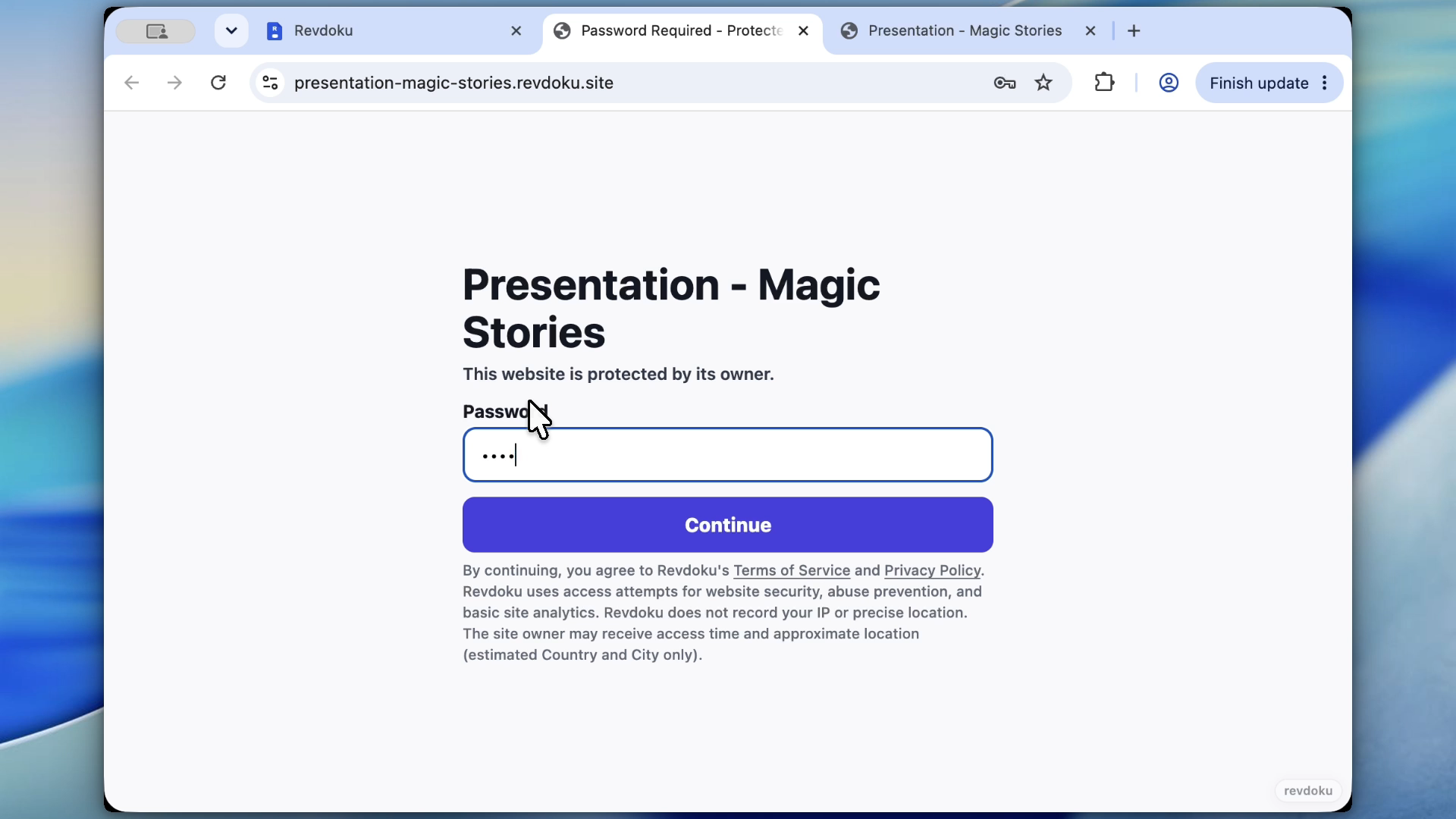
- Publish a protected review link.
- Share the link with reviewers.
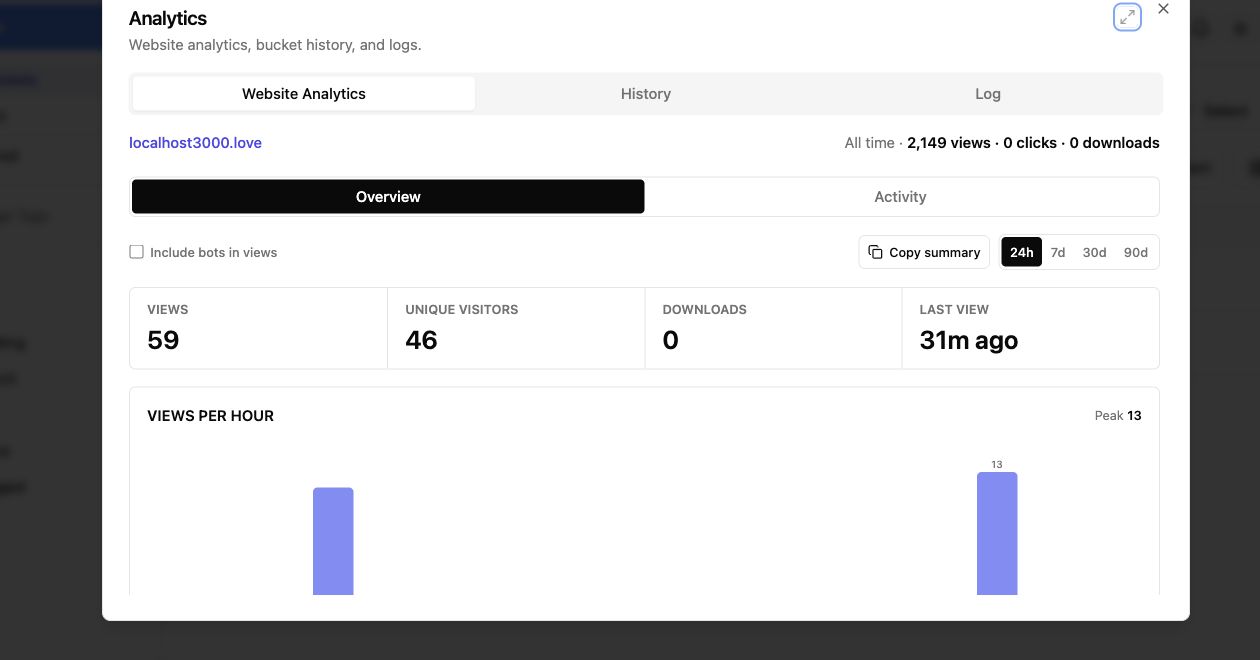
- Use Revdoku analytics to see whether the review packet was opened.
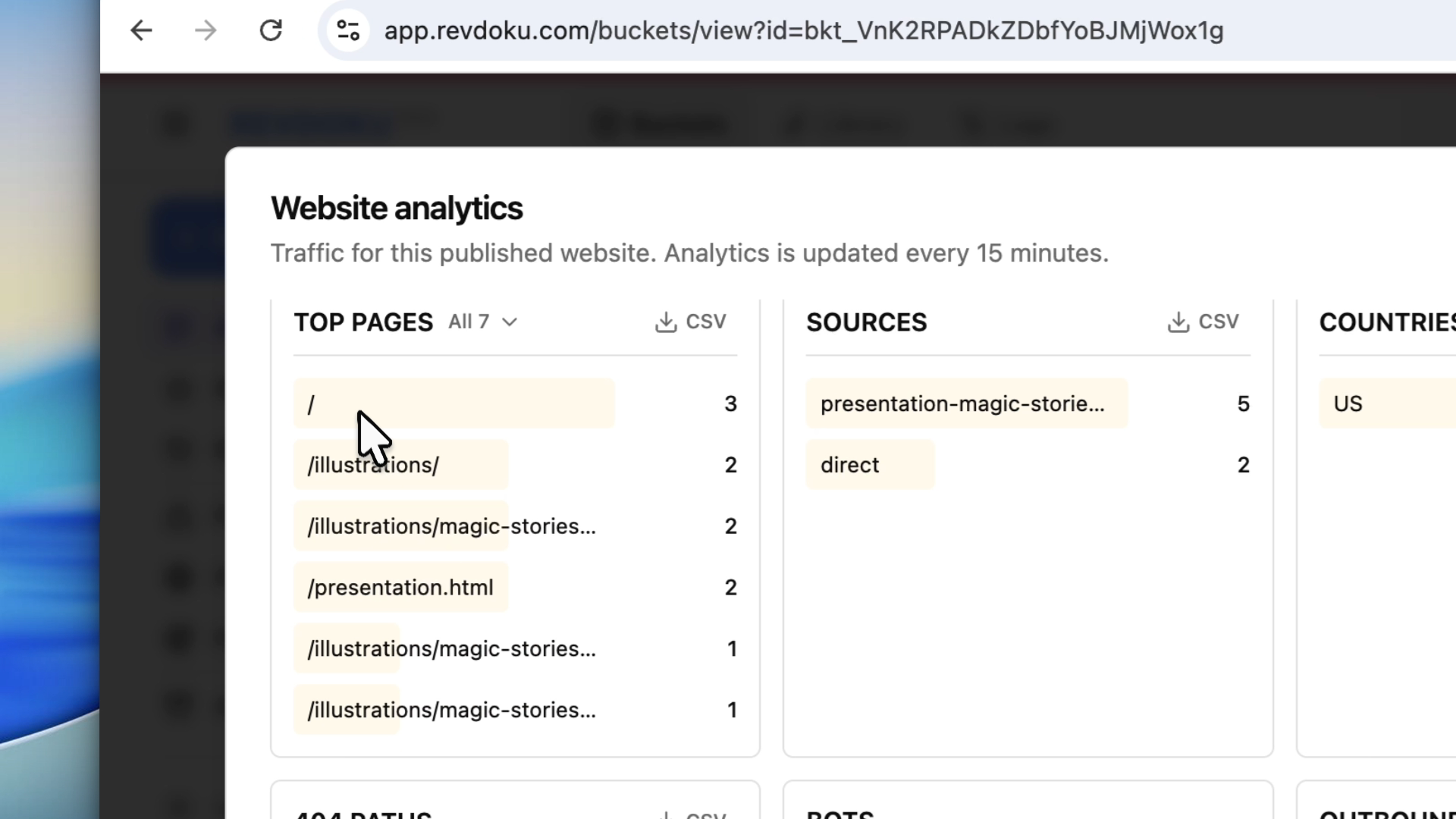
This keeps the team on an approved Codex workflow while still giving stakeholders a clean review link.
Takeaway
If Codex mobile is disabled by your workspace admin, fix the policy or choose an approved alternative. The user’s checklist is short: confirm account, workspace, app versions, and host state. If those are correct, the admin owns the next step.
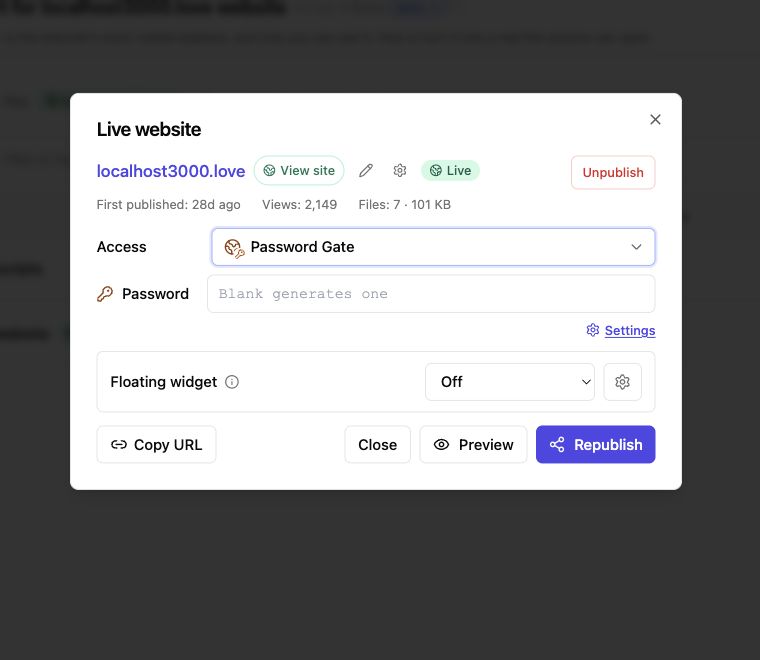
After Codex creates the output, Revdoku can still handle the sharing layer: folder publishing, password access, file viewers, custom URLs, and analytics.
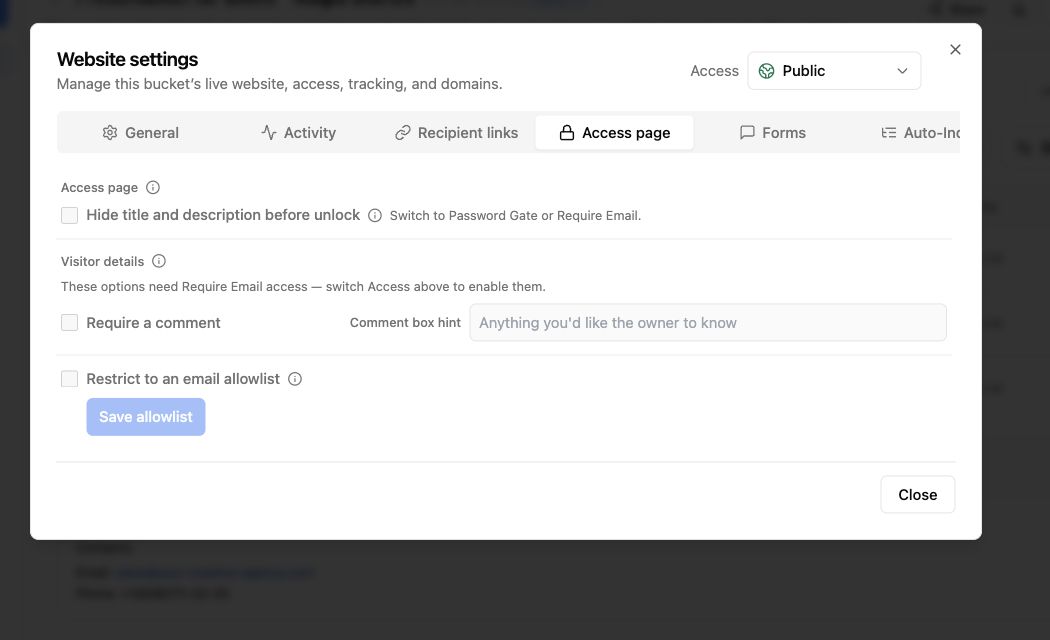
Revdoku workflow screenshots
Sources checked
- OpenAI Codex remote connections: https://developers.openai.com/codex/remote-connections
- OpenAI Codex managed configuration: https://developers.openai.com/codex/admin
- OpenAI Codex app features: https://developers.openai.com/codex/app/features