Use Codex CLI remote control from your phone
Use Codex CLI remote control from your phone
There are three different workflows people often mix together when they search for Codex CLI remote control from a phone:
- Use ChatGPT mobile to control a Codex app host.
- Use the Codex CLI to connect to a remote app server.
- SSH from the phone into a development machine and run Codex there.
The best choice depends on what you mean by “from my phone” and where the project files live.
Quick recommendation
Use ChatGPT mobile plus the Codex app host when you want the supported phone-first workflow.
Use SSH when you are comfortable with terminal access from your phone and the project lives on a server or always-on machine.
Use the CLI remote app-server workflow only when you understand the networking and authentication model. Do not expose an unauthenticated remote Codex endpoint to the public internet.
Option 1: ChatGPT mobile controls a Codex app host
This is the cleanest phone workflow for most people.
You need:
- ChatGPT mobile on iOS or Android.
- Codex app on a Mac or Windows host.
- The same ChatGPT account and workspace on both devices.
- The host awake, online, and signed in.
- Workspace permission for remote control.
Setup:
- Open Codex on the host.
- Select Set up Codex mobile.
- Scan the QR code from the phone.
- Finish setup inside ChatGPT.
- Use Settings > Connections on the host to manage access.
This gives the phone access to the connected host’s projects, threads, files, tools, plugins, permissions, and local setup.
Option 2: SSH from your phone and run Codex
This is simple if you already use a remote development machine.
You need:
- A trusted SSH client on your phone.
- SSH access to the development machine.
- Codex installed and authenticated on that machine.
- The project available on that machine.
Basic flow:
ssh devbox
cd /path/to/project
codex
This is not the same as Codex mobile remote control. It is just a terminal session from your phone. That may be exactly what you want if you already trust the devbox and can handle terminal input on mobile.
Use this for quick prompts, status checks, and small follow-up instructions. For heavy review, use the desktop Codex app when possible.
Option 3: Codex CLI remote app-server mode
The Codex CLI can connect a terminal UI to a remote app-server endpoint.
At a high level:
- Start a Codex app server on the host.
- Connect the CLI to that endpoint with
--remote. - Use local-only WebSocket or a secure remote connection.
- Add authentication for non-local access.
- Use TLS for non-local clients.
For local or SSH-forwarded use, a local WebSocket can be appropriate. For non-local clients, use authentication and a secure transport.
Treat this as an advanced workflow. If your goal is simply “I want to approve and steer Codex from my phone,” use ChatGPT mobile remote control instead.
Security checklist
Before controlling Codex remotely, confirm:
- The machine is yours or managed by your organization.
- The project does not contain secrets you should not expose.
- The workspace allows the workflow.
- Remote endpoints require authentication.
- You are not publishing an unauthenticated listener.
- You can review commands, diffs, and outputs before accepting changes.
Remote Codex work can read and edit real files. Keep the boundary clear.
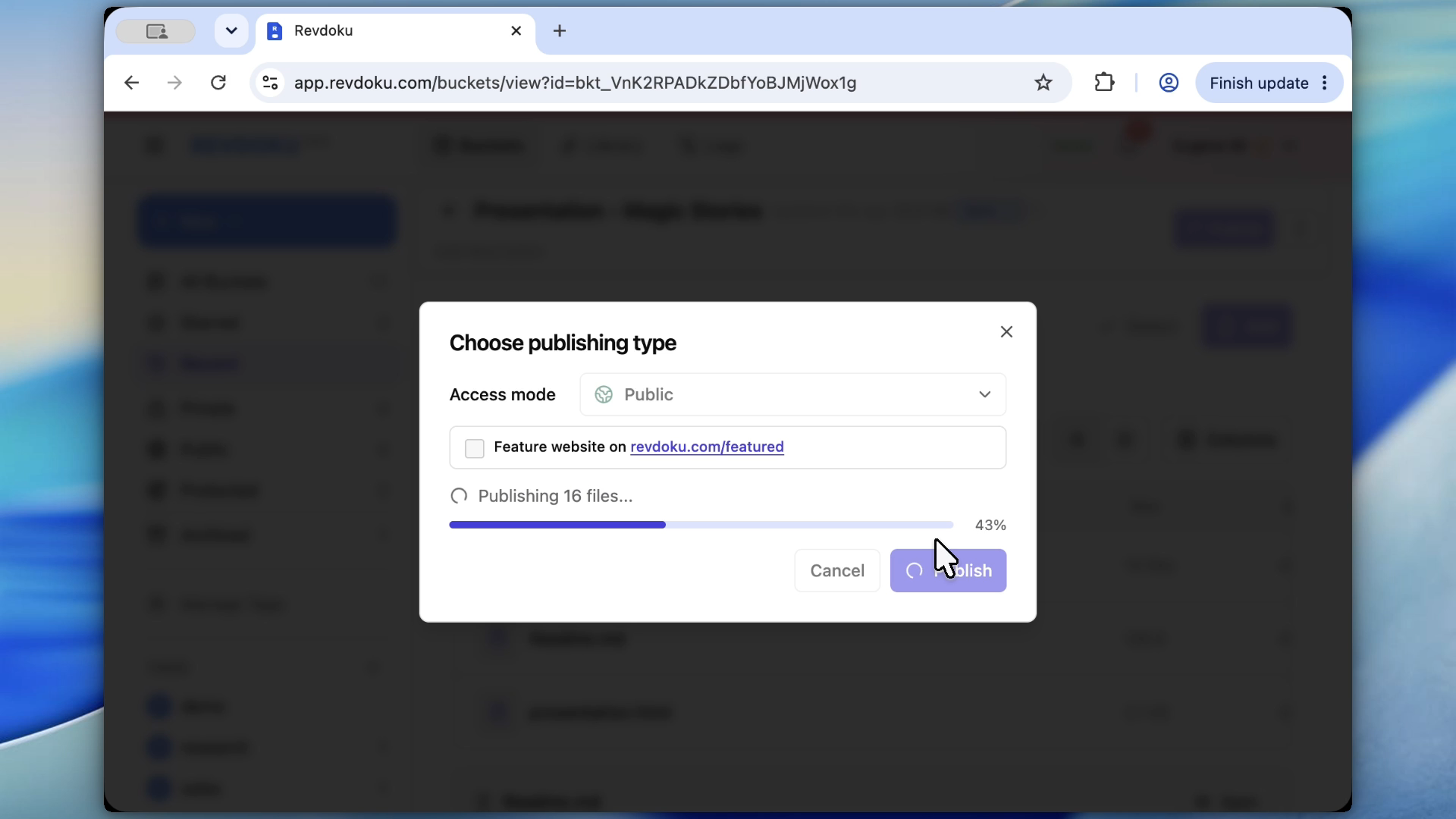
Publish the generated folder after the session
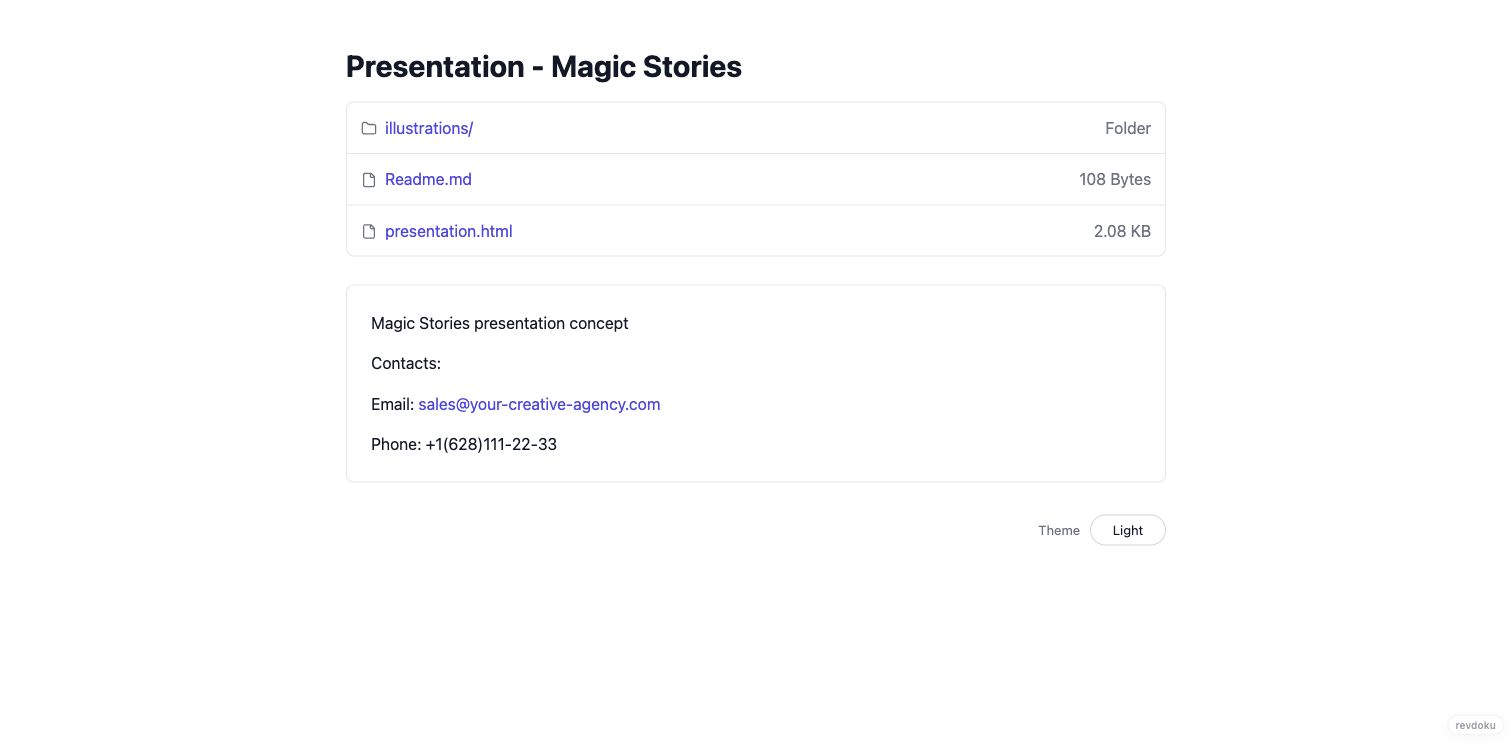
Once Codex has created an output folder, use Revdoku to publish it without building another deployment pipeline.
Example:
demo-from-codex/
  index.html
  app.js
  style.css
  report.md
  data/results.csv
With Revdoku:
- Upload the folder.
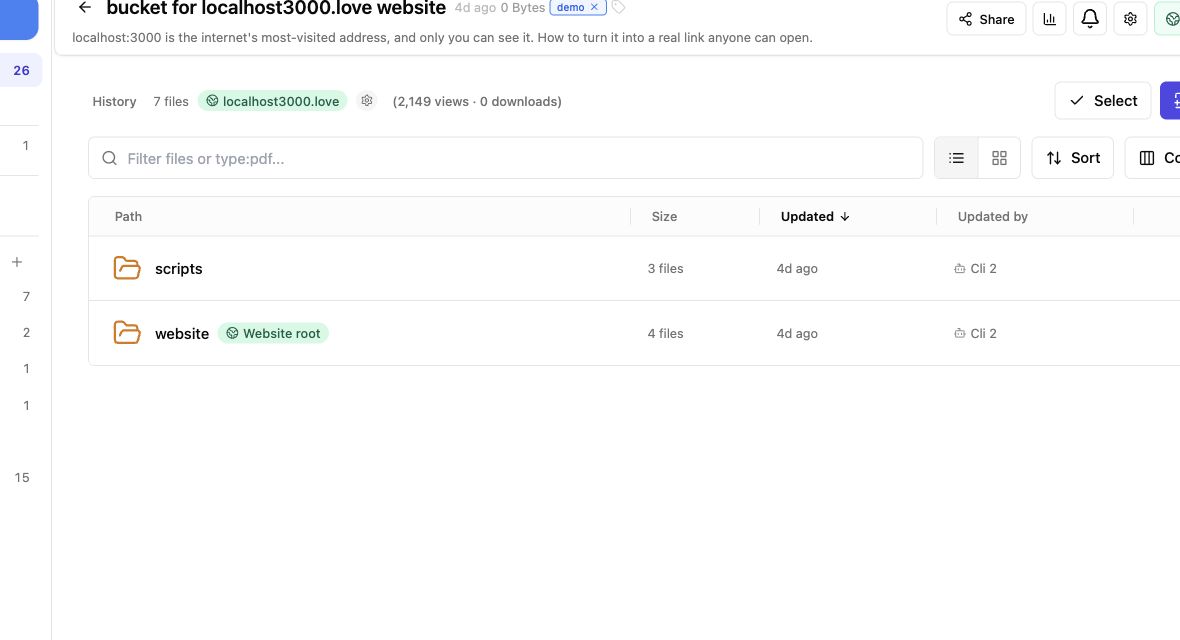
- Publish it as a website.
- Use built-in navigation for the files.
- Add password access if the output is not public.
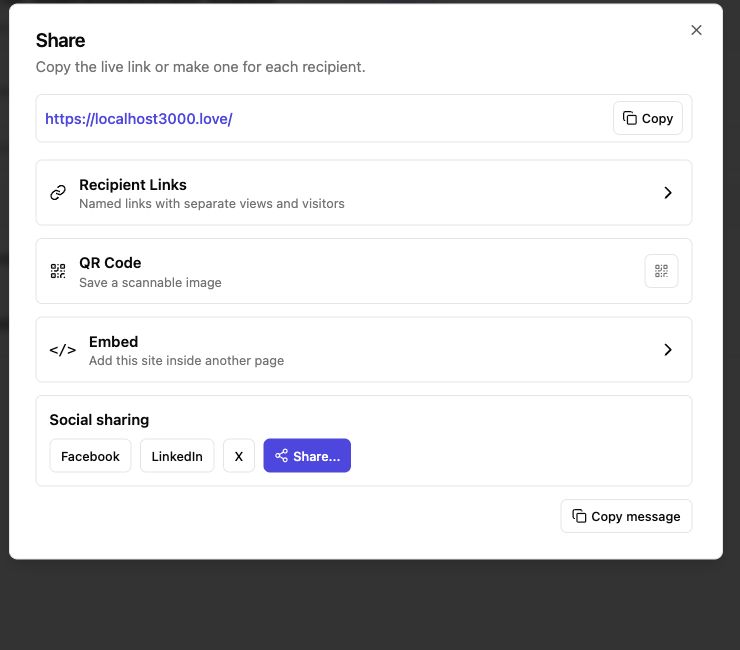
- Share one URL.
- Update the folder and republish as Codex improves it.
Takeaway
For most phone workflows, use ChatGPT mobile controlling a Codex app host. Use SSH if you want direct terminal access from the phone. Use CLI remote app-server mode only when you deliberately need that architecture and can secure it properly.
Then use Revdoku for the last mile: publish the generated files, protect access, and share the result.
Revdoku workflow screenshots
Sources checked
- OpenAI Codex remote connections: https://developers.openai.com/codex/remote-connections
- OpenAI Codex CLI features: https://developers.openai.com/codex/cli/features
- OpenAI Codex CLI reference: https://developers.openai.com/codex/cli/reference