Claude Desktop terminal workflow for publishing files with Revdoku
Table of Contents
- When this workflow fits
- 1. Start Claude Code and connect Revdoku
- 2. Approve the Revdoku tool in Claude
- 3. Confirm the connection in the terminal
- 4. Ask Claude to create a self-contained folder
- 5. Publish from Claude Code
- 6. Revise and republish the same link
- Optional: inspect or publish from the Revdoku dashboard
- Takeaway
- Sources checked
- When this workflow fits
- 1. Start Claude Code and connect Revdoku
- 2. Approve the Revdoku tool in Claude
- 3. Confirm the connection in the terminal
- 4. Ask Claude to create a self-contained folder
- 5. Publish from Claude Code
- 6. Revise and republish the same link
- Optional: inspect or publish from the Revdoku dashboard
- Takeaway
- Sources checked
Claude Desktop terminal workflow for publishing files with Revdoku
Claude Code can create, inspect, and publish project files without leaving the terminal. Revdoku gives those files a stable public, password-protected, or email-gated website link.
This tutorial keeps the main workflow inside Claude Code: connect Revdoku, create a self-contained folder, publish it, and update the same link after feedback.
When this workflow fits
Use it when Claude creates:
- A static website or landing page.
- A client review packet.
- A Markdown or HTML report.
- A small dashboard.
- A CSV-backed analysis.
- A PDF, image, or documentation folder.
- A prototype that should be shared before full deployment.
Use a full app host when the project needs a backend server, database, scheduled workers, user accounts, or production app operations.
1. Start Claude Code and connect Revdoku
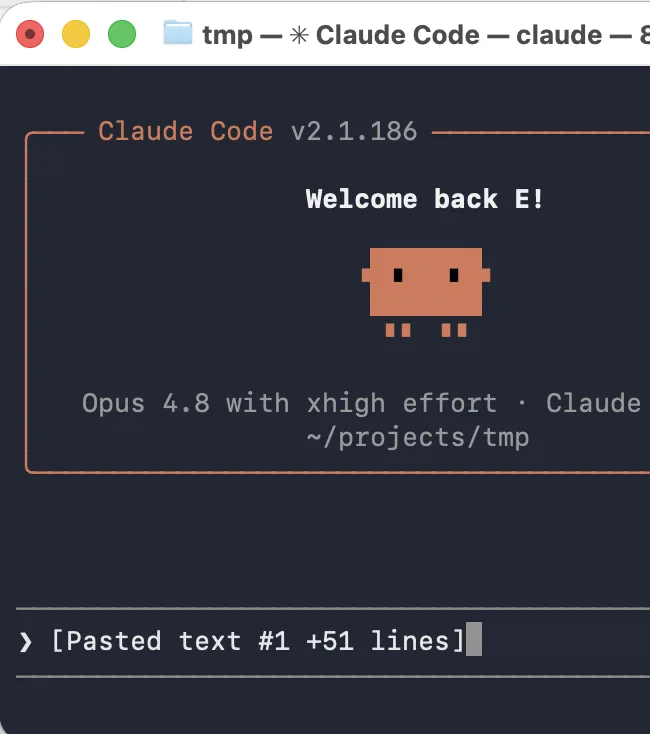
Create a Revdoku account first, then copy the Revdoku connection instructions from the Revdoku homepage or app. Start Claude Code in the folder you want it to work with:
cd your-project
claude
Paste the copied connection instructions into Claude Code and send them.
2. Approve the Revdoku tool in Claude
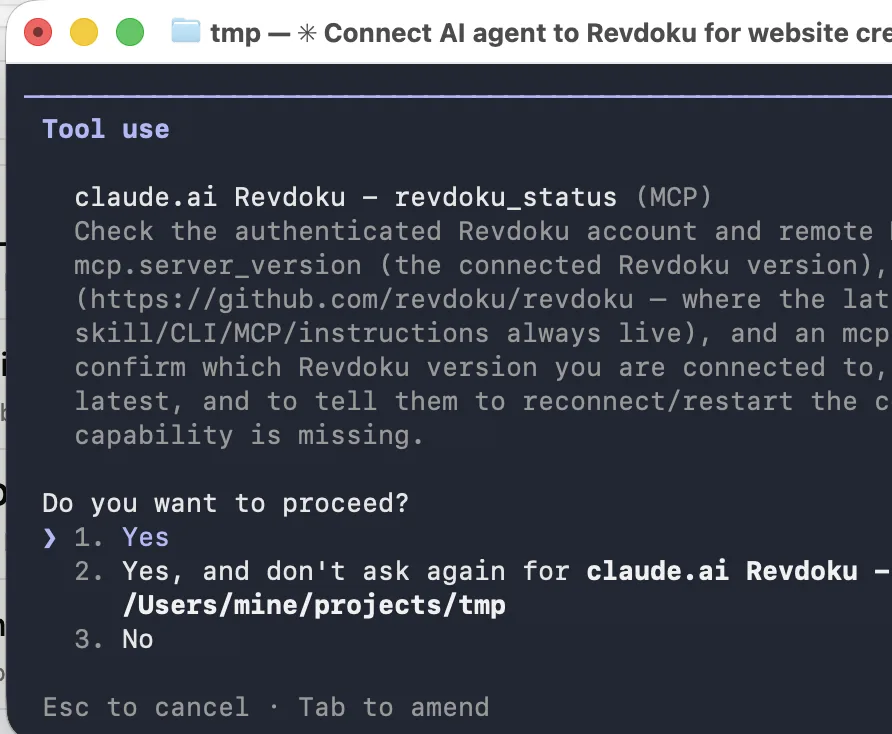
Claude shows the Revdoku tool it wants to use before connecting. Review the request and choose Yes to continue. You can allow the same tool for the current project so Claude does not ask again for each Revdoku action.
3. Confirm the connection in the terminal
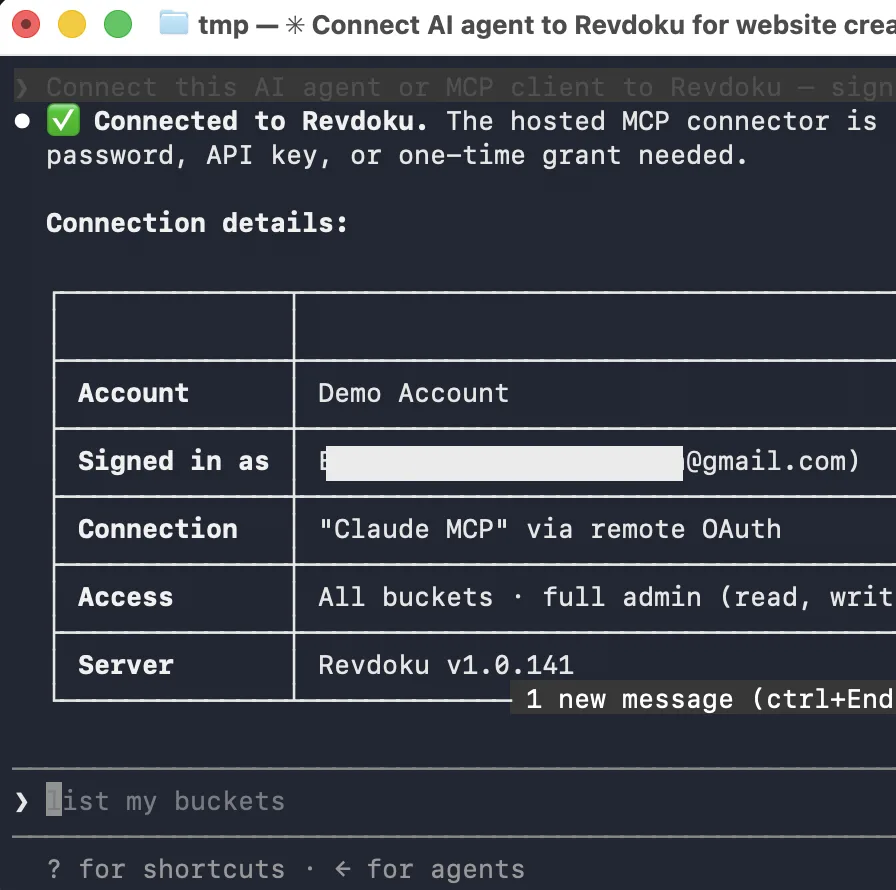
Claude confirms which Revdoku account is connected and which access it has. Ask it to list your buckets as a simple connection test.
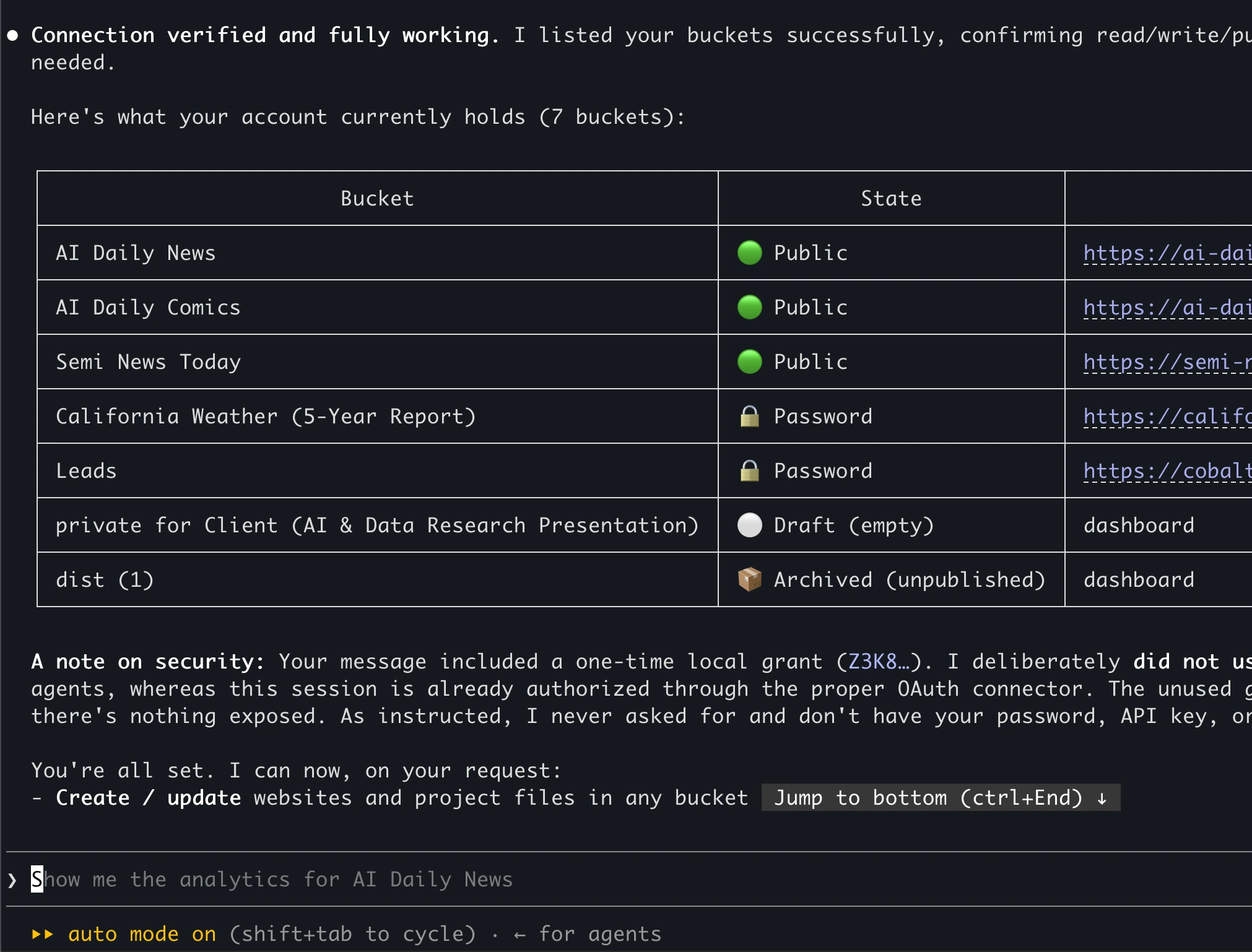
If Claude can list the buckets, it can create files, upload them, publish a website, and update the same bucket later.
4. Ask Claude to create a self-contained folder
Give Claude a narrow output target:
Create a publishable static folder named review-site.

It should include:
- index.html
- styles.css
- README.md
- data/results.csv if structured data is useful
- docs/ for supporting notes

Make every link relative and keep every required asset inside review-site.
Do not include secrets, .env files, node_modules, or private local paths.
After creating the folder, list every file that should be published.
Before publishing, ask Claude to verify that index.html is the entry point, local assets resolve inside the folder, generated data is safe to share, and no private files are included.
5. Publish from Claude Code
Ask Claude to publish the folder directly:
Publish the review-site folder to Revdoku as a password-protected website.
Keep the bucket private except for the published website.
Return the live URL when it is ready.
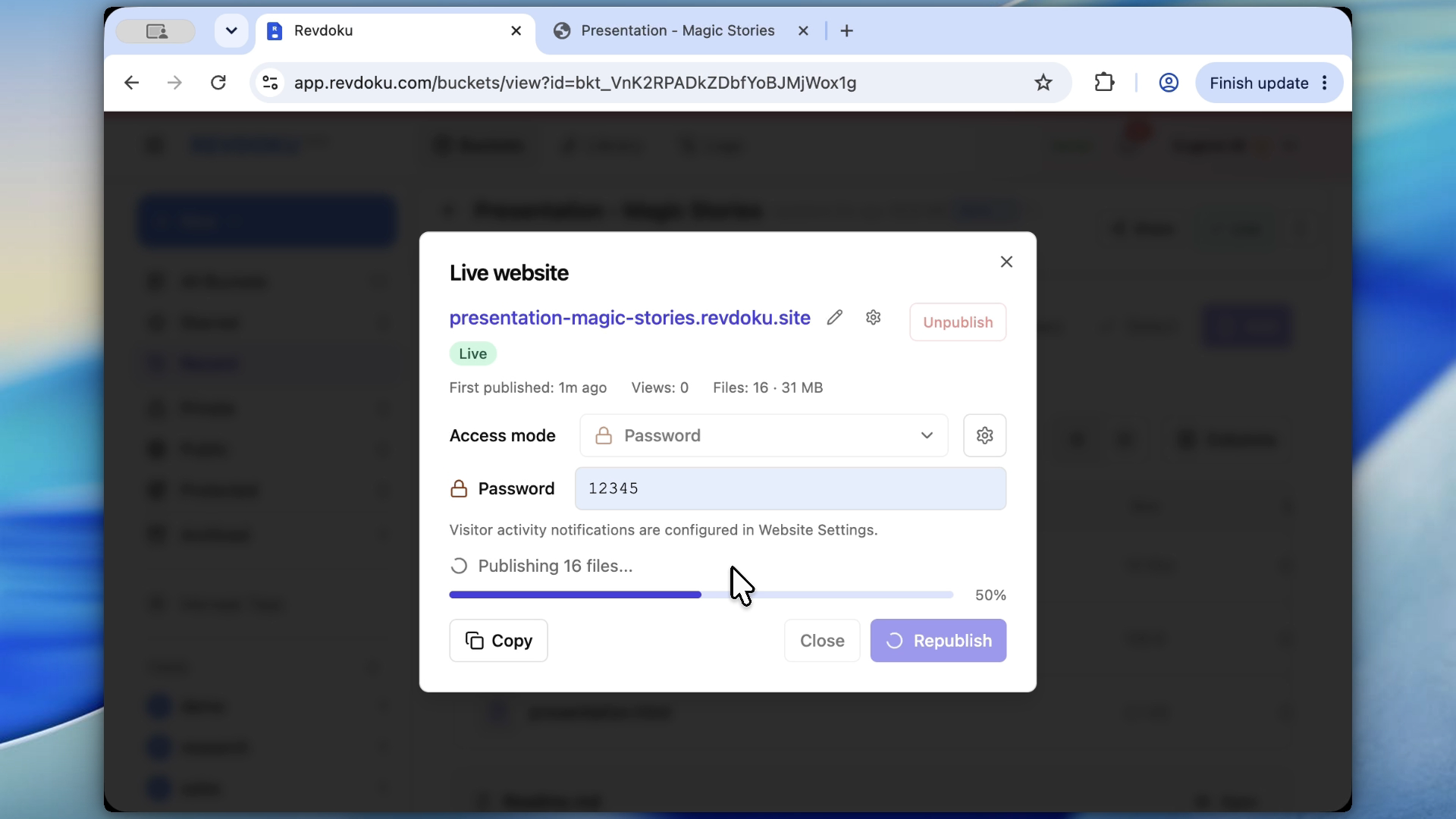
For an open site, ask for public access. For a client review, ask for a password or verified-email access. Claude uploads the files, configures access, publishes the bucket, and returns the live *.revdoku.site URL in the terminal.
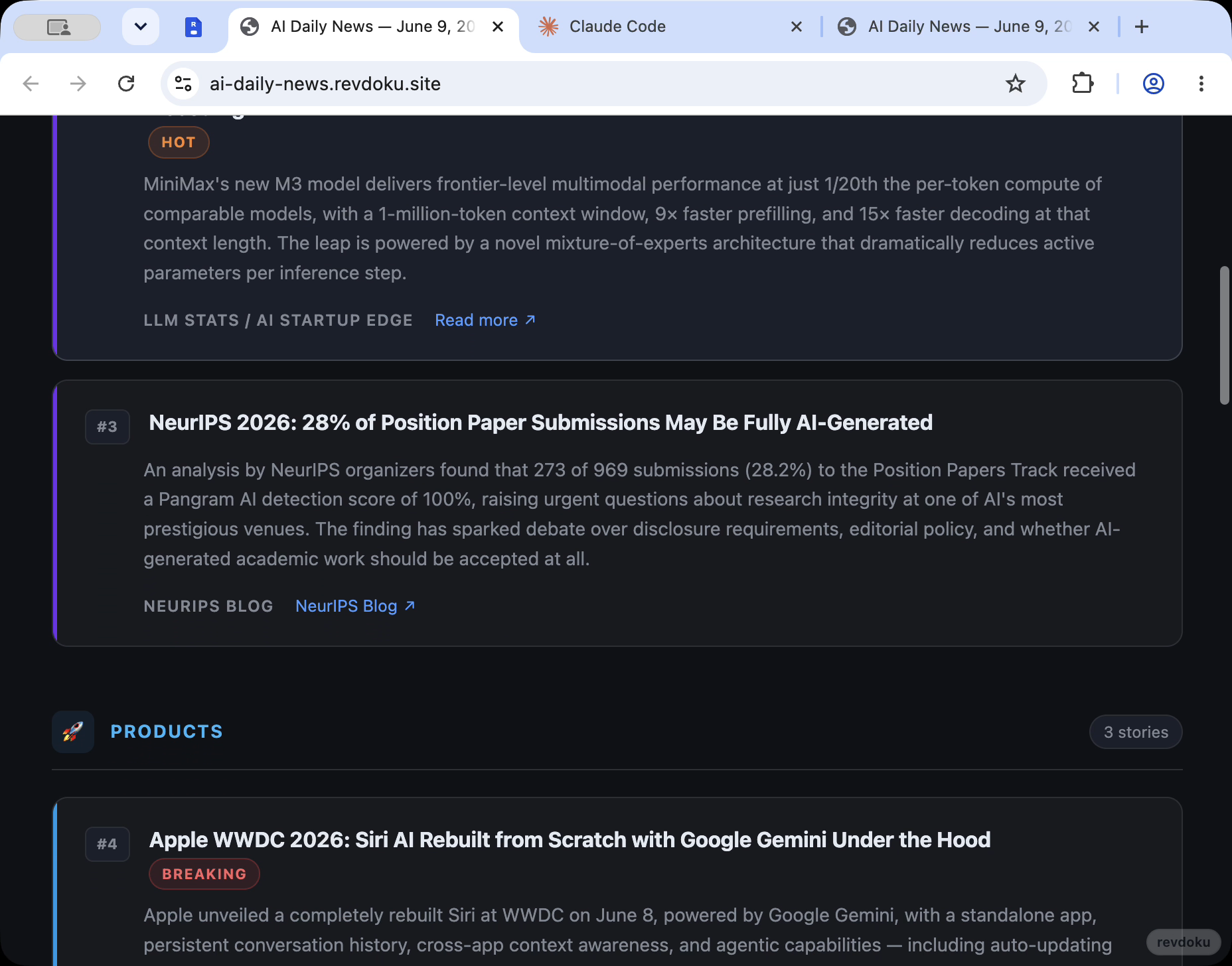
6. Revise and republish the same link
Give Claude the feedback and explicitly tell it to update the existing bucket:
Update review-site based on this feedback:
- make the summary shorter
- add a table for the CSV findings
- include a limitations section
- improve mobile layout

Keep the folder self-contained, update the existing Revdoku bucket,
and republish the same URL.
The shared link stays the same while Claude replaces the published files.
Optional: inspect or publish from the Revdoku dashboard
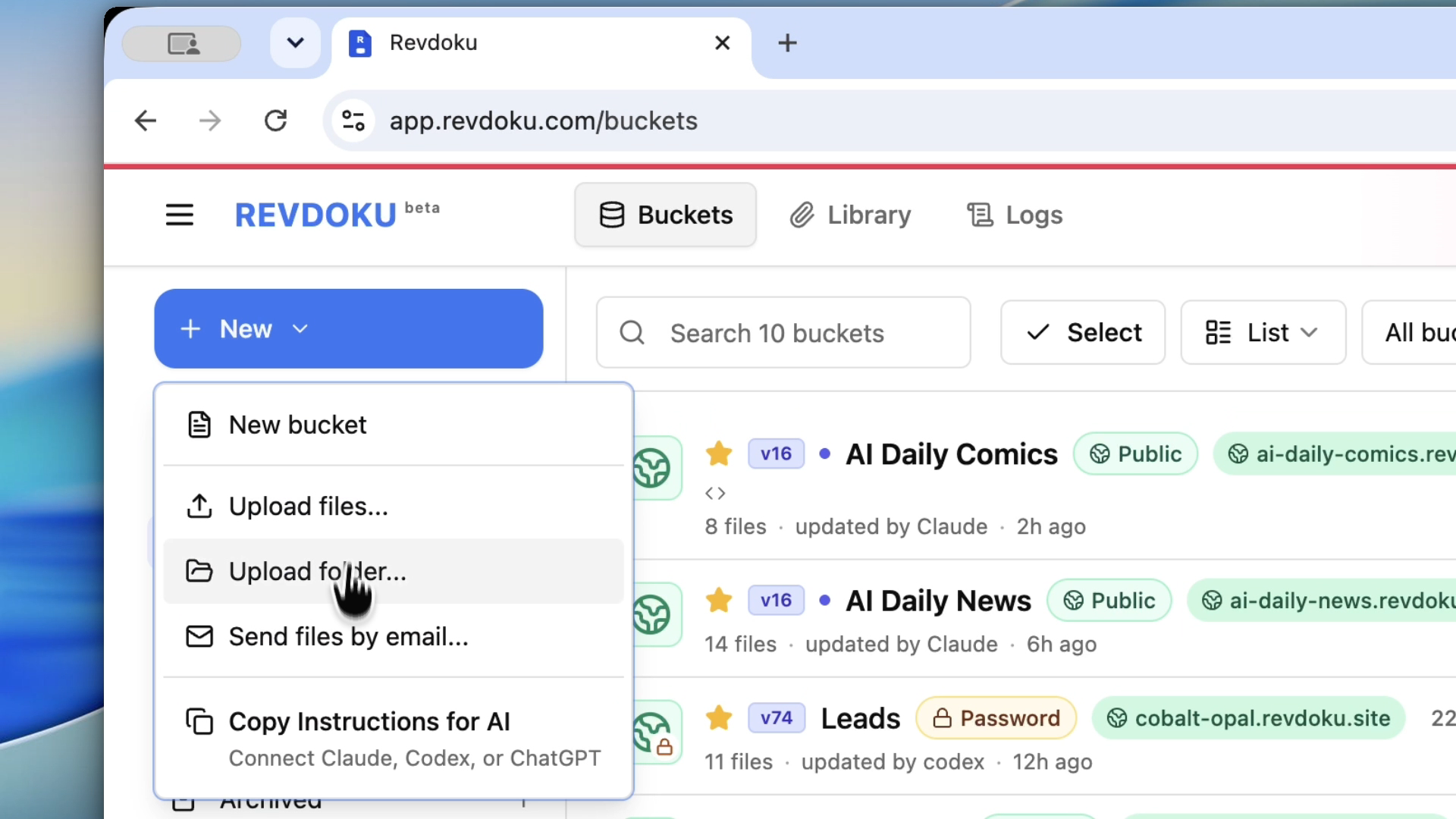
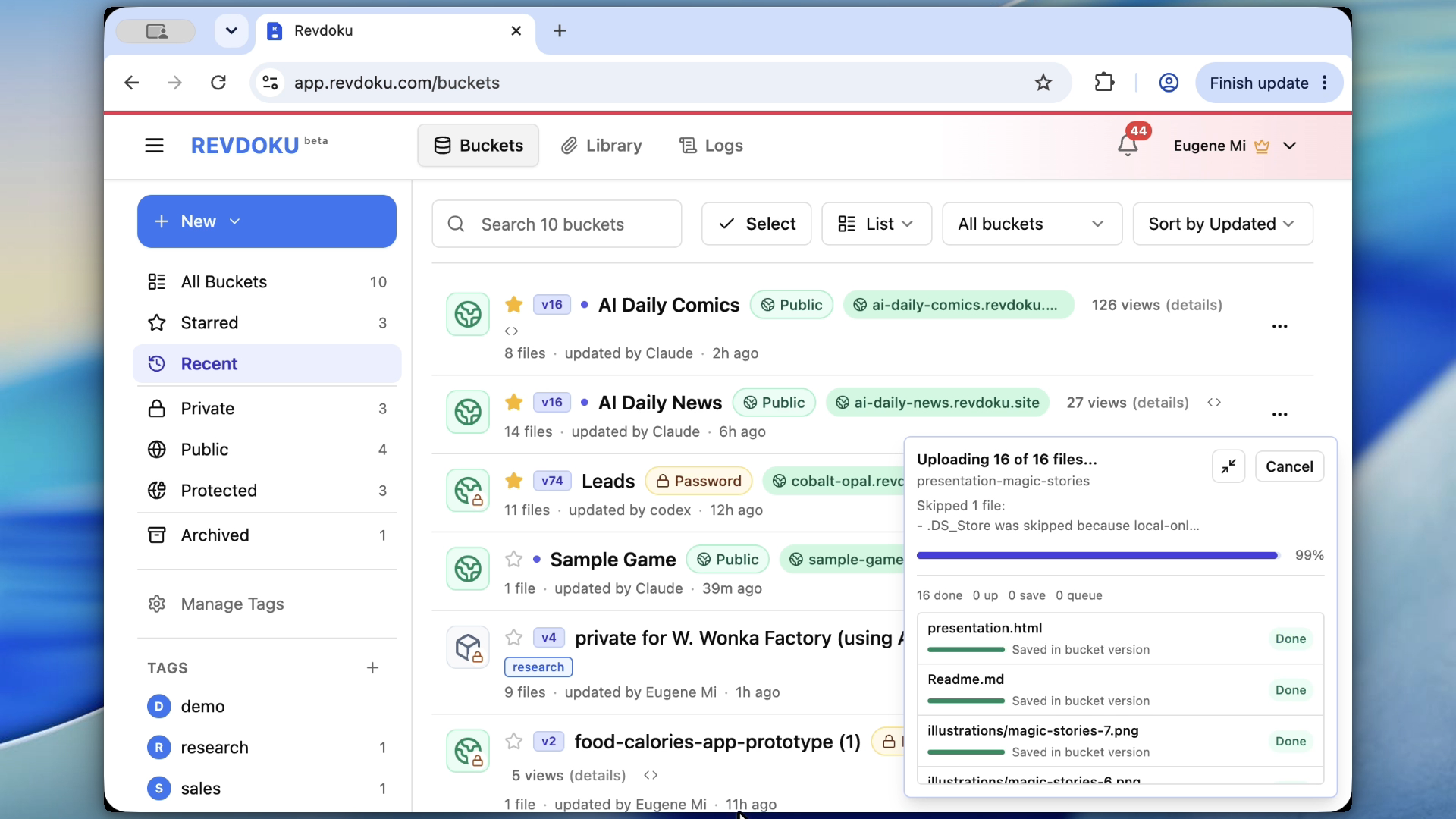
The terminal workflow does not require manual uploads. The same files and publishing controls are also available in the Revdoku dashboard when you want to inspect a file tree, upload a folder yourself, or change access visually.
Takeaway
Connect Revdoku inside Claude Code once. Then ask Claude to create a self-contained folder, publish it, and update the same link after each revision. Use the dashboard only when you want a visual view of the files or access settings.
Sources checked
- Claude Code overview: https://code.claude.com/docs/en/overview
- Claude Code common workflows: https://code.claude.com/docs/en/common-workflows
- Revdoku command-line setup: /local-install/