# Online Course Hosting for Exported HTML Courses
> Host exported HTML courses online, protect access, track visitor activity, and publish updates without changing the course link.
## Put Your Exported HTML Course Online
**Online course hosting** becomes awkward when your authoring tool gives you a folder instead of a shareable link. The folder may contain HTML pages, scripts, style sheets, images, audio, and video. Everything works locally, but emailing learners and clients a ZIP file creates a poor experience.
**TL;DR:** Revdoku simplifies online course hosting. Upload the complete export, publish the course export as a live link, and choose public, password-protected, or verified-email access. You can then see visitor activity and replace the course later without changing its link.
This guide covers how to:
- Prepare and test an exported course
- Preserve its assets and navigation
- Control who can open it
- Monitor visits and publish updates
Revdoku provides **static course hosting**, not a full learning management system.
## What Static Course Hosting Means for HTML Exports
An exported HTML course is a small website. Its starting file is often named `index.html`, while supporting folders hold the course player, images, fonts, JavaScript, and media. Static course hosting delivers those existing files to a browser without running a course application on a server.
A typical export contains:
- **Entry file:** Usually `index.html`, `story.html`, or another launch page
- **Style files:** CSS that controls typography, spacing, and layouts
- **Scripts:** JavaScript for navigation, interactions, and client-side quizzes
- **Media:** Images, audio, captions, animations, and video
- **Course data:** Configuration files or local data used by the exported player
The key word is *complete*. Uploading only the starting HTML file leaves the rest of the course behind.
Static hosting works well for client reviews, workshops, product tutorials, private knowledge resources, and courses that already handle navigation and interactions in the browser.
Static hosting does not add student accounts, grading, enrollment, payments, certificates, or SCORM reporting. If a quiz stores an answer only in the learner's browser, clearing browser data may erase it. Hosting cannot convert that behavior into server-side progress tracking.
## Preserve Assets and Navigation for E-Learning Course Hosting
Most e-learning hosting failures come from changed file paths. The page may load while buttons, images, or styles fail because the browser cannot find supporting files.
Keep the exported structure intact. If the authoring tool produces an `index.html` file beside folders named `assets`, `scripts`, and `media`, upload that whole parent folder. Rename internal files only if you update every reference.
Use this pre-upload check:
| Item | What to Check | Why It Matters |
|------|---------------|----------------|
| **Launch page** | A working `index.html` or documented entry file exists | The host needs a page to open first |
| **Relative paths** | Links point to locations such as `./assets/image.png` | Relative references travel with the export |
| **File names** | Capitalization matches every HTML reference | Many web servers treat `Video.mp4` and `video.mp4` as different files |
| **Navigation** | Next, previous, menu, and restart controls work | A visible first page does not prove the full course works |
| **Media** | Audio, video, fonts, and captions load | Missing assets often appear only several screens into a course |
[MDN's file guidance](https://developer.mozilla.org/en-US/docs/Learn_web_development/Getting_started/Environment_setup/Dealing_with_files) explains how HTML files refer to nearby folders with relative paths. Root-relative paths beginning with `/` can be less portable because they start at the host's root rather than the course folder.
Test the export on a local web server. Opening `index.html` from disk can hide security and path problems that appear after publication.
## How to Host HTML Course Exports with Revdoku
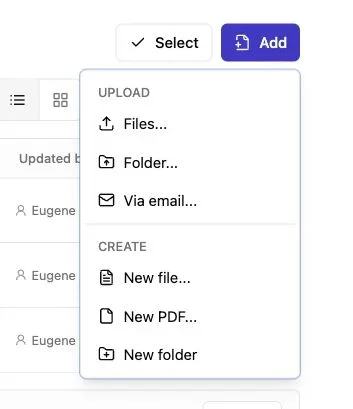
Note: Use the Add menu to upload files or a complete folder.
Revdoku hosts HTML course files without a web server. A bucket privately contains the complete export. According to the [Revdoku bucket overview](https://revdoku.com/buckets/), a folder can be published as a live site with public, password-gated, or email-gated access.
To publish:
1. Export the course from your authoring tool using its web or HTML option.
2. Confirm the exported folder includes the launch file and all supporting directories.
3. Test every branch, menu, media file, and client-side interaction locally.
4. Create a Revdoku bucket and drag the complete export folder into it. Preserve its original hierarchy.
5. Select the folder or launch page, then choose the audience's access setting.
6. Open the published link privately and test it on desktop and mobile.
7. Send the stable link instead of attaching the export to email.
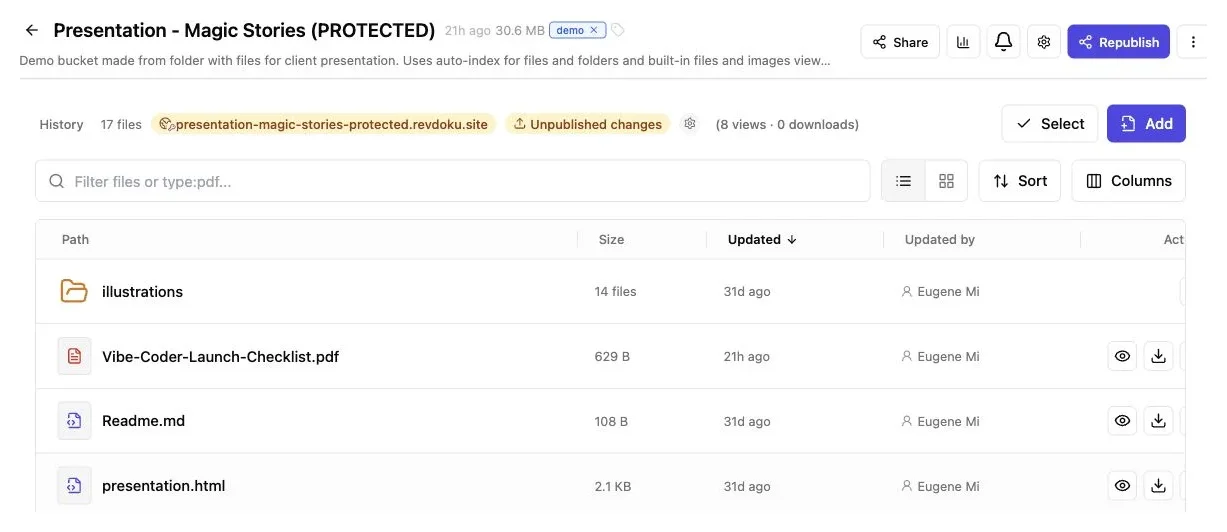
*A folder-based export keeps its HTML entry page and supporting assets together in one bucket.*
For client delivery, name the bucket after the course or engagement. Names such as `sales-onboarding-v2` are easier to manage than `final`, `final-new`, and `final-really-final`.
## Choose Public, Password, or Verified-Email Access
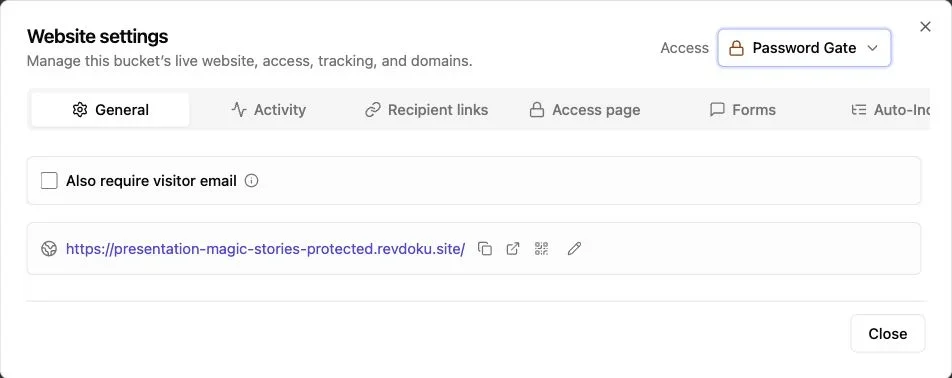
Note: Website settings control the live URL and access mode.
Match access control to the course: a public tutorial has different needs from paid workshop material or an internal compliance preview.
Revdoku offers several sharing modes:
| Access mode | Best suited to | Main tradeoff |
|-------------|----------------|---------------|
| **Public link** | Open tutorials, demonstrations, and marketing education | Anyone with the link can open it |
| **Password protection** | Client previews, workshops, and small private groups | People may forward both the link and password |
| **Verified-email access** | Named prospects, distributed teams, and lead capture | Visitors must complete an extra access step |
Password protection is the quickest private choice. Send the password through a separate channel when the content is sensitive. Verified-email access identifies visitors and discourages anonymous sharing across an organization.
An instructional designer can password-protect a safety module during client review. A consultant may use verified-email access to identify prospective buyers visiting a leadership course.
Describe the protection precisely. A gate controls entry to the hosted course. It does not add digital rights management, prevent screen recording, or guarantee that an authorized person will never share content.
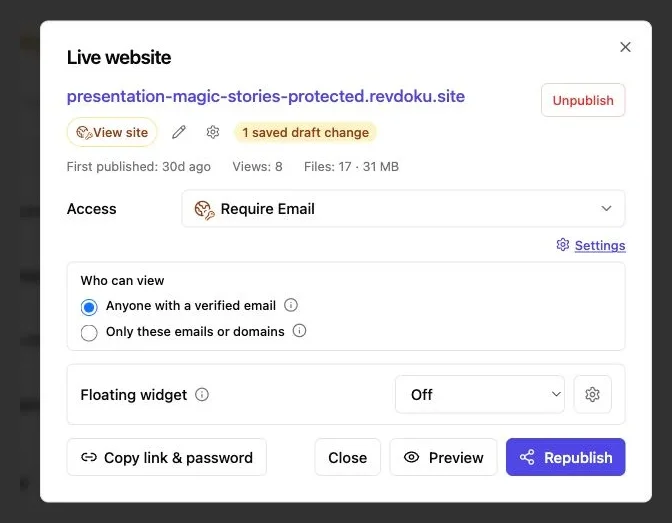
*Use the Access selector to choose Public, Password Gate, or Require Email before publishing the course.*
## Use Visitor Activity to Improve Follow-Up
Traditional static course hosting answers one question: can the browser load the files? Controlled hosting answers a more useful question: did the intended person open it?
For protected links, Revdoku can notify the owner when someone opens the shared material. Per-visitor analytics can show activity such as pages viewed, clicks, and downloads, while verified-email gates can record leads. This reduces follow-up guesswork.
Useful activity signals include:
- **First open:** Confirms that delivery worked
- **Repeat visit:** May indicate renewed interest or an internal review
- **Pages viewed:** Shows whether someone moved beyond the opening screen
- **Clicks:** Reveals interaction with available links or calls to action
- **Downloads:** Records when downloadable course resources are taken
Suppose an independent trainer sends a five-module preview to a prospective client. The client opens it on Tuesday, returns on Thursday, and downloads the facilitator guide. The trainer can now follow up about delivery dates instead of asking whether the email arrived.
Visitor activity is not LMS progress data. A page view does not prove that a learner completed a lesson, passed an assessment, or spent the required time studying it. Use activity for delivery and follow-up insights, not completion records.
## Publish Course Export Updates with the Same Hosting Link
Courses change as policies and interfaces evolve or errors emerge. A stable publishing link simplifies these updates.
To update a course:
1. Change the original authoring project, not generated files.
2. Export a fresh HTML package using the same course settings.
3. Test the new export separately, including navigation and media.
4. Replace the published files in the existing bucket while keeping the same structure and launch page.
5. Open the existing link in a private window and verify the new version.
Keep the URL because clients may have saved it in email, a workspace, or their browser.
Updates then require no new link.
An agency hosting a client's software course can update its screenshots and republish at the existing link when navigation changes. Reviewers see the current course, and old emails still point to it.
Separate the editable authoring source from the generated HTML delivery package. Mixing them makes version control harder and may expose files learners do not need.
## Static Course Hosting vs. a Full LMS
Choose a platform based on what the course must do. Revdoku fits complete HTML exports needing hosting, controlled sharing, activity visibility, feedback, and simple replacement.
Use a full LMS for enrollment records or formal reporting.
| Capability | Revdoku static hosting | Full LMS |
|------------|-------------------------|----------|
| Host HTML course files | Yes | Usually |
| Public or protected sharing | Yes | Usually account-based |
| Stable link for revised files | Yes | Varies |
| Visitor and link activity | Yes | Usually |
| SCORM or xAPI reporting | No | Often |
| Saved learner progress | Only if the export handles it client-side | Usually |
| Server-stored quiz results | No | Usually |
| Enrollment management | No | Yes |
| Course payments | No | Sometimes |
| Certificates and transcripts | No | Often |
Choose online course hosting when you need to deliver a self-contained tutorial, interactive presentation, client preview, or reference course. Choose an LMS when you must assign courses to a roster, record completion, manage recertification, or report scores to an organization.
A consultant might publish a sales preview with Revdoku, then place the approved SCORM package in the client's LMS. This keeps review simple without treating static hosting as an LMS.
## Performance, Accessibility, and Common Pitfalls
An online course can still be unusable because of large videos, tiny controls, missing captions, or broken mobile layouts.
The [2024 HTTP Archive Web Almanac](https://almanac.httparchive.org/en/2024/page-weight) found a median page weight of **2,652 KB on desktop** and **2,311 KB on mobile**. Exported courses with embedded video can be far larger, so test them on an ordinary connection rather than office Wi-Fi alone.
Before publication, check the following:
| Item | What to Check | Why It Matters |
|------|---------------|----------------|
| **Package size** | Compress images, audio, and video where quality permits | Smaller files load faster and use less mobile data |
| **Keyboard use** | Complete navigation without a mouse | Some learners rely on keyboards or assistive technology |
| **Text contrast** | Normal text reaches a contrast ratio of at least **4.5:1** | Low contrast makes course content harder to read |
| **Captions** | Spoken video and audio have accurate alternatives | Learners may be deaf, hard of hearing, or in a quiet setting |
| **Mobile layout** | Buttons and text remain usable on a narrow screen | A desktop export may overflow or shrink controls |
| **External services** | Fonts, video hosts, and APIs permit the published domain | Third-party restrictions can break an otherwise complete export |
The [WCAG 2.2 standard](https://www.w3.org/TR/WCAG22/) covers keyboard access, contrast, resizing, captions, and other accessibility requirements. Include accessibility in production, not post-launch repairs.
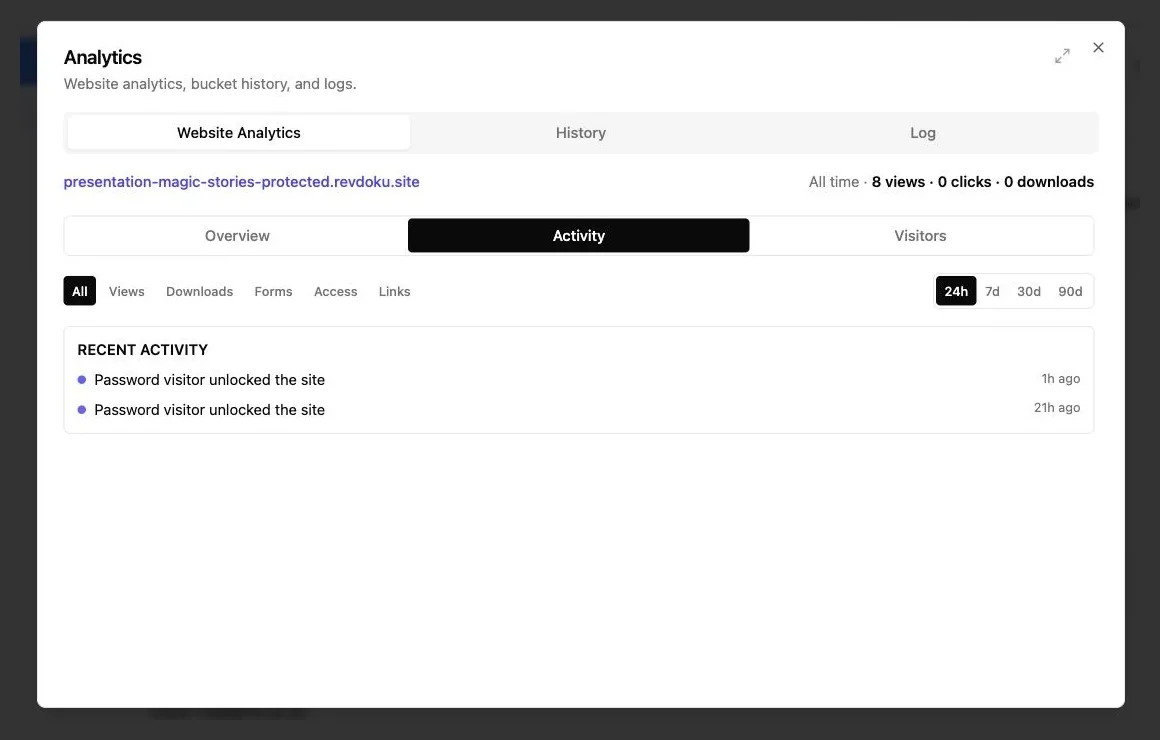
*After testing the course, return to Activity to review real events. This demo screenshot contains no names, email addresses, or location details.*
## Practical Uses for Exported Course Hosting
Static hosting gives finished exports an online home without forcing small projects into an LMS.
Common applications include:
- **Client review:** An instructional designer publishes a password-protected module so stakeholders can inspect navigation and media before LMS delivery.
- **Consulting deliverable:** A consultant shares a self-paced workshop with verified-email access and follows up after the client opens it.
- **Sales demonstration:** A course studio publishes a sample lesson that prospects can use in a browser without installing software.
- **Product education:** A small software company hosts a public interactive tutorial and updates it at the same URL after each interface change.
- **Agency handoff:** An agency places the course, facilitator guide, source notes, and presentation in one private bucket for the client.
Built-in feedback and contact forms let visitors respond without a separate backend. A focused prompt such as *“Which screen was unclear?”* usually produces better notes than an empty comment box.
Ask one question: do you need controlled delivery of a self-contained course or an academic record system? Revdoku addresses the first; an LMS addresses the second.
## Final Thoughts
Online hosting should preserve your course experience. Keep the complete export together, maintain relative paths, test every branch, and publish the folder through a real web URL. Choose access for the audience instead of defaulting to public.
Revdoku suits educators, consultants, agencies, and small teams that want to publish course exports, control access, see visitor activity, collect feedback, and update material through one stable online course hosting link. It hosts static HTML course files, but it does not add SCORM reporting, enrollment, payments, or server-stored learner progress.
To host an HTML course for clients or learners, create a bucket, upload the complete export, add protection if needed, and test the live link before sharing it.
Start publishing for free
Connect this AI to Revdoku so it can store files, create, update, and publish websites for me. Read and follow https://revdoku.com/prompt.md. A Revdoku account is required. If I do not have one, send me https://app.revdoku.com/users/sign_up?utm_source=revdoku.com&utm_medium=ai-chat&utm_campaign=connect_ai_first and wait until I confirm signup is complete. For ChatGPT, Claude, or another cloud AI, connect https://app.revdoku.com/mcp and complete Revdoku OAuth. For a local agent, use Revdoku's browser device sign-in and complete the connection in Revdoku. Never ask me for a password or API key in chat, or for a verification code. When Revdoku tools are connected, verify the connection, tell me you’re ready, and ask what I want to publish.
Copy Prompt
or
Create Free Account
## Frequently asked questions
### Do I need to upload the entire exported course folder?
Yes. Upload the launch page together with every supporting folder containing scripts, styles, images, fonts, audio, video, captions, and course data. Uploading only the main HTML file will usually cause missing media, broken styling, or failed navigation.
### Why does my course work locally but fail after publishing?
The most common causes are incorrect file paths, capitalization mismatches, missing assets, or browser restrictions hidden by opening the course directly from disk. Test the export through a local web server, preserve its folder hierarchy, and verify the published version in a private browser window.
### Which access option should I choose for my course?
Use a public link for open tutorials, password protection for small private groups or client reviews, and verified-email access when you need to identify visitors. Remember that access controls restrict entry but cannot prevent authorized users from copying or recording course content.
### Can static hosting track learner progress and quiz results?
Not in the same way as a learning management system. Visitor activity can indicate opens, page views, clicks, and downloads, but it does not prove lesson completion or assessment success. Use an LMS when you need enrollment records, SCORM or xAPI reporting, server-stored scores, certificates, or formal completion tracking.
### Can I update the course without sending a new link?
Yes. Export the revised course from the original authoring project, test it separately, and replace the files in the existing bucket while preserving the launch page and folder structure. Then verify the existing URL in a private window to confirm that the new version is live.
### How should I test a course before sharing it?
Check every navigation branch, interaction, media file, caption, download, and external service on the published link. Test on desktop and mobile, use an ordinary internet connection, and confirm that keyboard navigation, text contrast, and responsive layouts remain usable.
### When should I use static course hosting instead of an LMS?
Static hosting is a good fit for self-contained tutorials, client previews, workshops, product demonstrations, and reference materials that already run in a browser. Choose an LMS when you must manage learners, assign courses, collect payments, preserve progress, issue certificates, or report completion and scores.
---
[View the canonical page](https://revdoku.com/online-course-hosting/) · [Browse llms.txt](https://revdoku.com/llms.txt)